When you want to open a template, you need to go through the Choose Form dialog, which is a few more steps than most users want to take. In older versions of Outlook you could create Hyperlink buttons but Outlook 2010 and newer doesn't support hyperlink buttons and tighter security in Outlook now means you need to respond to a warning dialog before the template (or hyperlinked file) opens.
A PowerShell version to open templates is at Open Outlook Templates using PowerShell
You have some options to make using templates easier: Pin the template to Outlook's taskbar icon, Copy it into a folder in your data file, drag it to your desktop, or use a macro to open it.
If the template does not contain controls that require you to open it from the Template folder, you can store the template in other locations, including the Documents folder or Desktop; pin it to the Outlook icon on the taskbar, or copy it into a folder in your Outlook data file.
Pinned Templates
All email templates and some calendar and contacts templates can be opened using these methods. Templates containing scripts or some controls must be opened using the Template dialog.
Email templates that are pinned to the Outlook button on the taskbar are accessed by right-clicking on the Outlook button or you can copy the template to a folder in your Outlook data file. Recently used templates that are not already pinned may be listed on the Outlook icon's right-click menu.
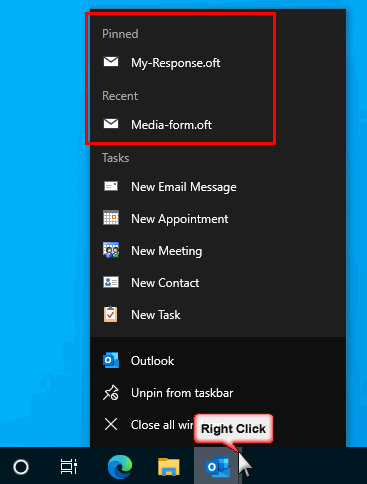
To pin a template in windows 11 open it then look on the jump menu and pin it. In windows 10 and older, you can drag it from the template folder at C:\Users\%username%\AppData\Roaming\Microsoft\Templates and drop on the taskbar button. To copy it to an Outlook folder, drag it to the desired folder. (I use a folder named Templates).

Open templates using a toolbar button
If you prefer to use a button on Outlook's toolbar, you can use a macro to open the template. To disable the warning message, you need to set a registry key.
See Disable the Unsafe Hyperlink Warning when Opening Attachments for the instructions to disable the warning dialog and the Open or Save dialog. Use this registry value with Outlook 2010 and newer if you add files to Outlook's Shortcut navigation pane.
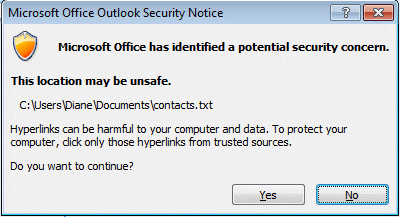
To create a button on the toolbar that will open a template in Outlook 2010 and up, you need to use a macro as it does not support hyperlink buttons found in older versions of Outlook. Additionally, opening a template hyperlinked to a toolbar button in Outlook 2007 brings up a security dialog.
If the template contains custom fields, the customizations will be disabled, and the template will be blank. These templates need to be opened using the Choose Form dialog. When you try to open the form, a dialog will open with this message:
Access to this form template file is blocked. If you trust the source of the form, on the Home tab, click New Items, click More Items, and then click Choose Form. In the Look In list, click User Templates in the File System, and then select and open the template you want. Get more information about opening an .oft file.

The solution
Create a macro that replicates opening a template from the Choose Form dialog using the Application.CreateItemFromTemplate method:
Sub MakeItem()
Set newItem = Application.CreateItemFromTemplate("c:\path\template.oft")
newItem.Display
Set newItem = Nothing
End Sub
Press Alt+F11 to open Outlook's VB Editor then copy and paste this macro into ThisOutlookSession. Add it to the ribbon or QAT. See How to use the VBA Editor for complete instructions to use the VB Editor. See Customize the QAT if you need help customizing the QAT.
If you want to use a macro to open different templates, assign the template path to a variable and pass the variable to the macro, like this:
Dim template As String

Sub OpenTemplate1()
template = "C:\Users\Diane\Templates\template1.oft"
MakeItem
End Sub

Sub OpenTemplate2()
template = "C:\Users\Diane\Templates\email.oft"
MakeItem
End Sub

Private Sub MakeItem()
Set newItem = Application.CreateItemFromTemplate(template)
newItem.Display
Set newItem = Nothing
End Sub
Send message to Contact using a template
This version of the macro will use a template to send a message to the selected contact.
This macro works with the selected contact. You can use it if a contact is open, as long as the contact is also the selected item. If you open a contact, read an email then switch to the already-open contact, you will need to use the GetCurrentItem function on this page: Outlook VBA: Work with Open Item or Selected Item
Sub SendToContact()
Dim strAddress As String
Dim objItem

Set objItem = Application.ActiveExplorer.Selection.Item(1)

 If objItem.Class = olContact Then
     strAddress= objItem.Email1Address & ";"
 End If

Dim newItem as Outlook.MailItem
Set newItem = Application.CreateItem("C:\path\template.oft")
newItem.To = strAddress
newItem.Display
End Sub
Open a Template and Add an Attachment
If you want to add an attachment to the message at the same time you open the template, you'll use newItem.Attachments.Add "C:\myfile.doc". Add it to your code after the line that opens the template (DUH!) and before the message is displayed (newItem.Display).
The macro will look something like this:
Sub AddAttachment ()
Dim newItem as Outlook.MailItem
Set newItem = Application.CreateItem("C:\path\template.oft")
newItem.Attachments.Add "C:\myfile.doc"
newItem.Display
End Sub
Open a published form
If you want to open a published form, use this code to call the form. You need to be viewing the folder you want the item to be saved in.
Use GetDefaultFolder function to use the default folder for the custom form type. For example, change the Set items line to this the following to create an appointment or meeting in the Calendar folder from any other folder:
Set Items = Session.GetDefaultFolder(olFolderCalendar).Items
Public Sub OpenPublishedForm()
   Dim Items As Outlook.Items
   Dim Item As Object
   Set Items = Application.ActiveExplorer.CurrentFolder.Items
   Set Item = Items.Add("ipm.note.name")
   Item.Display
 End Sub
Open a web page
Use this script if you want to open a web page using a button on Outlook's ribbon.
Sub OpenWebpage()
CreateObject("WScript.Shell").Run ("https://www.slipstick.com/")
End Sub
More fun with hyperlinks:
Create a Hyperlink on an Outlook Custom Form
Open All Hyperlinks in an Outlook Email Message
Add a button to the ribbon tutorial
This tutorial shows you how to add a button to one of Outlook 2013's ribbon tabs. If you prefer to add them to the Quick Access Toolbar (QAT), the steps are the same but you'll start in File, Options, Quick Access Toolbar. Note: In Outlook 2010 you cannot add buttons to the ribbon but you can add buttons to the QAT.
- Select Macros from the Choose commands from menu
- Select the macro. Only Public macros that you can run manually will be listed here.
- Click Add to add it to the QAT (or ribbon)
- To change the icon and display name, click Modify.
After you add a macro the ribbon, you cannot move the macro or change the macro or module name. If you do, you'll need to recreate the macro.

Select a template from File Open dialog
The macro will open the File Explorer dialog to a specific folder for you to choose a template. This macro uses late binding, so you won't need to set a reference to the Word object model to use it.
Sub ShowOpenDialog()
'Display the Open dialog box
Dim wdApp As Object ' Word.Application
Dim dlgOpen As Object ' FileDialog
Dim strFile As String

'Set wdApp = New Word.Application
Set wdApp = CreateObject("Word.Application")
 Dim vrtSelectedItem As Variant
    'Set the dialog box type to Open
    Set dlgOpen = wdApp.FileDialog(msoFileDialogFilePicker)

'Show only Outlook templates in the specific folder path
    With dlgOpen
         .InitialFileName = "D:\Documents\Slipstick Templates\"
        .Filters.Add "Outlook Template", "*.oft"

  If .Show = -1 Then
      strFile = .SelectedItems(1)

    Set newItem = Application.CreateItemFromTemplate(strFile)
      newItem.Display
    Else
    ' user clicked cancel
    End If

    End With

End Sub
Create a Hyperlink button
This works in Outlook 2007 and older versions as well as all Office applications that have the Assign Hyperlink option on customized buttons. You can hyperlink to any file, although programs (*.exe) may be restricted for security reasons.
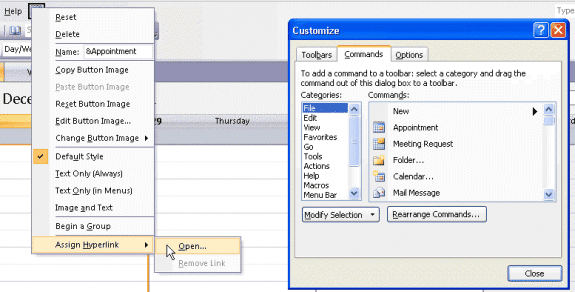
You can use any button in the Customize dialog (select a category on the left to see additional buttons). If you want to create a menu button, there is a blank one in the New Menu category.
- Right click on the toolbar area.
- Choose Customize
- From the Commands tab, drag a button (any button) to the Menu bar or a Toolbar
- Right click on the button to expand the customize menu
- Click Assign Hyperlink then Open and select the file you want to open.
Video Tutorial
In Outlook 2007's main interface and in Outlook 2003 and older, you'll add a button to the toolbar as shown in the following video.
Disable the hyperlink warning
When you open templates or files using a hyperlink button or from Outlook's Shortcut navigation pane, you'll receive an unsafe hyperlink warning. You can disable the warning by editing the registry.
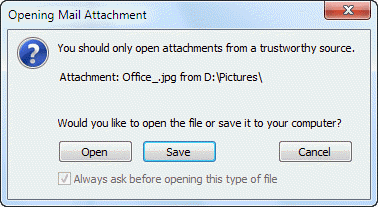
You may also receive the file open or save dialog when using a hyperlink button or shortcut. To disable this dialog when the "Always ask" field is grayed out, run Outlook as administrator. The "always ask" checkbox should be clickable. If not, you'll need to edit the registry for each file type. See Disable "Always ask before opening" dialog for more information.
The solution
Add a registry value to disable the warning dialog.
Open the registry editor and browse to the following registry subkey for
Outlook 2016 / 2019 / 365:
HKEY_CURRENT_USER\Software\Microsoft\Office\16.0\Common\Security
Outlook 2013:
HKEY_CURRENT_USER\Software\Microsoft\Office\15.0\Common\Security
Outlook 2010:
HKEY_CURRENT_USER\Software\Microsoft\Office\14.0\Common\Security
Outlook 2007:
HKEY_CURRENT_USER\Software\Microsoft\Office\12.0\Common\Security
Note: If the Security key does not exist in your registry, you'll need to create it too.
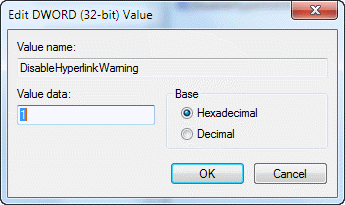
Right click on Security key and choose New, DWORD. Type (or paste)
DisableHyperlinkWarning as the Value name then double click on it. Enter 1 as the Value data to disable the warning. Delete the key or use a value of 0 to enable the warning.
Group policy keys for administrators
Administrators will add the DisableHyperlinkWarning DWORD to the Policy key instead:
Outlook 2016 / 2019 / 365:
HKEY_CURRENT_USER\Software\Policies\Microsoft\Office\16.0\Common\Security
Outlook 2013:
HKEY_CURRENT_USER\Software\Policies\Microsoft\Office\15.0\Common\Security
Outlook 2010:
HKEY_CURRENT_USER\Software\Policies\Microsoft\Office\14.0\Common\Security
Outlook 2007:
HKEY_CURRENT_USER\Software\Policies\Microsoft\Office\12.0\Common\Security
Do It For Me
If you don't want to edit the registry yourself, you can download and run the following registry key for your version of Outlook.
Outlook 2016Outlook 2013Outlook 2010
Outlook 2007
How to use the macros on this page
First: You need to have macro security set to the lowest setting, Enable all macros during testing. The macros will not work using the options that disable all macros or unsigned macros. You could choose the option to warn about macros and accept it each time you restart Outlook, however, because it's somewhat hard to sneak macros into Outlook (unlike in Word and Excel), allowing all macros is safe, especially during the testing phase. You can sign the macro when it is finished and change the security to allow signed macros.
To check your macro security in Outlook 2010 and newer, go to File, Options, Trust Center and open Trust Center Settings, and change the Macro Settings. In Outlook 2007 and older, look at Tools, Macro Security.
After you test the macro and see that it works, you can either leave macro security set to low or sign the macro.
Open the VBA Editor by pressing Alt+F11 on your keyboard.
To put the code in a module:
- Right click on Project1 and choose Insert > Module
- Copy and paste the macro into the new module.
More information as well as screenshots are at How to use the VBA Editor

Michael says
MS broke the pin to outlook in Windows 11 do you know of a way to get this feature back, or some kind of reasonable workaround?
Phillip says
Hi Diane,
I was wondering how I would go about exporting the toolbar and importing to multiple computers. Whenever I try this it shows on the toolbar, just in a different spot
Diane Poremsky says
File > Options > Customize ribbon - you need to do this with each outlook item you change. Or copy the customUI files - they are at C:\Users\%username%\AppData\Local\Microsoft\Office
Yohann says
Hello Diane, thank you for all these resources. I use FileDialog(msoFileDialogFolderPicker) to open the Excel dialog box in order to select a folder; yet, sometimes the dialog box opens in the background. It is quite boring because the procedure seems locked while it is just due to the dialog box we can't see. Do you know if there is a way to open the dialog box in the foreground please? Thank you. Yohann
Diane Poremsky says
As far as I know, there is not an option to force it to the front but try adding .show after you open (if you aren't already using it) This would be in addition to the if liner, if using that.
With dlgOpen
.InitialFileName = "D:\Documents\Slipstick Templates\"
.Filters.Add "Outlook Template", "*.oft"
.show
If .Show = -1 Then
Yohann says
Thank you Diane for your reply. You me be interested by this one: excel - FilePicker in Macro opens dialogbox in background - Stack Overflow
Ed Nowakowski says
I'm trying build a simple macro to open an email template using your code above but I can't ever get it to run properly as it gives me a run-time error message saying it can't open xxx. I've tried this on multiple machines with the same issue. I'm sure I'm missing something.
Diane Poremsky says
Is the path correct?
Is the file stored in a cloud storage folder? (They may or may not open from the cloud - I had to move my templates into a local folder).
Bill Mosca says
Diane - Thanks for a very simple solution. I used to be an Access developer so I appreciate your methods here.
Scott says
This used to work for me but I have recently updated Outlook and it is now saying that I don't have the permission to open my template via the Macor/Button... any suggestions??
Diane Poremsky says
Where is the template stored? Did you just install regular updates or upgrade to a new version of outlook?
Mateus says
Hello, Diane!
We created a new template with customizable fields and published it in a public folder of our organization (created via Exchange). So now everyone can access it via the "Choose Form" dialog, but, as you said in this post, it's a little bit too much steps for some people.
I've been trying some of those solutions, but I'm having trouble making it all work.
What is your suggestion to make a shortcut to this template and replicate to all of our employees' Outlook?
Thanks in advance!
Troy says
I've looked for this so long - thanks a ton! Now trying to expand a bit to include multiple templates/macros but not following how to add. I'm able to duplicate the code changing the path to the macro I want to use and append it in the VB editor under my project. I'm then able to add that to the ribbon. But when I go to click on the 2nd macro template it doesn't do anything. The first one continues to work however. Suggestions?
Snippet of my VB Code:
Sub MakeItemScheduling()
Set newItem = Application.CreateItemFromTemplate("C:pathto1st.oft")
newItem.Display
Set newItem = Nothing
End Sub
Sub MakeItemProjectCompletion()
Set newItem = Application.CreateItemFromTemplate("C:pathto2nd.oft")
newItem.Display
Set newItem = Nothing
End Sub
Diane Poremsky says
As long as the path it correct, it should work. Add msgbox "MakeItemProjectCompletion" right before set newitem and see if the dialog box comes up. if so, copy the template path and paste it into windows explorer - does the template open?
Troy says
Hi Diane - well I went back and re-read your original instructions and was able to get it working with the following:
Dim template As String
Sub OpenTemplate1()
template = "C:\Users\Troy\AppData\Roaming\Microsoft\Templates\SchedulingTemplate.oft"
MakeItem
End Sub
Sub OpenTemplate2()
template = "C:\Users\Troy\AppData\Roaming\Microsoft\Templates\ProjectCompletion.oft"
MakeItem
End Sub
Private Sub MakeItem()
Set newItem = Application.CreateItemFromTemplate(template)
newItem.Display
Set newItem = Nothing
End Sub
Thanks for the quick reply and appreciate you sharing these.
I would also add I've taken this a step further to use the self-signed Cert in Office and digitally signing it to the VB project which makes the pop-ups go away as the macros are now trusted. https://www.groovypost.com/howto/howto/office-2010-outlook-self-signed-digital-certificate/
Thanks!!!
Diane Poremsky says
you don't want to sign the macros until after you are 100% sure its working - each time you edit a macro, you need to remove and re-sign the macro. (My instructions are at Using SelfCert to sign a macro
Kylie says
I might be missing something, but I have a simple workaround. Open a blank custom template, such as a task template, with the name of the template in the subject field for easy identification. Save it. It will appear in the task list. Copy and paste it multiple times and you will have plenty of blank templates ready to edit with a single click.
Diane Poremsky says
That's fine if you don't mind having blank items hanging around. You could also copy the template from the file system and paste it in an Outlook folder - when you open it, it creates a new item.
Dave says
Is there a simple way to integrate the FROM field into the macro? I would like
to open my .oft file using a different FROM email address that I have Send on Behalf Of rights to (not Send As). Thanks.
Sub MakeItem()
Set newItem = Application.CreateItemFromTemplate("c:pathtemplate.oft")
newItem.Display
Set newItem = Nothing
End Sub
Diane Poremsky says
Yes - before newitem.display, you set the account. https://www.slipstick.com/developer/send-using-default-or-specific-account/ shows how - for send on behalf of, use newitem.SentOnBehalfOfName = "alias@domain.com"
Heather says
Thank you for this, it worked like a charm. However, the new group (which I named Templates) is huge. How can I make the icons smaller/compact? The icons (macro icons) appear to be full-sized, and the full template name is displayed. I'd love it if I could get them simply with abbreviated template names and/or smaller icons. Is there a way to set/limit the size of my new group? Thank you!
Diane Poremsky says
After adding the buttons to the ribbon, you can rename them and change the icon - click the Rename button. The size is automatic - I'm not sure how outlook decides to go small but how crowded the ribbon is is one cause. The first button in a group might be large, additional ones small. Not sure if display name has an effect - but the ones i renamed with longer names seen to be small (when the ribbon is crowded.).
Janine White says
This is exactly what I was looking for. Thank you!
One thing that it would be helpful to include is that the macros will be visible when Macros is selected in the Customize QAT dropdown list. It's simple, but it took me a little while to figure out how to add them once I entered the code.
Christine_A says
I came up with an alternate solution that doesn't involve any macros. Using the Shortcuts icon at the bottom of Outlook, I created shortcuts to my favorite templates by dragging them from their folder into the Shortcuts group, and now I can access them all with just one click. You can also add the Shortcuts icon to your ribbon at the top by customizing the ribbon, creating a new ribbon group, and adding Shortcuts from All Commands to it if desired. It also works if you want to create a folder in your Documents for all your Outlook templates and then just drag the whole folder itself into the Shortcuts group. I don't know if this helps anyone, but to me, it's easier than creating macros, although I do know how to do those too.
Diane Poremsky says
It's not really easier - unless your company doesn't allow macros, then it's your only option. It doesn't work with custom forms and macros can pick up content from selected items to customize the message. For example, if you are using templates to send replies, you can get the name and address from the selected message or select a contact and open the message addressed to the contact.
Tiago says
Hello, thank you for this explanation.
Does this work with custom forms for calendar events too? I have several of these forms published in my Personal Forms Library, but I can't find the path to them. Can you help me? Thank you.
Diane Poremsky says
Yes, it will. You'll use the version lower on the page that works for custom forms - change this line to use the IPM.Appointment.customname you are using:
Set Item = Items.Add("ipm.note.name")
Johnny says
Appled the Multiple Template VBA , only the first one opens the second one does not: Run time error 2147287038 (800300002) Cannot open file , the file is in the same folder as the first one. C:\Users\Username\AppData\Roaming\Microsoft\Templates\2nd.oft. ...help???
Diane Poremsky says
The template opens ok if you paste the path into the address bar of windows explorer? Try changing the filename to something with all lower case letters and see if it works. Also check the file permissions.
Adonal says
Thanks for the quick tips, it just seems like I should be able to embed this newly created template into the quick steps menu. All I really want to do is quickly open templates from our shared network drive when creating emails for routine events. Our office has about 10 templates we use regularly to initiate our process, If I save them as regular quick steps I lose all my formatting and hyperlinks. Creating the macro to have the templates accessible is great but the 10 templates would take up a lot of room on the ribbon. Anyway I can format the newly created group to look more like the quicksteps or do I have no control over the appearance other than the icon I chose? Thanks.
Christine_A says
You can use the Shortcuts icon at the bottom of Outlook to drag the templates from your shared drive and create shortcuts out of them without all of the hassle of having to create macros. They'll always be readily accessible in your Outlook shortcuts that way.
Diane Poremsky says
That works for some templates, but not all (it depends on what is in the custom form), and not for custom forms. Plus, unless you work in the shortcuts bar, you'll need to switch folders to use them. Adding them to the shortcuts bar can be a hassle too, especially if you need to reset the bar. The big advantage is you can do things like pick up addresses or other data from selected items - which could save you some additional steps.
(You can also create a folder in your mailbox and drag templates to it.)
Michael says
I was able to get the macro to work using multiple templates. Thanks a lot for that!
I was wondering if it would be possible to have the macro take whatever email address I have in my clipboard and paste it into the To: address when I click the Template button?
Thanks again!
Diane Poremsky says
Sure. See https://www.slipstick.com/developer/code-samples/paste-clipboard-contents-vba/ for an example. Add the 4 lines of code above the first screenshot to your macro (before the template loads) and add a reference to the forms library then add this after the template loads & before display -
newItem.to = strPaste
Michael says
Tried something this, get no errors but the emails from clipboard aren't pasted into the To:
Dim template As String
Sub Followup()
Dim DataObj As MSForms.DataObject
Set DataObj = New MSForms.DataObject
DataObj.GetFromClipboard
strPaste = DataObj.GetText(1)
template = "C:\Templates\1.oft"
MakeItem
End Sub
Sub Retention()
Dim DataObj As MSForms.DataObject
Set DataObj = New MSForms.DataObject
DataObj.GetFromClipboard
strPaste = DataObj.GetText(1)
template = "C:\Templates\2.oft"
MakeItem
End Sub
Private Sub MakeItem()
Set newItem = Application.CreateItemFromTemplate(template)
newItem.To = strPaste
newItem.Display
Set newItem = Nothing
End Sub
Diane Poremsky says
Try adding Dim strPaste As String at the top, with the dim template line.
Ofer says
10X
Very Usefully
Dylan says
Hi, I'm trying to use the "Open a published form" code above to open a custom meeting invite form in Outlook 2013, but when I try to send the meeting I get this error:
"This meeting is not in the calendar folder for this account. responses will not be tallied."
The form works as expected when I use the "Choose form" dialogue, any ideas?
Diane Poremsky says
It's these lines - they tell outlook to use the current folder, not the default folder.
Set Items = Application.ActiveExplorer.CurrentFolder.Items
Set Item = Items.Add("ipm.note.name")
change the line that sets the folder to
Set Items = Session.GetDefaultFolder(olFolderCalendar).Items
Philomeno Cappador says
I have some vba code to bring the Stationery Picker that I started since Outlook 97, I have modified it through several versions all the way up to 2010, however, now I am at 2013 and it stopped working, I get an Error 91: Object variable with block variable not set.
Specifically this piece of code is the culprit in 2013:
set objCB=Application.ActiveExplorer.Commandars.FindControl(, 5611)
This used to bring up the Stationery Picker menu.
Your help is greatly appreciated.
Diane Poremsky says
Outlook 2013 (and up) doesn't support command bar objects. Use the IRibbonExtensibility interface in an Outlook 2013 add-in instead of command bars. Yeah, i know, this probably won't help you because of how you were using it (plus I think it's a bit more complicated). More info: https://msdn.microsoft.com/en-us/library/office/ff868522.aspx
JimmB says
I'm using Outlook 2007 on Windows 7. I've read about the CommandBars IDs and I've searched all over the web, but can't find the ID for this window.
JimmB says
I've done that.
It occurs to me, can a macro initiate keystrokes in a dialog box? 4 down arrow keystrokes, followed by 3 tabs would do it.
Diane Poremsky says
That would be Sendkeys and it would only work if we can open the dialog using VBA.
Diane Poremsky says
okay, heard back from my developer friends and they said no, you can't bring up the form chooser using VBA. What version of Outlook do you use? You might be able to get it open using the commandbars ID, then could use sendkeys to select the templates from the dropdown, but that is really messy. There are some windows macro apps - like autoit that might be able to do it.
JimmB says
I would like to have a macro that just takes me to the Choose Form... User Templates in File System dialog box since I have a lot of templates -- too many to create a macro for each one. This would save a couple of mouse clicks each time.
Can anyone tell me if that code is feasible, and give me an idea where to find it? I have spent hours searching and not found the answer yet.
Diane Poremsky says
Well, you can get close by customizing the ribbon or QAT - just add the choose form command to either. It starts in the Standard forms library, so you'd need to select the user templates folder, but it will save a few steps. I'll check on a macro, but I don't think it's possible.
Phil Reinemann says
For Windows 7 (and later?) MS makes available a "problem state recorder". Open a command prompt and type psr at the prompt and hit Enter/return.
Start a recording. Pause or stop along the way.
It captures a lot of stuff that happens. I've used it to document how-to for my users.
Note that if it takes more than 25 steps it looses the earlier images (FIFO), but there is a setting that allows that number to be changed.
I haven't tried it for macros as running a macro is likey one step, but stepping through the macro may work.
KenLV says
I don't see a Tools menu in Outlook 2016. But I had set it from the Developer Ribbon and it WAS set for "Notifications for digitally signed..." I assume that's the only place/same place?
However, even set that way it WAS working in Outlook. Then, when it wasn't working in the VBA editor (but still working in Outlook) I switched it to "Enable all...".
I had exited Outlook and rebooted and restarted Outlook and it was still not working in either one. Got no message/warning in Outlook but did get the above error in the editor.
Now...
I just - in Outlook - tried again and initially got an error message that I accidentally got rid of on one; then I ran the others... no problem and then reran the first and it too ran!
I'm telling you, this thing is possessed.
I tried to RUN in editor and these "run" individually - and if I run this part:
Sub MakeItem()
Set newItem = Application.CreateItemFromTemplate(template)
newItem.Display
Set newItem = Nothing
End Sub
it opens whichever of the other two was last run - Monday or Tuesday.
However, I still can NOT "Step in". It just gives the error "bing" tone but no error message and nothing runs.
I wish I had whatever tool you are using to demo them so I could show you I'm not insane. "/
Ken
Diane Poremsky says
I use Camtasia to record the screen, although there are other utilities that can do it too.
>> I'm telling you, this thing is possessed.
LOL That's Outlook for you. No one is going to argue against that.
Are you still getting the error on the second macro? As long as both are working, create buttons on the ribbon for them and go on. If #2 is still failing, select it on the hard drive, Ctrl+C to copy then Ctrl+V to paste it. Rename the copy then use the copy in the macro. The error went away when I tried the copy and then the original one worked. See, Outlook is possessed. :)
I fixed the Tools, Trust center part. For some reason I was thinking you had 2007.
Ken says
Diane, first, thanks for these great tutorials. Having just moved from Win 7 and Office 2007 to Win 8.1/10 and Office 2016, they are helping me keep what little hair I have left. But now on to my problem...
In Outlook 2007 I had, as you have shown here, created a toolbar menu item (E&Mail Templates) and hyperlinks to my 2 dozen or so templates that I use on a daily basis. Each with a shortcut key (by putting an ampersand in the name somewhere. For example: Order &Monday, Order &Tuesday, &Bounced Back, etc... ).
So opening a specific template was as simple as "ALT+M, B" to open my "Bounce" template.
I found quickly that you can't set up hyperlinks to templates in 2016. :(
This is my first time using VBA but I set up several macros as you laid out. A couple of quick questions though...
What was your second macro supposed to do? The one that says:
"If you want to use a macro to open different templates, assign the template path to a variable and pass the variable to the macro, like this:"
Because when I created it, all it did was open the first template I had assigned in it (I had two total for testing). Though there are two separate macros listed for them as well. Here's exactly how I entered it:
Dim template As String
Sub OrderMonday()
template = "C:\Users\Ken\AppData\Roaming\Microsoft\Templates\Order day on Monday!!.oft"
MakeItem
End Sub
Sub OrderTuesday()
template = "C:\Users\Ken\AppData\Roaming\Microsoft\Templates\Order day on Tuesday!!.oft"
MakeItem
End Sub
Sub MakeItem()
Set newItem = Application.CreateItemFromTemplate(template)
newItem.Display
Set newItem = Nothing
End Sub
I now have three new macros:
Project1.OrderMonday
Project1.OrderTuesday
Project1.MakeItem
Monday opens the Monday template.
Tuesday opens the Tuesday template.
MakeItem opens the Monday template.
BTW, how do I change the naming so they all don't have "Project1" at the beginning? I didn't see any "save as" type file option.
Also, how do you modify the ALT shortcut keys of new/existing Ribbon items?
Thanks again, Ken
Diane Poremsky says
It looks correct. Step through the macros in the VBA editor - do they work correctly? Stop when the yellow line is on Set newItem = Application.CreateItemFromTemplate(template) and hover over template, is the correct template path showing?
Project1: You can't change it in the macro name in the macro picker. Are you making them into ribbon buttons? You can rename the buttons - in the customize ribbon dialog, choose Rename after adding it to the ribbon.
Diane Poremsky says
Assigning or changing shortcuts: You can't. If you add to the QAT the shortcuts are shorter.
Ken says
Sorry, like I said, first time doing this...I don't know what you mean "Step through the macros in the VBA editor ".
I created this macro by "insert[ing] a module" - it seemed to be the only way I could create something new. (Like I said, I really have no idea what I'm doing here - clearly.) I saved it and added it them to the ribbon (sorry, I can't add a screenshot or I would).
To see if this is what you wanted me to do, in the editor I just used the Run command and it brought up macro dialogue box where I could choose the macro and run (blue highlight line, not yellow so I think that this is not where you want me to be but...) it then it says "the macros in this project are disabled...refer to host application to determine how to enable..." (but I CAN run them as Ribbon items).
Diane Poremsky says
Hmmm.
If the macros are disabled, they should be disabled everywhere, not just in the editor.
I hadn't had a chance to test my macros - and got the same error on the second one. Will see what i can figure out. It definitely doesn't like the file path.
Diane Poremsky says
That was weird - I got the error message about the second template right after I created both test templates but after copying the templates and running tests, it opened. I'm guessing Outlook had a hold on it for some reason.
you would use F8 or the Step Into button on the Debug Toolbar to walk through the macro so that you can check variables on line or see where it stops.
I have a video example here - https://drive.google.com/file/d/0B22iPSInt7uxMVhsa0tJTFZ4TlE
KenLV says
Can't Step Into either, same "macros disabled" error message.
KenLV says
BTW, I'm still unclear what exactly this macros was supposed to do. I thought maybe give the choice of which of the templates but I really don't know since I can't get it to run correctly.
Diane Poremsky says
It won't give you a choice (in a dialog where you'd pick between them) but if you create buttons for the two macros, you'll click a button to open the template.

KenLV says
Also, in that error message it says "The Please refer to the online documentation or host application to determine hot to enable macros."
My options are then "OK" or "Help"
Help brings me to a dead link in the developer network leaving me stuck: https://msdn.microsoft.com/Areas/Epx/Content/500.aspx?aspxerrorpath=/query/dev11.query
KenLV says
Argh... now the macros have stopped working in Outlook itself.
Where'd I put my Outlook 2007 install disk!!! :(
Diane Poremsky says
Go into Tools, Trust Center (older versions) or File, Options, Trust Center (2010 and newer) and verify that the macro security is set to low (allow all macros). If so, set it to high and apply, then set it back to allow all macros.
KenLV says
Also, maybe I should take this to the forums as this is getting quite long/complicated and I don't see it ending soon. Plus, I can attach screenshots there.
Diane Poremsky says
Yes, longer problems are usually better in the forums - plus maybe one of the visitors will see something I overlooked. (In an instance a couple of weeks ago, i didn't notice a missing "s" but someone else did.)
Pete says
how would you dimension the newItem variable?
Diane Poremsky says
you can use
dim newitem as outlook.mailitem
or just
dim newitem
erikofmke says
Is there any way to get a template to open with an alternate "From" listing. I have done the mods for changing my "Send on Behalf" to a "Send As" for my departments shared mailbox. I have added the template to the tool bar. However, in the heat of battle the changing of the "From" can be overlooked.
Diane Poremsky says
If it was it's own account, you could set it in the template.... but since you are using a toolbar button to open the template, you can set it as it opens.
Replace newitem.display with
With newitem
.SentOnBehalfOfName = "sharedalias@domain.com"
.Display
End With
erikofmke says
Perfecto! Thanks Again!
Phil Reinemann says
What is the "Set newItem = Nothing" for?
Was it copied from other examples and really should be "Set newItem1 = Nothing" and "Set newItem2 = Nothing"?
(And, for my own edification, would "Set newItem1 = newItem2 = Nothing" work?)
Diane Poremsky says
The set = nothing line clears the object from memory before the macro exits. In this combined macro it would be
Set newItem1 = Nothing
Set newItem2 = Nothing
RE: would "Set newItem1 = newItem2 = Nothing" work?
You could try it, but I don't think it will work in VBA.
David Styles says
Hi Diane,
Works great, Thank you.
Just also want to say I have learnt more about Outlook's capabilities in the last couple of months from your website than I have in all the years I have been using Outlook. You explain things so clearly and concisely. Keep up the great work and thanks again.
David Styles says
Thank you for your very prompt reply. If I browse to the folder where both templates are stored they will both open independently. I was hoping that by launching the macro both templates would open together so the user would be prompted to complete both. One is to place an appointment in a diary and the other to send a separate e-mail confirmation to a client.
Diane Poremsky says
Sub MakeItem()
template1 = ("\\HF-SBS\Company\DiaryApp.oft")
template2 = ("\\HF-SBS\Company\AppConf.oft")
Set newItem1 = Application.CreateItemFromTemplate(template1)
Set newItem2 = Application.CreateItemFromTemplate(template2)
newItem1.Display
newItem2.Display
Set newItem = Nothing
End Sub
David Styles says
Hi Diane, I have found your ideas a real help and has given me a good introduction to the real power of Outlook. I am trying to set a macro to open two templates and have followed your guidelines but it only opens 1 template. Can you please guide me as to where I am going wrong. My macro looks like this:-
Dim template As String
Sub OpenTemplate1()
template = ("\\HF-SBS\Company\DiaryApp.oft")
MakeItem
End Sub
Sub OpenTemplate2()
template = ("\\HF-SBS\Company\AppConf.oft")
MakeItem
End Sub
Sub MakeItem()
Set newItem = Application.CreateItemFromTemplate(template)
newItem.Display
Set newItem = Nothing
End Sub
Just so you know the templates are stored on our Small Busienss server.
Thanks
Diane Poremsky says
The code looks correct. What happens when you use the macro for the second template? Does that template open correctly if you browse to the folder and double click on it?
Jack M. O'Leary says
Diane,
I took one more crack at it, and came up with this version that seems to work.
Jack
Public Sub OpenPublishedForm()
Dim Items As Outlook.Items
Dim Item As Object
WindRaised = Application.ActiveExplorer.CurrentFolder
If WindRaised = "Calendar" Then
StartDa = Application.ActiveExplorer.CurrentView.SelectedStartTime
EndDa = Application.ActiveExplorer.CurrentView.SelectedEndTime
Set Items = Application.ActiveExplorer.CurrentFolder.Items
Set Item = Items.Add("ipm.Appointment.VacationEvent")
Item.Start = StartDa
Item.End = EndDa
Item.Display
Else
MsgBox ("This Action cannot be executed unless you are viewing your calendar")
End If
End Sub
Diane Poremsky says
Cool. Thanks for sharing.
Jack M. O'Leary says
Thanks for your thorough How to. It was very helpful to me in getting an older version custom appointment form into Office365. One final glitch is that my QAT button / macro code to open the published form doesn't inherit the active date chosen on the calendar so behaves differently than opening the form manually. Jack
Diane Poremsky says
Yeah, that is a know issue - I think you need to use vba to use the selected date but I don't have any code samples that show how to do that.
Sam Stinger says
HI Diane,
It works like charm. Thank you so much for sharing such a valuable piece of information. I would be grateful if there exits any way to integrate/package this code so that it can be executed on multiple machines rather going and touching the VBA editor on every workstation. Any help will mean a lot.
Thanks
Sam
Diane Poremsky says
You'd need to compile it into an addin then distribute the addin using a logon script.
Antoni says
Thank you,
Workes great.
I'm looking for a way to integrate this into every user account in our organization.
Can this be done using GPO or Citrix roaming profile?
Thanks on advance.
Antoni
Diane Poremsky says
Macros are hard to deploy as the user needs to 'touch' the vba editor to enable them. Sorry.
Jason says
Thank you, thank you, thank you, thank you! I have dreaded the slow process of creating a new email from a template for so long, but today, thanks to you, I can now create new emails from specific templates with a single click!!
erikofmke says
Very Nice. I've never done this before, so I was playing around and guessing on how to add another template. I had 2, so I figure out that I could clone the macro, change the MakeItem to 1 and 2 (or more) and that create separated Objects in the macro list.
I used:
Sub MakeItem1()
Set newItem = Application.CreateItemFromTemplate("C:\Users\ErikC\AppData\Roaming\Microsoft\Templates\IT Dept.oft")
newItem.Display
Set newItem = Nothing
End Sub
Sub MakeItem2()
Set newItem = Application.CreateItemFromTemplate("C:\Users\ErikC\AppData\Roaming\Microsoft\Templates\ITtoUS.oft")
newItem.Display
Set newItem = Nothing
End Sub
It worked awesome
Giulio B. says
Thank you very much for the very clear instructions.
Is it possible to run the macro to apply the template to an answered message and not to a new message?
Thank you again.
Diane Poremsky says
Use it as the reply template? Yes, you can do that. You need to put a little more code into it - the macros at https://www.slipstick.com/developer/run-a-script-rule-autoreply-using-a-template/ are used for auto reply but kind of give you an idea of what you need to do for the body. You'd also need to work with the selection. Ah, what the heck :) I updated the page to include a macro that you run when needed.
Phil Reinemann says
The W7 clipboard viewer (I have Excel open) shows the copied text without newlines too.
Diane Poremsky says
Thanks I'll see if i can repro because it should copy the code correctly. :(
Phil Reinemann says
I think it has something to do with the html code on this web page such that when copied the newlines or carriage returns or both aren't seen by the clipboard such that when pasted they append each line to the previous line.
I've seen this on other code pages where to copy the code they provide a special "copy" button which takes the basic code, maybe minus formatting, and puts it in the clipboard.
I tried copying the template1, template2 and MakeItem code into Notepad and they pasted as one long line, same as in the VB editor window. It's not a lot of code so I just put in the newlines where appropriate. (Except for one which I missed, so I got errors about object does not support this method for "newItem.DisplaySet" and even here, it didn't put in the newline between Display and Set.
In any case when I fixed it all, the code works great. Again, thanks!
Diane Poremsky says
Which browser are you using? I'll try to repro the problem.
Phil Reinemann says
Works great. I have three forms I commonly use and I was going to ask before reading this how to make Choose Form go straight to User Templates in File System but this exceeds that need (at the cost of Outlook real estate). I can live with the space-loss (until I need many more buttons).
I copied Diane's code and pasted into VBA, but it put it all three macros on one line. Is there a better way to paste the code?
Diane Poremsky says
That is how you are supposed to paste the code, but it should paste it on separate lines. With some other programs, I need to paste into Notepad then copy from notepad and paste in the app. That might work here. Sometimes if you double click on the code on these pages, it goes into a single line - if you copy it, it pastes as separate lines.
Daktus says
just use free software called "fingertips" for this and other links
Diane Poremsky says
I'm assuming you updated the path here - Set newItem = Application.CreateItemFromTemplate("c:\path\template.oft") - not doing so should trigger an error though.
david hilton says
I have it set at " Notifications for all macros"
Diane Poremsky says
And no errors when you click the button? Does the macro work if you try to run it from the VB editor?
david hilton says
I have gone back thru you how to and followed all the steps, amazing what happens when one does that. The button is now on the ribbon but when I press it nothing happens. What do I do know?
The macro I copied from your site follows:
Sub MakeItem()
Set newItem = Application.CreateItemFromTemplate("c:\path\template.oft")
newItem.Display
Set newItem = Nothing
End Sub
Diane Poremsky says
Is macro security set to low? Check in File, Options, Trust Center, Macro Settings.
david hilton says
Hi, when I click on the word macro unlike your video no choices appear in the left pane macro box for me to click onto to move to the right pane
Diane Poremsky says
Which macro are you using? If the macro name line is like this: sub macroname (item as mailitem) the macro is called by other macros or is used in a run a script rule. It won't be in the list because you can't run it directly. If it's not that, post the macro here and i'll look at it.
david hilton says
Sorry to be obtuse but I am a newbie, I ran the macro and it said it worked but when I go to select macros the choice is their but their is nothing below it to click on it to move it from the left panel to the right panel, could you please walk me thru it with a little more detail, I am sure I am missing something
Diane Poremsky says
Not a problem. I really should have a better video showing how to do it. See if this helps you see how to do it - https://www.youtube.com/watch?v=b576Ai26bvc
david hilton says
how do you do this for outlook 2013
Diane Poremsky says
You need to use one of the macros and customize the toolbar - File, Options, Customize Ribbon. Select Macros from the dropdown and add the macro button to the ribbon.
Keith Larsen says
Once a template is created and saved a file, use Windows Explorer to go to the tempalte folder. Select the template file(s) and drag and drop or copy them into any folder in Outlook. We create a folder called "-Forms" so it floats to the top where the template files are all quite easy to find and launch.
Diane Poremsky says
Yep, that is one of my favorite ways to use and store templates - the nice part is, when you use an exchange mailbox, they are always available. Even with a pst file, they are always backed up. :)
سام (@SamInMpls) says
This was working perfectly until I upgraded to Outlook 2013. Now the buttons do nothing.
Diane Poremsky says
Do you have macro security set to low? That is the most common reason for macros to stop working and you don't receive errors.
Andy says
Thanks very much! That worked perfectly.
Andy says
To update re: Xobni - after disabling, running macro, relaunching Outlook and reenabling Xobni, the macro works fine.
Andy says
Another question: is it possible to have this work in a way such that the custom contact form record will always save to the contacts folder regardless of the folder from which I execute the macro? Thanks again, Andy
Diane Poremsky says
You'd set the folder in this line:
Set Items = Application.ActiveExplorer.CurrentFolder.Items
assuming a subfolder of the default called shared
Set Items = Session.GetDefaultFolder(olFolderContacts).Folders("Shared").Items
See working vba non-default folders/ for more details
Andy says
Thank you - I set Macro Settings to "Enable all macros..." Still didn't work.
On a whim I just looked at my COM Add-Ins wondering if any of them might be interfering. When I disabled Xobni, the macros worked.
Now I have a different issue (macros versus Xobni) but at least I know that macros work.
Thanks!
Andy
Diane Poremsky says
Thanks for the update. I had no idea Xonbi would affect it - I'll keep that in mind when other users complain that macros don't work.
Andy says
Hello Diane! I'm brand-spankin'-new to VBA and feel like I've jumped into the deep end of the pool (although I suspect I’m just splashing around in the kiddie pool still). I'm very excited to have found your site!
I'm having difficulty with the macro to open a published form: (a) created a custom contact form to use with a specific set of contacts for a periodic mail merge; (b) published it to the "Personal Forms Library" and its message class is IPM.Contact.PIPECOI (it's named "PIPECOI"); (c) created a macro in "ThisOutlookSession" with the following:
Public Sub OpenPublishedForm()
Dim Items As Outlook.Items
Dim Item As Object
Set Items = Application.ActiveExplorer.CurrentFolder.Items
Set Item = Items.Add("ipm.Contact.PIPECOI")
Item.Display
End Sub
When I run the macro nothing happens. I also created a button on the ribbon for the macro, which doesn't work either. I’ve tried running the macro when in a variety of folders but get the same result. Because I’m so very new to this, I don’t know if I’ve missed something obvious or if there is another issue I need to run-down. I’ll be grateful for any ideas or suggestions - thanks very much!!
Diane Poremsky says
Is macro security set to low? Once you are done testing, you can sign the macro and raise the security level if desired.
doug says
yea.. 5 hours of googling this subject is unfruitful.. how do you tell outlook to TRUST the url location...."to protect your computer, licck only those hyperlinks fronm trusted soruces".
Trust center (office word) can't handle an mms//myserver.video.wmv location.
Diane Poremsky says
Did you try adding it to IE's trusted lists- either the trusted or local intranet zone?
Joel Chertock says
Diane, thank you. The template link is not using the Outlook protocol you mention. That's a new one for me. Where can I find more on how to use this protocol to open a template file from a web link?
Diane Poremsky says
The outlook:// protocol? See Shortcuts and the Missing Outlook:// Protocol
Joel Chertock says
Hello, I'm adding a button in OL 2010 that I had working in OL2007 that opened a template file from a hyperlinked web page. OL2007 I could use a custom command that opened a hyperlink. OL2010, How do I do this? I can use a macro to link to a local file but how do I link to a file on a web page? The method above to createitemfromtemplate works only with local files. how can I get it to open files linked via a hyperlink?
Diane Poremsky says
Is the template link using the outlook:// protocol? See https://www.slipstick.com/problems/outlook-2007-missing-outlook-protocol/ - you need to enable Outlook to use it.