October 10 2018: Updated the macros to use the default browser.
I need to find the link in an unread email in my inbox and open it.
This macro goes through an email message and opens each hyperlink (HTTP or HTTPS) in a new tab in your default browser. The second macro loops though all messages in a folder, opening all links in each message. Both macro skip links which contain the word "unsubscribe".
Warning! This has the potential to lock up your computer if you run it on a message containing a lot of hyperlinks. Use it with care!
To open only the first link in a message, change .Global = True to .Global = False.
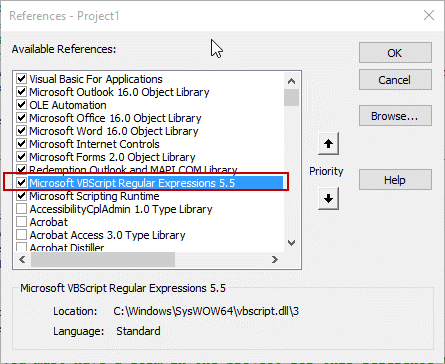
You will need to add a reference to the Microsoft VBScript Regular Expressions library in Tools, References!
If you are using 64-bit Office, the Private Declare Function ShellExecute macro will be in red - you need you use this as the first line, with PtrSafe between Declare Function:
Private Declare PtrSafe Function ShellExecute _
Private Declare Function ShellExecute _
  Lib "shell32.dll" Alias "ShellExecuteA" ( _
  ByVal hWnd As Long, _
  ByVal Operation As String, _
  ByVal Filename As String, _
  Optional ByVal Parameters As String, _
  Optional ByVal Directory As String, _
  Optional ByVal WindowStyle As Long = vbMinimizedFocus _
  ) As Long

Sub OpenLinksMessage()
 Dim olMail As Outlook.MailItem
 Dim Reg1 As RegExp
 Dim M1 As MatchCollection
 Dim M As Match
 Dim strURL As String
Dim lSuccess As Long

Set olMail = Application.ActiveExplorer().Selection(1)

Set Reg1 = New RegExp

With Reg1
 .Pattern = "(https?[:]//([0-9a-z=\?:/\.&-^!#$%;_])*)"
 .Global = True
 .IgnoreCase = True
 End With

If Reg1.Test(olMail.Body) Then

Set M1 = Reg1.Execute(olMail.Body)
 For Each M In M1
   strURL = M.SubMatches(0)
    Debug.Print strURL
   If InStr(strURL, "unsubscribe") Then GoTo NextURL
   If Right(strURL, 1) = ">" Then strURL = Left(strURL, Len(strURL) - 1)

   lSuccess = ShellExecute(0, "Open", strURL)
  DoEvents

NextURL:
  Next
  End If

Set Reg1 = Nothing
 End Sub
Open All Hyperlinks in all Messages
This macro opens the links in all messages in the selected folder.
Warning! This has the potential to lock up your computer. Use it with care and on a folder containing a limited number of messages!
Option Explicit
' 64bit office use:
'Private Declare PtrSafe Function ShellExecute _
Private Declare Function ShellExecute _
  Lib "shell32.dll" Alias "ShellExecuteA" ( _
  ByVal hWnd As Long, _
  ByVal Operation As String, _
  ByVal Filename As String, _
  Optional ByVal Parameters As String, _
  Optional ByVal Directory As String, _
  Optional ByVal WindowStyle As Long = vbMinimizedFocus _
  ) As Long

Public Sub OpenAllMessageLinks()
    Dim objOL As Outlook.Application
    Dim objItems As Outlook.Items
    Dim objFolder As Outlook.MAPIFolder
    Dim olMail As Outlook.MailItem
    Dim Reg1 As RegExp
    Dim M1 As MatchCollection
    Dim M As Match
    Dim strURL As String
    Dim lSuccess As Long

    Set objOL = Outlook.Application
    Set objFolder = objOL.ActiveExplorer.CurrentFolder
    Set objItems = objFolder.Items
    Set Reg1 = New RegExp

    For Each olMail In objItems

    With olMail
    With Reg1
        .Pattern = "(https?[:]//([0-9a-z=\?:/\.&-^!#$%;_])*)"
        .Global = True
        .IgnoreCase = True
    End With

    If Reg1.Test(olMail.Body) Then

        Set M1 = Reg1.Execute(olMail.Body)
        For Each M In M1
            strURL = M.SubMatches(0)
            Debug.Print strURL
       If InStr(strURL, "unsubscribe") Then GoTo NextURL
   If Right(strURL, 1) = ">" Then strURL = Left(strURL, Len(strURL) - 1)

      lSuccess = ShellExecute(0, "Open", strURL)

NextURL:
         Next
    End If

    End With
    Next
    Set Reg1 = Nothing
    Set objItems = Nothing
    Set objFolder = Nothing
    Set objOL = Nothing
End Sub
Open a specific hyperlink
If you want to open a link that is linked to a specific Hyperlink keyword, you'll need to find the keyword and url.
For example, in this screenshot, I have 10 links and want to open the fifth link, "View this thread". To do that, I need to include View this thread in the pattern search.
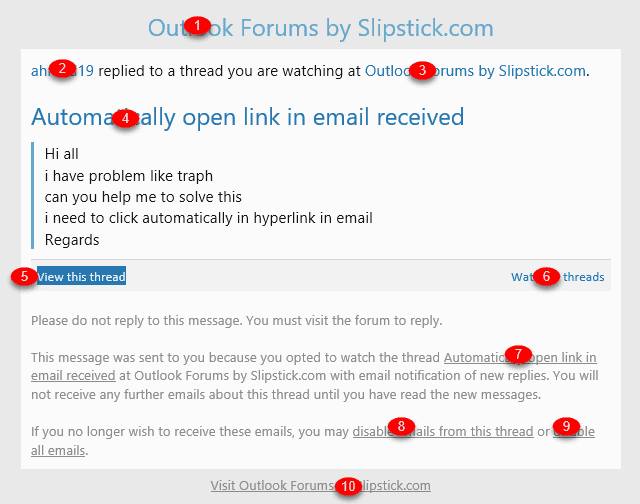
The hyperlink should be seen by VBA in this format: View this thread . You can confirm by adding Debug.Print olMail.Body to the macro then looking at the code in the Immediate window.
' 64bit office use:
'Private Declare PtrSafe Function ShellExecute _
Private Declare Function ShellExecute _
  Lib "shell32.dll" Alias "ShellExecuteA" ( _
  ByVal hWnd As Long, _
  ByVal Operation As String, _
  ByVal Filename As String, _
  Optional ByVal Parameters As String, _
  Optional ByVal Directory As String, _
  Optional ByVal WindowStyle As Long = vbMinimizedFocus _
  ) As Long

Sub OpenHyperLinkMessage()
 Dim olMail As Outlook.MailItem
 Dim Reg1 As RegExp
 Dim M1 As MatchCollection
 Dim M As Match
 Dim strURL As String
Dim lSuccess As Long

Set olMail = Application.ActiveExplorer().Selection(1)

Set Reg1 = New RegExp

With Reg1
 .Pattern = "View this thread <(.*)>"
 .Global = True
 .IgnoreCase = True
 End With

If Reg1.Test(olMail.Body) Then
Set M1 = Reg1.Execute(olMail.Body)
 For Each M In M1
   strURL = M.SubMatches(0)
    Debug.Print strURL
   If InStr(strURL, "unsubscribe") Then GoTo NextURL
   If Right(strURL, 1) = ">" Then strURL = Left(strURL, Len(strURL) - 1)

lSuccess = ShellExecute(0, "Open", strURL)

NextURL:
  Next
  End If

Set Reg1 = Nothing
 End Sub
Open links in selected messages
This version of the macro opens links in the selected messages in any folder.
This macro only opens links that contains the word 'support' somewhere in the path. Remove that link from the code to open all links.
If InStr(strURL, "support") = 0 Then GoTo NextURL
To skip images, add this line:
If InStr(strURL, ".png") Then GoTo NextURL
Option Explicit
' 64bit office use:
'Private Declare PtrSafe Function ShellExecute
Private Declare PtrSafe Function ShellExecute _
  Lib "shell32.dll" Alias "ShellExecuteA" ( _
  ByVal hWnd As Long, _
  ByVal Operation As String, _
  ByVal Filename As String, _
  Optional ByVal Parameters As String, _
  Optional ByVal Directory As String, _
  Optional ByVal WindowStyle As Long = vbMinimizedFocus _
  ) As Long

Public Sub SelectedMessageLinks()
    Dim objOL As Outlook.Application
    Dim currentExplorer As Explorer
    Dim Selection As Selection
    Dim olMail As Object ' Outlook.MailItem
    Dim Reg1 As RegExp
    Dim M1 As MatchCollection
    Dim M As Match
    Dim strURL As String
    Dim lSuccess As Long

    Set objOL = Outlook.Application
    Set currentExplorer = objOL.ActiveExplorer
    Set Selection = currentExplorer.Selection

    Set Reg1 = New RegExp

    For Each olMail In Selection

    With olMail
    With Reg1
        .Pattern = "(https?[:]//([0-9a-z=\?:/\.&-^!#$%;_])*)"
        .Global = True
        .IgnoreCase = True
    End With

   If Reg1.Test(olMail.Body) Then

     Set M1 = Reg1.Execute(olMail.Body)
       For Each M In M1
         strURL = M.SubMatches(0)
          Debug.Print strURL
     If InStr(strURL, "unsubscribe") Then GoTo NextURL
     If InStr(strURL, "index") = 0 Then GoTo NextURL
     If Right(strURL, 1) = ">" Then strURL = Left(strURL, Len(strURL) - 1)

   lSuccess = ShellExecute(0, "Open", strURL)

NextURL:
     Next
   End If

    End With
    Next
    Set olMail = Nothing
    Set Reg1 = Nothing
    Set objOL = Nothing
End Sub
Run a Script Rule
Use this macro in a run a script rule to open the first link in a message.
' 64bit office use:
'Private Declare PtrSafe Function ShellExecute _
Private Declare Function ShellExecute _
  Lib "shell32.dll" Alias "ShellExecuteA" ( _
  ByVal hWnd As Long, _
  ByVal Operation As String, _
  ByVal Filename As String, _
  Optional ByVal Parameters As String, _
  Optional ByVal Directory As String, _
  Optional ByVal WindowStyle As Long = vbMinimizedFocus _
  ) As Long

Public Sub OpenLinks(olMail As Outlook.MailItem)

 Dim Reg1 As RegExp
 Dim M1 As MatchCollection
 Dim M As Match
 Dim strURL As String
 Dim lSuccess As Long

Set Reg1 = New RegExp

With Reg1
 .Pattern = "(https?[:]//([0-9a-z=\?:/\.&-^!#$%;_])*)>"
 .Global =  True
 .IgnoreCase = True
 End With

If Reg1.test(olMail.Body) Then

Set M1 = Reg1.Execute(olMail.Body)
 For Each M In M1
   strURL = M.SubMatches(0)
   Debug.Print strURL

lSuccess = ShellExecute(0, "Open", strURL)

  Next
  End If

Set Reg1 = Nothing
Set oApp = Nothing

 End Sub
The following is a stub macro for testing the run a script rule without the need to send messages to trigger. Select a message and run the RunScript macro.
Sub RunScript()
Dim objApp As Outlook.Application
Dim objItem As MailItem
Set objApp = Application
Set objItem = objApp.ActiveExplorer.Selection.Item(1)

'macro name you want to run goes here
OpenLinks objItem

End Sub
Using the OpenLinks Run a Script Macro Video Tutorial
Use with Chrome or FireFox
To use Chrome, FireFox, or another browser with this macro, you need to add the path to the browser to the macro then pass the URL to it.
Sub OpenLinksMessage()
 Dim olMail As Outlook.MailItem
 Dim Reg1 As RegExp
 Dim M1 As MatchCollection
 Dim M As Match
 Dim strURL As String

Dim browserPath As String
browserPath = Chr(34) & "C:\Program Files (x86)\Google\Chrome\Application\chrome.exe" & Chr(34)

Set olMail = Application.ActiveExplorer().Selection(1)

Set Reg1 = New RegExp

With Reg1
 .Pattern = "(https?[:]//([0-9a-z=\?:/\.&-^!#$%;_])*)"
' opens the first link. use false to open all
 .Global = False
 .IgnoreCase = True
 End With

If Reg1.Test(olMail.Body) Then

Set M1 = Reg1.Execute(olMail.Body)
 For Each M In M1
   strURL = M.SubMatches(0)
   If InStr(strURL, "unsubscribe") Then GoTo NextURL
   If Right(strURL, 1) = ">" Then strURL = Left(strURL, Len(strURL) - 1)

  Shell (browserPath & " -url " & strURL)
  DoEvents

NextURL:
  Next
  End If

Set Reg1 = Nothing
 End Sub
Run a script version for Chrome
This run a script macro will work with other browsers.
If you aren't using Chrome, change the path to your browser.
This version opens all links in the message; if you only want to open the first link, change .Global = True to .Global = False.
Sub OpenLinksMessage(olMail As Outlook.MailItem)
 Dim Reg1 As RegExp
 Dim M1 As MatchCollection
 Dim M As Match
 Dim strURL As String

Dim browserPath As String
browserPath = Chr(34) & "C:\Program Files (x86)\Google\Chrome\Application\chrome.exe" & Chr(34)

Set Reg1 = New RegExp

With Reg1
 .Pattern = "(https?[:]//([0-9a-z=\?:/\.&-^!#$%;_])*)"
' opens all links, false to open first
 .Global = True
 .IgnoreCase = True
 End With

If Reg1.Test(olMail.Body) Then

Set M1 = Reg1.Execute(olMail.Body)
 For Each M In M1
   strURL = M.SubMatches(0)

' skips links containing the word 'unsubscribe'
If InStr(strURL, "unsubscribe") Then GoTo NextURL

If Right(strURL, 1) = ">" Then strURL = Left(strURL, Len(strURL) - 1)

  Shell (browserPath & " -url " & strURL)
  DoEvents

NextURL:
  Next
  End If

Set Reg1 = Nothing
 End Sub
Open the Links in Internet Explorer
This is the original macro, before changing the code to use the default browser.
CLng(2048) in this line tells IE to use a new tab: oApp.navigate strURL, CLng(2048). Use just oApp.navigate strURL if you want to open the link in the current tab.
Sub OpenLinksMessage()
 Dim olMail As Outlook.MailItem
 Dim Reg1 As RegExp
 Dim M1 As MatchCollection
 Dim M As Match
 Dim strURL As String
Dim oApp As Object
Set oApp = CreateObject("InternetExplorer.Application")

Set olMail = Application.ActiveExplorer().Selection(1)

Set Reg1 = New RegExp

With Reg1
 .Pattern = "(https?[:]//([0-9a-z=\?:/\.&-^!#$%;_])*)"
 .Global = True
 .IgnoreCase = True
 End With

If Reg1.Test(olMail.Body) Then

Set M1 = Reg1.Execute(olMail.Body)
 For Each M In M1
   strURL = M.SubMatches(0)
    Debug.Print strURL
   If InStr(strURL, "unsubscribe") Then GoTo NextURL
   If Right(strURL, 1) = ">" Then strURL = Left(strURL, Len(strURL) - 1)
   oApp.navigate strURL, CLng(2048)
   oApp.Visible = True

'wait for page to load before passing the web URL
  Do While oApp.Busy
  DoEvents
  Loop

 NextURL:
  Next
  End If

Set Reg1 = Nothing
 End Sub
Get the Page Title
What if you just need to grab the page title of the link?
Sub GetPageTitle()
Dim olMail As Outlook.MailItem
Dim Reg1 As RegExp
Dim M1 As MatchCollection
Dim M As Match
Dim strURL As String
Dim objHttp As Object
Dim title As String
Set olMail = Application.ActiveExplorer().Selection(1)
Set Reg1 = New RegExp
With Reg1
.Pattern = "(https?[:]//([0-9a-z=\?:/\.&-^!#$%;_])*)"
.Global = True
.IgnoreCase = True
End With
If Reg1.Test(olMail.Body) Then
Set M1 = Reg1.Execute(olMail.Body)
For Each M In M1
strURL = M.SubMatches(0)
Debug.Print strURL
If Right(strURL, 1) = ">" Then strURL = Left(strURL, Len(strURL) - 1)
Set objHttp = CreateObject("MSXML2.ServerXMLHTTP")
objHttp.Open "GET", strURL, False
objHttp.Send ""
title = ""
title = objHttp.ResponseText
If InStr(1, UCase(title), "") Then
title = Mid(title, InStr(1, UCase(title), "<TITLE>") + Len("<TITLE>"))
title = Mid(title, 1, InStr(1, UCase(title), " ") - 1)
Else
title = ""
End If
Debug.Print title
NextURL:
Next
End If
Set Reg1 = Nothing
End Sub
How to use macros
First: You will need macro security set to low during testing.
To check your macro security in Outlook 2010 or 2013, go to File, Options, Trust Center and open Trust Center Settings, and change the Macro Settings. In Outlook 2007 and older, it’s at Tools, Macro Security.
After you test the macro and see that it works, you can either leave macro security set to low or sign the macro.
Open the VBA Editor by pressing Alt+F11 on your keyboard.
To put the code in a module:
- Right click on Project1 and choose Insert > Module
- Copy and paste the macro into the new module.
More information as well as screenshots are at How to use the VBA Editor
More Information
Automatically open link in email received (Outlook Forums)

Rupender says
Hi Diane,
Great work in terms of explanation and detail. I wanted to check if their is a way the link which has a download file (.xlsx) once downloaded using the above code can also be added to the same email and saved?
Scenario: I receive hundreds of emails every day with a specific hyperlink and I have to click on it to download the attachment. Once the download is complete I have to attach the downloaded file in the same email and save it for documentation purpose.
could you please help
Regards,
Rupender
Brett Dobie says
Just like Fernanda, I get the sub or function not found error at lSuccess = ShellExecute(0, "Open", strURL). I am using OpenLinks(olMail As Outlook.MailItem) and have tried both with the 64bit enabled and disabled. When disabled, I get the error, when enabled, I get no error, but Edge does not open either. I am on Outlook 2007. I have set macro security off and have added VB Script reg expressions 5.5. Dont know what to try next.
kRI says
hi Diane! Thank you so much for all the details. i am using below code but i want to save this to the specific folder instead of browser path. can you help?
Sub OpenLinksMessage(olMail As Outlook.MailItem)
Dim Reg1 As RegExp
Dim M1 As MatchCollection
Dim M As Match
Dim strURL As String
Dim URLstr As String
Dim imgsrc As String
Dim browserPath As String
Dim dlpath As String
browserPath = Chr(34) & "C:\Program Files (x86)\Google\Chrome\Application\chrome.exe" & Chr(34)
Set Reg1 = New RegExp
With Reg1
.Pattern = "(https?[:]//([0-9a-z=\?:/\.&-^!#$%;_])*)"
' opens all links, false to open first
.Global = False
.IgnoreCase = True
End With
If Reg1.test(olMail.Body) Then
Set M1 = Reg1.Execute(olMail.Body)
For Each M In M1
strURL = M.SubMatches(0)
' skips links containing the word 'unsubscribe'
If InStr(strURL, "unsubscribe") Then GoTo NextURL
If Right(strURL, 1) = ">" Then strURL = Left(strURL, Len(strURL) - 1)
Shell (browserPath & " -url " & strURL)
DoEvents
NextURL:
Next
End If
Set Reg1 = Nothing
End Sub
Elda says
Hi Diane. Any idea on how to save the downloaded file in a specific Folder?
Please help
Gerald says
Hello everyone,
Does anyone here has tried to create a vba which will sends email notification when a user clicked on a link inside the email body?
Thanks in advance.
Diane Poremsky says
Will it be watching you to click on links or watching people you sent mail to?
I don't think its possible to watch just for link clicks - but it is definitely not possible to do it on messages you send. There are easier ways to track people clicking links with coded links.
Max says
Thank you so much for the solution! With some adjustments I was able to make it suitable for the Outlook rule, applying it to incoming emails with links to downloadable reports! <3
Fernanda says
Hi Diane,
FIrst of all thank you so much for this! This is my fist outlook macro and I am relatively new to this, so please bear with me if I ask something obvious.
I am trying to open all the links in a received new message, triggered by a rule (name in the subject of the email).
I tried all of the macros as instructed and came across the following issues:
The first one Sub OpenLinksMessage(): Works fine, I run it in VBA and it opens a page in my browser. However, when I try to create the rule, select "run a script", click on script to select it, it does not appear in the box (from which I'd select it); and
When I tried this one Public Sub OpenAllMessageLinks(): I can find and choose it from the "run a script" list with no trouble. However, when I run the code below it in VBA it jumps to (near the end) "ShellExecute" and highlights "Public Sub OpenAllMessageLinks()" in yellow and I get the error message "Compile Error: Sub or Function not defined"
Could you please point me towards what I might be doing wrong?
Diane Poremsky says
You need to use the run a scrip rule at the end if you want to run it using a rule - Public Sub OpenLinks(olMail As Outlook.MailItem) - but it only opens the first link. Or so it says- .Global = True should open all links.
Mzquai says
First of all Diane, I would like to say thank you. One, because I stumbled upon this after watching several youtube channels and some other question answer segments that didnt seem to help. I read you helping another gentleman, and it was awesome how you helped him out.
I have tried and tried and tried and can't seem to make this code/script function properly. Now let me let you know that I have zero coding/scripting knowledge.
I am going to place a link here, and if you're around can you please help me .
This is the link :
https://www.timiosinc.com/VendorSelfAssign/Order.aspx?class=CLO&companyid=08&orderno=nnn&vendorno=nnn&z=nnn&p=nnn
I am using Outlook, and my Default Browser is Chrome located at the following '
C:\Program Files (x86)\Google\Chrome\Application\chrome.exe
Thank you so much . I would greatly appreciate any help that you provide.
Diane Poremsky says
That is the url you want to open? What happens when the macro tries to open it? Show the Immediate Window (Ctrl+G or open it from the view menu) - the Debug.print strURL will print the found url in the window - is it correct?
Tarun says
Hi Diane,
While googling I stumbled upon your this article. Thanks for sharing this with the world. This is so helpful and knowledgeable for people like me who know very little about VBA coding! Thanks again!
I was actually looking for a simple Outlook macro on google but could not find anything similar so thought to write it to you for your help. Well! honestly speaking, I am not expecting a full solution from you as probably your time is more valuable than mine :) .. Even if you can just let me know if there is a solution possible for below problem, that would be enough for me too. And if you can give a full solution, what to say! I will be very much thankful to you.
So, I was looking for a Outlook macro which is when run, copies the selected text from an email (the text could be either in the email body or subject). The macro then put that word in a specific URL and open it in the browser.
For e.g. Suppose I get an email and there is a word 'T1234' in the subject or maybe in the body. If I simply select this word with my cursor and click on the macro, the macro should open the url 'https://websitename/T1234' in the default browser.
To me, initially this seemed like a very simple problem. BUT I tried and spent good time to find a solution on Internet without any success. AND now it looks like to me that maybe this is something not possible to achieve using macro in Outlook.
Can you please guide me in knowing if this can be achieved? If yes, then would it be really a big coding effort? OR maybe you can share the code if you already have something similar with you.
Thank you!
Waiting for your reply!
Diane Poremsky says
if its in the body, you can definitely do it. Actually, you can do it in the subject too.
The copy to clipboard code here, replying the oMail.Body with Text
Paste clipboard contents using VBA (slipstick.com)
Then build the url - the paste macro on that page shows how. Then send it to the browser (macros on this page.)
Diane Poremsky says
This works but you need to copy the (ctrl+c) yourself - then the macro can open the browser to that path
Private Declare Function ShellExecute _
Lib "shell32.dll" Alias "ShellExecuteA" ( _
ByVal hWnd As Long, _
ByVal Operation As String, _
ByVal Filename As String, _
Optional ByVal Parameters As String, _
Optional ByVal Directory As String, _
Optional ByVal WindowStyle As Long = vbMinimizedFocus _
) As Long
Sub OpenLinksCopy()
Dim strURL As String
Dim lSuccess As Long
Dim DataObj As MSForms.DataObject
Dim strPaste 'As Variant
Set DataObj = New MSForms.DataObject
' DataObj.SetText Text
' DataObj.PutInClipboard
DataObj.GetFromClipboard
strPaste = DataObj.GetText(1)
Debug.Print strPaste
strURL = "https://slipstick.me/" & strPaste
Debug.Print strURL
lSuccess = ShellExecute(0, "Open", strURL)
DoEvents
End Sub
Andrei Roumanov says
Hi everyone,
When the link opens using this code, it automatically opens the save as window. I would like to chose the save as location and file name with this code.
Could you please help me out?
Thank-you in advance
Jose Ricardo says
Hi all,
I'am trying to find this link (https://esolutiontecnologia.zendesk.com/expirable_attachments/token/Q2rrZfI0ubBah0fIijBRrAnDr/?name=es-zdyour_unsolved_tickets-view-2020-01-11-1419-csv.zip) under my mail box with the code above (Run a Script Rule).
The browser opens with other links from the message, but that specific link does not comes up...
It could be a problem with .Pattern ?
thanks in advance!
Diane Poremsky says
You'll change the pattern -
.Pattern = "(https?[:]//([0-9a-z=\?:/\.&-^!#$%;_])*)>"
Assuming you are always looking for a url containing the words "your_unsolved_tickets"
strURL = M.SubMatches(0)
Debug.Print strURL
If InStr(strURL, "your_unsolved_tickets") = 0 Then GoTo NextURL
Burley says
Does anyone know how to do the same scripting on smartphones when receiving sms from a certain number?
Diane Poremsky says
As far as I know, scripting is not possible on a smartphone - you'd need to build it into the app.
Viv says
Hi Diane,
Disregard last message. I figured out how to save the output to a specific folder, but the Rule I created in Outlook just runs and runs until I close out the Chrome Window. Is there a way to download the output, save to a specific folder, unzip the files, and then close the Chrome Window so that way the Script/Rule finishes?
Thanks,
Viv
Here is the code I have for moving it to a folder:
Private Declare PtrSafe Function URLDownloadToFile Lib "urlmon" _
Alias "URLDownloadToFileA" (ByVal pCaller As Long, ByVal szURL As String, _
ByVal szFileName As String, ByVal dwReserved As Long, ByVal lpfnCB As Long) As Long
Option Explicit
Sub OpenHLinkandSavej(item As Outlook.MailItem)
Dim olApp As Outlook.Application
Dim ns As Outlook.NameSpace
Dim Inbox_Secret_Files As MAPIFolder
Dim olMail As Outlook.MailItem
Dim RegNew As RegExp
Dim M1 As MatchCollection
Dim M As Match
Dim URLstr As String
Dim wnd As Object
Dim imgsrc As String
Dim dlpath As String
Set wnd = VBA.CreateObject("WScript.Shell")
Dim browserPath As String
browserPath = Chr(34) & "C:\Program Files (x86)\Google\Chrome\Application\chrome.exe" & Chr(34)
Set ns = Application.GetNamespace("MAPI")
Set Inbox_Secret_Files = ns.GetDefaultFolder(olFolderInbox).Folders("Viv Files")
If Inbox_Secret_Files.Items.Restrict("[UnRead] = True").Count = 0 Then
MsgBox "All of the emails and the files have been read and the rest of this macro will not run."
Exit Sub
End If
For Each olMail In Inbox_Secret_Files.Items
If olMail.UnRead Then
Set RegNew = New RegExp
With RegNew
.Pattern = "(https?[:]//([0-9a-z=\?:/\.&-^!#$;_])*)"
.Global = False
.IgnoreCase = True
End With
If RegNew.Test(olMail.Body) = True Then
Set M1 = RegNew.Execute(olMail.Body)
For Each M In M1
URLstr = M.SubMatches(0)
Debug.Print URLstr
wnd.Run browserPath & " -url " & URLstr, vbMinimizedFocus, True
DoEvents
imgsrc = URLstr
dlpath = "C:\Users\viv.smith\Documents\Outlook Links\"
URLDownloadToFile 0, imgsrc, dlpath & "NewFiles.zip", 0, 0
Set RegNew = Nothing
Set M1 = Nothing
Set M = Nothing
Next
End If
olMail.UnRead = False
DoEvents
olMail.Save
End If
Next
End Sub
Sub OpenHLinkandSaveSj()
End Sub
Mike Stevens says
I have a daily email that contain links to network files. I am having a hard time with the pattern. If i want it to open the link below how should I write it?
\\aws-server\folderpath\filename.pdf
Diane Poremsky says
If the path is a network server, the path would be file://aws-server/folderpath/filename.pdf
pattern would be
.Pattern = "(file?[:]//([0-9a-z=\?:/\.&-^!#$%;_])*)"
Steven says
Hello all. I have been using this script for quite some time with a lot of success, except for one minor problem. Is there some way to make the script ignore links that aren't in <a href rel="nofollow"> tags? In other words, I only want to open the links the sender wants me to open, as opposed to also all of the links in img src tags. I've tried playing around with different pattern expressions but have had no luck.
Diane Poremsky says
You need to look at the source... and figure out a pattern.. This will skip images:
.Pattern = "href=(https?[:]//([0-9a-z=\?:/\.&-^!#$%;_])*)"
Diane Poremsky says
Actually, that is not working. The the href is not seen by the code. Back to the drawing board. .
Diane Poremsky says
It looks like you use need to use instr and either only get certain link or exclude
Exclude:
If InStr(strURL, ".png") Then GoTo NextURL
Only get links in a specific path:
If InStr(strURL, "index") = 0 Then GoTo NextURL
It goes before the line that opens the link.
Bob says
Hi folks. Is there a modification that I can script where this script will work on multiple emails at one time? In other words, this script requires me to select only one email and then run the script. I'd like to highlight multiple emails (same folder) and run the script.
(I did look through the replies but didn't see what I was seeking - happy to review something that's already done if I missed one).
thanks!
Diane Poremsky says
Yeah... i don't have one that does that listed - the second macro at https://www.slipstick.com/developer/code-samples/working-items-folder-selected-items/ shows how to do it. I'll add working code to this page.
Bob says
Good afternoon!
I am using the 1st Script to open all links in a single email. (Highlight the email; run the script; all links inside open). How would I modify this script so that I can highlight multiple email to achieve the same result?
I do see that there is a method for opening all links inside emails that are within a folder BUT I have a hunch that this will attempt to open all of the links in the entire inbox rather than just the emails that I select.
Thank you all so much!
Bob
Diane Poremsky says
It needs tweaked to work the selection code here -
https://www.slipstick.com/developer/code-samples/working-items-folder-selected-items/
I'll put one together.
ZeroG says
Diane, absolutely amazing. The script is worth pure gold to me...literally.
Thank you thank you thank you!
ZeroG
noom says
Your codes are awesome!
My Situation:
I have to open 100+ hyperlinks in an email and "save" & "name" them (and preferably close the browser after saved).
After open the hyperlinks, how to save as the opened web pages?
I try to do Sendkeys:
SendKeys ("^S"), True
SendKeys ("name"), True
SendKeys "{Enter}", True
But having a hard time to set keyboard focus on the web browser (my default web browser is Google Chrome). I cannot use IE - IE cannot open my hyperlinks.
After figuring out this, I will adjust the codes to do it in Loop to open and save 100+ links at the same time.
Thank you for all helps in advance.
noom says
Private Declare PtrSafe Function ShellExecute _
Lib "shell32.dll" Alias "ShellExecuteA" ( _
ByVal hWnd As Long, _
ByVal Operation As String, _
ByVal Filename As String, _
Optional ByVal Parameters As String, _
Optional ByVal Directory As String, _
Optional ByVal WindowStyle As Long = vbMinimizedFocus _
) As Long
Sub OpenLinksMessage()
Dim olMail As Outlook.MailItem
Dim Reg1 As RegExp
Dim M1 As MatchCollection
Dim M As Match
Dim strURL As String
Dim lSuccess As Long
Set olMail = Application.ActiveExplorer().Selection(1)
Set Reg1 = New RegExp
With Reg1
.Pattern = "(https?[:]//([0-9a-z=\?:/\.&-^!#$%;_])*)"
.Global = True
.IgnoreCase = True
End With
If Reg1.Test(olMail.Body) Then
Set M1 = Reg1.Execute(olMail.Body)
For Each M In M1
strURL = M.SubMatches(0)
Debug.Print strURL
If InStr(strURL, "unsubscribe") Then GoTo NextURL
If Right(strURL, 1) = ">" Then strURL = Left(strURL, Len(strURL) - 1)
lSuccess = ShellExecute(0, "Open", strURL)
DoEvents
'This is where I think I need some codes to keyboard focusing on the web browser
SendKeys ("^S"), True
SendKeys ("name"), True
SendKeys "{Enter}", True
'This is where I think I need some codes to close the browser
NextURL:
Next
End If
Set Reg1 = Nothing
End Sub
Diane Poremsky says
I think it would be easier to save as you load the pages, writing the code to a file as chrome can't be controlled using VBA.
noom says
Hi Diane,
Thank you for quick response.
May I ask what "save" codes should I use? I am a novice on VBA codes for outlook.
Below is your code that I use to open the links.
(snip)
........
Set M1 = Reg1.Execute(olMail.Body)

For Each M In M1

strURL = M.SubMatches(0)

If InStr(strURL, "unsubscribe") Then GoTo NextURL

If Right(strURL, 1) = ">" Then strURL = Left(strURL, Len(strURL) - 1)

Shell (browserPath & " -url " & strURL)

DoEvents

(I think the "save" codes should be here?)

NextURL:

Next

End If

Set Reg1 = Nothing

End Sub
`Best Regards,
Noom
Diane Poremsky says
I'm trying ot figure it out - so far, no luck.,
noom says
Hi Diane,
Thank you for quick response.
May I ask what "save" codes should I use? I am a novice on VBA codes for outlook.
Below is your code that I use to open the links.
(snip)
Set M1 = Reg1.Execute(olMail.Body)For Each M In M1
strURL = M.SubMatches(0)
If InStr(strURL, "unsubscribe") Then GoTo NextURL
If Right(strURL, 1) = ">" Then strURL = Left(strURL, Len(strURL) - 1)
Shell (browserPath & " -url " & strURL)
DoEvents
(I think the "save" codes should be here?)
NextURL:
Next
End If
Set Reg1 = Nothing
End Sub
Best Regards,
Noom
Diane Poremsky says
I don't know... but this is what I'm trying now. I'm not soing something right though.
Dim doc As MSHTML.HTMLDocumentDim table As MSHTML.HTMLTable
Set objHttp = CreateObject("MSXML2.ServerXMLHTTP")
objHttp.Open "GET", strURL, False
objHttp.Send ""
Title = ""
Title = objHttp.responseText
Set doc = New MSHTML.HTMLDocument
doc.Body.outerHTML = HttpOpen(strURL, "GET")
'####
'Save as html
enviro = CStr(Environ("USERPROFILE"))
spath = enviro & "\Documents\"
Set FSO = CreateObject("Scripting.FileSystemObject")
spath = spath & Title & ".html"
Debug.Print spath
Set oFile = FSO.CreateTextFile(spath)
oFile.Write doc
oFile.Close
noom says
Also,
What is the equivalent VBA codes to be used in Outlook:
Application.Wait (Now + TimeValue("0:00:05"))
TY!
Diane Poremsky says
Outlook doesn't have a timer option. You can do something like this for a timer:
http://vboffice.net/en/developers/api-timer
Koti says
HI Thanks for great macro code. This helps my project mails.
But I am facing issue with hyperlink for specific text. Eg: I have link with text "click here" and url in this hyperlink.
But the code given at Open a specific hyperlink is not working. I try to use msgbox but it does not giving any result. Any help here.
Koti says
when I print message body I found my links are coming as HYPERLINK "https://google.com" click here
Diane Poremsky says
Inside curly brackets? Those are how word (which is outlook's email editor) does it - but you should only see those in incoming mail if sent using RTF format.
koti says
Hi,
I am not sure about that below is how it is visible when I use msgbox
Diane Poremsky says
Try changing the pattern to
RealQ = Chr(34)
.Pattern = "HYPERLINK\s*" & RealQ & "(.*)" & RealQ & "\s*click here"
Basically, if the screenshot is what the VBA is seeing, you need to look for that pattern - we need to find quotes without confusing vba and to do that, you use a string value.
If its the only hyperlink in the message, you could look for http
koti says
Wow, You are champ . This perfectly works.
I need to work on regular expressions in order to trouble others. ;)
Diane Poremsky says
I'm not very good with them either. I'm getting better but stackexchange is my friend. :) I usually google then check the link to stackexchange first.
Diane Poremsky says
The macro under 'Open a specific hyperlink' should work - change the text in the pattern : .Pattern = "View this thread <(.*)>"
koti says
Thanks for support.
I changed as below
.Pattern = "(Click Here )"
Unfortunately I am not getting URL
Diane Poremsky says
That would only get the words 'click here'
what does this pattern get you?
.Pattern = "hyperlink(.*)click here"
Note - if you use more than one set of () in the pattern, you may need to change the number in this line:
strURL = M.SubMatches(0)
the 0 looks for the content inside the first pair of brackets.
koti says
This also working but giving output as "https://google.com". Above regular expression works super.
Diane Poremsky says
With the quotes? That is because the pattern checks the words before and after and grabs everything in between:
.Pattern = "hyperlink(.*)click here"
It may get spaces too - but those are easier to remove by adjusting the pattern - either of these will take cause of the spaces.
.Pattern = "hyperlink (.*) click here"
.Pattern = "hyperlink\s*(.*)\s*click here"
You need to look for the quotes in the pattern (outside of the () ) or use replace to remove them.
strURL = M.SubMatches(0)
Debug.Print strURL
strURL = Replace(strUrl, Chr(34), "")
Jason says
So the link in my email, when clicked, directly downloads a csv file. But when I run the macro it tells me the link has expired. If I click it manually though it works. Any idea why this might be the case or if it can be fixed
Diane Poremsky says
Open the Immediate window - its on the View menu (the shortcut is Ctrl+G) and run the macro on a message - all urls will be printed to the immediate window. Is the url it is returning the exact same as what is in the message? My guess is the pattern isn't quite right and an incomplete url is returned.
Jason says
Sorry Newbie here - So I opened the immeadiate window in the VBA project and then ran my macro on my other screen, but nothing appeared in my immeadiate window. Is this the correct process? Thanks for your help...
Diane Poremsky says
that is the correct step... is debug.print in the macro:
strURL = M.SubMatches(0)
Debug.Print strURL
Jason says
https://app-ab13.marketo.com/repsubdown?tok=2wARCJuKaUIE7BEwztupKZDvqQfaJ4KR77FLWLHg3d0z2Fwjcf%2FZfkT3mMFUH5Q7aeyQAA8VTodkwgpRFuXQL6EFqNMYWWe3QCvwkrXlaYRCdKc2jud1%2BruxnTJVmciAgV%2FeAF8aSX5iW1TNOOdw0W%2B0YMBzCVbVvG7TP490sQZVl%2BwN1cSBO%2BCX3CGS3G%2Bb4yyKZ2RZ0NTM2xq1CMQ63dRSvUAt%2B383IMml9mL98pgd7yM29OV70B1r%2B%2FV8ZZ047RidUWrg64K%2BQv1gQb25mezbuKB8OU96o7wJNjeCfh2nHNfJLHAmoUbexmJu&lang=en_US
Thats what the link is
Diane Poremsky says
I know the cause... it's only getting this much:
https://app-ab13.marketo.com/repsubdown?tok=2wARCJuKaUIE7BEwztupKZDvqQfaJ4KR77FLWLHg3d0z2Fwjcf
it looks like the pattern is missing the % sign - add it to the pattern and it will work
.Pattern = "(https?[:]//([0-9a-z=\?:/\.&-^!#$%;_])*)"
mohamed says
In my scenario, i have a mail which has multiple links. And I need to search only for a specific pattern and click them... I need to repeat this action for over 4K mails already in my inbox.. how to achieve that.. I'm to execute your code to pattern match and open the required link.. but the macro should process the link for all messages in a folder where I execute it..
Diane Poremsky says
That would be the second macro - change the pattern and if the link will always be the first matching link on the page, use .Global = False.
mohamed says
Thanks Diane.. i can run the rule for all the messages in a specific folder... but when the script is executed, it picks only the first email. How do i modify the code to run for all the mails in a specific folder for which I run the rule? Here is the code I use.. Is it because of the selection "Set objItem = objApp.ActiveExplorer.Selection.Item(1)" ?
Sub OpenEMCRestoreLink(olMail As Outlook.MailItem)' Dim olMail As Outlook.MailItem
Dim Reg1 As RegExp
Dim M1 As MatchCollection
Dim M As Match
Dim strURL As String
Dim browserPath As String
browserPath = Chr(34) & "C:\Program Files (x86)\Google\Chrome\Application\chrome.exe" & Chr(34)
Set olMail = Application.ActiveExplorer().Selection(1)
Set Reg1 = New RegExp
With Reg1
.Pattern = "(([0-9a-z=\?:/\.&-^!#$;_])*)"
' opens the first link. use false to open all
.Global = True
.IgnoreCase = True
End With
If Reg1.Test(olMail.Body) Then
Set M1 = Reg1.Execute(olMail.Body)
For Each M In M1
strURL = M.SubMatches(0)
Debug.Print strURL
If InStr(strURL, "view") Then GoTo NextURL
If Right(strURL, 1) = ">" Then strURL = Left(strURL, Len(strURL) - 1)
Shell (browserPath & " -url " & strURL)
DoEvents
NextURL:
Next
End If
Set Reg1 = Nothing
End Sub
Sub RunScript_OpenEMCRestoreLink()
Dim objApp As Outlook.Application
Dim objItem As MailItem
Set objApp = Application
Set objItem = objApp.ActiveExplorer.Selection.Item(1)
'macro name you want to run goes here
OpenEMCRestoreLink objItem
End Sub
Diane Poremsky says
>> Is it because of the selection "Set objItem = objApp.ActiveExplorer.Selection.Item(1)" ?
Correct, that line tells it to run on the selected message. Delete that line.
amanda says
Hello Diane - can't find my message - just to say I had a play about with the line spacing (my error) and it appears now to open in chrome - yipee! :) Thanks for your help ref above chrome script. Amanda
Tyler Durden says
Good afternoon, this is the first time I have used Visual Basic and applied rules like this in Outlook so please bare with me.
I believe I have followed the guide accurately but when I run the rule nothing happens. IE doesn't open and no errors appear.
I am at a loss.
Diane Poremsky says
At the top of the macro, right after the Dim lines, add
msgbox "The rule is running"
then right before oApp.navigate strURL, add
msgbox strURL
do you get two msgbox boxes on the screen when a message arrives that should be triggered by the rule?
To test the script outside of a rule, use the RunScript (right before the video) - select a message then run that little macro. Does IE open?
florin says
Dear Diane,
I`m trying to accept trough this auto-click a hyperlink.
I made many tests with links and hyperlinks and looks like it works, but with that particular email that I need, can it be that the sender took some precautions against this sort of auto clicks?
Best regards,
Florin
Diane Poremsky says
This would be possible only with a second confirmation page after the initial page is loaded.
florin says
Dear Diane,
Thank you a lot for this great code.
I used the third one (Run a script rule) and it works. But I would like to add also another little step, I would like to make it skip the link if the word : unsubscribe is in some part of the link.
Could you please help me?
Thank you a lot,
Florin
Diane Poremsky says
Copy the code from the other macros -
Debug.Print strURL
If InStr(strURL, "unsubscribe") Then GoTo NextURL
-- snip --
NextURL:
Next
End If
florin says
Like this? thank you a lot.
Public Sub OpenLinks(olMail As Outlook.MailItem)

Dim Reg1 As RegExp

Dim M1 As MatchCollection

Dim M As Match

Dim strURL As String
Dim oApp As Object
Set oApp = CreateObject("InternetExplorer.Application")
Set Reg1 = New RegExp
With Reg1
.Pattern = "(https?[:]//([0-9a-z=\?:/\.&-^!#$;_])*)>"
.Global = False
.IgnoreCase = True
End With
If Reg1.test(olMail.Body) Then
Set M1 = Reg1.Execute(olMail.Body)
For Each M In M1
strURL = M.SubMatches(0)
Debug.Print strURL
Debug.Print strURL
If InStr(strURL, "unsubscribe") Then GoTo NextURL
NextURL:
Next
End If
'wait for page to load before passing the web URL
Do While oApp.Busy
DoEvents
Loop
oApp.navigate strURL
oApp.Visible = True
Next
End If
Set Reg1 = Nothing
Set oApp = Nothing
End Sub
Diane Poremsky says
no, NextURL: needs to go right before the next loop in the original macro
oApp.navigate strURL
oApp.Visible = True
NextURL:
Next
End If
Alecio Lyra says
Hi there. I'm trying to use your code to automatically download files from a link sent by mail daily.
I can only open the links on Internet Explorer, what is a problem because IE11 can't save automatically the files. I'm using it like this:
Public Sub OpenLinks(olMail As Outlook.MailItem)Dim Reg1 As RegExp
Dim M1 As MatchCollection
Dim M As Match
Dim strURL As String
Dim oApp As Object
Set oApp = CreateObject("InternetExplorer.Application")
Set Reg1 = New RegExp
With Reg1
.Pattern = "(https?[:]//([0-9a-z=\?:/\.&-^!#$;_])*)>"
.Global = False
.IgnoreCase = True
End With
If Reg1.test(olMail.Body) Then
Set M1 = Reg1.Execute(olMail.Body)
For Each M In M1
strURL = M.SubMatches(0)
Debug.Print strURL
'wait for page to load before passing the web URL
Do While oApp.Busy
DoEvents
Loop
oApp.navigate strURL
oApp.Visible = True
Next
End If
Set Reg1 = Nothing
Set oApp = Nothing
End Sub
Sub RunScript()
Dim objApp As Outlook.Application
Dim objItem As MailItem
Set objApp = Application
Set objItem = objApp.ActiveExplorer.Selection.Item(1)
'macro name you want to run goes here
OpenLinks objItem
End Sub
Sub OpenLinksMessage()
Dim olMail As Outlook.MailItem
Dim Reg1 As RegExp
Dim M1 As MatchCollection
Dim M As Match
Dim strURL As String
Dim browserPath As String
browserPath = Chr(34) & "C:\Program Files (x86)\Google\Chrome\Application\chrome.exe" & Chr(34)
Set olMail = Application.ActiveExplorer().Selection(1)
Set Reg1 = New RegExp
With Reg1
.Pattern = "(https?[:]//([0-9a-z=\?:/\.&-^!#$;_])*)"
.Global = False
.IgnoreCase = True
End With
If Reg1.test(olMail.Body) Then
Set M1 = Reg1.Execute(olMail.Body)
For Each M In M1
strURL = M.SubMatches(0)
If InStr(strURL, "unsubscribe") Then GoTo NextURL
If Right(strURL, 1) = ">" Then strURL = Left(strURL, Len(strURL) - 1)
Shell (browserPath & " -url " & strURL)
DoEvents
NextURL:
Next
End If
Set Reg1 = Nothing
End Sub
Diane Poremsky says
You don't need all of those macros - the first is an automatic macro, it runs in a rule. Sub RunScript() is used to trigger it so you don't need to keep sending messages to trigger the rule while testing.
The last one is a manual macro, select a message and run the rule. it uses Chrome: browserPath = Chr(34) & "C:\Program Files (x86)\Google\Chrome\Application\chrome.exe" & Chr(34)
To convert it to a run a script, remove the DIM olmail and set olmail lines and change the macro name, addin olmail as mailitem inside the ():
Public Sub OpenLinks(olMail As Outlook.MailItem)
Alécio Lyra says
Perfect... thanks a lot!
Alecio Lyra says
Hello again, Diane. I had to change my code and now instead of opening the 1st link for all the according the mail rule, it is opening x times the same link, where "x" is the quantity of messages.
Please have a look on the code and tell me what I messed up... ;)
Public Sub OpenLinks(olMail As Outlook.MailItem)Dim Reg1 As RegExp
Dim M1 As MatchCollection
Dim M As Match
Dim strURL As String
Dim browserPath As String
browserPath = Chr(34) & "C:\Program Files (x86)\Google\Chrome\Application\chrome.exe" & Chr(34)
Set olMail = Application.ActiveExplorer().Selection(1)
Set Reg1 = New RegExp
With Reg1
.Pattern = "(https://api.trimble.com/([0-9a-z=\?:/\.&-^!%#$;_])*)"
.Global = False
.IgnoreCase = True
End With
If Reg1.test(olMail.Body) Then
Set M1 = Reg1.Execute(olMail.Body)
For Each M In M1
strURL = M.SubMatches(0)
If InStr(strURL, "unsubscribe") Then GoTo NextURL
If Right(strURL, 1) = ">" Then strURL = Left(strURL, Len(strURL) - 1)
Shell (browserPath & " -url " & strURL)
DoEvents
NextURL:
Next
End If
Set Reg1 = Nothing
End Sub
Diane Poremsky says
>> Set olMail = Application.ActiveExplorer().Selection(1)
This line tells it to run on the first message in a selection but its a run a script rule, so you don't need to tell it which message to use, the rule does that... so remove that line.
Vince says
Great script! I need to modify it slightly in that I want to only trigger the hyperlink that has a specific pattern. So for example there may be multiple links with "domain.com/word" but one of them has a specific "word" I want to trigger for opening the page.
Would this be done in the .Pattern line like this?
.Pattern = "(https?[:]//www.redfin.com/myredfin/agent/leads/mobile/accept([0-9a-z=\?:/\.&-^!#$;_])*)"
Diane Poremsky says
Yes, you'd make the change to that line. Using this example, if you have multiple links for http://www.redfin.com/myredfin/agent and only wanted to open links to http://www.redfin.com/myredfin/agent/leads/mobile/accept you'd use the pattern you posted.
Vince says
Thank you so much! I'll give it a try.
Bob77 says
This works great! Thanks! The only problem that I am having is combining this code with my next code. When I open the link I need to put in a login and password. I have written the code for it but it's separate from this, meaning without the link. Its codded to open the website instead of the link. When I try to combine my macro with your it tells me there is an error. Here is an example using fb:
Sub test()
' open IE, navigate to the desired page and loop until fully loaded
Set IE = CreateObject("InternetExplorer.Application")
my_url = "https://www.facebook.com/"
With IE
.Visible = True
.navigate my_url
.Top = 50
.Left = 530
.Height = 400
.Width = 400
Do Until Not IE.Busy And IE.readyState = 4
DoEvents
Loop
End With
' Input the userid and password
IE.document.getElementById("username").Value = "email"
IE.document.getElementById("password").Value = "password"
' Click the "Search" button
Set ipf = IE.document.getElementById("myLoginButton")
ipf.Click 'click
Do Until Not IE.Busy And IE.readyState = 4
DoEvents
Loop
End Sub
This is my macro. As you can see, it's opening a new internet tab. How do I combine my macro with the macro above, so if I have the facebook link in my outlook, it can then not only open it but also log me in?
Diane Poremsky says
I would try the password stuff in the With block, probably after the loop, but i didn't test it - it might work before the first do until.
Bob77 says
I've tried doing that. But it's telling me I need a object. But I ma not sure what object.
Diane Poremsky says
is it stopping on a specific line?
My guess is one of these lines are triggering it - possibly 'document'.
IE.document.getElementById("username").Value = "email"
IE.document.getElementById("password").Value = "password"
Set ipf = IE.document.getElementById("myLoginButton")
Try adding the IE object model in Tools, References and add Dim IE As InternetExplorer at the top.
Bob77 says
Thank-you so much for your help so far, Diane!
So I managed to get rid of the object error by simply changing the "oApp" to "IE" in the code.
This is the combined code. It's for a website that I am not allowed to say so that's why I said facebook.
The error I am getting now is "method document of object iwebbrowser2 failed" starting at the "IE.document" line.
Any ideas how to fix that?
Sub OpenLinksMessage()
Dim olMail As Outlook.MailItem
Dim Reg1 As RegExp
Dim M1 As MatchCollection
Dim M As Match
Dim strURL As String
Dim oApp As Object
Set IE = CreateObject("InternetExplorer.Application")
Set olMail = Application.ActiveExplorer().Selection(1)
Set Reg1 = New RegExp
With Reg1
.Pattern = "(https?[:]//([0-9a-z=?:/.&-^!#$;_])*)"
.Global = True
.IgnoreCase = True
End With
If Reg1.test(olMail.Body) Then
Set M1 = Reg1.Execute(olMail.Body)
For Each M In M1
strURL = M.SubMatches(0)
Debug.Print strURL
If InStr(strURL, "unsubscribe") Then GoTo NextURL
If Right(strURL, 1) = ">" Then strURL = Left(strURL, Len(strURL) - 1)
IE.navigate strURL, CLng(2048)
IE.Visible = True
'wait for page to load before passing the web URL
Do While IE.Busy
DoEvents
Loop
NextURL:
Next
End If
Set Reg1 = Nothing
' Input the userid and password
IE.document.getElementById("username").Value = "username"
IE.document.getElementById("password").Value = "password"
' Click the "Search" button
Set ipf = IE.document.getElementById("myLoginButton")
ipf.Click 'click
Do Until Not IE.Busy And IE.readyState = 4
DoEvents
Loop
End Sub
Diane Poremsky says
Are you already logged into the site? If there is not user/password field, you'll get that error.
Bob77 says
No I am not logged in. I wonder what else can be causing it
Diane Poremsky says
check the web page source - verify that the field names are correct:
IE.document.getElementById("username").Value = "username"
IE.document.getElementById("password").Value = "password"
Set ipf = IE.document.getElementById("myLoginButton")
Bob77 says
I went back and checked again, yet the error still persists. This is getting really irritating
Diane Poremsky says
Try removing ", CLng(2048)" from
IE.navigate strURL, CLng(2048)
Bob77 says
Once I removed that, something very interesting is happening. I ran the code a couple of times and 50% of the time it's going to the right website, inputting my username and password but won't sign in (yes I have checked to make sure it is correct". Then the other 50% of the time its stopping again at IE.document.getElementById("username").Value = "username"
telling me it's missing an object.
Here is the code so far:
Sub OpenLinksMessage()
Dim olMail As Outlook.MailItem
Dim Reg1 As RegExp
Dim M1 As MatchCollection
Dim M As Match
Dim strURL As String
Dim oApp As Object
Set IE = CreateObject("InternetExplorer.Application")
Set olMail = Application.ActiveExplorer().Selection(1)
Set Reg1 = New RegExp
With Reg1
.Pattern = "(https?[:]//([0-9a-z=?:/.&-^!#$;_])*)"
.Global = True
.IgnoreCase = True
End With
If Reg1.test(olMail.Body) Then
Set M1 = Reg1.Execute(olMail.Body)
For Each M In M1
strURL = M.SubMatches(0)
Debug.Print strURL
If InStr(strURL, "unsubscribe") Then GoTo NextURL
If Right(strURL, 1) = ">" Then strURL = Left(strURL, Len(strURL) - 1)
IE.navigate strURL
IE.Visible = True
'wait for page to load before passing the web URL
Do While IE.Busy
DoEvents
Loop
NextURL:
Next
End If
Set Reg1 = Nothing
' Input the userid and password
IE.document.getElementById("username").Value = "username"
IE.document.getElementById("password").Value = "password"
' Click the "Search" button
Set ipf = IE.document.getElementById("dd-signin-form")
ipf.Click 'click
Do Until Not IE.Busy And IE.readyState = 4
DoEvents
Loop
End Sub
Diane Poremsky says
i don't know what could be the problem - it works here with facebook. I get that error if already logged in or if the field names are wrong (should be able to use an if statement to check for the presence of those fields and skip if they don't exist on the page).
Diane Poremsky says
Ok... had a chance to test this with the facebook url - i think the object error was because the field names didn't match what the page asked for.
Sub test() ' open IE, navigate to the desired page and loop until fully loaded Set IE = CreateObject("InternetExplorer.Application") my_url = "https://www.facebook.com/" With IE .Visible = True .navigate my_url .Top = 50 .Left = 530 .Height = 700 .Width = 800 Do Until Not IE.Busy And IE.readyState = 4 DoEvents Loop ' Input the userid and password .Document.getElementById("email").Value = "me@dommain.com" .Document.getElementById("pass").Value = "mypassword" ' Click the "Search" button Set ipf = IE.Document.getElementById("loginbutton") ipf.Click 'click Do Until Not IE.Busy And IE.readyState = 4 DoEvents Loop End With End SubDiane Poremsky says
BTW, if you are logged in and don't get the user/password fields, you'll also get the object error message, since the fields don't exist on the page.
Brian says
Hello,
First, thank you so very much for taking the time to put this information together. I am currently trying to assist someone who is visually-impaired so that he can activate an "accept" link in e-mail messages he receives with freelance job offers when they arrive. This will be very helpful
The code I'm using is a very close variant of your own:
Option ExplicitPublic Sub OpenLinksMessage()
Dim olMail As Outlook.MailItem
Dim Reg1 As RegExp
Dim AllMatches As MatchCollection
Dim M As Match
Dim strURL As String
Dim oApp As Object
Set oApp = CreateObject("InternetExplorer.Application")
Set olMail = ActiveExplorer.Selection(1)
Set Reg1 = New RegExp
With Reg1
.Pattern = "(https?[:]//([0-9a-z=?:/.&-^!#$;_])*)"
.Global = True
.IgnoreCase = True
End With
' If the regular expression test for URLs comes back true
If Reg1.test(olMail.Body) Then
' Use the RegEx to return all instances that match it to the AllMatches group
Set AllMatches = Reg1.Execute(olMail.Body)
For Each M In AllMatches
strURL = M.SubMatches(0)
' Don't activate any URLs that are for unsubscribing; skip them
If InStr(strURL, "unsubscribe") Then GoTo NextURL
' If the URL ends with a > from being enclosed in darts, strip that > off
If Right(strURL, 1) = ">" Then strURL = Left(strURL, Len(strURL) - 1)
' We now have a URL that we want to open in a new tab in IE
oApp.navigate strURL, CLng(2048)
oApp.Visible = True
' wait for page to load before passing the web URL
Do While oApp.Busy
DoEvents
Loop
NextURL:
Next
End If
Set Reg1 = Nothing
End Sub
Private Sub TestLaunchURL()
OpenLinksMessage
End Sub
I know that I remove the TestLaunchURL routine when I want to invoke this from an Outlook rule. The two things I'd most like to know is whether, under Windows 10, there is a way to set the web browser application variable based upon what the system has set as the default browser?
Also, would the line that identifies the message, Set olMail = ActiveExplorer.Selection(1), change when this is meant to operate on each e-mail message as it arrives and before the user even touches it?
Thanks very much for your assistance.
Diane Poremsky says
Browser: Not easily. You'd need to read the registry to get it and the path to the exe.
Yes, remove that line. The rule identifies the message object using the value in the () - make sure you use olmail, not the more common Item object name.
Brian Vogel says
Diane,
I found the way to use whatever web browser the user has set as their default here: https://stackoverflow.com/questions/3166265/open-an-html-page-in-default-browser-with-vba
The ShellExecute function works beautifully for this.
Would you mind clarifying that last sentence a bit more. I know that I will be using an Outlook rule as the filter to identify messages to be passed for parsing to OpenLinksMessage. I still don't know whether I'm passing the message as a parameter or if there's a direct reference for it via a global.
Thank you again. Your assistance is appreciated.
Diane Poremsky says
I didn't even think about shell execute. I figured look up the default browser, get the path and run it.
When you use a rule to trigger it, the message is already identified - it would be rearranged line this:
Public Sub OpenLinksMessage(olMail As Outlook.MailItem)
Dim Reg1 As RegExp
Dim AllMatches As MatchCollection
Dim M As Match
Dim strURL As String
Dim oApp As Object
Set oApp = CreateObject("InternetExplorer.Application")
' don't need this line -
' Set olMail = ActiveExplorer.Selection(1)
Brian Vogel says
Thanks again. I really appreciate the assistance and willingness to walk me through this.
David says
Public Sub OpenLinksMessage(olMail As Outlook.MailItem)
Dim Reg1 As RegExp
Dim M1 As MatchCollection
Dim M As Match
Dim strURL As String
Dim browserPath As String
browserPath = """C:Program Files (x86)Mozilla Firefoxfirefox.exe"""
Set Reg1 = New RegExp
With Reg1
.Pattern = "(https?[:]//www.website.com/sujectword/accept.php[0-9a-z=?:/.&-^!#$;_]*)"
.Global = False
.IgnoreCase = True
End With
If Reg1.test(olMail.Body) Then
Set M1 = Reg1.Execute(olMail.Body)
For Each M In M1
strURL = M.SubMatches(0)
' Your iMacro file should be in your default macro folder (example: My DocumentsiMacrosMacros)
Shell (browserPath & " -url " & strURL & " C:Usersdoser220DesktopFakeHomePage.html""")
DoEvents
Next
End If
so the pattern is a website, word in subject line, and accept button
then mine call a fake home page link to a macro to continue the automation on a browser :-)
Dan says
I set up a rule to reply to PayPal donation emails using a template, but it replies to the
sender ""service@paypal.com" and I need it to instead reply to the
payer, which is the first link in the email "mailtp:---@---". Can this be easily
scripted, or is there another rule I should be using?
Diane Poremsky says
There is a macro at https://www.slipstick.com/developer/run-a-script-rule-autoreply-using-a-template/ that will grab the address from an email body. Instr & mid function would also work, but I'm on vacation and can't test code.
David says
This is turning out to be harder then I originally thought. So I have been playing with this for days. So if you don't have a email high lighted in your in your inbox it wont execute the script? I need it to fire on any email coming in that applies to my rule? Is this possible?
Diane Poremsky says
the macro under 'run a script' heading will work with a rule on the messages that meet the condition of the rule.
Diane Poremsky says
BTW, if you want to use the macro that ues firefox or chrome with a rule, remove the dim olmail and set olmail lines and add olmail as mailitem inside the (). (It looks like you did all but remove the set olmail line.)
David says
OK, its updating the right email now. I guess I should explain what I am trying to do here. It like another user on here was talking about. Hitting the accept button on a email to confirm the acceptance. But Im trying to automate a 3 click process and then close out all the tab/windows and wait for the next email This is what I have:
Public Sub OpenLinksMessage(olMail As Outlook.MailItem)
Dim Reg1 As RegExp
Dim M1 As MatchCollection
Dim M As Match
Dim strURL As String
Dim browserPath As String
browserPath = """C:Program Files (x86)Mozilla Firefoxfirefox.exe"""
Set Reg1 = New RegExp
With Reg1
.Pattern = "(https?[:]//www.choicehomewarranty.com/cads/accept.php[0-9a-z=?:/.&-^!#$;_]*)"
.Global = False
.IgnoreCase = True
End With
If Reg1.test(olMail.Body) Then
Set M1 = Reg1.Execute(olMail.Body)
For Each M In M1
strURL = M.SubMatches(0)
' Your iMacro file should be in your default macro folder (example: My DocumentsiMacrosMacros)
Shell (browserPath & " -url " & strURL & " imacros://run/?m=""Pool Macro.iim""")
DoEvents
Next
End If
Set Reg1 = Nothing
End Sub
Any suggestions? Right now my Firefox is crashing, and the process wont stop after I close it. Running is task manager..
Diane Poremsky says
Does firefox crash if you don't use imacros and just open the link?
Paula says
Very helpful! I find that this works when the link looks like a url, but it doesn't work when there is other link text. Looking at the code, I see why, but I don't know enough about VBA to change it for my use case.
I'd like the script to open every link whose text is "Click here", for instance. (This will work for me because the link text will be the same every time, and it will appear multiple times per email message.) How can I do that?
Thanks!
Diane Poremsky says
It should read the body and see the http links. Add debug.print olMail.body right after the regex pattern is set then check the immediate windows (ctrl+g or view menu) to see the results. This will show you what the code is 'seeing'. Wild guess is that the Url doesn't have http in it - it's it uncommon for Url in email to begin with the 2 slashes instead. If so, remove that from the pattern.
Paula says
Thanks for this, and sorry for the late reply! I realized that the problem was actually caused by a totally different reason: my Outlook disabled macros and didn't alert me. D'oh!
Anyway, thanks for the great information--definitely a very useful trick.
David says
I have followed your instruction to the T. And Internet explorer wont even open. I have Windows 7 Ultimate SP1, Office 2010 ( not activated)
Diane Poremsky says
Did you set macro security on the lowest setting? Does the macro run at all?
David says
it is set to the lowest. It runs, but not far. Usually stops at
David says
strURL = M.SubMatches(0)
and the First line,
Public Subs is highlighted
Diane Poremsky says
No error message? strURL = M.SubMatches(0) is matching the pattern to text in the body. I'm not sure why the macro name would be highlighted though. Which macro on the page are you using? Did you make any changes?
David says
Diane i got everything figured out. Awesome work and help. Thank you
Nicholas says
I am having this issue all of a sudden nothing changed im not sure why its not working now
Diane Poremsky says
Any error messages or does it just not work?
Nicholas says
Give the error Compile Error: Method or data member not found with .SubMatches highlighted. I got it working a month ago but now its stopped again.
Diane Poremsky says
did you change the code? The number in submatches tells it which set of parens to use from the pattern. It's 0 based - so 0 returns the entire string inside the parens *in this example, the full url). If you use 1, it would leave off the beginning.
.Pattern = "(https?[:]//([0-9a-z=\?:/\.&-^!#$%;_])*)"
strURL = M.SubMatches(0)
Nicholas says
Was able to fix the issue I had VBScript Regular Expressions 1 and 5.5 turned on after turning off version 1 it started working again
Stefan says
Dear Diane,
thank your for this code, it helps make my workflow more convenient.
Would it be possible to let the code only open URLs from a certain domain?
I get 10-30 links per mail from a contractor, but when I run the macro it also opens their LinkedIn, Facebook, etc. because it is attached at the end of the mail and also links that are embedded elsewhere.
But I only want to have URLs opened from say http://www.contractornamehere.com/.../
I've tried some workarounds but I'm not good enough at VBA to really get anywhere.
Diane Poremsky says
yes - you just need an if statement similar to this:
If InStr(strURL, "unsubscribe") Then GoTo NextURL
since you want to skip the url if the word is not found, you'll use this format:
If InStr(1,strURL, "contractordomain.com") = 0 Then GoTo NextURL
Stefan says
Fantastic, it works like a charm!
Thank you very much, made my life so much easier.
David says
Where did you inject this line? Right above the "unsubscribe" line?
Diane Poremsky says
just above or below it will work.
James says
I can copy and paste things like this but that's about it. I have been using the
Open All Hyperlinks in all Messages macro but want to use Chrome
to open the links. I know you said to add the Chrome path but I am
confused with how. Could you rewrite the Open All Hyperlinks in all Messages
macro again with Chrome as the browser and post it for idiots like me?
Diane Poremsky says
Sorry I missed this question earlier - the macro that will open all links in chrome is in the attached text file. If you use 32-bit Windows the path to chrome.exe will be different - but that should be the only change.
To use it with another browser, change the browserpath to point to the correct exe.
Douglas McCormick Jr says
Hello there Diane and other Fellow VBAers out there,
I'm thrilled that I was able to find this script and see what possibilities exist behind the scenes within Outlook. One issue I'm running into with this particular script is the fact that once it runs, I can't issue a second script or other further actions within VBA. It seems to me (despite my efforts to use
Application.Wait (Now + TimeValue("0:00:03")or other tricks) that once the URLs launch into the browser, control isn't given back to Outlook or the message that was originally being processed.If anyone knows some ideas around that, I'd be very interested.
Thanks so much!
Diane Poremsky says
That is correct - when a macro is running you typically can't do anything else - but DoEvents may let you do other stuff while it's waiting. I use https://stackoverflow.com/a/6960716 sometimes as a timer - call it like this:
Sub testtimer()
Call Pause(45)
MsgBox "Wait over"
End Sub
Christian says
Hello Diane,
I got the working when running it from the VBA application window, however when running the rule from outlook 2013 it adds > to the end of the URL. Correct end of URL and as when running the script: PPvhu1a%2BQX8%3D when running the outlook rule this is how it looks like PPvhu1a%2BQX8%3D> Do you know why it adds > at the end of the URL when running the rule but not when running the scipt from VBA application window?
Diane Poremsky says
What are you using for the pattern? This should remove the > :
.Pattern = "(https?[:]//([0-9a-z=\?:/\.&-^!#$;_])*)>"
Christian says
Thanks, adding the > in the end did the trick. It now opens the link corect.
Souvik says
Hello Diane,
I need to click on a hyperlink inside an email body using vbscript not VBA. can you guide me on how to do that?
Diane Poremsky says
If there is only one link in the email, any of the macros on this page will do it. If it will always be the first link, then .Global = False in any of the macros will work.
If there is more than one link and it's not the first one, you'll need to change the pattern to better identify the link -
.Pattern = "(https?[:]//www.slipstick.com/([0-9a-z=\?:/\.&-^!#$;_])*)"
Mr Khan says
i want to click on the second link or on the word "Dowload the file here". how should i identify that. please advise.
Diane Poremsky says
you'll need to check the source code of the message and change the pattern - something like this:
.Pattern = "(https?[:]//([0-9a-z=\?:/\.&-^!#$;_]))>Dowload the file here"
atul says
need help in run as a script rule
Diane Poremsky says
What kind of help do you need? It's basically, paste it into a module in the VBA editor then create a rule that uses Run a Script.
atul says
Hi Diane Poremsky,
i used your vb script to search hyperlink in my mail(outlook)Run a Script Rule that one i used
it worked.
but when the link opens i want tom add login id and password to it and click submit.
so i added this
oApp.navigate strURL
oApp.Visible = True
oApp.Top = 50
Dim dteWait
dteWait = DateAdd("s", 10, Now())
Do Until (Now() > dteWait)
Loop
oApp.Document.getElementById("USERNAME").Value = "karalea"
oApp.Document.getElementById("PIN").Value = "jack@123"
but nothing happens.
please help.(above dim dtewait is condition)
thank you
Diane Poremsky says
is it an aspx form?
You may need to do something like described in this discussion - it's asking about doing it in Excel but the same process would work in Outlook.
Shenath Silva says
Wow! This was a massive help. Thank you so much. I followed the guide and it works perfectly. Just one question. Is this possible for buttons? As an example let's say there is this button that says "I'm In" and when you click that it takes you to a registration website. Is it possible to modify this code to click on that button ?
Diane Poremsky says
You can search the raw HTML for urls. Use olMail.HTMLBody instead. It can get messy as some mail might have urls in the header (for CSS etc). If it's a problem, you can use this - but you will need to close without saving otherwise the message will be converted to plain text.
olMail.BodyFormat = olFormatPlain
' find the urls
olMail.Close olDiscard
Tyler Roy says
Please disregard that last post. I got it to work. However, the script will not work for what I am looking for. I need to make it open only links with certain prefixes (ie. https://www.test.com/pdf/dat/...." where the ... changes). Also, the links currently open in one tab, overwriting the previous. I need to figure out how to insert a "save as" function between opening up each link so I can save the content somewhere. I'll be attempting to build something else. Ideas would be appreciated, but looks like I'll be going back to the drawing board. Thanks!
Tyler Roy says
First of all, thank you so much for the work you have done here. I am currently trying to adapt the script a little. What I am trying to do is open and save all links from an email, NOT ALL EMAILS. I see the 2 variations of the script you have listed. I have been trying to convert the second one. I have built a rule in outlook that I would like, once run, to open and save all links in the emails the rule pertains to, but not all emails in the entire inbox. Nay suggestions would be very, very much appreciated!
Paul Davies says
G'day. My name is Paul. I have recently installed Win 10/ 64 bit. I run MS Office 2007. I was assured (by Microsoft) that it would run correctly in the Win 10 environment. As Win 10 no longer runs with Windows Mail, I started to use my Outlook 2007 program. All went well for a while then suddenly a couple of weeks ago I was no longer able to open any links or photo attachments. Just got the message, 'this application has been cancelled due to restrictions on this computer. Please contact your system administrator.' As I run a stand alone PC and nobody else has access to it, and I am the administrator, I can't understand what is happening. I don't like to use the mail program in Win 10 as it does not let me set rules and have my preferred filing system. I am of the opinion that Win 10 has a mind of it's own and seems to be changing a number of my settings recently of it's own accord. Can you please help me.
Diane Poremsky says
See https://www.slipstick.com/problems/this-operation-has-been-cancelled-due-to-restrictions/ for the solution to that message.
Paul Davies says
Thanks for answering my question so promptly Diane. Unfortunately for me nothing worked. I uninstalled all my Adobe products, set my browser to MS Edge, uninstalled Google Chrome then rebooted. The problem still exists in my Outlook 2007. I stil can't open any links which is frustrating as it prevents me from replying to a couple of offers which I would like to. The same offers do not appear on the vendor's web page as they are made to subscribers via email. People such as Pinnacle and Nero for example. Have I missed something?
michiel says
Hi Diane,
i was hoping if you could help me.
Thanks for the scrips and macro's!
Unfortunately they don't work when I try to use them.
I followed all of your instructions from beginning to end.
This is my case: I receive a lot of emails which contain multiple hyperlinks. In each email there's only one hyperlink which I need to click on, so I can download a pdf file. I need a macro or scipt which I can run through the folder containing those emails so It opens the links to the pdf files automatically.
If I use one of the above already written codes nothing happens. I just tested it on an email containing this hyperlink:
https://login.live.com/login.srf?wa=wsignin1.0&rpsnv=12&ct=1465307112&rver=6.4.6456.0&wp=MBI_SSL&wreply=https%3a%2f%2foutlook.live.com%2fowa%2f&lc=1043&id=292841&mkt=nl-nl&cbcxt=out&fl=wld
Could you please help me finding a solution?
Thanks in advance!
Michiel
Diane Poremsky says
a url link this will often fail because of the & signs unless it is wrapped in quotes. Then it will probably fail because its wrapped in quotes... I'll try and take a look at it and see if there is a way to make it work.
Rahul says
Hi , this is extremely helpful. I am trying to download a file having link this given below. Can you tell how i change pattern the script is not able to identify this URL.
https://unicommerce-export.s3.amazonaws.com/57408fe9b060e2d98e74a9_1fa4c864cf0f7eff62b762bb936d9b29.csv
Diane Poremsky says
It should be able to identify the url. Does it find any part of it for you? Show the Immediate Windows (on View menu) - the macro writes the urls it finds to the immediate window using this coe:
Debug.Print strURL
FWIW, it finds that url here - loading it says page declined, need to log in.
BCruz says
Hello, I can get the script to run but it cuts the url off after a "%" in the url so the page doesn't load correctly. Any advice?
URL that the script loads:https://ftp2.ups.com/download_public.html?token=NzMZIg82TTBFC3UsgmsBujhLa89ygFhV8NxHtX8535aINDCaU3E5h4bd1Mav92sN
URL that should load: https://ftp2.ups.com/download_public.html?token=NzMZIg82TTBFC3UsgmsBujhLa89ygFhV8NxHtX8535aINDCaU3E5h4bd1Mav92sN%2FWeSyj0FJSooyY0WctlIEDnXxaA9YbrceqQ16PFh3bEQqbrt%2FVItXMuPFpwPtIb9Rg3TYzsUytT9IjNSdu5pmVcHJdFpzQgZOyyoRYzn%2FDU%3D&downloadToken=ZG90Y29tY2FycmllcmNsYWltc0B3YWxtYXJ0LmNvbQ==&lang=Den_U
Diane Poremsky says
This is the pattern - (https?[:]//([0-9a-z=\?:/\.&-^!#$;_])*)" - try adding a % sign to it
.pattern = (https?[:]//([0-9a-z=\?:/\.&-^!#$;_]%)*)"
Mike Napolitano says
Hi,
I can run the script rule from Chrome using the Runscript stub. Any other way does not work. The rule is set up to run after the message arrives from a specific email address and with specific words in the subject. The script (pretty much exactly your script) is pasted below. Any help would be great. Thanks.
Public Sub OpenLinksMessage(olMail As Outlook.MailItem)
' Dim olMail As Outlook.MailItem
Dim Reg1 As RegExp
Dim M1 As MatchCollection
Dim M As Match
Dim strURL As String
Dim currenttime As Date
Dim browserPath As String
browserPath = Chr(34) & "C:\Program Files (x86)\Google\Chrome\Application\chrome.exe" & Chr(34)
Set olMail = Application.ActiveExplorer().Selection(1)
Set Reg1 = New RegExp
With Reg1
.Pattern = "(https?[:]//([0-9a-z=\?:/\.&-^!#$;_])*)"
.Global = False
.IgnoreCase = True
End With
If Reg1.Test(olMail.Body) Then
Set M1 = Reg1.Execute(olMail.Body)
For Each M In M1
strURL = M.SubMatches(0)
If InStr(strURL, "unsubscribe") Then GoTo NextURL
If Right(strURL, 1) = ">" Then strURL = Left(strURL, Len(strURL) - 1)
Shell (browserPath & " -url " & strURL)
DoEvents
currenttime = Now
Do Until currenttime + TimeValue("00:00:05") <= Now
Loop
FileCopy "C:\Temp\" & Format(Date - 1, "yyyymmdd") & "-client-referrals.csv", "\\development\exports\" & "client-referrals.csv"
NextURL:
Next
End If
Set Reg1 = Nothing
End Sub
Diane Poremsky says
Remove this line:
Set olMail = Application.ActiveExplorer().Selection(1)
The rule tells it which message to use, that line tells it to use the selected message.
Mike Napolitano says
Thanks for the reply!
Tony Jondo says
Any chance I could set this script to open the links in Chrome instead of IE?
Diane Poremsky says
Add the chromepath lines to replace the oapp.navigate line (using the correct path on your computer) and delete or comment out the ones I commented out.
chromePath = Chr(34) & "C:\Program Files (x86)\Google\Chrome\Application\chrome.exe" & Chr(34)
Shell (chromePath & " -url " & strURL)
'oApp.navigate strURL, CLng(2048)
'oApp.Visible = True
'wait for page to load before passing the web URL
'Do While oApp.Busy
DoEvents
'Loop
Tony Jondo says
That did it. Thanks for your help.
Tony Jondo says
I have been trying to get this rule setup but every time I receive an email the script adds the character string "%3e/" at the end of each URL.
For example: If I send myself an email containing. espn.com and cnn.com the script will run and open two tabs with espn.com%3e/ and cnn.com%3e/. It also opens a tab that loads espn.com%3e/ then cycles to cnn.com. Any tips? Here is my script code:
Public Sub OpenLinks(olMail As Outlook.MailItem)
Dim Reg1 As RegExp
Dim M1 As MatchCollection
Dim M As Match
Dim strURL As String
Dim oApp As Object
Set oApp = CreateObject("InternetExplorer.Application")
Set Reg1 = New RegExp
With Reg1
.Pattern = "(https?[:]//([0-9a-z=\?:/\.&-^!#$;_])*)[>\.]?"
.Global = True
.IgnoreCase = True
End With
If Reg1.Test(olMail.Body) Then
Set M1 = Reg1.Execute(olMail.Body)
For Each M In M1
strURL = M.SubMatches(0)
oApp.navigate strURL, CLng(2048)
oApp.Visible = True
Do While oApp.Busy
DoEvents
Loop
NextURL:
Next
End If
Set Reg1 = Nothing
End Sub
Diane Poremsky says
Try removing the [>\.]? from the pattern.
Tony Jondo says
Already tried that. I get the same result.
Diane Poremsky says
If my hex conversion is any good, that should be the > bracket. Try using just > at the end of the pattern. Check the url in the source code and see if it has the bracket.
Diane Poremsky says
I updated the macros to remove the > symbol from the url - see if that works better.
luke hammer says
I've been play with this code very shortly. and I'm having some problems.
My Goal it to have a ways map show full screen on my computer after I email my self from my phone (so kids and watch me drive home). My plan is to trigger the script with a outlook rule run any time outlook recives an email with my address, play a song, and run this script.
however the program would not capture the link correctly.
It would capture only "https://waze/" and pass that to IE.
when I should grab "https://waze.to/smuen3agASBi7Zu3dH"
here is a sample of the email body text "I'm on my way to Work, ETA: 1:28. Open to reply or view drive. https://waze.to/smuen3agASBi7Zu3dH"
I'm new to regex in VBA what change would I need to make this work?
I would have spent more time but sleep...
Happy Connecting. Sent from my Sprint Samsung Galaxy S® 5
"
I will spend some more time with it tomorrow.
Diane Poremsky says
As long as the urls will always have that format and all alphanumeric in the link code, this will work -
.Pattern = "(https?[:]//(waze.to/([0-9a-z])*))" or just remove the end part - [>\.] from the pattern:
(https?[:]//([0-9a-z=\?:/\.&-^!#$;_])*)"
luke hammer says
Thank you for the quick response i will attempt again when i get home.
amandajeanthomson says
Hello Diane - I wonder if you can help. I have outlook 2016 and here's where I am so far. I've used your: "open all links" script with an adjustment of "unsubscribe" and tested it on run rules now - it works like a charm. To check it was definitely the button I didn't want activated, I ran it with other links in the mail, such as twitter. All goes well - apart from it doesn't work automatically. Here's what I've completed so far - have I missed a "rookie" step in the process?
1. VBA opened - used This outlook session, rather than new module.
2. Cut, pasted, saved script.
3. VBScript regular expressions deployed.
4. Macro Settings at "Enable all macros".
5. Checked to see if anything has been disabled.
6. unchecked the "only this compputer" (from reading about, this can cause issues, alongside "stop other rules")
7. Tried to 'see macro" under macros - can't see it - apparently, that's okay - i.e. that I can't see it there?
8. unchecked and re-checked the run a script tab - to ensure that anything I played about with (ref that line unsubscribe on the script) was up to date.
9. Cried.
10. Picked myself up and thought I would try this page.
I should say - the macro works when I click the run rules section from edit these rules - the code I want to run.
It does work occasionally when I test it - which is the most exasperating thing! - The only thing my novice brain can hazzard a guess at - is that the email itself I'm using for outlook is via Smtp/imap (it's a gmail actual account I'm connecting it to - it receives all the mail fine).
So, if it is that - should I just perhaps set up a brand new outlook.com email and forward the gmail to the outlook account?
Hope at least some of that made sense!
Amanda
Diane Poremsky says
>> 6. unchecked the "only this compputer" (from reading about, this can cause issues, alongside "stop other rules")
it shouldn't cause problems, but its also not necessary if using pop or imap, unless you move the pst between computers. If you use Exchange, you should leave it enabled.
>> 7. Tried to 'see macro" under macros - can't see it - apparently, that's okay - i.e. that I can't see it there?
Run a scripts (and any macro with something in the () in the name) is not visible there and can only be run by another macro or a rule.
IMAP accounts can have issues with rules. Also, using other actions with the run a script can cause problems - all actions should be in the script.
try converting it to an itemadd macro. This type of macro watches for new items in a folder. See https://www.slipstick.com/developer/itemadd-macro/ details. Use the first macro - you'll need to change the folder you are watching if the gmail data files is not your default data file (this lineSet objWatchFolder = objNS.GetDefaultFolder(olFolderInbox)). Change the name of your macro to Private Sub objItems_ItemAdd(ByVal Item As Object)
if you need to apply it to specific messages you'll need to use an IF statement. This is one way to apply it to a specific email address - this goes that the top of the itemadd macro and if the address doesn't match, exits.
If item.senderemailaddress <> "alias@domain.com" then
Exit Sub
End if
amandajeanthomson says
Hello Diane firstly, thank you so much for your prompt reply and assistance. I've taken down all the rules and sent an email to myself and it appears to be working. I will let you know how I get on with your response.
amanda says
This is the only script which works for me. I have tried the chrome opening script - it does not work. All I would like is if someone can tell me how to modify this script so that it opens all the links (except the reject) in crome. I'm not good with instructions like "just type in the path for chrome" as I'm a novice. Can anyone just modify my script below so I can cut and paste it as it is (ie. I don't need to add any hidden extras into brackets etc) and paste it directly into my vba editor? I've played about with this for ages to no avail. Here is the script I would like opened in chrome instead of internet explorer - thanks in advance! :
Public Sub OpenLinksMessage(olMail As Outlook.MailItem)
Dim Reg1 As RegExp
Dim AllMatches As MatchCollection
Dim M As Match
Dim strURL As String
Dim oApp As Object
Set oApp = CreateObject("InternetExplorer.Application")
Set Reg1 = New RegExp
With Reg1
.Pattern = "(https?[:]//([0-9a-z=\?:/\.&-^!#$;_])*)"
.Global = True
.IgnoreCase = True
End With
If Reg1.test(olMail.Body) Then
Set M1 = Reg1.Execute(olMail.Body)
For Each M In M1
strURL = M.SubMatches(0)
Debug.Print strURL
If InStr(strURL, "reject") Then GoTo NextURL
If Right(strURL, 1) = ">" Then strURL = Left(strURL, Len(strURL) - 1)
oApp.navigate strURL, CLng(2048)
oApp.Visible = True
'wait for page to load before passing the web URL
Do While oApp.Busy
DoEvents
Loop
NextURL:
Next
End If
Set Reg1 = Nothing
End Sub
Diane Poremsky says
so the only thing you want ot do is change it from a manual macro to a run a script macro?
change the macro name:
Sub OpenLinksMessage(olMail As Outlook.MailItem)
delete this line:
Set olMail = Application.ActiveExplorer().Selection(1)
(I'll post the macro on the page in a few minutes.)
Diane Poremsky says
also, if you want to run it on all links, not just the first one, change the global line from false to true:
.Global = True
amanda says
Thank you for your response Diane - the only thing I want to do, is for this to work not by opening internet explorer automatically (like it currently does) but for it to open the links in chrome.
amanda says
Hello again - I've tried cut and pasting the above script for chrome. Alas, it just flashes and does not do anything further when I ask under the rules to run now. Chrome is the default browser, I'm on Windows 10. The other script does automatically open so I can't see why this one wouldn't work. (I deleted the two explanations of what the script did which showed up in green before attempting to run iit). I do appreciate your time though. The reason I'd like to oen it in chrome is to then have an autoclicker which can click on another accept button (it's for leads, the first one would activate the accept button in the email - it would then be the second window that hopefully an autoclicker would then recognise. Kind regards Amanda