In early June 2026, Microsoft rolled back the changes and users should be able to delete entries from the autocomplete list in classic Outlook again. At this time, users with New Outlook or Outlook on the web cannot delete autocomplete entries.
Following an update to classic Outlook version 2603, the X to delete autocomplete entries from the Suggested Contacts list is gone. Now your option to remove unwanted entries are clear the entire autocomplete list or turn off Suggested people in Outlook on the web (Microsoft accounts only) or in new Outlook. Turning off Suggested people clears the list, turning it back on will start with a clear list. If you don't want to clear the list, you need to rollback to Version 2603.
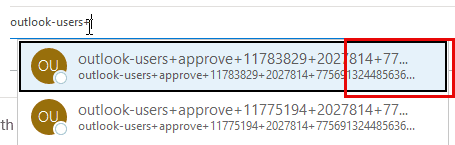
PLEASE use Help > Feedback to request the ability to delete individual entries be restored.
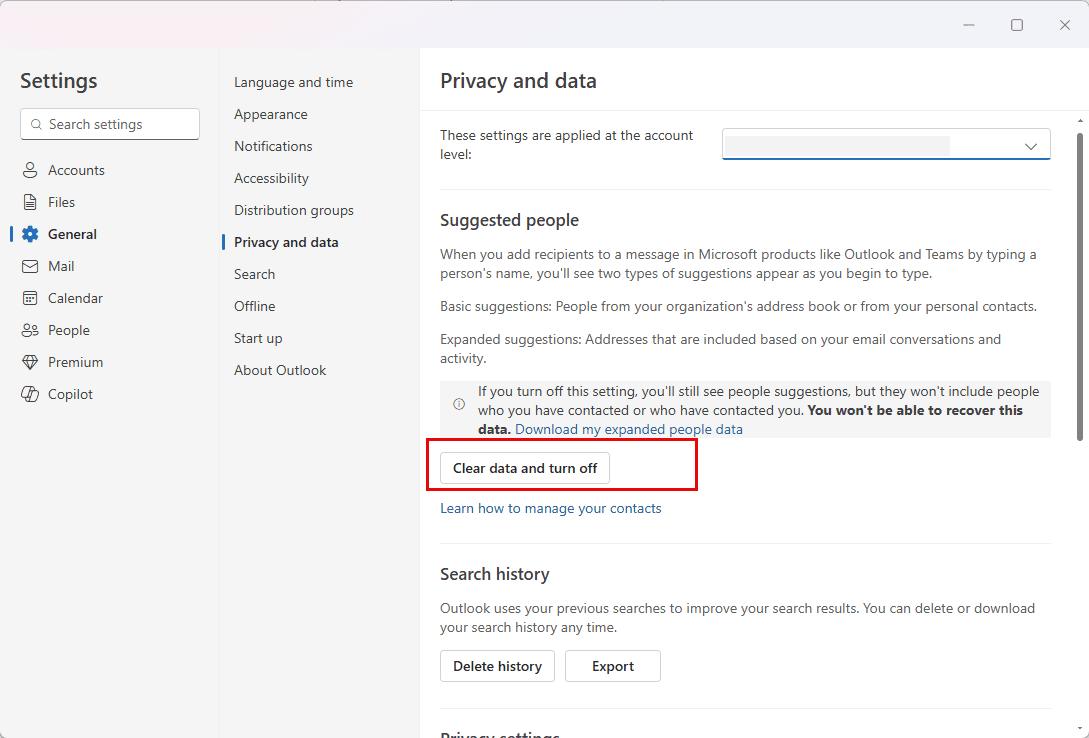
The option to clear the Suggested people is in File > View settings > General > Privacy and Data
Microsoft announced this the Microsoft 365 administrators in the admin portal's Message Center.
Clear the Autocomplete List
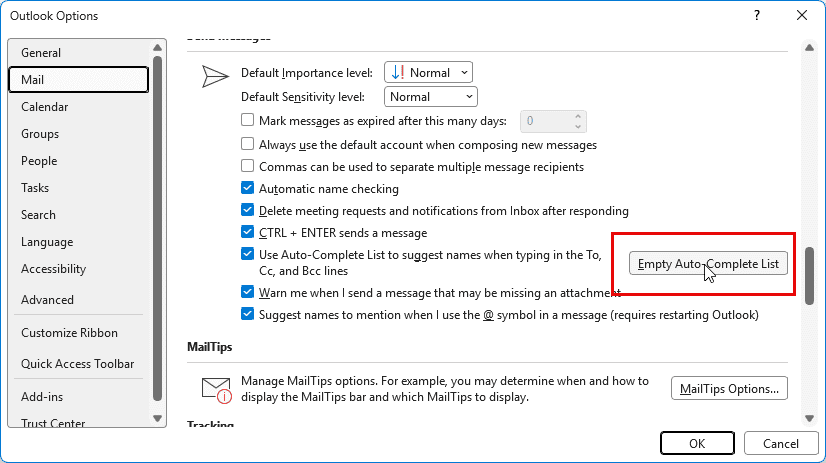
To clear the autocomplete list, go to File > Options > Mail. About 2/3 of the way down the page, click the button to Empty Auto-Complete List.
Or you can close Outlook and restart it using the cleanautocompletecache command.
- Close Outlook.
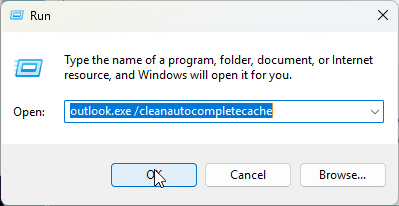
- Press Win key + R to open the Run command.

- Type or paste the following line in the Run field.
outlook.exe /cleanautocompletecache
- Press Enter or click OK to restart Outlook.
Rollback Office Install
If clearing autocomplete doesn't work, or you don't want to clear the entire list, you can rollback to Version 2603 to restore the ability to delete autocomplete.
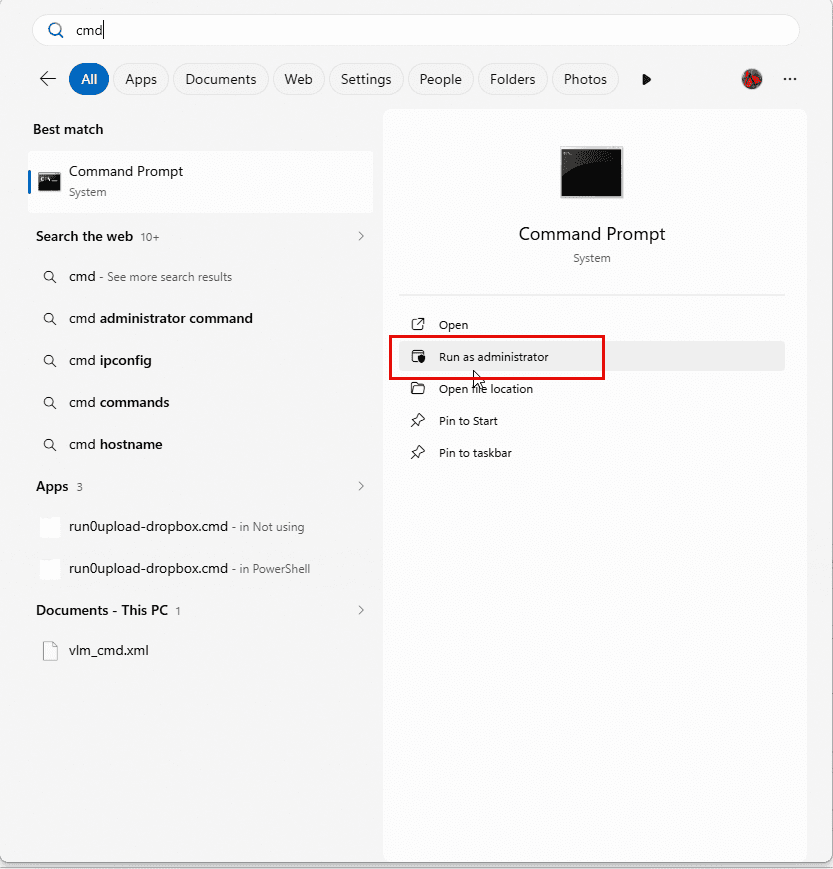
- Press Windows Key to open the Start menu
- Type cmd on the Start Menu.When Command Prompt comes up, choose Run as Administrator
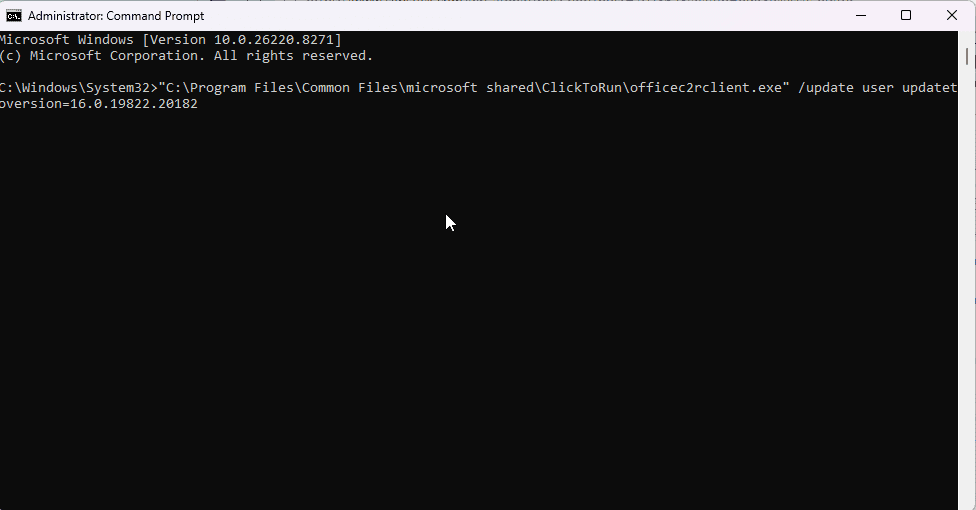
- Copy the following line, then right click in the command prompt window to paste it.
"C:\Program Files\Common Files\microsoft shared\ClickToRun\officec2rclient.exe" /update user updatetoversion=16.0.19822.20182
Version 2603 (Build 19822.20182)

James Cerney says
This feature is still available in Outlook for Andriod,
Hornblower409 says
How you can at least salvage the email addresses from your Autocomplete List if you have to clear it completely.
How to convert your Autocomplete List to Contacts and erase the List
See the Answer by "Hornblower409 May 1 2026" in
https://learn.microsoft.com/en-us/answers/questions/5871874/manually-removing-an-email-address-from-the-sugges?orderby=newest&page=1#answers
Diane Poremsky says
In new outlook, you can export the list before disabling it (which clears it).
In classic Outlook, you can export the autocomplete list using nk2edit from nirsoft.net.
Ron L says
I created a post in the Microsoft Feedback Forum to restore this functionality. Please help by upvoting it!
https://feedbackportal.microsoft.com/feedback/idea/97490d3b-7d45-f111-9a91-000d3a05c4f5