When moving a pst file to a new computer, Outlook will often ask for a password. You may not be forgetful - the moving process does something to make Outlook think there is a password. You will need to use a password recovery utility to get the password. (It will likely be a random generated password, not a passphrase or password you would have used.)
When you add a password to a pst file, every time you start Outlook, a dialog box will ask you for the password. Once you enter the password, the contents of the pst will be accessible to anyone who uses your computer while Outlook is open.
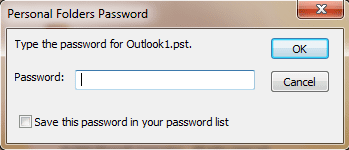
If you know the password but are tired of using it, you can remove it or change it and save it to your password list. If you can't remember the password, see Tools for utilities that can show you the password.
- Right click on the .pst file name in your folder list.

- Choose Properties (Data Files Properties in Outlook 2010 and newer), then Advanced button.
- Click Change Password button.
- Type your password in the Old password field.
- Leave the New password and Verify fields blank.
- Click Ok and work your way back to Outlook.
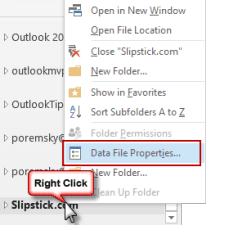
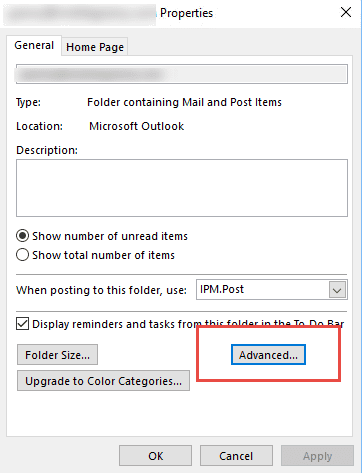
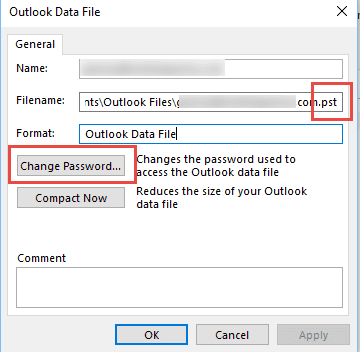
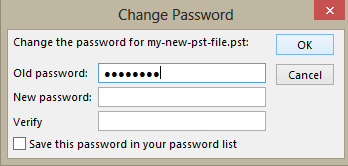
This dialog is also accessible from File, Account Settings, Data File tab. Select the pst file and click Settings.
Tools to Recover Lost Passwords
Because these apps can read passwords, your security software or browser may block the download as a security threat. You need to allow or trust the download.
Tools in the Spotlight
PstPassword can recover the PST passwords used on all versions of Outlook, both unicode and ANSI format. Recovers "ghost" passwords that show up after moving a pst file. You don't need to have Outlook installed to use this utility, you only need the original PST file that you locked with a password. Freeware. Version 1.10 |

Tools
Atomic PST Password Recovery restores MS Outlook .pst file password instantly, let you see email messages, contacts and calendar stored in your Personal Folders again. | |
Kernel for Outlook PST Password Recovery is a free tool to recover forgotten password from Outlook PST files. Software takes Outlook PST file as input and does not require Outlook to be installed and configured. It supports password recovery from PST files created in MS Outlook 2010/2007/2003/XP/2000/97. | |
Mail PassView allows you to view and recover lost e-mail account passwords and other account information for Outlook and other mail clients. Freeware. Version 1.43 | |
Outlook Password allows you to recover Outlook PST files' passwords. These PST (Personal Storage) files may be part of your MS Outlook Profile or just independent files - whatever the case, Outlook Password will recover your password. Outlook Password also recovers e-mail account passwords and server settings saved in MS Outlook records. All Outlook versions are supported: 97 - 2016. Windows 10 Compatible. | |
Protected Storage PassView is a small utility that reveals the passwords stored on your computer. The passwords are revealed by reading the information from the Protected Storage. Works with Windows 95/98/ME, Windows NT, Windows 2000 or Windows XP. It does not work with Vista. Version 1.63 | |
Recovers forgotten or lost passwords for mail accounts and also passwords for LDAP services that the Microsoft Outlook mail client uses in its work. Recovers passwords for password-protected Microsoft Outlook data files (files with the *.pst extension). | |
With Stellar Outlook Manager you can back-up your important emails, compact large PST file, identify and remove duplicate emails, get back lost password, repair corrupt PST files and even split large PST files. All these functions can be managed conveniently in just a few clicks through a central console. | |
Professional Outlook password recovery software that easily recovers Outlook password and enables you to unlock your password-protected PST files. The software supports password recovery for MS Outlook 2013, 2010, 2007, 2003, 2002, and 2000. Works well on Windows 10, 8, 7, Vista, Server 2003, XP, and 2000. |

Chris says
Hi does pstpassword work for Outlook 2019?
Diane Poremsky says
It's for the pst file - not specific Outlook versions. It works with all versions of outlook.
Graham says
I have an Office Home and Business 2021 and sadly put in a password which I wrote in a diary BUT I must have made an entry mistake in a 11 character password if I hit all the buttons. Now I cant backup my emails.
Diane Poremsky says
use pstpassword or one of the other uilities to display the password.
ab ha says
Worked for me pstpassword reset.
Tea says
Worked for me pstpassword reset.
Chris says
Yes me too :)
Bgr33z7 says
I am trying to recover a back up pst. When I load up the Nir software, it doesn't show the pst file as an option to recover the password. How do I include it in the initial window?
Diane Poremsky says
if a pst is not listed, press F7 (or the File, select pst command) to browse for it.
Leng Chhiaylin says
How can i disable if i forgot my old password
Diane Poremsky says
You'll need to use a utility to remove it, such as pstpassword from nirsoft.
http://www.nirsoft.net/utils/pst_password.html
jackie says
Hi, does the free program work for 2016? it does not include this version in his comments.
Diane Poremsky says
I don't think i tested it with 2016, but if it works in 2013, it should work in 2016 as the pst structure didn't change.
Helen says
Hi. I only figured out how to make a backup of my Microsoft Outlook 2010 emails and sub-folders about 2 months ago and already I have forgotten the password and am unable to do another export for safe keeping as a result! I blame all the painkillers I'm on! I have Windows 7. Is there a way that is free for me to retrieve the password I used or to remove it and create a new one? I have already tried 4 different passwords and don't know if I should keep trying or not! Thank you.
Diane Poremsky says
if you password protected a pst, use pst password utility from nirsoft
karis says
So is there any particular reason why Outlook continues to prompt you for the .pst files EVERY time you open Outlook? I thought it was something I could access as-needed, not something that was going to follow me around forever. Can I make it stop by deleting the (practice, don't worry) .pst file I made?
Diane Poremsky says
if the pst file is in your profile, it will ask you for the password when you open it, unless you checked the option to save it.
Yes, it will stop of you remove the pst from your profile or remove the password from the pst.
Daisy says
I'm trying to recover a backup of my Outlook pst file. It asks for a password and I don't remember one. I have Outlook 2016. Any help would be appreciated.
Diane Poremsky says
use pstpassword from nirsoft - it's free and should recover the password for you.
jackie says
does it cover 2016?
Diane Poremsky says
it should work with 2016.
Shiva says
Hello Diane, your tip worked so nice and so many thanks for your inputs. The nirsoft tool cracks the PST password in just one second!! And, it worked on version 2016.
Thanks, once again!!
Ayobi says
Thanks a lot!
Nucleus Kernal PST Password Recovery
it worked and find my .PST password and I could remove my PST file password easily.
Thanks once again from your cooperation.
shafna says
https://www.nirsoft.net/utils/pst_password.html This one really works and it is absoulutely free tool. dont buy any tool and waste your dollars
Dame_S says
i gave up asking my corporate IT for help on this issue and also failed with my own efforts - what a relief to find this forum
THANK YOU
Krishna says
I never assigned a password to my outlook pst2007. What is did was just a data movement to my new laptop.Now my outlook pst is asking for a password.Please advise
Diane Poremsky says
that is not unusual - use pstpassword or one of the other password utility to get the password outlook thinks is there.
I have no idea why outlook thinks there is a password, but we've seen it before, most often when upgrading to a new version of outlook.
Joanne Takacs says
I'm tearing my hair out. I never assigned a password to Outlook (2003 version) and all of a sudden it is asking for one in order to send/receive my emails. I don't understand. I finally figured out it needed my network password which I entered and it worked. That was 2 days ago, all of a sudden today it's asking for a password again but now when I put in the network password, it doesn't work. What is going on?
Diane Poremsky says
What does the dialog say?
What type of email accounts do you have configured in outlook?
What OS? Any updates installed recently?
I've seen Outlook ask for a pst password after Windows upgrades, even though one wasn't ever assigned to it. pstpassowrd should show you the 'fake' password so you can use the pst.
Diane Poremsky says
Patti Lloyd says
Jack says
PstPassword worked a treat on my 2015 Outlook .pst files. Happy days!
JimBob says
Your remove a password from Outlook routine described above doesn't work in Outlook 2016 because there is no Change Password option after you hit the Advanced key in Data File Properties.
Diane Poremsky says
Are you looking at a pst file? That is the only account that has the password option. (I added screenshots of the dialogs to the instructions.)
Isa says
hi can you please help me to remove my password from outlook on my Lenovo pc regards
Diane Poremsky says
Is it a password on pst file? Try this password remover - https://www.nirsoft.net/utils/pst_password.html
John McCormack says
this is reported as Malicious !!
Diane Poremsky says
Yeah, most AV software should report the utility as malicious because it removes or recovers passwords. Every password utility should generate this warning.
Frank Kosztan says
Hi I am looking for a simple and free process to recover my PST file in Windows 10. YES i forgot my password.
Diane Poremsky says
This one from nirsoft should do it - https://www.nirsoft.net/utils/pst_password.html
Madhu says
any methods for Outook 2013!!!
Diane Poremsky says
pstpassword works with the pst files created in Outlook 2013.
Madhu says
I am using Win& nd Outloook 2013. The PST I had was created in Year 2013. When I am trying to import the PST it asks me for the password. I never set any password on PST's. I did not find the SCANPST in my OUtlook 2013 installation and pst**19 failed with error as above.
Diane Poremsky says
I've seen that happen when upgrading - try pstpassword from https://www.nirsoft.net/utils/pst_password.html and see if it finds a password.
Bharadwaj says
Now i am using Office 2010. Earlier i was using 2007. While using 2007, i have given Password to PST file. After upgrading to 2010, i was trying to use the same pst file in 2010, while adding, it is prompting for password and i have forgotten the PW, how can i remove the Password for the same and reuse in Office 2010. Please help me.
Diane Poremsky says
Use one of the utilities listed in the tools section - my preference is pstpassword at https://www.nirsoft.net/utils/pst_password.html
Exile Njoka says
This has perfectly worked for me. Thanks
KEn says
Hello, my PST file size is 3.6GB, i have forgotten password, i use Kernel PST Password Recovery but it is not working. It show error: seek failed on an unnamed file. Please help me.
Diane Poremsky says
ret one of the other password utilities - i like pstpassword.
Mahesh says
Thanks Diane.. You are a lifesaver.. Used the free tool kernel PST data recovery tool... Excellent software..
Shakil says
Thank you Diane for quick reply. Yes, Nirsoft is free but when I tried the one from Nisoft it gives error as "windows can not access the path, you may not have access to this item" :(
All others are for buying as of now.
Diane Poremsky says
That sounds like a permissions problem. What version of Windows are you using?
Shakil says
Hi Diane,
I tried the given options but all are costly to buy. Trial version dont give full password details. I am using Outlook 13. Can you please help me here.
Regards,
Shakil
Diane Poremsky says
The one from Nirsoft is/was free as are a few others.
Ranadeep B says
I am using Outlook 2013 and i have forgotten my pst password. Can you help me to remove the password from my pst, so that i can access my pst.
It has very important emails. please assist.
Diane Poremsky says
Any of the utilities on this page should recover the password for you - i happen to like pstpassword from nirsoft.
Tamara says
Thanks so much. It works. I was trying and trying and only this helped me
jjavierc73 says
Excelente contribución.
Priya says
The Kernel for Outlook PST Password Recovery, wow, it works perfectly. It recovered my password flawlessly! Thank you so much.
April Azure says
I discovered that a corrupted PST file can cause this issue. You'll probably see that the size of your PST file is very small, like 500kb. What I was able to do is right-click on the corrupted PST file from Explorer and choose "Restore Previous Versions" You can then select an earlier restore point on the file before it was corrupted.
Serch says
Just the password dialog, no errors... and sadly some of the tools are not working for me ;(
Diane Poremsky says
Dang. There are some days you really hate Outlook. :) I'm out of ideas on this - the lost password tools usually fix it.
Serch says
It didn't work as blank either, is there anything more I could do to open it?.
Diane Poremsky says
The password utilities are the only way I know to do it. Do you get any error message or just the password dialog?
Serch says
I tried that, I clicked the ok button with no password in it but it didn't work.. what else do you recommend me to do?. Thanks.
Serch says
When I use PstPassword I opened the pst file but the passwords are not displayed :(, I tried to use the More Passwords option (F8) but none of them seem to work, the version listed in the program says that is 23.
I scanned the pst and repaired it but it didn't work then I used PST Password Recovery Free, it creates a partial password something like TH1***. The thing is that I never set a password for it, my outlook got messed up and I re-create the profile and that screwed up the pst file. Any other ideas I could use?.
Diane Poremsky says
Did you try no password? Just click the button to use the password? When the password error is due to outlook getting confused and thinking there is a password, a blank password sometimes works.
Serch says
I have a problem my outlook is 2007, it locked my pst for no reason.. I've tried all tools listed here and none of them work, PstPassword gives me a partial password only, any more help would be highly appreciated...
Diane Poremsky says
What is the exact error message or what exactly happens when you try to open it?
Klara says
Thank you for the post!
Unfortunately, it didn't work with the scanpst and pst19upg which would have been a "clean" fix. But luckily, Kernel for Outlook worked like a charm and in a minute so now I can use my Outlook again.
thnx.
Diane Poremsky says
scanpst and pst19upg only work with the old ANSI pst format, not the new pst format in Outlook 2003 and newer.
SlightlyPeeved says
How do you recover a password for an Outlook 2010 pst?
Diane Poremsky says
You'll need to remove it and then set a new password, if desired. I usually recommend PstPassword - its free.
Mehmet Akif EREN says
https://www.nirsoft.net/utils/pstpassword_setup.exe
It's the recent solution and worked for me just now.
Best Regards,
Mehmet Akif EREN, CENNET FURNITURE, TURKEY.
pierre says
I have the same problem as Johnny Gómez's one.
- I used scanpst,
- then using pst19upg:
Exporting: Outlook_last.pst (version 19)
to: Outlook_last.psx
Could not open PST file Outlook_last.pst
ERROR 0x80040119
Program terminated in error (80040119)
Diane Poremsky says
Do you have an old PST format? That application is only used on ANSI PST. If you have the newer Unicode PST format, you need to use a utility to remove the password. I usually recommend pstpassword for this.
David says
I am experiencing what Vineet describe also too. scnpst on the copy version did not work, and pst19upg.exe did not create a PSX file when I ran it. Clicking OK on the password prompts an invalid password.
Upon reading reviews on the Kernal software, it didn't seem to have positive reviews.
Any other suggestions?
Diane Poremsky says
pst19upg won't work on unicode pst files. If a blank password won't get you in, try the free pstpassword utility.
Vineet says
I have transferred the data (including pst files for Outlook 2010) from old computer to new. Now the .pst file is asking a password. I have never set any password and also I don't know the password. How do I recover the password now? I have tried Kernel for outlook, Nucleus pst recovery software but they didn't work. Please help.
Diane Poremsky says
If you click Ok (as if the password is nothing), does it work? There have been instances where upgrading from older versions of outlook, that the password dialog came up when it was set. Some times, the password crackers will work on it, other times not. If a blank password won't work, try running scanpst on a copy of the pst.
Sam says
The Kernel for Outlook PST Password Recovery, wow, it works perfectly. It recovered my password flawlessly! Thank you so much.
Don says
Thank You.
In Outlook 2010 64-bit the "Change Password" is found by going into "Account Settings" while in Outlook. Under "Data Files" single-click on outlook.pst, then click on "Settings"
Diane Poremsky says
You can get into the password dialog either from Account Settings or using Properties (Data File Properties), Advanced button. There are too many clicks either way. :)
Don says
When I transferred Outlook 2010 from old computer to new, The .pst file required (I thought) a password. I know the password, but it's just a nuisance now. How do I get rid of it?
Diane Poremsky says
Right click on the pst name in the folder list. Choose Properties, then Advanced. click Change password and leave the new password field blank.
Leon Steinhardt says
That's the error code I got when I tried the procedure on my .pst from Outlook 2007 (which you noted would not work, which I can now confirm).
I don't think Mr. Gomez had a typo, I imagine pst19upg.exe showed the message "to: PST2012.psx" as part of its progress display.
Diane Poremsky says
Yeah, I realized later that the extension is changed by the software - I hadn't used it in "forever" forgot how it worked. Thanks for the confirmation.
adam says
this is stupid there is no typo
Diane Poremsky says
If you are talking about my questioning this file name: PST2012.psx - there is no psx file type. There is a pst file type.
Johnny Gómez says
Hi Diane I followed the steps you published in order to remove my pst file password but it gave me an error, do you have any idea about this kind of error?
F:\Documents and Settings\jgomez17\Mis documentos\Descargas\pst19upg>pst19upg.ex
e -x PST2012.pst
Exporting: PST2012.pst (version 19)
to: PST2012.psx
Could not open PST file PST2012.pst
ERROR 0x80040119
Program terminated in error (80040119)
I hope you can help me, please.
Diane Poremsky says
I'm assuming this is a typo? to: PST2012.psx
Did you run scanpst on the pst copy? That error code usually indicates you need to run scanpst on the pst file.
Julius says
Thank you! I contributed to further development.
Karen says
Thank you so much! Was able to use your tips and remove the password from the file for my client!
Juan Manuel Agras says
Great!!!! This worked for me too. Many thanks!!!!
Danniel Butler says
You are amazing! I had a client somehow lock themselves out of their pst file but they did not want to pay for a commercial product to remove the password. Found this and it worked like a charm!!!