If you enter a Home address for most people, but not a Business address, you may want the Home address to appear by default when you open a new Contact item. This is very simple to accomplish with a custom Contact form in all newer Outlook versions.
Use this method to change which four phone fields are shown by default
Outlook 2007, 2010 and 2013
While the basic steps are the same for all versions of Outlook, the menus are different in Outlook 2007 and up.
If using Outlook 2007 and up, you need to show the Developer Ribbon to see the Publish options. From Outlook 2007's Office orb (formerly File menu) click the Editor options button. add a check to 'Show developer tab' is in the Popular tab section and return to Outlook. Select the Developer tab on the ribbon and publish the form.
In Outlook 2010 and up, go to File tab, Options, Customize Ribbon and enable the developer tab (on the right side of the dialog.) Return to Outlook and use the Publish command on the now-visible Developer ribbon.
To Create a custom Contact form:
- Switch to the Contacts folder.
- Open a new contact.
- Switch the address selector from Business to Home.
- Add a check to the box to use it as the default mailing address.
- Choose Developer | Publish | Publish Form As .
- The Publish Form As dialog should show the form as being published in Outlook Folders, under Contacts.

If it doesn't show the Contacts folder as the publication location, you'll need to use the Look In drop-down list and Browse button to get to the Contacts folder.
- Enter a name for your form, then click Publish
- Set the Display name to Home.
- Click Publish.
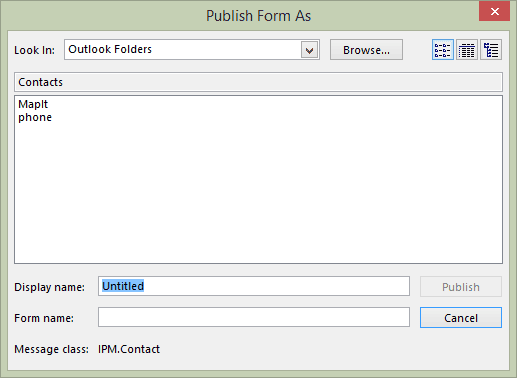
Under the New Items button menu in the Contacts folder, the new form will be listed on the Custom Forms menu. Click this to bring up a new Contact item, showing the Home address box.
If you want to use this as the default for all new contacts, see To apply a new form to a folder.
How to set the Home address as default
This video was recorded in Outlook 2010, but the steps are similar in all versions, only some menus have changed.
Outlook 2003 and older
To Create a custom Contact form:
- Switch to the Contacts folder.
- Open a new contact.
- Switch the address selector from Business to Home.
- Add a check to the box to use it as the default mailing address (required for Outlook 2002 and above).
- Choose Tools | Forms | Publish Form.
- The Publish Form As dialog should show the form as being published in Outlook Folders, under Contacts. That's what you want to do. If it doesn't show the Contacts folder as the publication location, you'll need to use the Look In drop-down list and Browse button to get to the Contacts folder.
- Set the Display name and Form name to Home.
- Click Publish.
Under the Actions menu in the Contacts folder, you should now see a new entry at the bottom -- New Home. Click this to bring up a new Contact item, showing the Home address box.
Using the Custom Form
If you don't want to create your own form, download a sample form. You'll need to open the .oft file and publish it.
To make your new form the default for your Contacts folder, see To apply a new form to a folder.
To convert existing contacts to use the new form, use DocMessageClass or a VBA macro.
Change the mailing address on selected contacts using VBA
You can use a VBA macro to change the address that is used for the mailing address. Select the contact(s) that need changed and then run the code.
Note: this code is my super-duper bulk contacts changer code. You can use the code to change any contact field by replacing the fields between With objContact and End With.
A PowerShell version is at Change the Mailing Address Selector Using PowerShell
Public Sub ChangeMailingAddress()
' fromhttp://slipstick.me/dk

    Dim Session As Outlook.NameSpace
    Dim currentExplorer As Explorer
    Dim Selection As Selection
    Dim currentItem As Object
    Dim folder As Outlook.folder

    Dim obj As Object
    Dim strFirstName As String
    Dim strLastName As String
    Dim strFileAs As String

    Set currentExplorer = Application.ActiveExplorer
    Set Selection = currentExplorer.Selection

    On Error Resume Next

    For Each obj In Selection
    Set folder = currentItem.Parent
        'Test for contact and not distribution list
        If obj.Class = olContact Then
            Set objContact = obj

            With objContact
            'valid choices are olBusiness, olHome, or olOther
                .SelectedMailingAddress = olBusiness
                .Save
            End With
        End If

        Err.Clear
    Next

    Set Session = Nothing
    Set currentExplorer = Nothing
    Set obj = Nothing
    Set Selection = Nothing
    Set currentItem = Nothing
    Set folder = Nothing
End Sub
More Information
More Bulk Change Contact articles at Slipstick.com:
- Bulk Change Contact's FileAs Format to Match Outlook's Default Setting
- Bulk Change File As Format for Contacts
- Bulk Move Phone Numbers to a Different Phone Field
- Macro to Swap First and Last Name Fields
- Show the Home Address on a Contact Form by Default
- Update Contact Area Codes
- Update Contacts with a New Company Name and Email Address
Microsoft Outlook Contacts Issues

Jonathan says
I realize this post is pretty old, but I found it very useful anyway, thanks (especially since I am still using Outlook 2010).
The only issue is, like another poster below, for some reason, new contacts created using the newly published form are given the "Post" icon rather than the "Contact" icon.
Is there a way to publish a form that assigns the "Contact" icon to the contact instead? Is there at least a way to change the icon of the contact once it's been created?
I can't really tell if it really matters what icon Outlook assigns to new contacts.
You don't see the icon in Business Card view, only in List view.
Further, in List view, you could always remove the icon column if you wanted.
Still, I can't help but wonder if there is some difference, since Outlook decides to assign the "Post" icon to contacts, instead of the regular "Contacts" icon.
Any ideas?
Thanks.
Diane Poremsky says
The icon only matters because its ugly. :) You can change the icon on the Properties page when designing the form. use the icon in the FORMS folder in your installation - in Outlook 2016, it's at C:\Program Files (x86)\Microsoft Office\root\Office16\FORMS, under the language id folder (US English is 1033).
Nolan Kienitz says
As long as I select the default form for the contact it works fine. If I go through the routine to save a template with the home address as default ... when I try to use that new form I get the error message.
I have two laptops and it only does it on one of them. The other one works fine. They both have the same updates, but maybe something hiccuped on one.
Nolan Kienitz says
All of a sudden I get the message: "The form required to view this message cannot be displayed. Contact your administrator." I've been using the modified template for the home address as the default and it worked fine. Now I get the message above. If I go back to properties to choose IPM-Contact then Outlook-2010 is happy again. Have I done something with my Outlook or has some recently downloaded MS patch messed things up?
I'll keep digging to see if I can come up with something, but so far I've not had any luck. I've re-saved the template via Publish, etc., etc.. as well with no joy.
Thanks in advance.
Diane Poremsky says
Either the form is corrupt or an update messed something up, but if you resaved it, it's probably not corrupt. The only change was the home address as default?
Micki Schossberger says
Actually my screen is 15.6", but closing the ribbon worked. Thank you!
Micki Schossberger says
Is there any way to make the address box on the contact form show in order to edit it if it is off screen?
Diane Poremsky says
Sounds like you have a small tablet or are using low resolution. The form was designed for no less than 1024x768 and that doesn't work well on small screens. Unfortunately, if the form is full screen, you can close the ribbon to get a little more space. If that is not enough, you need to change the resolution or create a custom contact form with the fields you use most in view.
Stephen Levitus says
Thanks! I'l give it a shot and let you know how it turns out.
Stephen Levitus says
I have a reverse issue. My Outlook 2010 Contacts shows the home address as the default mailing address and I'd like it to show the Business Address as default mailing address instead. How can I accomplish this.
Diane Poremsky says
It sounds like theyt were saved with the home address set as the mailing address. You can use the macro at https://www.slipstick.com/outlook/contacts/show-the-home-address-on-contact-form/ to make the change on current contacts. New contacts should default to the address you enter first and you can select a different one when creating the contact.
David MacCarthy says
I've created the new form ok. However, when I use it, the resulting new contacts show in the Contacts folder with a different icon. This seems to be the result of the new Form having ".Home" added to the "IPM.Contact" message class. Is there a way to assign the standard icon to the new form.
Larry Bem says
Thank you for taking the time to detail how to publish a new "Home" form in Contacts (simply)
- Larry Berm
Karen Hurley says
How do I (where do I) put an address in on the contact form?
Diane Poremsky says
Mailing address? You should have a box for the mailing address on the bottom left, although it might be off screen if you use a netbook with a screen with less than about 600 pixels high.
Sam Spagnola says
I have tried this multiple times using Outlook 2010. However, there is no entry for "new home" appearing on the Action bar.
Diane Poremsky says
The New Home form won't show on the ribbon until you set it as default and refresh the folder (switch to one folder, then back to the contacts folder). I uploaded a new video that was created in Outlook 2010, it shows the exact steps for Outlook 2010.
mary ramsey says
I tried, but once I selected and checked HOME, could not find tools. Oh well. Thanks for trying to help. I am abysmally ignorant relative to computers.
Nighty night
Diane Poremsky says
What version of Outlook do you use?