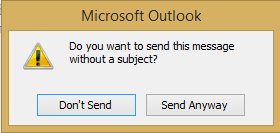
Surprisingly, some users hate this but there is no way to disable it in Outlook Options. If want to disable this warning, you can disable the warning using a macro.
Anyone using Outlook 2007 or older who wants a warning when the subject line is blank needs to use a macro.
Private Sub Application_ItemSend(ByVal Item As Object, Cancel As Boolean)
 Dim strSubject As String
  strSubject = Item.Subject
     If Len(Trim(strSubject)) = 0 Then
         Prompt$ = "Subject is Empty. Are you sure you want to send the Mail?"
       If MsgBox(Prompt$, vbYesNo + vbQuestion + vbMsgBoxSetForeground, "Check for Subject") = vbNo Then
        Cancel = True
      End If
    End If
End Sub
How to use this macro
Using a macro in Outlook, short version:
- Step 1: Enable macros in Tools, Macro Security or Tools, Trust Center (Outlook 2007). We recommend the 'warn for all macros' setting (Medium in Outlook 2003 and older). With this enabled, you'll need to allow macros each time you start Outlook. In older versions of Outlook, you may need to close and restart Outlook before the macros will work.

- Step 2: Open the VBA Editor using Alt+F11 keystroke.
- Step 3: Expand the Project menu and select ThisOutlookSession
- Step 4: Copy and paste the macro into ThisOutlookSession. The text should be blue, green and black. Red text means there is a syntax error in that line.
- Step 5: Save (Ctrl+S or Save button). Note: you'll need to save the VBA project when you close Outlook too.
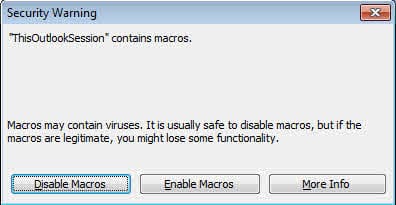
Test the macro by sending a message with a blank subject.
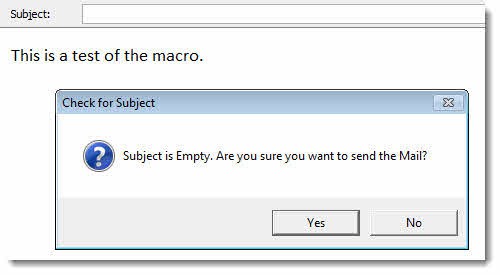
If it works as expected, you can use SelfCert to sign the macro then set Outlook's macro security to signed macros only. Instructions for using SelfCert are available at How to use Outlook’s VBA Editor
Warn before doing other stuff...
You can use this to warn about things beside a blank subject. Depending on what you are checking, you will need to either remove or edit the first two lines:
Dim strSubject As String
strSubject = Item.Subject
Then change the IF statement to test the field you want to test:
If Len(Trim(strSubject)) = 0 Then
For example, to check the TO address, we need to change those lines to this:
'Item = MailItem
If Item.To = "alias@domain.com" Then
Private Sub Application_ItemSend(ByVal Item As Object, Cancel As Boolean)

   'Item = MailItem
     If Item.To = "alias@domain.com" Then
         Prompt$ = "Are you sure you want to send this message?"
       If MsgBox(Prompt$, vbYesNo + vbQuestion + vbMsgBoxSetForeground, "Check before Sending") = vbNo Then
        Cancel = True
      End If
    End If
End Sub
More code samples are available at
More Information
More Code Samples:
E-Mail: Check item size before sending

Dennis Parteka says
I see this code all over the internet and everyone says how wonderful
it works but it doesn't work for me, I'm clueless, any ideas why? I'm not
getting an error, it just seems to not run the macro. Windows 7 Office 2010.
Diane Poremsky says
it definitely won't show in the macro list (first screen shot) - it's an auto macro and will run when you send a message. You don't need to do anything to make it run (but click Send).
Do you have macro security set to low? That is the usualy cause...
(I'll try to record a video showing how to do it and it in action tomorrow. )
Dennis Parteka says
Thank you for responding and for your help, I really appreciate it.
Yes, security is as low as possible. I’ve tried running this on
Windows-7 Office 2010 and Windows-10 Office 2016 and also tried
changing the fourth line… it’s driving me a little nutty.
From… If Len(Trim(strSubject)) = 0 Then
To… If Len(Trim(strSubject)) = "No" Then
Diane Poremsky says
Now wait a minute - why do you need this with either outlook 2010 or 2016? It has the warning built in - you should get this dialog box. If you also use the macro, it will come up after this one.
Diane Poremsky says
oh, i see the problem - len is length.
Use this instead
If InStr(1, strSubject, "Phrase") > 0 Then
If there is any chance any letter in the string could be a different case, use lowercase for everything:
If InStr(1, lcase(strSubject), "phrase") > 0 Then
Tai says
I created a request form with fields for users to enter in Outlook. However, I would like all the fields to be entered prior to the form getting sent. How can I prompt a message box stating "Please enter all the fields" when the user is trying to send the form with one or more blank fields?
Navdeep says
1.Is there is way to add any prompt on recieving any mail in Outlook.For exaple.
Do you want to archieve this mail.
2.On Yes, I want to use our own Product calls to archieve emails in repository.
3. Once Archieved , Flag of mail should be marked stating that mail has been archieved in repository.?
Diane Poremsky says
Do you want the prompt as the mail arrives? if so, an itemadd macro can do the prompt and the flag. Whether it can use your archiving software depends on the software.
Ken says
I use a template in outlook 2007 where I need to edit the subject every time before I send it. In the template, the subject is "Ticket #". What is the code to get a prompt before sending out a message with a specific subject? I want it to warn me if I forget to edit the subject of the template. So If the subject = "Ticket #" then prompt me if I want to send out the email.
Diane Poremsky says
use this - first 8 characters = ticket # to prompt for all messages that begin with ticket #. if you wanted to warn only if there was not something after ticket #, use the second one, 10 would allow for 2 digit or larger ticket #. That can be increased.
If Left(strSubject, 8) = "Ticket #" Then
If Left(strSubject, 8) = "Ticket #" and Len(Trim(strSubject)) < 10 Then
Don says
I would like to applaud you for following up on comments from an almost three yr old post!
I am trying to modify a subject to apply some leading text (to encrypt via our servers) to emails sent to any address besides two specific ones. I modified the code based off something I found online a while ago to just add the encrypt text to everything, but it gets kind of messy with some people's filters. Below is the code, any thoughts how to fix it? Thank you in advance!
Private Sub Application_ItemSend(ByVal Item As Object, Cancel As Boolean)
If (Right(Trim(Item.To), 15)) "@exampleone.com" Then
Item.Subject = Item.Subject
ElseIf (Right(Trim(Item.To), 15)) "@exampletwo" Then
Item.Subject = Item.Subject
Else
If (Left(Trim(Item.Subject), 8)) "SECURE: " Then
Item.Subject = "SECURE: " + Item.Subject
End If
End If
End Sub
Diane Poremsky says
The macro at https://www.slipstick.com/developer/code-samples/add-secure-message-subject-sending/ uses a cleaner method if you need to exclude multiple domains and also check all of the recipient addresses.
Not sure the purpose of this - if the subject has secure, it doesn't need it added. Oh, i bet wordpress ate the 'does not equal brackets' <>
If (Left(Trim(Item.Subject), 8)) "SECURE: " Then
Item.Subject = "SECURE: " + Item.Subject
These could be combined into an OR... but the else works too. just exit sub and send if the statement is true.
If (Right(Trim(Item.To), 15)) "@exampleone.com" Then
exit sub
ElseIf (Right(Trim(Item.To), 15)) "@exampletwo" Then
exit sub
Else
If (Left(Trim(Item.Subject), 8)) <> "SECURE: " Then
Item.Subject = "SECURE: " + Item.Subject
Don says
That was prefect. Thank you!
Don says
Is there a way to add if the address is an Exchange address, as those do not show domains? Thank you!
Diane Poremsky says
So you want it to trigger for any internal email address? Try looking for /ou in the address or "" (nothing). if that fails, you couls look up the pr_smpt_address - 'Check for different domains' macro at https://www.slipstick.com/how-to-outlook/prevent-sending-messages-to-wrong-email-address/ shows how.
Deepa says
can you help me with the code for warning message "Please read the email or check the attachment before sending"
Diane Poremsky says
if you want to check all mail, remove the If and End if lines. Change the text within the prompt string.
Mark says
Diane,
If I just want a macro to stop any and every email before I send it so I can check it one more time, what would I do? I'm not checking for a specific field. Rather, I simply want a "speed bump" with text in the pop up that makes me reconsider sending it or allows me to cancel if I'm not sure.
I've done this before, looking at your site (I think) but I've forgotten now that I switched to a new computer.
Diane Poremsky says
If you remove the IF and end if lines, it'll check all messages.
Private Sub Application_ItemSend(ByVal Item As Object, Cancel As Boolean)
Prompt$ = "Are you sure you want to send this message?"
If MsgBox(Prompt$, vbYesNo + vbQuestion + vbMsgBoxSetForeground, "Check before Sending") = vbNo Then
Cancel = True
End If
End Sub
rohitrajsbl says
Hi Everyone,
I want to create a Macro in outlook 2013. If I am attaching anything in email then a popup box should appear with the statement “You are attaching a file. Please check if XYZ field available in the file” Presse YES or NO. Also in the popup box should be one check box If I checked the button then a note should be include with the email.
Please help me to solved this out.
Diane Poremsky says
That one is complicated and I don't have any macro samples that do that. Sorry.
dpons039 says
Hello, I really love this warnings and I'm using them regularly.
I need to have one to check if the subject has an specific word "test"
If Subject has "test" -> Send email
If Subject does not have "test" -> Warn if you want to send it.
Thank you Diane!
Diane Poremsky says
You'd add another if:
If Len(Trim(strSubject)) = 0 OR If instr(lcase(strSubject, "test")) = 0 Then
by using lcase, it works with any case: Test, test, TEST, tEsT etc.
dpons039 says
Hello Diane,
That doesn't seem to work, i'm geting a:
compile error - Expected: Expression.
I'm at Outlook 2007
Diane Poremsky says
User error :-) This is the correct format for the line:
If Len(Trim(strSubject)) = 0 Or InStr(LCase(strSubject), "test") = 0 Then
That should teach me not to copy and edit a line instead of just typing it in from scratch. :)
Shashank says
The one for subject did'nt work for me....gave me a expected end of statement error...
This worked for me though (Outlook 2007)
Private Sub Application_ItemSend(ByVal Item as Object, Cancel as Boolean)
If Item.Subject = "" Then
MsgBox "You forgot the subject."
Cancel = True
End If
End Sub
Diane Poremsky says
The only issue is that adding a space to the subject field will bypass the check. This will strip leading/ending spaces from the subject and trigger the message if the subject only contains spaces.
If Len(Trim(strSubject)) = 0 Then
Miles says
I would love to Add company Logo to this message ? I have change to are you sure you are sending this to the correct recipient ? - I feel the company logo will make it look more professional , can this be done ??
Diane Poremsky says
You can't use a logo with the msgbox - you could if you created a userform, but that takes away from the simplicity of code.
Prakash says
I want to give Warning message ,before sending mails containing following keyword "enjoy", "Fun" , "Party" , Please be careful ,don't send this type of mails.
Only Warning, before sending. Please guide
Diane Poremsky says
You'd use this format: instr(1,"keyword") > 0 but because you want to use multiple keywords, you'd use an array or case statement.
select case instr(1,strKeyword)
keyword "enjoy", "Fun" , "Party"
' code to do is there is a match
end select
Candice says
This works perfectly for me, but instead of warning when I send to a particular e-mail address, I need it to warn me before I send to one of the company's distribution lists. I can't get the macro to recognize addresses that are stored in our company's Global Address book.
Diane Poremsky says
Using the display name works here:
If Item.To = "Submissions" Then
Because DLs are expanded on the server, if you need to check for a member of a DL, you'd need to expand the DL using code then look for an address using InStr function. Also, the macro is case-sensitive - you can use lcase to make it insensitive.
jon says
Can this be modified to popup a message whenever I email a particular address? I just want to have that extra reminder to remove financial information from our board meeting minutes before I send them to a particular person.
Thanks,
Jon
Diane Poremsky says
Yes, it can. Remove the Dim line, change the subject and if line to the following -
Item = MailItem
If Item.To = "diane@here.com" Then