I regularly convert many of my emails into tasks, is there a way to create a rule that will automatically convert emails with a specific subject line, into a task?
Sure, you can use a simple script that creates a task from an email and use it with a Run a Script rule. We also added a second code sample that creates a task from the message you are reading in the reading pane.
To create an appointment from an email message, see Create an Outlook appointment from an email message.
VBA to Convert an Email to a Task
Press Alt+F11 to open the VBA editor and expand the tree to find ThisOutlookSession. Paste this code into the VBA editor then create a rule and choose Run a script as the action.
Sub ConvertMailtoTask(Item As Outlook.MailItem)
    Dim objTask As Outlook.TaskItem
    Set objTask = Application.CreateItem(olTaskItem)
With objTask
    .Subject = Item.Subject
    .StartDate = Item.ReceivedTime
    .Body = Item.Body
    .Save
End With
    Set objTask = Nothing
End Sub
You can customize the script to set a category or due date (or any other fields supported in Tasks). To calculate the due date, you'll use the DueDate property and add a whole number to the Received date. If you prefer to change the Start date, you would add a whole number to the start date line. If you use a category that is not in your Categories list, the color category field in the view will be colorless as the category is not in the master list.
    objTask.StartDate = Item.ReceivedTime + 2
    objTask.DueDate = Item.ReceivedTime + 3
    objTask.Categories = "Slipstick"
To use today's date only, not the current time, use Date and decimals to set the due date or reminder time.
    .DueDate = Date + 3.5 '3 days at noon
    .ReminderTime = Date + 2.25 ' remind at 6 AM 2 days from now
To override your default settings for Task reminders (set in Options, Tasks), you can use the ReminderSet and ReminderTime properties.
This example creates a reminder for 6 hrs before the due date or 6 pm the day before. If a reminder time is not set, it will use the default setting for Tasks, usually 8 am on the due date.
Accepted values for ReminderSet are True (on) or False (no reminder)
    objTask.ReminderSet = True
    objTask.ReminderTime = objTask.DueDate - 0.25
Create a task using a Run a Script rule video tutorial
Working with Attachments
To add the item as an attachment to the task, add the following lines after the Item.Body line:
 Dim newAttachment As Outlook.Attachments

 Set newAttachment = objTask.Attachments
   newAttachment.Add Item, olEmbeddeditem
To copy attachments from the messages to the task, you need to use the CopyAttachments, added to the end of the task macro.
Add this code before the .save
If Item.Attachments.Count > 0 Then
CopyAttachments Item, objTask
End If
Then this after the end of the first macro:
Sub CopyAttachments(objSourceItem, objTargetItem)
   Set fso = CreateObject("Scripting.FileSystemObject")
   Set fldTemp = fso.GetSpecialFolder(2) ' TemporaryFolder
   strPath = fldTemp.Path & "\"
   For Each objAtt In objSourceItem.Attachments
      strFile = strPath &objAtt.FileName
      objAtt.SaveAsFile strFile
      objTargetItem.Attachments.Add strFile, , , objAtt.DisplayName
      fso.DeleteFile strFile
   Next

   Set fldTemp = Nothing
   Set fso = Nothing
End Sub
Send a Task Request
If you want to send a Task Request, you need to Assign it and add the Recipient. You can use either the full email address or the GAL alias, or even the person's display name, provided the name can resolve to an entry in your address book or GAL. I recommend using the address only because it can't resolve to the wrong person.
You'll need to add .Assign to the With objTask code block, along with .Recipients.Add "email@address.com" line. You'll also need to change .Save to .Send
With objTask
    .Assign
    .Recipients.Add "email@address.com"
    .Subject = Item.Subject
    .StartDate = Item.ReceivedTime
    .Body = Item.Body
    .Send
End With
If you use the user's name or alias, you may need to Resolve it using code before it's sent. .Assign goes in the With objTask code block, but the Recipient is added outside of the With statement, then it's sent.
The DIM statement goes at the top of the macro with the other DIM statements.
 Dim myDelegate As Outlook.Recipient

With objTask
    .Assign
    .Subject = Item.Subject
    .StartDate = Item.ReceivedTime
    .Body = Item.Body
End With

 Set myDelegate = objTask.Recipients.Add("alias")
 myDelegate.Resolve

objTask.Send
Add Categories to the tasks
Carol asked how to add a category to the tasks. This is easy if you want one category for all tasks - just place this line before the objTask.Save line:
objTask.Categories = "keyword"
To assign different categories based on different keywords in the subject, you can use an IF statement for a couple of keywords but should use an array for a larger number of keywords. Instructions are at Using Arrays with Outlook macros.
Save to a different tasks folder
You can save the task to a different folder by adding two lines to the code. This example saves it to a Task folder in a different data file, in this case, a Sharepoint task list that is linked to Outlook.
You can also use a different folder in the mailbox. When the folder is the same level as the Tasks folder, using the example below.
Set SPSFolder = Session.GetDefaultFolder(olFolderTasks).Parent.Folders("Task folder Name")
When the folder is a subfolder under the default Tasks folder, use this:
Set SPSFolder = Session.GetDefaultFolder(olFolderTasks).Folders("Subfolder Name")
See Working with non-default Outlook Folders for more information.
' You need the GetFolderpath function from
'http://slipstick.me/qf#GetFolderPath
Set SPSFolder = GetFolderPath("SharePoint Lists\Slipstick - Tasks")

    Set objTask = SPSFolder.Items.Add(olTaskItem)
    ' do whatever
    '
    objTask.Save
Create the rule
Create a rule using the condition and choose the action "Run a Script", choosing the ConvertMailtoTask script you pasted into the VBA editor. Complete the rule.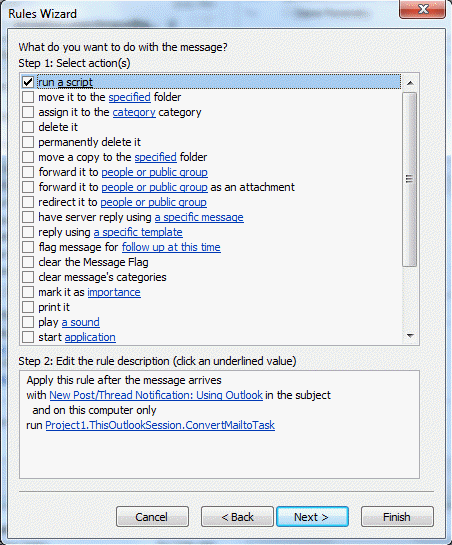
When a new message arrives meeting the conditions in the rule, the script runs and creates a task out of the message.
Create Task from the selected message
Jason wanted to know if we could use the code with a button to create a task from a selected message.
To do this, we needed to modify the original code just a little. To use it, create a command on the ribbon or toolbar and assign the macro to it. When you are reading a message in the reading pane, you can click the button to create a task.
This code doesn't work with open messages, but a little more tweaking can change that. Simply change the Set objMail line to Set objMail = GetCurrentItem() and get the GetCurrentItem function from "Outlook VBA: Work with Open Item or Selected Item".
To use, select the message and run the macro.
Sub ConvertSelectedMailtoTask()
    Dim objTask As Outlook.TaskItem
    Dim objMail As Outlook.MailItem

    Set objTask = Application.CreateItem(olTaskItem)
    Set objMail = Application.ActiveExplorer.Selection.Item(1)

With objTask
    .Subject = objMail.Subject
    .StartDate = objMail.ReceivedTime
    .Body = objMail.Body
'Add the message as an attachment
    .Attachments.Add objMail
    .Save
End With

    Set objTask = Nothing
    Set objMail = Nothing
End Sub
Tools
SimplyFile helps you file incoming and outgoing messages to the right Outlook folder with one click of a mouse. SimplyFile's state of the art algorithm learns as you file messages and suggests destination folders for filing. All you have to do to send a message to the right folder is click a button. SimplyFile also includes buttons for turning messages into Tasks and Appointments. Compatible with Outlook 2000, 2002, 2003 and 2007. Version 2.3.4.106. |
How to use macros
First: You will need macro security set to low during testing.
To check your macro security in Outlook 2010 or 2013, go to File, Options, Trust Center and open Trust Center Settings, and change the Macro Settings. In Outlook 2007 and older, it’s at Tools, Macro Security.
After you test the macro and see that it works, you can either leave macro security set to low or sign the macro.
Open the VBA Editor by pressing Alt+F11 on your keyboard.
To put the code in a module:
- Right click on Project1 and choose Insert > Module
- Copy and paste the macro into the new module.
More information as well as screenshots are at How to use the VBA Editor
More Information
Other macros to create tasks or appointments are at

Hi Diane
Thank you so much for the clear wonderful instruction! Everything is working except when the mail comes in I would like the task to be created within a custom named "list"
I would love for the task to be created in the list in this screenshot.
For that you need to get the folder path - if the task folder is in the accounts data file:
When the folder is the same level as the Tasks folder, using the example below.
Set SPSFolder = Session.GetDefaultFolder(olFolderTasks).Parent.Folders("Task folder Name")
When the folder is a subfolder under the default Tasks folder, use this:
Set SPSFolder = Session.GetDefaultFolder(olFolderTasks).Folders("Subfolder Name")
Then this to create it:
Set objTask = SPSFolder.Items.Add(olTaskItem)
' do whatever
'
objTask.Save
If its in another data file, you need to get the folder path:
' You need the GetFolderpath function from
'http://slipstick.me/qf#GetFolderPath
Set SPSFolder = GetFolderPath("SharePoint Lists\Slipstick - Tasks")
Set objTask = SPSFolder.Items.Add(olTaskItem)
' do whatever
'
objTask.Save
I think the other way to do this to create "Quick Steps".
In the Home tab, click on "Create New" under "Quick Steps" category. Refer below link for more information
Automate common or repetitive tasks with Quick Steps - Outlook (microsoft.com)
That method is not automatic (a rule is) and a macro can copy the message body exactly - the quick step adds a to/from header and removes images. It also only uses the default tasks folder. A macro can use any task folder in your profile.
Thank you so much for share this. I tried your code and the only thing that is not working and I am having an issue with, how do I make the email as an attachment in the task created?
Do you have macro security set to low? If not, outlook might be blocking it.
This will add the message as an attachment -
'Add the message as an attachment
.Attachments.Add objMail
Thank you for your quick reply, however, it does not seem to change anything no matter which option I chose.
Oh, wait. I think I misread - the macro works, just not adding an attachment.
you are declaring the mail item as 'item' in the first line - so you need to use item here-
.Attachments.Add item
Sorry for misunderstanding.
Thank you so much. Can you please also assist me with a way on how I can eliminate duplicated tasks? or some times I get the same email twice so instead of having duplicate task the code will check for it and create the task once.
Sorry I am not too savvy with VBA. TIA
I'll have to think on the best way to do this - duplicate checking macros can be slow.
Hi Diane - hoping you are well. I've looked at a variety of your codes and found one that will automatically create a task based on sending an email that contains a category - I will paste it below with my minor changes. Private Sub Application_ItemSend(ByVal Item As Object, Cancel As Boolean) 'Updated by Extendoffice 20181123 If Item.Categories <> "3 month follow up" Then Exit Sub End If Dim xYesNo As Integer Dim xPrompt As String Dim xTaskItem As TaskItem Dim xRecipient As String On Error Resume Next xPrompt = "Do you want to create a task for this message?" xYesNo = MsgBox(xPrompt, vbYesNo + vbInformation, "3 Month Follow Up") Cancel = False If xYesNo = vbNo Then Exit Sub Set xTaskItem = Application.CreateItem(olTaskItem) For Each Rcp In Item.Recipients If xRecipient = "" Then xRecipient = Rcp.Address Else xRecipient = xRecipient & vbCrLf & Rcp.Address End If Next Rcp xRecipient = xRecipient & vbCrLf & Item.Body With xTaskItem .Subject = Item.Subject .StartDate = Item.ReceivedTime .DueDate = Date + 84 + CDate("8:00:00 AM") .ReminderSet = True .ReminderTime = Date + 84 + CDate("8:00:00 AM") .Body = xRecipient .Save End With Set xTaskItem = Nothing End Sub This code works as… Read more »
you need to use an if statement - probably in a select case to cover each category -
if item.categories = "category 1" then
.ReminderTime = Date + 14 + CDate("8:00:00 AM")
end if
using select case will allow you to do something like this:
select case item.categories
case "category 1"
lRemind = 14
case "category 2"
lremind = 28
end select
Then you will use
.ReminderTime = Date + lremind + CDate("8:00:00 AM")
Hi Diane,
I Just want to sincerely thank you for all the valuable information you contribute. It has literally saved me days of work.
Hi Diane I'm new to VBA but enjoying the cool features we can add like changing the subject line, reply all with attachment and automatically creating a task if someone sends me an email with "can you" [do something] in the body.
The create task wors fine but the maco doesn't seem to add the email as an attachment - for example in Outlook 365 you can drag an email to the to-do and it will maintain the email so when you click on the task it brings up the email.
Any thoughts? thanks!
The last macro should add it as an attachment -
'Add the message as an attachment
.Attachments.Add objMail
Hi - thanks but I think I broke it...code is below - any thoughts would be appreciated!
Sub ConvertMailtoTask(Item As Outlook.MailItem)
Dim objTask As Outlook.TaskItem
Set objTask = Application.CreateItem(olTaskItem)
With objTask
.Subject = Item.Subject
.StartDate = Item.ReceivedTime
.DueDate = Item.ReceivedTime + 1
.Importance = olImportanceHigh
.Body = Item.Body
Dim newAttachment As Outlook.Attachments
Set newAttachment = objTask.Attachments
newAttachment.Add Item, olEmbeddeditem
If Item.Attachments.Count > 0 Then
CopyAttachments Item, objTask
.Attachments.Add objMail
End If
.Save
End With
Set objTask = Nothing
End Sub
changed ot this - seems ot work
<strong>Sub</strong>CreateNewTask(Item <strong>As</strong>Outlook.MailItem)<strong>Dim</strong>xNewTask <strong>As</strong>TaskItem<strong>On</strong><strong>Error</strong><strong>Resume</strong><strong>Next</strong><strong>Set</strong>xNewTask = Outlook.CreateItem(olTaskItem)<strong>With</strong>xNewTask.Subject = Item.Subject.StartDate = Item.ReceivedTime.DueDate = Item.ReceivedTime + 1.Body = Item.Body.Importance = olImportanceHigh.Save<strong>End</strong><strong>With</strong><strong>Set</strong>xNewTask = <strong>Nothing</strong><strong>End</strong><strong>Sub</strong>in the .Subject = item.subject , what if I want to add additional text to the subject for example the word Follow up: Subject
Use
.Subject = "followup: " & item.subject
Hi Diane, I'm wondering if there is a way (or script) that would send an email from the inbox straight to a folder (say '2020') after it has been turned into a task with attachment.
Yes, the macro can move the message. Use
objMail move [folder]