I'm going to begin this by saying that I really think it's time to find another solution for journaling. I have no idea how many more versions we'll see before Microsoft rips Journal's heart out. It's time to move on to something that is going to be around longer.
On the other hand, it's possible that Microsoft has removed all they can without breaking backwards compatibility, in which case, the Journal module might be mostly left alone for another 10 years. I don't have a crystal ball and Microsoft isn't saying anything more than the "journal is deprecated" and deprecated features have a way of hanging on, thanks to their need to provide backwards compatibility.
OneNote is one possible option as a replacement for the journal. I have a VBA sample to Copy Outlook Journal Entries to OneNote.
For those users who aren't ready to move on.... I'll share some facts about the state of the Journal in Outlook 2013 and workarounds to make it more useful and less broken.
Opening the Journal folder
The Journal button was removed from the Navigation pane / Peeks row. The keyboard shortcut of Ctrl+8 works or you can select the Journal from the Folder list.
Currently, a Journal button can be added to the ribbon or QAT.
- Open the Options dialog to Customize Ribbon or Customize Quick Access Toolbar.
- Select All Commands in Choose Commands From:
- Find Journal (click in the commands list and press J)
- Add a New Group then Add journal to the group.
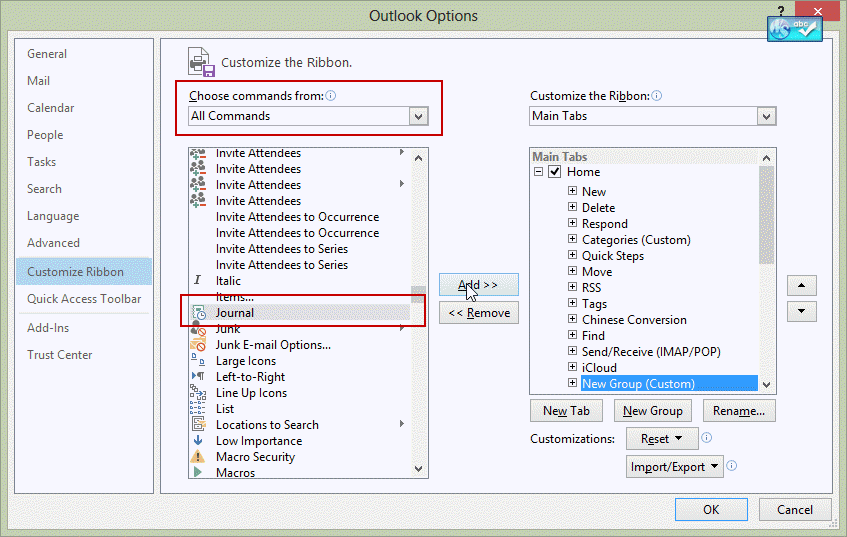
If the Journal command is missing in your version of Outlook, you can use VBA to switch to the Journal and assign it to a QAT or ribbon button.
Sub GotoJournalFolder()
    Set Application.ActiveExplorer.CurrentFolder = _
    Session.GetDefaultFolder(olFolderJournal)
End Sub
Creating New Journal Items
The New Journal button was removed from the New Items command and the shortcut to create a new journal item from any folder (Ctrl+Shift+J) was removed. You can either browse the New Item button and open the More Forms command and select Journal, switch to the Journal folder first, or use VBA to open a new journal item and assign it to a QAT or ribbon button.
If you have Outlook 2013 v.15.4535, New Journal Entry is listed in ribbon customization. Use the steps above to custom the ribbon or QAT. Look for New Journal Entry under All Commands. If you have an earlier version of Outlook, you need to install updates.
Sub NewJournal()

Set objFolder = Session.GetDefaultFolder(olFolderJournal)
Set objItem = objFolder.Items.Add("IPM.Activity")
  objItem.Display
' start the timer automatically
  objItem.StartTimer
End Sub
New Journal entry for Contact
This code sample creates a new journal entry for the selected contact. To work with open or selected contacts, get the GetCrurrentItem function from Work with open item or selected item and use Set oContact = GetCurrentItem() instead of Set oContact = ActiveExplorer.Selection.Item(1).
Sub CreateJournalForcontact()

If TypeName(ActiveExplorer.Selection.Item(1)) = "ContactItem" Then
 Set oContact = ActiveExplorer.Selection.Item(1)

Dim oJournal As JournalItem
Set oJournal = Application.CreateItem(olJournalItem)

 With oJournal
 .Companies = oContact.CompanyName
 .ContactNames = oContact.FullName
 .Body = oContact.MailingAddress
 .Categories = oContact.Categories
  .Display
  .StartTimer

End With
  Set oJournal = Nothing

Else
MsgBox "Sorry, you need to select a contact"
End If

End Sub
New Journal entry for email message
This variation of the macro creates a new journal entry for the selected email message. As with contacts, you can use it with open or selected items if you use the GetCurrentItem function and change the Set oMail line.
Sub CreateJournalForMail()
Dim oMail As MailItem

If TypeName(ActiveExplorer.Selection.Item(1)) = "MailItem" Then
 Set oMail = ActiveExplorer.Selection.Item(1)

Set oJournal = Application.CreateItem(olJournalItem)

 With oJournal
 .ContactNames = oMail.SenderName
 .Body = oMail.Body
 .Categories = oMail.Categories
 .Type = "Email"
  .Display
  .StartTimer

End With
  Set oJournal = Nothing

Else
MsgBox "Sorry, you need to select a message"
End If

End Sub
Setting Journal Options
Journal options were removed from Outlook 2013's File, Options dialog, meaning that there is no UI around to edit the settings. This included the dialog where you could choose to journal email from specific contacts, and automatically create journal entries for Office documents.
In applications that support VBA, you can create journal entries automatically using VBA. See Create a journal entry for Word documents in Outlook 2013 for a sample that creates a journal entry when you open a Word document.
Ah... well what about creating the journal keys in the registry yourself? I tried and so far, no luck. You need to create at keys in Outlook\Options\Journal, SharedTools\, and Outlook\, possibly other keys as well. (I'll keep trying.)
Activities
Contact activities were broken in Outlook 2010 and completely gone from Outlook 2013. You'll need to use Instant Search or custom views to find journaled items.
You can use VBA to create an Instant search in the journal folder. Use the VBA code samples at Use Instant search to find messages from a contact, then select a contact and run the macro. With the journal tweaks, the macro will open the journal folder and search for the contact's name in the Contacts field.
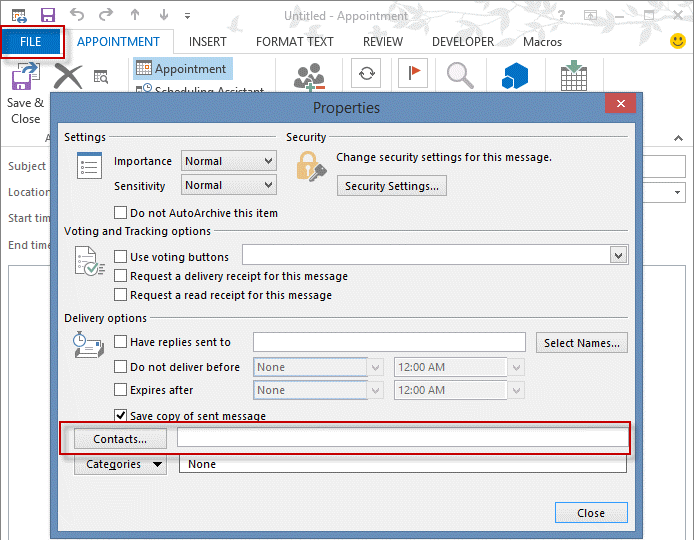
Link contacts to Outlook items

Out of curiosity, why was the Journal deprecated? It's fantastic for those of use who have to complete timesheets, because it made it ludicrously easy to summarise what we were working on throughout the course of the day (and importantly, which documents?!). </rant>
Thanks for this great piece of code. The code helps me track my time and organize my efforts more effectively.
Cheers!
There is easier way to add "Journal" to the Navigation Pane at the bottom, next to Calendar, People, Tasks etc.
Just modify this Registry key:
[HKEY_CURRENT_USERSoftwareMicrosoftOffice15.0OutlookPreferences] "ModuleVisible15"="1,1,1,1,1,1,1,1,0"
That 1 at position 8 is the one that enables "Journal".
Thanks - not as slick as dialing fromt he contact record and having the Journal record open - but still makes journal usable.
yeah, its definitely not as good as it used to, but unfortunately, they wont be bringing those features back. :(
I use the journal in order to be able to keep track of documents I worked on for timekeeping purposes without having to physically write down all the time entries and then type them into a timekeeping program. I just go to my journal to see what I have saved or where I have been. I love the journal!
For all things, the author has stated the hard and dull reality of the MS Office Outlook Journal - it's EOL'ed. All that is left to keep it somewhat useful, are patches and workarounds. I wish I had half of the author's ability for the workarounds. I've been bouncing into this webpage for years in order to learn about in-hand solutions around Office Outlook. The demise of the Outlook Journal is, for me as for many more, not just a "deprecation". It's a major inconvenience. In my ongoing quest for a good & stable journal, I've come to the conviction that all our journaling needs can feasibly be moved to calendars. For one, the Journal itself IS A CALENDAR. It only happens that we don't use it in a calendar view. If you review the fields that any Journal entry has, they're mostly of a calendar entry. A journal entry is a variation of a vCal entry, just as the Outlook Tasks entries are, as well. For all I know, that's how the Outlook calendar was initially formatted, in vCal, however I recall it was eventually re-formatted in ICS or something. OK, rephrasing, perhaps the Journal is not a calendar… Read more »
You can use any view on the calendar - timeline, list, calendar format.
You can either use the Date stamp feature or a custom form with code behind to insert a date stamp - or use a macro to create the entry and add a date stamp ( .Body = Date + Time) A macro could handle timer features, although it might not be a convenient as the journal's built in timer.
The journal folder is going to be around for awhile yet - while I'm discouraging people from using it, those who want to use it can. if you need the timer and other journal specific features, use it. The only thing that is broken is the Activities and autojournaling features.
Count me in as discouraged :'( I've been reviewing and trying different options in order to replicate a journal experience using calendars. The online calendar alternative appeals me because it allows me what MS never fully achieved: to make the thing more ubiquitous. Journals are not available but to the user, not even within the costly Microsoft Exchange Server assembly. I have frequently been in the situation where I have to use more than one computer throughout the day, and my own is not necessarily at reach. Or, where I have a job-issued computer but I cannot install what I need/like into it. Using online calendars, I'm going into lengths in order to have my journal clouded (YEY!) and less Outlook-and-addins-and-plugins dependant. Currently you can plug almost anything into Outlook except for the coffee machine, provided you ain't got restrictions on behalf of the IT Dept., but of course it doesn't mean all that poured info will be available outside Outlook, or across Outlook installations. Several of mi needs don't actually depend on a desktop-based environment. Mobile phone calls, SMS, and location have been for years related to the mobile device, not actually to the desktop device. Used to sync… Read more »
Wanting to put the contact'sbusiness phone number in the journal's body but have yet to figure out what "variable" to use in lieu of "MailingAddress". help
phone would be .BusinessTelephoneNumber - to see all of the phone fields, open the object browser (F2 or View menu) then select Outlook from the libraries list and type phone in the search field.
First of all: Many thaks for your superb site. So much help here!
I tried to get your "new journal entry for selected contact" work in Outlook 2016. A journal entry is created. But unfortunately only the "company" field of the selected contact is transferred not the name (more precisely: the "linked contacts" entry which I reactivated via registry entry "ShowContactFieldObsolete") . How can I fix that?
In addition using Set oContact = GetCurrentItem() to create journal enry from open contact gives me a failure "sub or function not defined" with the first line of the code highlighted in yellow. What did I do wrong?
Cheers
Roger
did you get the GetCurrentItem function from https://www.slipstick.com/developer/outlook-vba-work-with-open-item-or-select-item/ ?
On the contact field entry, that field uses the 'subject' field of the contact, which I'm guessing is set to company name (which is surprising - it's usually either full name or "full name - company") To verify, use a list view on the contact folder and customize the view by adding the subject field to the view.