An Outlook user posted a question in Outlook Forums:
I need to open Outlook messages stored in a specific folder, and then get the attachments from those Outlook items.
You can do this. You need to use Windows Scripting Host and Outlook's Application.CreateItemFromTemplate to open the messages. Once open, you can save the attachments or do whatever you need to do to the message.
To use this macro, paste the macro in a module, then set a reference to Microsoft Scripting Runtime in the VB Editor's Tools, References dialog box.
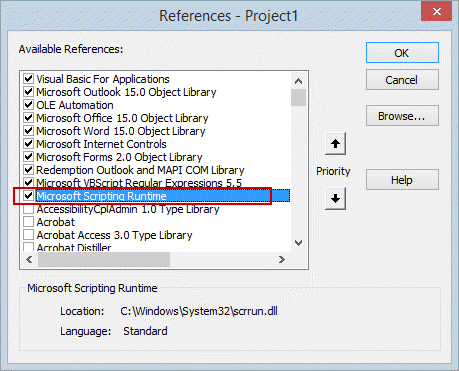
You'll need to enter the folder path where the MSG files are stored to the GetMSG macro. The folder where you want to save the attachments is stored in strFolderpath in the ListFilesInFolder macro.
Click in GetMSG and press F5 or Run to use the macro.
This code is not Outlook-specific (except for the code between the two Set openMsg lines) and can be used with Word or Excel.
Sub GetMSG()
' True includes subfolders
' False to check only listed folder
   ListFilesInFolder "E:\My Documents\", True
End Sub


Sub ListFilesInFolder(SourceFolderName As String, IncludeSubfolders As Boolean)
    Dim FSO As Scripting.FileSystemObject
    Dim SourceFolder As Scripting.Folder, SubFolder As Scripting.Folder
    Dim FileItem As Scripting.File
    Dim strFile, strFileType, strAttach As String
    Dim openMsg As MailItem

Dim objAttachments As Outlook.Attachments
Dim i As Long
Dim lngCount As Long
Dim strFolderpath As String

'where to save attachments
strFolderpath = "E:\My Documents\attachments\"

    Set FSO = New Scripting.FileSystemObject
    Set SourceFolder = FSO.GetFolder(SourceFolderName)

    For Each FileItem In SourceFolder.Files

    strFile = FileItem.name

' This code looks at the last 4 characters in a filename
' If we wanted more than .msg, we'd use Case Select statement
strFileType = LCase$(Right$(strFile, 4))
  If strFileType = ".msg" Then
    Debug.Print FileItem.Path

Set openMsg = Application.CreateItemFromTemplate(FileItem.Path)
openMsg.Display
    'do whatever

Set objAttachments = openMsg.Attachments
    lngCount = objAttachments.count

    If lngCount > 0 Then

    For i = lngCount To 1 Step -1

    ' Get the file name.
    strAttach = objAttachments.Item(i).FileName

    ' Combine with the path to the Temp folder.
    strAttach = strFolderpath & strAttach

    ' Save the attachment as a file.
    objAttachments.Item(i).SaveAsFile strAttach

    Next i
    End If
  openMsg.Close olDiscard

Set objAttachments = Nothing
Set openMsg = Nothing

' end do whatever
      End If
    Next FileItem
    If IncludeSubfolders Then
        For Each SubFolder In SourceFolder.SubFolders
            ListFilesInFolder SubFolder.Path, True
      Next SubFolder
    End If

    Set FileItem = Nothing
    Set SourceFolder = Nothing
    Set FSO = Nothing

End Sub
How to use the macro
First: You will need macro security set to low during testing.
To check your macro security in Outlook 2010 or 2013, go to File, Options, Trust Center and open Trust Center Settings, and change the Macro Settings. In Outlook 2007 and older, it’s at Tools, Macro Security.
After you test the macro and see that it works, you can either leave macro security set to low or sign the macro.
Open the VBA Editor by pressing Alt+F11 on your keyboard.
To put the code in a module:
- Right click on Project1 and choose Insert > Module
- Copy and paste the macro into the new module.
More information as well as screenshots are at How to use the VBA Editor

Sweta Kumari says
How to send the email which are displayed...I am getting file path access error.
Benny says
Hi Diane, i have a problem when load an message create with a personal module. When it is load I don't find custom property . This is the example:
Dim milk as MailItem
Set mi = Application.CreateItemFromTemplate("c:\miaMail.msg")
Dim par as string
Par = mi.ItemProperties.Item("MIAPROPRIETA").value
But ItemProperties don't have item. Why?
Thank.
Premanshu Basak says
Hi Diane,
First of all thank you so much for this piece of code which has helped me a lot in one automation that I am working on. However I am stuck at a place where instead of opening the mail message with ".Display" I want to do a "Reply All". When I try to do that I get an error saying "Run time error '-2147352567 (80020009)': Could not send the message".
Kindly help me with this please. I am using Excel 2013 to run this code.
Regards,
Premanshu
Diane Poremsky says
when you open the message using the code, it should be appear as a new message draft, so no need to reply all - it's ready to send.
Tash says
Thank you for the code and it works well, however when the email msg is displayed only the attachments are shown. I wish to extract the attachments and then save the email without attachments to my local drive. Thank you and any assistance is welcome.
Diane Poremsky says
After saving the attachments, you need to delete them. objAttachments.Item(i).Delete
I have a code sample here - https://www.slipstick.com/developer/code-samples/delete-attachments-messages/
Tash says
Thank you for your quick response. I am not having issues removing the attachments. Once the attachments have been removed I am trying to save the email. The problem seems to be in in "Set openMsg = Application.CreateItemFromTemplate(FileItem.Path)
openMsg.Display" - when this is activated the email opens without any body viewable thus when saving the email it is saved without the body of the email. Again thank you for your time and assistance
Diane Poremsky says
How are you removing the attachments? Can you still see the body after they are removed?
Scott says
This works amazingly!!! Thanks you very much for this. I was wondering if it would be possible to save the attachments as the subject line of the emails they were contained within rather than the names they already have?
Diane Poremsky says
you'd change the file name -
' Get the file name.
strAttach = objAttachments.Item(i).FileName
to strAttach = openMsg.Subject
if you have a problem with illegal characters in the subject, there is a function at the end of the macro at https://www.slipstick.com/developer/code-samples/save-messages-and-attachments-in-a-new-folder/ that can be used with this macro to strip the characters.
Jazz says
Hello Diane,
I would like an email that i move to draft to automatically open.
If file is already open then it can disregard rule.
Is there a way to do this?
Diane Poremsky says
you can use an itemadd macro to watch the drafts folder and display messages that are added to it but I'm not sure about how complicated it would be to skip messages already open.
meir rotfleisch says
Hi Diane,
I have code that saves an email from inside Access VBA to the file system. When I use the Set Msg = objOL.CreateItemFromTemplate(thisfile) I get an error saying the file is open or you don't have permission ..
I have tried this with outlook being open and being closed still not able to access the msg.
Looking forward to your response
Eric Bussen says
Diane,
They are .msg files not meeting requests. They have .pdf attachments. The .msg files are however custom forms and perhaps this is why the script is failing.
You mention that I might not have Outlook properly referenced. How would this be done. I set the reference you stated above regarding Microsoft scripting runtime. I even checked all the other ones you have checked in the example above thinking that might help. Still a fail. I appreciate the assistance and hope you have a good morning. Thanks,
Diane Poremsky says
Are you running the macro from Excel? You need to dim and set Outlook.Application - I'm sure you've done that because you'd get an error about an undefined object otherwise.
it's possible the custom form is the problem. I'll try to look into it in the morning.
Eric Bussen says
Greetings Diane,
I am trying to use this macro and have followed all your instructions. I get an error message that says Run-time error '438' Object doesn't support this property or method and the debugger highlights this line,
Set openMsg = Application.CreateItemFromTemplate(FileItem.Path)
I am trying to run this using Excel 2010 and the folders I am using for the .msg files and for the attachments are both on my C drive. I have spent considerable time trying to find the answer on my own, but to no avail. Any suggestions for cause and solution would be greatly appreciated. Thanks!!
Diane Poremsky says
Is the message an email message? If it's a meeting request or a report (read receipt, NDR etc) it won't work.
Or, if you are using this with Excel, you don't have Outlook properly referenced. It's not quite the right error for a reference problem though.
Marcus says
Since you're running from Excel, add "Outlook.":
Set openMsg = Outlook.Application.CreateItemFromTemplate(FileItem.Path)
Charles Andrew says
When I run the code I get the follow error.
Type run-error '13" Type Mismatch.
The line of code is:
Set openMsg = Application.CreateItemFromTemplate(FileItem.Path)
This appears to happen when the folder getting parsed has a delivery confirmation attached to the .msg file.
Any suggestion as to what might be causing this?
Thank you
Diane Poremsky says
it's a delivery confirmation message? Reports are not mailitems - if you want to import them, use Dim openMsg As object or use an if statement to test the item type. Something like
If TypeOf obj Is Outlook.mailItem Then
'do the stuff
end if
Charles Andrew says
Typo, sorry. It's a delivery confirmations.
Diane Poremsky says
Dang, i can't spell tonight. :) change the object that reference the mailitem to object or use the if statement to get only mail.
Pradeep Kumar says
Hello Diane,
can you give me code to extract files from a password protected zip file stored in hard drive folder to same folder. i have password with with, but i want to automate the process from click of button
Diane Poremsky says
Unfortunately, I haven't worked with password protected zip files and don't have any code samples. Does your zip program support passing the password in a command line? That would be the first requirement.
Pradeep Kumar says
thanks a lot. ok can you give me code leaving excell aside
Diane Poremsky says
I don't have any code samples, other than for the url I posted earlier, sorry.
Pradeep Kumar says
Hello Diana,
I want to ask you something. I have a folder on my computer with email from outlook with attachments. i want to open these emails one by one save email body as pdf with a specific name from a excell file then save attachments either pdf or word or html into pdf with file name from excell again (to a new folder with name from excell), then move to next mail folder. there is a need to open every converted file to pdf.
Diane Poremsky says
it's possible, but i don't have any code samples that use an excel file to provide the file names. See https://www.slipstick.com/developer/code-samples/save-outlook-email-pdf/ to save the messages as pdf.
Julie Andersen says
Diane, Your knowledge is really in depth! I appreciate your articles so much. I'm looking for a way to print a custom calendar, with the day's calendar on the left, and task WITH START AND END DATES, sorted by end date, on the right. Can you help?
Diane Poremsky says
What version of Outlook? The Calendar Printing Assistant should be able to do that.