Several users wanted to block the top-level EU domain.
95% of my spam is coming from the EU TLD, but I can't find any way to block this stuff in Outlook's 'Junk E-mail Options'. For some reason "EU" isn't among the TLD's listed in International - Blocked Top-Level Domain List. I haven't found any way to add at TLD to the list.I've also experimented with trying to catch these EU emails with a filter, but with no success. Is there any documentation about the use of wildcards ('*') in the search words of Rules (e.g. in Sender Address)
Correct, EU isn’t on the Blocked Top-Level Domain List; .EU was launched in 2005, the International filter was added to Outlook 2003 in SP1, circa 2004. (UK is not on the list either, only GB.)
EU was added to the Blocked Top-Level Domain List in Outlook 2016.

Search doesn’t support wildcards, so while you could look for .EU using a rule that looks for words in the header, there is a risk that it will trap legitimate email that just happens to have .EU in the header. You can also filter for sender domain, see Create rules that apply to an entire domain for the instructions. (EU is not used in many words so the damage such a rule may do shouldn’t be too great for most people.)
Filter EU using the International blocked list
Note: this adds EU to the Junk mail filtering capability, it does not add EU to the list of domains in the Blocked Top-Level Domain List. Only Microsoft can add EU to the dialog.
The International TLD’s you select in the Junk Email filter are stored in the registry under the profile key and you can add EU to the filter's blocked list by editing the registry. (The value name is not added to the registry until you block at least one International TLD.)
If you’re using Outlook 2013, the profile is stored at HKEY_CURRENT_USER\Software\Microsoft\Office\15.0\Outlook\Profiles\<profile name>\. The International blocked domains list is stored in a separate key for each email account in the profile. Search for 001f0424, you’ll find this value name under a different key for each email account that blocking at least one TLD.
Outlook 2010 users will find their profile at HKEY_CURRENT_USER\Software\Microsoft\Windows NT\CurrentVersion\Windows Messaging Subsystem\<profile name>\. As with Outlook 2013, the International blocked domains list is stored in a separate key for each email account in the profile and it's easier to find it by searching for 001f0424.
Outlook 2010, 2007, and 2003 profiles are stored at HKEY_CURRENT_USER\Software\Microsoft\Windows NT\CurrentVersion\Windows Messaging Subsystem\<profile name>\. The International domains list is stored in the 0a0d020000000000c000000000000046 key, under value 001f0424.
This is a binary value and while it is editable, it’s not as simple as just typing in EU in the edit dialog. The easiest way to edit it is to add a TLD to the list that you don’t want blocked (such as ES) then select the individual letters to change them. Remove the letter by backspacing over it then type in E or U. For example: if you replace ES, select the S and type U. If you need to replace both letters, replace one letter at a time, you cannot select both letters in a TLD and type "EU".
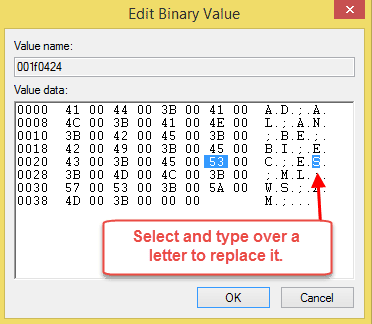
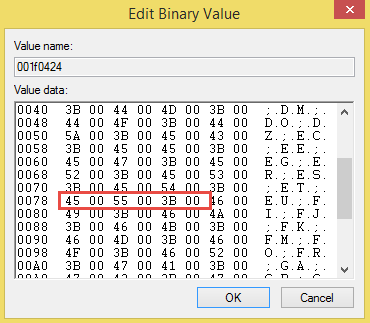
If you want to block all domains, or you just want to be geeky, you can type the binary values in on the left. Click after a 00 and type 45 00 55 00 3B 00.
If you later edit the list using the Junk Email Option's Blocked Top-Level Domain List dialog, EU will be removed and you’ll need to re-edit the registry.
Add EU to the International Blocked TLD List Tutorial
If you want to block all UK messages (which I don’t recommend), you’ll need to add UK to the list as the GB selection does not block UK. (I also tested this with the INFO TLD and it didn’t work, you'll need to use a rule to block domains.)
Remember, if you have more than one account in Outlook 2010 or 2013, you’ll need to edit the registry key for each account, as each account has it's own junk mail options (and blocked/safe lists). The value won't be created for an account if you don't enable international filtering for that account.
More Information
How to check Junk Email settings for each account in Outlook 2010 and up: If you are using separate data files, select a message and look at the Junk, Junk Email Options, International tab. If you are delivering to one pst, open a message from each non-default account and choose Junk, Junk Email Options. Repeat for each account. The title bar on the dialog will show the name of the account whose junk settings you are looking at. For more information and screen shots, see Using Outlook's Junk Mail filter.
- Automatically Cleanup Outlook's Deleted Item and Junk Email Folders
- Blocking Mail From New Top-Level Domains
- Bulk Add Addresses to Safe and Blocked Senders Lists
- Don't Get Caught In a Phishing Hack
- Empty Multiple Deleted Items Folders using a Macro
- How to Block Foreign Spam
- Icon is not correct on the Junk Mail Folder
- Junk Email Filtering isn't Working in Outlook
- Junk Mail Filtering in Outlook
- Office 365 Fraud Detection Checks
- Outlook's "Not Junk" option isn't available
- Samsung smartphones move email to the Junk folder
- Sending Autoreplies to Spammers
- Should You Respond to Junk Mail?
- Understanding the Safe and Blocked Senders lists
- Using Outlook's Junk Filter with Multiple Accounts
- Using Outlook's Junk Mail filter
- What Moved a Message to the Junk E-mail Folder?

Doug K says
"You can use a rule that looks for words in the header, where the word is .in.net". This worked perfectly, thanks! I chose to automatically move to the junk folder any emails with ".in.net" in the sender's address. Go to (in Outlook 2007, anyway):
Tools
Rules & Alerts
New Rule
Move messages with specific words in the subject to a folder
click Next
click box "with specific words in recipient's address"
(unclick "with specific words in the subject")
click on link in dialog box "specific words" and type in .in.net in next dialog box
click on link in dialog box "specified" and select junk folder
click Finish
Good luck!
Don Pye says
I have used your method to add .eu to my blocked domains list and it works well.
Suddenly over the last few days I have been inundated with emails from .in.net addresses, such as "healthcoverageupdate@neomde.in.net" and "michaelpwards@azon.in.net" and "craigcappetta@medore.in.net"
Is there a way to add .in.net to my blocked domains list? I don't want to block everything that ends in .net.
Thanks.
Diane Poremsky says
No, not using this method. You can use a rule that looks for words in the header, where the word is .in.net
Don Pye says
Thanks! Especially for your prompt reply. I'll try this.
Paul Whitesman says
I have tried to block .us for years. I have tried everything to do it *.us @*.us @**+.us but nothing seems to work I have checked the .us box on rhe BLOCKED TOP_LEVEL DOMAIN list but nothing seems to work. Can you make another video for blocking .us domains please?
Diane Poremsky says
I could, but if us is on the top level list, selecting it should work. It might be better to use a rule to block the messages - can you post the internet header from a message and I'll take a look at it. (The header may also hold clues as to why blocking it isn't working for you.)
Richard Laycock says
Diane,
Here's a snapshot of my accts..
I had .eu and .us also places as "Rules". They didn't work but I'm wondering if that could have anything to do with it. Unlikely since the US check in the TLD works fine.
Most of the EU spam comes in overnight. I'll see how it works then. I haven't figured out how you did that "mail test message".
R.
Diane Poremsky says
I have a pop account that lets me send mail with any From address as long as the domain is valid and i log into the smtp server when I send, so I changed the from address to use an EU TLD. Is the address you used here one that is set up in Outlook? I can send it as test message.
Junk filters kick in before rules, so the rule shouldn't affect it.
Richard Laycock says
Ah, the Outlook Profile *0046. I see. That's where I've got the 001f0424 already set. It's identical to what you have int the Reg text file.
Here's a link to a snapshot.
Diane Poremsky says
It *should* work (and does here) - what type of email account?
Richard Laycock says
BTW, I saw that comment about Outlook 2007...
I don't know if you intend that * as a wildcard or what but I don't find anything searching my Registry for *0046 nor any key in the MS Outlook section with 0046.
I'm using 2007 but I definitely have the 001f0424 key. It has been modified. It now reads in the key's letter display E.T.;.E.U.;.U.S.;... When I open Outlook though the TLD list only shows ET & US checked. Now that, I understand is normal, but it should work right?
Diane Poremsky says
Correct, the Blocked list in the junk mail options WILL NOT list the EU domain you added to the registry. The 0046 key is under your profile in the registry - the one with lots of 0's and ends in 0046.
Try this - download this text file: EU REG - if your profile is called Outlook, remove .txt from the filename and double click to run the reg and add it to your profile. If you profile name is different change it in the file before changing the extension. See if it works. If so, then you know the problem was with the edit.
Assuming you wanted those 3 TLD lines blocked, the string is below - edit the reg file and replace the line with this
"001f0424"=hex:45,00,54,00,3b,00,45,00,55,00,3b,00,55,00,53,00,3b,00,00,00
Richard Laycock says
I followed the instructions and I've made the changes to key 001f0424. It has yet to properly block the eu domain. I'm using Outlook 2007. I searched in regedit for other instances of the key but there's only that one. I do have four accounts but not a single one seems to be filtering the euro spam.
What do you think?
joe says
It appears to me, this is Case Sensitive. As Caps and small gives you different number. i added both, keeping my hands crossed.
Donald Krishfield says
Couldn't find "001f0424" until I selected Inbox went to the Junk E-mail options for International blocked Top-Level Domain and cleared them all. Then, after setting the domains under individual email addresses, "001f0424" showed up in my profiles and I was able to use your wonderful information. Thanks, Thanks, Thanks.
Steve Rosenthal says
Thank you for getting back to me....Yes- the instructions are so easy to follow, both written & video, but after adding several domains - the key doesn't not exist. Wish I could post a snip of what I'm seeing...
Diane Poremsky says
Make sure you use search, as Outlook 2010 and 2013 puts it in different keys.
Steve Rosenthal says
Its not working for me, I do not have the key with the value "001f0424" in my registry. I am running Outlook 2010. I have tried first browsing to the directory and then searching for it.
Is it known by any other name?
Diane Poremsky says
Did you first go to Junk > Junk Options > International and add domains to the list? You need to check at least one domain to create the key in the registry. Each account in Outlook 2010 and 2013 will have that key *if* you added at least one domain to the international blocked list to each account's junk mail list.
Bruno V says
Joe, I understand your frustration, believe me. Yet, want to know how many SPAM and otrher unsollicited emails I get daily from .com addresses? Consider yourself lucky that you can block .eu ; for us blocking .com would mean like blocking the buggest chunk of all legitimate emails...
Joe Pagliarulo says
Okay.. he's how I was able to get it solved. On the laptop.. changing one binary worked great. Did not work on the desktop. I went as far as deleting all of my profiles and .psts and starting over. Still didn't work. Then I added E U (45 and 55) to two different keys and that, for some reason, took. Blocked 73 .eu spam emails already today. Thx so much for this! jp
Dave says
I'm using Outlook 2007 SP2 and there is no "001f0424"
...And, to Bruno V the "why I would do this" is very simple: I get 60-100 emails per day with the TLD .eu. None of it is relevant. Seems to me it is the responsibility of legitimate .eu entities to insist on regulations to stop this gross misuse...and I hate regulations!
Diane Poremsky says
You need to add at least one domain to the international list to create the key. Outlook 2007 will have it on the *0046 key.
Joe Pagliarulo says
so weird.. same thing.. Perfect on laptop.. is not recognized as junk on desktop.. Can't figure it out. ;)
Joe Pagliarulo says
Oddly.. worked on my laptop.. not my desktop
Diane Poremsky says
It's probably something stupid and easy to overlook - a typo or there is more than one key.
Joe Pagliarulo says
update.. got a .eu and it went straight to junk. Might have been the old registry.. and my update to 2013. Clearing out the key and rebuilding worked. Thx!
Joe Pagliarulo says
I'm definitely in the account where I'm having the issue. Yes, the from addresses are all different -- with different domains but all with .eu. I have unclicked all of the top levels. Deleted the keys.. clicked just one top level.. ES and went into the newly created key and have changed it to EU. We'll see if that does it. How did you make an eu account for testing? Thx!
Diane Poremsky says
I changed the from address on a pop account - not all ISP's allow this, but mine did.
Joe Pagliarulo says
okay.. not working. Not sure what else to try. This is my public work email and I need to be able to use it.. but, I'm getting inundated.
Diane Poremsky says
Look at the headers - are there different addresses in the From field.
Do you have multiple accounts in your profile? In Outlook 2010 and 2013, each account has their own junk mail settings.
Joe Pagliarulo says
Do need to reboot after the registry change perhaps? Or just restart Outlook?
Diane Poremsky says
It worked here without restarting Outlook.
Joe Pagliarulo says
yes.. it's now unchecked.. do I check it now that I've changed the value?
Diane Poremsky says
No! any changes you make in the International domains list will erase EU from the registry when it rewrites the checked list.
Joe Pagliarulo says
Unfortunately, it did not work. Not sure what the issue is. When I check the international blocked list ES is unblocked -- I'm guessing because I changed it to EU in the registry. But in 2 minutes, 2 .eu emails came in.
Diane Poremsky says
Yes, when you edit ES, it's unchecked in the international list.
Joe Pagliarulo says
Great stuff. Did it.. let's see if it stops the 200 spam email I get from .eu!
Chuck S. says
Thanks for sharing - a lot of spam from .eu and .me domains. Once we change the registry, will the domains appear in the Blocked Top-Level Domain List?
Diane Poremsky says
No, they won't be added to the dialog - they are only in the registry. Microsoft will eventually add EU and UK to the Junk mail dialog.
Dave says
Your instructions were very clear -- I followed them and tried testing blocking of EU TLD, but the test messages from "email@hotmail.eu" went into my inbox. I double-checked the registry and it was correct according to your instructions . . . so this does not seem to work.
Diane Poremsky says
Which version of Outlook? How many email accounts are in your profile? Did you type the binary code on the left or type over letters on the right?
Richard says
Diane, Thanks for addressing the problem of adding TLDs to the list. But with respect, I have to say that the information given here in both print and in your video are extremely confusing. I have used the TLD list before and am familiar with editing the registry. But I have read and re-read your tips on this subject multiple times and still don't understand it. Is the reg edit supposed to replace ES with EU in the TLD list (it does not)? Or does the ES check box now serve as EU, even though it still displays ES... unclear???
Also, I'm completely lost on what you are doing in the point about 'Blocking all other domains' and typing in the numbers to the left? Really, what the hell are you talking about? Would sure appreciate some clarification for us dunderheads.
Diane Poremsky says
I thought changing the S in ES to U would make it a little easier for most people to edit, instead of typing in the binary values, but wanted to show both ways of doing it. You can either type the letters as binary code on the left side or type over letters on the right to change them. You can't just start typing EU like you could if it was a DWORD value.
All this edit does is add EU to the list in the registry - it does not change the dialog, only Microsoft can do that. Editing the dialog later will remove EU from the list in the registry. If you change ES to EU, the checkmark is removed from ES in the dialog.
Bruno V says
Why on earth would you do this or advise someone to? Many legitimate businesses in Europe have a EU extension. That includes us and we do also business with US-based companies. Are you serious about wanting to block them all and this being rooted in the registry? Many people and businesses install rules of which later the existence is forgotten (or of which users within the company are never informed) and then wonder later why emails don't come through.
Incidentally, of all the spam we get, I have hardly ever seen one coming from an EU extension. Is this 90% fact or myth?
Blocking eu and thereby blocking companies from an entire continent is like blocking all American companies (idf there would be an extension allowing that). I am seriously puzzled.
Diane Poremsky says
Blocking the EU TLD won't block all mail from the entire continent, it only blocks mail sent from addresses such as alias@domain.eu (or in my video, granny@hotmail.eu). It would be like blocking the US, CA, FR, IT, RU, or UK top level domains, which I'm sure some people do. (Well, no one blocks UK, because it isn't on the TLD list. :))
It's up to the user whether to block it, I'm only telling them how to block it, if that is what they want to do, not that they should block it. Honestly, many people in non-EU countries may never get legitimate mail from that TLD and can safely block it, along with RU, CN, and many of the other countries on the TLD list.
James Moren says
thank you very much, just tried your fix and it works!
Rick Spiewak says
Thanks, Diane!