After upgrading Outlook, the business card's on all contacts will use a bland gray image. While you can create a custom form that will apply to all new contacts, the business card on existing contacts won't be updated. This is to preserve any business cards you may have already updated. Also, if you use the default card image and add contact photos, the contact photos display on the business cards. However, when you replace the business card image, it will be used instead of any contact photo.
We have three code samples available. The VBA code sample on this page changes the business card image on selected contacts
from this:to this:
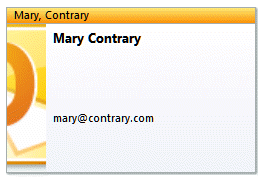
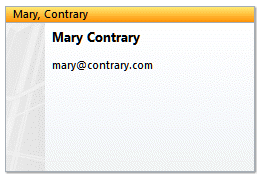
Code Sample 1 (below) works on *selected* contacts, not folders. You can select only the contacts you want to change and skip any you've already updated with logos. Code Sample 2 is similar but applies the card image to all contacts in the folder. We include a sample If... Then statement to limit the changes to contacts based on the value of the Private or Company field.
The VBA in Code Sample 3 picks up the BusinessCardLayoutXml from the selected contact and applies it to all other contacts in the folder or selection.
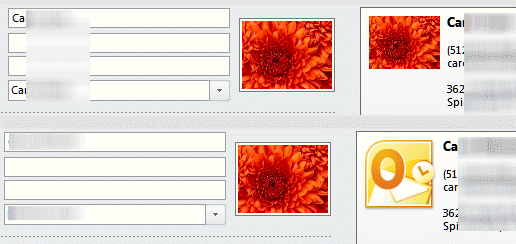
If the contact has a contact photo, it is not replaced. However, the new business card image will override the contact photo, as seen in these before and after screenshots. If you want to use the contact photo (when a contact has a photo) on the business cards, do not change the business card image!
Code Sample 1: Use VBA to update selected business card images
This code will change the business card image on selected contacts, as you can't change the business card image using a custom form.
This code sample replaces the current image - it does not move or re-size it. For example, if the card was previously customized with an image on the right, the code will keep the size and placement on the right. To move or re-size an image or customize the card background or text, you need to change the Business card XML.
Public Sub ChangeBusinessCardImage_SelectedContacts()
    Dim Session As Outlook.NameSpace
    Dim currentExplorer As Explorer
    Dim Selection As Selection
    Dim currentItem As Object
    Dim folder As Outlook.folder

    Dim obj As Object
    Dim strFirstName As String
    Dim strLastName As String
    Dim strFileAs As String

    Set currentExplorer = Application.ActiveExplorer
    Set Selection = currentExplorer.Selection

    On Error Resume Next

    For Each obj In Selection
    Set folder = currentItem.Parent
        'Test for contact and not distribution list
        If obj.Class = olContact Then
            Set objContact = obj

      With objContact
          obj.AddBusinessCardLogoPicture ("C:\image\outlook.png")
        .Save
     End With

        End If

        Err.Clear
    Next

    Set Session = Nothing
    Set currentExplorer = Nothing
    Set obj = Nothing
    Set Selection = Nothing
    Set currentItem = Nothing
    Set folder = Nothing
End Sub
More photo and image commands
To add a contact photo, remove the contact photo, or to reset the business card to Outlook's default, replace obj.AddBusinessCardLogoPicture ("C:\image\outlook.png") in the code sample with one of the following lines:
obj.AddPicture ("path") 'adds a contact photo
obj.RemovePicture 'removes the contact photo
obj.ResetBusinessCard ' removes all custom formatting
Code Sample 2: Change the business card image on all contacts in a folder
This variation of the code changes all of the business card images in the default contacts folder. You can use an If... then statement (sample below) to restrict the changes to a contacts matching a specific condition.
As with the earlier code, although we limit this sample code to changing the business card image, you can use change any contact field by editing the field name.
Public Sub ChangeBusinessCardImage()
Dim obj As Object
Dim oFolder As Outlook.MAPIFolder
Dim oContact As Outlook.ContactItem
Dim colItems As Outlook.Items
Dim i As Long
Dim lCount As Long

Set oFolder = Application.Session.GetDefaultFolder(olFolderContacts)
Set colItems = oFolder.Items

lCount = colItems.Count
For i = 1 To lCount
Set obj = colItems.Item(i)
If (obj.Class = olContact) Then
Set oContact = obj

oContact.AddBusinessCardLogoPicture ("c:\image\logo.png")
oContact.Save

End If
Next
End Sub
Change Contacts based on property values
By adding a simple If... Then statement around the code the changes the picture, you can run it on all contacts in the folder but apply it only to certain contacts, unlike Code Sample 1, which works on selected contacts.
See Change the image on a Business Card based on the Category for VBA code that changes the business card image based on the category a contact is assigned to.
 If oContact.Sensitivity = olPrivate Then
    oContact.AddBusinessCardLogoPicture ("c:\image\logo.png")
    oContact.Save
 End If
To add a company logo to all contacts from a specific company, the code will look like this:
 If oContact.CompanyName = "CDOLive" Then
     oContact.AddBusinessCardLogoPicture ("C:\image\logo.gif")
     oContact.Save
 End If
Note that this code is case sensitive. Before using it, you should use a group by Company view and verify you are using only variation of a company name. If more than one exist, drag the contacts to one group.
Code Sample 3: Change the business card layout to match the selected contact

Hello, Nice post. I tried it works but if i set the layout to left. if i want to set background on fit to edge it does not work. it just copy the small amount of picture and zoom that picture to the whole card. Is there any solution ?
You'd need to tweak the image size in an image editor before inserting it. The card is 250x150, the image will be cropped if its not that ratio.
How do I print the business card exactly as it shows up in the Business Card view?
You can also insert it into a message and print the message form. In Outlook 201/2013, open a new message, delete you use the Insert tab > Insert business card button. It can be copied from the email message and pasted into word or other document types that accept images.
A screenshot will also work.
Can you help me. Code 4 is exactly what I'm looking for. ButI am not sure where you put the VBA code in Outlook 2007. Are you ableto guide me please? Thanks. Scott Baker.
I have a how to video at https://www.slipstick.com/developer/how-to-use-outlooks-vba-editor/
Short version: Alt+F11 to open the editor. Click on {Project1, find and double click on ThisOutlookSession and paste the code into the white pane on the right side of the editor.
Diane,
Can you help me in modifying Code Sample 2? I would like the picture location to be pulled from each contact. Each contact file contains an attachment called front.jpg but I can not find the proper method to call the attachments.
Thanks,
Brad
The contact picture? That should be on the card already, if there is not a business card image.
Basically, you need to save the image then pass the url to the script. Script to save the image is here: https://www.slipstick.com/developer/code-samples/export-save-outlook-contact-photos/ then use the path here -
oContact.AddBusinessCardLogoPicture ("C:\Contact Photos\" & fname)
I'd put the two macros together in one sub (and either use itemContact or oContact throughout).
Hi Diane,
Just wanted to say thanks for the post. It was very helpful to me for getting all of the business cards in my contact list to a uniform look. Thanks again.
Hi Diane, This works realy great, however, I've been trying modify the code of your 3rd example so that I can setup a couple of Businss Cards to use specifcally as 'Style Templates'. Ideally the macro would pull the xml from the business card from a Specific Card Name I.e. Company Name on Business Card: 'CardTemplate1'. This would allow selecting specific contatcts and applying the sytle of the template card without having to select the template itself as the first selection. Unfortunatly I don't know any VBA other than to copy and past parts of script that already work and can tweak script for specific uses. What I would like to do is:
Set olkItem = olkFolder.Items.Find("[CompanyName] = CardTemplate1") 'to Search for CardTemplate1 and then:
Set oModel = Application.ActiveExplorer.olkItem.Item(1) 'use the Card found as the template.
Of course the above doesn't work and I don't know how to get it to work. Do you have any quick ways to make this work?
Thanks.
Quick, no, but I will ask a dev friend. I actually meant to ask him when i wrote that article because I was trying to do something similar and gave up.
My friend wanted to know if CardTemplate1 is a name - if so, if needs to be enclosed in single quotes.
Set olkItem = olkFolder.Items.Find(“[CompanyName] = CardTemplate1″) ‘to Search for CardTemplate1 and then:
Set oModel = Application.ActiveExplorer.olkItem.Item(1) ‘use the Card found as the template.