When a meeting is copied, Copy: is prefixed to the subject of meetings when they are copied within a calendar or to another calendar. This 'feature' was added to Outlook beginning with Outlook 2007 SP2.

Copy: was added so users would know how the meeting ended up on the calendar and why it wasn't updating. There is no way to avoid it in Outlook, except by not copying the meetings. Note that this applies to all copied meetings. Any time you make a copy of a meeting by copying it to a new date, copying it to a second calendar in your mailbox, or export it to a pst, Copy: is added to the subject.
You can edit the subject line or use VBA to remove it.
The Infobar on meeting will say if the meeting was copied. Copy: won't be added back to the subject if you copy it again.

If you want to remove the 'Invitation' prefix from meetings originating from Gmail calendars, see Remove Invitation Prefix from Gmail Meetings for a ready-to-use macro solution.
Solutions
The following methods did not add the Copy: prefix to subject lines in my tests:
- If you are using a pst, copy the pst file then move the meetings from the pst copy to the second Outlook. Moving the meetings will preserve their ability to accept or send updates.
- If you are using Exchange server, use Outlook 2003 to export the calendar.
- Create a new pst. Right click on the calendar and choose Copy. Select the new pst as the destination. Outlook will copy the items then complain it can't copy the folder. Open the pst in the second Outlook and move the calendar items.
Use VBA to remove Copy:
Below is a VBA script you can use to cycle through every appointment item in the selected calendar and remove the Copy: prefix. Works in Outlook 2007 and 2010. (Also works in older versions, if you need to mass-edit the subject line.)
October 7 2018: Updated the macro to use the Replace function.
Sub RemoveCopy()
Dim myolApp As Outlook.Application
Dim calendar As MAPIFolder
Dim aItem As Object

Set myolApp = CreateObject("Outlook.Application")
Set calendar = myolApp.ActiveExplorer.CurrentFolder

Dim iItemsUpdated As Integer
Dim strTemp As String

iItemsUpdated = 0
For Each Item In calendar.Items
    If Mid(Item.Subject, 1, 6) = "Copy: " Then
      strTemp = Replace(Item.Subject, "Copy: ", "")
      Item.Subject = strTemp
      iItemsUpdated = iItemsUpdated + 1
    End If
    Item.Save
Next Item

MsgBox iItemsUpdated & " of " & calendar.Items.Count & " Meetings Updated"

End Sub
How to use VBA
Select the calendar that needs fixed.
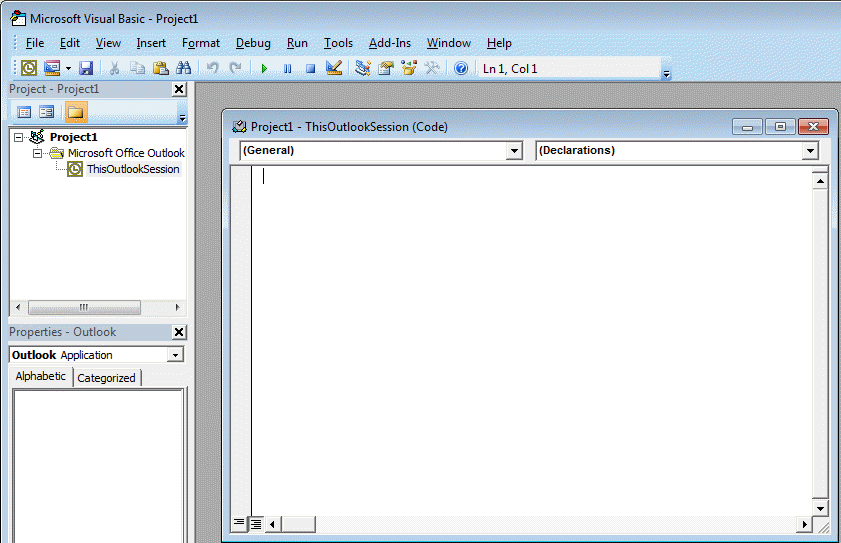
 Press Alt+F11 to open the VBA editor. (or Tools, Macro, Visual Basic Editor)
- Expand Project1 then double click on ThisOutlookSession to open the code window.
- Copy the code above (click in the text, Ctrl+A to select all, Ctrl+C to copy)
- Paste it into the code window then Save.
- Press the Run button.
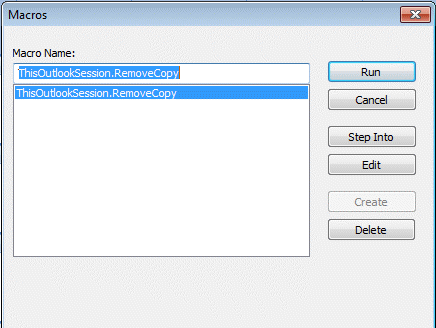
To run the code later, press Alt+F8 (or Tools, Macro, Macros), select the RemoveCopy macro and press Run.
More Information
Remove Invitation Prefix from Gmail Meetings
Importing .pst Outlook Calendars (subject title adds Copy:) discussion in Microsoft's Answers forum.
Outlook 2007 improvements in the February 2009 cumulative update
Merging Two Calendar Folders
Move meetings without losing the ability to “Send Update”

Ally says
It is possible to use this in Outlook 2016 to remove the word 'Invitation' from every appointment that originated as an invite from a Google calendar?
Diane Poremsky says
Tentatively, yes. I'll need to test it to be sure.
Diane Poremsky says
ok, that macro should work with select appointments. This macro should work with meetings as they arrive.
Try this in the ThisoutlookSession - it should run when items are added to the calendar, but doesn't work on updates - i'm still trying to figure that out. once I figure it out, I'll post an article with the macros.
Option ExplicitPrivate objNS As Outlook.NameSpace
Private WithEvents objItems As Outlook.Items
Private Sub Application_Startup()
Dim objWatchFolder As Outlook.Folder
Set objNS = Application.GetNamespace("MAPI")
'Set the folder and items to watch:
Set objWatchFolder = objNS.GetDefaultFolder(olFolderCalendar)
Set objItems = objWatchFolder.Items
Set objWatchFolder = Nothing
End Sub
Private Sub objItems_ItemAdd(ByVal Item As Object)
Dim strTemp As String
Debug.Print Item.Subject
If InStr(Item.Subject, "Invitation: ") > 0 Then
strTemp = Replace(Item.Subject, "Invitation: ", "")
Debug.Print strTemp
Item.Subject = strTemp
Item.Save
End If
Diane Poremsky says
I created macros specific to the Gmail prefixes. There is a macro to fix existing meetings and an automatic macro that will fix future meetings and meeting updates as they are added to the calendar.
https://www.slipstick.com/developer/code-samples/remove-prefix-gmail-meeting-invitations/
X_W says
Thanks - this was a great help fixing a very annoying problem.
w_w says
Absolutely beautiful
Huge time saver :)
Thank you for this
Anne says
for some reason even if I enable all macros in the trust center it won't run the VBA macro :(
Diane Poremsky says
Any error messages? What happens when you try to run the macro? Did you previously sign the macros? (Remove the signature if so).
AussieAnn says
Diane - as always, an explanation that makes sense and a solution that works perfectly. Thanks for all your efforts, not only regarding this entry, but in all the areas you touch on. I often do a google search when I have a computer problem and when I see slipstick in the hit list, I feel an immediate sense of relief!!
Jfan says
I can't get Outlook 2013 to allow me to run the VBA. I enabled all macros in Outlook Trust Center as you recommended but when I click Alt F11 it does nothing. I do not get any project screen or VBA editor. Is there some other setting I need to change?
Jfan says
Hi Diane. Never mind - I figured it out. User error. Thanks for the information! Worked great.
Nick says
Your a F"in Genius!!!!!!!!!
steve says
Diane , you stride like a colossus through the world of IT
therealmattslay says
Worked great for me on Outlook 2013 on Windows 8.1
Rene Dirks says
Worked great for me - at least to have the info about 2003. Two remarks about the code though:
strTemp = Mid(aItem.Subject, 7, Len(aItem.Subject) - 6)
The Mid() function defaults to use the entire string, so
strTemp = Mid(aItem.Subject, 7) achieves the same and saves quite a bit of calculation time
aItem.Save : why save each item if nothing was changed? This costs extra time and could affect update times (if any available). Better to put this inside the if/endif clause
Sam G says
We have a client database that we book appointments into which sends an automated email to Outlook. I've modified the above the code to a degree but we just want to be able to remove everything except the last 8 characters of the appointment subject but the appointment subject could be any length of characters long so using the above script doesn't work perfectly in this situation because it counts from the start on the string.
Is there anyway to do this (delete everything except the last 8 characters of the string)?
Diane Poremsky says
you'll use len and right functions. Basics are here: https://www.slipstick.com/developer/parsing-text-fields-in-outlook/
something like
item.subject = right(item.subject, len(item.subject) -8)
robbo007 says
This does not seem to work on a Spanish language Outlook 2007. If searches but finds nothing. I've change the search keyword from "copy:" to "copiar" but still does not change anything? Any ideas?
Diane Poremsky says
Does it work with Copy? (In some situations, Outlook will use the English name, but I don't think it will here but I could be wrong.)
Are you using the same case? The macros are case-sensitive.
Try copying the word from the subject of an appointment and paste it into the macro.
Peter Thurn says
Tried it right now under a German Outlook 2016 and it WORKED.
Don't forget also to adjust the values for the lenght of the text that has to be cropped.
"Copy: " -> 6 [English]
"Kopieren: " -> 10 [German]
"Copiar: " -> 8 [Spanish]
Thanks for the VBA script, Diane!!!!
Eli says
I attempted running this and I get a syntax error at the very first line. I attempted this for Outlook 2013. Is it safe to assume this may not work with 2013 Office products?
Diane Poremsky says
It works with Outlook 2013 but I'm guessing the problem is the coding - WordPress sometimes messes up the formatting. The macro has a lot of html code that should be quotes or a simple & instead. I fixed it. Sorry about that. :(
ed says
Thank you so much. This is well explained solution - rather than mere advice not to use the export-import functionality as in other posts. My hats off to you!!!
Marc says
The easiest way to do this is as follows:
Open up your calendars (both the default and the one you want to move appoitnments from
view>current view>by category
select all calendar items you want to move
right click
select "move to folder"
select your default calendar.
you're done. process takes 30 seconds.
Michael says
Marc... thanks for the perfect solution!!!
Lance Secretan says
Great help - many thanks.
Willem T says
after enabling macro's in trust center, the vba script worked as expected. took a few minutes but I don't have that many appointments. For someone with a full schedule I would not be surprised if this took half an hour or more
Vamsi says
Thanks Diane.......... can you share online webinars to me and the users
Thanks once again for your help
Diane Poremsky says
I'm working on some and will post here when the plans are finalized.
pdalton@swbell.net says
I guess you're right. I got into it by using Alt-F11, but it does say at the top "Microsoft Visual Basic for Applications - VbaProject.OTM (design)".
The "Exit Design Mode" icon is highlighted, but when I click on it, I get the dialog I mentioned earlier.
How do I get to where I need to be?
Diane Poremsky says
That's not the Forms designer. I'll have to figure out what you are in and how to get out. :) I don't recall seeing it say 'design' in the title bar.
Diane Poremsky says
Ok... i think i figured it out. Maybe. In Outlook, check the Macro settings in the Trust center - are you sure its not list as seen in the screenshot i posted earlier?
Can you exit the VBA Editor or is the macros disabled error keeping you from exiting?
Diane Poremsky says
Oh, I bet you are in the Forms Design, not the VB Editor.
pdalton@swbell.net says
P.S. If it makes any difference, the VBA Editor appears to be stuck in "Design Mode" and, when I click on the "Exit Design Mode" icon, I get that same "The macros in this project are disabled" dialog.
pdalton@swbell.net says
I ran this and it worked. I then again tried to sync Outlook 2010 with iCloud and ended up with all the messages in the iCloud calendar marked with the "Copy:" prefix and none in my regular calendar. So I tried to run it again, this time on the iCloud calendar, and it won't run -- it says "The macros in this project are disabled" and goes on to say I should look in the documentation to find out how to enable macros.
Unfortunately, I have not been able to find anything that tells me how to enable the macros. I did find a 2007 post that said "In Outlook (not VBA editor), please click on Tools/Macros/Security and set the security to allow VBA. Then restart Outlook." However, I suspect those instructions must have been for an earlier version of Outlook, because I don't have a "Tools" tab in Outlook 2010.
When I go to the Trust Center/Trust Center Settings/Macro Settings, I don't find an option about allowing VBA.
What can I do to get this VBA code to run again?
Diane Poremsky says
You don't have this dialog:
Robert says
Can the VBS Script be directed to work on additional Calendars? User added Calendars
Diane Poremsky says
This line: Set calendar = myolApp.ActiveExplorer.CurrentFolder means it works with the selected folder. So all she has to do is select another calendar folder and run it.
Seth says
Diane, THANK YOU for posting this script - I had some 900+ entries moved from my old calendar to new one with that irritating "Copy: " title, and the VBA script worked perfectly to fix them.
Franco says
Awesome. I ran the VBA and it worked perfectly!! Thanks.
Stacey says
This was just what I was looking for! Thank you!
Gilad says
Thanks
Gilad says
Thanks.
So what you are saying is that when I change the subject of any Outlook item (assuming Tasks, Events, Messages all work the same) I may get a wrong result if the subject of the item has ever been changed?
Strange behavior.
Diane Poremsky says
It depends what you are doing and what items you are working with. If the item arrived by email, yes, the visible subject can be changed, but the underlying MAPI subject cannot and some things may use the mapi property.
Gilad says
I followed your instructions and it worked. Thanks.
Only one question - when I perform a search on the events. When I search for "copy" all the events still show up (although they don't have "copy" in the subject line anymore).
???
Diane Poremsky says
You're only changing the visible subject, the original subject is stored as a mapi property and can't be changed. You should have the same experience changing any meeting subject.
Adrian says
There is an easier way of doing this!!
1. Create a calendar on ShareP
2. Open Outlook and change the view of the calendar you want to move to ShareP to list. This will list all the items in the calendar
3. in ShareP connect the created calendar to outlook.
4. Select all the Items in the calender list view that you want to move to ShareP
5. Right click choose "move" and then select the ShareP calender that you've just connected to Outlook.
Then all you need to do is set permissions on the calendar on ShareP.
Thats all!
Diane Poremsky says
This won't help someone who does not have access to sharepoint.
Gino Tomasetti says
Excellent! Exactly what I was looking for and easy to follow. Thanks so much.
Diane Poremsky says
There is no fix for this - but the organizer doesn't need to recreate meetings, he can forward the meetings to the participants and they can re-accept them.
In the case of a POP account, if you move the items from the POP pst into the Exchange mailbox, they might be ok, especially if you use Outlook 2010. It handles meetings differently than older versions.
Ed George says
Any luck finding a real fix Phill?
Phill says
I came across this article and used the script after doing a migration of users from pop mail to Office 365. I thought it was a great saviour, however I've realized that all these calendar items that had "Copy: " prefix added are actually broken. Imported items can't be updated and the only recommended solution I've found is that the meeting organizer has to recreate the meeting. This isn't an option in our environment as users have meetings (lots of them) many many months in advance. Does anyone have any suggestions on how to actually fix these items and not just address the superficial subject text?
Thanks.
Phill