November 30 2018: The latest monthly Office 365 updates include an option to lock the zoom level.
I get quite a few complaints from people who say their fonts are tiny (or huge) or the font used for the reply shrinks yet Microsoft Outlook shows they are using a normal size font (such as 10 or 12 pt). Outlook users with high resolutions screens may have a problem reading incoming emails.
This is caused by the Zoom setting.
Lock the Zoom level in Outlook 365
If you are an Office 365 subscriber, you can now set Outlook to remember your zoom level.
To lock the zoom level reading messages, open the Zoom While Reading dialog and tick the box to Remember my preference.
You can open the Zoom while reading dialog by clicking on the zoom % in the status bar or look for the Zoom button on the Message menu in an opened message.

Then tick the box to remember your preference.
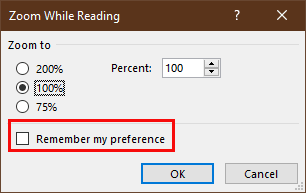
Zoom Is On When Reading Mail
When your incoming email is zoomed, the easiest fix is to hold Ctrl as you roll the mouse wheel (this is the likely cause for many people).
Keyboarders can use the Ctrl and plus (+) or minus (-) keys to change the zoom level in increments or Ctrl and the zero (0) key to go to 100%. Note: these keyboard shortcuts do not work in Outlook 2013/2016.
You can also click the Zoom button in the ribbon and set it back to 100%.
Click the button in the ribbon to open the zoom dialog and select the desired zoom level.

Outlook 2010, 2013, and 2016, 2019, 2021, 365 have a zoom slider in the main Outlook window status bar (on the right side). Use this slider to adjust the zoom in the reading pane.
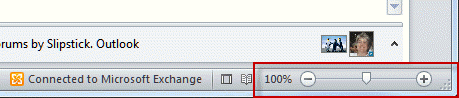
If you prefer, you can click on the zoom % (100% in the screenshot) to open the zoom dialog.
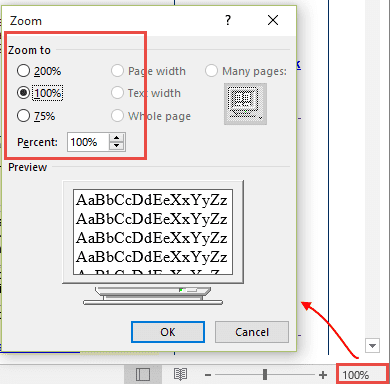
Note that changing the zoom setting is not persistent for reading messages unless you are using a current version of Outlook that has the Remember my preference checkbox. To make the zoom level persistent, you need to use an add-in or a macro. A list of zoom tools is in the Tools Section and a macro is at the end.
When Composing Message, Zoom Is Always On
Many times, when you make the change to a message you are composing and send it, the next message you compose reverts to the goofy zoom setting. This is because making changes to a message then sending the message applies the changes to that message only. If you make the changes then close the message, it should apply the changes to all future messages.
When zoom is stuck on a value (usually a tiny font), you can reset it by changing the zoom level then closing, but not sending, the message. If you change the zoom level then send, the change applies only to the message you changed, not to future messages.
In Outlook 2016, the Zoom button is on the Format Text ribbon.
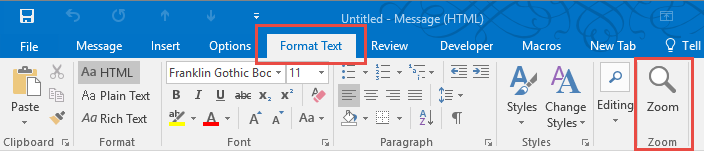
In Outlook 2010 and 2013, the Zoom button is on the Message tab when composing (or reading) a message.
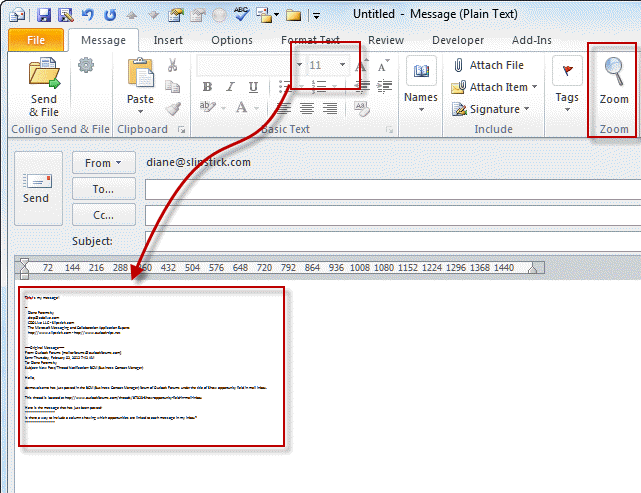
- Open a new message
- Click the Zoom button on the ribbon
- Change the zoom to the desired level
- Close the message.
- Click new message (or reply) and the zoom should be the desired level.
Tools
| Zoom Email Windows | The Zoom Email Windows tool for Outlook automatically zooms all Outlook reading pane windows. It zooms every Outlook window to your specified zoom factor. It's perfect for being able to instantly and clearly see the email and other Outlook windows. |
Zoom in either Open Messages or Reading Pane
While the zoom level is persistent when you change it in the compose mail window, it's not persistent when you change it for incoming messages.
This macro requires the use of Redemption (Developer Edition).
You need to set a reference to the Microsoft Word Object Library in the VBA's Editor. It's under Tools, References. If it's not set, you'll get a Compile Error: User-defined type is not defined.
To use with the reading pane, you need to disable conversation view.
See "How to use Outlook's VBA Editor" for instructions and screenshots.
Option Explicit
 Dim WithEvents objInspectors As Outlook.Inspectors
 Dim WithEvents objOpenInspector As Outlook.Inspector
 Dim WithEvents objMailItem As Outlook.MailItem
 Dim WithEvents myOlExp As Outlook.Explorer
 Dim sExplorer As Object
 Dim Document As Object
 Dim Msg

'Sets the zoom to the same value
' To use different values, replace msgzoom with the number
' in openinspector and selectchange macros
 Const MsgZoom = 200

Private Sub Application_Startup()
 Set objInspectors = Application.Inspectors
 Set myOlExp = Application.ActiveExplorer
 Set sExplorer = CreateObject("Redemption.SafeExplorer")
 End Sub

Private Sub Application_Quit()
 Set objOpenInspector = Nothing
 Set objInspectors = Nothing
 Set objMailItem = Nothing
 End Sub

Private Sub objInspectors_NewInspector(ByVal Inspector As Inspector)
 If Inspector.CurrentItem.Class = olMail Then
 Set objMailItem = Inspector.CurrentItem
 Set objOpenInspector = Inspector

End If
 End Sub
 Private Sub objOpenInspector_Close()
Set objMailItem = Nothing
 End Sub

Private Sub objOpenInspector_Activate()
Dim wdDoc As Word.Document
 Set wdDoc = objOpenInspector.WordEditor
 wdDoc.Windows(1).Panes(1).View.Zoom.Percentage = MsgZoom

End Sub

Private Sub myOlExp_SelectionChange()
On Error GoTo ErrHandler:
 Set Msg = Application.ActiveExplorer.Selection(1)
 Application.ActiveExplorer.RemoveFromSelection (Msg)
 Application.ActiveExplorer.AddToSelection (Msg)
 sExplorer.Item = Application.ActiveExplorer
 Set Document = sExplorer.ReadingPane.WordEditor
 Document.Windows.Item(1).View.Zoom.Percentage = MsgZoom
Exit Sub

ErrHandler:
    Exit Sub

End Sub
Zoom in Reading Pane or Open Message Video Tutorial
Not shown in the video: You need to set a reference to the Microsoft Word Object Library in the VBA's Editor. It's under Tools, References. If it's not set, you'll get a Compile Error: User-defined type is not defined..
Set the Zoom Level in Open Messages
You can use VBA to force the zoom level when you read incoming email in Outlook 2007 or newer, or when using Outlook 2003 with Word set as the email editor. Don't forget to set the desired zoom level in this line:
wdDoc.Windows(1).Panes(1).View.Zoom.Percentage = 150
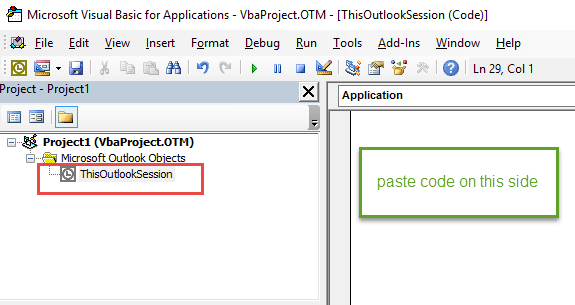
This macro goes in ThisOutlookSession.
You need to set a reference to the Microsoft Word Object Library in the VBA's Editor. It's under Tools, References. If it's not set, you'll get a Compile Error: User-defined type is not defined.
Option Explicit
 Dim WithEvents objInspectors As Outlook.Inspectors
 Dim WithEvents objOpenInspector As Outlook.Inspector
 Dim WithEvents objMailItem As Outlook.MailItem


Private Sub Application_Startup()
 Set objInspectors = Application.Inspectors
 End Sub


Private Sub Application_Quit()
 Set objOpenInspector = Nothing
 Set objInspectors = Nothing
 Set objMailItem = Nothing
 End Sub


Private Sub objInspectors_NewInspector(ByVal Inspector As Inspector)
 If Inspector.CurrentItem.Class = olMail Then
 Set objMailItem = Inspector.CurrentItem
 Set objOpenInspector = Inspector

 End If
 End Sub

Private Sub objOpenInspector_Close()

Set objMailItem = Nothing
 End Sub


Private Sub objOpenInspector_Activate()

Dim wdDoc As Word.Document
 Set wdDoc = objOpenInspector.WordEditor
 wdDoc.Windows(1).Panes(1).View.Zoom.Percentage = 150

End Sub
Zoom Macro Video Tutorial
How to use the macro
First: You will need macro security set to low during testing.
To check your macro security in Outlook 2010 and up, go to File, Options, Trust Center and open Trust Center Settings, and change the Macro Settings. In Outlook 2007 and older, it’s at Tools, Macro Security. If Outlook tells you it needs to be restarted, close and reopen Outlook. Note: after you test the macro and see that it works, you can either leave macro security set to low or sign the macro.
Now open the VBA Editor by pressing Alt+F11 on your keyboard.
To use the macro code in ThisOutlookSession:
- Set your macro security to Low in File, Options, Trust Center, Trust Center Settings, Macro Settings.
- Open the VB editor using Alt+F11
- Expand Project1 and double click on ThisOutlookSession.

- Copy then paste the macro into ThisOutlookSession. (Click within the code, Select All using Ctrl+A, Ctrl+C to copy, Ctrl+V to paste.)
- Set a reference to Microsoft Word in Tools, References
- Click in the Application_Startup macro and press the Run button to kick start it without restarting Outlook.
Application_Startup macros run when Outlook starts. If you are using an Application_Startup macro you can test the macro without restarting Outlook by clicking in the first line of the Application_Startup macro then clicking the Run button on the toolbar or pressing F8.
More information as well as screenshots are at How to use the VBA Editor.

Thanks for this Zoom reset guidance for the Outlook desktop app (O365), I appreciate you for providing this info.
It may be a little problem but you are a big help - thank you! 👍
In the latest ver of M365 Cloud, this zoom function is moved over under "Format text."
Regards
Damir
g4ns.com
It depends on which window you are in - if composing it is in Fornmat Text, if reading, it is in Messages tab.
Hi Diane, GM.
How to change the size of attachment icons in the Outlook 2019
Whenever someone sends the email or I send with attachment, then that respective attachment icon appears too big in the email
It would be nice if the width of the attachment box could be reduced.
Att: Attached image for your reference.
Thankyou,
KSk.
Unfortunately, it can't be changed. Sorry. We can't even hide the attachment line, like we could in older versions.
Hi Diane, Really Nice code snippet Working charm with keyboard selection changes (up & down). Whether this can be modified with Single click option (mouse click). if so, pl help. Thank you.
No, not to my knowledge. Sorry. 9But I'll take a look at it again, just to be sure.)
Outlook 2003 with Word set as default editor.Conversation view disabled. References set as indicated. Redemption in use. Still get a Compile error: User-defined type is not defined. The VBA does not show up in the Macro list either. Any ideas?
What version of Outlook are you using? Which line is it dying on?
I have been using Diane Poremsky's VBA code to change the zoom level in Outlook messages for a long time. I love it and it worked flawlessly. I recently upgraded to Office 2019 and every time I start Outlook, the Redemption user agreement appears and needs to be completed to open Outlook. Any thoughts on how to suppress this?
Thank you.
Craig
I get that dialog often - not every restart though. I'll ask Dmitry why its happening.
Hi Diane - did Dmitry have any ideas?
Craig
I'll shoot him another email - I asked him about it in a thread about another issue and he might have missed it.
I've been using this code for years and love it but it has suddenly stopped working. We are using Outlook 2016 (16.0.5182.1000) 64 bit. I've got my Word reference set and Macros set to allow them to run. I can manually run it but it will only works for one email and then the zoom reverts back to 100%. Anyone else seeing this?
No error messages? Comment out all error handler lines and set VBA to "Break on All Errors" = this is in Tools > options. This should give us an idea where its failing. (fingers crossed)
Set to break on all errors and no error handling in the code. Still no error messages. It's like the Private Sub Application_Startup macro isn't running at all. If I go in and manually run it then the zoom does work for that session of Outlook. If I close Outlook and reopen, then the Zoom is back to 100.
OMG! The first option of "remember my preference" when setting the zoom worked! Is this a new addition? I remember a few years ago the only way to achieve this was through the VBA code option (which is what I googled and how I ended up on this page). Thank you so much, saved me a lot of hassle.
It is new to Outlook - first added to Outlook 365 in late 2018.