I pick up interesting problems looking for solutions on various forums, such as this one.
Can I create an Outlook Rule that will keep me from sending an email to the wrong address? The reason: I have various email addresses. On occasion, I intend to send a message to my own address and use the wrong address instead, sending an email to the same wrong person more than once.
You can't use a rule to protect you from yourself but if you realize it as soon as you hit send, you can use a rule to delay mail by a minute or two, to give you time to recover the message and change the address. I have more information at Defer delivery in Outlook. You could also disable autocomplete, since it is the main cause of this problem, but because its a very good time saver most of the time, a macro is better.
Alternately, you can use macros to help get the address right. Since the problem is likely due to your selecting the wrong address as you type in the To field, using macros to create and address messages will reduce some, if not all of the problems. You can also use a macro to check outgoing messages for an address.
Forward selected message to specific address
This macro solves the user's immediate problem, forwarding a message to the wrong address.
Create a macro for your address and assign the macro to a toolbar or ribbon button. Place the button(s) next to the Forward button to help you remember. You'll need one macro & button for each address you forward messages to.
Public Sub ForwardtoMe()
Dim oMail As Outlook.MailItem

Set oMail = Application.ActiveExplorer.Selection(1).Forward
oMail.Recipients.Add ("alias@domain.com")
    oMail.Display

End Sub
Check messages you send
This macro checks messages for one specific display name and if it finds a match, allows you to cancel the send. On Error Resume Next allows it to work with meetings or task requests, otherwise it kicks up an error message. Note: other macros on this page check the SMTP address and are recommended over this one.
Private Sub Application_ItemSend(ByVal Item As Object, Cancel As Boolean)

On Error Resume Next
 ' use lower case for the address
 ' LCase converts all addresses in the To field to lower case
If InStr(LCase(Item.To), "bad@address.com") Then
      Prompt$ = "You sending this to " & Item.To & ". Are you sure you want to send it?"
       If MsgBox(Prompt$, vbYesNo + vbQuestion + vbMsgBoxSetForeground, "Check Address") = vbNo Then
         Cancel = True
       End If
  End If

End Sub
A slightly different version of the above macro checks messages you send for one of several addresses. If the address on the message is not one in the list (or there are multiple addresses in the list), it will ask if you really want to send.
While not the best option in my opinion, because it basically asks for confirmation every time you send, it may be a good solution in some cases.
To use, add your addresses to the Case line. This macro needs to be added to ThisOutlookSession to work.
Private Sub Application_ItemSend(ByVal Item As Object, Cancel As Boolean)
    On Error Resume Next
   Select Case LCase(Item.To)
    Case "alias@domain.com", "alias2@domain3.com", "alias3@domain3.com"
        Item.Send
    Case Else
      Prompt$ = "You are not sending this to " & Item.To & ". Are you sure you want to send the Mail?"
       If MsgBox(Prompt$, vbYesNo + vbQuestion + vbMsgBoxSetForeground, "Check Address") = vbNo Then
         Cancel = True
       End If

    End Select

End Sub
Check addresses in the To, CC, or BCC field using the Recipient Collection
This variation of the code checks all addresses in the recipient collection against the "bad address".
Private Sub Application_ItemSend(ByVal Item As Object, Cancel As Boolean)

  Dim Recipients As Outlook.Recipients
  Dim recip As Outlook.Recipient
  Dim i
  Dim prompt As String

On Error Resume Next
 ' use lower case for the address
 ' LCase converts all addresses in the To field to lower case

 Set Recipients = Item.Recipients
  For i = Recipients.Count To 1 Step -1
    Set recip = Recipients.Item(i)

 Debug.Print recip.Address
 If InStr(LCase(recip.Address), "bad@domain.com") Then
      prompt$ = "You sending this to this to " & Item.To & ". Are you sure you want to send it?"
       If MsgBox(prompt$, vbYesNo + vbQuestion + vbMsgBoxSetForeground, "Check Address") = vbNo Then
         Cancel = True
       End If
  End If

Next i


End Sub
Check for multiple domains
This is Keith's code sample . Use it to check if the message is being sent to specific domains. With the simple removal of Case Else line, you can convert it from warning for all but the listed domains to warning for only those domains.
In this example, I'm using InStrRev function to get the position of the @ symbol to use when determining the length of domain, which allows me to use the Right function and Select Case. InStrRev looks for the designated string beginning on the right, not left as Instr does.
Private Sub Application_ItemSend(ByVal Item As Object, Cancel As Boolean)
 Dim recips As Outlook.Recipients
 Dim recip As Outlook.Recipient
 Dim pa As Outlook.PropertyAccessor
 Dim prompt As String
 Dim strMsg As String
 Dim Address As String
 Dim lLen

Const PR_SMTP_ADDRESS As String = "http://schemas.microsoft.com/mapi/proptag/0x39FE001E"

Set recips = Item.Recipients
 For Each recip In recips
 Set pa = recip.PropertyAccessor

 Address = LCase(pa.GetProperty(PR_SMTP_ADDRESS))
 lLen = Len(Address) - InStrRev(Address, "@")

 Select Case Right(Address, lLen)
    Case "cdolive.com", "slipstick.com", "outlookmvp.com"

    Case Else ' remove case else line to be warned when sending to the addresses
     strMsg = strMsg & " " & Address & vbNewLine
 End Select
 Next

If strMsg <> "" Then
 prompt = "This email will be sent outside of the company to:" & vbNewLine & strMsg & vbNewLine & "Please check recipient address." & vbNewLine & vbNewLine & "Do you still wish to send?"
 If MsgBox(prompt, vbYesNo + vbExclamation + vbMsgBoxSetForeground, "Check Address") = vbNo Then
 Cancel = True
 End If
 End If

End Sub
Check for different domains
Frank wanted to check to see if a message was being sent to two different domains and if so, trigger a warning. (This code skips addresses in the sending account's domain.)
To do this, we need to create a string containing the message recipients then split it into an array. We compare the members of the array and if any two don't match, trigger the warning message. If you say Yes the first time the warning comes up, the macro exits and the message is sent. If you want to continue checking addresses after clicking Yes, remove the Exit Sub after the prompt.
Private Sub Application_ItemSend(ByVal Item As Object, Cancel As Boolean)
 Dim recips As Outlook.Recipients
 Dim recip As Outlook.Recipient
 Dim pa As Outlook.propertyAccessor
 Dim prompt As String
 Dim strMsg As String
 Dim Address As String
 Dim lLen
 Dim arr
 Dim strMyDomain
 Dim userAddress

Const PR_SMTP_ADDRESS As String = "http://schemas.microsoft.com/mapi/proptag/0x39FE001E"

' non-exchange
' userAddress = Session.CurrentUser.Address
' use for exchange accounts
userAddress = Session.CurrentUser.AddressEntry.GetExchangeUser.PrimarySmtpAddress
lLen = Len(userAddress) - InStrRev(userAddress , "@")
strMyDomain = Right(userAddress, lLen)


Set recips = Item.Recipients
 For Each recip In recips
 Set pa = recip.propertyAccessor

Address = LCase(pa.GetProperty(PR_SMTP_ADDRESS))
 lLen = Len(Address) - InStrRev(Address, "@")
str1 = Right(Address, lLen)

If str1 <> strMyDomain Then
strRecip = str1 & "," & strRecip
End If
Next

 arr = Split(strRecip, ",")

' need to subtract one because string ends with a ,
For i = LBound(arr) To UBound(arr) - 1
   For j = LBound(arr) To i
    If arr(i) <> arr(j) Then

prompt = "This email is being sent to people at " & arr(i) & " and " & arr(j) & " Do you still wish to send?"
 If MsgBox(prompt, vbYesNo + vbExclamation + vbMsgBoxSetForeground, "Check Address") = vbNo Then
 Cancel = True
 End If
Exit Sub ' stops checking for matches

End If
Next j

Next

End Sub
Check for messages to Internal and External addresses
This version of the code will check for the presence of Internal and External addresses and if both are found, the warning message comes up. If the message is sent only to internal addresses or only to external addresses, the message is sent.
If str1 = strMyDomain Then internal = 1
If str1 <> strMyDomain Then external = 1
If internal + external = 2 Then
Private Sub Application_ItemSend(ByVal Item As Object, Cancel As Boolean)
 Dim recips As Outlook.Recipients
 Dim recip As Outlook.Recipient
 Dim pa As Outlook.propertyAccessor
 Dim prompt As String
 Dim Address As String
 Dim lLen
 Dim strMyDomain
 Dim internal As Long
 Dim external As Long

Const PR_SMTP_ADDRESS As String = "http://schemas.microsoft.com/mapi/proptag/0x39FE001E"

' non-exchange
' userAddress = Session.CurrentUser.Address
' use for exchange accounts
userAddress = Session.CurrentUser.AddressEntry.GetExchangeUser.PrimarySmtpAddress
lLen = Len(userAddress) - InStrRev(userAddress, "@")
strMyDomain = Right(userAddress, lLen)

Set recips = Item.Recipients
 For Each recip In recips
 Set pa = recip.propertyAccessor

Address = LCase(pa.GetProperty(PR_SMTP_ADDRESS))
 lLen = Len(Address) - InStrRev(Address, "@")
str1 = Right(Address, lLen)

  If str1 = strMyDomain Then internal = 1
  If str1 <> strMyDomain Then external = 1
Next

 If internal + external = 2 Then
prompt = "This email is being sent to Internal and External addresses. Do you still wish to send?"

 If MsgBox(prompt, vbYesNo + vbExclamation + vbMsgBoxSetForeground, "Check Address") = vbNo Then
    Cancel = True
 End If

End If

End Sub
Check new messages you send
A user with three accounts in his profile wanted to be reminded which email account was sending the message, but because Outlook always sends replies and forwards using the account that downloaded the message, he only want to check new messages.
The result is this code sample which checks new messages on send while skipping replies and forwards. It looks for RE: or FW: as the first 3 characters in the subject and skips the dialog if they are found. By using LCase, it will pick up RE:, Re: or re:.
To check all messages sent from all accounts except your default email account, replace the IF line with this:
If Not Item.SendUsingAccount = "my-default-account@domain.com" Then
To check only for a specific email account, use this:
If Item.SendUsingAccount = "alias-I-don't-use@domain.com" Then
Private Sub Application_ItemSend(ByVal Item As Object, Cancel As Boolean)

On Error Resume Next

If Not Left(LCase(Item.Subject), 3) = "re:" And Not Left(LCase(Item.Subject), 3) = "fw:" Then
      prompt$ = "You sending this from " & Item.SendUsingAccount & ". Are you sure you want to send it?"
       If MsgBox(prompt$, vbYesNo + vbQuestion + vbMsgBoxSetForeground, "Check Sending Account") = vbNo Then
         Cancel = True
       End If
End If

End Sub
Video tutorial: How to use the ItemSend macros
How to use VBA code samples
To use either of these macros, open the VBA Editor using Alt+F11. Expand Project1.
The macro that checks addresses when you send messages needs to be in ThisOutlookSession.
The macro that forwards mail to a specific address can go into a separate Module. To add a module, right click on Project1 and choose Insert > Module.
Paste the code into the editor.
Change the addresses in the sample code to your own address.
The macro that checks address will run when you send messages.
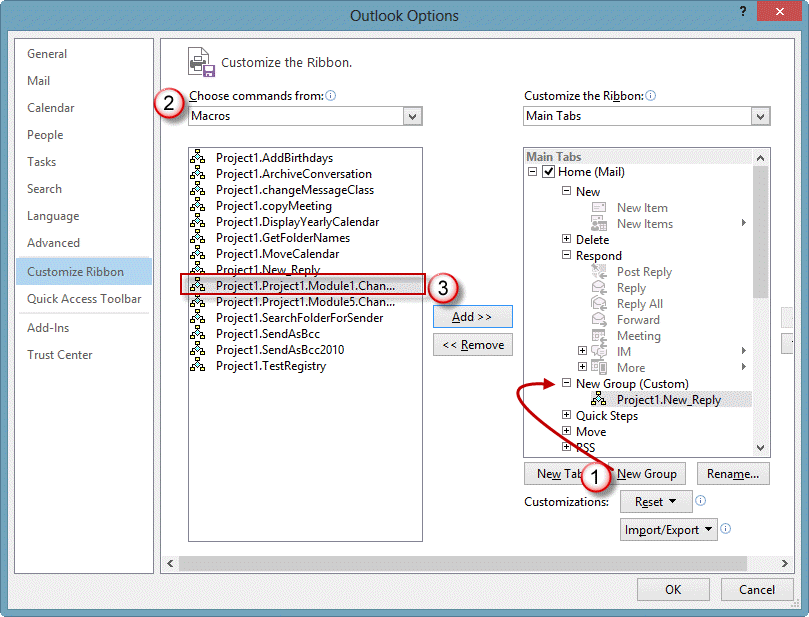
To create buttons for the forward macro:
In Outlook 2010 and above:
- Go to File, Options, and choose Customize Ribbon.
- Add a New Group to the list on the right side then Add the macro to the new group.

- Select Macros in Choose Commands from.
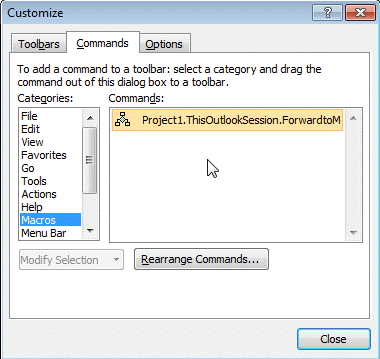
In Outlook 2007 and older:
- Right click in the toolbar area, choose Customize.
- Switch to the Commands tab.
- Select Macros under Categories.
- Drag the macro to anywhere on the Toolbar.
If you would rather not use a macro, the following add-ins can check messages before sending.
Tools
Prevent email mistakes with the updated Safeguard Send add-in for Outlook 2016. It checks outgoing emails after you click the Send button to make sure that you're sending to the right recipients, that you're not sending emails with sensitive or classified keywords, anytime you're sending emails outside the company domains, and 12 other outgoing email checks that Outlook doesn't do. It warns you before the email goes out plus it can take 4 other actions on the email before it goes out, even auto adding a BCC recipient. | |
SafeSend Outlook detects external recipients in outgoing emails and meeting invitations, requests users to confirm external emails recipients, expands Outlook distribution lists. Supports multiple domains within corporate structure and multiple email accounts per user. Allows custom safe-domains. Puts minimum load on your Exchange server. | |
Send Guard will detect and prompt you whenever you make any of these mistakes and more: forget to send an attachment you promised in a message, Reply-to-All or forget to Reply-to-All, send emails using the wrong email account, send emails with blank or incorrect subjects, said something you oh-so-knew-better than to say. |
More Information
Generate a warning for a Reply to all
Warning for missing attachments

Tiny Tim says
Hi,
Really great guide but it'd be fantastic if you could write one for multiple email addresses as I have tried and failed to adapt the Check for Multiple Domains one to work and my feeble brain cannot manage.
I am not sure if the emails need to be case sensitive, or whether it needs to be the full email address or simply how the email appears in the line, i.e. the email name that Outlook loves to abbreviate.
I know you have said do this and move this bit of code here but honestly it is beyond me.
Tim
hugelevin says
Hi Diane,
First of all, I wanted to say that I appreciate what you created here!
Here is my scenario. I am trying to use the code for "Check new messages you send" with the addition of 'SentOnBehalfOfName' for alias email addresses to trigger a different message when using 'SentOnBehalfOfName'.
The below code is almost there but doesn't work when sending emails using an alias email address. Would appreciate your assistance with this :)
This is my code so far:
'Always verify sending account and from address. 'Place in ThisOutlookSession Private Sub Application_ItemSend(ByVal Item As Object, Cancel As Boolean) On Error Resume Next If Not Left(LCase(Item.Subject), 3) = "re:" And Not Left(LCase(Item.Subject), 3) = "fw:" Then Dim strMsg As String 'Check whether it is sent From account address' If Item.SenderEmailAddress <> Item.SendUsingAccount Then strMsg = "You are sending this from: " & Item.SendUsingAccount & _ vbNewLine & vbNewLine & "Are you sure you want to send it?" 'Check whether it is sent with a different From address of the account' '=== CODE THAT DOESN'T WORK === ElseIf Item.SenderEmailAddress <> Item.SentOnBehalfOfName Then strMsg = "You are sending this from: " & Item.SentOnBehalfOfName & _ vbNewLine & vbNewLine & "Are you sure you want to send it?" End If If MsgBox(strMsg, vbYesNo + vbQuestion + vbMsgBoxSetForeground, "Check Sending Account") = vbNo Then Cancel = True End If End If End SubJoel Tracey says
Hello Diane,
Thanks so much for this code! I'm wondering if you can help me alter it just slightly. My goal is to check all recipient fields (To, CC, BCC) for a particular set of addresses (john.doe@gmail.com, jane.doe@gmail.com, etc.) warn if they are present, and list only those flagged addresses in the warning?
I think the Check for Multiple Domains gets me the closest, as it seems to trigger on all fields and I simply substitute your example domains listed after "Case" with the full addresses I want flagged, but the list in the warning seems to include both flagged and unflagged addresses. I think it'll be easier for the person I'm wanting to apply this to if it specifically called out the address(es) in question alone. Is that possible?
Diane Poremsky says
It is possible - I would probably try moving this from the case else to under the case line.
strMsg = strMsg & " " & Address & vbNewLine
john michaels says
Hi Diane, Great post - Thank you! In the pop up message, us there a way to add a carriage return between sentence? I have a long pop up message that I would like to format better and I cant seem to do that because everything is on one line. Thanks
Diane Poremsky says
Add & vbcrlf & at the end of the line, where you want it to break.
& vbNewLine & should work too.
vahid says
Hi Diane,
I am looking for a code or rule that warns for following case:
If I am trying to send an email.
If To, CC, or BCC fields contains:
@clienta.xyz and @clientb.com or @clientc.gov the user should be warned by Outlook.
This is to prevent sensitive information from accidently being shared across clients and vendors.
Is there a VBA code or any readily available addin that does this?
Thanks,
Vahid
Diane Poremsky says
The code above for Check for multiple domains should do that.
vahid says
Wow, thanks for the quick response. Yes, it works. I had tried it initially but it was not working. I restarted outlook and now it does.
Is there a way to make it foolproof for certain domains.
Example. Never allow emails to be sent to @client.com and @supplier.com
With the current code it still allows you to send the email if you click ok. We would prefer to have a way to completely block certain combinations of email address.
Thanks for your help
Vahid
Amber says
Hi - Great post. Would it be possible to alter the "Check addresses in the To, CC, or BCC field using the Recipient Collection" to check a list of addresses vs. just one?
Thanks,
Amber
Diane Poremsky says
Check for multiple domains should do that.
Dave says
Hi, I am using the "Check for messages to Internal and External addresses" code. It errors out when user defined contact group(s) are in any of the address fields. The error is in regards to
Const PR_SMTP_ADDRESS As String = "http://schemas.microsoft.com/mapi/proptag/0x39FE001E"
Adding "On Error Resume Next" to the code gets us out of the error condition but that doesn't check any of group contacts then.
We are running against Exchange Online.
Any thoughts on how to correct?
Nigel says
Hi,
what a great set of script pages. I'm trying to work out how I can run your warn before sending scripts against two 'lists' of email addresses . The lists being either groups or txt files or something else that warns if sending an email to anyone not one one list or on both to make sure senders know they're to the right recipients. The two lists are kind of "core developer team" and more widely "general project". I cant use domain as a discriminator unfortunately, hence the lists.
Russell says
Very useful, I had a hybrid desire out of the examples and could use it to collect something together - I have multiple accounts in my profile due to several different clients plus my own organisation. When I mail a given client, by default I should be doing it from the email in their organisation, but its sooo easy and pretty bad to get that wrong. Now I have a message that spots when I am sending to any of my client domains but not from my account in that domain
here's the code in case you have the same issue (obviously you need to substitute all the "client_domain" names with the ones relevant to you )
Private Sub Application_ItemSend(ByVal Item As Object, Cancel As Boolean)
Dim recips As Outlook.Recipients
Dim recip As Outlook.Recipient
Dim pa As Outlook.PropertyAccessor
Dim prompt As String
Dim strMsg As String
Dim Address As String
Dim Domain As String
Dim lLen
Dim strMyDomain
Const PR_SMTP_ADDRESS As String = "http://schemas.microsoft.com/mapi/proptag/0x39FE001E"
userAddress = Item.SendUsingAccount
lLen = Len(userAddress) - InStrRev(userAddress, "@")
strMyDomain = Right(userAddress, lLen)
Set recips = Item.Recipients
For Each recip In recips
Set pa = recip.PropertyAccessor
strMsg = ""
Address = LCase(pa.GetProperty(PR_SMTP_ADDRESS))
lLen = Len(Address) - InStrRev(Address, "@")
Domain = Right(Address, lLen)
Select Case Right(Address, lLen)
Case "client_domain1.com", "client_domain2.com", "client_domain3.com", "cleint_domain4.com"
If strMyDomain <> Domain Then
strMsg = strMsg & " " & Address & vbNewLine
End If
End Select
Next
If strMsg <> "" Then
prompt = "This email will be sent to:" & vbNewLine & strMsg & vbNewLine & "from an address in domain " & strMyDomain & ". Please check sending account." & vbNewLine & vbNewLine & "Do you still wish to send?"
If MsgBox(prompt, vbYesNo + vbExclamation + vbMsgBoxSetForeground, "Check Address") = vbNo Then
Cancel = True
End If
End If
End Sub
Ashok Shukla says
Hello Experts,
My team's daily job is to reply 100- 200 emails and the client base is more than 10000. Many times we end up addressing emails incorrectly even though the actual recipient is correct. The clients are different each day and keep on adding, so its impossible to add each of them to Contact. The issue is for e.g. addressing the email with incorrect recipient name while replying/replying all. Since, we have to use reply all, the recipient is usually correct, however, the emails are sometime incorrectly addressed. for e.g. the recipient email address is "NIkhil.Singh@domain.com", however, due to human error the emails get addressed as "Hi Nikh", "Hi Nikhi" or worst case scenario to some other name say "Hi Ashok". This mainly occurs as we are processing huge numbers of emails simultaneously. I am not a VBA expert and need your help on this matter.
Is it possible to have a VBA code which auto-inserts recipients "first name" from the email address from "TO" Line only? it should not fetch the name from CC as it will add multiple names in the same email and sum up the work as we use reply/reply all frequently OR is it possible to have a VBA code to validate the recipients name in the email body with the email address. Any help on the above issue would be highly helpful.
Outlook 365 has a feature to auto-suggest recipients name from the email address. However, i can't find the similar feature in Outlook 2016 app. And our work is mainly based on the Outlook app.
Thank You!
Diane Poremsky says
i would probably get the name from the From field of the message you are replying to.... i thought i had a code sample that did that.
Getting the name from the to field as long as his name is the only one in the to field - it won't if the message was sent to multiple people.
Diane Poremsky says
Found it -
https://www.slipstick.com/developer/vba-when-reply-is-clicked/#names
Karl says
Just wanted to thank you for the simple fix to my headaches for sending emails from the wrong account. I have accidentally sent several emails from my account that I give to suspected spam producers, online surveys, grocers, restaurant clubs....
Only downside is that I have to trust all macros now. Not sure how big of a risk that is.
Diane Poremsky says
In outlook, its not too, too bad, but you can use selfcert to sign the macro and only allow signed macros.
https://www.slipstick.com/developer/how-to-use-outlooks-vba-editor/#selfcert
Jake says
Hi, the code is good so far, but what if i want to select the specific mailaddress in a pop up message to send like i want to create a custom tab and check boxes in a pop up window after clicking on the send event .
Diane Poremsky says
It sounds like you want to use a user form as you can't do that just with VBA.
I think this sample is a start for what you want to do.
https://www.slipstick.com/developer/select-list-subjects-sending-message/
Nick says
Super useful - thank you.
I have used a variant of the "Check for different domains" piece with an "if" function to determine restricted domains based on the sender (I run multiple email accounts from my Outlook and need to ensure I don't use the wrong one for the wrong recipient). I would ideally like this line ("If Item.SendUsingAccount = "nick.smith@abc.com" Then") to look at the domain "@abc.com" rather than the email address "nick.smith@abc.com", so it could apply to my colleagues too and they can c&p without making changes to the code. Is there a way to do this without many lines of code?
I also added in a section that checks the body of the message for any restricted text. This is helpful practically because it essentially checks that you aren't using the wrong signature (which is very easy to do when using Outlook). I wonder if you might have a better solution for that?
This code (attached a general version) throws up two separate error messages if both rules are violated, and the only way I can think of combining the two checks would involve a more code. Maybe there is a workaround there too.
Any clues to make this better super welcome :-) Thanks!
Diane Poremsky says
Try using this for the address line-
if InStr(LCase(Item.SendUsingAccount), "abc.com") > 0 then
keith says
Thank you for the vba script. we tested it working but we wanted to know if we can deploy it to 50 or more machines. is there any way to convert this into DLL?
Diane Poremsky says
You can turn it in to a com addin to deploy it. You'll need visual studio for that.
Mayank says
Thank you so much for these, they're really helpful. I do admit that I'm completely unaware or programming and have no VB skills whatsoever.
I've tried almost all the macros here but haven't been able to get this to work for my use case scenario. is slightly different.
while replying to any older email thread where :
1. I'm either replying to all including "bad@domain.com" in the TO field or the CC field
2. I'm sending a fresh email to "bad@domain.com" in the TO or CC field
I wish to have an alert that says " "bad@domain.com" should be removed from this email as he/ she doesn't work with the client anymore".
It would be even better if this macro could also run with these rules apart from another rule to check the subject line of the email for specific word(s) to trigger this.
Any help would be really appreciated.
Diane Poremsky says
>>
It would be even better if this macro could also run with these rules apart from another rule to check the subject line of the email for specific word(s) to trigger this.
>>
THat part is fairly easy - you just need to merge the code.
The macro under 'Check addresses in the To, CC, or BCC field using the Recipient Collection' would could form the base - just change the text in the alert.
If you want it removed automatically, this might work. I didn't test it though, so no promises. :) It would replace the if/end code.
Set Recipients = Item.Recipients
For i = Recipients.Count To 1 Step -1
If LCase(Recipients.Item(i).Address) = "alias@slipstick.com" Then
recips.Remove i
End If
Next
Vivien says
It took me a little while to work out how to use Check addresses in the To, CC, or BCC field using the Recipient Collection for internal email addresses, which autocomplete.
I was using this to stop accidentally sending emails to one particular person with the same first name as the person I was actually trying to email. Only so many times you can do this before it gets really embarrassing.
Autocomplete meant that recip.Address was not notyou@myorganisation.com but /o-exchangelabs/ou=exchange administrative group(xxxxxxxxxxxxxx)/cn=recipients/cn=xxxxxxxxxxxxx-usernameofnotyou
So I just changed notyou@myorganisation to -usernameofnotyou.
This solves my issue. Hope this can help someone else.
Andrew says
This works perfectly, thank you for the write-up!
Is there a way I can add these scripts to a button in the ribbon that opens and runs on that email instead of running on Outlook as a whole? My goal is to have an 'internal email' option that ensures we don't send information outside of our company domain.
Thanks.
Diane Poremsky says
You can - you definitely have to run it manually though, after adding the addresses. The itemsend can check for external addresses on send, which makes it easier.
change
Private Sub Application_ItemSend(ByVal Item As Object, Cancel As Boolean)
to something like
Private Sub CheckSend()
Dim Item As Object
Dim Cancel As Boolean
Set Item = application.ActiveInspector.CurrentItem
(I didn't test it - hopefully no errors doing it off the top of my head. :) )
Brian says
Hi,
I'm trying to check my email body for certain pattern. Its a 12 digit unique code per transaction and if it sees that the 12 digit is not masked then it should prompt the user to mask it first before sending the email. Is it possible using instr?
Diane Poremsky says
If the mark is the same character and pattern yes, instr should work. If the pattern changes, would be better.
Brian says
thanks a lot!
Brian says
Hi!
Thanks for your reply Diane. Managed to proceed. Though I have one problem where it still sends the email despite clicking on No. Can you help check my code where I got it wrong?
Diane Poremsky says
You missed cancel = true:
= vbNo Then
Cancel = True
End If
Darcy Parker says
Hi, I was using this macro to warn me if I was sending without a subject line and to warn me if I was sending outside my own domain. This was working great in Outlook 2007, and 2013, but It does not seem to work in outlook 2016.
Private Sub Application_ItemSend(ByVal Item As Object, Cancel As Boolean)
Dim recips As Outlook.Recipients
Dim recip As Outlook.Recipient
Dim pa As Outlook.PropertyAccessor
Dim prompt As String
Dim strMsg As String
Dim strSubject As String
Const PR_SMTP_ADDRESS As String = "http://schemas.microsoft.com/mapi/proptag/0x39FE001E"
strSubject = Item.Subject
If Len(Trim(strSubject)) = 0 Then
prompt$ = "Subject is Empty. Are you sure you want to send the Mail?"
If MsgBox(prompt$, vbYesNo + vbQuestion + vbMsgBoxSetForeground, "Check for Subject") = vbNo Then
Cancel = True
End If
End If
Set recips = Item.Recipients
For Each recip In recips
Set pa = recip.PropertyAccessor
If InStr(LCase(pa.GetProperty(PR_SMTP_ADDRESS)), "@mydomain.com") = 0 Then
strMsg = strMsg & " " & pa.GetProperty(PR_SMTP_ADDRESS) & vbNewLine
End If
Next
For Each recip In recips
Set pa = recip.PropertyAccessor
If InStr(LCase(pa.GetProperty(PR_SMTP_ADDRESS)), "@mydomain.com") = 0 Then
prompt = "This email is being sent to the following recipients outside of Vecima:" & vbNewLine & strMsg & "Do you want to proceed?"
If MsgBox(prompt, vbYesNo + vbExclamation + vbMsgBoxSetForeground, "Check Address") = vbNo Then
Cancel = True
Exit Sub
Else
Exit Sub
End If
End If
Next
End Sub
I know with outlook 2016 - I can pull out the section that deals with empty subject line, but its not catching when I send outside of my domain
Any Ideas ?
Thanx.
Diane Poremsky says
Hmm. its working here. Is macro security set to low?
Darcy Parker says
I set macro security to "Notifications for all macros". I set it like this so that I know the macro is starting when I start Outlook in the morning.
Darcy Parker says
Working now, I had placed it in the wrong spot - Thx for your help.
Darcy Parker says
OK, Itb looks like Outlook 2016 is looking for a cert for the macro. I have my IT group looking into it.
https://support.office.com/en-us/article/Digitally-sign-your-macro-project-956e9cc8-bbf6-4365-8bfa-98505ecd1c01?NS=OUTLOOK&Version=16&SysLcid=1033&UiLcid=1033&AppVer=ZOL160&HelpId=5285055&ui=en-US&rs=en-US&ad=US
Diane Poremsky says
With it set to ask for all macros it should work, or you can self sign it. If you don't care about security and just want to know the macros are triggered, you can add a message box to an application_start macro to pop up when Outlook starts.
Brooke says
I confess to being not completely technical, but I generally can figure things out pretty well.
I have a client who has switched emails, but there are numerous old threads that are connected to his old email. I want to make sure that even replies to old threads aren't inadvertently sent to the old email. This is a fairly common scenario.
I see one of two options for this:
1. Automatically sub in the new email whenever the old email appears in the TO, CC, or BCC fields.
2. Warn me whenever the old email address appears in the TO, CC, or BCC fields.
The macro above that I THOUGHT would do option 2 did not work (although that could also be user error as I'm not super familiar with creating and using macros in Outlook).
Ideas?
Diane Poremsky says
What type of email account ? if smtp, you can change the smtp server on the account, assuming the account is still in outlook profile.
Is the old email account still in the profile? If not, it should reply with the default account
David says
Hi! Can someone help me to create a VBA that checks the recipient(s) (if possible not just the TO field but also CC field) and deletes (if possible permanently and not into Trash folder) the message AFTER SENDING? So for example if I send it to a specific email address, then it sends the letter but then deletes immediately after sending. (Of course rest of the sent messages should be kept, so turning of saving sent messages is not an option.)
Diane Poremsky says
There is an option to not save sent items - item.DeleteAfterSubmit = true. What i would do is use a macro to check the addresses as shown on these pages then set the value to not save using
using the first macro that check for a specific address or domain in the to field:
If InStr(LCase(Item.To), "address.com") Then
item.DeleteAfterSubmit = true
end if
There is also a macro that uses case statements to check the To field (its after the one that only checks for an address or domain in the to field). If you need to check the to and cc fields, you need to use the recipient collection. (I forget offhand if the .To field is display names, addresses or both)
Doug says
This code is working great for us, but looks like it depends on the item being open. When replying to a message in the reading pane, the Send button does not trigger the same event to cause a pop-up to appear. Any samples for triggering on that event?
Diane Poremsky says
On the first one - Add a debug.print item.to before it checks for the address in the if line - you'll see its looking for display name, not address. Use the recipients version instead and change this line:
Debug.Print recip.Address
If InStr(LCase(recip.Address), "emo@slipstick.com") Then
This will allow it to work with smtp address but it will still fail with addresses in the Exchange GSAL as they the x500 format, not smtp.
(i'll update the macro on the page.)
Diane Poremsky says
It should trigger the warning. (ItemSend macros run as the message is sent - after it's left the editor window). I tested the first macro and it works... but it uses the display name, not the underlying address. Some of other macros check the address (i updated the second one to use the recipient's address, but later macros also use the address)
Andrew says
Perfect. This was exactly what I needed.
Thank you!
Tommy Quitt says
Hi,
I've made a small modifications to the code and offered it in github for the public to use.
Hope this is OK and helpful.
Diane Poremsky says
Sure.
John says
Does anyone else have issues implementing this in a Office 2016 , Windows 10 environment? It works great on Win7, but on Win10 it keeps disabling the macro even though i have it set to allow all. Thank you
Diane Poremsky says
These macros should only be controlled by the macro security setting - they are itemsend macros and run automatically when you send mail.
Is this a home computer or a work computer? What do you use for antivirus or security software?
Bill says
Thanks for the very useful posts Diane - they are very much appreciated.
I am using the following code, but would only like the pop up message if using a certain email address.
I'd be extremely grateful if you could help me out.
Thanks in advance.
Private Sub Application_ItemSend(ByVal Item As Object, Cancel As Boolean)
On Error Resume Next
Select Case LCase(Item.To)
Case "alias@domain.com", "alias2@domain3.com", "alias3@domain3.com"
Item.Send
Case Else
Prompt$ = "You are not sending this to " & Item.To & ". Are you sure you want to send the Mail?"
If MsgBox(Prompt$, vbYesNo + vbQuestion + vbMsgBoxSetForeground, "Check Address") = vbNo Then
Cancel = True
End If
End Select
End Sub
But would
Diane Poremsky says
You want to check the address you are sending to or the account you are sending from?
To check for sending to a certain address, use an if statement after the else
If item.to ="the@address.com" then
'pop up the dialog
End if
Nate says
So I can get the "Check Messages you send" to work for some emails, but not for emails that actually have uppercase letters in their email. How do I change the code to get these to work as well?
Thanks :)
Diane Poremsky says
Make sure you use LCase(Item.To) to change the address string to lowercase.
Clinton Mak says
Hi Diane
I am currently using the vba code for
Check addresses in the To, CC, or BCC field using the Recipient Collection
If i wanted to put thousand of email, i should have inputted at here:
////quote////
If InStr(LCase(recip), "@citi.com", "@hotmail.com", "@gmail.com") Then
////unquote////
However, it show me syntax error.. after i deleted the additional email, compile and run. it captures.
Please advise
Cheers, Clinton Mak
Varun says
The video was helpful. Thank you, I was able to set it up very quickly.
Sylwia says
Hi Diane,
what do I need to do to make "Check for different domains" code work for Outlook 2003? It seems I need some references. Do you know which ones?I have made a research and it seems I need Redemption - I have got it but it still doesn't work:(Thank you!
Sylwia J
Diane Poremsky says
Just having redemption installed isn't enough - the code needs rewritten to use it.
sylwia says
Hi Diane,
thank you for your reply. I did manage to understand that it would be to easy with just installing Redemption ;) I am currently working on rewriting your code. However it looks like I am nowhere near getting the right code as I am fairly new in VBA programming. I feel more confident with small userforms in Excel but coding for Outlook is like black magic for me. I have managed to transform the code (with help of plenty of forums and posts) to this form but I am still getting error but this time whole useraddress line is hightlighted. Could you please have a look and explain to me what I am doing wrong?
Private Sub Application_ItemSend(ByVal Item As Object, Cancel As Boolean)Dim objOutlookApp As Outlook.Application
Dim objMailItem As Outlook.MailItem
Dim recips As Outlook.Recipients
Dim recip As Redemption.SafeRecipient
Dim pa
Dim prompt As String
Dim strMsg As String
Dim Address As String
Dim lLen
Dim arr
Dim strMyDomain
Dim userAddress
Const PR_SMTP_ADDRESS As String = "https://schemas.microsoft.com/mapi/proptag/0x39FE001E"
Set objOutlookApp = New Outlook.Application
Set objMailItem = objOutlookApp.CreateItem(olMailItem)
Set objsafemail = CreateObject("Redemption.SafeMailItem")
objsafemail.Item = objMailItem
userAddress = session.CurrentUser.AddressEntry.GetExchangeUser.PrimarySmtpAddress
lLen = Len(userAddress) - InStrRev(userAddress, "@")
strMyDomain = Right(userAddress, lLen)
Set recips = objMailItem.Recipients
Set recip = objMailItem.Item
For Each recip In recips
Set pa = recip.propertyAccessor
Address = LCase(pa.GetProperty(PR_SMTP_ADDRESS))
lLen = Len(Address) - InStrRev(Address, "@")
str1 = Right(Address, lLen)
If str1 <> strMyDomain Then
strRecip = str1 & "," & strRecip
End If
Next
arr = Split(strRecip, ",")
For i = LBound(arr) To UBound(arr) - 1
For j = LBound(arr) To i
If arr(i) <> arr(j) Then
prompt = "This email is being sent to people at " & arr(i) & " and " & arr(j) & " Do you still wish to send?"
If MsgBox(prompt, vbYesNo + vbExclamation + vbMsgBoxSetForeground, "Check Address") = vbNo Then
Cancel = True
End If
Exit Sub ' stops checking for matches
End If
Next j
Next
End Sub
Thank you VERY much for your help.
Sylwia
Diane Poremsky says
sorry I missed this earlier. What is the error?
Sylwia J says
Hi Diane,
I am trying to use one of your codes, namely "Check for different domains" but when i try to send e-mail i get an error "User-defined type not defined" and within the code text " Dim pa As Outlook.propertyAccessor" is highlighted in yellow. Could you tell me what I am doing wrong? I have done all security signature etc. Thank you!
Sylwia J.
Diane Poremsky says
properryaccessor was added in outlook 2007, so that won't work in 2003. You'll need to use CDO or Redemption to get the values.
Craig says
THIS IS GREAT!! THANK YOU!!
Lenny says
Hello Diane,
Very nice post, I did not know that it is possible to use scripts in Outlook. Do you know if it is possible to recipient address coloring in the same way? I have been looking for a long time for something like this: but have not seen any solutions so far.
Would this be possible through scripting?
Many thanks in advance!
Lenny
Diane Poremsky says
in outlook on windows? you can use conditional formatting views to highlight messages based on the server or use rules to add a category.
Lenny says
Sorry if I was not clear, I meant outlook 2016 on Mac. I am pretty sick of the poor performance of the included e-mail program on the mac and wanted to use Outlook. However, we have a policy that says we must mark the outgoing email addresses as discussed in the article I submitted previously.
Is it possible to get this somehow in Outlook as well?
Many thanks in advance!
Aayush says
Thank you!! This is great help.:)
Len Raphael says
Darcy says
Good day,
I had some code in outlook 2007 that would do two things. It would warn me if sending an email without a subject line, and it would warn me if any recipients we not in my domain (external email).
When using Outlook 2007, on startup, it would ask me if I wanted to enable macro's, which I did and the script worked fine. On the odd occasion, the macro would not get enabled, so I would quit outlook and restart until I got the message asking me to enable it.
When I migrated to Outlook 2013 a few days ago, it looks like the code was carried across during the install, but it appears that it is not working. I do get an error on empty subject, but I think that's a default now in outlook. I can send to outside domains without warning - which I do not want to do. - I always want to be prompted with the email address before sending outside the company.
Any suggestions ?
thank-you
Diane Poremsky says
Is macro security set to low? Look in File, options, trust center, macro settings.
Outlook 2013/2016 have the blank subject checker, so you can remove that code from your macro. It's not what is causing the problems though - if left in, you'll just get warned twice about the subject.
Darcy Parker says
Thank-you, I have removed the section of the macro that looks at empty subject line, changed the settings in the trust center and It seems to be working for me now.
Private Sub Application_ItemSend(ByVal Item As Object, Cancel As Boolean)
Dim recips As Outlook.Recipients
Dim recip As Outlook.Recipient
Dim pa As Outlook.PropertyAccessor
Dim prompt As String
Dim strMsg As String
Dim strSubject As String
Const PR_SMTP_ADDRESS As String = "https://schemas.microsoft.com/mapi/proptag/0x39FE001E"
Set recips = Item.Recipients
For Each recip In recips
Set pa = recip.PropertyAccessor
If InStr(LCase(pa.GetProperty(PR_SMTP_ADDRESS)), "@vecima.com") = 0 Then
strMsg = strMsg & " " & pa.GetProperty(PR_SMTP_ADDRESS) & vbNewLine
End If
Next
For Each recip In recips
Set pa = recip.PropertyAccessor
If InStr(LCase(pa.GetProperty(PR_SMTP_ADDRESS)), "@vecima.com") = 0 Then
prompt = "This email is being sent to the following recipients outside of Vecima:" & vbNewLine & strMsg & "Do you want to proceed?"
If MsgBox(prompt, vbYesNo + vbExclamation + vbMsgBoxSetForeground, "Check Address") = vbNo Then
Cancel = True
Exit Sub
Else
Exit Sub
End If
End If
Next
End Sub
John says
Hi Diane,
How would I alter the "Check for different domains" macro to exclude this condition: (This code checks skips addresses in the sending account's domain.)
I believe that change would satisfy these conditions:
Sending to 1 or more recipients inside my domain = no pop-up
Sending to 1 or more recipients outside my domain = no pop-up
Sending to 1 or more recipients outside my domain AND 1 or more recipients inside my domain = pop-up
Thank you in advance!
Diane Poremsky says
Try this version - https://www.slipstick.com/how-to-outlook/prevent-sending-messages-to-wrong-email-address/#internal
I changed it to count 1 for internal address, one for external. If they total 2, the message comes up. You could use if internal = external then... since each will only be a 0 or 1.
If str1 = strMyDomain Then internal = 1
If str1 <> strMyDomain Then external = 1
Next
If internal + external = 2 Then
nam ngan says
Hi Diane,
Currently we had issues of Outlook user sending wrong file (attachment) to wrong recipients. One way we can preventing this is to have a default template for each clients that the template contains an unique Client number (e.g. HIP20160131-003). And our attachment always starts with the unique client number (e.g. HIP20160131-003_xxxxx_xxxx.pdf). By validating the subject line with the file name, at lest we can warn user the client number doesn't match so they can check before sending out the email.
Regards,
Nam
Diane Poremsky says
Try this
Private Sub Application_ItemSend(ByVal Item As Object, Cancel As Boolean)
Dim objAttachments As Outlook.Attachments
Dim strAttachment As String
Set objAttachments = Item.Attachments
strAttachment = objAttachments.Item(1).FileName
If Left(strAttachment, 15) = Left(Item.Subject, 15) Then
Else
prompt$ = "You sending " & strAttachment & ". Are you sure you want to send it?"
If MsgBox(prompt$, vbYesNo + vbQuestion + vbMsgBoxSetForeground, "Check Sending Account") = vbNo Then
Cancel = True
End If
End If
End Sub
Kfir says
Hi Diane,
How do i combine the above code with the check of sending the attachment to external domain?
e.g attachment + external doamin = warning.
thank you.
Diane Poremsky says
you'd put the address check inside the attachment if loop (or the attachment check inside the address loop):
If Left(strAttachment, 15) = Left(Item.Subject, 15) Then
Else
Set Recipients = Item.Recipients
For i = Recipients.Count To 1 Step -1
Set recip = Recipients.Item(i)
If InStr(LCase(recip), "bad@address.com") Then
prompt$ = "You sending this to this to " & Item.To & ". Are you sure you want to send it?"
If MsgBox(prompt$, vbYesNo + vbQuestion + vbMsgBoxSetForeground, "Check Address") = vbNo Then
Cancel = True
End If
End If
Next i
prompt$ = "You sending " & strAttachment & ". Are you sure you want to send it?"
snip---
Kundal says
Hi Diane,
I have been looking for this eagerly for some time now as I end up sending email to one DL wrongly instead of other in hurry (names are very similar).
When I tested it with my personal ID in the bad email ID field, its working fine. but when I'm trying with office ID, its not.
Can you please let me know what i need to mention in bad email ID? Is it the display name or the email address or anything else? I tried many things, its not working.
please help
Thanks
kundal
Diane Poremsky says
If your office id is on exchange server, it doesn't use a smtp address, it uses an x.500 - you need to get the smtp using the propertyaccessor method as shown in the multiple domain sample at the end of the page. You can also try looking for a partial word: /ou It's in all exchange x.500 addresses.
Jake says
How can I set an alert for replies I send to email domains differnt from my own (eg external users)?
Diane Poremsky says
You want to set reminders on outgoing mail to remind you to see if the person replied? You can do that using an itemadd script after it's sent. If you do it before sending (or as you send), the reminder is set for the recipient, however it would only work if they used outlook and their server or outlook didn't remove reminders.
Ranjith Shenoy says
Hi Diane ,
is there an option to give a POP message saying "warning Attachment not encrypted " When an email is send to a particular domain with attachments. Before it being actually send out
Diane Poremsky says
I'm not sure if VBA can check the encryption of attachments. You might have to pop up a reminder with a "yes, send anyway"and a cancel button.
You can check to see if the message itself is encrypted (check the message class for IPM.Note.SMIME)
Anton says
Hello Diane,
I am using the Check for different domains macro but I would to fine tune it for my specific need but I can not find how.
What I would like the macro to do :
Case 1 : Send to a single domain address (internal or external) = No pop up
Case 2 : Sending to my domains (several internal domains) & an external domain(s) = Pop up
Case 3 : send to multiple external domains = pop up
I would to be able to set the list of my internal domains. (example @hotel1.com,@hotel2.com etc...)
Do you have any clue how ?
Tomash says
Hey!
Im use the second code "Check addresses in the To, CC, or BCC field using the Recipient Collection"
When i writing in Outlook address manulay like " badadd@xxx.yy" code works and ask show me dialog window, but when i use autocomplece from Outlook and address looks like "MrBadAddress " it sending it without asking.
How to modify code to make it work fine?
Diane Poremsky says
is MrBadAddress an internet address or from the exchange GAL? For this you either need to check the display name or use his email address in the macro and resolve the recipient collected and check the associated email address.
Frank says
Diane,
Thank you! Thank you! Code works great. Now I can capture all domains!
Frank says
Diane,
I just noticed on the code that you helped with (still LOVE! it) the alert prompts me about the discrepancy only in the last two domains included in the email.
For example, if in the To: I have diane@domain.com, diane@domain2.com, and diane@domain3.com, I'd get the alert that domain2 and domain3 were different.
If I had an email with To: diane@domain.com, diane@domain2.com, diane@domain3.com, and diane@domain4.com, I'd get the alert that domain3 and domain4 were different.
If the To: field was diane@domain.com and diane@domain2.com and in the CC: field was diane@domain3.com, I'd get an error on domain2 and domain3.
What would be ideal is to have an alert that states: "This email is being sent to people at domain, domain2, domain3 and domain4 (or however many emails). Do you still wish to send?"
Could you please help with the code for this one?
Thank you.
Diane Poremsky says
the check for different domains checks the array backwards: For i = LBound(arr) To UBound(arr) - 1 so it should pick up the last two added as recipients. It quits as soon as it makes a match and doesn't continue checking the rest of the recipients. If you want to list all of the domains in the warning, use strRecip in place of arr(i) & " and " & arr(j)
Andrew says
I am using the third macro to check the To, CC, and BCC recipients. This macro works great for one single address. How can I modify it to check for multiple addresses?
Diane Poremsky says
You want to check for something like "if sent to person@domain.com or someone@domain2.com" ? The Check for multiple domains code right after that can do multiple addresses.
Change the lines that check the address to this (didn't test it, hopefully i didn't make a mistake)
Address = LCase(pa.GetProperty(PR_SMTP_ADDRESS))
Select Case Address
Case "alias@cdolive.com", "person@slipstick.com", "someone@outlookmvp.com"
Jason says
Hello, We are using Frank's version to check when messages are sent to multiple domains and it is working great, however we have multiple internal domains and are wondering if there is a way to add additional internal domains to be excluded from the check to the macro we are using.
Private Sub Application_ItemSend(ByVal Item As Object, Cancel As Boolean)
Dim recips As Outlook.Recipients
Dim recip As Outlook.Recipient
Dim pa As Outlook.propertyAccessor
Dim prompt As String
Dim strMsg As String
Dim Address As String
Dim lLen
Dim arr
Dim strMyDomain
Dim userAddress
Const PR_SMTP_ADDRESS As String = "https://schemas.microsoft.com/mapi/proptag/0x39FE001E"
' non-exchange
' userAddress = Session.CurrentUser.Address
' use for exchange accounts
userAddress = Session.CurrentUser.AddressEntry.GetExchangeUser.PrimarySmtpAddress
lLen = Len(userAddress) - InStrRev(userAddress , "@")
strMyDomain = Right(userAddress, lLen)
Set recips = Item.Recipients
For Each recip In recips
Set pa = recip.propertyAccessor
Address = LCase(pa.GetProperty(PR_SMTP_ADDRESS))
lLen = Len(Address) - InStrRev(Address, "@")
str1 = Right(Address, lLen)
If str1 strMyDomain Then
strRecip = str1 & "," & strRecip
End If
Next
arr = Split(strRecip, ",")
' need to subtract one because string ends with a ,
For i = LBound(arr) To UBound(arr) - 1
For j = LBound(arr) To i
If arr(i) arr(j) Then
prompt = "This email is being sent to people at " & arr(i) & " and " & arr(j) & " Do you still wish to send?"
If MsgBox(prompt, vbYesNo + vbExclamation + vbMsgBoxSetForeground, "Check Address") = vbNo Then
Cancel = True
End If
Exit Sub ' stops checking for matches
End If
Next j
Next
End Sub
Any thoughts?
-Jason
Diane Poremsky says
Depending on how many you have, you'd either use IF OR statements in this line - you could remove the lines that get your domain too.
If str1 <> "mydomain.com" or str1 <> "otherdomain.com" Then
or an array.
Paula Portal (@PaulaPortal) says
Dear Diane,
I am a complete dumb when it comes to VBA ans Scripts. so I just Google what I need and, hopefully, with some small adaptations, I can move on.
This time I am working on a wonderful script I found to automate email delivery (with atachments), but I cant't figure out how to launch a message asking the operator "Do you really want to send the e-mail?" before the email is sent. I do want to keep ti in the back end so that the operator can not change the email text, nor the attachment, though I would like to give him/her the chance to confirm the delivery to avoid un-intended emails.
Here's the script as it is:
Sub AttachActiveSheetPDF()
Dim IsCreated As Boolean
Dim i As Long
Dim PdfFile As String, Title As String
Dim OutlApp As Object
' Not sure for what the Title is
Title = Range("A1")
' Define PDF filename
PdfFile = ActiveWorkbook.FullName
i = InStrRev(PdfFile, ".")
If i > 1 Then PdfFile = Left(PdfFile, i - 1)
PdfFile = PdfFile & "_" & ActiveSheet.Name & ".pdf"
' Export activesheet as PDF
With ActiveSheet
.ExportAsFixedFormat Type:=xlTypePDF, Filename:=PdfFile, Quality:=xlQualityStandard, IncludeDocProperties:=True, IgnorePrintAreas:=False, OpenAfterPublish:=False
End With
' Use already open Outlook if possible
On Error Resume Next
Set OutlApp = GetObject(, "Outlook.Application")
If Err Then
Set OutlApp = CreateObject("Outlook.Application")
IsCreated = True
End If
OutlApp.Visible = True
On Error GoTo 0
' Prepare e-mail with PDF attachment
With OutlApp.CreateItem(0)
' Prepare e-mail
.Subject = Title
.To = "..." ' <-- Put email of the recipient here
.CC = "..." ' <-- Put email of 'copy to' recipient here
.Body = "Hi," & vbLf & vbLf _
& "The report is attached in PDF format." & vbLf & vbLf _
& "Regards," & vbLf _
& Application.UserName & vbLf & vbLf
.Attachments.Add PdfFile
' Try to send
On Error Resume Next
.Send
Application.Visible = True
If Err Then
MsgBox "E-mail was not sent", vbExclamation
Else
MsgBox "E-mail successfully sent", vbInformation
End If
On Error GoTo 0
End With
' Delete PDF file
Kill PdfFile
' Quit Outlook if it was created by this code
If IsCreated Then OutlApp.Quit
' Release the memory of object variable
Set OutlApp = Nothing
End Sub
Could you, please, help me?
Thanks!
Paula
Diane Poremsky says
Try replacing the Send line with this:
' Try to send
On Error Resume Next
Dim prompt As String
prompt = "This email is being sent to " & .to & " and " & .cc & " Do you still wish to send?"
If MsgBox(prompt, vbYesNo + vbExclamation + vbMsgBoxSetForeground, "Check Address") = vbNo Then
Cancel = True
Exit Sub
End If
.Send
George Vic says
Hello,I am using a pc that has 3 outlook accounts, but when i reply i want to always send from my account. (Unfortunately,default doesnt work when i reply on another accounts' email)
So i would like to know if there is any code for outlook 2010 to prevent from sending from other than specified email addresses?
A condition like:
If InStr(LCase(Item.From), "bad@address.com") Then
Please help me with this macro
Diane Poremsky says
The last macro on the page should work for you. Replace the If line with this, with the default account name in the quotes. If you send using the other accounts, it will warn you and you can cancel the send and change the address.
If Not Item.SendUsingAccount = "my-default-account@domain.com" Then
This might help for new message - reg key to send new message from default account
Also, if they are pop or imap accounts, you can change the From address settings. Use the correct incoming settings and the same smtp settings as for the default account. See Create a fake pop accountfor instructions and screenshots.
Erik says
Thanks for posting! This is exactly what we were looking for!
Frank says
Diane, good afternoon. I entered the code exactly as you have it shown in your reply to me, but cannot get it to work. The message still sends even though I've entered different domains - (in my case, @aol.com, and @gmail.com). I went back to make sure that all macros would be trusted and all was well here. Is there something that I'm missing? I've tried several times. Thanks for your patience.
Frank says
The program just started to work...not sure why it took so long? At any rate, it is awesome! Thanks so much!!
Diane Poremsky says
Possibly a restart enabled it. Or you changed the macro security settings for something else.
Diane Poremsky says
Which macro are you using?
Keith Pearce says
Thanks for the reply Diane,
to my knowledge the DL Run-time error '-2147221233 (8004010f)' issue has so far only occurred with DL's created in the user's personal contacts address book, which I suspect haven't expanded. As far as I'm aware, no issues have occurred when using Exchange DL's.
Best regards.
Keith P
Diane Poremsky says
That makes sense, because outlook needs to expand the personal dl on the desktop while exchange expands the GAL DLs. You need to loop through the dl and expand it.
Keith P says
Diane, sorry to be a nuisance but could you advise of the code required to loop through the dl and expand it?
Best regards.
Keith P
Frank says
Diane, thanks for the reply. I do have another question...and perhaps you've commented on it already, so I apologize.
What I want to do is have a pop-up if the email will be sent to individuals across different ".coms". I don't want to pre-program specific ".coms" in the code. I want outlook to give me a warning if the domains are different, period.
Is this possible?
I used the code you've provided but I believe I have to type in specific emails in order for it to work? Is this correct? Am I not using the code properly?
Diane Poremsky says
The code at Check for different domains above check to see if recipients are in different domains.
Keith P says
Hello Diane, I agree OR would be unwieldy, as I anticipate I will be required to filter on several addresses, I will look forward to implementing your suggestion instead.
Your assistance is really appreciated :-)
Kind regards Keith
Keith Pearce says
Hi Diane, I have encountered an additional problem, when sending a mail which includes the use of a distribution list the following run-time error appears;
Run-time error '-2147221233 (8004010f)':
The property
"https://schemas.microsoft.com/mapi/proptag/0x39FE001E" is unknown or cannot be found.
Kind regards
Keith P
Diane Poremsky says
Is this an outlook DL or an Exchange DL in the GAL? I'm guessing the addresses haven't expanded yet, causing the error - expanding the dl should fix it. You can use code to expand it (I have a code sample here somewhere - I'll see if i can find it)
Keith P says
Many thanks for the advice Diane.
Another solution I created using 'Or' was which appears to work for two addresses is:
If (InStr(LCase(pa.GetProperty(PR_SMTP_ADDRESS)), "“@motorabc ") Or InStr(LCase(pa.GetProperty(PR_SMTP_ADDRESS)), "@aeroabc ")) = 0 Then
Diane Poremsky says
Yes, OR works too, but it gets long and unwieldy if you have multiple addresses to check.
Keith says
Hello Diane,
thank you for sharing your great work.
I am currently using the following code to provide an alert when sending email outside of our company i.e if the recipient address does not include our name “@motorabc”. This works great but I would also like to add an additional company address, so the alert is shown when not sending to either “@motorabc” or “@aeroabc”.
Could you please advise of how to best achieve this, my VB skills are fairly basic & I have failed miserably in trying to resolve this.
Many thanks Keith
Private Sub Application_ItemSend(ByVal Item As Object, Cancel As Boolean)
Dim recips As Outlook.Recipients
Dim recip As Outlook.Recipient
Dim pa As Outlook.PropertyAccessor
Dim prompt As String
Dim strMsg As String
Const PR_SMTP_ADDRESS As String = "https://schemas.microsoft.com/mapi/proptag/0x39FE001E"
Set recips = Item.Recipients
For Each recip In recips
Set pa = recip.PropertyAccessor
If InStr(LCase(pa.GetProperty(PR_SMTP_ADDRESS)), "@motorabc") = 0 Then
strMsg = strMsg & " " & pa.GetProperty(PR_SMTP_ADDRESS) & vbNewLine
End If
Next
If strMsg "" Then
prompt = "This email will be sent outside of MotorABC to:" & vbNewLine & strMsg & vbNewLine & "Please check recipient address." & vbNewLine & vbNewLine & "Do you still wish to send?"
If MsgBox(prompt, vbYesNo + vbExclamation + vbMsgBoxSetForeground, "Check Address") = vbNo Then
Cancel = True
End If
End If
End Sub
Diane Poremsky says
You can work an array into to it - sample is here: https://www.slipstick.com/developer/code-samples/add-secure-message-subject-sending/
or use a select case - (I don't think this is the correct syntax though)
Select Case InStr(LCase(pa.GetProperty(PR_SMTP_ADDRESS))) = 0
Case "domain.com", "domain3.com", "domain3.com"
Diane Poremsky says
Ok... so the other attempts didn't work but this one does. I'm assigning the address to a variable since it's called more than once, plus it makes it easier to see what I'm doing. (InstrRev starts at the right of the string.)
dim Address, lLen
Address = LCase(pa.GetProperty(PR_SMTP_ADDRESS))
lLen = Len(Address) - InStrRev(Address, "@")
Select Case Right(Address, lLen)
Case "cdolive.com", "slipstick.com", "outlookmvp.com"
Case Else
strMsg = strMsg & " " & Address & vbNewLine
End Select
Next
rinzemak says
This works flawlessly...but only if I use certain email addresses. For some reason, it will not work when I use an email address for someone within our company. Is there a reason for this and a quick fix?
Keith
Diane Poremsky says
Exchange? It's because exchange uses an x.500 address format. For internal mail, look for /ou. For specific internal users, try their alias (in most companies this is the part before the @).
you can use this macro to get the x500 address for an internal sender:
Public Sub Getx500Address()
Dim objMail As Object
Set objMail = Application.ActiveExplorer.Selection.Item(1)
MsgBox objMail.SenderEmailAddress
Set objMail = Nothing
End Sub
Diane Poremsky says
BTW, you can use a propertyaccessor to get the SMTP address for Exchange users. See Keith's code below for an example.
Frank says
Hello, Diane. I have a question. If I only want Outlook to warn me if multiple (DIFFERENT) domains are in an email, how do I do this? I've used your code to notify me if an email does not go to a specific address, but I'm trying to get a warning if emails are sent to multiple (DIFFERENT) domains on the same email. This would be for the TO: and CC: fields. Thanks!
Diane Poremsky says
if you want to be warned if sending to specific domains, use a variation of the
example I just posted in reply to Keith. Using his version of the macro with these changes will warn if sending to the addresses listed but not if sending to others.
dim Address, lLen
Address = LCase(pa.GetProperty(PR_SMTP_ADDRESS))
lLen = Len(Address) - InStrRev(Address, "@")
Select Case Right(Address, lLen)
Case "cdolive.com", "slipstick.com", "outlookmvp.com"
strMsg = strMsg & " " & Address & vbNewLine
End Select
Next
Frank says
Diane, thanks for the reply. My question is this, let's say I have an email going to "diane@example.com", "diane2@example.com", but then mistakenly include "diane3@differentdomain.com". Is there a way to trigger an outlook notification that there are 2 different domains included in the same email (@example.com and @differentdomain.com,)? I don't want to pre-program the domains that are "acceptable", just want outlook to warn that I have an email with 2 different domains. This is to prevent an email from going to people from different companies.
Diane Poremsky says
Possible, I think so. I don't have any code samples though. How many addresses would messages typically be sent to? It'll obviously be easier if there are fewer messages to loop through - you'd need to split the recipients into any array then check for duplicates.
Ohhhh... that wasn't as difficult as I though it would be. Replace the end of the check multiple domains code with this
Address = LCase(pa.GetProperty(PR_SMTP_ADDRESS))
lLen = Len(Address) - InStrRev(Address, "@")
str1 = Right(Address, lLen)
strRecip = str1 & "," & strRecip
Next
arr = Split(strRecip, ",")
For i = LBound(arr) To UBound(arr) - 1
For j = LBound(arr) To i
If arr(i) <> arr(j) Then
prompt = "This email is being sent to people at " & arr(i) & " and " & arr(j) & " Do you still wish to send?"
If MsgBox(prompt, vbYesNo + vbExclamation + vbMsgBoxSetForeground, "Check Address") = vbNo Then
Cancel = True
End If
Exit Sub ' stops checking for matches
End If
Next j
Next
End Sub
Bordan52 says
Hi Diane, thank you for all of the great advice I found here. Do you think it would be possible to add exceptions to Frank's code above? Say I receive an email from domain1.com, and I reply copying people from domain1.com and also our own domain at our company (let's call this owndomain.com). This is fine, no popup message necessary in this case. The issue is when I accidentally reply to people on a third domain as well. So basically I was wondering if it were possible to add "owndomain.com" as an exception to the code above? Thank you in advance!
Diane Poremsky says
so you want no warning if your domain + one other, and warnings if there is a 3rd domain? (Or always ignore your domain.) We can do that, I just have to think of the best way to do it.
Bordan52 says
Yes, perhaps the best way to put it is to simply leave out our own domain
Thank you for your help!
Diane Poremsky says
Try this
under the const line:
' non-exchange
userAddress = Session.CurrentUser.Address
' use for exchange accounts
userAddress = Session.CurrentUser.AddressEntry.GetExchangeUser.PrimarySmtpAddress
lLen = Len(userAddress) - InStrRev(userAddress , "@")
strMyDomain = Right(userAddress, lLen)
then replace the strRecip = line with this
If str1 <> strMyDomain Then
strRecip = str1 & "," & strRecip
End If
Bordan52 says
Hi Diane, thank you, this works :)
Please note that I needed to add the following lines to the beginning of the code to avoid variable not found errors:
Dim str1
Dim strRecip
Dim i
Dim j
I am not sure if this is correct, but it does make the macro work. Thanks again!
Bordan52 says
Hi again Diane! I have another query that unfortunately I could not figure out myself. Is there any way for the macro to be triggered only when specific domains are involved? For example when I am sending an email to recipient1@gmail.com and recipient2@yahoo.com it should not trigger, but when I am sending an email to recipient1@client.com, it should check if there are multiple domains in the recipient list. I understand that in order to be able to do this, I will need to add a list of domains to trigger the macro (very much like in the "Check for multiple domains" macro). Thank you very much in advance for your guidance!
Diane Poremsky says
You can see I'm slow at reposing to posts... the answer to this is in the forums -
https://forums.slipstick.com/threads/93310-check-for-different-domains-macro-to-be-triggered-by-specific-domains-only/
Bordan52 says
Hi Diane, I am trying to combine the code of Keith and Frank, as I would like Frank's macro to be triggered only when I am sending an email to certain domains (me.com or gmail.com in this case). I do not get any error messages, but the macro is triggered for all domains, not only for these two. Could you please let me know how I should modify the code? Thank you vry much in advance!
Private Sub Application_ItemSend(ByVal Item As Object, Cancel As Boolean)
Dim recips As Outlook.Recipients
Dim recip As Outlook.Recipient
Dim pa As Outlook.PropertyAccessor
Dim prompt As String
Dim strMsg As String
Dim Address As String
Dim lLen
Dim arr
Dim strMyDomain
Dim userAddress
Dim str1
Dim strRecip
Dim i
Dim j
Const PR_SMTP_ADDRESS As String = "https://schemas.microsoft.com/mapi/proptag/0x39FE001E"
' non-exchange
' userAddress = Session.CurrentUser.Address
' use for exchange accounts
userAddress = Session.CurrentUser.AddressEntry.GetExchangeUser.PrimarySmtpAddress
lLen = Len(userAddress) - InStrRev(userAddress, "@")
strMyDomain = Right(userAddress, lLen)
Set recips = Item.Recipients
For Each recip In recips
Set pa = recip.PropertyAccessor
Address = LCase(pa.GetProperty(PR_SMTP_ADDRESS))
lLen = Len(Address) - InStrRev(Address, "@")
str1 = Right(Address, lLen)
Select Case Right(Address, lLen)
Case "me.com", "gmail.com"
strMsg = strMsg & " " & Address & vbNewLine
End Select
If str1 strMyDomain Then
strRecip = str1 & "," & strRecip
End If
Next
arr = Split(strRecip, ",")
' need to subtract one because string ends with a ,
For i = LBound(arr) To UBound(arr) - 1
For j = LBound(arr) To i
If arr(i) arr(j) Then
prompt = "This email is being sent to people at " & arr(i) & " and " & arr(j) & " Do you still wish to send?"
If MsgBox(prompt, vbYesNo + vbExclamation + vbMsgBoxSetForeground, "Check Address") = vbNo Then
Cancel = True
End If
Exit Sub ' stops checking for matches
End If
Next j
Next
End Sub
Chris says
Hi,
Thanks for the tutorial - It works great, but I have one problem. I have a rule setup to automatically forward certain emails to another address.
When the forwarder rule is hit, it also tries to run the macro - Any way to stop the rule from running the macro?
Thanks
Chris
Diane Poremsky says
you can use an if statement to skip it if there is a match, example, if subject = "something" then exit sub.
What condition do you use for the rule?
Matt Frey says
Diane, thanks for this article.
I've tested the code and it works when I tried sending to @comcast.net and @gmail.com adresses. However, I can't get it to work when I am sending to an internal company address:
FirstName.LastName@CompanyName.com
i.e., for me it would be matt'frey@company.com
What do you suggest I try? Thanks.
Diane Poremsky says
if you are using exchange, it uses the exchange x500 address. If you want to be warned for all internal addresses, try either of these formats:
If not InStr(LCase(Item.To), "@") Then
If InStr(LCase(Item.To), "/ou") Then
Matt frey says
Thanks. I would like to block one specific address.
Diane Poremsky says
try the exchange alias - it's usually the part of the address before @ but check the properties in the GAL to be sure. Use that in place of the address in the macro - use the one that uses the recipient collection to check all recipient fields.
matt frey says
I used an OR statement with both the email address and the alias and it worked. Thanks so much for your help.
Don Persaud says
Hi Diane
Thank you for this outstanding forum.
This is my environment:
Outlook 2007
Windows XP
3 active email accounts, with one set as default.
Situation:
I would like a prompt to confirm a SEND when I use the 2 non-default accounts.
Here is what I did:
In THISOUTLOOKSESSION i put this code
Private Sub Application_ItemSend(ByVal Item As Object, Cancel As Boolean)
On Error Resume Next
If Not Left(LCase(Item.Subject), 3) = "re:" And Not Left(LCase(Item.Subject), 3) = "fw:" Then
prompt$ = "You sending this from " & Item.SendUsingAccount & ". Are you sure you want to send it?"
If Not Item.SendUsingAccount = "momandpop@shaw.ca" Then
Cancel = True
End If
End If
End Sub
My RESULT:
It does not send emails from the non-default accounts. It gives a message "this message will be sent from janedow@shaw.ca", however the message sits there without "leaving".
Please help.
don
Diane Poremsky says
Do you want the confirmation if you are replying or forwarding a message in either of those accounts?
This will check for the account then check for reply or forward -
Private Sub Application_ItemSend(ByVal Item As Object, Cancel As Boolean)
On Error Resume Next
If Not Item.SendUsingAccount = "momandpop@shaw.ca" Then
If Not Left(LCase(Item.Subject), 3) = "re:" And Not Left(LCase(Item.Subject), 3) = "fw:" Then
prompt$ = "You sending this from " & Item.SendUsingAccount & ". Are you sure you want to send it?"
If MsgBox(prompt$, vbYesNo + vbQuestion + vbMsgBoxSetForeground, "Check Sending Account") = vbNo Then
Cancel = True
End If
End If
End If
End Sub
BTW, the sendusingaccount name is how it's displayed in the From field - in Outlook 2010/2013, it defaults to the email address.
lau1960! says
We are able to code signing the vbs and deploy it using gpo however,alt-F11 still needed.
Alexis says
Yes Im putting this on THis Outlooksession and still doesnt work :( what Im doing wrong.
Diane Poremsky says
the macro looks good, it should work as long as macro security is set to low/allow all macros. Add
msgbox "macro starting" before the if line - if the message box comes up, the macro is being called.
Perry Garrod says
Hi Eric, if you are experiencing the same problem I encountered, in that despite having set full access to run all macros, I still had to alt+f10 (I think) to see if macro loaded. I had password protected it. When the enter password window was displayed I new the macro was loaded and from that point all worked ok. Must be a better way of switching on but couldn't font it, which makes for difficult or impossible company role out
Alexis says
Hi Diane, I´ve try several times but it doesn´t work, what can I do? Im using this code with VBA and Im following all the steps... please help!
Diane Poremsky says
What happens when you try? Do you get any error messages? Did it ever work? Is macro security set to low?
Alexis says
Nothing, and I dont get any error messages, and I already verify the macro security and changed it ...Look..
Private Sub Application_ItemSend(ByVal Item As Object, Cancel As Boolean)
If InStr(LCase(Item.To), "alexis.perezcastro@email.com") Then
prompt$ = "You sending this to alexis.perezcastro@email.com. Are you sure you want to send it?"
If MsgBox(prompt$, vbYesNo + vbQuestion + vbMsgBoxSetForeground, "Check Address") = vbNo Then
Cancel = True
End If
End If
End Sub
Diane Poremsky says
Are you putting this one in ThisOutlooksession?
A quickie video - family is asleep, so its silent, but it shows the steps.
https://www.screencast.com/t/cYDfrMRk
Eric Lau says
The code is great. Thanks a lot. Is it a way to deploy this code using gpo or sccm?
Thanks.
Diane Poremsky says
No, you can't deploy macros - you would need to compile it in an addin to deploy it.
Perry Garrod says
Hi Diane
Excellent tutorial.
I have used is for the basis of a Send check routine, which was working initially, but when I had occaision to restart outlook, whilst the VBA all looks good, the macro doesnt run.
When I select the design button, I get "The macros in this project are disabled..... please refer" which takes me to a Microsoft site full of info, and I dont know where to start.
Tried enabling all Macros in Trust settings (2012). Didnt make any differnence
Any thoughts
Thanks
Perry
John says
As an alternative to VBA, you can use an Add-in called SafeSend that does the same as the code here but with some additional details. You can find it on https://www.slipstick.com/problems/reply-to-all-includes-my-address/
Melissa Ferguson says
I am trying to modify it a little to warn me if mail is sent to specific domains. I was trying to use a wildcard or like statement in the case so that if it is @gmail.com then it will prompt me for something. Is there a way to do that?
Diane Poremsky says
Using just the domain with instr should work:
If InStr(LCase(Item.To), "address.com") Then
ellie says
How can i delay my sent mail for a few minuets when its sent to multiple address but the exempted emails like my coworkers should be sent right away so they can notify me lets say if there's a mistake before its to late ?
So this is my question when using outlook rules i can or delay all emails but when i exempt some emails from the rules the email gets sent right away even its sent to additional mail address ?????
can you help perhaps macro or script? i am using outlook 2013 with an exchange account ??
Diane Poremsky says
You can use exceptions to apply to the entire email but you can't address a message to coworkers and outsiders and send to coworkers immediately but hold it for outsiders. It's all or nothing. The only way would be to send two messages, one to coworkers and one to outsiders.
Gordon says
Thanks Diane - I searched high and low before finding this excellent article.
I also had trouble with the code not working for replies, but following Mike's excellent reworking of your original code, I now have the safety net I needed up and running.
Thanks both!
Mike Beda says
Hi Diane,
I wasn't able to make this entirely work for me. It'd work for a new message but not for a reply. I discovered that on replies "Item.Recipients" was blank. Scrounging some other code I managed to change the search term to one that always seems to give the actual email address, so now it works with replies and new messages.
Thank you for your example. I couldn't have made anything work had I not your code to start with.
My revised routine is below:
Private Sub Application_ItemSend(ByVal Item As Object, Cancel As Boolean)
Dim Recipients As Outlook.Recipients
Dim i
Dim prompt As String
Dim recip As String
On Error Resume Next
Set Recipients = Item.Recipients
For i = Recipients.Count To 1 Step -1
recip$ = Recipients.Item(i).Address
If InStr(LCase(recip), "bad@address.com") Then
prompt$ = "You are sending this to bad@address.com. Are you sure you want to send it?"
If MsgBox(prompt$, vbYesNo + vbQuestion + vbMsgBoxSetForeground, "Check Address") = vbNo Then
Cancel = True
End If
End If
Next i
End Sub
'-Mike Beda
Ian Matheson says
Sorry... that doesn't work either! Please feel free to edit/delete my comments into one that actually makes sense!!
Diane Poremsky says
you need more than just item.recipient - you need to loop through all recipients. See Check addresses in the To, CC, or BCC field using the Recipient Collection for the code. (Sorry I didn't realize it earlier.)
Ian Matheson says
Sorry for the repetitive posting, but after a bit of research I think I've worked it out.
The MailItem.To property is used only for display names, so we want to use the Recipients collection as a catch-all. We just change Item.To to Item.Recipient
and it all seems to work for both new mails and replies, plus checks the To, CC and BCC fields as well:
Private Sub Application_ItemSend(ByVal Item As Object, Cancel As Boolean)
On Error Resume Next
' use lower case for the address
' LCase converts all addresses in the To field to lower case
If InStr(LCase(Item.Recipient), "bad@address.com") Then
Prompt$ = "You sending this to bad@address.com. Are you sure you want to send it?"
If MsgBox(Prompt$, vbYesNo + vbQuestion + vbMsgBoxSetForeground, "Check Address") = vbNo Then
Cancel = True
End If
End If
End Sub
Ian Matheson says
Correction:
... but not when I reply to a mail received from the external domain, where Outlook populates the To: field as:
Smith, John
Ian Matheson says
Thanks for the reply.
It works when I manually type the email address, eg
john.smith@address.com
but not when I reply to a mail received from the external domain, where Outlook populates the To: field as:
Smith, John
I think this is because it is only validating the display name (Smith, John) and not the actual email address.
Any suggestions gratefully received!!
(Also, it would be ideal if all recipients were checked rather than just 'ItemTo'...)
Ian Matheson says
This is really useful, thanks. I'm trying to set it up such that I get a warning when I am sending to (To, CC or BCC) any addresses in a specified external domain. I suspect it is something to do with display name, but can't work out how to do it. Any ideas?
Diane Poremsky says
Using this format for the address didn't work?
If InStr(LCase(Item.To), "@address.com") Then
Nathan says
Is there a way to catch those email addresses which are stored in the autocomplete list in this format: Firstname Lastname (email@domain.com) or Firstname Lastname
The macro above will only catch the address if it is by itself, not when the above format is used.
Diane Poremsky says
InStr should get a string within a phrase - (and lcase makes sure it ignores capital letters)
If InStr(LCase(Item.To), "bad@address.com") Then
Nathan says
Hi, I just realized this will not check the addresses in the "CC" field. Is there a way to check both fields at once? If not, what do we include to verify both fields?
Diane Poremsky says
You need to check the recipients collection. I'll put an updated version of the code up.
Nathan says
Your first reply seems to work (adding If TypeName(Item) = "MailItem").
I tried the 2nd suggestion but then I get the warning even when the bad address is not used in a meeting invite, so it won't work.
Adding "If TypeName(Item) = "MailItem"" only checks the address for sending an email, not a calendar invite, but I can live with that. Thanks!!
Nathan says
Hi, the check before sending macro gives me errors whenever I Send or Accept/Cancel meeting invites. Is there a solution to prevent this?
The error is from Microsoft Visual Basic "Run-time error '438': Object doesn't support this property or method."
The macro:
Private Sub Application_ItemSend(ByVal Item As Object, Cancel As Boolean)
' use lower case for the address
' LCase converts all addresses in the To field to lower case
If InStr(LCase(Item.To), "bad@address.com") Then
Prompt$ = "You sending this to bad@address.com. Are you sure you want to send it?"
If MsgBox(Prompt$, vbYesNo + vbQuestion + vbMsgBoxSetForeground, "Check Address") = vbNo Then
Cancel = True
End If
End If
End Sub
Diane Poremsky says
Do you only get it on meetings? Item.To is the problem.... You can add If TypeName(Item) = "MailItem" Then before the line that checks the address (and add another end if at the end) - if you want to check meetings (and task requests) you need to check the recipients collection. I don't think i have any code handy that does that but will look.
Diane Poremsky says
Or... better yet, add
On Error Resume Next
before the IF line. That will allow it to work with meetings too. (At least it does here.)
Nathan says
The macro is working great now for checking messages as they send, however I get an error when sending meeting invites. "Run-time error '438'": Object doesn't support this property or method.
The debug option highlights this line:
If InStr(LCase(Item.To), "test1@test1.com") Then
Nathan says
I meant the macro to check for an email address and not send if it is one of the listed addresses. We just want to warn users before they send to certain people. If the email address is not included then there should be no warning.
Thanks
Diane Poremsky says
The second macro should do it - just switch the actions in the Then and Else lines. If you want to automate it, rather than giving users the choice, remove the msgbox line and just use cancel = true.
Private Sub Application_ItemSend(ByVal Item As Object, Cancel As Boolean)
Select Case LCase(Item.To)
Case "alias@domain.com", "alias2@domain3.com", "alias3@domain3.com"
Cancel = True
Case Else
Item.Send
End Select
End Sub
Nathan says
Hi, the macro to check one specific address before sending works great for me but how can I add a couple more address to check? Thanks!
Diane Poremsky says
The last macro should do it -- you'll use case statement and list all the addresseses-
Select Case LCase(Item.To)
Case "alias@domain.com", "alias2@domain3.com", "alias3@domain3.com"
Item.Send
Case Else
Ryan says
Yeah no change when I alter the name. All other email functions work normaly and the script works but when I send meeting requests it produces debug.
Is there maybe a diffrent way of writing it to query a specific word?
Diane Poremsky says
i wonder if its because you are using display names... I'll try and test it tonight.
Ryan says
It says Run-time error 438
Object doesn't support this property or method
Then it highlights: If InStr((Item.To), "Change Control") Then
Diane Poremsky says
I can't repro it - it works perfect here, no errors. Test it with a different name in the To field and see if you still get the error.
Ryan says
Hey Diane! I think I have the addressing working for me. Whats really confusing me is its interupting When I send meeting requets now. Its asking for a debug. This is what I have.
Private Sub Application_ItemSend(ByVal Item As Object, Cancel As Boolean)
If InStr((Item.To), "Change Control") Then
Prompt$ = "This email is for a High Importance Client. Please double check Circuit ID, BPSO, and TX before sending." & Chr(13) & "" & Chr(13) & "EG. 17418CGCG; MTFS-134-L10" & Chr(13) & "" & Chr(13) & " BPSO 4824"
If MsgBox(Prompt$, vbYesNo + vbQuestion + vbMsgBoxSetForeground, "Check Address") = vbNo Then
Cancel = True
End If
End If
End Sub
Diane Poremsky says
What line is highlighted in yellow when debug comes up? What does the error message say?
Ryan says
Hey sorry I'm a bit new at this so I'm a little confused. Here is what I have so far.
Private Sub Application_ItemSend(ByVal Item As Object, Cancel As Boolean)
If InStr((Item.To), "Fake Email(Display name)") Then
Prompt$ = "This email is for a High Importance Client. Please double check Circuit ID, BPSO, and TX before sending." & Chr(13) & "" & Chr(13) & "EG. 17418CGCG; MTFS-134-L10" & Chr(13) & "" & Chr(13) & " BPSO 4824"
If MsgBox(Prompt$, vbYesNo + vbQuestion + vbMsgBoxSetForeground, "Check Address") = vbNo Then
Cancel = True
End If
End If
End Sub
This seems to work if I just put in the display name. Now I have found that when this script is on it fails when i try to send out meeting request and asks to debug.
Ryan says
Hello,
Iv altered the script a little to fit my need. How ever I'm not sure how to get it to work with emails using mixed case emails. Any feedback on that?
Diane Poremsky says
if you want to match either ThisCase or thiscase, you'd use LCase - as in LCAse(Item.To) and enter the keywords in lower case.
if LCase(item.subject) = "word" will match Word, WORD, wOrD etc.
Neil Harding says
Great code for checking recipients in Outlook 2003 although I am experiencing a problem with Word not responding after I have sent an email. When I send a mail and confirm that I want to send it using the code, the email goes fine but when I switch back to Word 2003 none of the buttons or menus respond until I click outside of Word and then back in Word. any ideas please?
Diane Poremsky says
No, sorry. I can't repro the problem and no repro makes it hard to solve. :(
Alan Chitty says
Hi i have tried this and works great .. how do i change so that it will only alert me when i send messages to addresses outside my domain... i tried *@mydomain but this does not work
many thanks Alan
Diane Poremsky says
If your domain is using Exchange server, the smtp address is not used, so that format won't work. This format should work for all internet addresses -
If InStr(Item.To, "@") Then
if you aren't using exchange, use something like this (I didn't test it so it might not be the correct format - basically, you need to check to see if it's not your domain):
If Not InStr(Item.To, "@mydomain.com") Then
Rizu says
LOL!! Yeah its working with the display name. Thanks a lot for your valuable time. I will email you my whole code actually this code is part of it. Please I want your feedback and suggestions.
Rizu says
Thanks a million !!! its working fine. Just one more clarification if I put a shared INbox email id , then again its not working. Any suggestion on this ? Sorry to disturb you again and again.
Diane Poremsky says
Don't worry, you won't win the "ask the most questions in the shortest time period" award. :)
Try using the display name. I may need to do a little tweaking for it to work with Exchange addresses because they don't use a smtp address.
Rizu says
I am not getting any error messages. I am using only one Email Id. The Item. To, The To should turn to blue in the code right ? it is black only
Diane Poremsky says
In this code, no, it's blue online because of the syntax highlighter I use. There is definitely something wrong with your code sample. :) Or it hates your address. Oh, the code is checking for lower case - the address string is mixed case.
Rizu says
I am not getting any error messages. The Item.To, The To should turn blue in the code right ? its looking black only.
Private Sub Application_ItemSend(ByVal Item As Object, Cancel As Boolean)
If InStr(LCase(Item.To), "M.Rizwan@domain.com") Then
Prompt$ = "You sending this to M.Rizwan@domain.com Are you sure you want to send it?"
If MsgBox(Prompt$, vbYesNo + vbQuestion + vbMsgBoxSetForeground, "Check Address") = vbNo Then
Cancel = True
End If
End If
End Sub
Rizu says
Yes Macro security is Low?
However I have noticed that Item. To is taken as string instead of mail object. Please can you help on this.
Diane Poremsky says
Do you get any error messages?
Addresses will be added as a string, but Outlook will resolve it before sending. If you insert more than one address, you need to separate them using semi-colon. If you use a name instead of any address, you need to have a contact to resolve the name to (same as if you'd type the name in the To field yourself.)
Rizu says
Yes, security is low.
Private Sub Application_ItemSend(ByVal Item As Object, Cancel As Boolean)
If InStr(LCase(Item.To), "M.Rizwan@domain.com") Then
Prompt$ = "You sending this to M.Rizwan@domain.com. Are you sure you want to send it?"
If MsgBox(Prompt$, vbYesNo + vbQuestion + vbMsgBoxSetForeground, "Check Address") = vbNo Then
Cancel = True
End If
End If
End Sub
Please suggest why this is not working ? Thanks a lot in advance
Rizu says
Private Sub Application_ItemSend(ByVal Item As Object, Cancel As Boolean) If InStr(LCase(Item.To), "bad@address.com") Then Prompt$ = "You sending this to bad@address.com. Are you sure you want to send it?" If MsgBox(Prompt$, vbYesNo + vbQuestion + vbMsgBoxSetForeground, "Check Address") = vbNo Then Cancel = True End If End If End Sub
This code is not working. I am using Outlook 2010
Diane Poremsky says
Is macro security set to low?
david says
Hi Diane
Am trying the code to warn before sending, but it is not working (no warning). I do have another rule in place to defer by 1 minute, would this be interfering?
Diane Poremsky says
Do you have macro security set to low?
https://www.slipstick.com/developer/how-to-use-outlooks-vba-editor/
Sara says
Hi Diane, thanks so much for the vb code samples. awesome logic.