Everyone wants a unified inbox. Outlook doesn't have anything built in, search folders are per-message store only, and won't work for multiple email accounts. Instant search will search multiple data files, but you need to create the instant search each time you want to use it.
Vote for a Unified Inbox feature in Outlook 2016: Unified Inbox for Outlook 2016
This is a solution to a very popular question of how to create a Unified Inbox in Outlook 2010. It was posted in the TechNet forums by oju2. While not quite the same as a true Unified Inbox for all email accounts, it has one advantage a true unified inbox does not offer: a very easy way to filter out the mail you don't want to see in a unified view by adding additional queries to the txtSearch line in each macro.
This solution could easily be adapted to apply any frequently used search conditions to a folder.
To use, press Alt+F11 to open the VBA editor, expend Project1 and paste the code into ThisOutlookSession. Add Buttons to Your ribbon or QAT to call the macros to quickly enable the Unified Inbox search when needed. Remember: you need to have macro security set on Low, Warn, or sign the macros using SelfCert.
See How to use Outlook’s VBA Editor for complete details.
First let's agree that Unified Inbox is no more than a particular "VIEW" of your Inbox mails on different account. So this is the same as querying your Inboxes. So we can resolve this by doing a simple global query:
Workaround Solution:
1) Type the following in the search box: folder: (Inbox) received: (this week)
2) Press Ctr+Alt+A to or click All Mailboxes button (Outlook 2013) or All Mail Folders (Outlook 2010).

3) Hit enter and you should see your Unified inbox for all mails received this week.
A more elaborate solution to automate this is to do a Macro. This is the code you need:
The code for a UNIFIED INBOX:
Sub UnifiedInbox()
Dim myOlApp As New Outlook.Application
txtSearch = "folder:Inbox received: (this week)"
myOlApp.ActiveExplorer.Search txtSearch, olSearchScopeAllFolders
Set myOlApp = Nothing
End Sub
The code for a UNIFIED SENT BOX:
Sub UnifiedSentbox()
Dim myOlApp As New Outlook.Application
txtSearch = "folder: (Sent Mail) sent: (this week)"
myOlApp.ActiveExplorer.Search txtSearch, olSearchScopeAllFolders
Set myOlApp = Nothing
End Sub
Valid Search Scopes
In Outlook 2010 and newer you can choose between the following search scopes:
| Scope | Description |
|---|---|
| olSearchScopeCurrentFolder | Limit the search to the currently selected folder. |
| olSearchScopeSubfolders | Limit the search to the currently selected folder and its subfolders. To search all folders in one data file, select the top level of the pst. |
| olSearchScopeCurrentStore | Limit the search to the current mailbox. |
| olSearchScopeAllFolders | Search all folders (of the current folder type). This search includes all data stores that are enabled for search. |
| olSearchScopeAllOutlookItems | Search all Outlook items in all folders in stores that are enabled for search. |
In Outlook 2007, you are limited to olSearchScopeAllFolders and olSearchScopeCurrentFolder
Create a macro for any frequently used Instant Search
You can easily use this macro to create a frequently used search and assign it to a button. You can use instant search to get the criteria then copy and paste it in txtSearch line. When a search query includes double quotes, replace them with parenthesis.
For example, category:="MTWT" becomes category:(MTWT)
Sub SearchByCategory()
Dim myOlApp As New Outlook.Application
txtSearch = "category:(Business)"
myOlApp.ActiveExplorer.Search txtSearch, olSearchScopeAllFolders
Set myOlApp = Nothing
End Sub
Use this code to search (in the current folder) for mail received within the last 7 days.
Sub LastSevenDays()
Dim myolApp As New Outlook.Application
Dim tDate As Date
tDate = Date - 7 '7 days ago
txtSearch = "folder:Inbox received: (>" & tDate & ")"
myolApp.ActiveExplorer.Search txtSearch, olSearchScopeCurrentFolder
Set myolApp = Nothing
End Sub
To find messages between two dates, use this string:
txtSearch = "received: (" & Date - 14 & ".." & Date - 7 & ")"
You can use an Inputbox to enter the values to count back:

folder:Inbox received:3/30/2020..4/4/2020
Sub UnifiedInbox()
Dim myOlApp As New Outlook.Application

daysno = InputBox("Enter the days, separate with comma, the larger number first")
iDay = Split(daysno, ",")
date1 = Date - iDay(0)
date2 = Date - iDay(1)
txtsearch = "folder:Inbox received:" & date1 & ".." & date2

myOlApp.ActiveExplorer.Search txtsearch, olSearchScopeAllFolders
Set myOlApp = Nothing
End Sub
Or enter the dates, in short date format of m/d/yy or m/d/yyyy
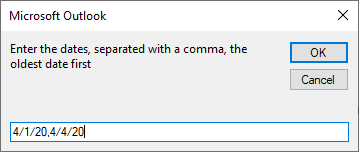
folder:Inbox received:4/1/20..4/4/20
Sub UnifiedInbox()
Dim myOlApp As New Outlook.Application

daysno = InputBox("Enter the dates, separated with a comma, the oldest date first")
iDay = Split(daysno, ",")
date1 = iDay(0)
date2 = iDay(1)
txtsearch = "folder:Inbox received:" & date1 & ".." & date2

myOlApp.ActiveExplorer.Search txtsearch, olSearchScopeAllFolders
Set myOlApp = Nothing
End Sub
Merged with the code to paste the clipboard contents into a message from "Paste clipboard contents using VBA", this string sample would search for the text that is on the clipboard. Combine it with predefined search terms like this:
txtSearch = "received: (" & tDate & ".." & Date & ") " & strPaste
Don't forget to set a Reference to the Forms library. If you receive a "User-defined type not defined" you are missing the reference to Microsoft Forms 2.0 Object Library. If its not listed, add C:\Windows\System32\FM20.dll or C:\Windows\FM20.dll as a reference. "Paste clipboard contents using VBA" has screenshots and more details instructions.
Sub SearchClipboard()
Dim myOlApp As New Outlook.Application
Dim strPaste

Dim DataObj As MSForms.DataObject
 Set DataObj = New MSForms.DataObject
 DataObj.GetFromClipboard

strPaste = DataObj.GetText(1)

txtSearch = strPaste
myOlApp.ActiveExplorer.search txtSearch, olSearchScopeAllFolders
Set myOlApp = Nothing
End Sub
How to use the macros on this page
First: You need to have macro security set to the lowest setting, Enable all macros during testing. The macros will not work with the top two options that disable all macros or unsigned macros. You could choose the option Notification for all macros, then accept it each time you restart Outlook, however, because it's somewhat hard to sneak macros into Outlook (unlike in Word and Excel), allowing all macros is safe, especially during the testing phase. You can sign the macro when it is finished and change the macro security to notify.
To check your macro security in Outlook 2010 and newer, go to File, Options, Trust Center and open Trust Center Settings, and change the Macro Settings. In Outlook 2007 and older, look at Tools, Macro Security.
After you test the macro and see that it works, you can either leave macro security set to low or sign the macro.
Macros that run when Outlook starts or automatically need to be in ThisOutlookSession, all other macros should be put in a module, but most will also work if placed in ThisOutlookSession. (It's generally recommended to keep only the automatic macros in ThisOutlookSession and use modules for all other macros.) The instructions are below.
The macros on this page should be placed in a module.
Open the VBA Editor by pressing Alt+F11 on your keyboard.
To put the code in a module:
- Right click on Project1 and choose Insert > Module
- Copy and paste the macro into the new module.
- Add a button to the ribbon or toolbar for the macro then click to run it.
More information as well as screenshots are at How to use the VBA Editor

Peeter Parelo says
Those who find macros and VBA a bit scary can try out our Outlook Add-in "Unified Inbox for Outlook". It uses the same search folder approach, but it's just neatly packaged for easy installation and use.
Check out https://inbox.fgh.ee/
It's not perfect but at least it's something :-)
JPMarro says
I set this up a while back but today realized it's not working quite as expected. One of the Inboxes is for a Gmail account. When I go to that Inbox in Outlook, or direct to Gmail, there I can find a particular email with the Subject line [email I want to see]. it is labeled Important. However, when I use the macro as described above that email does not appear in the results. i.e. when I Search for the Subject or words in the body the email is not found. I assume this has something to do with the Important label, but what's the cure so that all Inbox emails are identified by the above macro?
Hermenegildo says
Dear Outlook users. Could anyone confirm that the Sub
UnifiedInbox()also works in Outlook 365? I had setup several unified folders in office 2016, but now, the subroutine makes outlook crash/restart, at least on my end.Thanks.
Diane Poremsky says
it's working here, in the insider fast build. I'll check it on a current build.
Steve says
Diane,
I have been using your great fix for years for a unified INBOX. However we just upgraded to Office 365 for Exchange form Outlook 2010 from Exchange. It is not working with 365? Any help appreciated.
Steve
Diane Poremsky says
It should work... Do you have macro security adjusted? Does it not run or not find anything? Do you receive any error messages?
Steve says
No error messages. It seems to load. But is not pulling emails from all my inboxes. We do have 2 exchange accounts. It worked perfectly with Outlook 2010.
Diane Poremsky says
Are both accounts in as accounts? It won't work for shared mailboxes.
Are both accounts set up as cached mode?
C. Yusuf Mumtaz says
If I create a unified inbox with a MAPI account (default) and three IMAP accounts, will this result in the IMAP emails getting categories and custom flags? That would make it worthwhile and preferable to the redirect system where I have to set up POP3 send only accounts in Outlook. Is that option available?
Samuel says
I would like to run the sub on startup, but I get an error (429 ActiveX element could not be created). How do I wait for the ActiveExplorer to exist?
Diane Poremsky says
Possibly, since there is nothing in the code that would use any control. What code are you using to trigger it at startup?
Samuel says
Thank you for your answer.
I have added the following lines to 'ThisOutlookSession':
Private Sub Application_Startup()'Do While Application.ActiveExplorer Is Nothing
' Sleep (1000)
' MsgBox ("Waiting")
'Loop
Call mUnifiedFolder.UnifiedInbox
End Sub
This prevents outlook from opening and finally yields the error mentioned above.
Kemi says
Hi,
Thanks for this. Zero experience with VBA but I managed to set up the unified inbox on my first try!
However, I can't get the unified sent box macro to work. It says 'we couldn't find what we were looking for'. Do you have any tips?
Diane Poremsky says
Are you using the general 'this week' macro or one that includes other criteria ?
Rogerio says
Hi Diane. Thanks for sharing this solution. To be honest I did not test it and unlikely will do due to its complexity even being familiarized with VBA.
I have a similar problem in my office because colleagues have some difficulties in using IMAP as they want to work with at least five email accounts - they use POP3 instead.
Well, if you allow me, I have tested my own solution that consists:
1- Create a new PST to Outlook;
2- Create a rule that copies every single incoming message to the new PST;
3- Place the new PST box to favourites;
That's all!
I can't understand why Microsoft didn't create the same solution that works perfectly on Outlook for iOS.
All the best and thank you for keeping this site working. I love it !
Diane Poremsky says
>> they use POP3 instead.
if they are using POP, then no ned for this:
>> Create a rule that copies every single incoming message to the new PST
Just set the accounts to deliver to the same pst - this avoids all of the problems associated with rules and creating duplicated messages. Replies will be sent from the proper account - they will need to select the correct account for new messages.
iOS (and mac, android) apps don't have the same limitations that Outlook does (since thye were built new from the ground up), mostly due to legacy code and how search works. They are working on improving search, so we might see some changes in the future.
FWIW, i have 5 accounts in my profile (and 3 shared mailboxes) and just added each inbox to the Favorites instead of using instant search to create a unified view. I ordered them in order of importance and go down the list to work the inboxes.
..Cara says
I'm back again, trying this - and am having issues. I run the VBA, and get "You may not be seeing all search results yet because we're still organizing some items..." If I click the "Find more on the server" link, I see one email from today -- but I have received LOTS of emails, this week.
Diane Poremsky says
Are you having any other search issues? This sounds like a bad search index.
..Cara says
No, brand new computer so I would hope the index isn't already mucked up! So does search indexing apply to imap account searches, too? I can reindex and see if that helps, if so.
Diane Poremsky says
Yes, it does apply to IMAP accounts. See if searches are working in outlook - if they work, then the problem could be something else. If they also fail, you could try deleting the data file (its imap & outlook will rebuild it) but only IF you don't have calendar and contact folders name 'this computer only'. If you have folders named that and they have stuff in them, you need to export those folders first as deleting the ost will delete them too.
I have a client with search issues in a pop account - we're going to import his mail into a new pst. (a quickie test showed that seems to fix the problem.)
Lin says
Hi Diane I've followed all the procedures to create the macro for the unified inbox but every time I go to save the VBA I get the following error "There was a problem with the digital certificate. The VBA project could not
be signed. the Signature will be discarded" I've checked the selfcert certificate is in the correct place, I've run diagnostic office tool all to no avail, I'm using Windows 10 office 2016 any help or advice would be hugely welcome, I have 10 email addresses I check regularly so really would like a unified inbox. Thanks in advance.
Diane Poremsky says
Remove the certificate and save the macro project. I would probably delete the certificate and make a new one too. Close and reopen outlook then open the VB editor and sign the macro. Save and close.
Lin says
Thank you, I tried all that and still getting the same error message!
Diane Poremsky says
Are you using a limited user account or with the default admin permissions?
Did you create the cert on this computer?
Lin says
Default admit permissions and yes created certificate on this computer.
Diane Poremsky says
this error is not uncommon with 3rd party certificates, but you shouldn't see it with selfcert. I'm perplexed as to why its coming upd.
Linda York says
Thanks for trying to help I will keep trying for a while longer!
Diane Poremsky says
It's apparently a problem with the latest security update - I'm trying to find out more about it.
Lin says
I'll keep checking back to see if you've found out more, thanks for all your help.
Nathan Dan says
many thanks
Alex says
Learned so much from this post than all other posts from Microsoft. Diane, if you could... how do I set the search view to include this week and last week...
txtSearch = "folder:Inbox received: (this week AND last week)"?
Diane Poremsky says
Probably use dates, that that won't work in a script (well, it could - need to calculate the dates and insert them as variables). And won't work, because it won't be true - a message can't arrive this week and last.
The works here - received:(this week OR Last week) - note that this goes by full weeks, not 14 days, so it only goes back a week from last Sunday - and you need to capitalize OR.
For 14 days, you would need to use a variable:
str2weeks = Date - 14
txtSearch = "folder:Inbox received: (>" & str2weeks & ")"
JBG says
Diane,
Can you help me modify this Unifiedinbox?
In want to setup a permanent Search Folder that looks for 2 specific categories, but searches across all folders and subfolders in both my Exchange account and my gMail iMap account.
The Unified search above works across the 2 accounts, but I want the parameters widened to everything (not just this week) and ONLY pull those mails with 2 specific categories such as "personal" and "business"
Thanks for the help.
Diane Poremsky says
Search folders are limited to a data file - they won't include results in other data files, so no permanent search for the entire profile.
To change the search criteria in the macro, create the desired search in the search box then copy it and paste into this line:
txtSearch = "folder:Inbox received: (this week)"
like this:
txtSearch = "folder:Inbox category:=(Personal OR Business)"
Colin says
I don't know if anyone can help. I have created a unified mail folder for 2 exchange accounts. It is working well, however, the user involved would like a copy of the messages to stay in the relevant inboxes. I changed the rule to move a copy of the message to the unified folder. However now the copy of the message that remains in the inbox stays unread. If I modify the rule to say copy and mark as read, it marks both the message in the unified folder and the inbox as read. Is there any way around this?
Diane Poremsky says
So you are Copying all of the mail to a new folder, rather than using a search folder or instant search? I have macros that can watch the folder and mark the copied messages read. The method is described here - https://www.slipstick.com/developer/itemadd-macro/ - you'd use item.unread = false.
Andrea says
Thank you Diane!
You solved perfectly a problem it was getting me crazy.
Easy and effective!
Syolaar says
Somewhat simpler and just as effective: set the search options to include results from all mailboxes (File>Options>Search>Include results only from:), and in the searchbox type "folderpath:inbox" without the quotes. Outlook remembers your search history so all you have to do is select the search next time.
Cara says
Diane, thanks for this, and for all your Outlook knowledge. I've referred to your site frequently, over many years.
I'm having trouble with this, though. I have everything setup as directed. I have (right now) two IMAP accounts. Indexing is in progress, but the Inbox received (2 weeks) search is returning NO RESULTS. All the "unified" boxes are returning no results. I know that there should be results.
I would prefer to use Outlook, since it's free to me via work -- but I really really need a Unified inbox.
I'm on Windows 7 (for now), Outlook 2016.
Thanks for any ideas...
Franz-Georg says
Dear Diane - I'm working with a german Outlook and the folder names don't fit. I tried several variations - but no success. I tried the view definition:
folder: (Inbox) received: (this week) - no success
then I tried my best for a translation like:
folder: (Posteingang) empfangen: (diese Woche) - no success
Yours - Franz-Georg
Diane Poremsky says
what words are used if you create the instant search manually? That is what you'll use in the macro.
the search string in this line is copied from the instant search field:
txtSearch = "folder:Inbox received: (this week)"
Davor says
Diane thank you for this post. I have set up All Inbox, All Sent, and All Draft. The problem I am getting is that all the Searches have stayed static ie they do not update the list and they show results from the initial search when it seem to work fine. Do you know why that would be?
Many thanks,
Davor
Diane Poremsky says
They should update the same as instant search updates and can be a little slower to update when new mail arrives or if you delete mail. (It is updating here, takes about 30 seconds or so after the new mail alert pops up).
Chris says
Perhaps this isn't a possibility, but I'd love to unify my actual exchange inbox and my local archive 'folder'. Is this possible? I tried txtSearch = "folder:Inbox OR folder:Archive", but can't seem to hit the archive...
Thank you for the wonderful tool, even if my thought can't be done, its still a lifesaver!
Diane Poremsky says
this will search for contents in all folders named inbox and all named archive:
folder:(Inbox) OR folder:(Archive)
Chris says
Perfect!... I felt like I was close, but didn't quite have it.
shane says
Hi after hours of frustration - I found this post and it works great - I made unified inbox and sent boxes,
I thought it would be as simple to create the
deleted items
junk mail
as well
just by changing the folder name in the VBA but it didn't show / work any ideas please Diane
Diane Poremsky says
Are you using other criteria? it's working here to use folder:deleted from:"EMO" but does not work using just folder:deleted.
paul says
Is it possible to create the same folders as in Live Mail 'Quick views' ie from all accounts 'all unread email' 'all inbox' (this tutorial does this?) 'all drafts' 'all sent items' 'all junk email' 'All email from all folders and all accounts ie all meaning all'
If so what are the scripts. Thanks, much appreciated.
Diane Poremsky says
The macro as written will get all inboxes in your profile - if you want separate macros for each folder name, copy the macro, change the folder name in the macro name and in this line:
txtSearch = "folder:Inbox received: (this week)"
Unread mail is a search folder, so it won't actually search it, but you can either click the word unread above the message list or add isread:no to txtsearch.
BTW, you might need to use AND operator if just adding isread:no doesn't return results.
folder:(Inbox) OR folder:(Archive) AND isread:no
paul says
To search 'All email from all folders and all accounts' do I have to put in every folder eg folder:(Inbox) OR folder:(Archive) OR folder:(Drafts) etc etc I have about 50 folders and subfolders or is there a script to do every folder in every account.
Diane Poremsky says
You would need to, but its unmanageable and might be too many criteria to work. Is there something else you can filter on and include all folders? All unread messages, all messages arrived in the last 2 days etc.
paul says
"Is there something else you can filter on and include all folders? All unread messages, all messages arrived in the last 2 days etc."
Yes if it includes ALL folders across ALL accounts, what is the script to do this.... one for include all folders all accounts 'All unread messages' and another for all folders all accounts 'All read messages' would show every message all be it in 2 vba scripts.
Julian Swift-Hook says
Outlook 2011 for Mac has a unified inbox... so why not the Windows versions?
Diane Poremsky says
There are a number of reasons - the biggest being how search works - it's limited to one data file. Instant Search can do all data files, but it wasn't designed to be used as a persistent search.
Ross says
Hi Diane,
This worked great for me. I'm wondering if you could tell me/us how to modify the script so that it would show all inboxes but either only unread e-mails or else all e-mail but with unread listed first and then read e-mails listed afterwards.
Diane Poremsky says
Add isread:no to the string to show only unread messages - or click the Unread link above the message list in Outlook 2013/2016. Grouping or sorting by read/unread is a view, not a search term.
Aki says
Hi Diane, I tried this using "txtSearch = "folder:Inbox" and I seem to be getting all messages from any folder that have the words "folder" and "inbox" instead. (Using the code with " received: (this week)" yielded no results.) I'm using Outlook 2013 on Windows Server 2012 R2 for five Exchange accounts, all on cached Exchange mode. I read the other comments and I don't believe they use shared folders. What could I be doing wrong?
Diane Poremsky says
Well, folder:inbox should work and only find contents in the folders named inbox. Did you try rebuilding the index. Oh.. do you have the search service installed? I don't think its installed by default on servers.
Sean says
Hi Diane,
I'm experiencing strange behaviour when trying to create the Unified Inbox in Outlook 2016. I've created three different variations of the UI and placed the code in three different modules given your tips from an earlier comment I posted. The code works fine in Outlook 2007 and I can add the shortcut buttons to the Toolbar and everything works fine. I'm now in the process of porting this code to Outlook 2016. The individual modules run fine from the VBA editor when open, however on closing the VBA editor if I then proceed to add buttons to the Home ribbon the modules don't run at all and if I run the modules from the Developer Tab within Outlook I get an error. When running an individual module from the Developer Tab the error I get is 'Sub or Function Not Defined'. I have set the Macro Security to 'Enable All Macros' while testing even though I have created a digital certificate. Any help would be appreciated.
Diane Poremsky says
>> Sub or Function Not Defined
This indicates a problem with an object, but that should appear when you test in the editor too. did you ever sign the project? If so, you need to remove the signature from the macro when you are editing it and resign it later.
Sean says
Hi Diane,
Thanks for your reply. Yes I do remove the certificate and re-add it after editing but that doesn't help. When I run the search from the VBA editor it runs successfully and is stored in the recent searches list which I can see after clicking in the search textbox and activating the search tab. However as I said earlier the macro shortcuts I add to the ribbon do not function. I am running Windows 10 Professional on a Windows Server 2012 Essentials domain. Any other advice would be appreciated.
Diane Poremsky says
No error messages? Have you tried adding the macros to the ribbon again?
Karen says
You can just go to preferences, "general" and "folders" and select the option for grouping similar folders from multiple accounts. It gives you a unified inbox, a unified drafts folder, sent folder, etc.
Diane Poremsky says
Which version of Outlook are you using? Outlook on Windows desktop doesn't have this option and need to use instant search to get anything close to a unified inbox.
brdavis9 says
Yeah, I'd really like to know which version of Outlook you're referencing too, Karen.
I'm looking at Outlook 2016 right now (on a Windows 10 Pro box), and there's not a "Folders" setting listed under "General".
...I really wish.
...using Diane's suggested search "folder: (Inbox) received: (this week)" I pinned Recent Searches to the Quick Access toolbar (as an icon), and that works fine, but unified inbox, drafts, sent and deleted items folders setting would be much, much better.
Diane Poremsky says
I think it's outlook for mac.
Reggie says
The Microsoft Outlook App for IPhone is a really great unified inbox. So I've found the easiest solution is to use my iPhone or iPad to alert me about new messages, then refer back to my PC to answer the message. The Outlook App is really genius... I wish they would just build that as a Windows application!
Diane Poremsky says
I think the plan is to eventually have the Windows mail app be very similar, if not use the same code. It's a lightweight client and doesn't support all Exchange features though.
I don't know if outlook will get the feature - it's a popular request. Vote for it in uservoice - https://outlook.uservoice.com/forums/322590-outlook-2016-for-windows/suggestions/11693799-unified-inbox-for-outlook-2016
Roby says
Hi, I tried this guide, but unfortunately I haven't achieved the final goal.
More precisely I could create the new folder in which I would have all the e-mails from 5 different accounts, but all I got are only 5 e-mails (they should be in thousands).
Please note that I didn't write the "received: (this week)" part.
Do you have any suggestion that could suit in my situation?
Thank you in advance
RB
Diane Poremsky says
You aren't really creating a new folder when you use the macro posted here - it's just an instant search of all inboxes in your profile. The macro makes it easy to trigger in one step. If you type or paste this into the search field of any folder and have search set to all mailboxes, what do you get? folder:Inbox
Marti says
Thanks so much!!!
Brian says
Diane, I am working on Unified Inbox workaround and had a couple of questions: I utilize three email accounts (Microsoft Exchange - Office 365 Account; Microsoft Exchange ActiveSync - Hotmail Account; and an IMAP Account). Does the Macro basically create a new custom view folder that populates its data from the inboxes for, in my case, the three email accounts?
I am using Outlook 2016 on Windows 7. Is the Macro created in the VBA Editor you referenced at the top of the article or can it be created by going down to the very bottom of the navigation pain and selecting "Search Folders" and creating a new custom search folder, which is then pinned in the favorites section?
I don't know if I will ever use a POP3 account, but if so does this workaround solution still apply to that type of email account?
Thank you very much for your time and assistance in this matter.
Joyfully,
Brian
Niraj says
Dragging each of the inbox folders to the "Favorites" area at top of folders list is my solution for now
Mike says
I am totally fed up with the inability of MS to provide a linked inbox option....this is 2016...If I can find a way to make our accounting and tax software work with Mac---I'm going to switch...I have several litigation accounts and its very annoying to check multiple boxes every morning. Are they ever going to offer this? any plans you've hear of? Switching is a big headache and Id like to keep windows---but I'm tired of "workarounds" on such a simple issue that everyone else seems to have mastered
Diane Poremsky says
At this time, I'm not aware of plans for a unified inbox view. You can vote at Uservoice - suggestions with the most votes might be added.
https://office365.uservoice.com/forums/273494-outlook-and-calendar/suggestions/7172482-one-virtual-inbox-for-all-e-mail-accounts
Jason says
Thanks! While I wish Microsoft had a real unified inbox, like they do in Outlook on the Mac, this works great.
Diane Poremsky says
Yeah, having persistent unified folders would be great, but at this point I'm not holding my breath.
Tom says
You can not seriously suggest that we should be satisfied as costumers with having to do this kind of tweeks in order to achieve a simple and basic function that ALL mail applications should have as standard! I can not believe this! :-(
Why does Microsoft keep completely disregarding its user's basic needs?
Diane Poremsky says
It's easier to add features like this to newer, simpler email clients than it is to Outlook. Plus, many customers are in corporations where this feature isn't needed. I recommend adding the request at uservoice - Requests with high vote totals will be considered so look for an existing request before adding a new one.
John Balbach says
Diane - first, thank you; You've saved me many many hours over the years. I hope you are getting well compensated for the valuable services you are providing. I went with the below method - using rules to move emails into a new unified inbox folder, and giving each email account a color coding - so it matches email apps on smartphone. Works well for me, no lags, and I'm able to create unified back-ups of all accounts into .psts, which I spin-off each year and keep for searching/reference:
https://www.scrubly.com/blog/how-to-outlook/how-to-save-your-sanity-with-a-unified-inbox-for-outlook-2013/
Diane Poremsky says
Honestly, that is really bad advice. It should only be used with POP3 accounts but there is a better, built-in way to deliver pop3 accounts to the same data file - assign the a folder in the pst as the delivery folder for each account.
John Balbach says
Diane - you are correct. I used the above, and it created a nightmare. The VBE macro is working well. thanks.
Sean says
Hi Diane,
Great post. A quick question. Is it possible to create a unified inbox for all email addresses that end in a particular domain name eg all inboxes that end in @acme.com?
And is it possible to create a unified inbox for all email addresses that start with a particular word before the ampersand for example. eg all inboxes that start with accounts@?
Although I program VB I'm not familiar with the Outlook object model.
Thanks in advance
Sean
Diane Poremsky says
if you can do it in instant search, it will work. Just replace (or add to) the search string:
txtSearch = "folder:Inbox received: (this week) AND (to:"@slipstick.com" OR cc:"@slipstick.com")"
Michael says
Thanks Diane, looks like I'll be keeping fingers crossed that Outlook 2016 delivers then! Enjoy your long weekend!
Diane Poremsky says
Try Outlook 2018 or 2020... it definitely doesn't change in 2016. Sorry.
Michael says
Thank you so much for this tip Diane, you've partially saved me a massive headache. I'm still having one issue though - I'm using the code:
Sub UnifiedInbox()
Dim myOlApp As New Outlook.Application
txtSearch = "folder:Inbox "
myOlApp.ActiveExplorer.Search txtSearch, olSearchScopeAllFolders
Set myOlApp = Nothing
End Sub
but cannot seem to get items in my exchange shared folders to display. (I've also tried modifying the code to all outlook items).
The shared folders are for multiple domains all under my primary exchange online account.
Using Outlook 2013 I've selected use cached exchange mode, all the shared folders appear in the main left folder navigation despite only a couple being listed under "open these additional mailboxes" in advanced account settings. (I've upgraded from 2007)
Finally, if I go into Search Tools --> Locations to search, only the top level exchange email account and my imap folders are displayed. The shared folders are not an option here if that's related to the issue.
Thank you very much for any help you can offer!
Diane Poremsky says
Shared folders can only be searched one at a time, so it won't work with the macro. This is a long standing limitation.
Matt H says
Hi Diane
Thank you for this great info.
I'm wondering whether this can work on Mac Outlok 2011 or Outlook 2016 ?
Diane Poremsky says
I will need to test it, but i don't think so. The Mac version has a unified inbox... at least in the 2016 version.
hansmeijer874183754 says
Very usefull! I would like to add 1 last step in the macro: switch from the search ribbon back to the home ribbon. Any suggestions what code to add?
I tried RibbonUI.ActivateTab ("HOME") and ribbon.ActivateTabMso "Home (mail)", but that didn't do the trick :(
Peter says
Hi Diane,
Many thanks for getting back to me. I have used this and it has partially worked. It is bringing in more folders, but appears to not be bringing in all of the folders that match the search terms.
I was making sure that it was actually not working before getting back to you.
I have tried to make a combined Junk / Spam search with the following seach string: folder:Junk E-mail OR folder:Spam OR folder:Bulk Mail OR folder:Junk Mail. But the following folders are not included in Combined Junk Search:
Outlook (Hotmail): Junk E-mail
Yahoo: Bulk Mail
Yahoo: Junk E-mail
IMAP: SPAM
I have tried to make a combined Deleted items search with the following seach string: folder:Deleted OR folder:Trash. But the following folders are not included in in Combined Deleted Items Search:
Yahoo: Trash
IMAP: Trash
I have tried all sorts and am getting nowhere and its really frustrating. I am wondering if it might be because some of the email accounts appear to have a folder structure where most of the account's folders are underneath the inbox rather than being on the same level of the inbox. I am wondering if it might be possible to put a wildcard before the folder name, or maybe the syntax needs to be something like "inbox/Deleted Items"?
Would a more complex search string or some regex be useful? I'm thinking something like: folder:Junk E-mail OR folder:Spam OR folder:Bulk Mail OR folder:Junk Mail OR folder:Inbox/Junk E-mail OR folder:Inbox/Spam OR folder:Inbox/Bulk Mail OR folder:Inbox/Junk Mail
Also, if the above is the way to go, which way do the slashes need to go? Or how about: folder:*Junk E-mail OR folder:*Spam OR folder:*Bulk Mail OR folder:*Junk Mail
Would appreciate if you have any more suggestions.
Diane Poremsky says
I haven't tested it with an imap account, but I think you are correct and it's because the folders are subfolders. I don't think wildcards will work, but try it and see.
P says
OK, how about I want to have a unified Junkbox, but my junk folders are called different things in each email account. I have tried this, doesn't work though.
Sub UnifiedJunk()
Dim myOlApp As New Outlook.Application
txtSearch = "folder: 'Junk E-mail','Spam','Bulk Mail','Junk Mail'"
myOlApp.ActiveExplorer.Search txtSearch, olSearchScopeAllFolders
Set myOlApp = Nothing
End Sub
So this is the same as the Unified Inbox, just that the inboxes might have different names. Same issue for Deleted Items and Trash.
Many thanks.
Diane Poremsky says
Try txtSearch = "folder:Junk E-mail OR folder:Spam OR folder:Bulk Mail OR folder:Junk Mail"
Jamie says
Thanks Diane. Great assistance to the Microsoft user community, as always.
Happy 2015 :)
John says
Thanks for this great method for a unified Inbox. I have two questions:
1. Is there any way to modify this to continue to update the unified inbox display in real time as new mail arrives. As it is, the display doesnt show new mail unit the macro is run again.
2. To have the unifeid inbox dispay come up on startup, I teried changing the original UnifiedInbox() macro to Application_startup() as you suggested. I saved the changed macro, but now Outlook just hangs on startup. What am I missing?
Thanks again for this great method.
Diane Poremsky says
1. No. You'd need to run it again.
2. I'll look into it.
Diane Poremsky says
you can do it two ways - change the name of the unifiedinbox sub to application_startup or call the unifiedinbox sub from app startup:
Public Sub Application_Startup()
UnifiedInbox
End Sub
Btw, what is your startup folder? If it's not the inbox, change it to the inbox.
Jack says
Just wanted to say THANK YOU. This macro has saved me a tremendous amount of time for our business. I have integrated this macro on all our work computers!
Ken says
Hi Diane! Longtime reader, first time posting; thanks for all your help over the years!
This by far is your best post and it works great for my local data files and exchange account but I can't seem to figure a way to pull in a public folder (email inbox) where I have full control access. Am I not trying hard enough?
THANKS!!!
Diane Poremsky says
You can't search shared mailboxes using an all mailbox search - it only works on accounts or data files that are part of your profile.
Nike says
Thanks for this guide, it helped me a lot.
I was wondering if there is any way of creating an ALL BY PERSON VIEW in Outlook, just like in Lotus Notes. The view is grouped by person and contains all mails from a certian person. It can be located in sent, inbox or a specific folder. Is that possible in some way?
Diane Poremsky says
That would be a group by From view- it won't show all mail to or from a person though. You can either right click on the words By Date at the top of the message list or switch to the View ribbon tab and select From in Arrangements. If you aren't doing a search, Outlook 2010 and 2013 will show all mail in a conversation, including from the sent folder. Or right click on a message and choose Find Related > Messages from sender. You can also create a search folder for messages to and from individual persons.
Diane Poremsky says
BTW, you can create an All Items search folder and group by From - it won't group your replies with the person's responses but you can use Find Related > in conversation to find all messages in a thread, which will return your replies.
Create New Search folder, choose to and from specific people. Click OK. (don't choose any people) If you group by Date (Conversations) your replies will be grouped in the conversation.
Ian says
Setting the cache options seems to have sprung everything into life, the check box was ticked but indexing seem to need a kick to get everything working - MANY THANKS
Ian says
Hi
I have tried adding it under the Email tab on the E-Mail Accounts setting window and also under the profile from the same tab select default - Change - More settings - advanced - mailboxes but neither seem to show.
Thanks in advance
Ian
Diane Poremsky says
Are you using cached mode or chaching shared mailboxes? Instant search likes caching.
Ian says
Great article but seem to have an issue when I try and view two exchange mailboxes in one view. Both mailboxes list in the left panel and are available to view and search individually but this tweak does not seem to show the second mailbox.
I also have an IMAP account configured on the same profile that shows up.
Any ideas?
Thanks in advance..
Ian
Diane Poremsky says
Is the second account added as an actual account or is it a shared mailbox that is added to your profile?
Vicky Rowe says
Odd, I copied and pasted the code, saved it and then ran it and got 'Sub or function not defined' when running it.
Diane Poremsky says
that is odd - there isn't really anything there to define. Oh, dang WordPress. It changed " in code to html code. I'll fix it.
lakeladJordan says
I just switched to IMAP and this macro helped me greatly. I was wondering if this macro can be automatically ran at application startup so it's the first thing you see. Is this possible? thank you
Diane Poremsky says
Try replacing Sub UnifiedInbox() with Sub Application_startup() - click in the macro an click run to test it without restarting outlook.
Tav says
YOU'VE SAVED MY HEAD FROM EXPLODING! THAAAAAAAAAAAAAAAAAAAAAAAAAAANK YOOOOOOOOOOOOOOOOOOOOOOOOOOOOOOOUUUU!!!!
Lasse says
Is it possible to filter so only unread is shown?
Diane Poremsky says
Yes, add read:no to the search query. "folder:Inbox received: (this week) read:no"
Marvin says
This whole article is awesome thanks. I want a unified folder for unread and followup. Obviously this thread explains how to make it unread emails, but is there a query for flagged or followup?
Thank you ;)
Diane Poremsky says
Sure, you can use any query that is supported in Instant Search. Just edit this line: txtSearch = "folder:Inbox received: (this week)"
For flagged messages, use
txtSearch = "followupflag:followup flag"
eric says
:-( . Anyway thanks for the use-full VBA code. I love it
brandon says
so if i got this right, when indexing is done, it should show all emails from all inboxes in all 4 of my accounts in one time stamped view? because right now, it is missing emails in between emails. going to bed after a full reimage and setup that took all night. hopefully, indexing will finish and i can test this out fully when i wake up. thank you so much for your help. this is going to help me help clients when i make sure it works. :)
Diane Poremsky says
I'm not sure what you mean by 'one time stamped view' but yes, Instant Search will show results from all indexed data files. All data files used by accounts should be indexed - double check in Search Tools > Locations to Index.
kcampbe says
This was tremendously helpful in weaning myself from Thunderbird! Thank you!
Minesh says
Hi Diane,
I have seen your work pop up all over my searches recently and using your unified inbox method I have almost setup outlook the way I want it. So thank you for posting your knowledge to the interweb.
The two things that I would like are for the macro to return the ribbon to home after it runs and unfortunately the Interaction.SendKeys "%H%{RETURN}" methods didn't work.
I would also like the search to only search the inboxes from 3 out of the 8 IMAP accounts I have configured. Would you know how I can modify the macro to do this?
Thanks
Minesh
Diane Poremsky says
Searching inboxes: this is based on the Search settings. You can't (easily) disable it for this search while keeping search enabled on these mailboxes. Search tools > Locations to search. Everything checked is searched.
On dropping to home, try selecting the first item - not sure what code you'll need for that offhand.
dougetrumpet says
Elegant!
lucky26 says
All mailboxes are for accounts in my profile. There are no shared mailboxes.
I understand the issue with deleted mail taking time to show up in the All Inbox search. Looks like I should limit my searches to a short time period because when I search for "this year" or the last 4 months the system is very slow in moving through the emails.
Diane Poremsky says
Unless you have a lot of mail or are using complex criteria, it shouldn't be overly slow, but yes, it can take a couple of minutes for a search to complete.
lucky26 says
Thanks again! Yes, all mailboxes are cached and included in the search index.
Now that indexing is complete I see that on the Win 8 computer when I group the emails by "Account" the 2 PST accounts and one Exchange account show individually grouped. However, 2 other Exchange accounts are grouped under one account with the name "(none)".
Do you know what's causing this and how to fix it?
Also, I noticed that when I delete some emails in the individual account view (not the All Inbox view), the deleted emails still show in the All Inbox view. Does this mean that the deleted emails are cached for the All Inbox view and I should wait until the emails are re-indexed for the deleted email to be removed from the All Inbox view as well. This can be very confusing... It seems I can delete emails from the All Inbox view only one at a time. When I select a few emails (spam) for deletion in the All Inbox view they either take a long time to be deleted or they are not deleted at all...
Please let me know if I am asking too many questions and off topic. I appreciate this work around and find odd things as I continue to use it...
Thanks again!
Diane Poremsky says
On the none groups, no, I'm not sure what it going on. I'll see if I can repro it. Are they for accounts that are in your profile (listed in File, Account Settings) or shared mailboxes?
Deleted mail: the search results don't refresh immediately and if you included deleted items in all mailbox searches, they won't disappear unless you shift delete. Because the results are from all over, selecting a group can take longer to delete than doing one at a time.
Robby says
Just one more question: What do I need to do to run this macro automatically when Outlook opens?
Diane Poremsky says
You need it called by an application_startup macro.
Something like this - or try changing the macro name to application_startup.
Private Sub Application_Startup()
UnifiedInbox
End Sub
Diane Poremsky says
Or not... it looks like the macro tries to run before outlook is fully loaded. I tried calling the inbox first (to set it as the activeexplorer), but that did not work either.
Set MyInbox = NS.GetDefaultFolder(olFolderInbox)
MyInbox.Display
Robby says
Well yes that does work now! No idea why it didn't work before I'm sure I went with All Folders, could have been my security that I played with after. Thanks. Very useful workaround.
Robby says
I love this workaround thanks! However, my particular need doesnt seem to be covered above.
My workaround has been this:
I created a new PST file and named it Unified and I use a recent search command which I dropped into my QAT. I also set my search options to always search ALL mailboxes.
When I open outlook its set to go to Unified profile first, then I click on my recent search from the QAT that looks for anything in an 'inbox' received 'last week' from ALL MAILBOXES.
My problem: I cannot seem to replicate this in a Macro so I can just click the macro button on my QAT...instead of having to choose the recent search from my QAT drop down menu and have to set my default look in as ALL MAILBOXES.
Is there a way to search ALL MAILBOXES in your macro examples or does it just extend to ALL OUTLOOK ITEMS within just the current profile/mailbox?
Diane Poremsky says
olSearchScopeAllFolders is all mail folders, all data files that are enabled for search. Is that not working for you? Add the account or Outlook Data File fields to the view so you can see if its finding in the expected folders.
Ramin says
I don't understand the meaning and significance of a mailbox vs shared or secondary mailboxes as it relates to the issues I encountered.
Thank you!
Diane Poremsky says
Instant search may not work if the mailboxes are not cached locally and included in the search index.
lucky26 says
Thanks for the quick reply.
The Exchange accounts are all cached. On the Windows 8 Outlook 2010 system, Search Ribbon>Search Tools>Locations to Search all Exchange boxes and PST accounts are checked. I only unchecked the Internet Calendars box. On the Windows XP Outlook 2010 system (which was an upgrade from Outlook 2007 and Office 2003) all accounts are also checked. The only accounts I have unchecked are the archive PST folders and the Internet Calendars boxes. Is there something else I need to check?
Thanks again!
Diane Poremsky says
The mailboxes are opened as mailboxes using the new outlook 2010 feature, not as shared or secondary mailboxes?
lucky26 says
Hello and thank you for the great post and subsequent comments. I have noticed that only 2 inboxes are showing up in the search results and both happen to be .PST folders. However, there are another 3 Exchange accounts that are not showing up in the search results. Is there a limitation to the search method which prohibits Exchange folders from showing? What about IMAP folders? I don't have an IMAP account yet, but will likely have one in the near future. To add to the confusion, my XP 2010 Outlook also shows only 2 accounts, however, one of them is my Exchange account. In this case the PST and OST folders are all in the same folder on the computer and there is only one PST folder there, whereas, in the first case mentioned, the 2 PST folders are in the Documents folder and the 3 OST folders are in the Local>Microsoft>Outlook folder.
Also, for some reason, the first Inbox name is showing as "Inbo" in the folder title when sorted by Folder...
Just to make sure you know the parameters I have used I have copied them below for you.
strDate = Date - 120 & ".." & Date
txtSearch = "folderpath:Inbox folder:Inbox received: (" & strDate & ")"
myOlApp.ActiveExplorer.Search txtSearch, olSearchScopeAllFolders
Also, it was interesting that in Outlook 2010 on an XP computer, the folderpath:Inbox parameter resulted in showing a folder which also had Inbox as part of the folder name. Even after changing the name of the folder which included the word Inbox the search results are still showing that folder. I am hoping that after the indexing has been completed this will also be removed. If you have any other suggestions in this regard I would greatly appreciate them.
Thank you
RM
Thank you
Lucky26
Diane Poremsky says
If the Exchange inboxes are enabled for search, they will be included in the results. You need to use cached mode and if they are shared mailboxes, cache them (in Account Settings, More Settings) - with the search ribbon showing, expand Search Tools, Locations to search. Are the Exchange boxes checked?
Simon Mason says
I just installed this under Outlook 2010 and it seems to work well. Thanks. One question, I have a number of sub-folders under my Inbox in my various IMAP accounts that I sort email into. I would like to exclude all sub-folders from the universal inbox, and only show the top-level Inbox. How would I modify the code to acommodate this? Thanks.
Update, I tried changing scope to olSearchScopeCurrentFolder but this didn't do exactly what I wanted. This limited the search to just the first inbox in my profile. I have 5 inboxes in the profile. When using the olSearchScopeAllFolders it displays all inboxes (and sub-folders). Is there a way to just show the inbox (and no subfolders) from each mail account? Perhaps I can specify them individually in the macro?
Diane Poremsky says
Yeah, that won't work... the scope really is per folder. Try adding folderpath:Inbox to the query and use all mailboxes as the scope.
Bill Hunt says
I was overwriting the first macro with the second. Modules was the answer I needed. I put the second macro in a separate module and both now work fine. Yes each has a separate QAT button. Many thanks!!
Bill Hunt says
Unified Inbox works fine, but having trouble setting up a second macro - Sent All. I'm using Outlook 2013 with Windows 7. I got "Inbox All" to work fine. It is saved to VbaProject.OTM and I can save it, close outlook 2013 and re-open it and it works. Then I re-opened VBA editor -added the code for Sent All- made a new certificate for it, saved and closed and tested. The Sent All macro worked the first time, but the Inbox All no longer works. If I close Outlook it asks to save again, and when I do and then reopen Outlook, neither macro works. Am I doing something wrong? It seems there can be only one VbaProject file- no Project 2 or 3?
Diane Poremsky says
As an FYI, The certificate is for the entire VBA project. You just need to re-apply the original certificate to the project after editing. However, I don't think that is the cause of your problems.
There is one project file by there is not a limit to how many macros it can hold. These macros can either go in ThisOutlookSession or in a Module (right click on Project1 > Insert > Module)
Do they work if you set macro security to low?
Did you create separate buttons on the QAT for each macro?
Gary Moody says
Unified Deleted Items View (Code)
Sub UnifiedDeletebox()
Dim myOlApp As New Outlook.Application
txtSearch = "folder:Delete Items"
myOlApp.ActiveExplorer.Search txtSearch, olSearchScopeAllFolders
Set myOlApp = Nothing
End Sub
Gary Moody says
Unified Deleted Items View
txtSearch
"folder:Delete Items"
File | Options | Search area
Check the box -"Include messages from the Deleted Items folder in each file when searching in All items"
lea526 says
HI, thanks for this. Works great, but it only worked for the first week. Both the inbox and the sent buttons stopped working. Any suggestions? I would really like to get this working again.
Thanks
Diane Poremsky says
Did your macro security settings get changed? Did you rename the macro or move it?
Sam says
Thank you so much, it worked great. Just one question; I have this running on Outlook startup and would be great if it was possible to select Home from the ribbon instead of staying on search view. I've looked everywhere but can't find any methods or keyboard shortcuts to display Home (which includes new, reply and so on). Any ideas if this is possible?
Diane Poremsky says
See if adding Interaction.SendKeys "%H%" as the last line of the macro works when it starts up. if that fails, try Interaction.SendKeys "%H%{RETURN}"
Paul Braren says
Can the macro be tweaked to ensure searches include not only all configured email account folders, but also any archives that are opened in Outlook? It'd be handy to have a way to have that Unified Inbox include old inactive POP email accounts PST files.
Diane Poremsky says
If the pst files are indexed, the results should include them as olSearchScopeAllFolders searches all folders in the profile. You can check to see if everything is being searched in Search tools > Locations to search. It's accessible from the Options dialog or from the Search ribbon.
Paul Braren says
Diane, this is an amazing article, and I cannot thank you enough. Been waiting for years for this.
I've grabbed a bunch of screenshots from Windows 8 + Outlook 2013, and tweaked the search to skip the date ranges. This "Inbox All" button now seems to now show all dates, described at:
https://tinkertry.com/outlook2013inboxall
Derek says
The biggest problem that I see with this approach (and I will agree that it is better than the nothing provided by Microsoft) is that you are limited in the date range options. I can choose "This Month" or "Last Month" for example, but I can't chose "Last 30 days". The difference is that "This Month" shows only items received in January. "Last Month" shows only those items received in December. "Last 30 Days" would show items received either in the past 30 days regardless of whether it was "This Month" or "Last Month". I suppose you could combine search terms to get a more comprehensive range, but this is all very clunky and something Microsoft should have implemented given that it's already a part of their Outlook 2011 program.
Diane Poremsky says
you can do exact dates & the macro can get the dates.
strDate = Date - 30 & ".." & Date
txtSearch = "folder: (Sent Mail) sent: (" & strDate & ")"
Zane says
THANK YOU!! I can finally move to IMAP without having to change over to Thunderbird.
Kirk says
Diane, is it possible to integrate a search folder into the folder heirarchy? Ideally, I'd want to create a "unified" folder set into which I could add sub-folders with these search specs - but I'd settle for sub folders of my Exchange account.
Thanks for the tip about overlays - I'd not even discovered this!! Top tip!
Diane Poremsky says
No, you can't move search folders into the hierarchy. You can add them to the Favorite folder list so they are easily accessed but that is the best you can do. Sorry.
eric says
Diane, can you please explain how to add this macro search result to the favorite folder?
Diane Poremsky says
Sorry, that is not possible - the search is not a search folder (because it searches all mailbox stores) or persistent - you need to run the create the search every time you want to see it.
Kirk says
I too am disappointed that this feature was removed but appreciate the workaround Diane.
I had aborted previous attempts on the basis that they would double the local storage space requirement and create version control issues. WHEN Microsoft get around to reviewing this feature, they could do worse than look at the Blackberry unified inbox. Likewise, a unified calendar would be welcome...
Kirk
Diane Poremsky says
I don't think we'll see any additional movement with the calendar - calendar overlay gives a unified view. You can use code to create a search folder for non-mail items - It would be nice if Microsoft built that into Outlook. I guess i should finish my code sample that does it - I got side tracked as I started it and never finished it.
Victor Quinones (@VQuinones) says
Excellent! The instructions were very simple and accurate. I had it up and running in 5 minutes.
Thank you!
Jeff says
A couple years ago I switched from Outlook to Thunderbird. I was quite impressed how robust a free product was. I was going to switch back for a very complex technical reason requiring the GSyncit product combined with Outlook. But I was flabbergasted to see that apparently even in the latest greatest Outlook 2013 there is no option to show a unified view of all matching folders with all accounts? This should be built-in like in Thunderbird. Shame on MS.
Diane Poremsky says
Correct, you can get a unified view using Instant Search, but there is no built in unified view.
Matt says
PERFECT! Wow....I've searched everywhere for something like this.
Thanks so much!