Outlook 2013 Users whose Mail applet stopped working in June 2016, see Outlook 2013: Control Panel Mail Won't Open .
We're seeing reports that Outlook won't open, returning a (basically useless!) error message that Outlook won't open. Attempting to open the Mail applet in the Control panel results in an error message that Outlook is out of memory or system resources.
"You need more memory or system resources. Please close some Windows and try again."
To get Outlook back into working mode, open the registry editor and delete or rename the windows messaging subsystem key. We don't know why the key is corrupt, but this seems to fix the problem and doesn't take as much effort as completely removing Office and reinstalling.
Renaming this key means you will lose your profile and will need to recreate it. There really is no way to avoid this. Sorry.
Outlook 2016:
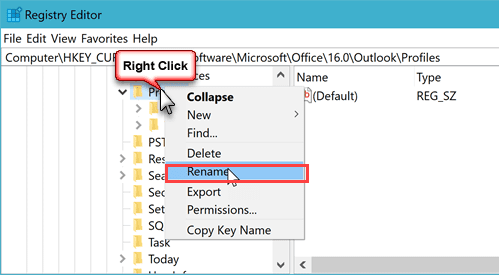
HKEY_CURRENT_USER\Software\Microsoft\Office\16.0\Outlook\Profiles
Outlook 2013:
HKEY_CURRENT_USER\Software\Microsoft\Office\15.0\Outlook\Profiles
Outlook 2010 and older:
HKEY_CURRENT_USER\Software\Microsoft\Windows NT\CurrentVersion\Windows Messaging Subsystem
Edit the Registry
- Press Windows key + R to open the Run command.
- Type regedit in the Open field and click OK.
- Locate the key then right click on it and choose Rename.

- Type OLD at the end of the name.

- Try opening the Mail applet to create a new profile.
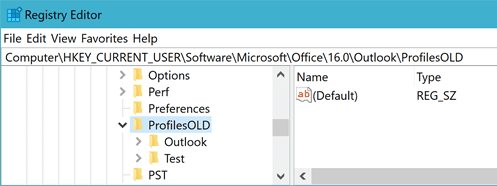
If Outlook works, you can delete the renamed key.

Nick says
Thank you so much for this info, I just upgraded a client of mine from Office 2007 to Office 365. Even though I uninstalled Office 2007 and rebooted I was still getting this error on the latest version of Outlook 2016 because it looked like it was still pulling the old Outlook 2007 profile from the registry. Once I renamed the suggested folders a new profile was created for Office 365. Really appreciate you taking the time to post this, so kind of you, have a wonderful day:-)
Yasin says
yes, this still happens in Outlook 2016 from Office 365 click2run installation.
I tried the method by naming the registry entry to one that is not existing in hopes it would remove the entry in control panel so I can revert the setting to the default one but that didn't work. The entry is still there with a blank symbol and gives the error when clicking it Explorer.exe "Application not found" but it recognizes my Outlook client since it says Mail (Microsoft Outlook 2016).
What should I do? remove the registry key mlcfg32.cpl completely and tehn recreat it?
Or delete the file in the path C:Program Files (x86)Microsoft OfficerootOffice16mlcfg32.cpl ?
Or would you say performing the steps via elevated cmd in order to revert to a earlier build?
One thing I noticed is: the default value for mlcfg32.cpl key is Drive:PROGRA~2MICROS~4Office15MLCFG32.CPL
that can't be right since I have Office/Outlook 2016 --> Office16 should be there but I'm not sure about the rest like progra~2 or micro~4
Any help is appreciated
I also attached 2 screenshots from my current settings
Diane Poremsky says
the path is written in 8.3 format -but it definitely should have office16 if you are using office 2016. i'd try changing it in the path.
Randy says
This apparently still happens in 2016 Outlook after updating from 2007. used registry hack to get around error when all other fixes failed.
Alex says
Hi all
For those of you reading this in June 2016 and using click to run Office 2013 (i.e. you downloaded MS Office rather than installed it from a CD): There is a known MS bug that could create this behaviour.
I have been trying to fix this error on one computer for several days. Spent hours trying all sorts of things. so here is the fix for me:
See https://www.slipstick.com/outlook/2013/outlook-2013control-panel-mail-open/
and https://answers.microsoft.com/en-us/office/forum/office_2013_release-outlook/outlook-2013-mail-icon-in-control-panel-not/afb6a91c-5011-443b-9faf-78a1b4daebd1?page=5
What fixed it for me was to downgrade to a previous version as per Method 2 in 2nd link above (cd %programfiles%\Microsoft Office 15\ClientX64 then officec2rclient.exe /update user updatetoversion=15.0.4823.1004)
Hope it helps
Alex
Andrea C Kelly says
Diane I just wanted to thank you for your advice! I have been online trying one thing or another for the past six hours. You are an angel!
Jarno says
I find this a little old conversation, but I have ran into this lately. I don't know if it's because I do work via remote access from home or because Windows 8. I found a little different solution to this, easier than re-creating profile. Do a troubleshoot for compatibility and choose use compatibility settings for Windows 8. This did the trick for me. I seem to get the same problem every now and when, maybe couple times a month but so far this have fixed it every time. You might need to tinker the compatibility settings suitable for your own system.
Diane Poremsky says
We don't recommend using compatibility settings - the software (both outlook and icloud) is fully compatible with windows.
When icloud is in use, i'd sign out of icloud and see if that fixes the problem - then sign back in and see if it returns. I also recommend using the latest version of icloud.
gina says
Exporting and importing the old profile worked! Thank you so much Diane!
BTW...just for my own knowledge for next time, I did not know that IMAP can only use the data file it creates. Does this data file hold the "settings" for that email account? (for example, the view settings of the inbox and sent items?) This is the main reason I was trying to point to the old data file for the email account - because when I recreated it from scratch all my views reset.
(and by the way, where are the view settings or configuration settings for the To Do Bar? Is that also in a data file? and where do tasks live? is it the main pst?)
Diane Poremsky says
I'm actually shocked it worked. :) I thought it might be corrupt.
Views are stored in the data file - depending on the view, they are either in a specific data file or in the default data file.
Gina says
Hi Diane, I did this (renamed the messaging subsystem) and it fixed my mail applet - but the new profile doesn't have any of my Outlook settings and it's driving me crazy. Is there any way to access the OLD profile? Thank you so much!
Gina says
Diane, as a follow up to the above question...I figured out that I can add the pst where my IMAP mail was being delivered before...and I did this by adding the data file in the Data Files tab...but there is nothing under the Email accounts tab. When I tried to add the email account the only way I can designate what data file to deliver new messages to is POP, and I want to use IMAP. Is there a way to add an existing email account to a profile but have it deliver the messages to a different data file if I use IMAP? Thanks!
Diane Poremsky says
Is the account in the profile as pop3 or imap? IMAP only uses the data file it creates - if you want to use pop3, you'll need to remove the account and use manual setup to add it back.
Diane Poremsky says
if the old profile is still in the registry (should be if you renamed it), you can export it and try to import it again. Go back into the registry, right click on the renamed key and choose export. Open the reg file in notepad - use search and replace to change the renamed key back to windows messaging subsystem, then save and double click to run.
no guarantee it will work - whatever caused the corruption might be in the renamed keys.
Chloe says
This worked great to redo what I messed up setting up Outlook. But now its telling me that Microsoft Exchange has to be online or connected to complete this action. Any suggestions?
Clay says
This problem is happening on about 8 out of every 10 computers I'm setting up on our domain. Does anybody know what I'm doing wrong? There are times I've had to do this three times in a row before Outlook stopped destroying itself. For me it seems like Outlook will run fine until I go to the Options screen, then it will crash and never open again until I perform all these steps.
Diane Poremsky says
What version of Outlook and which OS? Did it start recently, such as right after updates were installed?
Guy says
Thank you sooooo much!
Tobski says
Layer Eight Technology - your suggesting worked for me! Thanks
Layer Eight Technology says
I've got a client with Win7 64bit w/Office 365 2013. Wordperfect X4 causes this issue. I came across what seems to be a simple fix for me. Simply start Outlook with "Run As Administrator" and it will launch. From then on Outlook works fine.
https://answers.microsoft.com/en-us/office/forum/office_2010-office_install/error-outlook-cant-start-after-installing/8b6a7aa0-8e4b-4490-a188-15d823f98b27
satish says
It never worked for Me!!! :-(
Gary Milks says
THANK YOU!!!!! this post save me a LOT of wasted time and effort
MR says
MS may not be admitting there is an issue but try searching for it - lots of forum entries chatting about it. The fix is inconsistent, some fixed by a repair, some by the registry delete, some by reinstall. None of these have fixed my failing system and as many have noted in various forums, I'm not alone. I'm attempting the MS forced uninstaller next - https://support.microsoft.com/kb/2739501
Steven says
Dude, You just saved my life! Thanks
Walt says
Thanks for this post. It fixed a problem I was having with trying to open a reinstall of Outlook 365 (2013). I had uninstalled a home copy of Office 365 from this computer and then needed to reinstall for a time. I wanted to add my work Exchange account to this installation on this machine for my use at work (I usually work at home).
When I opened Outlook it was looking for a deleted .PST file and wouldn't allow me to setup a new account.
I was stymied and so has Microsoft Support been useless. Five calls so far today with disconnects and transfers and even a LogMeIn session with Microsoft didn't help. I was supposed to be transferred to advanced help on two occasions, only to be disconnected. Very frustrated.
Found this thread, tried the solution, and low and behold, when I restarted Outlook it asked me to add a profile. I did, and it is working just fine. So this is a solution to this particular problem also.
Thanks,
Walt
Yatin S. says
Thanks a ton!! I had wasted 10 hours without any gain, un-installed office, re-installed.. tried every possible way I could do, but it was not ready to start.. Fortunately came across this note and it worked!! problem solved... Great Diane Poremsky :)
Robert says
Ok, I didn't want to leave this post open. So, here is what "I" did to get this thing working. I uninstalled Office 2013, Ran CCleaner to cleanup the Registries, Deleted All Microsoft Office folders, Deleted the user profile (Which Microsoft told me not to do) said a little prayer.. Rebooted the system. Reinstalled Office 2013 product I downloaded from Microsoft. Recreated the users profile and everything worked. Rebooted the system 5 times and opened Outlook, Word and Excel successfully. Thanks for all your help also.
Diane Poremsky says
Thanks for the update.
Robert says
Update after 4.5 hours of working on this with Microsoft (2 hours wasted on online repairing) , the problem still exists. Now at least I'm able to access the Mail program under Control Panel and create a new profile. But now I get a message that the information store in not accessible? WTH.. Microsoft tech was horrible. Would not respond to the chat, would not call me on the phone. I gave up on this and had to cut him off from my PC. Now I will resort to wiping the PC and starting from scratch using the software I downloaded instead of the ClicktoRun crap or go to Office 2010. Oh yeah the tech did say this is a known bug in Office 2013. Well Microsoft needs to fix it... I'm done for the night sorry for the rant but it's been 3 days of hell dealing with this issue and its going on 4 days.
Diane Poremsky says
I don't think its a known or common bug but will check with my support contact. Unless you have a volume license (or technet/msdn), everything is click to run. It doesn't compare at all to the Office 2010 Click to run software though.
Robert says
Update the online repair didnt work for the users profile. The saga continues.
Diane Poremsky says
It sounds like its either the registry or files on the hard drive. Or both.
Robert says
Well it fixed the problem for my admin profile but the users profile is still broken. So now i have to sit here for another hour to repair the users profile. He says we cant use the software i downloaded earlier that would save us time. But have to do a online repair. I will post back in an hour to let you know if that worked.
Robert says
Im on the phone with microsoft level 2 support. He deleted all outlook folders in the registry and now we are waiting for the online repair to finish. I downloaded the iso file but no he insisted to wait 1 hour for this online repair. I will let you know if this was a waste of time
Robert says
This is a fresh clean machine out of the box. No previous use. As for updates installed afterwards. There was a couple of Windows updates but No Office updates. and after the updates was installed I still was able to open Outlook.
Diane Poremsky says
I'm at a loss for ideas - it'll probably turn out to be something stupid.
I'd probably try renaming the two Outlook folders - %appdata%\microsoft\outlook and %localappdata%\microsoft\outlook - and repair office. See if outlook works. If so, one of the support files could be corrupt.
Robert says
Are you talking about booting the system in safe mode and trying it? if so, No because I have not been onsite since the installation. I have been troubleshooting remotely. Trying to start Outlook in safe mode doesn't work either if that's what you meant.
Diane Poremsky says
Outlook in Safe mode was what I wanted to know. Did you use Easy Transfer or anything to copy settings from the old computer? I've heard of problems like this with Outlook 2010 and 2013 installed on the same machine and it became worse after the last round of updates. The guy had to uninstall Outlook 2010 to make it work. But if this is a clean machine with only Office 2013, that is not the problem.
Were any updates installed between when it worked and when it didn't?
Robert says
I've tried outlook.exe /resetnavpane that didn't work and I checked the compatibility mode and that's fine. That's why I'm baffled. I've spent 2 days so far researching this problem and nothing worked. I even tried uninstalling and reinstalling the program. And still nothing. I even downloaded another copy of the program and still the same thing. This will be one to document.
Diane Poremsky says
It's probably going to be something goofy only someone in front of the computer can figure out. :( Have you tried Safe mode?
Robert says
Cannot start Microsoft Outlook. Cannot open Outlook window
Robert says
This is a new PC with a new installation of Office 2013 that was done this past Saturday. Outlook 2013 initially opened after installation. I was able to setup Outlook and connect to our Exchange 2010 email server. I rebooted the system several times after that. Outlook still opened without a problem. My user went to use it on Monday morning and this was the message he received.
Diane Poremsky says
It could be the navigation pane (See Can't Start Outlook) or, possibly the compatibility mode setting. Try using resetting the navigation pane first: outlook.exe /resetnavpane
Robert says
I tried that and i get the same thing. I rebooted the pc to see if that would and the same thing. I signed in as a new user with admin rights and the same for that user. I noticed under profiles in the registry there wasnt any other folders under it. I looked on another pc running outlook 2013 and the was several folders under profile. Still stumped. A microsoft engineer is supposed to contact me today. I will reply back if he resolves the issue.
Diane Poremsky says
If you upgraded from an older version of Outlook, the Windows Messaging Subsystem key will be present, leftover from the older version. Outlook 2013 copied the profile to the new location.
So the only problem you are having is Outlook crashes and Control Panel, Mail won't open? Did it ever work correctly?
Robert says
I'm having this same issue but when I look for the Windows Messaging Subsystem its not there. Outlook 2013. I am horribly baffled by this. I called Microsoft support and they couldn't figure out the problem... Help
Diane Poremsky says
The profile path moved in Outlook 2013. It's under the office path.
HKEY_CURRENT_USER\Software\Microsoft\Office\15.0\Outlook\Profiles - rename Profiles to Profilesold then restart Outlook and make a new profile.
Steve says
I reinstalled office enterprise 2007 twice and neither the mail applet or outlook 2007 would work. After spending 24hours of my work week on finding an answer your post was equivalent to a miracle!
Johnny says
thank's worked for me.
Leonard says
Nice post which the registry editor and delete or rename the windows messaging subsystem key. We don't know why the key is corrupt, but this seems to fix the problem and doesn't take as much effort as completely removing Office and re-installing. Thanks a lot for posting.