• Outlook User
  • New Outlook app
  • Outlook.com
  • Outlook Mac
  • Outlook & iCloud
  • Developer
  • Microsoft 365 Admin
    • Common Problems
    • Microsoft 365
    • Outlook BCM
    • Utilities & Addins

Change the Reminder on Several Appointments at Once

Slipstick Systems

› Tutorials › Change the Reminder on Several Appointments at Once

Last reviewed on May 15, 2017     24 Comments

Changing the reminder time on a group of appointments or events is easy. Just use a group by view with the Remind Beforehand field visible and group by it. Then drag items to the group with the reminder time you want them assigned to.

First, when possible create a view with the items you need changed either grouped together or filtered. In this example, we're using the By Category view because we need to change everything in the Anniversary category.

To change the reminder on multiple items at once:

  1. Make sure at least one of the items has the desired Reminder time set. Times are in minutes.
  2. Right click on the row of field names and choose Field Chooser.
  3. Find the Remind Beforehand field and drag it to the row of field names to add it to the view.
  4. Right click on the Remind Beforehand field and choose Group By Box- this will display the group by region.
  5. Drag the Remind Beforehand field to the Group By Box so its the secondary group.
  6. Now drag items from one Remind Before group to another to change their reminder times.

Use the Reminder field to add (or remove) Reminders.

Change the Reminder on Several Appointments Video Tutorial

You can use this method to change many other editable fields, including the Private flag and Company name fields.

More Information

To select several items at once, select the first one with the mouse, hold Ctrl and click on the last item. Hold Select to pick and choose non-contiguous items.

To move everything in a group, grab the Group header (Reminder Beforehand: [minutes]) and drag it to another Remind beforehand group.

remind beforehand group

The Group By Box is is normally hidden under the Folder name, above the row of fields. Show and hide it by right clicking on the row of field names and choose Group By Box.
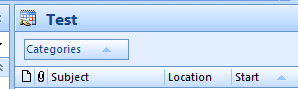
Group by box

Change the Reminder on Several Appointments at Once was last modified: May 15th, 2017 by Diane Poremsky
Post Views: 81

Related Posts:

  • click in the column to enable
    How to quickly change the values in Outlook fields
  • Change Appointment Reminder Sounds
  • Calendar list view
    Create a view for appointments that don't have reminders
  • How to View the Organizers of Your Appointments

About Diane Poremsky

A Microsoft Outlook Most Valuable Professional (MVP) since 1999, Diane is the author of several books, including Outlook 2013 Absolute Beginners Book. She also created video training CDs and online training classes for Microsoft Outlook. You can find her helping people online in Outlook Forums as well as in the Microsoft Answers and TechNet forums.

Comments

  1. Juan says

    June 21, 2024 at 8:19 am

    Excellent video. Question, is it possible to do this, meaning, "change reminder in multiple appointments at once" in newer Outlook client in Microsoft 365 for Enterprise?

    Reply
    • Diane Poremsky says

      July 31, 2024 at 5:20 pm

      No, you can't do it in the new Outlook or Outlook on the web - only in classic outlook. Sorry.

      Reply
  2. Jon says

    November 1, 2022 at 12:49 pm

    This worked perfectly! You saved me so much time it's unbelievable. Thank you!!

    Reply
  3. Jerry H says

    July 16, 2020 at 2:43 pm

    Absolutely perfect! Needed this for a long time. A lot of people are looking for ways to add reminders to appointments that were missed, this works well for that, and a lot more!

    Reply
  4. Steve H. says

    March 27, 2018 at 7:33 am

    Thanks! That worked great for changing the Location field in all the Holidays.
    Brilliant method, and so simple, but I was surprised that it would work like that, I was afraid I was going to have to resort to some kind of scripting, but I'm not on Exchange at home!

    Thanks again.
    Steve H.
    San Diego, CA

    Reply
  5. Pascal B says

    February 15, 2018 at 2:53 am

    add-on as I did not find how to edit my reply: I mean 'To-Do List' instead of 'task lists' i.e. the Outlook tasks view that combines tasks and messages with reminders.

    Reply
    • Diane Poremsky says

      February 15, 2018 at 9:59 pm

      The macro definitely works on the to-do list.

      Reply
  6. Pascal B says

    February 15, 2018 at 2:36 am

    Hello,
    I'm looking for a solution to a similar yet different problem: in task lists, I wish to select multiple tasks (including messages with reminders) and set them to same reminder day/time. Aim is to follow-up on similar tasks at the same time.
    So far I could not locate an answer on your site or elsewhere.
    Regards.

    Reply
    • Diane Poremsky says

      February 15, 2018 at 9:57 pm

      Dragging probably won't work but the macro at https://www.slipstick.com/developer/code-samples/working-items-folder-selected-items/ will work. This would be the magic that makes it work:
      With obj
      ' do whatever
      Debug.Print .Subject
      .ReminderTime = Date + 1
      .Save
      End With

      that sets a reminder for tomorrow, but you can use a specific date there instead.

      Reply
    • Diane Poremsky says

      February 16, 2018 at 7:50 pm

      Try this macro - https://www.slipstick.com/developer/code-samples/change-reminder-selected-items-to-do-list/

      Reply
  7. Jarmo says

    February 15, 2016 at 1:51 pm

    Otherwise nice method BUT you can not change those to NONE!!

    Reply
    • Diane Poremsky says

      February 16, 2016 at 11:57 pm

      As long as you have a None group for remind beforehand, you can move appointments into that group. If you are using the reminder field, your choices are Yes or No. You may have some meetings in Reminder:None group - they are in a weird state and just opening and resaving will move them to No.

      Reply
  8. Vince says

    October 2, 2015 at 1:46 pm

    Great Problem Solver Description. Thanks Much

    Reply
  9. Walt says

    September 10, 2015 at 8:58 pm

    Thank you. Worked perfectly. I will put this tip to good use. I prefer using a sound that is meaningful for different reminders. Since moving to outlook 2010 I lost most of them. Now I can correct that situation. It is also a good tutorial in manipulating the outlook database. Thanks again.

    Reply
  10. Walt says

    September 2, 2015 at 6:30 pm

    This worked really well. Great time saver, but the reminder sound went missing. Is there a way to perform a similar operation to change the reminder time to the same sound all at the same time? I tried, several times, and couldn't get it to work.

    Reply
    • Diane Poremsky says

      September 2, 2015 at 10:29 pm

      It appears to work here - add the Reminder Sound and Reminder Sound File fields to the view and group by them - I grouped by Sound then Sound File. Drag from the no sound file group to the Yes\Sound File group. You need both fields if you want a custom sound file, or only the Reminder sound field if you want to just turn the reminder sound on.
      Reminder sounds

      Reply
  11. Julie says

    August 17, 2015 at 5:47 am

    Thank you! I recently had to bring everything back to Outlook, but all the reminders were gone. This was a HUGE timesaver, and the video was a big help!

    Reply
  12. Axel Werner says

    June 11, 2015 at 10:00 am

    I tried exactly as described here. But BIG FAIL! the Appointments i have in the calendars for some reason DO show a reminder value in table view, but if i open a single appointment and check for the reminder parameter, its EMPTY! And so it seems it does not matter to which "group" i drag the appointments. the reminder field DOES NOT CHANGE automaticaly in my case. BUT it does if i open each item and change the reminder field manualy, bit by bit. - SO.... it seems i will need more likely a macro solution to fix all and every appointment item in outlook to get the reminders back working. (PS: my calendar items has been exported from sunbird 1.0 and imported to outlook 2010 by "double click" the ics files.

    Reply
    • Solvitor says

      October 5, 2015 at 12:49 pm

      I had this same issue. To fix, you can add the "Reminder" and/or "Reminder Sound" fields to the column headings and follow the same steps (in field chooser, select "All Appointment Fields"). What I did since all of them had no reminder set was to open one, set the reminder checkbox to on, then save and I had a new group (picture of a bell") to which I could drag the others.

      Reply
  13. Michael S. says

    November 19, 2014 at 5:27 pm

    Thank you! I wanted to hide/delete the 'location' of every Holiday. Such clear and to the point directions! Well done!

    Reply
  14. Paul says

    October 24, 2014 at 5:58 pm

    Excellent, thank you! I was contemplating the Hell of amending each of 1300 events...!

    Reply
  15. JimM says

    April 29, 2013 at 3:45 pm

    This is an excellent tip. Instructions were a bit difficult to follow as I was unfamiliar with some of the nomenclature, but once I step-by-step'd through it in detail, I got the concept. I wish there was a way to drag a small multiple-selection, say 15 appointment items, up the list rapidly. If you have to wait, hovering above the top line/border while it scrolls at its own sweet pace, then a 1000 line drag-and-drop takes some time.
    But ultimately, it was a good tip and I appreciate it.
    Thanks,
    Jim

    Reply
    • Diane Poremsky says

      April 29, 2013 at 6:06 pm

      I collapse the groups and only expand the one I'm selecting from - this makes it easier to drag.

      You should be able to drag a selection - hold Ctrl as you click to select individual events or Shift + Click to select a range (although I've found that selecting too many usually leads to deselecting all. :( )

      Reply
  16. kr says

    April 11, 2012 at 6:37 pm

    This is amazing! Saved me a huge amount of time

    Reply

Leave a Reply Cancel reply

Your email address will not be published. Required fields are marked *

Visit Slipstick Forums.
What's New at Slipstick.com

Latest EMO: Vol. 31 Issue 7

Subscribe to Exchange Messaging Outlook


Support Services

Do you need help setting up Outlook, moving your email to a new computer, migrating or configuring Office 365, or just need some one-on-one assistance?

Our Sponsors

CompanionLink
ReliefJet
  • Popular
  • Latest
  • Week Month All
  • Use Classic Outlook, not New Outlook
  • How to Remove the Primary Account from Outlook
  • Reset the New Outlook Profile
  • Disable "Always ask before opening" Dialog
  • How to Hide or Delete Outlook's Default Folders
  • Change Outlook's Programmatic Access Options
  • Removing Suggested Accounts in New Outlook
  • Understanding Outlook's Calendar patchwork colors
  • This operation has been cancelled due to restrictions
  • Shared Mailboxes and the Default 'Send From' Account
  • Sync Issues and Errors with Gmail and Yahoo accounts
  • Error Opening iCloud Appointments in Classic Outlook
  • Opt out of Microsoft 365 Companion Apps
  • Mail Templates in Outlook for Windows (and Web)
  • Urban legend: Microsoft Deletes Old Outlook.com Messages
  • Buttons in the New Message Notifications
  • Move Deleted Items to Another Folder Automatically
  • Open Outlook Templates using PowerShell
  • Count and List Folders in Classic Outlook
  • Google Workspace and Outlook with POP Mail
Ajax spinner

Recent Bugs List

Microsoft keeps a running list of issues affecting recently released updates at Fixes or workarounds for recent issues in classic Outlook (Windows).

For new Outlook for Windows: Fixes or workarounds for recent issues in new Outlook for Windows .

Outlook for Mac Recent issues: Fixes or workarounds for recent issues in Outlook for Mac

Outlook.com Recent issues: Fixes or workarounds for recent issues on Outlook.com

Office Update History

Update history for supported Office versions is at Update history for Office

Outlook Suggestions and Feedback

Outlook Feedback covers Outlook as an email client, including Outlook Android, iOS, Mac, and Windows clients, as well as the browser extension (PWA) and Outlook on the web.

Outlook (new) Feedback. Use this for feedback and suggestions for Outlook (new).

Use Outlook.com Feedback for suggestions or feedback about Outlook.com accounts.

Other Microsoft 365 applications and services


New Outlook Articles

Sync Issues and Errors with Gmail and Yahoo accounts

Error Opening iCloud Appointments in Classic Outlook

Opt out of Microsoft 365 Companion Apps

Mail Templates in Outlook for Windows (and Web)

Urban legend: Microsoft Deletes Old Outlook.com Messages

Buttons in the New Message Notifications

Move Deleted Items to Another Folder Automatically

Open Outlook Templates using PowerShell

Count and List Folders in Classic Outlook

Google Workspace and Outlook with POP Mail

Newest Code Samples

Open Outlook Templates using PowerShell

Count and List Folders in Classic Outlook

Insert Word Document into Email using VBA

Warn Before Deleting a Contact

Use PowerShell to Delete Attachments

Remove RE:, FWD:, and Other Prefixes from Subject Line

Change the Mailing Address Using PowerShell

Categorize @Mentioned Messages

Send an Email When You Open Outlook

Delete Old Calendar Events using VBA

Repair PST

Convert an OST to PST

Repair damaged PST file

Repair large PST File

Remove password from PST

Merge Two Data Files

Sync & Share Outlook Data

  • Share Calendar & Contacts
  • Synchronize two computers
  • Sync Calendar and Contacts Using Outlook.com
  • Sync Outlook & Android Devices
  • Sync Google Calendar with Outlook
  • Access Folders in Other Users Mailboxes

Diane Poremsky [Outlook MVP]

Make a donation

Mail Tools

Sending and Retrieval Tools

Mass Mail Tools

Compose Tools

Duplicate Remover Tools

Mail Tools for Outlook

Online Services

Calendar Tools

Schedule Management

Calendar Printing Tools

Calendar Reminder Tools

Calendar Dates & Data

Time and Billing Tools

Meeting Productivity Tools

Duplicate Remover Tools

Productivity

Productivity Tools

Automatic Message Processing Tools

Special Function Automatic Processing Tools

Housekeeping and Message Management

Task Tools

Project and Business Management Tools

Choosing the Folder to Save a Sent Message In

Run Rules on messages after reading

Help & Suggestions

Submit Outlook Feature Requests

Slipstick Support Services

Buy Microsoft 365 Office Software and Services

Visit Slipstick Forums.

What's New at Slipstick.com

Home | Outlook User | Exchange Administrator | Office 365 | Outlook.com | Outlook Developer
Outlook for Mac | Common Problems | Utilities & Addins | Tutorials
Outlook & iCloud Issues | Outlook Apps
EMO Archives | About Slipstick | Slipstick Forums
Submit New or Updated Outlook and Exchange Server Utilities

Send comments using our Feedback page
Copyright © 2026 Slipstick Systems. All rights reserved.
Slipstick Systems is not affiliated with Microsoft Corporation.