You can combine a Rules Wizard rule with the AutoArchive feature of Microsoft Outlook to automatically delete messages as they age. There are two ways you can do this:
- Create a rule that moves messages meeting certain criteria to a folder. Configure the folder's Archive setting to delete messages.
- Setting an expire date on messages as they arrive.
In either case, AutoArchive will delete the messages for you once they age.
If you need help configuring autoarchive settings, watch the tutorial: Configuring AutoArchive settings in Microsoft Outlook.
Note: If you use Microsoft Exchange Server 2010 with online mailbox archives, you won't be able to use autoarchive in Outlook 2007 and 2010.
Set an expiration date on the messages
Follow these steps to create a run a script rule to add an expire date and then configure AutoArchive to delete the messages.
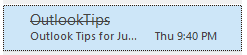
When a message is expired it's displayed in the message list in a gray strikethrough font.
Check macro security settings. Macro security should be set to Low during testing. Once you verify the macro works, you can use SelfCert to sign the macro, at which point you will change the security setting to allow signed macros only.
In Outlook 2010 and 2013, click File, Options, Trust Center. Click the Trust Center Settings button then Macro Settings. Select the bottom option for Low security. In Outlook 2007, look on the Tools menu for Trust Center, then Macro Security. In older versions of Outlook, go to Tools, Macros, Macro Security.
- Press Alt+F11 to open the VBA Editor.
- Right click on Project1 and choose Insert > Module
- Add the macro below to the new module.
- Create a rule, selecting Run a Script as the action. If you set all of the conditions in the rule, you can delete the If...Then and End If lines.
- Create a filter for your view that hides expired messages between AutoArchive runs.

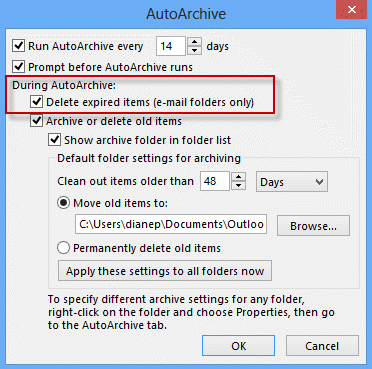
- Configure AutoArchive to delete expired messages.

The macro will set the message to expire in 1 day. You can use .5 to expire the message after 12 hours.
If you use conditions in the rule to filter the messages, you can remove the If...Then and End If lines from the code.
Sub SetExpire(Item As Outlook.MailItem)

If Left(LCase(Item.Subject), 7) = "weather" Then
    Item.ExpiryTime = Now + 1
    Item.Save
End If

End Sub
If you use Outlook 2013 or Outlook 2016 and don't see the run a script option in rules, see "Run-a-Script Rules Missing in Outlook"
Move messages to a new folder
- Create a rule that moves messages to a folder.
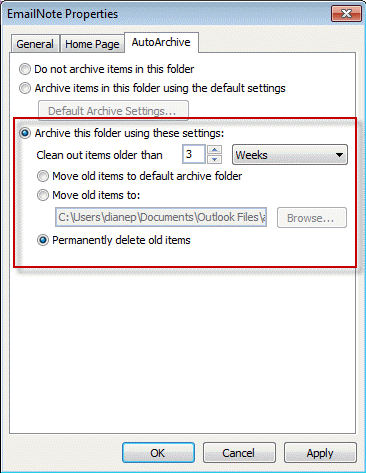
- Switch to this folder, then right click on the folder and choose Properties.
- On the AutoArchive tab, choose how often to clean out items and whether they should be archived or deleted.
More Information
More Run a Script Samples:
- Autoaccept a Meeting Request using Rules
- Automatically Add a Category to Accepted Meetings
- Blocking Mail From New Top-Level Domains
- Convert RTF Messages to Plain Text Format
- Create a rule to delete mail after a number of days
- Create a Task from an Email using a Rule
- Create an Outlook Appointment from a Message
- Create Appointment From Email Automatically
- Delegates, Meeting Requests, and Rules
- Delete attachments from messages
- Forward meeting details to another address
- How to Change the Font used for Outlook's RSS Feeds
- How to Process Mail After Business Hours
- Keep Canceled Meetings on Outlook's Calendar
- Macro to Print Outlook email attachments as they arrive
- Move messages CC'd to an address
- Open All Hyperlinks in an Outlook Email Message
- Outlook AutoReplies: One Script, Many Responses
- Outlook's Rules and Alerts: Run a Script
- Process messages received on a day of the week
- Read Outlook Messages using Plain Text
- Receive a Reminder When a Message Doesn't Arrive?
- Run a script rule: Autoreply using a template
- Run a script rule: Reply to a message
- Run a Script Rule: Send a New Message when a Message Arrives
- Run Rules Now using a Macro
- Run-a-Script Rules Missing in Outlook
- Save all incoming messages to the hard drive
- Save and Rename Outlook Email Attachments
- Save Attachments to the Hard Drive
- Save Outlook Email as a PDF
- Sort messages by Sender domain
- Talking Reminders
- To create a rule with wildcards
- Use a Macro to Copy Data in an Email to Excel
- Use a Rule to delete older messages as new ones arrive
- Use a run a script rule to mark messages read
- Use VBA to move messages with attachments

Chris Powers says
Sorry, but not quite following the steps.
I've completed the Trust Center step
I've added the macro (module?) in that you provided (SetExpire) and just changed the subject to something I'm interested in
But step 4, understand that this has changed and it needs to be another macro - tried to use your example and added another module but can't get it to run and so guessing my first macro (module?) isn't running either....
In step 5 - where does one create a filter? And since I (want) to run auto-archive daily and my macro flags them > 1 day, not sure I need this step, but am curious.
Step 6 - this is for turning it on globally, correct? Just "nervous" that there may be other emails that are set to expire that I didn't set - or my macro is wonky and I just flagged ever email to expire.
Sorry for all the questions, if you have a example for this topic but at a lower level or with video, can you point me to it?
Thanks a ton in advance, this would be a huge help for both my wife and I.
Chris
auhcj says
Also, when I tried running the script, Excel VBA prompted me for a Macro name.
I am wanting to set different expiry dates (2-7days) for each sender.
Diane Poremsky says
It's an Outlook macro (not Excel) and run a scripts can only be run by the script - you can use a stub macro to test the script on a selected message.
Sub TestRunScript()
Dim objApp As Outlook.Application
Dim objItem As MailItem
Set objApp = Application
Set objItem = objApp.ActiveExplorer.Selection.Item(1)
'macro name you want to run goes here
SetExpire objItem
End Sub
Mo8 says
Hi Diane, i'm sorry but i couldnt see how to start a new question ???
Thank you for all your help, i have used Slipstick many times but never asked a question.
My question is about steps 4 and 5 above ( I have done 1 -3), where do i "create a rule" and " create a filter, i can't see anywhere in VBA editor and in Create Rule in Outlook (2013) there is no option to Run a Script.
Also , fyi, when i went into Trust Center (2013) there was no "Macro Security" but there was Macro Settings which had options to change security levels.
Thank you for you help.
Diane Poremsky says
See https://www.slipstick.com/outlook/rules/outlook-2016-run-a-script-rules/ - a recent update removed run a script rules for security reasons.
auhcj says
Hi Diane,
In Hotmail, there is the sweep rule to quickly delete unwanted emails in the Inbox with options to automatically delete all incoming email,
to keep only the latest email, or to delete email older than 10 days—all from a particular sender.
Am I able to create the same rules in MS Outlook?
Diane Poremsky says
No, outlook doesn't support Sweep. However, the rule in outlook.com should run before outlook downloads the mail.
If you need this on accounts other than outlook.com, you'll need to use a script in outlook.
auhcj says
Hi Diana,
I updated the script to expire in 2 days instead of 1.
So when creating the filter to hide the emails, what values should I enter for the expired field?
Also when I created the filter for the emails, I entered the "From" email however all my emails in that folder were hidden. I only want the emails from that sender and expiry to be hidden.
Diane Poremsky says
I would use 'on or after' and the word tomorrow then add a second rule for expires - choose does not exist. This will show everything with either no date set or a future date set.
When you use the same field in the a filter, they are OR'd - different fields use AND operator.
Penelope says
Yes MS, PLEASE add a time expiration rule option. A time expiration rule is about as basic (pardon the pun) as expired milk.
claudiu says
I also got an issue, using outlook 2013, created 2 rules, one to move messages from inbox to local inbox (pst) and copy messages from send items to local send items - because i can't configure a move rule for that folder.
i have deactivated autoarchive general settings from file-options-advanced-autoarchive and only configured autoarchive on the send items folder with following options: clean out items older then 1 day and permanently delete old items.
unfortunately any emails older then 1 day don't get deleted as they are supposed to.
can't seem to find where i did wrong.
thank you
Diane Poremsky says
You'll need autoarchive settings enabled and change the settings on the folders you don't want archived.
Pete says
Come on MS, add the feature to set the expire time directly by rules!!!! Its only about 10 years since that was first requested!!!
Pete says
Thanks - this helped point me in the right direction. Although I prefer to use the received time instead of 'now'. Then it works for 'Run Now' Rules as well:
Sub SetExpire(Item As Outlook.MailItem)
Item.ExpiryTime = Item.ReceivedTime + 1
Item.Save
End Sub
Also - if you are using rules to select the correct messages you DO NOT need to add conditions to the VBA. Just be careful that the rules work first!
William Beaver says
I am on Outlook 2010 and cannot find a simple way to do Out of Office. Now an old Out of Office keeps appearing and I cannot figure out a way to turn it off! Help, please. And why did they abolish the good old Out of Office anyway? Thank you, I am going mad.
Diane Poremsky says
Are you using Exchange Server? It's still there - on the File menu, Automatic Replies.
If you do not use Exchange Server, you need to use Rules to simulate out of office, or set it up in web mail.
John K says
I'm probably the one person this doesn't work for. My version runs it for specific messages, but the structure is pretty much the same:
Sub pset_expire(MyMail As Outlook.MailItem)
expdt = MyMail.ExpiryTime
If expdt = #1/1/4501# Then
MyMail.ExpiryTime = Date + 60
End If
End Sub
I've tested it a dozen times and when the email shows up in the inbox folder the expires after checkbox is not checked and if I check it it show up as today
Diane Poremsky says
Add an MyMail.Save after the end if.