Eric had a request to run rules based on a condition, in his case, when a message with a specific subject arrives.
If I send myself a message with a specific subject line I want outlook to execute a set of predefined rules already in my outlook client.
Sure, you can do this using a Run a Script rule.
- Create the rules you want to run but do not enable them to run automatically.
- Paste the RunRules macro below into a new module in Outlook's VB Editor.
- Type your rule names into the olRuleNames array
- Create a Rule that looks for a message with your specific subject line. Select Run a Script as the Action and select the RunRules macro.
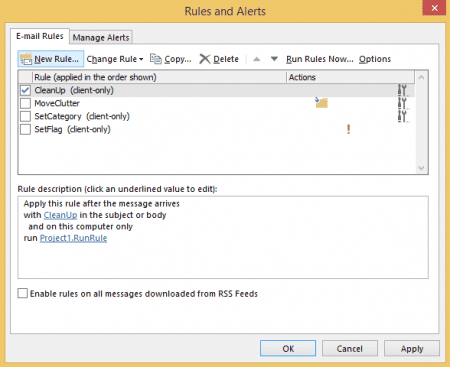
- Send yourself a test message.
Sub RunRules(Item As Outlook.MailItem)

Dim olRules As Outlook.Rules
Dim myRule As Outlook.Rule
Dim olRuleNames() As Variant
Dim name As Variant

' Enter the names of the rules you want to run
olRuleNames = Array("SetCategory", "SetFlag", "MoveClutter")

Set olRules = Application.Session.DefaultStore.GetRules()

For Each name In olRuleNames()
    For Each myRule In olRules
    ' Rules we want to run
        If myRule.name = name Then
        myRule.Execute ShowProgress:=True
        End If
    Next
Next
End Sub
myRule.Execute supports 4 optional parameters. These are only needed if you don't want to use the defaults.
myRule.Execute ShowProgress:=True, Folder:=Session.GetDefaultFolder(olFolderInbox).Folders("my subfolder"), IncludeSubfolders:=True, RuleExecuteOption:=1
| Parameter | Possible Values |
|---|---|
| ShowProgress | True or False Use to display the Progress dialog normally seen when using Run Rules Now command. Default is False. |
| Folder | Folder path Use if you want to run the rules on a folder other than the default Inbox. See "Working with VBA and non-default Outlook Folders". A macro below runs rules in a secondary account. |
| IncludeSubfolders | True or False Use if you want to run the rules on subfolders. Default is False. |
| RuleExecuteOption | olRuleExecuteAllMessages or 0 olRuleExecuteReadMessages or 1 olRuleExecuteUnreadMessages or 2 Use to limit the rules to either read messages, unread messages, or apply to all messages. Default is to run the rules on all messages. You can use either the property name or the number. |
Run Rules when a Task Reminder Fires
If you prefer to run the rules on a schedule, use a task reminder to trigger the RunRules macro. Set up a recurring task called Run Rules and set a reminder. When the task reminder comes up, it triggers the RunRules macro.
This version of the RunRules macro can be triggered using a button on the ribbon or QAT
Private Sub Application_Reminder(ByVal Item As Object)

If Item.MessageClass <> "IPM.Task" Then
  Exit Sub
End If

If Item.Subject = "Run Rules" Then
  RunRules
End If

End Sub


Sub RunRules()

Dim olRules As Outlook.Rules
Dim myRule As Outlook.Rule
Dim olRuleNames() As Variant
Dim name As Variant

olRuleNames = Array("SetCategory", "SetFlag", "MoveClutter")

Set olRules = Application.Session.DefaultStore.GetRules()

For Each name In olRuleNames()
    For Each myRule In olRules
    ' Rules we want to run
        If myRule.name = name Then
        myRule.Execute ShowProgress:=True
        End If
    Next
Next
End Sub
Run Rules on a Secondary Inbox
If you want to run rules in a secondary account, you need to find the account using Outlook.Stores and add the Folder parameter. Because the folder is not in the default data file, you need to use GetFolderPath function.
Tip: Use the Folder parameter to run it on any folder. See "Working with VBA and non-default Outlook Folders" for more information on how to identify folders.
As written, this macro only runs when you run it. You can add it a ribbon button for easier access.
Sub RunRulesSecondary()

Dim oStores As Outlook.Stores
Dim oStore As Outlook.Store

Dim olRules As Outlook.Rules
Dim myRule As Outlook.Rule
Dim olRuleNames() As Variant
Dim name As Variant

' Enter the names of the rules you want to run
olRuleNames = Array("Rule 1 Name", "Rule 2 Name", "Rule 3 Name")


Set oStores = Application.Session.Stores
For Each oStore In oStores
On Error Resume Next

' use the display name as it appears in the navigation pane
If oStore.DisplayName = "alias@domain.com" Then

Set olRules = oStore.GetRules()

For Each name In olRuleNames()

    For Each myRule In olRules
       Debug.Print "myrule " & myRule

     If myRule.name = name Then

' inbox belonging to oStore
' need GetfolderPath functionhttp://slipstick.me/4eb2l
        myRule.Execute ShowProgress:=True, Folder:=GetFolderPath(oStore.DisplayName & "\Inbox")

' current folder
'      myRule.Execute ShowProgress:=True, Folder:=Application.ActiveExplorer.CurrentFolder

       End If
    Next
Next

End If
Next
End Sub
How to use macros
First: You will need macro security set to low during testing.
To check your macro security in Outlook 2010 or 2013, go to File, Options, Trust Center and open Trust Center Settings, and change the Macro Settings. In Outlook 2007 and older, it’s at Tools, Macro Security.
After you test the macro and see that it works, you can either leave macro security set to low or sign the macro.
Open the VBA Editor by pressing Alt+F11 on your keyboard.
To put the code in a module:
- Right click on Project1 and choose Insert > Module
- Copy and paste the macro into the new module.
More information as well as screenshots are at How to use the VBA Editor

Shyam says
Can the rules with vba script setup at microsoft exchange or server level. With the emails in seen in phone, client only doesn't help many times.
Imran says
Great mam. thanks for this macro which helped me running my stuck rules.
Dennis Durnian says
I am having difficulty in making the macro work. Have copied the code you have given into a new module with different rule names. Also created a rule which specifying the subject text and put RunScript as action but on clicking the it a box appears to choose the script but it has no script listed. What am i doing wrong please?
Raghu says
I am new to Outlook VBA stuff. I made a little tweak to run 'all' my rules when the task reminder pops up.
but I noticed it's taking too long..
Is there a way to restrict the rule to run only on the items received in the last 24 hours, I googled around this and found something like items.restrict() but cannot get this implemented successfully. any ideas here please ?
Diane Poremsky says
The problem with restrict() is that it won't work with the rules. There is a date condition in rules, but that would need changed every time.
What are you doing with the rules and how many rules are there? It might be better to use a macro to do everything rather than a rule - that would support restrict.
Raghu says
I have near to 10 rules. They move emails (alerts about infrastructure health) from different systems/servers to different folders. I don't care about all the emails/alerts that arrive to my mailbox when I am off-shift and when I am on-shift - I want everything to be in my Inbox so that I don't miss any when looking from other devices like IPhone..etc.
So, I usually hit the button 'Run All rules' in outlook when I reach office and then leave it for about 5 mins to clear all the junk (alerts that came in when I am off shift). Now - I am using this code you have helped us with, it works good but takes a little bit of time. Not a big problem, I just scheduled this task to run 30 mins before my login time.. So, I am very happy with the solution provided in the website.. Thank you so much.
but just curious - if there is a way we can just run the rules over the items received in the last 24 hours (retrieving the current date from system and just run over the items received in the last 24 hours), just to make the code more efficient.. as there seems to be no point in running the rules among 'all' items given the fact I run the rule every single day ?
Diane Poremsky says
Not using Rules. They will run on everything in the folder. A regular macro that moves or deletes by subject would work though.
Roger Bertrand says
I am just looking for the exact code to run a macro that will run all rules on a specific folder or the current folder... If you can help thanks.
Raghu says
This worked for me... removed couple of lines from the original code. But it appears to be very slow as it (all rules) runs against all items...
#####
Private Sub Application_Reminder(ByVal Item As Object)
If Item.MessageClass "IPM.Task" Then
Exit Sub
End If
If Item.Subject = "Run_Rules" Then
RunRules
End If
End Sub
Sub RunRules()
Dim olRules As Outlook.Rules
Dim myRule As Outlook.Rule
Set olRules = Application.Session.DefaultStore.GetRules()
For Each myRule In olRules
' Rules we want to run
myRule.Execute ShowProgress:=True
Next
End Sub
#####
Mangesh says
I am working on one task where I want outlook to open an Application(Also passing the input to it) when users opens a mail message to read. Could you help me achieve it.
fred says
Well done!! works perfectly!
Kauê says
Hi Diane,
Would you help me?
I'm having a serious problem and I can not solve ...
Here at the company where I work, we use Outlook 2010.
I have created a rule that is executed as follows: Checks if the received email has "@ example.com.br" or "@ example2.com.br", if yes, it categorizes the email as "Consultant Losango", if not, it does nothing.
The rule runs manually when I select to run ...
However, the rule only executes in the user's inbox, in the shared mail box we use (name: "socialcommerce@example.com") does not execute.
This shared email is used by about 20 people, the rules do not run automatically on generic emails.
I figured I'd have a way to create a macro that would execute the rule only on the generic key "socialcommerce@example.com" whenever a new message arrived in that box.
There must be a way? I have tried several codes in different ways and I could not.
Diane Poremsky says
Rules doesn't run on mailboxes opened as shared mailboxes - they only work in accounts. Is the rule listed as 'client side' ? If so, you'll need to use a macro. If its a server side rule, you need to create a profile with only the shared mailbox in it and set up the rule. A server side rule doesn't rely on the account being open in Outlook, so it will work. Instructions are here: https://www.slipstick.com/exchange/create-rules-and-oof-shared-mailbox/
if you need to use a macro, you'll need to use an item add macro and configure it to watch the shared mailbox. An example of a macro is here:
https://www.slipstick.com/developer/code-samples/use-macro-assign-messages-shared-mailbox/
MisterB says
HI
I would just add one little thing in the code, I would make sure the rule is enabled before running it.
If myRule.name = name Then'run the rule if enabled
If myRule.Enabled Then
myRule.Execute ShowProgress:=True
End If
End If
Thanks
John Byrd says
I'm attempting to globalize the method we use to pull emails from shared Outlook folders on a network by running macros from a command button on an excel document. I can access the rules well enough using
Set objFolder = objNS.GetSharedDefaultFolder(objOwner, olFolderInbox)For Each myRule In olRules
If myRule.name = "Workflow" Then
Debug.Print myRule.name & " " & objFolder.name
myRule.Execute showprogress:=True, Folder:=(objFolder)
End If
Next`
But I'm having trouble specifying the Shared Outlook folder that the macro intends to run the rule on.
John Byrd says
Not important. I used the MAPI interface with no issues.
Diane Poremsky says
Glad you solved it - this should use the localized inbox: olFolderInbox
Dand O says
Is there any way to create a VBA macro to run all rules that start with the same word at one time. In my case I use the categories to flag my mail and have configured rules to move the mail to folders based on the category, however I need to run these rules manually. I've named all these rules "Move - ???" so they all start with the same word. Is there any way to make a macro that will run rules based on a wildcard?
Marj says
Hi Diane, is there any macro that I can use to determine who sets the category of an email (maybe a pc name)..and if not too much, a macro too to know who moved the email to another folder?
Sascha says
Hello Diane,
I have tried to use the provided code but have encountered some issues in terms of running it successfully, maybe you can help me out :)
I have chosen the version for a shared non-default mailbox and copied and pasted the function in the "ThisOutlook Session" section.
Do I have to modify anything there - between the two slahes?
Function GetFolderPath(ByVal FolderPath As String) As Outlook.Folder
Dim oFolder As Outlook.Folder
Dim FoldersArray As Variant
Dim i As Integer
On Error GoTo GetFolderPath_Error
If Left(FolderPath, 2) = "Mailbox_purchase.virtualisation@company.com\Posteingang\Forwarding_to_XLOCS" Then
FolderPath = Right(FolderPath, Len(FolderPath) - 2)
End If
'Convert folderpath to array
FoldersArray = Split(FolderPath, "\")
Set oFolder = Application.Session.Folders.Item(FoldersArray(0))
If Not oFolder Is Nothing Then... and so on
afterwards, I have inserted the designated code version into the module1 section and modified the rule name and the alias part:
Dim olRuleNames() As Variant
Dim name As Variant
' Enter the names of the rules you want to run
olRuleNames = Array("Rule_VMware")
Set oStores = Application.Session.Stores
For Each oStore In oStores
On Error Resume Next
' use the display name as it appears in the navigation pane
If oStore.DisplayName = "Mailbox_purchase.virtualisation@company.com" Then
Set olRules = oStore.GetRules()
(...)
' need GetfolderPath function http://slipstick.me/4eb2l
myRule.Execute ShowProgress:=True, Folder:=GetFolderPath(oStore.DisplayName & "\Forwarding_to_XLOCS")
' current folder
' myRule.Execute ShowProgress:=True, Folder:=Application.ActiveExplorer.CurrentFolder (...)
If I want to run it, it keeps telling me Sub or Function not defined -> Get folderPath
Would be nice if you could help me :) KR Sascha
P.S. sorry if my rquest was posted multiple times but it kept vanishing each time after I posted it
Diane Poremsky says
Your comments disappeared because I keep all comments moderated so I can find them easier. :)
Don't put the function in thisoutlooksession - it can go in the module after the rule macro - or create a new module, name it functions and paste in it there. Use it for any functions you need - they can be used by more than one macro.
Sascha says
I inserted and tried it, it ran without error box pop-up :) but nothin happened no rule processin observable, is it correct the way I altered it in terms of the path and so on :) the shared folder general name is mailbox_purchase... subfolder Posteingang (is equal to inbox) and finally the Forwarding folder
The rule is named RULE_VMware; I inserted all in Module 1 Sub
RunRulesSecondary()
(...)
' Enter the names of the rules you want to run
olRuleNames = Array("RULE_VMware")
(...)
' use the display name as it appears in the navigation pane
If oStore.DisplayName = "Mailbox_purchase.virtualisation@avnet.com" Then
Set olRules = oStore.GetRules()
For Each name In olRuleNames()
For Each myRule In olRules
Debug.Print "myrule " & myRule
If myRule.name = name Then
' inbox belonging to oStore
' need GetfolderPath function http://slipstick.me/4eb2l
myRule.Execute ShowProgress:=True, folder:=GetFolderPath(oStore.DisplayName & "Posteingang\Forwarding_to_XLOCS")
' current folder
' myRule.Execute ShowProgress:=True, Folder:=Application.ActiveExplorer.CurrentFolder
End If
Next
Next
End If
Next
End Sub
Function GetFolderPath(ByVal FolderPath As String) As Outlook.folder
(...)
On Error GoTo GetFolderPath_Error
If Left(FolderPath, 2) = "Mailbox_purchase.virtualisation\Posteingang\Forwarding_to_XLOCS" Then
FolderPath = Right(FolderPath, Len(FolderPath) - 2)
End If
'Convert folderpath to array
FoldersArray = Split(FolderPath, "Posteingang\Forwarding_to_XLOCS")
Set oFolder = Application.Session.Folders.Item(FoldersArray(0))
(...)
Exit Function
End Function
Thanks for the quick reply and the help :)
Sascha says
I have also uploaded an image of the Email path structure here
https://www.directupload.net/file/d/4337/up8fbcys_jpg.htm
maybe this will help making it more tangible
KR Sascha
Meg says
Working for a client using Outlook 2016. I've used one of your macros for using Categories in IMAP. That rule runs great. Here's my problems:
1) After I currently have a macro in the VBA how do I add a new macro? I have the Categories Macro and now I want to add this new RunRules macro. Do I paste it below the Categories Macro in the same Module or do I create a new Module? I tried to do both but when I save it, the only Macro that seems to function is the Categories Macro and will not recognize the RunRules macro.
2) What portions of this Macro that you pasted above (run rules automatically) am I modifying? Where/in how many spots am I inputting the names of my rules? For example, my rule name in Outlook is called Accounting. Out of the macro code (repasted from above) where do I enter the rule name Accounting?
Sub RunRules(Item As Outlook.MailItem)
Dim olRules As Outlook.Rules
Dim myRule As Outlook.Rule
Dim olRuleNames() As Variant
Dim name As Variant
' Enter the names of the rules you want to run
olRuleNames = Array("SetFlag", "SetCategory", "MoveClutter")
Set olRules = Application.Session.DefaultStore.GetRules()
For Each name In olRuleNames()
For Each myRule In olRules
' Rules we want to run
If myRule.name = name Then
myRule.Execute ShowProgress:=True
End If
Next
Next
End Sub
Diane Poremsky says
You'll put the rule names here:
olRuleNames = Array("Accounting")
That is all you need to modify to use it.
Where is the category macro - in a module or ThisOutlookSession? They can both in the same module, but sometimes it's easier to put them in a separate module. Run a scripts should be in a module, not in ThisOutlookSession.
If this is the new macro, right click on ThisOutlookSession and choose New > Module then paste this script in the new module.
Meg says
The category macro is in module 1.
Meg says
Also, when I have created a module and pasted this new macro under Module 2 it doesn't really seem to save. The only thing I'm allowed to save is the whole project and I never get prompted to save or name this new module macro.
Diane Poremsky says
Correct, the actual 'project' is saved as one file - VBAProject1.OTM. But you can have more than one module in it.
If you click Save then close and reopen Outlook, is the module still there? If you don't click Save but close Outlook, you should be prompted to save.
Meg says
Sorry, I have yet another question I need to ask. The client has multiple inboxes/email accounts (5 total in one outlook profile) and this Accounting rule is only ran on one of the inboxes. Do I need to adjust the RunNow macro to specify that this applies to only one inbox? If so, can you show me the where and how? Thanks for all your help!
Diane Poremsky says
Do they all deliver to one mailbox or share the rules? This macro, as written, applies to the default Inbox. I have a sample macro at RunRulesSecondary that *might* work on other Inboxes. (It's not moving mail that is in my secondary exchange mailbox so I make no promises. :))
Diane Poremsky says
Ah... i finally figured out what was missing from that secondary version - i wasn't setting the folder (and assumed outlook would be smart enough to use the data file the rules were stored in). The text file is updated with a working version, with options for the account's inbox or the current folder.
Meg says
Yes, I think I'll use this new macro provided because it's not the default inbox that the macro will apply to. Again, is the only part I need to edit on this Macro to change the Array("Accounting") or do I need to make adjustments to any of the script to show the mailbox that the rule applies to?
Diane Poremsky says
You need to change the rule name and replace the store name in this line
If oStore.DisplayName = "alias@domain.com" Then
use what you see in the navigation pane - the default is the email address but it could be something else.
Robert says
I've been using this for nearly a year now, and can't live without it (or would not want to be without it). I just LOVE IT! It should however, be built into outlook. I recently added a new rule and had to revisit to learn how to adjust my macro (which was easy with this article). Some comments since I am not a programmer, but what if I wanted to create other ones that fired different rules (or something else) with a different subject. Can I build on this to have MANY macro's and would they all need to be in separate code areas?
Also, Raymond's post is very discouraging as I do have office 2016 and pondered installing it, but if this does not work then I would much rather stay on office 2013. So Ramond any luck with this?
Thanks,
Robert
Diane Poremsky says
Yeah, it's not working in Outlook 2016 - not sure why, but I will look into it. My test was on a second mailbox (so it could possibly be related to that) using the version (in the task example) and manually run the macro.
Creating different versions isn't difficult - you'd use something link this, with RunsomeRules1 sub repeated (and renamed) for each set of rules. Remove the Dim and olRuleNames lines from the RunRules macro (use the one in the Task example). When you want to share code, you need to make the variable (olrulenames in this case) global and set it, then call the macro that does the work.
Dim olRuleNames() As Variant
Sub RunsomeRules1()
olRuleNames = Array("SetFlag", "SetCategory", "MoveClutter")
RunRules
end sub
Diane Poremsky says
It definitely working on my default mailbox (defaultstore) in Outlook 2016 but not in other accounts.
raymond says
Hello, I've been using the following macro without any issues in Outlook 2010 and 2013. It does not seem to work anymore in outlook/office 2016. No error messages but the macro does not do anything. Has anyone encountered this as well? Thanks!
Sven Blomme says
Thanks for this interesting post!
I'm trying to create a macro which does similar things, but instead of running all (or specific) rules automatically, I am looking for a way to open the 'run rules now' window programatically (so similar to whe pickfolder command or browseforfolder function). This way the users can select which rules they want to run, and in which folder they should be running.
Is there a specific vba command to open the Run Rules Now window?
Giandomenico Plaino says
Great! Thanks for sharing this gem!!!
Robert B says
Nevermind my previous question. I had a misunderstanding on where to put my rules' names.
Qorking like a charm now. ;)
Robert B says
Great script!
However when i start it, it keeps running recursively, starting from the first rule again after finishing the last rule.
Is it only me, or there is something need to be done to have the macro run only once?
Thank you!
Robert says
BTW: This is working great! I use this to clean up my "working" inbox. I use other rules to move important messages to this so that I don't miss seeing them. In addition to that I also have alerts sent to this working folder and the run manual rules simply put them in their archive location. Now thanks to this I can run the manual rules when away from my computer which in turn cleans up my working inbox. It's quite nice being able to do that when remote.
Robert says
Would you by chance know of a method in which I can call specific rules to run from a batch or cmd file (not powershell)? Now that would be awesome! :-)
Thanks
Diane Poremsky says
from a batch file, no, but you can run the RunRules macro manually.
Robert says
I found the answer. Of course not until after messing up my VBA editor and losing the second macro name (I already had one but had not been using it). What a mess and I am an IT person (not a programmer) but the skill set requirement on this is way too high for an average user to attempt. Lack of PROPER information certainly does not help. The solution was simply adding the following to the myrule.execute line: Coma fist to imply another parameter
, Folder:=Application.ActiveExplorer.CurrentFolder
So the entire line as:
myRule.Execute ShowProgress:=True, Folder:=Application.ActiveExplorer.CurrentFolder
Please update your post (after testing of course) and by all means take credit. I'd rather my name not be up there.
Diane Poremsky says
The macro was intended to run on the default account's Inbox. Setting it to use current folder could have weird results if you are looking at a different folder when the macro triggers the rule.
If the folder is in the default data file you can use something like this is identify the correct folder (assuming it is a subfolder of Inbox)
Session.GetDefaultFolder(olFolderInbox).Folders("Folder name")
More info on using folders is here:
https://www.slipstick.com/developer/working-vba-nondefault-outlook-folders/
Robert says
OMG! I have been searching for a solution (that works) like this for quite a while now. I have followed the instructions and the rule is running. However, it's running against my non-default inbox vs. the active folder and folder chosen to open at startup. Any idea how to change this to run from my alternate inbox?
Thanks!
Robert