This question from C:
Is there a setting/way to tell Outlook to run all client-only rules on inbox whenever the application is opened. This way when I come in Monday morning and open Outlook, everything will be filed/classified correctly.
Outlook will run all rules that are enabled when messages are downloaded, although, some rules can fail if there are a lot of messages to process (which is not uncommon when starting Outlook after a weekend away). You can use Outlook's Run Rules Now command to run the rules at any time, with Outlook 2010 and up adding a Select All button in the Run Rules Now dialog.
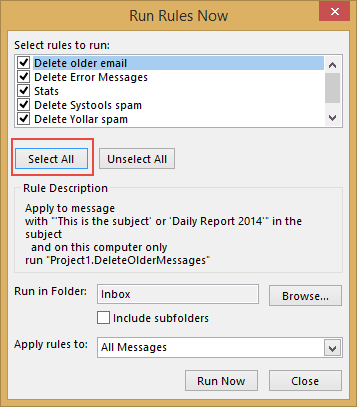
You can add the Run Rules Now command button to the ribbon or QAT for faster access to the dialog.
If you want something more automatic and are using Outlook 2007 and up, you can run rules using a macro. To run the macro automatically, call the macro from the Application Startup macro, or add it to a button on your ribbon to run it on demand.
Use a macro
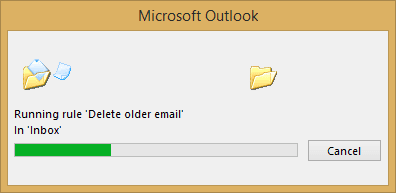
Start with the macro from Outlookcode.com, which automates the process of using Run Rules Now, running all rules on the Inbox. As each rule runs, an Outlook dialog box shows you which rule is currently being processed. By adding rl.IsLocalRule = True to the If statement, you can run only the local, or client-side, rules.
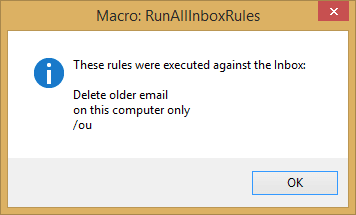
At the end, a message box displays, letting you know that the macro is finished. This message box can be removed by deleting (or commenting out) each line that references rulelist.
If you need help using a macro, information and screenshots are at How to use the VBA Editor
Private Sub Application_Startup()
   RunAllInboxRules
End Sub

Sub RunAllInboxRules()
    Dim st As Outlook.Store
    Dim myRules As Outlook.Rules
    Dim rl As Outlook.Rule
    Dim count As Integer
    Dim ruleList As String
    'On Error Resume Next

    ' get default store (where rules live)
    Set st = Application.Session.DefaultStore
    ' get rules
    Set myRules = st.GetRules

    ' iterate all the rules
    For Each rl In myRules
        ' determine if it's an Inbox rule
              If rl.RuleType = olRuleReceive And rl.IsLocalRule = True Then
            ' if so, run it
            rl.Execute ShowProgress:=True
            count = count + 1
            ruleList = ruleList & vbCrLf & rl.Name
        End If
    Next

    ' tell the user what you did
    ruleList = "These rules were executed against the Inbox: " & vbCrLf & ruleList
    MsgBox ruleList, vbInformation, "Macro: RunAllInboxRules"

    Set rl = Nothing
    Set st = Nothing
    Set myRules = Nothing
End Sub
More Information
IsLocalRule property (MSDN)
OL2007+: Run all rules against inbox (OutlookCode.com)

Lawrence Scheeler says
This is what I was looking for but it fails when I run it on Outlook 365/2016, Win10, 64-bit for both Win and Office. It fails on
Set myRules = st.GetRules
What does that do and how do I fix it? All my rules are Client rules.
Jay says
Hi,
I've been using this for years and it is great! My laptop was just upgraded to Win10, when I added this code, I keep getting a Run-time error - Automation Error. When I debug, it highlights Line 27 "Next". Any thoughts?
(Outlook 2016 64-Bit; Win 10 64-Bit)
Diane Poremsky says
It's not Win10... and it's not Outlook 64-bit. (I use both and the macro works.)
What type of email account? POP, IMAP, Exchange/Outlook.com?
Jay says
Sorry for the delay, thought I'd take another stab at this...On-Premise Exchange.
Aziz Semaan says
hi
i have multiple exchange accounts with rules (server side rule) how can i modify the code to run on a specific account(s)
Diane Poremsky says
You need to either walk all stores or identify a specific store - this calls the default store:
Set st = Application.Session.DefaultStore
The macro at https://www.slipstick.com/developer/get-color-categories-and-restore-them-using-vba/#stores shows how to walk the stores.
Jeremy Ng says
Hi,
Thanks for the code. I tried it but it didnt work, I changed this statement to False and it worked.
If rl.RuleType = olRuleReceive And rl.IsLocalRule = False
Thanks, will monitor what it will does to the mail. Thank you.
Diane Poremsky says
Do you have an exchange account? True = client side rule, False = server side rule.
Jeff says
`Hello,
Does this macro runs for all the email has been defined to my outlook? Currently I have 2-3 email defined to my outlook, or just runs for the Default email address?
Regards,
Jeff Paarsa
Diane Poremsky says
this: Set st = Application.Session.DefaultStore tells it to use the rules in the default store, so no, it doesn't as written. It would be possible to add a loop to cover all data file stores.
Denise says
I would like for it to run the rules for the secondary email attached to my account and not the default account. How would the code change for that (the loop that you mention above)?
Diane Poremsky says
What type of email accounts do you use? If it has its own message store then you need to find that store. The macro at https://www.slipstick.com/developer/get-color-categories-and-restore-them-using-vba/#stores shows how to loop the stores - use an if statement to select the store you want to use.
POP and IMAP accounts may store runs in the default data file - in that case, you would set the account in the rule.
Ron says
I'd like to use this code to show a text dump of all my session's Rules instead of the Execute(), but I just get lots of "type Mismatch" and "Object does not support this method or property" errors when trying to use the Actions and Conditions collections. Could someone show me how to do this please? Thanks
Diane Poremsky says
See https://www.slipstick.com/outlook/rules/create-list-rules/ for a code sample. It won't get every rule condition or action though - i only added some as an example.
Diane Poremsky says
This code should print a user-friendly list print a list of rules
Giandomenico Plaino (@plao68) says
Thanks Diane!!! Great great piece of code... :-)
Tony Wagner says
Diane, how can I trigger an event when an email is selected/displayed in the Reading Pane? I simply want to query the email's Subject Line and take an action if a specific string is found in the Subject Line. Thank you,
Diane Poremsky says
You'd need to use ActiveExplorer.Selection.Item(1) to get the currently selected item.
Like this:
Set objItem = objApp.ActiveExplorer.Selection.Item(1)
But, it might be better to use itemadd or a run a script rule so its processed as it arrives. If you want to process it after the fact you can use a macro (click a button to run it) or a macro that is triggered when you either do something (set a category or flag work good) or just select the message.
Private WithEvents Items As Outlook.Items
Private Sub Application_Startup()
Dim Ns As Outlook.NameSpace
Set Ns = Application.GetNamespace("MAPI")
Set Items = Ns.GetDefaultFolder(olFolderInbox).Items
End Sub
Private Sub Items_ItemChange(ByVal Item As Object)
' do whatever
end sub
Tony Wagner says
I'm not looking for an action to take place when the email arrives. I'm looking to trigger an action when I select the email to be displayed in the Reading Pane. Is something like that possible? Thanks, Diane!
Diane Poremsky says
you'll use selectionchange for that - this goes in ThisOutlookSession.
Public WithEvents myOlExp As Outlook.Explorer
Public Sub Initialize_handler()
Set myOlExp = Application.ActiveExplorer
End Sub
Private Sub myOlExp_SelectionChange()
MsgBox myOlExp.Selection.Count & " items selected."
End Sub
Asusmin says
Hey Diane,
Thanks, it works like a charm. But how could I run the rules for unread items only? That would make things faster ya?
Cheers..!!
Diane Poremsky says
It might make it a little faster, especially if you have a lot of mail, but the only way to apply rules to unread mail is by setting that in each rule, unfortunately, it is not an option. There is a date condition, but it need reset - you can't use "after last week" to restrict it.
George says
You can use the RuleExecuteOption parameters:
Example:
rl.Execute ShowProgress:=False, RuleExecuteOption:=2
Dean says
I tried replacing the line:
rl.Execute ShowProgress:=True
With your line:
rl.Execute ShowProgress:=False, RuleExecuteOption:=2
However, it doesn't process any messages, and then I get the attached error. Any suggestions? I'm using Outlook for Desktop 2016.
I too am looking for a way to Run Rules on unread items only.
Gary Ricks says
Diane -
We have several large group email boxes at our company.
Based on your comment below - I think some of our rules are not being completed:
"Outlook will run all rules that are enabled when messages are downloaded, although, some rules can fail if there are a lot of messages to process (which is not uncommon when starting Outlook after a weekend away). "
We have all of our rules based on when the email comes into the box - we have 7 rules that process and find certain domains on emails - and move those emails based on the domain name. There could be 20 or 30 domains to check for each rule.
We receive in excess of 200-300 emails a day in each box -
Would VBA handle the volume better?
Thanks.
Diane Poremsky says
Using a macro might help, assuming you are moving messages to a folder named for the domain (eg, folder is named Microsoft.com), it could be more efficient to use a macro