Outlook 2013 has a new feature: Reading Pane Compose, which allows you to compose reply and forwards right in the reading pane, rather than opening a new window to write your reply.
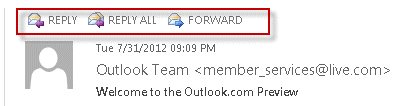
To compose in the reading pane, you click the buttons at the top of the reading pane. If you need to use a new window, you can click the POP OUT button. (The Reply / Forward buttons in the ribbon have the same behavior as the reading pane buttons.)
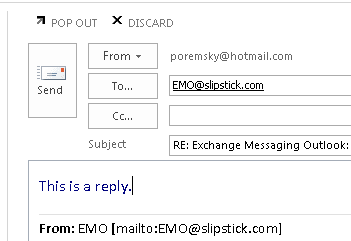
Reading Pane Compose Tips
Drafts are saved in the Drafts folder for the account and are visible if you leave the message in the compose window and return.
If you need to review the message you are replying to, you need to pop the message out of the window. You can't select original message in the thread while you have the reply in the reading pane.
Disable Reading Pane Compose feature
If you don't like this feature you can turn it off in File, Options, Mail. Find the Replies and forwards group and select the option to Open replies and forwards in a new window. It's about halfway down the page.
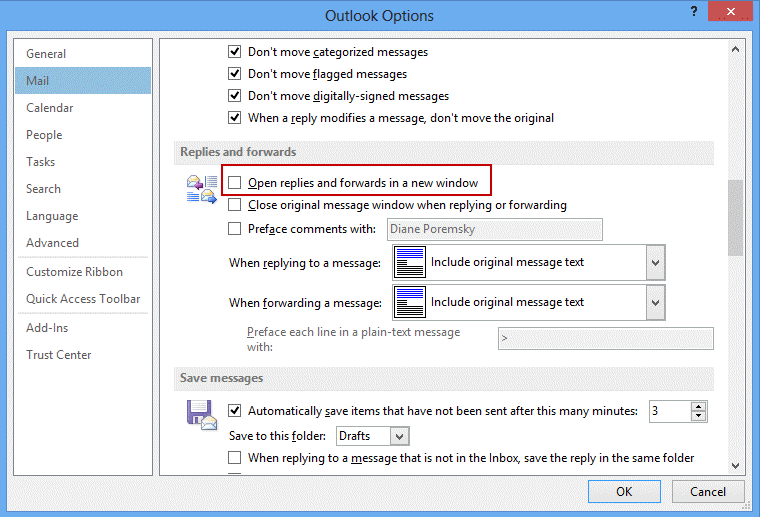
The buttons in the reading pane are not removed but will open a new window.
DisableReadingPaneCompose Registry key
You can also disable reading pane compose by editing edit the registry or use group policy to disable it in a network environment. Note that you will need to restart Outlook for the change to take effect.
HKEY_CURRENT_USER\Software\Microsoft\Office\15.0\Outlook\Message
DWORD: disablereadingpanecompose
Value: 1
If you don't want to edit the registry yourself, you can download and run this registry file. (You may need to right click and choose Save Target as.)
Group Policy
If you use group policy to set this value, the key is under Policies:
HKEY_CURRENT_USER\Software\Policies\Microsoft\Office\15.0\outlook\message
DWORD: disablereadingpanecompose
Value: 1

Yohann says
Hello Diane,
I certainly write in a wrong discussion.. but anyway, could you please help me? I have 2 custom buttons in my ribbon to reply or reply to all in keeping attachments (linked to a VBA code). The problem is it never reply in the reading pane; it always open a separate window (I do not have that issue with the standard buttons). Do you know how I can force Outlook to answer in the reading pane when I use my custom buttons please ?
Thank you.
Yohann
Diane Poremsky says
Assuming you are using this macro - https://www.slipstick.com/outlook/email/reply-replyall-attachments/ - I will take a look at it. I'm pretty sure you will need to use redemption to do it.
Nick says
Hi Diane,
I have office 365 (16) installed on a surface3 pro and surface book and the surface book doesn't show the reply, reply all, and forward buttons and then when you start composing in the reading pane it doesn't have the pop-out, discard buttons either.
Any suggestions on how to control this behavior?
Thanks so much for your consideration
Nick
Diane Poremsky says
do you have the touch toolbar on the side of the reading pane? The missing buttons should be there.
https://www.slipstick.com/outlook/2013/outlook-2013-touch-screen-mode/
Nick says
You are the guru with all the answers. Thanks. Nick
Marcus Woods says
Turn spell check on in the options before sending messages. Gives you a chance to review your email anyway.
freshied says
Yeah this is a great option, but there is no way to get a spell check button on any ribbon outside of a 'pop out' mail message. At least I cannot figure out a way to add spell check to any ribbon in outlook except a pop out window. Another idiotic oversight....
Diane Poremsky says
F7 works. :)
I don't see it as an option for the QAT either.
Jaime Macdonald says
I agree, spell check is vital, without it I find the Reading Pane Compose feature pretty useless
Diane Poremsky says
Spell check as you type works in reading pane compose and you can use the F7 key to kick off a manual spell check.
Bruno says
Hi I am still having issues removing inline replies any ideas?
Diane Poremsky says
It won't pop out into a new window when you use the key to always pop out?
Brian Beers says
The text for this Option has changed to "Open Replies and Forwards in a new window"
Diane Poremsky says
Thanks for noticing the one problem with writing based on betas - i sometimes miss going back to update when the developers decide to make changes. :(
clhmedia says
great article :) do you know how to combine multiple email accounts in office 2013 into one reading pane? in outlook 2010 and older all my accounts were visibel in one primary folder, now on 2013 they are all separated and make it a pain to review emails from multiple accounts :(
Diane Poremsky says
Are they POP3 accounts? File, Account settings, select account then Change Folder button at the bottom. Select the desired folder.
Screenshots at deliver pop3 to one inbox
Martijn says
Yeeeeah, I was hoping it would have an option to turn off this silly website-like behaviour.
Thanks!
Lucky7027 says
Hello Martin / Diane
I wish to write a custom VBA script which can help me to Pop out a specific email in a new window .. My idea here is when i receive a email from specific email address then rule runs execute my code to open that email in a new window ?
Is it possible .. Please reply
Diane Poremsky says
a run a script rule should work - the rule identifies the message and the script opens it.
something like this
sub openmeg(item as outlook.mailitem)
item.open
end sub