On this page, I have my favorite and not so favorite features new to Outlook 2013.
My favorite features
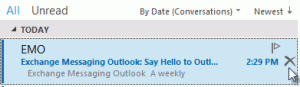 The delete button in the message list. Even though I try to use the keyboard more and the mouse less (keyboarding is faster most of the time), I still use the mouse more than I really should, especially in Outlook. The delete button is convenient... and a great enabler.
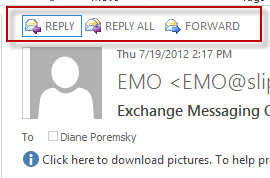 Reply in the reading pane. No need to open a new window when you want to reply to a message. Click the reply button above the message header and type right in the Reading pane. If you use the mouse to select formatting, it’s less convenient (and more mouse movements), than opening a window but if you only use the commands on the Message ribbon, it's handy. You can POP OUT (and into a separate window) at any time.
Active Sync support for email accounts. Outlook 2013 uses ActiveSync to connect to Hotmail accounts. It only supports the newest version of Exchange Active Sync though, so it won’t work with Gmail accounts. Or Exchange 2003. And unlike smartphones, you’ll only get the default Hotmail calendar, not all of the Hotmail calendars in Outlook.
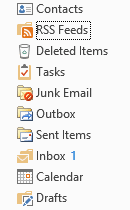 Rearrange folders in the navigation pane. Don’t like the order of your folders in the Folder list? Drag them around to arrange in an order you like. This works in both the Mail module’s folder list and the Folder list module.
The arrangement in the screenshot is probably not one you'd want to use, but you could, if you really wanted to.
Control how much content is synced when you use Exchange server or IMAP. Similar to the sync filters in current versions of Outlook, but limited to items by date only, you can configure Outlook 2013 to sync only newer items. The default setting is 12 months and can be changed in File, Account settings. You'll need to double click to open the account and view or change the offline mail setting.
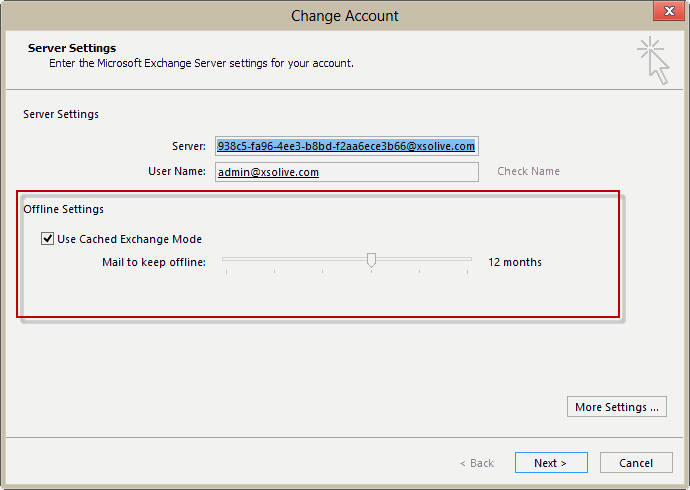
If you need to access older items, you can use search. On one hand, this makes sense and keeps the local cache file smaller (my ost is about 500 MB, down from 3 GB) but I can foresee problems when users get quota warnings and only delete content from Outlook, ignoring the older messages stored online.
Not so favorite features
The reminder dialog stays on top. All the time. Well, maybe it's not quite that bad, but it is more visible than Outlook 2010's. As one of the critics of Outlook 2010's reminder dialog, I like the persistence of Outlook 2013's reminder dialog but it’s a little too persistent at times.
Good-bye To-Do Bar, it was nice knowing you. You can add the to-Do Bar to the list of features we learned to love for two versions, only to see it disappear.
Do you drag messages, tasks, or contacts to a specific date on the navigation calendar to create an appointment for that date? Let us know in our Facebook poll.
The To-Do Bar was replaced by a feature called "Peeks". When you hover the mouse over a link, you can peek at the calendar or task list or click on the links to open the module. Like the To-Do Bar calendar, the peek is limited to displaying appointments on the default calendar. Unlike the To-do Bar, you’ll only see ‘todays’ appointments, not the next 5, which may be spread over several days. (You can select any date to see the appointments for that date.)
You can't drag email messages to a date in the navigation calendar to create an appointment for that date. (You can drag messages to the Calendar link at the bottom.)
Peeks are ok, but I liked the To-do bar open in all folders. I can pin the peeks open, but I need to pin (or unpin) them separately. Peeks are pinned by folder type; if I want the calendar visible in email and tasks folders, I need to pin it in each folder type.
The width of the peek is not adjustable. Well, it is adjustable but it's pointless since it only shows one navigation calendar. I can't slide it to the center to view calendars for the next three months. I can't slide it right to make it smaller either. Its one size fits all.
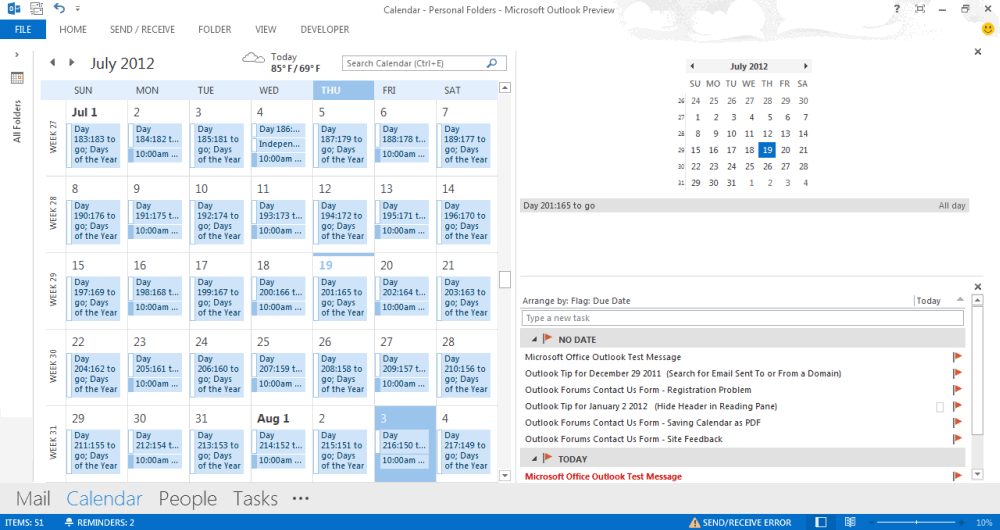
As you can see in this screenshot, only one navigation calendar displays and only today's (or the selected day's) events are listed when Peeks are pinned as a To-do Bar. The screenshot also shows the weather charm, normally, you should see three days of weather but when the screen is smaller, fewer days are shown.
More Information
Outlook 2013 deprecated features and components
Discontinued features and modified functionality in Outlook 2013
What's new in Outlook 2013 (TechNet)
What's new in Outlook 2013 (Microsoft Office)

Anne says
I was so happy to find this article. I was very angry when they disabled the ability to drag the email to the calendar and now you have shown me an alternate way. If you were here I would hug you!!!!
Eddy says
Dear Diane, What happened to the custom messages that appeared in the caption of the Outlook 2010 reminder window? In Outlook 2010 when you flag an email with a custom message (typing your own message/note) and selecting a reminder time, this message would appear in the reminder caption window when the window is displayed; by only selecting the email in the reminder window, rather to double click the email and reading the custom message in the email (as the case in Outlook 2013).
I would appropriate your feedback...
Jane Reader says
Hi Dianne
You used to be able to split a message so you could type a reply and see the original text within the same window. It used to be a 'line' above the 'up' arrow on the right-hand-side of the window, but this has disappeared. Do you know if this very helpful facility has now been removed?
Diane Poremsky says
I'm trying to think what that was. If it was was in the quoted part and was like a hyperlink between parts of the previous text, it's still there but can be disabled. Screenshot: https://screencast.com/t/MSZ4JNqb6cw
Look at the bottom of the dialog in File, Options, Mail - show the previous and next buttons.
If that is not what you mean... oh, do you mean the word feature for a split window that was under the ruler? I think it was removed but will see if iit can be enabled.
murphyw says
Hi Dianne,
A drag and drop feature that used to work in Outlook 2007 does not work in Outlook 2013. In Outlook 2013 like in Outlook 2007 it still possible to drag and drop text from a Word document or an Outlook email message onto an Outlook folder to create a new email message. Although it was possible in Outlook 2007, it is no longer possible in Outlook 2013 to drag and drop text from Internet Explorer 10 onto a folder in 64 bit Outlook 2013 with Windows 8 to create a new email message. It is also not possible to drag text from Internet Explorer 10 into the Outlook Navigation Bar or any other location in Outlook 2013 to create a new task, email or calendar item. Do you have contacts at Microsoft who can create a fix for this Internet Explorer 10 to Outlook 2013 drag and drop problem that can be sent out to Office users during an upcoming patch of Outlook 2013?
Diane Poremsky says
Most (probably all) of those complaints are in the "bug database" but I do not know if they are going to fix them. Some of the changes relate to security changes.
Rosie says
May I know the specs of IE and outlook that you're using? I'd like to compare yours with mine and see if that may be causing the problem why I can't see newly added RFx on Outlook 2013.
Diane Poremsky says
I have IE 10 (Win8). What type of email account do you have?
Johan says
Hi Diane,
I opened up a mail in Outlook 2013 and inside the mail was a link to send a new mail. When clicked it gave me 3 options. 1st one was to open up windows 8 Mail, 2nd was Outlook mail and the 3rd I cannot remember. The problem is that I have clicked on the first and now it always opens up Windows 8 mail whenever I click on a mail link inside a mail. How do I change it so that it will open up outlook again when a click on a link?
Thank you
Johan
Diane Poremsky says
Press the windows key and start typing Default programs - choose Set your default programs and set outlook to be the default. If that doesn't fix the problem, you'll need to change it in Associate a file type or protocol link (also in Default Programs).
kdsdata says
Sorry it's not my favorite. I have tried Outlook 2013 and have now rolled back to OL2003. Mainly for a quirk that seems to have no fix. As I get many emails I like to read them in sequence without having to close them. I simply like to see the next/previous item. With an open message you click the or item button. No problems in OL2003. In OL2013 after the third next/previous click the message closes, and I am back to the list. Very inconvenient. No fix listed anywhere. BTW: OL2003 responds MUCH faster to commands than OL2013, on both Win 7 64x, or Win 8 64x.
Diane Poremsky says
The Previous / Next behavior is controlled in File, Options, Mail - the very last setting at the bottom of the page.
Stefan N. says
I'm wondering if you have witnessed a problem I am having. And if so, you have an answer for me. I have three exchange accounts and four Hotmail accounts I synch in Outlook. In Outlook 2010 I was able to drag and drop messages between the different accounts. In Outlook 2013 I get a message that says ActiveSynch does not support this feature. If I close Outlook 2013 and launch 2010 again it works like a charm. Have you run into this?
Diane Poremsky says
Yes, that is a common problem. ActiveSync doesn't support importing. Microsoft needs to re-engineer the EAS protocol to support uploading Import into EAS account
Rosie says
Thanks! This problem, though it seems so minor, has been bothering me for a while now. I just want to know if this happens to all Outlook 2013 users or something's wrong with my settings.
Diane Poremsky says
I haven't noticed it and haven't seen other complaints about it. That could mean it's your settings or no one uses the feature (or added feeds to it). I added some and did not have a problem. It wasn't speedy, but worked without restarting outlook. It's possible they fixed it - I was using RTM by the time i needed to add more RSS feeds.
D says
After a 3-month trial, I just helped an organization roll back to Office 2007 because of the quirks. Office 2013 is different but not better. It is like hiring painters to put a new fresh color on your den wall only to notice that they also spilled paint on the carpet and furniture.
Rosie says
Same thing happens for me. I have to "restart" Outlook 2013 before I the new RSS Feeds folders are shown. Any solutions to this?
Diane Poremsky says
I'll have to look into it - it's not a problem I've seen many complaints about. In fact, I've only seen these two.
Jens says
yes the new todo bar functionality is sh**. no highlighted days where are events and no preview of events in the list, only todays events.. thats crap.. hope there will be a fix for this..
Meny says
How do I display the addressees (To and CC) in the preview pane and in an opened message?
Diane Poremsky says
the display is based on several factors, including the sender's display name format and any contacts you might have for the person. You can't control it.
Pavel Dzemyantsau says
i lost ToDo bar function "auto hide".
is it still available in outlook 2013?
Diane Poremsky says
No, you can't hide/unhide. You can unpin all at once in View > To-Do bar > Off. Just another way the peeks don't come close to matching the capabilities of the to-do bar.
Majibar Rahman says
I am using MS Outlook 2013 for some days now.The sent mails I sent are not shown in sent items.In addition, when I desire to add an RSS feed to outlook 2013 I can not add it outlook as it is not shown by default as outlook 2010 was.Please advise.
SGBG says
How can I delete the old profile and add new one as it keeps going to the old one without opening the full outlook?
Diane Poremsky says
Close Outlook. Go to Control panel and find Mail. Open it, click Show Profiles and remove the old profile.