Windows 10 users with older versions of Outlook who are unable to open email hyperlinks in Internet Explorer: Outlook Links Won't Open In Windows 10. If you removed Internet Explorer as an Optional feature, see User solutions.
A very common question comes up often in the Microsoft forums:
When clicking on a hyperlink in an e-mail, I get this Message : "This operation has been cancelled due to restrictions in effect on this computer. Please contact your system administrator." I get this message every time that I attempt to use the hyperlink. I am the administrator on this stand alone computer. How do I deactivate this feature so that I activate hyperlinks?
If you use Outlook 2013 or newer, you'll receive following error message instead of the "restrictions in effect error" message.
Your organization's policies are preventing us from completing this action for you. For more info, please contact your help desk

This is not "an Outlook error" and the solution will fix the error message in all Office applications.
It's due to a problem with the default browser configuration, often caused by uninstalling Chrome or Firefox while the browser is set as default. It's most common when another application installs Chrome and sets it as the default browser, then the user uninstalls it before setting Internet Explorer or Edge as their default browser. (Because, honestly, who would even think that would be necessary, right?)
Start with Edit Registry, Part 2 if you uninstalled Chrome , Firefox, or another HTML rendering application, such as Maxthon or UltraEdit, and then received the error.
If you don't want to edit the registry (or use my reg file), Alan suggests reinstalling Chrome (or the offending program). Set Internet Explorer as default browser before uninstalling Chrome.
Edit Registry, Part 2
If you received this error after uninstalling any application that takes over the HTML open command (including, but not limited to, Chrome & Firefox browsers) you may need to change the HTM/HTML association in the registry.
- Right click on the Start menu, click Run, type Regedit in the Open box, and then click OK.
- Browse to
HKEY_CURRENT_USER\Software\Classes\.html
- If a default value (Default) has a value other than htmlfile or (value not set), right click on it and select Modify...

- Change the value from "ChromeHTML" to htmlfile (or from FireFoxHTML to htmlfile)
- Repeat for the .htm, shtml, .xht, .xhtml, .xhtm keys
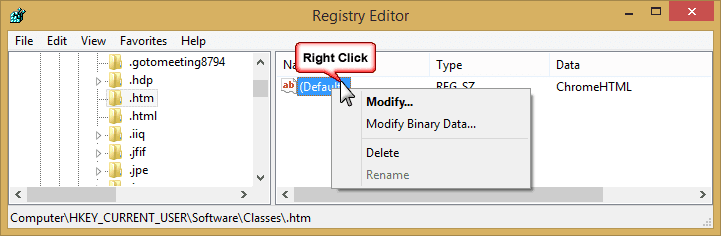
Don't want to edit the registry? Download this file (right click and choose Save target as...) Then double click on the file to run and restart Windows.
Restart Outlook after trying this. You need to restart Windows for the change to take effect.
Reset Web Settings
If the problem is not due to uninstalling Chrome or Firefox, it could be a corrupt registry key in Internet Explorer. The registry key is at
HKEY_Local_Machine\Software\Classes\htmlfile\shell\open\command
Also use these steps if Edit Registry, Part 2 didn't fix your problem.
- Close Outlook
- On the Start menu, type Internet Options and open it when it comes up.
- Click the Advanced tab, and then click the Reset button.
- On the Programs tab, under Internet programs, click Set Programs, then click Set your Default Programs. Verify your e-mail program (Outlook) is set as the default, if not, set it as the default. Repeat for the Web Browser. Note: In Windows 10, this opens the Settings, Default Apps dialog
- Click OK and close the dialogs.
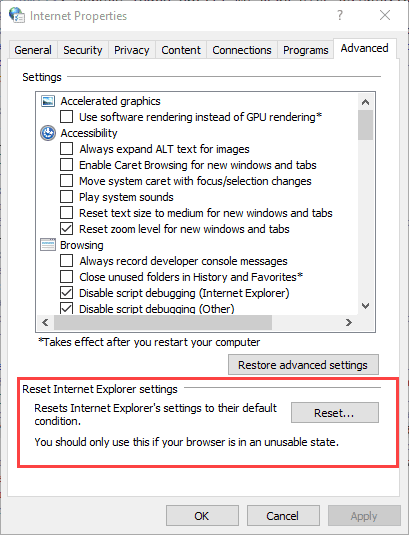
Note: You need to set Internet Explorer as default and verify the problem is fixed. If you prefer a different browser, you can set it as the default browser later.
If this does not resolve the issue, set IE as the default browser following the steps in Set Program Access in Control Panel. If you use a different browser as your default, you need to set IE as the default until you verify the links work in Outlook.
Import a Registry Key
When resetting the web settings doesn't help, you'll need to replace the corrupt key, using this registry file if you have Windows 10. (Older versions of Windows will use this registry file). Right click on the link and choose Save target as then double click on it to run it.
Restart Outlook after updating this registry key. In some cases, you may need to restart Windows.
If you prefer to use a key from a computer you have access to, follow these instructions to export the registry key:
- Press Windows key + R to open the Run command
- In the Open box, type regedit, and then click OK.
- Browse to the following registry key:
HKEY_Local_Machine\Software\Classes\htmlfile\shell\open\command
- On the File menu select Export.
- Type in a filename and Save.
- Close the Registry Editor.
Copy the *.reg file to the other computer and double-click on the .reg file. Ok the dialogs to update the registry.
These instructions are the same as found in the Microsoft article Hyperlinks are not working in Outlook (MSKB 310049).
Restart Outlook after trying this. You may need to restart Windows for the change to take effect.
Set Program Access in Control Panel
You can set program defaults through the Control Panel or Settings. If the above methods fail, use this method to set the default browser.
In Windows 10, open the Settings app then find Default Apps (or search for Default Apps using Cortana.) Find Web Browser in the list and change it to Edge or Internet Explorer.
In Windos 7/8 or Vista, access the Default Programs applet from the Start menu or Control panel. Click on the "Set program access and computer defaults" (last option) then expand Custom. In "Choose a default web browser", check on the "Internet Explorer" option and click the OK button.
Users Solutions
tgrf makes this suggestion as one possible cause and solution:
I am using Outlook in Office 2010, Windows 7, and IE8. I just fixed this problem when trying to set up my junk mail filter. Click on any email header. Select Junk mail menu, then Junk mail options. Clear the check mark at Disable links and other functionality in phishing messages.
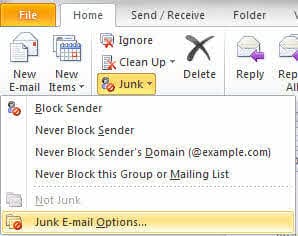
I can't vouch for this solution but its painless and easy to try. Links are disabled by default for all users. The restrictions error is typically caused by browser settings.
Removed Internet Explorer as an Optional Feature in Windows 10
Albert discovered removing Internet Explorer as an Optional Feature in Windows 10 is responsible for this error:
I stumbled on another cause that I don't see mentioned here. I had noticed that in Windows 10, Internet Explorer is one of the things that can be removed using "Optional Features". So since I wasn't using it, I uninstalled it. That's when the problem started: any links in Excel or Word to external files, URLs, etc., stopped working and gave the error message described here. Solution, of course, was to re-install IE from "Optional" features and reboot. Then, everything worked, and the system even still retained Chrome as the default browser.
Alan's Solution
Alan has this suggestion:
I found that re-installing Google Chrome or FireFox and setting it as the default, the hyperlinks worked. I then went to Internet Explorer and set it as the default browser. I again checked the hyperlinks, and again they worked. I then un-installed Google Chrome and have had no problems since. Hopefully this will work for others as well.
While I haven't tested Alan's solution, it's logical that it will work. Possibly the most common cause is because users uninstall Firefox or Chrome while either is set as default and setting IE as default before uninstalling would prevent the problem. If Alan's solution doesn't work, make sure Chrome is not running when you set IE as the default browser.
From Greg Chapman: "This is IMPORTANT - Close Chrome and make sure it isn't running in Task Manager because even when you close it, it can remain running. Open IE and reset it as default."
Other Causes
There are several other causes of this error. In most cases, they do not affect hyperlinks in Outlook. If you found this page searching for the error message, check out the following pages. Note that if you receive this error on a computer at work, you should contact your administrator, they may want access to applications restricted for security reasons.
Empty Outlook's Securetemp folder
This solution suggested by Lain should not cause the restriction error message, however, it's not harmful (and can be beneficial for other reasons) so I'm going to include it here. If it works, it doesn't have to make sense to me and if it doesn't work, you cleaned some old files off your hard drive. It's a win-win either way.
For Outlook 2007 and newer, type Shell:cache in File Explorer's address bar and press Enter. Outlook uses the folder Content.Outlook. If you don't see the Content.Outlook folder, its because you are not showing hidden files and folders. You can type Content.Outlook at the end of the file path and press Enter or show hidden files and folders.
See Outlook SecureTemp Files Folder for more information and steps needed to find the folder.
More Information
You receive an error message when you click a hyperlink in Outlook Links in Outlook are prefixed with BLOCKED::
Outlook Links Won't Open In Windows 10

FG says
THANK YOU !
Anthony says
Hi, I just had a fix for a client a few moments ago and thought I would share it too. All I did was to go onto control panel, Default Programs, Searched for Microsoft Edge and made it my default browser.
I then asked the user to restart her Outlook app and it got resolved; the message did not pop up anymore and she was able to open the hyperlink automatically without copying it into a browser.
Lisa Ellis says
YAY! The registry-correcting file worked! Thank you!!
Harry Fröhlich says
Thank you, thank you, thank you! I did the first steps you suggested, but the keys were already what I should have changed it to. Downloading and importing the registry file did the trick for me! I've been searching for an answer for 3 years, and have always worked around my problem. But now everything works! Thank you so much Diane!
Frank B says
I updated to Windows 11 and still run Office 2007. I got the dreaded HTML link error message. I use Firefox and have never uninstalled any browser. I used the "Reset Web Settings " fix and presto, it worked! Thank you, thank you, thank you. FYI, since I use Firefox I imported this registry key: [HKEY_LOCAL_MACHINE\SOFTWARE\Classes\htmlfile\shell\open\command]
@="\"C:\\Program Files\\Mozilla Firefox\""
Ken Alden says
None of the suggestions worked for me. My client was using Outlook 2007 (ugh!) and had the restriction message. The problem turned out to be found in HKCU in Classes\.htm and .html where I found a OpenWithProgIDs subkey. The subkey only had a (null) default entry. I removed the empty subkey from both classes and the problem disappeared.
Jeff says
I use Brave, but have Chrome installed as well. "Edit Register, Part 2" worked perfectly for me. My setting had dots, like html.file, htm.file etc. Correct but with dots before file. Rather than just delete the dots, I cleared the fields and re-entered everything as instructed (htmlfile, htmfile, etc). That worked perfectly.
Geoffrey Schaller says
I went through this with a client, and tried all of the solutions listed above / below, to no avail. Finally, for testing, I changed the default browser from Edge to Chrome, and the change of browsers cleared the issue - links worked now. When I switched the default back to Edge, it still worked - the act of changing the defaults cleared the issue up, even though we went back to the same default browser.
Ross says
Finally something worked. 'Import a registry key' is what worked for me. I was skeptical because most of these posts are from a bygone era when IE11 was still around. Now that we're all on Edge (and on edge) with Windows 11, Internet Explorer does not even show up in Windows Features, so enabling it is not an option.
Brian Allan says
The 'Hyperlinks are not working in Outlook' finally resolved the issue. Thanks a whole bunch
John Oliver says
Albert's solution worked for me. Thanks Albert
Joe says
THIS IS THE ANSWER. Most of have computers with deleted Internet Explorer and or Edge at some point and re-installed it.
Thank you to Dean, below.
Search "Windows Features" then activate "Internet Explorer 11"
If you uninstall and reinstall Internet Explorer and or Edge, it becomes deactivated in the Windows Features. You must reactivate it in Windows Features.
Ralph Avery says
After installing Edge, and uninstalling Internet Explorer on a computer. The following steps fix this. .
Start and look for 'Internet Options'
Go to the 'Programs' tab
Click 'Set Programs'
Click 'Set your default programs'
Choose 'Microsoft Edge'
Click 'Choose defaults for this program'
Click 'Select All'
Click 'Save'
Ilona says
Thank you for your information on this issue. I took my changes and used "the Import a Registry Key" (restrictions.win10.reg file) after trying several other methods. By far the easiest procedure. Also thanks to Nick (@guest_219629) who reported this fix worked for him in Windows 11 / Office 2013. I have the same set-up on my computer and it worked too.
Matt Metz says
I agree, as well. The only way for me to solve this problem (which arose just a week ago, years after I disabled IE as an optional Windows feature) was to re-enable IE. Ironic, isn't it, that I had to enable an obsolete, no-longer-supported Microsoft program in order to solve a problem with a currently-supported Microsoft program (Office 2013 in my case). BTW, Diane, you are my hero!
JRC says
Edit Registry, Part 2 got me going. Had Outlook 2007 with windows 10. Only had .htm and .html to fix but it worked without me switching off Chrome. Thank you!
Nick says
I fixed this using the registry hack for HKEY_LOCAL_MACHINE\SOFTWARE\Classes\htmlfile\shell\open\command modified to just use Edge. Make the default value say:
"C:\Program Files (x86)\MicrosoftEdge\Application\msedge.exe" %1
The DelegateExecute key seems to be no longer needed - I tried it with and without, and both worked.
This may be useful for people who really DON'T want IE hanging around on their Windows 10 computer but for one reason or another are still limited to an older version of Office.
[edited for accuracy]
Jent says
Nothing has worked please help.!!!!
Bob Millard says
Diane
I found this very helpful, you are right, who would ever think?
Ex Beta Bro
Bob
Diane Poremsky says
Yeah, who'd ever think that? LOL
Nice to see you are still around. :)
Nick says
Many Many thanks, I used the restrictions-win10.reg file and it solved the problem.
Win11 - Office 2013.
Many thanks once again, best wishes for a great week-end
Ilona says
As I also had the same problem on my Windows 11 computer with Office 2013, it was very helpful that you had mentioned that the fix had worked for you. Thank you a lot.
Sarah says
Spent so long going through other more popular methods that came up on google and resetting internet options did it for me. Thank you sooooo much Diane.
GILLES CHENIER says
Resetting the browser to default browser in the settings, fixing the registry with HTMLfile, and deleting from the said registry keys some AVAST codes, solved the problem. Note that Avast was my antivirus program, and I just cancelled it for another program. The problem started about that time.
Michael says
Thank You
I do not use Outlook, ( the reasons for that decision are irrelevant in this forum ) my issue was with Excel and Word where embedded hyperlinks refused to work.
I hadattempted to rectify the issue with suggestions from other forums,with no success however the Edit Registry, Part 2 fix worked with little issue.
Diane Poremsky says
Yeah, the fix is not outlook-specific - it fixes it for all of office.
Rex Booth says
Windows 10 - Hyperlinks not working in Outlook emails, Office, or Word.
None of the solutions worked for me. What DID work turned out to be a simple fix.
Control Panel - Programs & features - Left pane “Turn features on and off”
I found Internet Explorer 11 “unchecked”! I checked the box and clicked ‘Ok’. Went back into ‘turn features on & off’. Box was still unchecked. It was not saving the check mark. This time I clicked check mark and clicked again. Window popped up:”‘are you sure you want to remove this feature”! Clicked ‘Yes”. Took about 2 minutes to remove. Clicked the check mark on Internet Explorer 11 again. Pop up said: Do you want to enable this feature? Yes! Took another 3 minutes. This time I clicked Ok. Came back into ‘features’, the check mark “remained”! All hyperlinks are now working!
Writergeek says
This generic answer has nothing to do with my question. Did it ever see human eyes? I neither use nor have a problem with Outlook. I've already followed all these steps, even though the registry edits are out of date for my specified build of Windows 10. Nothing in here mentions Word or OneNote. Please take a look and try again.
Diane Poremsky says
Did you post a question here previously? I don't see it.
The error message on this page applies to all Office applications - not just Outlook.
What is your version of Windows 10? Do you have 32 or 64bit?
Writergeek says
I did post a question, and I thought it was at the top of this thread. However, in fairness, as I read it again, I see that is NOT my question. I assumed it was because I got a link to this thread in a notification about an answer to my question???. I only have this problem with OneNote and Word, nothing else. Word 2013 Pro and Windows 10 64 bit, latest build. NONE of the suggestions here have worked.
Looking back through email, I see that I'm getting notifications about any thread on the topic of "this operation has been cancelled ..."
Diane Poremsky says
interesting, this address in only listed once in the comment subscriptions. Assuming the 'relay' part of the address means it is forwarded, it could be under the original address. Or you posted in another forum (or you subscribed to ta thread there) and someone who answered your question linked to this article.
>>
I only have this problem with OneNote and Word, nothing else. Word 2013 Pro and Windows 10 64 bit, latest build.
>>
And it's the same error? But links in Excel and Outlook (if you use Outlook for email) open without error?
Do you get the error if you set a different browser as default?
Mick Gallagher says
What a pain following win10 updates! The reg file worked for me thanks so much!
King Shake says
-Reset IE settings
-Set default app for mail to Outlook
-Set default app for browser to IE
Worked for me
Steve Kelley says
A combination of Edit Registry Part 2 and Albert's uninstall/reinstall IE did the trick for me. I had removed FF at some point without setting IE as default bowser.
Chris says
You helped a lot, instead of Chromehtml I had to replace AvastHtml by htmlfile. Big thank you
Avidre says
Thank you! The registry hack worked. Cause was Firefox change!
Maria says
Thank you for posting the solution. I did it as recommended and all my Excel's hyperlinks work. Best regards, Maria S.-
Andrew says
Thank you for the solution (Edit Registry, Part 2)
Abdrew says
Thank you for your solution.(Edit Registry, Part 2)
Zeph Dim says
Gracious, thank you. I am really grateful. This problem had locked me out of an important document that I was editing. It was a word document, not outlook. Spent almost a whole day sweeping the net for a solution. All suggested solutions failed. But my finding this forum has done it.
It turned out that a browser was the culprit. Though I hadn't uninstalled it, I only demoted it from being the default browser. So what I now did was to restore it back as the default browser and the hyperlink started functioning well. Then I went to Settings ⏩ System ⏩ Default apps to change the default browser. And the problem ceased.? Thanks.
Jose Enrique says
Good job!!
michael lambert says
Well I have had this problem for the past two months and have tried just about everything to resolve it. It is driving me mad copying and opening a new web page every time I want to follow a link in an email. If it is an IE problem I cannot believe that Microsoft cannot provide a fix.
From what I can see the see the solutions suggested above involve removing Chrome making IE your default browser,. I do not want IE as my default browser. I am very happy with Chrome. I don't mind a bit if I never see IE again.
I am perfectly competent but not an expert - been using a computer every day for thirty years but this has me beat.
Diane Poremsky says
That's only when the cause is because chrome was removed while it was set as default. Did you try all of the solutions on the page?
Bob says
Outlook 2007 with Win10. The Edit Registry Part 2 worked perfectly, at least so far. A big THANK YOU as this had been driving me crazy. A side note, the Default for the registry entries was set to WaterfoxHTML. I had uninstalled that browser awhile ago so was a little surprised to see that.
Paul Tulkens says
Good morning,
I applied the .ref file proposed Edit Registry Part 2, and sure enough, it corrected the situation (no more "operation has been cancelled due to restrictions..."). So far so good and a big Tank you !
However, soon after I discovered that one key program for me (Reference Manager V12) which I use to download references from PubMed (the US National Library of Medicine) gave me an error message when trying to get a reference. The error message is "Incomplete parameter" suggesting that the query addressed to the PubMed data base was no longer complete as it should.
Would it be possible that applying the .ref file proposed (and thereby giving a value of "htmlfile" to one or all of the keys targeted by the .reg file (namely HKEY_CURRENT_USER\Software\Classes\.html, and the corresponding keys for .htm, shtml, .xht, .xhtml, .xhtm resulted in the inability of Reference Manager to send the correct information or request to PubMed ?
If such is the case, how could I revert the change made and/or which value should I give to the keys.
I looked at the registry of two other Windows 10 machines on which Reference Manager works fine and for which I never applied the .reg file proposed because I did not have the problem. Much to my surprise,
- on one machine (a destop) the HKEY_CURRENT_USER\Software\Classes\ contains only keys for .htm and .html (both with value not set for their default value) and I could not see keys for .shtml, .xht, xhtml, or xhtm .
- on the other machine (a lapotop) HKEY_CURRENT_USER\Software\Classes contains keys for .htm; .html, .shtml, xht, and x.html, nut not for .xhtm. In all cases, their default value was not set.
Does this make sense and can I try to give "no value set" for the default value of the keys modified by the .reg file on my recalcitrant computer (as they are in the othercomputers where Reference Manager works fine ?
Cheers,
Paul
Diane Poremsky says
it could be the result of the reg file you added, or unrelated to it. you can export the keys from the other computer and restore them on the affected computer (or just edit the keys so they are the same) and see if that makes a difference.
>> I could not see keys for .shtml, .xht, xhtml, or xhtm .
If you don't open files with those extensions from your hard drive, then the keys may not exist. (They'll open fine from a web browser.)
Jerry Jackamo says
Wow, after many attempts over months to fix this, this page finally led me to a fix. What did it for me was the regedit part under "Reset Web Settings"
If the problem is not due to uninstalling Chrome or Firefox, it could be a corrupt registry key in Internet Explorer. The registry key is at
HKEY_Local_Machine\Software\Classes\htmlfile\shell\open\command
Now, my Windows 10 machine didn't have the "open\command" key, but I noticed that the http and https keys nearby did, and lo and behold their values were pointing to a long-gone version of IE that has long been off this computer (apparently forced off by Microsoft's new browser Edge). So I set the path to Chrome for those and then made anew all the same values and paths for the htmlfile part as well. Then I restarted, and oddly enough clicking on an https hyperlink in Word opened up Edge. But then going under the usual "default app" selections under Settings, I could change the default browser choice from Edge to Chrome, and voila, everything worked.
David Hull says
Did Edit Registry 2 above which did the trick. Thanks so much for the article.
JDB says
Thank you, regedit 2 worked for me also.
John Yu says
Fantastic, Edit Registry, Part 2 worked for me too. Thank You.
Pepper Abeita says
Excellent! RegEdit worked. Thanks a million.
Claude JOUAN says
Hello
Thank you so much for your help. Procedure "Edit Registry, Part 2" very well written and easy to implement. Problem encountered after Firefox update.
Kind regards.
Claude (France)
Ian Runeckles says
Thank you so much! The Edit Registry 2 solution worked perfectly with Outlook 2003.
Billy Apo says
Bless your heart. Your "edit registry 2 ( download this file ) did the job. I am vert grateful for you taking the time and effort to help the community out. Have a wonderful day :-) Billy
Jerry says
I encountered this problem after stupidly uninstalling Firefox while it was my default browser.. It has lasted about three weeks while I've attempted just about every solution I could fnd on the internet. Finally, I downloaded chromehtml.reg ran it, rebooted the system and VOILA the problem was gone and the hyperlinks were working again.
Jill says
After MONTHS of having this issue, which only showed up after a Win10 update, Alan's registry edit, part 2, finally did the trick!!
Allen says
Thanks so much for your recommendation to edit the Computer Registry to fix "This operation has been canceled due to restriction in effect on this computer. Please contact your system administrator." Your instructions were great. I have searched the Internet for approximately 2 months for an answer to this problem. Tonight was the night.
Errol Greer says
Just to be clear, this problem has occurred after every Win10 update. I fixed it by exporting a .reg file from another computer and double clicking on it on this computer. But WHY does this happen? I only use Edge which is my default web browser.
Diane Poremsky says
Something is obviously corrupt - it should not be a problem with Edge, especially if you don't have chrome installed or set as default.
There may be a setting in the reg file that the updates don't like - it's really hard to say. It's not a common problem though, so it is something unique to your computer.
Neb says
Thank you, downloaded fix under Edit Registry, part 2 worked, there were none of the htm entries you list under 5. present in my registry in the first place. Not sure what caused the problem yesterday, I suspect an update of AVG, Windows 10 or Firefox.
Spitaldust says
Many thanks. Your registry editing advice worked when nothing I'd tried before had!
Jytte says
After a day of frustration; I found your page. I went in and edited the registry; it worked. Thanks a million - I am so grateful to you
Oana says
Edit Registry, Part 2 worked for me, too. Few minutes ago I had the presented issue and now I can use any browser. Thank you!
Angelique says
I tried the solutions on many other sites and nothing worked. Edit Registry, Part 2 did it for me! Thanks so much for the help!
Corey Anderson says
I upgraded windows 7 to windows 10 and received this error with Outlook 2010 32 bit. In my case _NONE_ of the keys existed in the registry. I manually had to add the .htm .html .shtml and so on keys one at a time, and that fixed it.
sdsd says
Thank you. Edit Reg part 2 worked for me!
Paul says
Great help! Had the same issue as Gary... uninstalling Firefox. Used Edit Reg part 2. Thanks very much!
Gary says
The Edit Registry part 2 solved it.
I had to reinstall Firefox to solve a Firefox issue and that's when it all started.
Tom Vought says
Thank you so much for this article. The "This operation canceled due to restrictions in effect on this computer. Please contact your system administrator." error was driving me crazy in an Excel workbook that was running fine for years. I have a table of contents in the first spreadsheet with hyperlinks to assorted spreadsheets within the workbook. And sure enough I had reinstalled Firefox before the errors started to pop up. Your "Edit Registry, Part 2" instructions did the trick.
Richard Gordon says
After weeks of frustration not being able to get my outlook 2007 hyperlinks to work, I found this wonderful site, used the Registry 2 solution -- and now my links work. Thank you.
Compstuff says
THANKS... problem came out of nowhere and the regfile fixed it right away!!!
Conrad Olmstead says
Thank you! "Import a Registry Key" fixed my problem.
marcojbrown says
Alan's Solution worked for me. I had uninstalled and reinstalled Firefox after a failed Firefox upgrade all while Firefox was my default browser. After that I could not open any links via Microsoft Outlook/Office to any default browser (Chrome/Edge/FF/IE). Tried all the reset of default bowers and registry key edits. Nothing worked. Then set default browser to Edge. Uninstalled Firefox. Rebooted. Then reinstalled Firefox. Tried a link it opened in Edge. Set default browser back to Firefox and tried again and jackpot.
Fix for:
"This operation has been cancelled due to restrictions in effect on this computer. Please contact your system administrator."
Ssee says
Thanks! Your instructions worked perfectly. Saved me a call to the IT guys.
melc says
Thank you. I love it when instructions work, and yours did!
Umair Tahir says
Edit Registry, Part 2 worked for me.
Really appreciate your support
David says
Thanks. Been kicked by this problem concerning Outlook for almost 2 years. Tried almost all above solutions from other sites.
The one that worked -
"Import a Registry Key"
there was no open - iexplorer registry key within
HKEY_Local_Machine\Software\Classes\htmlfile\shell\open\command
Fixed a problem I long time hunted.
Like your comprehensive page.
K T says
I re-added IE 11 through the "Optional Features" and it fixed the issue of Outlook 2010 Hyperlinks not working. No other setting changes required as it kept Chrome as my default browser.
Keith Sheriff says
Hi,
I tried all the other solutions with no joy until I got to "need to replace the corrupt key, using this registry file. Right click on the link and choose Save target as then double click on it to run it."
That worked - thanks so much for your help.
Keith
v1adimir says
I'm sorry, but are there people who are still INSANE enough to:
"When clicking on a hyperlink in an e-mail"
... As written in the text, above? o.0
Diane Poremsky says
For most people, it's safe to clicks links as long as you pay attention - the url is shown in a popup when you hover over it. There are a few who should ever click links - but they will find other ways to get into trouble. :)
Faan says
Wow... Thank you... The htmlfile changes in the registry did the trick!!
Jeff Hyndman says
Thanks very much!! The htmlfile changes did the trick and I much appreciate the help!
Michel Werth says
I had the problem with 2007 OneNote. 'Your Edit Registry, Part 2' solved the problem. Thank you! :-)
AcefromSpace says
Edit Registry, Part 2 worked nicely for me. Thanks.
Harold says
Thanks!!!! Great post. Modified registry and fixed problem.
Jack says
I'm using windows 10 and Chrome as my default browser.
In MSword 2010 hyperlinks didn't work.
I tried several things I found here and elsewhere without succes.
But after applying the changes in my pictures the problem has been solved.
(Unfortunally it is in dutch, sorry for that)
v1adimir says
Why would you ever want to do that?
If you must use a hyperlink from a document, wouldn't it be MUCH safer to right-click and copy... And, perhaps, paste in Notepad first: to be able to see what's it all about.
Just saying, for anyone interested in keeping their computer safe and secure. :)
Diane Poremsky says
Outlook shows the path in a popup when you move the mouse over the url, so no need to paste into notepad to check the url.
Peter says
Thanks very much. I modified the registry and it solved the problem that has been annoying me for ages.
Thanks again! :)
Kevin H says
Regedit part one and part two worked for me thanks
Rachel W says
Please add my sincerely thanks for this page! After trying a number of the suggestions on this site, I was able to fix the link from Outlook 2010 to the internet! Yay!
Asmodean says
Thank you so much for the time and effort it took to put this together, after much confusion, this brought clarity and a solution, bless you.
Max says
Downloaded the file under Edit Registry, Part 2 section, ran it, restarted & hey presto! Ta v much.
Uddharet says
This problem suddenly cropped up on my computer (Windows 7 Home Premium) two days ago. I have the latest versions of Google Chrome (Not uninstalled!), Opera, and IE installed, and I have set Opera as my default browser. I tried setting Chrome as the default browser, AND THE PROBLEM WAS SOLVED. But, strangely, when I “Control+Click” on a hyperlink in Word 10, it continues to open in Opera, not in Chrome! All the same, I am happy that the problem is solved as far as I am concerned.
J2m06 says
Translation:
A simple solution (from my Cru) that works
1. Uninstall FF (firefox)
2. Then Réinnstaller FF58 x64 in the folder Program files (x86) (customizing at the time of instal):D
I just tried, with word2007 + FF 58 x64 + Win 10 x64, and it works: wink:
We're not going to let em.. Beast by Windaube: lol:
---
Bonjour
une solution simple (de mon cru) qui fonctionne :D
1. Désinstaller FF
2. puis réinnstaller FF58 x64 dans le dossier [b]Program files (x86)[/b] (en personnalisant au moment de l'instal) :D
Je viens d'essayer , avec word2007 + FF 58 x64 + Win 10 x64, et ça fonctionne :wink:
On ne va pas se laisser em..bêter par Windaube :lol:
https://forums.mozfr.org/viewtopic.php?f=5&t=137031&p=861442#p861399 (in French)
J2m06- 06.03.18
Chris F says
Thanks so much, edit registry part 2 worked for me - Outlook back to normal now!
Mike T says
Modifying the registry worked for me. Thank you! I was running Windows 10 with Firefox 64 bit 58.0.2 and MS Office 2007. I use many embedded hyperlinks in Excel. After Uninstalling Firefox (for unrelated reasons) I got the "This operation..." problem when trying to click directly on my Excel hyperlinks. The other suggested steps such as switching browsers and reinstalling browsers did not work for me. I created a Restore Point before using RegEdit but RegEdit mods were simple and straight forward.Thanks again for the RegEdit steps.
John says
part 2 down 5 pages where is says "run this file" I downloaded it and ran it and re booted computer and wa la the links in outlook started working again after 2 months of pain.
Thanks for this putting this site together !!!!!!!
Cindy says
OMG, ThankYou, ThankYou, ThankYou! Edit Registry, Part 2 worked for this ignoramus too.
I changed my default browser from Firefox to Opera when I encountered a problem with Firefox bookmarks that I couldnt resolve. That's when I started getting the error message when trying to open links in Outlook 2013 emails.
I spent hours trying different fixes and finally stumbled on this page right before calling my computer guy. You saved me a lot of money.
Xerai says
Edit Registry, Part 2 worked for me also
My Firefox would open shortcut links saved on the hard drive in Firefox OK, but links in Word and Excel documents would give the error
I tried various things, but what I noticed was that when setting IE as the default browser the FireFoxHTML settings in the registry did not alter. So in the end I went ahead with the changes described in ‘Edit Registry, Part 2’. After a restart IE was opening the links in Word and Excel correctly. I then opened Firefox and set it as default and this seems to have fixed the issue
Jay says
Every time i double click control panel i get this error message "this operation has been cancelled due to restrictions in effect on this computer" "Unspecified error". Also my run has disappeared. how can i fix these problems?
Diane Poremsky says
You get that when you click on the control panel? On the start menu or in saearch, type group policy - this should find Edit Group Policy. Open it and Under User Configuration, Administrative templates, select Control panel. On the right side, Prohibit access to control panel should be set to not configured. if it set to anything else, double click it and change it to not configured.
Jeremy Freedman says
Edit Registry, Part 2 worked fine, thanks! And it didn't even change my default browser away from FF
Catherine says
Thank you so much. Edit Registry, Part 2 instructions worked for me - fixed my excel 2010, outlook and windows 10 issues.
Mario says
OK. I am using win 10 pro with the latest update and outlook 2007. I tried all fixes mentioned above and nothing worked. What did work though, I run the compatibility mode for windows 8 which you'll find on outlook 2007 "properties" , apply it then run the troubleshooter. apply recommended settings and voila, my hyperlinks work in both Chrome and Edge. Hope this help for you.
Diane Poremsky says
Compatibility mode isn't recommended for outlook as it can have unintended consequences.
Have you seen this article? https://www.slipstick.com/outlook/links-wont-open-in-windows-10/
Paul says
The first user solution changing the junk mail settings worked perfect!!! Thanks!!!
Ken says
"Edit Registry, Part 2". This fixed the problem that began when I uninstalled Firefox version 57.0. I made the registry changes manually rather than use a download. My PC is running Windows 10 and Outlook 2010. At the time of the registry editing my default browser was IE 11. After confirming my success I changed the default to Edge. Everything working properly now. A huge "Thank You!" to whoever created this fix.
Albert Bickford says
I stumbled on another cause that I don't see mentioned here. I had noticed that in Windows 10, Internet Explorer is one of the things that can be removed using "Optional Features". So since I wasn't using it, I uninstalled it. That's when the problem started: any links in Excel or Word to external files, URLs, etc., stopped working and gave the error message described here. Solution, of course, was to re-install IE from "Optional" features and reboot. Then, everything worked, and the system even still retained Chrome as the default browser. But, I wouldn't have thought of this being the problem without the help of this page. So, anyone who made the same mistake as me: re-install Internet Explorer. Apparently, even though on the surface Microsoft has replaced it with Edge, apparently it still does work behind the scenes.
Diane Poremsky says
Thanks for the information, i will add it to the article.
Kathryn Pratka says
Similarly, I uninstalled IE because I wasn't using it. I went to the optional features and IE11 was still there so I uninstalled from there too and on reboot everything worked perfectly.
Welsh Bob says
Yes, I'm using MS Office 2010 on Win10 and encountered this problem, I couldn't open ANY links from within any of the MS Office Programs. It turns out that I had also removed IE11 from my optional Windows settings.
I followed Albert's advice and re-installed IE11 from the Windows Optional Features menu, did a reboot, and 'Hey Presto!' everything was working fine again... :-) and with my original choice of associated apps, Firefox for browsing in my case.
Thanks Albert!
Anonimus says
Thank you so much. This was the answer to my problem. I tried the REGEDIT thing, the restart thing of the internet properties and nothing was working. But going to the features and re installing the Internet Explorer option. Great solution and thank you again.
Just for those who don't know. Open Control Panel, then go to Programs and Features, then on the left margin there is the Turn Windows features on or off and check the Internet Explorer 11 feature. Since we were not using IE as our internet explorer at some point we were removing this feature without realizing is essential to redirect the hyperlink in some applications. Cheers,
Terri says
Thank you SO much. This has been driving me crazy. Apparently it was the Firefox upgrade. Your Edit Registry, Part 2 worked for me!
Steve Young says
I had a problem opening Outlook 2010 hyperlinks after uninstalling Firefox newest version. Your fix in "Edit Registry Part 2" specifically the Download "this file" worked like a champ!! Thanks so much for your help!!
loren lewis says
I orginally thought the problem was with in my antiquated Outlook 2003. I tried all other suggestions first. I did not want to edit the registry. I then did some more searches but nothing worked. Finally I did the registry edits exactly as you described them, then rebooted with my fingers crossed... and IT WORKED!
Thank you very much. :-)
Aero says
Thanks so much. I had the problem with Outlook 2010 and the latest version of Firefox (57.0 64 bit). Followed the instructions under "Edit Registry, Part 2" and it worked.
Paul Dowsett says
Thank you so much for pointing me to this registry hack/fix. It has been driving me mad for over a year.
Lyle says
I tried a lot of other suggestions found on the web, but doing a regedit, and changing the file type to htmlfile is the only one that worked. Thx
phatfish says
Chrome was uninstalled on a Terminal server (2008) and broke the IE association with http/https links in Outlook, other office apps, etc.
Only method that worked was to set the IE as the default application via control panel. Only issue was only admins had access to this, not normal users.
After some procmon captures the reg edit that fixed it for me was:
HKEY_CLASSES_ROOT\http\shell\open\command
HKEY_CLASSES_ROOT\https\shell\open\command
Set the "(Default)" property in the above keys to the following.
"C:\Program Files\Internet Explorer\iexplore.exe" %1
The bad value still referencing Chrome was.
"C:\Program Files (x86)\Google\Chrome\Application\chrome.exe" -- "%1"
This fixed for all users.
Liz says
In my case, the issue DOES appear to be tied to Outlook 2010 (32-bit running in Windows 10), as links work fine in EM Mail and Thunderbird.
Suggestions?
Diane Poremsky says
It's definitely an outlook/windows issue, em client calls the browser using a different method. Did any of the solutions fix it?
Arthur says
I have the same problem with Outlook 2010 and have tried all of the solutions, including the registry update. None of the solutions worked. The links work in email in all 3 browsers, but not in Outlook. The problem occurred just after the latest Office 2010 update KB4011188. When I check for Microsoft Outlook updates, I also receive the 'this operation has been canceled due to restrictions in effect on this computer' message.
Diane Poremsky says
Which windows os are you using? I will see if i can repro. I know a couple of others complained of problems in Edge as of the last update and none of the solutions worked.
Arthur says
I am on Windows 10, v1607 for x64. Microsoft. Net Framework (KB3186568) and Windows 10 v1607 (KB4033631) failed to install. Message upon attempted reinstall of updates says 'Some update files are missing or have problems' error (0x80073712).
Diane Poremsky says
Run system file checker and let it repair any files it says need to be repaired. https://answers.microsoft.com/en-us/windows/forum/windows_10-update/system-file-check-sfc-scan-and-repair-system-files/bc609315-da1f-4775-812c-695b60477a93
Liz says
Windows 10 for me as well.
JSD says
Just wanted to say Thank You
Editing Registry Part 2 worked for me
Rikit Shah says
I had an same issue. It was debugging me since couple of hours.
Finally found this post very must useful to me.
Editing Registry Part 2 worked for me.
Though system restart was not necessary, it worked without that.
Thank you very must.
Regards,
Rikit
Moe Rogerson says
FYI, when checking to change the registry in my Windows 7 SP1 laptop, those mentioned registry keys were here: HKEY_LOCAL_MACHINE\Software\Classes\.html
and NOT in HKEY_CURRENT_USER\Software\Classes\.html.
Other than that, it worked, changing the keys where I found them.
Thanks for the hot tip! It was driving me crazy. First time I've had to get into the registry since Windows 98.
James says
Thanks a lot for helping solving the issues that is originated from Microsoft's not-user-friendly "features".
Marc Goldberg says
THANK YOU!!! Editing my registry fixed the issue! (Edit Registry, Part 2)
Barry says
Edit Registry, Part 2 worked for me
Using Outlook 2007 with Windows 10
I had removed IE and Chrome as I use only FireFox.
John G says
The Edit Registry, Part 2 worked for me!
I had html, htm, shtml, xht, xhtml and xhtm entries in HKEY_CURRENT_USERSoftwareClasses
The only thing I wasn't sure about was whether I should have entered 'htmlfile' for all entries.
In the end I entered 'htmlfile', 'htmfile', 'shtmlfile' respectively.
So far, so good
Thank you for the post
Peter S says
Had the problem after the installation of Firefox 54.0.1. With the FF internal upgrade all worked fine, but after a fresh installations of FF 54.0.1 (_86 or _64 does not matter) no hyperlink worked in any application.
The new FF 54.0.1 bug is, that it writes the broken Registry keys
HKEY_CLASSES_ROOTFirefoxHTML-308046B0AF4A39CB
HKEY_CLASSES_ROOTFirefoxURL-308046B0AF4A39CB
but all applications expect
HKEY_CLASSES_ROOTFirefoxHTML
HKEY_CLASSES_ROOTFirefoxURL
I just renamed them to the expected values and all hyperlinks in all applications work again.During the next start FF installed the wrong ones again, but this does not disturb the hyperlinks.
Diane Poremsky says
Thanks for the information!
Paulette says
My husband's computer had this same issue. He had some troubles with FF and un/reinstalled it. THANK YOU for sharing the solution you found. It did the trick here, too.
bob Foster says
I didn't have this Outlook error message in Outlook 2013 on my two computers
when opening links in email messages until I installed Firefox 64 bit on both computers.
Now I have the problem with both PC's and have tried the suggestions and they don't work
for me. The work around I use for now is to copy the link and paste it in a browser of which
I have all 3.
This was definitely caused by Firefox 64 bit. I have uninstalled Firefox and Chrome and reinstalled
them and I have tried all 3 as my default browser. Could I get a little more detail
with a walk through on going to the Root stuff because I'm sure that is where the
problems is.
Diane Poremsky says
those are registry key. Press Windows key + R to open the run dialog, type regedit and press enter.
Browse to the keys and rename
These are the keys i have:
Jim says
Thanks Diane, worked like a charm!
Reuben Pillay says
Thank you Peter S. I did a few of the articles explanations (may be i didn't follow through completely though).... and it didn't seem to work,
But your solution worked right away - I haven't restarted though - so i hope it will still work when i do (as you say)...
In any case, thank you very much - this has been bugging me over the past few days...
Win 8.1 Over here...
Tony H says
Thanks Peter S worked like a charm on Windows10 final edition using regedit
Ron says
Thanks Peter S
I removed Adobe Flash. Did not help. Did as you said above and immediately fixed my problem. Version was the same. Have a fine day.
It won't let me give a thumbs up but would if I could.
MGP says
I, MGP, being of sound mind and body, hereby bequeath all my worldly goods to Peter S, for giving me back my sound mind after installing FF 64. You da man!
AMY says
I unistalled, restarted and did so many other things with no luck! Thank to the author for finding this bug and posting it for us! I was lost without my links working in Outlook!
jeff says
finally a simple solution, TY!
David says
Thanks Peter, this did the trick after spending over an hour in frustration after installing Office Pro Plus 2016 trying to figure out what the issue was :(. It was indeed FF 54.0.1 which I guess didn't like Outlook, even though it worked fine with it's own branded Thunderbird which I was using for weeks on this new laptop before upgrading to the new MS Office suite..
Best regards,
David
Nate says
Thanks, only thing that worked. Stupid Mozilla.
Astrid says
This was the solution for me. Thank you so much, Peter S. 08/27/2017
Les says
After many many hours of searching & surfing the internet, installling, de- & re-installing i finally found this brilliant and very easy solution. Thank you so much master Peter !!!
Adoxa says
Today, November 4, 2017 was looking high and low for a solution, tried several and they did not work BUT this one DID!!! Thank you Peter. Awesome, have Outlook back to working order.
Thomas G says
After having cleaned up the number of browsers I had installed (none of them was set as default, btw) I started getting this error.
The following 4 keys were missing in the registry, adding them back in solved the issue.
If you do not have Internet Explorer installed anymore, update the registry keys to reflect your default browser, e.g.
[HKEY_CLASSES_ROOTSOFTWAREClasseshtmlfileshellopencommand]
@=""C:\Program Files (x86)\Opera\launcher.exe""
[HKEY_CLASSES_ROOTSOFTWAREClasseshtmlfileshellopennewcommand]
@=""C:\Program Files (x86)\Opera\launcher.exe" %1"
[HKEY_LOCAL_MACHINESOFTWAREClasseshtmlfileshellopencommand]
@=""C:\Program Files (x86)\Opera\launcher.exe""
[HKEY_LOCAL_MACHINESOFTWAREClasseshtmlfileshellopennewcommand]
@=""C:\Program Files (x86)\Opera\launcher.exe" %1"
This was tested on Windows 10, and did only require a restart of Outlook to work
Hank in PA says
Boy, did the regedit advice really save me.
I had uninstalled Firefox to no avail. Re-installed FF, nope.
Tried to get my Dell to boot from the DVD drive for Macrium Rescue media as I was going to go
back a few days before the problem, but Macrium crashed.
Then I found the Registry Edit advice. Followed it and BINGO!, back in
business. Reinstalled Firefox and links in Outlook 2010 now work. Thank you.
Rosy says
I am so frustrated with the problem with outlook 2010 ...will open only in safe mode and I have checked that I don't have the KB3114409 installed and also someone suggested changing registry but was unable to find security folder under HKEY_LOCAL_MACHINESoftwareMicrosoftOffice14.0OutlookSecurity. All I have is Addins folder under outlook. any help will be appreciated and I am running windows 10.
thanks in advance
Diane Poremsky says
when did the problems start? what addins do you have installed? you can check and disable them from safe mode.
Daniel says
I uninstalled Firefox (Windows 10) and ended up with inactive hyperlinks in Outlook 2010. Setting Microsoft Edge as the default browser has not fixed the problem. In the registry there was no HKEY_CURRENT_USERSoftwareClasses.html nor .html, .htm, .shtml, .xht, .xhtml, or .xhtm keys. Followed 'Edit Registry, Part 2' and downloaded the file that creates those entries in the registry. I tried many other solutions and they didn't work but many thanks as this has sorted the problem.
slake_it says
After many many tries, this is the only thing that worked:
1. simply change the name of the chrome.exe file to any thing else like
"chrome test.exe" and it will simply work
2. if you are developing with react native & need chrome to debug remotely, then simply make a shortcut the new "chrome test.exe" file,
- change the shortcut name to "chrome"
- place it in the "c: windows" folder
Paul says
After uninstalling Firefox (Windows 10) I ended up with inactive hyperlinks and attachments in Outlook 2010. Setting Microsoft Edge as the default browser has not fixed the problem. On attempting the Registry edit (the first time I've ever opened the registry editor) at HKEY_CURRENT_USERSoftwareClasses.html I find that there are no .html, .htm, .shtml, .xht, .xhtml, or .xhtm keys.
Will the download file at 'Edit Registry, Part 2' above recreate these keys? It seems not, as the download file has 'chrome' in its title. Or is this what the Registry key download will recreate? Are all these keys needed? As a novice, the absence of the keys to edit has created a problem.
Thanks for your comprehensive article - a sentence on this possibility would make it even better for nervous amateurs!
Diane Poremsky says
That is just one key - its not going to create any other keys. You should have the other keys though. Those keys generally contain the same keys and values as the .html key.
Paul says
Thanks Diane - rather than pursue the registry keys method (although the problem had started after uninstalling Firefox), I went back to the beginning and remembered I hadn't been using IE but Edge as the default because IE didn't appear in the list of potential default programs. After working out how to re-activate IE11 and making it the default, hyperlinks worked again as they do for Firefox and Edge whether they are made default or not. Thanks again!
Mike says
After spending hours ar resetiing default programs, etc, (I have Vista and Outlook 2010), I found that by doing the registry change , ie changing, ChromeHTML to htmlfile, (note omit the "" when entering in Default of registry key) and re-booting the PC,...all email links worked again. Simple tip, search in Regedit for...ChromeHTML entries, press F3 after each occurence, and change default /result in regedit to htmlfile. The whole saga started because I uninstalled Google Chrome prior to changing what the new browser default should have been , ie Firefox or whatever in the Default Programs section. Hope this helps someone.
Grant says
Thanks, Diane. Since I reinstalled Chrome, trying to solve another problem, my hundreds of Excel and Word documents with hyperlinks were just DEAD. All my research! My computer was just a big paperweight. In desperation I downloaded and executed the registry fix, rebooted, and everything works again. Thank you!
Bryan says
Why are you discussing Vista and XP in Oct. 2015?
Diane Poremsky says
People still use both. :) I update the articles (this was written in 2005) as new versions come out, but i occasionally overlook parts that need updated, such as this.
Johane says
Thank you for your registry key !
Charlotte Alverson says
my issue isn't with Outlook - I get this message when trying to open a hyperlink in a Word document.
Diane Poremsky says
the solution should work in all office apps.
Melanie says
Well, it doesn't.
Diane Poremsky says
Which solution did you try? Do links open in Outlook?
Spendzichlaw says
After upgrading to Windows 10, IE no longer exists and cannot be used as default browser. EDGE is awful, and we require the use of Chrome as default as it is the only way to use our Google Cloud printer. I have tried everything on this page and others, and links still do not work on one of our computers - despite being set up exactly the same as the other computers in the office. I'm ready to uninstall everything remotely internet related and start from scratch -- or just set the office on fire.
See no solutions on here for Win 10, Outlook 2013, Office 365 that don't involve further HOURS of work. Have already spent too much time on this as it is.
PLEASE HELP!! This has been going on for about a month.
Diane Poremsky says
Sorry I missed this earlier (was out of the office off and on for most of the last 8 weeks). Everything on this page works in all versions of Outlook. Is the error message the same?
IE is in Windows 10, just hidden - if you type Internet Explorer on the start menu (in the the search box), it comes up. (I pinned it to the start menu and the task bar so its easy to access.) It can be set as the default program in Settings.
I would set IE as default, test it then try setting chrome as default.
Hoang says
Sorry for my poor English first... @@'
I'm using Win 10 Anniversary 64 bit. Google Chrome.
Last week I used Office 2013 and Hyperlinks works well.
Then after I uninstalled Office 2013 and install Office 2016, when I click the links on Word, Excel, Outlook, Onenote... there is popup say:
"Your organization's policies are preventing us from completing this action for you. For more info, please contact your help desk"
I tried so many solutions but it also can not work again.
- Reset browser: MS Edge, Chrome
- Uninstall Chrome, Reinstall Chrome
- Change App default : Mail, Browser...
- Edit Registry by my self
- Install Registry in this topic
- Tried to Install Program in MS Support to fix( This can not work on Win 10)
.....
I also remember to close all of Office Apps and reset my laptop after each change but it also can not fix the error.
Any one help me please
Diane Poremsky says
Did you try it after uninstalling Chrome?
I'm assuming you have 64-bit Windows?
G Van Praag says
Thank you for this as it gave me a pointer to fix this problem - the MS FIXIT for this issue btw has been retired. After updating Chrome I got this problem (Outlook 2016 / win 10).
SOLUTION: enabled Edge as default browser - restarted Outlook and the links worked! Then changed the default browser back to Chrome and...the links worked! Thankfully no need to go into the Registry :-)
R Bailey says
This solution worked perfectly! Thanks!
Garry Montgomery says
IE has never worked since install of Window 10. hyperlinks work in email but when setting up hyperlinks to bookmarks in Word is when the error message comes up. Surely,chrome and Firefox have nothing to do with that? and how do I get IE to actually accept input and to search?
Diane Poremsky says
These are just hyperlinks to other parts of the document, not to a web page? I think it's a different cause - i thought there might be a kb article about this but can't find it tonight. :(
Garry Montgomery says
The problem is in MS Word. It allows inserting bookmarks and hyperlinks but when testing the link the error message comes up. IE does NOT work at all. When I enter anything into the url it goes whitescreen or just closes.
Diane Poremsky says
Well after a little more searching others report basically the same problem with bookmarks and changing the default browser settings fixes it. The affected users were using Word 2010 - but other versions may be affected.
Abu Saleh Sumon says
Thank you very much! Edit Registry Part 2 did the trick for me!
toasterg says
Try this first. Registry edits and resetting IE may not be needed.
1. Exit Outlook completely.
2. Set a different default browser as default:
Default Programs -> Set program access and computer defaults -> Custom -> Choose a default web browser -> Mozilla Firefox (or ie) -> OK
3. Set Chrome (or your preferred browser) as default:
Default Programs -> Set program access and computer defaults -> Custom -> Choose a default web browser -> Google Chrome -> OK
4. Enjoy your links.
You may have to reboot (to make sure outlook refreshes).
MrsRat2U says
Mine does not come up with any of these.. I have just downloaded firefox because I couldn't attach things to emails. Now, I can't open links. It says "this link has been disabled to protect your security." It is making me angry. I was able to use it last week! I don't have a junk file filter. I don't have any junk email options. I don't have any of that because this is a work email. Please Help!! I want my links to work because there are apply for jobs options. Thanks
J R Adams says
Alan's solution worked great the first try. Thanks
James says
So I have done everything above to fix this issue and nothing has worked, however a few things to note, if I log on under my wife's ID I have no issues with hyperlinks and Mozilla, thinking that may be the problem I made a new ID but when all was said and done as soon as I opened outlook and clicked a link the error message showed its ugly face again, next I did what I have also had to do and that is restore the computer after which all is well, however if I reboot the computer and try and open the hyperlink we start all over again "Unreal" short of wiping the hard drive clean and starting over I have no idea what else to try, I normally wipe the hard drive clean once a year but now Microsoft states my legally licensed software has been hacked which is bullshit, they sent me the software when I was having issues and could really speak with a tech......
Phil says
Thanks for this!
Found my solution after clicking on "Hyperlinks are not working in Outlook" at https://support.microsoft.com/kb/310049
Michael Linder says
Microsoft finally sits up,takes notice. Offers a one-click fixit here...
https://support.microsoft.com/en-us/kb/310049
Diane Poremsky says
I'd hardly call it "finally" when that article came out a few months after I first wrote this article over 10 years ago. :)
Gorkem says
Solution by tgrf worked for me, changing registry did not help.
By tgrf:
"I am using Outlook in Office 2010, Windows 7, and IE8. I just fixed this problem when trying to set up my junk mail filter. Click on any email header. Select Junk mail menu, then Junk mail options. Clear the check mark at Disable links and other functionality in phishing messages." .. Note to restart outlook after this change and voila links work again.
MartyAnne says
Microsoft answer 310049 has been updated since this citation. It has a solution for Windows 10 as well. I used the link to "here's an easy fix" and rebooted. Fixed nearly instantly
Problem: "This operation has been cancelled due to restrictions in effect on this computer. Please contact your system administrator."
Solution at: https://support.microsoft.com/en-us/kb/310049
HappyMan says
Hello,
Put simply, copying from another PC's registry as discribed in this article solved this issue for me.
https://support.microsoft.com/en-us/kb/310049
Derek Andrews says
None of these ideas have worked for me. However, I am suspicious the problem has something to do with Win10 requiring a Windows ID and the ID I chose. I have an old hotmail account that I have used for years that I used as my windows ID when I was setting up Win10. However it is not my primary email. My problem of not being able to open hyperlinks is only in my primary email account. My links in email received in my hotmail account open just fine!
I would like to test this theory by changing my login for Win10. Unfortunately I have no idea how to change the login for Win10. Any suggestions?
Diane Poremsky says
I don't think it's the log in - there is a different issue with windows 10 and outlook 2010 or older. See https://www.slipstick.com/outlook/links-wont-open-in-windows-10/.
if you want to change the login, go to Settings, Accounts and switch to a local account then after rebooting, go back and switch to a Microsoft account.
Paul says
Ok, I had this issue after uninstalling Chrome due to an adware virus and I tried everything (include Edit Registry Part 2) with no joy. I did have to edit my registry just like shown in Edit Registry Part 2 except I did the exact opposite; I changed .hml, .html, .shtml, .xhl, .xtml, .xhtml to ChromeHML, ChromeHTML, ChromeSHTML, etc and it fixed the hyperlink issue in MS Outlook 2013. Note that I recently installed Windows 10 which may be why it was a little different than what was shown in Edit Registry Part 2.
Carlos Rios says
Had the issue when the Maxthon browser was removed, using the instruction on Registry Edit - 2 worked for me.
Thank you.
Derek Andrews says
Hi Diane
I have the same problem with links that won't open in Outlook 2010 running in Win10 (recently upgraded from Win7). Interestingly the problem is only since the Win10 upgrade. I have IE11 as default, tried uninstalling and reinstalling Chrome, setting Chrome as default, switching back to IE11 (restarting between each step). I have been working on this for days with no success. I tried your link (Sept 5/15 message above > no luck. How can I tell if it made the changes it was supposed to?
Do you have any other ideas? Should I try uninstalling and reinstalling Office? I also tried running repair on Outlook>no help.
Diane Poremsky says
Have you seen this: https://www.slipstick.com/outlook/links-wont-open-in-windows-10/ ? you need to edit the registry (I have a ready to use reg key on that page)
Jim says
The "Edit Registry, Part 2" steps worked for another user in our environment.
Thanks again!
Lesha says
Thank you very much. I got windows 10 and outlook wouldn't open hyperlinks. I tried all suggestions, but only one worked for me. I was reluctant to try the "Import a Registry Key", but I downloaded it and opened it like you said and it worked. Finally!
Diane Poremsky says
Yeah, there is a problem with hyperlinks in outlook on windows 10 (I haven't had a chance to write it up here yet). This reg fixes it - https://www.slipstick.com/doit/opennew-win10.reg - it's similar but not the exact same key as the one on this page, but as long as the one you use works, it doesn't matter which you use. :)
Lesha says
The problem I have with the registry key is CC Cleaner wants to take it out. I put it on ignore list so it's fine. I decided to try your new reg. fix. I let CC leaner take out the old one and I added your new fix and it didn't work for me, so I had to go back to the old one. Just for information, CC Cleaner also wanted to take out the new fix. Thank you for your efforts.
Diane Poremsky says
Yeah, that is why a lot of people don't recommend registry cleaners. It detects the change and thinks it doesn't belong and removes it.
Jim says
Fixed! Thank you!
Your solution above (and re-pasted below, with steps added), under the heading "If you are using Windows 7 or Vista" worked for one of my users on Windows 7. The only thing I would add is a reboot, since a reboot was required for it to finally work for my user:
"If you are using Windows 7 or Vista:
1. Close Outlook
2. Open Internet Explorer.
3. On the Tools menu, click Internet Options.
4. Click the Advanced tab, and then click the Reset button.
5. On the Programs tab, under Internet programs, click Set Programs, then “Set your Default Programs”, select your e-mail program and click “Set this program as Default”. Repeat for Internet Explorer.
6. Click OK and close the dialogs.
Note: You need to set Internet Explorer as default and verify the problem is fixed. If you prefer a different browser, you can set it as default later"
[7. Reboot. (This was required in my case for changes to take effect)]
Thanks again,
Jim
Courtney Colley says
Thank you Alan, I have my life back now.
Aleksei Czukanov says
I just experienced this Office Outlook 2010 hyperlink problem since 1 year again. I use Windows 7 64 Ultimate and both Opera Beta (latest) and Firefox (I don't like Chrome), but far-far preferred Opera. I do not know what happened, but since yesterday I get this message. I tried everything ("Default programs" etc.), nothing worked. Then, as a try, I opened Firefox and set "default browser". Office Outlook 2010 error message vanished and everything (Facebook, Linked-in etc.) open in Firefox like earlier in Opera. Afterwards I quitted Opera beta and opened up again and set default internet browser. And know everything opens fine with Opera Beta again.
That's all Folks!
Daniel says
Regedit worked for me, however my issue was caused by Opera
Gerard M-F Hill says
So very grateful for your guidance. Registry key must have gone missing in uninstalling and updating programs. I followed your link to the Microsoft page and that fixed the problem. Thank you.
Wilson says
I have encountered this issue and it is due to the registry has been modified.
Replacing the registry,it works like a charm.
Thank you.
So much!
Nasser Jamal says
Dear members,
My gratitude to all who contributed to solving my M/S Words problem.
The problem was solved by simply switching to another browser; in this case Internet
explorer, then redownload Chrome, and there it went back to normal.
Best regards
Nasser
Mr. Ripdizzle says
Downloaded the registry keys and installed. After that I tested (without reboot) and the links within the email came up.
User says
Tried resetting IE; didn't fix it. Tried setting default programs; didn't fix it. Tried registry fix 2; found all values set to CHROMEhtml. After changing to htmlfile, 100% fixed. Thank you.
rollinshultz says
I encountered this problem with Notepad++ which had been written into the registry as default for html, the above registry change to htmlfile worked after a restart.
Ivan says
Having problem with links "This operation has been canceled due to restrictions in effect on this computer" with Outlook 2007 and IE 11 as default browser I just make Chrome as default browser an then again IE as default browswr. The problem with links in Outlook vanished.
E-Today says
https://support.microsoft.com/kb/310049 is a MR. FIX, worked for me required PC restart.
definitely related to Chrome and default browser, I had just uninstalled Chrome browser
One is able to cut and paste hyperlink in Outlook email into IE browser to get to web site you need it a pinch.
qomar says
tha's work for my win 7. thanks anyway
Anapat Lertkiatdamrong says
It's Work Thank you very much :)
Fadi Al Thahabi says
alan`s solution the best it is Ok
Val from PA says
Thank you Alan!!! So glad I didn't have to call the help desk again!
Graphtek says
This registry mods work with Terminal Server 2008 R2 when removing Chrome without setting IE as default first. Great work, thank you.
Larry E. says
Hey! Genius! Thanks for the fix!
CJ Johnson says
Alan's method worked for me as crazy as it all sounds. I did try everything else listed first. Go figure, Alan you rock!
Jim says
Hi Diane,
You are a tremendous resource. Thank you very much for your efforts.
The very simple solution that tgrf provided and that you posted was what worked for me. It certainly was worth the effort to try that first.
Thank you again, so much!
Jim
Christine Beebe says
Hi I am running Windows 7 with Outlook 2010 and I uninstalled Google Chrome as I did not need it, and when I went into outlook I found I could not open the hyperlinks and I got this message This operation has been cancelled due to restrictions in effect on this computer. Please contact your system administrator. So after reading all of the above I reinstalled Chrome set it as default browser, then I went to control panel set programmes as default, reset internet explorer as default as all is fixed.
Rahul says
Hi there, I think reinstalling Chrome or Firefox is not a good solution. It simply erases stored passwords, bookmarks and lots of other data. Easiest way is to use Microsoft's utility to fix this problem. Just download their Fix It file, and run it. It will fix the problem in minutes without having need to reinstall or importing registry or anything. Here's the link: https://support.microsoft.com/kb/310049
Diane Poremsky says
Reinstalling Firefox or Chrome won't erase stored passwords. It's not necessarily the easiest way to fix this problem, but many people prefer doing it because they are comfortable doing it and it works, usually without rebooting Windows. The Fix Its may not work until you reboot.
Josh says
Hello. I did the registry fixes as described. That alone did not fix the problem. I am using Vista(sad, I know). After I learned that did not do the trick, for the heck of it, I made IE the default browser and then after that, made Chrome the default again. Guess what? The problem was then fixed. So maybe I misunderstood the directions, but the bottom line is the problem was resolved. Many thanks to everyone who contributed to this thread!!
Diane Poremsky says
No, you didn't misread, but they don't work for everyone. Glad to hear you were able ot fix it.
R says
+1, nice article! Helped for me.
Chris Harty says
The htmlfile download and rebooting Windows 7 did the trick. I have an interview for a Help Desk position on Monday November 25th and Outlook is a main user application at their site. More than likely I'll see problem this again. Thanks... !
sergian (@ser_gian) says
Solved by setting "htmlfile" in regedit HKEY_CURRENT_USER Software Classes . Html
thanks
jerry says
for got to add this lol
If you are using Windows 7 or Vista:
1.Close Outlook
2.Open Internet Explorer.
3.On the Tools menu, click Internet Options.
4.Click the Advanced tab, and then click the Reset button.
5.On the Programs tab, under Internet programs, click Set Programs, then “Set your Default Programs”, select your e-mail program and click “Set this program as Default”. Repeat for Internet Explorer.
6.Click OK and close the dialogs.
jerry says
this is what fixed me up :)
thanks guys for the help. google chrome can kiss my *%$
Ks. says
I had this problem with Excel when web-links wouldn't open and the same error message popped up. I did have Google Chrome installed, however, as a non-default browser from the beginning, and I went through all steps above - except for the registry change, but nothing helped. What fixed the issue was to completely uninstall Google Chrome. I didn't even have to restart my computer, it worked right away.
Trade Show Tom says
IT WORKED! Reinstalled Chrome and got my links back in Outlook.
Thanks.
Bas says
I found that going to the IE options, programs tab, and setting the checkmark for the 'let IE check if it is the default browser' also helps. When restarting IE it will notice it is not the default browser and ask if it should change this; awnser yes.
Thereafter the links in outlook should work....
Israr Khan says
I am using MS outlook 2007 and i am facing outgoing mail problem , i am sent the message from outlook size is 90Kb but still stuck in outbox not sent yet, my account is MS exchange mailbox and server is on Switzerland, i use my account in Pakistan online
plz give me help about this problem.
Thanks
Israr Khan
Tom says
Running Windows 8, IE10, Firefox 23.0.1, and Microsoft Outlook 2010. Don't have Google Chrome. Uninstall/re-install of Firefox, then setting as default browser did the trick! While doing that, though, I noticed I could have set program defaults within Windows 8 in Control Manager which also should work. Anyway, thanks!
Soozie says
After weeks of trying to figure it out, I finally found Alan's solution and it worked! So easy! Thank you. I'm a happy camper once again!
M Cragin says
Using Vista & IE8
Just wanted to add my hurrahs and thanks to the chorus for Diane's knowledge and Alan's Solution. I read everything and I didn't see anything about using Revo Uninstaller Pro to install applications. It doesn't work if the application/program shuts down your computer before you can save the "log" from the install.
I had great success with the 2nd Google Chrome install & uninstall after I was able to save the "log".
Thanks again ending my frustration !
matt alvarado says
Alan...You are a life saver. The install/default IE/uninstall Google f***ing Chrome worked!
Murali says
Download chrome, it is working fine, thank you for valuable information
Tim Ebben says
Thanks, that was a big help. Microsoft knowledge base was useless. I will be complaining to Adobe and Google.
Don Eager says
Thank you SO much for the Edit Registry, Part 2 solution. I encountered the problem of non-working hyperlinks in Outlook e-mail after doing my monthly system maintain, which included an update to Flash Player. During this update, Chrome was installed. I couldn't see any way to prevent it. Immediately uninstalled via Control Panel, after which links didn't work. I downloaded and executed your "chromehtml.reg" file with instant success. I don't know why Adobe forces unwanted software on you when just trying to keep Flash current. Before I found your site, I tried to fix via Microsoft Outlook Help. Found exact problem, but when trying the "Fix for Me" solution, all I got was a Bing page asking for a search parameter???? Than ks again!!!
hefin says
tgrf's solution worked for me. Had to go to outlook after my live mail crashed and couldn't even get a new download of lm to work either.
Ian - NZ says
Me again with a heads-up. I'd thought, from the customer's description, that it was the no-go-to-link prob caused by the 'ChromeHTML'\'htmlfile' issue.
Turned out that wasn't the problem. Clicking links just got a long tirade about a missing file association.
I wasn't sure how to fix this because it wasn't clear just what file association was lacking. In the finish, resetting IE 10 to defaults did the job. There's more here:
https://support.microsoft.com/kb/923737#method4
Cheers :-)
Ian - NZ says
Diane, thanks heaps. Never got the hang of creating reg files - that'll do the job for my customer nicely. :-)
Ian - NZ says
Thanks, Diane. Sorry to belabor the point, but I'm trying to explain this to a customer in the simplest way possible.
Are you saying that, if I gave her your 'nohome' regfix, it would make the manual change unnecessary?
Or should I be looking for another regfix that makes those manual changes to the second location?
Diane Poremsky says
If the problem is from uninstalling chrome or firefox, she needs this file : chromehtml.reg not the nohome one, or in addition to the nohome one.
Ian (NZ) says
Hi Diane.
Re the registry fix, I note that it makes changes in a different area to where I would make manual adjustments. The reg fix reads:
[HKEY_LOCAL_MACHINE\SOFTWARE\Classes\htmlfile\shell\open\command]
@="\"C:\\Program Files\\Internet Explorer\\IEXPLORE.EXE\" -nohome"
...while I'd be making manual changes here:
[HKEY_CURRENT_USER\Software\Classes\.html], i.e, changing values from “ChromeHTML” to “htmlfile”
Are you saying that the first "...nohome" command makes those manual value changes unnecessary?
Ian
Computer Guys
Diane Poremsky says
There are two different causes and registry fixes. The first one is for an older problem that is less prevalent these days, the other (chromehtml) for the usual cause lately. In some cases you need to use both (and it doesn't hurt to do both), but whether you use the reg file or edit your self, it would be the same key way.
Manoj says
The registry worked for me,ty very much
Ceal says
Alan's solution worked like a charm. The Junk Mail check box did not. I should have searched the web first when this started to occur, instead i spent months of fruitless efforts trying everything in my Internet security program, in the firewall, in Office, and other arcane places. Thank you much!!!
Yinka says
registry editting work perfectly for one of my staff. thanks for the post
Joe says
Used the "Edit Registry Part 2" solution and that worked for me!
I think I got into this mess when I downloaded an Adobe update which had a Google Chrome option autmatically checked. Although I stopped the Chrome installation as soon as I saw it I guess I wasn't quick enough - it seems that it had already made some registry updates.
Thanks for the solution.
Mike says
Thanks. Your solution worked for me. I have bookmarked this page for future usage.
Skip says
Thank you too. As usual, the microsoft forums offered next to no help at all compared to a long-tail search of the problem which turned up your solution. 330 comments and about as many 'thank you's' from my quick scan. Thanks again
Joe Marshall says
I believe that HKCR is a view of HKCU and HKLM provided for the purposes of backwards compatibility.
Don. says
This worked perfectly! Thank you!!!
Donnie Brasco says
Worked like a charm. Thanks. Chrome =Evil
Melvin says
On registry change, you might need to also change the HKEY\LOCAL MACHINE\SOFTWARE\CLASSES\.html, .htm, .shtml, xhtm, xhtm, etc to htmfile and not chrome... make sure to reboot the computer afterwards.... Thanks for the guide
Woody says
I have this chrome also can or should it be changed or deleted?
Computer\HKEY_CLASSES_ROOT\.htm\OpenWithPrgids
"ChromeHTML.6SQQYDCGMB5Z3IO3SYTBWQ3B7M"
Diane Poremsky says
I can't find anything specifically to this key - "OpenWithPrgids" tells Windows to use FF in specific instances. For this reason I would leave it alone, unless you're still getting the error, then rename it to OpenWithPrgids-old.
vam says
pure genius! Bless you for saving me a ton of time and aggravation. My links had turned off because of the Chrome install/default/uninstall process as described above. Thank you.
Clyde says
Edit registry part 2 and import registry fixed it for me. Thank you so much.
Alex says
I uninstalled Google Chrom and Toolbar, causing hyperlinks in Excel worksheets and Word documents to lead to the error message “This operation has been canceled due to restrictions in effect on this computer. …” My computer runs under Windows 7 (updates current) with IE 10 as the default browser. I use MS Office Home & Student 2010 (updates current). My email is Windows Live Mail, which does not display this problem. Microsoft Fix It 50388 fixed the problem.
Paul says
Awesome stuff!! Really simple step (Edit Registry, Part 2) that makes the magic. Thankyou so much!!
Ray Vanderhulst says
I'm using Outlook 2010 with Windows 7. The only thing that fixed the problem was the Registry edit. Thanks.
JTT says
Alan's suggestion worked for us
Another IT guy says
What most people may not understand about Outlook is that IE is the medium behind the application to navigate your mailbox or your local PST\OST files.
Chris says
I found Alan's solution to work. I installed Chrome and set it as default. Then I opened Internet Explorer and set it as the default, and then the links in Outlook worked just fine. Out of laziness I did not then uninstall Chrome, so I can't say for sure that that step is required.
Chris
Diane Poremsky says
You can uninstall it or leave it installed, it should work either way.
Tom Doran says
that was very helpful. I have to admit, a little worried about downloading a file that was going to edit the registry, worked great!
J Lorenzo says
Used Alan's registry edit solution. Worked like a charm. Thank you.
Ojas Bhagat says
Registery edit worked perfectly! Thank You!
DAVE WHITE says
Thank You very much. The Edit Regostry Part 2 worked for me.
chbob says
Rather than mess with the Registry, I did the following that fixed the same problem in Outlook 2003 and Outlook 2010.
I reinstalled Chrome, allowing it to be the default browser. I closed Chrome, and opened Internet Explorer which asked if I wanted to make IE my befault browser. I said yes. Closed out of all programs, untinstalled Chrome.
Problem solved.
uknowitstinks@gmail.com says
don't forget to close Outlook or whatever program is giving you the message and restart before testin
Jim says
After 3 hours on with Microsoft fFxit to no avail I tried re-installing chrome and re-started my computer. Guess what, after months of working on this darned thing,,, I can now click on a hyperlink. Many, Many thanks.
Jim Walker
Jaco Smit says
Thanks, Regedit 2 helpled. Book marking for future reference
ledieb says
I installed the Win8 Start Button from Torch Media, so that my Windows 8 would have the classic Windows 7 Start Menu. I was then unable to open any hyperlinks directly from my Outlook email. I get the error message “This operation has been cancelled due to restrictions in effect on this computer. Please contact your system administrator.” I found this site and followed the instructions:
Start, click Run, type Regedit in the Open box, and then click OK.
Browse to HKEY_CURRENT_USER\Software\Classes\.html
Right click the value for the .html key and select Modify…
Change the value from “ChromeHTML” to “htmlfile” (or from FireFoxHTML to htmlfile)
Repeat for .htm, shtml, .xht, .xhtml, .xhtm keys
I noticed that the values for all the keys were set to TorchHTML.Changing the values to "htmlfile" fixed the problem. I am sharing this in case anyone else has the same problem.
d.attomic says
What a genius! Thank you! Google Chrome has caused more problems for me than it was worth (it may have ever corrupted other user accounts on this computer which prevented me from logging into them ever again). Fixing the registry was that only way that I was able to get the hyperlinks to work again - no other fixes worked. When I went into the registry I knew this fix was going to work immediately because I saw that the values in all the files were set at ChromeHTML even though I had uninstalled Chrome from my computer. Thanks for this fix:
1.Start, click Run, type Regedit in the Open box, and then click OK.
2.Browse to HKEY_CURRENT_USER\Software\Classes\.html
3.Right click the value for the .html key and select Modify…
4.Change the value from “ChromeHTML” to “htmlfile” (or from FireFoxHTML to htmlfile)
5.Repeat for .htm, shtml, .xht, .xhtml, .xhtm keys
JDeesten says
THANK YOU!!! After spending several hours trying different options I found your solution. I downloaded your file, ran your program & restarted my computer...and it took me only about 3 minutes. I did not intentionally load Google Chrome, it came in an Adobe Reader or Adoble Flash update...not sure which one. Immediately uninstalled and then started having problems. Bless you for taking the time to educate us more technically challenged people!
Nina says
Alan's suggestion worked for me! Thank you!!!
Pauline says
Thank you. Thank You. THANK YOU! "Alan's suggestion" worked for me. Win 7, Outlook 2010, IE 9. And fie on Adobe for sneaking that in without asking for permission. I thought they could be trusted!
jeremy says
You might have mentioned this already but I didn't see it.
I fixed this issue by setting the association of the .url file type with internet explorer. It's also under Default Programs->Associate a file type or protocol with a specific program. Well for Vista at least.
When Chrome gets uninstalled when it's set as the default browser, the association for url defaults to "Internet Browser" as if you don't have one installed. For whatever reason restoring all of IE's defaults resets everything BUT the url association.
I'm sure the registry fix is a better solution but this worked too.
Susan says
MY LOVE--Sending All my love & thanks for the Regedit CURE for the SOOO annoying operation cancelled prob in Outlook--I wish I would have checked here first--who knows what settings and macros and trust centers I have improperly changed!!! Thanks sooo much for the CURE!
Arthur says
Brilliant-Edit Registry Part 2 worked for me too.I think Chrome(accidently installed with Flash Player!) should carry a Government Health Warning!
Michael Klima says
Very good explanation, Solved my problem with Win7 SP1 and MS Outlook2010, MS Excel 2010. Unfortunately I reset IE to default values.... Would be interesting to know if your hints (deleting ChromeHTML) would have worked without all other attempts. (btw: I deleted ChromeHTLM in html; htm; shtml; xhtml; xht)
Diane Poremsky says
Yes, in most cases you would only need to delete/edit the chromehtml values.
Story Teller Dave says
tgrf made my headache go away!
Thanks for the info!
Dan in CT says
Alan's solution worked immediately with Firefox. It didn't work with Chrome because, unless you already have it on your system, it hits the same "system administrator" block.
Thanks very much. This resolved a month-long problem.
Phil jOhnson says
Thanks a lot for this post. It corrected the problem
rockinpreacher says
The registry edit took care of my 'error message'. Thanks!
word1 says
thank you, thank you, thank you - Goggle Chrome should be stood up against a wall and shot with a ball of it's own sh*t.
I downloaded and installed it by mistake and against my wishes, with Adobe update.
And it did not clear the registrar after I deleted it with the control panel. I am ruining win7 - 64 bit.
Once again, thank you, thank you, thank you. . .
Diane Poremsky says
Adobe needs shot for installing it by default... Google needs to stop paying for every install that gets dumped on unsuspecting users.
Marcis Esmits says
Thanks for the good info. It solved my IE and e-mail issues.
However, I first noticed the "this operation has been cancelled...etc." message when I clicked on a heading in a Table of Contents in Word (CTRL + click).
I made all the changes suggested but the ToC issue is still there. Am I the only one who has encountered this problem?
If someone has solved this, please advise.
Thanks
Jim (leptonjim) says
Thanks. In my case it was the google chrome debris that caused my problem. Changing the regisrty entry back to htmlfile worked.
Jerry says
Changing the reg/ worked. But if you do a reg/search for chromeHTML it shows up in several other locations. Should these also be changed or just dump them? Win/7 IE9 - Reg/ had a diffrent **HTML than what was in the suggestion but change it anyway to htmlfile and IE9 will outlook links will work again. Thanks great an help full info.
Diane Poremsky says
I would probably leave them if everything seems to be working OK.... html, htm, xhtm, xhtml, shtml are the problem keys.
Chad says
Great article. Thank you. I had the registry key issues after uninstalling Chrome (which I was forced to install after upgrading Adobe Flash). Worked like a charm.
Ashim says
Hi. Thanks a ton. It really worked for me
Thanks Again
Angie O. says
AWESOME !!!! #2 worked for me. My weeks of frustration is over, THANK YOU!!!!
david wyskiel says
THANK YOU!!!!!!!!!!!!!! This has been a thorn in my side...I tried Microsoft's solution twice. Problem was exactly as james said above: I never wanted Chrome in the first place.
Five stars for your solution - where do I send the customer support check? ;)
David.
Diane Poremsky says
Sharing it on your social networks is all the payment i need. :)
Susanne says
Edit Registry 2 totally worked for me....thanks so much! Perfecto.
Jack says
My goodness SlipStick. Thank you so much for this clear and detailed explanation. The registry part 2 fix worked well for me. It was simple to implement.
james says
I did not want Chrome in the first place and when I deleted it, the problem occurred. Changing the htm links in the registry to htmlfile worked. Thanks.
Bill says
This happened when I uninstalled Google Chrome, which came in with a software load. I reinstalled Google Chrome, closed my browser and reopened which gave me the choice to set IE as my browser. Then, I opened my MS Outlook 2003 and all the links on the messages worked perfect. This is a very uncomplicated fix that works easily for us computer challanged who are terriried of playing in the system registry-HA. Thank you for your site-Bill
LC says
I used Allan's solution and it worked. I accidently installed Google Chrome today then did uninstall. This must have caused the problem, however after deleting Firefox and reinstalling,then making IE my default browser all is well. Thanks Allan.
Google Chrome does nothing for me !
Robert Abel says
i used microsoft fix it. after all the above failed. it worked. my 2 cents. Robert
Robert Youngberg says
Under Edit Register Part 2 - You may also want to check/change .xht in addition to the .xhtml and .xhtm keys. The real question why doesn't Google with all their billions of $ produce reliable software? I ran $20 Miilion software development projects for Oracle and Sun Microsystems and would never let this happen! And how did Chrome get installed in the first place? I can ony guess it was installed when automatically updating some other software. SHAME Google! SHAME SHAME SHAME!!!
Diane Poremsky says
As much as i dislike google, they can't take all the blame, although they could alleviate a lot of the problem by requiring companies who offer to install chrome make it 'opt in', not 'opt out'. Of course then no one would install Chrome when they install other software or updates. Adobe Flash gets most of the blame and this error spikes when a new flash update is installed.
Shirley says
I have windows 7 - tried everything and nothing worked until I tried Alan's suggestion of installing Chrome back - changing the default back to Internet Explorer and then uninstalling Chrome - Thank you Alan
bob says
Thank you for your help, the PC I had problems on had Chrome originally installed and I had to remove it, not suspecting this problem. Running regedit was the fix for me for my Win7 PC. I had to run for all users, FYI.
Judy says
Thanks for the tips. I was reminded that i had recently uninstalled Chrome and was easily able to edit the registry from the instructions given.
CP says
We tried all the methods above and Alan's method worked. It logically made sense. We have Win7 64 bit running Outlook 2010 and IE9. We installed Chrome; set as default and reset IE as default. This all started after a Windoze update was installed. Thanks everyone for your efforts, solutions and feedback.
Lisa says
Thanks for the regedit tips.
JEP says
Thank You All.
I installed Firefox a few months ago. The error message came up when I tried clicking on a link in a .doc or .docx document from MS Office Word 2010. I followed the instructions under
- "Edit Registry, Part 2"- so I download the file and save it (I just followed the "save as target"), and It fixed my problem.
Wil says
Thank you!! After reading all the fixes I remembered I'd uninstalled Firefox a few months ago. I'm using Windows Mail in Vista and clicking on a link in an email worked fine. The error message popped up when I tried clicking on a link in a .doc or docx document from MS Office Word 2007. I followed the instructions under "Edit Registry, Part 2" Actually I did the "save as target" shortcut method. It worked slick as a whistle. Thanks again!
Wulf says
I used a registry cleaner and after that I was receiving this error. I was attempting to do the manual edit but imagine my surprise when I find there is NO .html entry in my registry. Will see about reloading one of the browsers as specified here to fix the problem.
MW says
Awesome, it worked!
Michelle Zebell says
THANK YOU THANK YOU. I was waiting for my company's tech support guy to call me back to help and I fixed it myself through this site!
Annie D says
Hi - many thanks to Alan - who recommended installing Google Chrome! the hyperlinks in my Outlook emails worked after I installed this programd, AND I was able to re-set the default web browser to IE as well.
Annie
Michael Merrifield says
Thanks Diane (and Alan)!
Luis Rafael Cosme says
I'm back in business! The control panel is back in the start menu, and I can right click on my computer now to access properties again. That was definitely a moment! :-) Thank you!!!
Ilene Glatfelter says
Awesome! I followed your information and it fixed our computer! I am not techy and was able to follow your links to get this corrected. Thank you!
Luis Rafael Cosme says
Sorry, I got it. It finally came up and I selected a restore point. It also showed that the last drivers package that I installed a few days ago was for Quicktime and iTunes. I chose a date before that. It's doing it now. I'm keeping my fingers crossed!
Luis Rafael Cosme says
Diane, I tried that command in the CLI and it says it's not a recognized command
Luis Rafael Cosme says
Yes, Pro Tools is a professional audio recording/editing program from Avid. I've been using this program since 2002 and during changes, uninstalls, and upgrades I have never ran into something like this, but there's always a first time :-)
Luis Rafael Cosme says
I'm almost pretty sure it's not a virus because I keep this one computer completely off the network. The program that I un-installed was Pro Tools 8. I'll give your suggestion a try now and repost. Thank you so much Diane!
Diane Poremsky says
That's an audio/visual program? I don't see how uninstalling it could screw everything up, but who knows... hopefully safe mode will get you back in business.
Luis Rafael Cosme says
Of course mine has to be the strangest of issues. I just uninstalled a program from my computer and restarted and I get this error on everything. I'm on Windows Vista, Dell inspiron laptop.
Mine has nothing to do with microsoft or links. I cannot access anything on my computer any more, meaning, the control panel is gone. Also when I right click on top of "My Computer" and click on properties I get the error.
If I try to change my desktop wallpaper I get the same error. I cannot go into revert my computer to an earlier date because the system restore is also restricted! :-)
Diane Poremsky says
Wow. What program did you uninstall? The symptoms sounds sorta like the scareware virus scam where it tells you the computer is infected or the drive is failing and try to make you buy their junk. Reboot in Safe mode (I think you press F8 key to bring up the boot options) and run system restore from the command line.
boot in safe mode with command line and type this in when the c: prompt comes up:
%systemroot%\system32\restore\rstrui.exe
John A Turek Jr says
Glad I found this site. Had issues with hyperlinks quit working in Outlook 2003. Seemed to happen right after I ran System File Checker Tool for Win-7 to correct another issue. Those were fixed, then this happened.
Tried all the manual settings thing, but nothing. Did not want to dig into the registry, so I tried this: MS-KB310049, and ran MS Fixit # 50388.
Saved Fixit to Downloads file, colsed everything, then ran it. Ignored Target, clicked Next to all tabs, and it did its job very well.
Give it a try; fast and easy, and all I had to do was reopen IE9 and reset some web site's passwords.
Paul Wyatt says
Thanks for your assistance. I uninstalled Google Chrome, which had adopted the html registry keys. I then downloaded your .reg file from your link above, and imported that into my registry. This has resolved the problem.
Treva A Worker says
Awesome! Fixed!
Drew says
editing the registry worked for me. can't thank you enough for the assistance! this has happened to me twice in 2 months. G** D*** Chrome!
Diane Poremsky says
Did you install an Adobe Flash update? That should be who gets the blame.
Steve says
Alan's solution worked for me...thanks.
pietro mellini says
My feeling is that hyper-link problems can be determined by user account configuration.
I experienced hyper-link error in MS Word 2003, and tried, without success, many solutions which were suggested around the Web.
Then I found that the hyper-links began to work fine anew if I changed the user account
(I found that just an account in my Windows XP SP3 PC was affected by hyper-link error).
Perhaps this found may help some other user.
Roger says
I had this happen on Windows 8 after uninstalling the Torch browser (basically a Chrome clone). The Microsoft Fixit https://support.microsoft.com/kb/310049 says it's not modified to run on Windows 8, and I had tried all the other steps and nothing fixed it. So I saved the Microsoft Fixit, and then ran it in compatibility mode, and that took care of it.
Ana says
THANK YOU! fixed my google chrome uninstall problem!
Emily says
Thank you so much.
I used Edit Part Reg 2 running Win 7. Granddaughter downloaded Firefox after uninstalling problem started. Downloaded the file, ran it and back in business. So much help after much frustration.
So simple yet so difficult!!
Thanks again!
MILLIE says
I had to change other registry keys that defaulted to Chromehtml, but it worked great. thanks a lot
Brix says
I rate this 5 Star. Edit Registry, Part 2 Worked for me. Thanx a mil.
Katie says
@KYFAKT
This is what finally worked for me! Thank you so much!!!
WINDOWS 7, IE 9: Okay, here is the fix that worked for me... With Outlook closed, open IE, click on Tools, then Internet Options and select the Programs Tab. Click on the Set Programs Button and then select the fourth selection down “Set Program Access and Computer Defaults”. The Custom option was selected for some reason on my machine – click on the down arrows to the right of the Custom option to expand the setting options and then select Internet Explorer as the default web browser and Outlook as the default email client and click okay. Okay your way out of the Option windows and open Outlook – Hyperlinks should work in Outlook again!
Jim says
I had just install Win 8 Pro and reinstalled Outlook 2012. I used the Edit Registry, Part 2 solution and it worked perfect for me.
John says
Thanks! My computer got abused by an Adobe update - it slammed Google Chrome onto my box without asking me, which is very unethical. When I uninstalled Google's crapware (all google software is poorly written, Chrome is a fine example - it does not even uninstall correctly and leaves a mess on your box). Shame on Adobe and Google - I'm going to avoid their products in the future!
Stan says
Alan,
Thanks.
I had uninstalled Chrome, I then got the error message when clicking on e-mail links. I have followed your instructions on the "htmlfile" Regedit - and it worked...
Thanks again!
Randall says
Alan's solution worked for me on win7 and IE9. Thx Alan!! uninstalled firefox and reinstalled :)
Andrew Gumbrell says
I guess it's just one of those problems. You *could* get Chrome (et al) to restore the values, but they would be the values when Chrome etc. was installed, not the values you wanted. Life is not easy.
A.G.
ps.
I found I didn't need a reload (W7 (64) for Excel 2010)
Andrew Gumbrell says
Thanks a lot for this solution.
How could we make Chrome, Firefox etc clean up their mess when they are uninstalled? It's like throwing out a lodger you no longer want but they still expect to use your address and phone.
Diane Poremsky says
Unfortunately, you can't. I blame windows for not doing a better job at avoid the error, like set the keys under classes when it's set as default browser.
Les says
Alan's suggestion worked - until I uninstalled that damn Chrome again. I went through the whole process again and have now left Chrome installed. Outlook links now work perfectly once more.
Diane Poremsky says
After you reinstall chrome, you need to set Internet Explorer as the default browser before uninstalling it. On the other hand, its not a big deal to leave it installed.
Kelly says
Worked like a charm! Thank you so much. Didn't even want to install that stupid Chrome, now I am back in business.
David Harvey says
Diane,
I'm a sysadmin at a company that received a whole order of computers with this problem out of the box. I've had the "benefit" of a lot of trial and error, and I figured I'd share my results.
Editing the settings on "set your default Programs" seemed insufficient in our case, and the registry fix didn't work because we seemed to be missing a lot of keys. Uninstaling and reinstalling chrome also had no effect.
A few options down from "set your default Programs" is a similarly titled but different option: "Set program access and computer defaults."
Opening that up, going to custom, and selecting Internet Explorer seems to resolve the problem. I'm not sure why, but setting it here vs other places seems to do more.
I took a pre/post registry snapshot in the hope that I could tell you exactly what that step does. The answer is A LOT.
Results?
Deleted: 2 keys, 12 values
Created: 189 keys, 274 values
Modified: 60 values
It's frustrating -- very frustrating -- that Chrome makes such a mess of things.
Kind regards,
David
patrickyeung2012Patrick Yeung says
But if i unstalled Google Chrome, the problem rollback :(
Diane Poremsky says
After reinstalling Chrome, you need to set IE as the default browser then you can uninstall Chrome again.
patrickyeung2012trick Yeung says
It works great for Alan's solution!!!
I followed others approach but didn't work.
Mark says
For me this was fixed by going into Set Your Default Programs in the Control Panel and going into Choose Defaults for IE. Once in the choose defaults, all the individual boxes were checked, but Select All was not. I chose Select all and boom...problem solved. Odd but it worked.
It might also be worth clicking the Set This Program as Default Option to see if that works.
RPoremski says
Thanks for the fix and love the last name!
Diane Poremsky says
LOL. There are so few...
Jackie Brown says
THANK YOU sooooooo much for Edit Registry Part 2 - it worked instantly!!! Nothing else worked until this!!!
Owais Mohammed says
"Edit Registry, Part 2" Worked like a gem.
Thank you very much.
Thanks ALLAN says
Thanks, Installed Chrome as default browser> then set IE to default browser in Internet explorer program defaults.. and all good
Ken says
The second registry edit worked great. Windows 7 IE9.
Harle says
I deleted Chrome browser (after it auto installed with another software install, I hate that!) and ran regedit advice and it worked a treat. Thanks!
cHRIS says
Installed Firefox, set as default program and work fine, reset IE as default program works fine as well.
H.A. says
WORKED FOR ME THANK YOU!!!!!!!
1.Start, click Run, type Regedit in the Open box, and then click OK.
2.Browse to HKEY_CURRENT_USER\Software\Classes\.html
3.Right click the value for the .html key and select Modify…
4.Change the value from “ChromeHTML” to “htmlfile” (or from FireFoxHTML to htmlfile)
do the same for HKEY_CURRENT_USER\Software\Classes\.htm
Larry says
The "Edit Registry, Part 2" worked for me. Kudos for a detailed and clear explanation for resolving this problem - far superior to anything offered on the Microsoft support site.
Judy Gurtner says
I utilized the file under "Edit Registry, Part 2" and it work great to solve my problem. I had installed an update to Adobe Flash and it had installed "Chrome Toolbar" without my permission. I can now click on an RSS feed link in Outlook again. I will definitely keep your website as a Favorite!
sam says
Amazing solution.It worked very easily by making google chrome as default browser.
TheWilksta says
Franks regedit hack worked for me! I tried all other potential solutions but none worked... Frank, this worked like a charm!!!
Mats says
If you install Notepad++, and set it to be the default editor for .html, this will also happen. Thankfully, Notepad++ will create a backup with the old (Default) value in HKEY_CURRENT_USER\Software\Classes\.html.
Jim Forster says
Alan's solution worked for me.
Q says
edit registry, part 2
worked for me ! Thanx
Petesmithy says
Frank
You bute! Lovely simple edit for registry freed up the hperlinks in Word and all over the place.
Peter French says
Trying to implement Edit Reg 2, I can navigate all the way to \software\classes\ but there is is no ".html" key whatsoever. What next? Very frightened to mess with Registry!!! Use W7 & IE9 & OL 2012
Diane Poremsky says
i recommend downloading the reg file, open it in notepad so you can see what its going to add to the registry then double click to run it and update the registry. That way you wont have to worry about anything going wrong.
Brian says
I had Chrome and Google Toolbar installed as a drive-by with an update to Adobe Flash earlier this week. That's the first I've seen this behavior. In most cases, there is a check box to not install a product, but not this instance. In fact as it was downloading, there was no cancel key either. Chrome took over as the default browser without asking or launching. I uninstalled Chrome and the Toolbar before resetting IE9 as my default browser. After that, hper-links didn't work in Outlook 2010.
Resetting the registry keys (Part 2) by hand so I can see what was being changed/not changed worked to restore functionality to Outlook. Thanks!
Diane Poremsky says
The checkbox was there when I installed Flash on a new computer. I wonder if it stores the install options and reinstalls it if you ever installed flash with that option set? That is even sneakier than enabling the option by default. (My fingers clicked Next button faster than my brain could process the screen but I was able to cancel the dialog and restart it - with the option off.)
Fred says
THE ROOT CAUSE OF THE ENTIRE PROBLEM IS GOOGLE CHROME being bundled up with the free version of Acrobat Reader or some other common programs. ALAN'S SIMPLE METHOD FIXED IT (follow his solution called "Edit Registry #2"). I have been trying to fix this problem for days on my 2 week old Windows 7 HP computer which is running IE9 and Offfice 2010. People are so careful not to download a virus or malware and then you find out that Google sold you out by changing your Registry without your consent (Microsoft's normal uninstall procedure to immediately uninstall Chrome did not reverse these hidden Registry changes). I am not a computer person and never intended to download Chrome; so thank you Alan for detailing out the simple to follow step-by-step solution, without having to uninstall or reinstall any my favorite programs. I now know to always set a Restore Point before I do anything regardless of how harmless it might seem.
ed says
much thxs! resolved my issues!!
Candice says
Y'all are awesome!! Thanks for making this fix so easy :)
Ed Stock says
Alan's solution worked perfectly for me. Thank you so much.
Danny says
I tried all three solutions and nothing worked until Alan's solution was tried. Makes sense to me.
JD says
Edit Registry Part 2 Worked for me! I encountered this problem after installing Google Chrome. I am running Windows 7 and Office 2010.
Roman says
Thank you very much! Your solution has fixed my problem!
Alex says
Excellentarticle. Had I not been successful with a simple System Restore, I would have used both registry fix recommendations, as I looked in the key for Local_User and did not find a single key for .html, .htm, or the others found in the registry fix 2 file.
Thank you so much.
-a.
yaseen says
Thanks to ALLAH Almighty!!!!! HE is the one who guide us to the right thing....Like HE guided me this website....This Edit Registry part 2 is awesome...It really works....I closed outlook & uninstall chrome first and i double clicked on auto registry editor(i.e., found in Edit registry part 2- download file)....Explore outlook and tried open the hyperlinks....It works!!!!!
Henry says
You are officially awesome! I tried a number of the quick fixes you referenced to get my hyperlinks working again in Outlook 2010 after I uninstalled Chrome but they did not work. Your regedit changes did the trick though! All this started because I opened Chrome and although it opened many times in the start task manager it would only open and stay minimized no matter what I tried so I uninstalled it and reinstalled it and that's when the Outlook hyperlink issue started. Now can you tell me how to get Chrome working right again?
Thanks for sharing your smarts with us!
Sally says
Thank you thank you thank you! Your registry edit worked like a charm.
Mark says
Had this problem in Outlook. MS has posted a fix.
https://support.microsoft.com/kb/310049
Click the button about 1/2 way down and it fixed my outlook 2010 issue
ashugtiwari says
worked like charm. Thanks a lot, man.
Ash M. says
Thank you for this most helpful solution.
Google Chrome came as a 'trojan' to a recent Adobe update. I really don't like that kind of sneaky marketing. I can say that I won't use Google Chrome on principal in the future. Their marketing has backfired.
gingerskeeper says
Importing the Registry Key edit worked for me. Thank you for posting the solutions and making it easy to find!
enigma says
reinstall and uninstall chrome fixed the error.
Now when users browse on IE it is extremely slow, however when logged in as an admin it works perfectly fine. seems chrome have changed domain group policies too ?
This is on a SBS 2008 64-bit terminal server.
Any help would be much appreciated.
Diane Poremsky says
Chrome can't change group policies. It's probably related to terminal services. I'll see what I can find out.
David A. says
Thank you, Diane! I imported your registry key and restarted Windows7 and my IE 8 and it worked like magic. I tried quite a few things first, such as downloading Google Chrome again and letting it sit there behind my IE 8 that I made my default browser; went through the Options again and made sure everything was okay. Nothing worked so at last resort I downloaded your registry key. In my manuscript in Word 2007, I have 46 chapters in my table of contents that have links to the Chapter headings. Every one of them, using CTRL-Click comes up with that error message "This operation has been cancelled...etc..." Further along at the end of the manuscript I have two links to my web site that didn't work, but after using your registry key, both links bring me to my web site! Thanks, thanks, thanks!
Sandyj says
Thank you so much. I have learned from past experience to just Google my error msgs and get the solutions to my problems immediately. It saves so much time and consternation. That is what I did with this error msg and there you were right at the top of the heep. Bless you, you didn't take the time out in vain.
Mike H. says
Diane,
Thanks so much for this information. I used to file you thoughtfully included in the "Edit Registry, Part 2" and it worked seemlessly.
Nelson Saraiva says
Thank You Diane!
The manual registry edit worked just fine for me.
Such a nuisance but so easy to fix.
Regards,N
Rahul Kak says
Thank you for you help. It works now...:)
Jim Smith says
Thank you so much for putting together such a clear and comprehensive solution to the e-mail link problem.
Take care and God bless!
Orac60 says
i had a problem with my hyperlinks opening and tried everything people wrote
to no avail then i downloaded and ran cc cleaner off any site and heypresto
it works fine now
Diane Poremsky says
I don't recommend using registry cleaners - they can create a mess by "fixing" the registry by deleting or repairing keys that don't need "fixed".
Tammy Van Boening says
Forgive me for being slow, but I too had this issue after uninstalling Chrome. I am following the instructions for editing the registry. For xhtml and xhtm keys, do I set those htmlfile or xhtmlfile?
Thanks so much,
Tammy
Diane Poremsky says
You'll use htmlfile, same as for the other keys.
JK says
Thanks Alan -- you are a genius. This error was very frustrating -- where to start. It could have been anything: Outlook 2003, IE9, Firefox, Kaspersky, my recently installed ATT gateway or something else.
Little did I realize it involved an inadvertant download of Chrome (which I subsequently deleted) in a CCleaner upgrade. I forgot to uncheck a Chrome download box -- sneaky Google.
Anyway, Alan's solution worked perfectly. I am bookmarking this site. Thanks again.
Diane Poremsky says
I think we all hate the 'extra software' installations that are opt-out rather than opt-in.
Spoon says
Excellent guide! Clear, concise and easy to follow, with alternative methods for "the difficult bits".
Tried and tested, works for me. Thank you very much!
Alan J. Talbert says
I worked several hours on this problem! Alan's (not me) solution finally worked for me. Google should be stood up and shot for permitting this problem to persist.
Diane Poremsky says
Microsoft gets some of the blame - when a program that is set as default is removed, the file types it 'owns' should be reset to the default. While google could do this during the uninstall, windows could make sure it happens.
Menji says
Changing the registry did the trick. I'm on Office/Outlook 2010 on Win 7. Some downloads package Chrome with it, and if you're not looking, Chrome will do an Auto load and can screw up the registry. Thanks for this hint. Fixed the problem!
Jeff Wilson says
My problem is I download vGrabber from youtube and no matter what I do I can't get it off the toolbar. It acts like a virus and slowly corrupts the entire system. Any help would be appreciated.
Diane Poremsky says
According to articles at Bing, you need to uninstall vgrabber (Add/Remove programs) and reboot. Others say to let your antivirus software quarantine it then empty the quarantine.
Chelle says
Alan's suggestion worked!!! I installed Google Chrome set it as default and was able to open the link in Outlook. I went back in to IE and set it as default browser and I'm running fine!
Thanks Alan!
MPDJR says
Fixed the problem in Outlook 2007 with the "Edit registry, Part 2". Thank you.
Mike
Joyce Blodgett says
tgrf, THANK YOU!, from the bottom of my computer's heart, thank you so much! That one simple thing cleared up the problem I've had for the last three days. You saved me an expensive home visit from my local computer repair tech, and I can access my links. I deeply appreciate your contributing this solution!
Roger says
Thanks so much for the regedit solution which worked perfectly. It's sad that Chrome uninstall doesn't uninstall correctly and they get away with it.
Sara says
Thank you SOOO much for this FIX! I am very cautious about changing registry keys - but this made so much sense. Chrome was a bad download and I believe that it caused the errror when I uninstalled.
Barbara Middleton says
This operation has been cancelled due to restrictions in effect on this system contact your administrator.
This stuff does not work as I can not even begin to use Internet Tools because THAT is when it pops up..tried managing add on's and can t do that either..I am a newbie at this..I can not afford since my husband died in January/2012...to get a pro for this..
Got to do it myself...HELP SOMEONE..GOT IT IN SOME DOWNLOAD...I THINK...AVG WAS NOT WORKING AND TRIED SOME FREE STUFF AND EVER SINCE...RUNNING XP..NEED ON SCREEN HELP/SHARING?
Diane Poremsky says
Take a deep breath and relax, we'll figure it out. :)
Close Outlook and Internet Explorer. Either use the registry file download in Import the registry key or use the Mr FixIt in the MSKB article Reboot the computer and see if it works.
AnnMarie Deis says
Not sure if this is an issue caused by installing Chrome in the first place (HUGE MISTAKE!!!), but when I tried to do "Edit Registry, Part 2," my .html key was gone. I couldn't find it at all! Does anyone have any advice on how to correct this? Google has been my nemesis!!!
Thank you!!!
AnnMarie
P.S. Of course, I cannot click any links in my emails, either . . . . .
Diane Poremsky says
Try the reg file I provided or the link to the FixIt at Microsoft - the key should be there but if not, either method will restore it.
Ben Morling says
Just had this issue myself having got a new laptop and moved from outlook 2007 to 2010. in regards to the file tree thing, I could not for the life of me find the .html extension in contacts, however I solved the problem be reinstalling google chrome (removed it from my new laptop as it's rubbish), but having read a few more comments and forums, I reinstalled chrome, kept IE as my default browser and now all my email links work again... the issue is Goggle Chrome, but as long as you have it on the system somewhere it should work fine. So if you've removed Chrome and still having issues (like I did) reinstall chrome and it should work,
georginus says
I'd try on to this "Edit Registry, Part 2"
This worked great thank you so much!
Joshua says
Tried it on my computer and worked! Thanks!
Harold says
I have Win7, outlook 2007. It worked for me when I changed IE as default browser then back to Chrome as default.
Linda says
After performing the registry changes and program & browser changes and even after the FIX-IT there was no change. After I tried Alan's suggestion of installing GoogleChrome, then choosing IE as the default the problem was fixed! I am now able to open links in my Outlook 2007 messages! I never would have thought of that fix.
erica says
I just edited the registry and the problem is resolved. It looks like Chrome was the catalyst for my problem too.
Thank you for posting this!!!!!
prashant mukadam says
Hi all,
I am not able to open hyperlink in excel 2000 error message coming this operation is canceled due to restriction on this computer.please contact system administrator.and i am used internet explorer 7 and used windows xp sp3 so please urgently help me.
Diane Poremsky says
Did you try any of the solutions on this page? Any of the solutions - Edit Registry solution, Alan's solution or Microsoft FixIt - should work with Excel. (The Junk mail or Outlook-specific settings won't apply to Excel.)
Pamela says
Hey -- thanks, guys. Microsoft tech help website referred me to you and fixed in 5 minutes. I hate Google!
Jim Handy says
What a great guide! I use Avast antivirus which, when I updated it, automatically installed Chrome and made it my default browser without telling me (unless I overlooked something!) When I uninstalled it I suddenly couldn't open hotlinks in my e-mail.
Your solution set everything right PRONTO!
I should add that my first choice was to go to the Microsoft site that Google pointed me to - what a waste of time! It basically said: "You're in the wrong forum. This is the Explorer forum and you should look in the Office forum!" Enough of that! I clicked on your link and am sooooo glad that I did!
Many thanks!
Jim
Jan says
Hi
Thanks.
Used a bit of Alan's workaround:
Made Firefox default - then it worked.
Then made IE default - and now it works :-)
Darlene says
Thank you! This has been driving me crazy for weeks,
Nick says
I had two users who just had IE as their default web browser. Their links in outlook stopped working.
I installed chrome for one user, firefox for another user. In both instances, this caused the links in outlook to start functioning again - and open with IE as the default. GO FIGURE!
Jimbo says
And people preffer Chrome or Firefox... It keeps buggin my pc!
John says
One Hullva fix after hours of banging my head against the wall.
Dee says
Thank you so much!
Google Chrome force-added itself to my computer during via an avast (who is supposed to be PROTECTING my computer) update. After removing Chrome again, all my outlook links were stopped.
regedit, navigate to the deepest hiddenest part, and changed all the ChromeHTML back to my preferred browser. I now can use my email and links happily.
Bob says
Edit Registry, Part 2 worked for me too after I tried a couple of things suggested on other sites which didn't work. This discussion is the only one which gave a logical explanation of why it happened.
Especially thank you to Tracey for explaining that Avast installed Chrome during the update. I couldn't figure out how I got Chrome all of a sudden when I didn't think I had done anything to install it.
Tracey says
Edit Registry, Part 2 WORKED!!!!!!!!! Thank you SO much!! No one else had a clue of how to fix it. I was having no problems until Avast told me it was "updating." It actually installed Google Chrome without my knowledge. I want no part of Google anything, so I uninstalled it and immediately could no longer open links in my e-mails. Two days of calls to my computer guy got me no where. I tried a system restore...or 5 and received an error saying it didn't restore or change anything. After an hour of searching the net, I found this article and within 5 minutes, was fixed. THANK YOU!!!
greg says
Alan's solution worked for Windows7. Thanks Alan.
need4steer says
Thanks a lot for this detailed page.
It's superb!.
BTW I used the solution described under "Edit Registry, Part 2" and it worked perfectly.
I also noted Microsoft via their KB article feedback system to add this solution.
david winship says
this really works, thank you so much
Lema says
Thank you SO MUCH for such a clear, simple and easy to carry out solution to an awful and frustrating problem!!!
Mark O'Rafferty says
Tried all the above suggestions and more from other web sites - none of them worked for me. What did work for me is as follows.
If you do try this method which involves deleting entries in the registry, please don't hold me responsible for anything that may happen afterwards (unless you win the lottery and wish to thank me with a donation).
At our house we have multiple accounts using one machine with Windows 7 Home Premium with Outlook 2010. My wife hasn't installed Google Chrome and has no issue with hyperlinks in her e-mails. So I put on my ATS hat and concluded that the problem is a user profile one, as the problem happened to me after I installed Google Chrome (used it before so why screw up now me thinks).
Please note that in an attempt to resolve teh issue I un-installed Google Chrome, re-set Internet Explorer as the default browser, plus reset Internet Explorer back to defaults under IE Advanced settings, but still no joy.
Anyway while logged on as my wife, I looked in the registry under "HKCU\Software\Classes" and found that there were no entries for the following file extensions:
.html
.htm
.shtml
.xhtml
.xhtm
So I logged on as me in User context (yes I’m very anal), and in the registry deleted all of the file types under "HKCU\Software\Classes"
Logged off and then back on
Launched Outlook 2010 and hey presto hyperlinks now work.
Please note that:
1. I concluded that there are already entries for these file types in HKCR which also appear under "HKLM\Software\Classes". So why have more entries - seems a bit over the top to me. So to me deleting them from under "HKCU\Software\Classes" wasn't an issue
2. I think the message that appears in Outlook is because it's getting confused with mixed messages from different parts of the registry and basically says "I give up" but uses a technical phrase that doesn't really help you.
3. I work in IT so I have no issue with hacking around in the registry and I'm not squeamish.
4. I prefer to find a quicker solution than play around with loading and re-loading of software (which in fact didn’t work for me). Also in my job when you have 20,000 PCs to fix you need a solution that can be rolled out and applied automatically and not have to ask the customer to uninstall and then re-install. If that happened the Help Desk would go into melt-down.
ATS = Analytical Trouble Shooting
HKCU = HKEY_Current_User
HKCR = HKEY_Classes_Root
HKLM = HKEY_Local_Machine
Diane Poremsky says
I have no idea why there are two sets of Classes entries, but I do know that google is one company that writes to HKCU\Software\Classes, as does AVG and Office. If the keys are needed, the application that needs them should add them back.
L L Walsh says
Thanks for the info. I was able to solve the problems that came after uninstalling Chrome. Really appreciate the info.
Fabiana says
Changing the registry was the unique way to fix my issue. Have tried many other things. TKs a lot!
Phoebe says
THANK YOU SO MUCH!!!!!!! I've been trying to fix this FOREVER now! I even gave up for a while and just left google chrome on my computer so I wouldn't have to deal with the issue anymore. the fix that worked for me was to click the reset button on the advanced internet explorer settings. Thank you so much! I've looked a multiple websites over and over again.
John says
I noticed this problem just one day after installing firefox. I'm running W7 on Dell PC and had the problem when I clicked on hyperlinks in Word, part of Office Home and Student 2010.
The fix was to run Microsoft Fixit50388.
Reg White says
I had down loaded Chrome sometime in the past and decided that I no longer wanted it. I then had the same problem as above
I have spents hours and hours searching the internet for help.
Thanks to this page the answer was to hand.
I must admit not remembering to have made Chrome my default browser as I only use Internet Explorer.
Thanks again
One additional point I also have installed Firefox as I also had problems running flash player on Internet Explorer. As a result I have kept a link to this page incase I should ever need it again
Brian says
Hey guys thanks a lot for the help i did a couple of these tricks and in the end my problem was resolved just want to tell you that it made my day, kick ass and have a great day
Carlos Bomtempo says
The ‘Edit Register 2′ worked for me (IE9 Win7) maxthon uninstalled. THANK YOU!!!! That was driving me crazy!!!!
Evelyn says
'Edit Register 2' for Hyperlinks Blocked error message WORKED GREAT. After 1 day of exhausting search. Thank you, thk you, thk you Slipsticks
tomloshe says
"Edit Registry, Part 2" worked for me for Windows 7. Thank you VERY much!!!
Jim Rosenthal says
I had been trying everything for a month. Finally, the (KYFAKT January 30, 2012 at 9:29 pm) solution worked.
I will reprint here.
Note: OUTLOOK MUST BE CLOSED FOR THIS TO WORK!!!!!!!
With Outlook closed, open IE, click on Tools, then Internet Options and select the Programs Tab. Click on the Set Programs Button and then select the fourth selection down “Set Program Access and Computer Defaults”. The Custom option was selected for some reason on my machine – click on the down arrows to the right of the Custom option to expand the setting options and then select Internet Explorer as the default web browser and Outlook as the default email client and click okay.
Thanks!
mat says
thankyou very much. changed the reg as per - perfect - 3 hours of reading useless dribble from ms- reallyhate chrome now- well dislike strongly- wishmy favorites were still the same in google lol
you rock 5 ot of 5 stars
Linda Howarth says
Thanks Alan for your fix. The previous owner of the laptop must have used Chrome or Firefox and uninstalled it, hence I had the problem with my Outlook and IE. Problem all solved now, thank goodness. I just love the internet for solving computer problems as lovely people like you guys put up solutions for us that sometime Microsoft just can't help with.
Cameron says
Thank you so much for your help. I have been perplexed by this message for over a month and have tried various ways to fix it. The Edit Registry, Part 2 works. I really appreciate your quick solution!
Iain says
OK
Tried everything then remembered a trick
DELETE everything in the outlooksecuretempfolder
C:\Documents and Settings\USER ID\Local Settings\Temporary Internet Files\OLK###
now all working :o)
Hope this helps
Diane Poremsky says
Hmm. That should not have anything to do with this error... but like a couple other user-suggested solution, if it works for people it doesn't have to be logical. :) Thanks for sharing.
Rich says
The best way to solve this problem is to install Thunderbird mail client which works properly, then uninstall user hostile software like microsoft outlook and internet explorer which are the two biggest pieces of Cra6 software on the planet.
Wise up really, Microsoft purposely puts bugs like this in their software so the can FORCE their unusable crap on people. It's really disgusting.
In fact you can now sign up with Gmail and never have to use word or excel again, I bought my last copy of ms word and excel in 2004.
Just uninstall outlook it's garbage software
Windows is a 32 bit extension and a graphical shell for a 16 bit patch to an 8 bit operating system originally coded for a 4 bit microprocessor, written by a 2 bit company that can't stand 1 bit of competition.
Tony says
Part 2 worked great. I can now open the hyperlinks in Outlook.
Thanks very much.
Keith Anderson says
Thanks for the solution. This raises Google Chrome to the level of a VIRUS in my estimation...
Diane Poremsky says
Microsoft gets at least some blame for not handling repairing the registry values automatically....
Finnie says
Thanks for directing me to enable my hyperlinks in Microsoft Word again. Following the above instruction fixed my issues.
Roberta says
Thank you very much. I tried many other options, and by changing the registry key it worked. I had forgotten that at one time I had Google Chrome, deleted the program, but obviously not everything deleted! Was not aware registry keys stuck around.
Varun says
Thanks a Ton !!!
Fixed the problem and spread the message in my Company so that this problem goes Kaput once and for all.
Thanks Again.
Julia says
Thank you thank you thank you thank you !!!
spent hours trying to solve this until I found this forum and performed the Edit Registry, Part 2 !
AND I'm the most useless IT user. AND I managed.
Thank you for making me feel like an IT queen!
suzi says
tgrf - I tried everything else and your's was the only idea that worked!!! So Simple. Well done!! x
Mark says
Add Maxthon to the web browsers causing this problem. The regedit solution worked for me.
ParkerB says
Awesome fix, I am suprised how much google has got up in my business. They are getting way out of control, bye bye google. I am even thinking of bailing on my Android since the only reason I avoid Apple is that I find them to controlling. Now, Android and google are no difference.
Kevin says
Edit Registry, Part 2 solved my problem too. I highly recommend it to all.
Vicki says
thank you so much I have a good feeling this will now work. Blessings to you :-)
Dave Harris says
Thanks for the help - worked great for me. Think my computer crashed when it had IE open and that might have caused the problem.
Just thought i'd mention that running the reg fix file didn't sort the problem - had to manually adjust the information in the registry.
gina mccrary says
thank you so much! this worked!
David says
Thanks! Problem fixed.
BWCIII says
Downloaded and installed your registry key. IT WOIKS!
Thanks for returning my sanity!
BWCIII
Michelle says
“This operation has been cancelled due to restrictions in effect” thanks :) for the solution it really worked the first time and it was very easy
Bill Eberbach says
Worked. Thanks. No more Google.
John A says
I tried Alan's solution and it worked....for awhile.
I reloaded Chrome, made IE my default browser again and then deleted Chrome.
All email links still worked!
Then, as my hatred for Big Brother Google grew, I deleted the google toolbar and the problem returned.
I hate the way google, et.al have taken away my privacy. What used to be helpful additions to computers are now conduits to personal information. Did I say that I hate that?
I guess the only way to get privacy back these days is to trash my computer and go live in the woods.
Sorry for the rant but this is not an Outlook problem. This is google's way of staying in your life.
Diane Poremsky says
They'll find you in the woods too.
Thanks for letting us know about the google toolbar- it may help others.
Lise Noel says
Thank you Alan,
You saved me $90.00 that Dell wanted for their help in fixing my outlook hyperlink problem after uninstalling google chrome.
You solved my problem with “Edit Registry, Part 2"
Again, thanks a million.
Grant says
Alan's solution worked for me using Outlook 2007 and IE8. Thanks Alan.
Oscar says
I installed FireFox and setting it as the default, the hyperlinks worked. I then went to Internet Explorer and set it as the default browser.
If I unistalled firefox the problem persist
Thanks
LisS says
User comment TGRF was the solution that worked for me, oddly enough. The links that I was clicking were company intranet links and from within word documents AND email.
F.Y.I. - I am admin on my machine and using Chrome as my default browser.
"tgrf makes this suggestion as one possible cause and solution: “I am using Outlook in Office 2010, Windows 7, and IE8. I just fixed this problem when trying to set up my junk mail filter. Click on any email header. Select Junk mail menu, then Junk mail options. Clear the check mark at Disable links and other functionality in phishing messages. “
Mike G says
Got this bug when I uninstalled Chrome (after Google installed for me - unbidden). Tried Alan's solution, didn't work for me. Tried the Edit Registry Part 2 - Bingo!
Many thanks
Carol says
I was having a problem opening links from MS word 2007. Not being very sure of myself where this sort of fix is concerned, I took the option of downloading the file for edit Reg 2 and it worked a treat.Thank you,
Carol x
John L says
Problem fixed - thanks for your advice!
Candis says
Thank you. I followed each of these steps and finally had the issue resolved after making the registry changes, but not until I had restarted the computer so you might want to add that step. There were in fact 4 places where chrome was still listed as the default browser in the registry and I changed all 4 of them. What a relief. No more chrome for me.
Ken says
Article ID: 310049 - Last Review: November 11, 2011 - Revision: 17.0
You receive an error message when you click a hyperlink in Outlook
View products that this article applies to.
This article was previously published under Q310049
Microsoft has a link on this page that will allow them to fix it, which is what I did. and it worked perfectly.
Beverley says
Thank you for posting this reg fix. Changed the default from Firefoxhtml to htmlfile and it solved the problem! We have been working on this stupid issue for 3 days and really appreciate finding the solution.
Darcia says
Thanks to the suggestion about Google Chrome. That was the problem for me. Talk about frustration!!!! Cheers mate!
Mark says
Thank you for this fix! I uninstalled Chrome and my outlook was still looking for it.
steve says
You're a lifesaver!!
This one works for me just changing the registry value.
Edit Registry, Part2
Thanks,
Steve.
Larry says
Thanks for the information. It now works properly.
Larry
GIna says
AWESOME. Did the registry change. Worked immediately! You helped so much. I was about to SCREAM!
Thanks
Nick Lynn says
The error message, "This operation has been cancelled due to restrictions in effect on this computer. Please contact your system administrator", arose after an unsolicited attempt by Google Chrome to install itself on my PC. The solution was to edit the registry as described above, but it has taken me some time to find these instructions. It is very disappointing that a reputable company like Google feels that it has the right to waste my time and interfere with the settings in my software. Perhaps it would like to pay for the privilage next time?
Diane Poremsky says
I'm not sure its fair to blame google or this -it also happens with firefox and other applications. It's caused by uninstalling the browser that is configured as default, leaving the keys orphaned. IE or Windows should be smart enough to fix it the next time you use IE...
Russell Barry says
followed Ms JVJ (March 5, 2012 at 7:32 pm) instructions and it worked like a charm. for those that do not know where Run is on 7 ultimate, go to start / programs / assesories / Run.
Diane Poremsky says
As an FYI, this in Edit Registry part 2, and we have a reg file you can use if you don't want to edit the registry yourself. (Windows key + R will also open the Run command.)
Ms JVJ says
Problem: Outlook 2010 would not open hyperlinks.
Solution:
WORKED FOR ME IMMEDIALELY
THANK YOU!
1.Start, click Run, type Regedit in the Open box, and then click OK.
2.Browse to HKEY_CURRENT_USER\Software\Classes\.html
3.Right click the value for the .html key and select Modify…
4.Change the value from “ChromeHTML” to “htmlfile” (or from FireFoxHTML to htmlfile)
Noemi says
Great, simple, perfect solution following Alan's solution.
The whole conflict started by installing Google Earth and not realizing that the chrome was also attached if not uncheched.
I always read everything before downloading any programme but not this time it was as if hidden in the download and not welcome later when I try my outlook.
Bye Chrome!
chris napier says
thankyou so much for this repair tip......who would have thought google chrome would behave so selfishly upon uninstall
N
Kim says
Editing the registry worked a treat - a dodle with your signposting - all is well - thanks!
Jason says
Thanks so much. Everyone had answers to my problem however, none worked except this one. Thanks again.
David Gallant says
Editing the registry worked like a charm
Grateful says
I had a problem similar to that described by Thomas on 2/08/12:
Links within the Table of Contents in MS Word documents did not work.
I am running MS Word 2002, Win XP Pro SP3, and I have IE8, Chrome, Firefox, and other browsers installed.
I used used the "Edit Registry, Part 2" solution. I downloaded the suggested file and ran it, rather than manually altering the registry myself. The solution worked like a charm. Thank you!!!
H says
Thank you.
I edited the registry and presto. I appreciate your advice.
Bye Chrome
HarleySlapper says
The "Edit Registry, Part 2" solution worked for me using Win XP and Office 2007 after uninstalling Chrome.
Thanks!
Carla says
The note about installing and uninstalling Google Chrome and making sure the Internet Explorer was the default fixed my problem. Thank you!!!!
Alan says
I have Windows 7 64x and recently deleted Chrome and anything I could find to do with Google, due to their snooping policy. Links stopped working and I tried the reset, as per above, and that did not work. I then tried your "edit reg part 2" above and it worked instantly.
Many thanks - appreciated!
Mary D says
Thank you soooooo much. Changing the registry worked!!! I had to get rid of Google Chrome because it had this nefarious problem with Whitesmoke search engine hijacking it and IE also. It's probably still lurking in my computer somewhere because when I tried to download Chrome again it immediately surfaced in the second tab. I got rid of Chrome and downloaded Opera instead and still have IE. So far, I haven't seen it resurface. After uninstalling Chrome the hotlinks on my Outlook didn't work and your solution resolved it. Thanks again.
Mary
Atila says
This was very helpful in fixing my problem, by editing the registry Part 2, it resolved my problem.
Just on note; I didn’t find xhtm only xht, and after editing it worked fine.
Thank you for the help
Wilson says
regedit. This worked for me. Thanks a mil!
Gabor Lorincz-Veger says
The change of the registry settings worked for me, thank you very much!!!
Kent says
Alan's solution worked perfectly. Use the download file instead of trying to to edit your registry. Very easy. Thanks Alan!
Bob M says
After getting no help from my local IT repair shop, I tried Alan's solution for not being able to access internet links from emails in Office 2010 - it worked perfectly and I now have no problems. Thanks, one less headache to worry about.
John says
Edit Registry, Part 2 solution worked for me. THANK YOU!!!!!
Ceri says
Thanks so much - it worked !
Thomas says
Hello: Since I uninstalled internet explorer I have been unable to use the Table of Contents Links in Word 2007. Is the only way to get the ability to use the links restored to reinstall internet explorer? The links are not https:// links but rather they are links pointing to sections of the word documents themselves.
G Thomas Mortensen says
I don't know whether the default reset in IE or the downloaded file resolved it for me.
Chrome was resident and the problem only started after uninstalling. Chrome hasn't been installed as default for a long time.
I took both steps before testing and the problem's gone
Thanks
John says
Alan's solution worked fro me after many hours of trying other solutions. Thank you Alan.
Michael F says
I too got this problem after uninstalling chrome toolbar. I have Win7 SP1 & MS Outlook 2007 SP2. The "Edit Registry, Part 2" worked flawlessly. But be sure to set a restore point before you change the settings, just in case. Also be sure to change all the keys to "htmlfile": html; htm; shtml; xhtml; xht. You should NOT have to reset IE8 or 9. Once you finish, do a cold startup so that the new registry entries can take effect.
P.S. I did try the Microsoft Fix-It, but it just hung-up and didn't do anything.
Cdmspecial says
WORKED FOR ME THANK YOU!!!!!!!
1.Start, click Run, type Regedit in the Open box, and then click OK.
2.Browse to HKEY_CURRENT_USER\Software\Classes\.html
3.Right click the value for the .html key and select Modify…
4.Change the value from “ChromeHTML” to “htmlfile” (or from FireFoxHTML to htmlfile)
Alan Did Not Work says
Alan's approach did not solve a Word 2010 problem which prevented at least two functions:
Ctrl+C from the Table of Contents and Check for Updates.
I did try the install/uninstall of Chrome, plus setting IE as default, but within its Options and Also from the Control Panel.
What worked for me was editing the Registry as suggested. I found the following entries when I went there:
.thm & .html were Max3.Association.HTML
.shtml & .xhtml were FirefoxHTML
I changed them all to htmlfile
Good luck!
KYFAKT says
WINDOWS 7, IE 9: Okay, here is the fix that worked for me... With Outlook closed, open IE, click on Tools, then Internet Options and select the Programs Tab. Click on the Set Programs Button and then select the fourth selection down “Set Program Access and Computer Defaults”. The Custom option was selected for some reason on my machine – click on the down arrows to the right of the Custom option to expand the setting options and then select Internet Explorer as the default web browser and Outlook as the default email client and click okay. Okay your way out of the Option windows and open Outlook – Hyperlinks should work in Outlook again!
Dave says
Great Job! Thanks for the info it worked on the first try.
Gary says
Many thanks to Slipsticks Systems. My day is clogged enough without computer snags. You corrected the error (links would not open after uninstalling Chrome - change registry keys) on the first try. Waydago!
Sam says
Also, i never had Chrome on my computer
Sam says
Everyone,
I bet this is part of the new internet bill that Congress is trying to pass.
And Microsoft is denying that the last upgrade to everyone's computer did something to cause this problem
they're not going to fix it. all hyperlinks are to be cut based on the two bills going through Congress.
I'm trying to emilinate microsoft off my computer and use other programs. maybe that will fix the problem, nothing else is working (i have tried the IE tools, the control panel solution, changing to firefox, nothing works)
Diane Poremsky says
Did you try rebooting? The changes don't take effect for some users until they reboot. Use the fix in Import the Registry Key section and either use my key or the FixIt in the other link in that section (it's to a Microsoft KB) then reboot.
Susan Clark says
I tried all the I.E. and Outlook solutions and none worked, I they uninstalled Google Chrome and reinstalled it, and voila! The hyperlinks work on Outlook and use I.E. So while I do not have to use "Chrome", I must have it installed as "default" to use the Outlink hyperlinks. Much simplier than all the other solutions I tried.
Malcolm says
Thanks for the advice. How dare Google go stomping all over the registry leaving chrome marks everywhere. Methinks Google is more of an evil empire than Microsoft.
Diane Poremsky says
It's not just google - firefox does it to. :)
dave jackson says
thanks for your assistance with the outlook disbled hyper links. it was chrome which had prefixed the html files etc and was stopping them from working.
thanks
i downloaded the reg file key you offered and it work a treat thanks again, have to admit was sceptical about using the file but worked well.
regards
Trevor says
Excellent advice. Worked a treat!
Michael says
Alan, I just wanted to send a zillion thanks for your super-simple solution to this problem. The steps were easy to follow and I didn't have to retry to get it resolved. In my case Maxthon was the issue even though it was never my default browser. A quick fix in the Registry and all is well. Thanks again.
Elizeu says
Excelente, já estava desistindo, quando achei esta solução! Parabéns! Desinstalei o Chrome e desabilitou os meus hiperlinks em EXCEL 2010. Segui os passos Redefinir Configurações da Web.
howard olsen says
tgrf's solution worked for me too: I'm using Firefox and the problem was definitely Outlook Junk Mail: Click on any email header. Select Junk mail menu, then Junk mail options. Clear the check mark at Disable links and other functionality in phishing messages. “ Thanks
Eamon says
Problem solved with "Edit Registry, Part 2" . Thank you so much.
Douglas Trolan says
I had just uninstalled Ghrome and used the above. It worked!
Bruce says
Treid many different "fixes" before I ran on to this "Edit Registry, Part 2"
This worked great thank you so much.
"htmlfile"
@virMarie says
After trying to sort this for 1 week updating the registry worked 1st time - Thank You!
Randy says
I too had this problem and I found this page by Googling the error message. Modifying the reg solved this, thank you very much!!!
Ben Scott says
For those who want to know the nitty-gritty details: In my testing (Outlook 2003 SP3 on Win XP Pro SP3), it appears that Outlook is looking for the file association registered for ".HTML" files, and then looking for a "shell" subkey named "open", and invoking that. It has to be named "open".
Outlook will chase the .HTML handler properly, using the default value for "HKCR.html" -- mine is "htmlfile_custom". However, it appears Outlook ignores the default action (the default value for "shell" -- "HKCRhtmlfile_customshell" in my case) and is hard-coded to look for a key named "open". I originally had keys named "firefox", "msie", "chrome", "safari", etc., with the default specified, per Microsoft's docs. Apparently Outlook doesn't follow Microsoft's own standards. So I had to rename "firefox" to "open" to get Outlook to work.
Philip says
Thank you so much – after unistalling Google Chrome this was driving me nuts – your first and very simple fix made it all go away!!!
Windows 7 and Int Exp 9
You guys are the Mac daddy on this problem. I thought I was lost!!!!!! I had spent several hours trying to fix the problem!!!!!
Klossie says
Thank you so much - after unistalling Google Chrome this was driving me nuts - your first and very simple fix made it all go away!!!
Windows 7 and Int Exp 9
Andie says
Thank you so much. I followed your instructions and changed the HTML/HTM association in my registry and now my links from Outlook works.
Thank you so much! OMG! You don't know how MUCH that error has been driving me crazy!!!!!!!
Marty says
Chrome sucks. Screwed up a bunch of stuff. Microsoft was no help. Thank you for supplying the ONLY solution that actually worked!
Grumpy says
Thank you Alan!! Nice, easy fix that worked for me on win7 and IE9 when nothing else did.
The Cat says
Thanks a lot, the Remedy:
Edit Registry, Part 2
worked great, I just downloaded the registry key and let it run.
The Cat
chenghe says
Well, Edit Registry, Part 2 works for me!! thank you!
Laura says
Tried all suggestions above, didn't currently have Google Chrome (had uninstalled it in the past because I heard it was a memory hog) and when I performed the regedit....sure enough...there was Google Chrome hiding in the registry. I am VERY happy to say....the registry edit worked!!! Thank you for this information!
Peter Leeming says
Only Alan´s solution worked - Everything works fine now! This is great as it was driving me crazy!!!
Thanks....
Hank Arnold says
Ran into this after uninstalling Chrome. Turned out that the keys referenced in teh post were missing!. Importing the reg file fixed it. Thanks!
Hank Arnold (MVP)
Joanne says
This issue was driving me crazy. I tried doing everything to fix this unfixable problem until I read your solution. Thank you so much for this utterly easy fix. My blood pressure is almost back to normal!
Jrad says
I LOVE YOU SO MUCH! NOT REALLY :) BUT THANK YOU FOR TELLING ME HOW TO FIX THIS ERROR. I HAD TO CHANGE THE REG AND NOW AFTER TWO MONTHS OF PULLING THE REST OF MY HAIR OUT AND CUSSING ALOT, IT ALL WORKS PERFECT. THANK YOU SO MUCH!
Mike Linham says
Hi. Thanks for this information. The Regedit operation worked for me. Excellent !!
Mike says
Set Program Access in Control Panel worked for me on WIN7, Office 2010, thank you!
Valerie says
Oh, thank goodness! Links are functioning in my emails again. I had uninstalled Chrome without really noticing (just housekeeping...) when this mess started. Reinstalling Chrome didn't help at all. Thanks to all who posted the fix!!!
elizabeth says
i used the reset websettings.....after a couple of tries, it worked. I had to have my outlook closed when i performed the process. It did not work when it was opened.
thank goodness for forums such as this!
SamF says
I get that message. none of the above fixes works for me. I can't access Control Panel--get the same message. Can't restore--same message. It does not seem to be an IE problem as I have the same message when not online. I really need help here. I've looked all over Microsoft, various help sites and none seem to be the same problem. I can only go online, write text documents; I lost everything in "All Programs" and most of my desktop icons went away (thought I found the solution on that one, but it only restored a few). AND I have the Microsoft EULA stuck on my desktop, can't click it closed. HELP PLEASE!
Thanks in advance
Diane Poremsky says
have you seen this KB article: https://support.microsoft.com/kb/278839? While its probably not for your version, the cause and solution is basically the same - a policy blocking access.
Danie Nel says
Excellent!! The Edit Registry Pt 2 worked a charm for Outlook 2007 on an XP machine, where I had previously uninstalled Chrome.
Bob S says
This has been extremely helpful.
My wife was getting the “This operation has been cancelled due to restrictions” error message, and blaming me for messing up her computer. She is now very happy.
Thank you.
JK says
After applying Alan's solution - re-installing FireFox and setting it as the default, - the hyperlinks work. I then went to Internet Explorer and set it as the default browser. I again checked the hyperlinks, and again they worked.
Thank you for this tip, as anything else didn't work
JK
Gus Loor says
Gus
Hi reinstalling fire fox works fantastic, many thanks, much appreciated
Peter says
Changing the Junk mail option properties in Outlook worked for me.
Clear the check mark at Disable links and other functionality in phishing messages. "
Frank says
This one works for me just changing the registry value.
Thanks
Edit Registry, Part2
If you received this error after uninstalling any application that takes over the HTML open command (including, but not limited to, Chrome & Firefox browsers) you may also need to change the HTM/HTML association in the registry.
1.Start, click Run, type Regedit in the Open box, and then click OK.
2.Browse to HKEY_CURRENT_USERSoftwareClasses.html
3.Right click the value for the .html key and select Modify…
4.Change the value from "ChromeHTML" to "htmlfile" (or from FireFoxHTML to htmlfile)
Repeat these steps for htm and .shtml keys if they exist. You may also want to check the xhtml and xhtm keys.
Don't want to edit the registry? Download this file (right click and choose Save target as…) Then double click on the file to run.
From After uninstalling Google Chrome Links in e-mail don't work any more
Sian Wiseman says
Brilliant! Have been going around in circles for ages. I have never put Google chrome on my computer but when I sorted the Regedit as above it was there in the files. Anyway I followed the very clear instructions and it has WORKED. Thank you very much
Mike says
Many thanks! When I saw the note about Google Chrome being previously installed and uninstalled, I was confident I had the right fix. My daughter installed Chrome, which I subsequently removed, and it was some time after that I started noticing this error cropping up. The simple fix of the registry took care of it.
Jarek says
Thanks. "Edit registry, part 2" helped. html in HKEY_CURRENT_USERSoftwareClasses was missing.
george says
For me, it did not work, but it got me close. After regedit, I already had .html .... But I following the next suggestion and went to Access and Default settings. It was set to CUSTOM. (Both FireFex and Chrome had previously been removed. I changed it back to MICROSOFT, and everything if fine. Thank you for the original post and suggestions.
Rae says
I have been trying and I mean TRYING to get this issue fixed for about a month since I became aware of it. I wasted time with Microsoft and was treated like crap by them, they claim they tried ever possible deal to fix this issue however not one of them worked. I gave edit register 2 a try but this did not work, then I read down further and gave Alan (User soulution) a try and all I can say is Alan THANK YOU SO MUCH!!! You should work for Microsoft for these stupid problems that can so easily be solved! I wish that I had read this link earlier because I am so so so pleased to see that I now can use ALL of my Microsoft Office without any problems or issues what so ever!
Biggles says
Thanks for this!
I have just uninstalled Chrome & Firefox, I then got the error message when clicking on e-mail links. I have followed your instructions on the "htmlfile" Regedit - and it worked...
Thank you so much... : )
Andre says
Alan's solution worked for me on win7 and IE8. Thx Alan!!
Diane Poremsky says
Thanks for the information. I know Outlook desktop requires IE for a few things, but was not aware that it also affected this. Thanks!
John says
This solution worked for me. Many thanks.
Chris says
Same here. I added IE back into the system, even though Edge is installed already, and I use Firefox. Links in Outlook 2007 work now.
Soul Rebel says
I agree. this was the only thing that worked for me. My issue was the result of completely removing IE11 from the system. I believe it then left these 2 fields blank. Right on Wes. Thanks
A G says
We had to remove IE in order to be complaint with InfoSec policies and this was the only solution I found that works as well. Simple, and why isn't it on the Microsoft Website they have all these options to try and nothing on this. No other solution is even close. I literally got lucky and saw this comment and had tried everything else and was about to throw my hands up when I tried this and it worked! It shouldn't be this hard. WTH Microsoft?
Cedric says
Thank you! This is the fix that works after I've tried all other suggestions since installing Win 10 and Edge years ago.
Jim says
Wes. After HOURS (Days) of trying to solve this - you are the ONLY one that provide a solution that worked!!!! All of the YouTubers are out to lunch. You are brilliant!
Thank you, thank you Thank you!
Mistaghee says
Thank you! This worked for me as well, with IE completely unsupported now in Win10. It worked with Edge but even after I switched to Chrome as my default browser, it still works.
Brian says
Thank you so much. I had smae issues on my computer (Win10, Excel 2010) for a long time. Your suggestion is the only one that works opn my cumputer, excellent!
Brian Wood says
Thank you, Wes. You are a Star! This is the only solution that worked for me after much trying.
Marcus says
Thank Goodness. This is the only one that worked for me too!