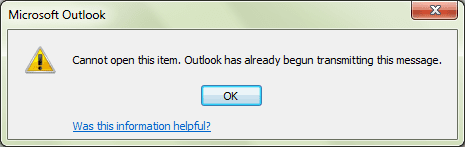
We've all done it once or twice -- we have a message stuck in the Outbox because it's too large for Outlook to send. Deleting it doesn't work - Outlook returns an error because the message is already being transmitted.
Common problems that cause email to stay in the Outbox
Delete Messages Stuck in Outlook 2011 Outbox
How to Delete Stuck Read Receipts
Work Offline
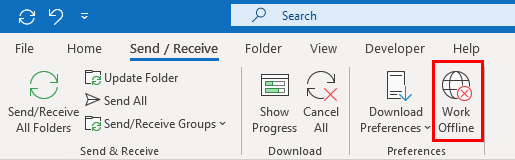
If you have a large message stuck in the Outbox and receive an error message when you try to open or delete it, you need to set Outlook to work offline. Wait about five minutes or more for the mail spooler process to shut down or close Outlook and reopen.
Go to the Outbox and delete the message. Use Shift+Delete to delete it permanently, especially if you have an IMAP account as it will create an error trying to sync to the server.
If you want to keep the message but remove the attachment, open the message and remove the attachment then Send.
Work Offline is on the Send & Receive ribbon. The screenshot shows the default setting of On (as in Working Online). When Outlook is Offline, the button is highlighted and Working Offline is in the status bar on the lower right.
After the stuck message is deleted (or the attachment removed), set Outlook back online.
If your version of Outlook doesn't include a Work Offline command, or you are having problems getting Outlook into offline mode, disconnect from the Internet or disable the network card in the Control Panel, Network. Wait a few minutes, longer if the stuck message is really large, then delete it.
This is one time when patience is a definite virtue - make sure you give Outlook plenty of time to stop processing the message before trying to delete it. A very large message may require longer than 5 minutes to stop processing. You can close and reopen Outlook after setting it to work offline, if you are in a hurry.

Thank you so much for this advice, especially about having patience or shutting down outlook after taking it offline.
windows 8 how to search the store:mapi outbox
I attempted these methods, have windows 10 and the Email is still stuck. Went off line, also shut down the internet, checked the dialog box says no activity on outlook, still will not delete.
Your instructions were the only ones I found that worked. Thank you so much. I now have the tool(s) to fix this problem if it happens again.
Worked perfectly. thanks so much. Glad you advised us to be patient.
I just used it for a 106 meg file and it worked. Thanks! KD
I wrote an email with 50 recipients which got stuck in my outbox. Before reading some of the fixes suggested (ie work offline, then delete the item in the outbox) I deleted the item without going offline. The offending email disappeared but any further attempts to send other emails does not work. They sit in the outbox. How do I clear this? I have Windows 10 and Outlook 2007
The only reason to go offline is because if outlook has it in the spooler, preparing to send, you can't delete it.
Do you get any send and receive error messages?
What do you use for antivirus/security software? If it scans outgoing mail, the problem could be there. (Microsoft's Defender does not scan mail.)
hi it works for me thanks alot i have delete more than 300 mb file
thanks once again