When your old computer has crashed, you can retrieve your Outlook pst files (and other files and documents) as long as you can connect the old hard drive to the new computer. The easiest way to do this is with a USB enclosure for the old hard drive. You can find these at many electronics stores or online. They come in two formats: a case the drive slides into, so you can easily carry it around or just the connectors (and a power supply) you need to connect the drive to another computer.
You can choose between multipurpose cable kits that will work with many types of drives or a hard drive enclosure that will allow you to use the old drive as a portable drive.
Once the old drive is connected to the new computer, open Windows Explorer (aka File Explorer) and browse the old drive.
If using Outlook 2010 or newer, the pst files are stored in a folder named Outlook Files in your Documents (or My Documents) folder.
If the old computer used Windows XP and an older version of Outlook, the default location of the old pst files will be
[new_drive_letter]:\Documents and Settings\username\Local Settings\Application Data\Microsoft\Outlook
If the old computer had Windows 7 or Vista or newer with an older version of Outlook, the default location is
[new_drive_letter]:\Users\username\AppData\Local\Microsoft\Outlook
These are hidden files and folders and are most likely protected by permission settings. To change the permissions, right-click on your old username folder and choose Properties.
On the General tab, if "Hidden" is checked, deselect it and click Apply.
On the Security tab, click Edit, then Add and give either your new user account or Everyone "Full Control" and click Apply. (The old computer account displays as Account Unknown.)
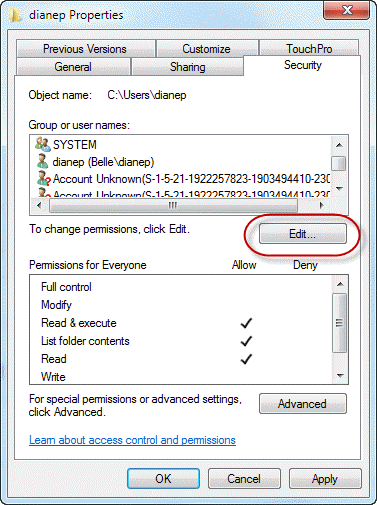
If "Hidden" was not checked, you can either change the Hidden Files and Folders setting in Windows Explorer (at Organize, Folder and Search Options, View) or select the next folder(s) in the path and right-click, choose Properties and deselect Hidden.

Now you can browse down the folders to locate your Outlook pst files and copy them to the new computer. If the pst files use the new Unicode format (introduced in Outlook 2003), you can use this pst in your new profile.
If it's the older ANSI format pst file, you can use File, Open, Import to import it into Outlook 2010.
Don't bother moving .*ost files, which are used by Hotmail Connector and Exchange server mailboxes. You won't be able to open these files on the new computer. If, for some reason, you need to recover data in .ost files you'll need to purchase recovery software.
While the old drive is connected, browse the user folders for files you may want to move, including your custom dictionary and support files Outlook uses. See Moving Outlook to a New Computer for the Outlook files you might want to move and where to find them, along with instructions to configure Outlook with the old data files.

Marie Muthersbaugh says
Hi Diane,
My work computer crashed and nothing can be transferred. I did have Outlook installed on there and also have access to those Outlook emails (Exchange) on my phone. How do I install or get Outlook on my new computer. I am independent contractor and do not have access to an IT person. I'm trying to figure this out for myself. Any help or suggestions would be greatly appreciated. Thank you!
Kevin Gibbs says
Hi Diane
I had an issue with a Windows 10 update which rendered the SSD un-bootable. I got another SSD and have successfully loaded a fresh version of Windows and reinstalled various bits of software, including MS Office. The old SSD connects up and most of the data on it seem unaffected. The issue I now have is that I can't find the PST files that I had in Outlook on the old drive. To be clear these are emails that I moved from the mail folders to a separate filing system that I created in Outlook. These files are important so I need to locate them, but I can't find them anywhere. I can't believe that they have just gone because the drive looks totally intact. Hope you can help.
Kevin
Reggie says
My old HP Pavillion had issues. So I bought a new HP from staples of which the tech copied my hard drive from the old to the new. Cant find how to restore all the old emails which are somewhere on the new hard drive. I had a file structure there that had very good old records. How do I recover them?
Diane Poremsky says
What type of email account do you have configured in Outlook? POP, IMAP, Outlook.com, or Microsoft Exchange?
If you used the default folder locations, you either have pst files in Documents\Outlook Files or in the app data local path - or in C:\Users\%username%\AppData\Local\Microsoft\Outlook
Andrew says
Hi Diane,
Thanks for publishing the very useful info about Outlook on your site.
I’m recovering an Outlook instance that was on a windows 10 box that had a power spike failure, taking out the motherboard and scrambling the hard disk somewhat. After having the data recovered from the disk, I’ve reinstated the email side of it on a new computer but cannot see the calendar data. In the helpful notes on your page discussing transferring outlook between computers you mentioned the OST file as containing calendar entries But in this page your advice is not to bother with those files. My question is do I need to export the calendar data from the old file into CSV files or can Outlook 2016 retrieve the calendar data from the OST files? I think I can build an outlook instance on a laptop, connect it to the PST and OST files, then perform the export on that.
Thanks
Andrew
BILL says
hi where are the email address hints stored in outlook 2016. I use pop3/smtp
Diane Poremsky says
You mean the stuff you see in File, Account Setup? Email account information is stored in the registry.
Jean says
My computer crashed running Windows 2003. I now have a Lenovo ThinkPad running Windows 7 and have transferred files from the old main frame. However my files/folders created in Gmail have disappeared. Gmail now only has 'labels' whereas the old system had folders where you could easily transfer emails (on the left hand side) under the names of the sender. These folders have disappeared - so my whole filing system has gone. Can this system of folders be retrieved? I think the emails still exist but they are nolonger filed, whereas in the past there may be 20 messages received and sent filed under A N Other (for example). Each new message could be easily dragged and filed under the appropriate name.
Diane Poremsky says
When you added the gmail account to outlook as an imap account, it should create the folders in outlook (that represent the labels in gmail.com)
Darren says
My old computer motherboard died. I had three accounts in the outlook 2013 application on the machine. When i got my new machine i went through the process of setting up outlook 2016. I then got my old hard drive to recover the email on it. I was able to find and recover the first of the three email accounts . I cannot for the life of my find the other two. Can you help?
Diane Poremsky says
Where were the files you found? Were the accounts pop3, imap, or Exchange/outlook.com?
POp3 data files are in the documents\outlook files folder. IMAP and Exchange/outlook.com are in [new_drive_letter]:\Users\username\AppData\Local\Microsoft\Outlook, which is marked hidden and needs the permissions changed.
Mark says
@Diane, Thanks for your time in advance.
Trying to move files from Outlook 2013 to Outlook 2013 onto a re-pair install of Win10
Thus, Win10 installer saved many folders in windows.old (users, etc)
Prior to reinstall, I booted into Live CD environment, looked for .pst and .ost.
I could not find at that time .pst files, only .ost, I assumed Outlook 2013 operated on those.
Thus I backed them up.
After reinstall of windows...
I tried moving over the .ost files and Outlook gives me "cannot be accessed because it has been configured to use with a differnet mailbox."
What am I missing here?
Oddly, after moving .ost,, a .pst file exists that has identical size, date within AppData ... folder on current and windows.old directory.
Did Outlook correlate that file after I moved over the old .ost files?
I'm helping out a friend, thus when I created a new account, perhaps details are not identical, as in Display Name, etc.
Email account works, via IMAP setup as before.
Obviously, I'm after older sent items, contacts, etc, thus why I was battling with the ost files.
Any thoughts ? Thanks
Diane Poremsky says
imap now uses ost files - they can't be reused with new profiles. if there are calendar & contacts in the ost, you need to use an ost to pst recovery program to get them back. If you'd like my help with this, shoot me an email - diane @ slipstick. This is why i recommend using a pst for calendar and contacts, not the 'this computer only' folders.
Older email should be up on the imap server - they wont need to be recovered - if you only see the last 2 yrs mail, check the sync slider settings in file, account settings.
Mark says
Diane,
Thank You for offer to help with recovery program/program choices.
I believe older emails (sent) were lost due to previously using POP3 on this account for years.
Could I ask you how you would define separation of data files for calendar and contacts?
Diane Poremsky says
if you have pop accounts, you don't need a separate pst for calendar & contacts but if you use outlook 2013 or 2016 with an imap account, the imap data file can hold calendar and contacts but they don't get backed up and would be lost if anything happens to the data file - including removing the account from your profile and adding it back as outlook deletes it when you remove the account from the profile. For this reason, you should use a pst file for those folders instead. Otherwise, there is no reason to separate them into their own pst.
https://www.slipstick.com/outlook/2013/imap-accounts-outlook-2013/
chris says
I have outlook 2016 (Windows 7), mother board died and I bought a new computer. (windows 10)
I configured outlook 2016 on the new machine to connect to my mail server IMAP/SMTP and connected the old disk.
I then transferred the .pst file to the new system and all old emails are there except I have lost all contacts.
So how do I bring the contacts over, or find them for that matter.
For the fun of it I tried to launch the the old MS Outlook so I could export the contact list but that did not work.
Diane Poremsky says
Did you use a pst file in the old profile or were the calendar and contacts in folders named ' this computer only'? If the folders were named this computer only, you need 3rd party recovery software to get the calendar & contacts out. If they were in a pst, look in the documents\outlook files folder on the old drive.
https://www.slipstick.com/problems/pst-repair/convert-an-exchange-offline-file-ost-to-a-personal-file-pst/
chris says
thanks, since I can't find it in any of my PST files even though I can find the original online pst along with the off line pst.
Can you suggest any 3rd party tools to recover the data "this computer only" even though I can't find that file (might be hidden).
Diane Poremsky says
You need the data file - the contents of those folders aren't anywhere except in that folder. Did you look for the data file (it will have an ost extension, not pst) in %localappdata%\microsoft\outlook?
dave says
I hope you are still watching this forum! I am stuck. Hope you can help.
I am replacing the standard system hard drive in my Windows 7 64 bitPremium Home PC with a SSDD drive.
I have already installed a fresh copy of Windows 7 and started about installed Office 2010.
I followed your directions for moving Outlook to a new OC but running into problems.
Outlook allows me to import the PST files I need (I have 5 email accounts so 5 PST files) but not as an email profile.
When I then create a new email profile for the email addresses, it creates it and proceeds to download all the emails from the server into a seperate but same-named profile.
So for instance, when I now open Outlook I have johndoe@abc.net showing up TWICE and THREE times in my outlook.....
And to make things worse, the many many folders I have created in my email accounts over the years show up in ONE account, but the NEW emails do not (because it is not set up as an email account apparantly, just as a PST file)
And the NEW email account named the same shows all the emails it keeps downloading from the server, but NONE of my folders.
I have tried uninstalling outlook 2010 by using the uninstall app but a fresh install still sees these numerous accounts and PST files I loaded previously.
So I am now looking at doing a MANUAL uninstall of Outlook 2010 or a reload of windows altogether....
What am I doing wrong?
Diane Poremsky says
Leaving mail on the server complicates things but you have options. Create the profile in the Control panel, mail applet. If you use auto account setup to create the accounts, don't click Finish - select manually configure on the left then select the old pst you copied over from the old computer. Do not import the old pst - add it as the new delivery location. Steps and screenshots are here: https://www.slipstick.com/outlook/how-to-create-a-new-profile/
Check your leave on server settings in More Settings, Advanced tab.
After adding each account to the profile, disconnect from the internet and start outlook.
If you delete mail from the server when it's deleted from outlook, add a new pst to the profile - name it 'temp old mail' or something like that. Create a folder in it for old mail. If you don't don't use that setting, create a folder in your regular pst for the old mail. (You can use the deleted items folder instead.)
Go into Rules and Alerts and create a rule (it needs to apply to each account) to move mail received before today (or the day you last used outlook) to a folder. Turn the internet back on and let outlook download everything - older messages will go into a different folder.
When it's done downloading, delete the folder or close the pst. You can delete it from the hard drive later. Because the pst is not in outlook, the mail won't be deleted from the server.
If you don't use the rule method, add the modified date field to the view and sort by it - newly downloaded mail will have a current date - select all and delete. https://www.slipstick.com/addins/duplicates-addins/duplicate-remover-tools-for-outlook/
Brian says
Have followed your directions by using a UNITEK (Y-1039) USB3.0 to SATA 3 connector cable from a crashed Win 7 internal hard drive plugged into my new PC (Win 10) with an external hard drive attached, but am getting no response on Internet Explorer 11. Please advise what am I supposed to do on IE at this point? Have I missed a step or what? Thank you.
Diane Poremsky says
Internet Explorer or Windows Explorer? If windows explorer, can you see any files on the disk or does it just hang? If it justs hangs, then the disk could be really messed up...
Brian says
It is IE 11 not Win Expl. Everything appears to be hooked up correctly, lights on etc, but nothing happens on the IE screen. Am I supposed to click on something in particular to generate a reaction that will allow me to proceed. I recovered all my data of an external HD, except for my Outlook 2007 emails and Address Book (email addresses only) which I assume might be on the Win 7 HD I'm trying to recover from now. I thought it was worth trying to do myself given the low cost of the USB connector cable, but you might be right in suggesting that the HD is really messed up. Still feel like I'm not doing something right as there is noise coming from the HD and I did expect something to appear to inform me of my problem or at least let me try and go through the steps. Am I hoping for too much, hope not. Thanks Diane.
Diane Poremsky says
I'm not sure why you are using IE11 - you'd use windows Explorer (now called file explorer) to locate the pst files on the old drive.
Brian says
I'm trying everything to locate these .pst files but to no avail. Your Slipstick System description made it sound so straight forward, but not for me. In the meanwhile I have used a trial version of Stellar to see what it recovered. Many different files appeared to be on the old hard drive, but the presence of outlook.pst files. I opened two files with each taking about 3 hours, but nothing materialised from that. Opening 'file explorer' doesn't do any more than show me what I recovered off the External HD, documents, pictures etc, but no outlook files. Where to from here is what I'm now faced with at significant cost which I'm weighing up as to whether it's really worth it?
Diane Poremsky says
What type of email account did you use on the old computer and what version of Outlook?
in windows 7 and newer, and assuming you used the default locations, pst would either be at [new_drive_letter]:\Users\username\AppData\Local\Microsoft\Outlook or [new_drive_letter]:\Users\username\Documents\Outlook Files. these folders can be hidden due to security settings - your new account may need to take ownership of the folders.
but not all accounts use a pst - exchange, outlook.com, and imap in outlook 2013/2016 use ost files. everything should be on the server, except possibly for calendar and contacts in an imap account.
Brian says
My email Outlook 2007 account was part of a 2007 Small Business Office product which ran on a Windows 7 Home Premium platform. It was positively .pst as that was evident from varying visits with Microsoft Support over several years. Having removed the old hard drive from the old Dell desktop, I hooked it up with the new HP Pavillion desktop wich is running Windows 10 and Office 365 which contains Outlook 2016. As previously noted, I purchased a USB connector cable which houses the hard drive and connects to a power point and to a USB connection on the new HP PC. I can see there is data recoverable from the HD by the results that came up after running the trial Stellar trial download. I wanted to use [new_drive_letter]:UsersusernameAppDataLocalMicrosoftOutlook or [new_drive_letter]:UsersusernameDocumentsOutlook Files, but was unable to find where to enter this, can you please take me thru the exact steps as to how I can enter this? Thank You Diane.
Diane Poremsky says
With outlook 2007, the default location is under \AppData\Local\Microsoft\Outlook. on windows 7, that should be in c:\users - when you pull the drive, it will have a new drive letter. You most likely will need to give your new account permission to view the folders.
These are hidden files and folders and are most likely protected by permission settings. To change the permissions, right-click on your old username folder and choose Properties.
On the General tab, if "Hidden" is checked, deselect it and click Apply.
On the Security tab, click Edit, then Add and give either your new user account or Everyone "Full Control" and click Apply. (The old computer account displays as Account Unknown.)
Ken Campbell says
I have the old hard drive from my crashed computer and I'm trying to move my email contacts to the new computer. Both units use Outlook 2007. I have not been able to locate and access the pst file on the old hard drive to do so. Possibly because I'm not sure of my old user name. Any suggestions will be greatly appreciated.
Diane Poremsky says
What OD is on the crashed drive? Browse the old drive at [new_drive_letter]:\Documents and Settings\ or [drive letter]:\Users - check each username (you may only have one). You may need to right click on Documents and Settings or Users and choose properties then security to give your new computer access to the folders.
Rafiullah says
Respect Sir,
My computer was suddenly crashed and i took it to the computer shop. The computer tech guy has recovered my Files from the desktop after the fully new installation of windows but unfortunately i have lost my all mails in my outlook which are very important to me.
Now if you could guide me to have my all mails back.
NOTE: I have'nt took any backup in the last two years as well
PLease Sir help me out regarding the issue ASAP
Diane Poremsky says
if the drive was formatted and you don't have a backup, your out of luck. if he replaced the drive and the old one is not accessible, you are out of luck. Sorry. Depending on the version of outlook, pst files are in a folder under My Documents or in the hidden local app data path.
Stacey says
My files are dbx files? Can I transfer those?
Diane Poremsky says
you can transfer them but will need to use windows line mail to access them, not outlook. Outlook only uses pst files. Make sure you copy the entire folder they are in.
rich says
Thank you so much for posting this how to tutorial .
You saved me a lot of grief.
Cheers
B R Avinash says
Hi i am using outlook for emails. i recently got my laptop rebuild from out IT service desk. Before giving it to rebuild i had taken back up (in hard drive) of all files including .ost & .pst files but after rebuild when i connected the hard drive to laptop i found that the .pst file i copied had a size of 265kb only and i lost all my outlook mails i stored in my personal folder. my IT service guy told he need to encrypt my laptop using bit locker and the chances are 50% of retrieving my lost files.
on investigating further i found that when i was taking backup there were two .pst files and the smaller sized (265 kb) file got overwritten over the larger one..... Is it possible???
is there a way out.......... i stored all the mail correspondances for past 4 years on personal folder..............
Diane Poremsky says
What type of media did you back the file up on? Some of it might be recoverable if you haven't written anything else to the backup. You'd need to use media recovery software such as what is available from Stellar Phoenix or Datanumen. It's hard to say what your chances of recovery are but i would not expect full recovery - some may have been overwritten and not recoverable & it's better to be pleasantly surprised if you do recover most/all. :)
Not that it will help you now, but this is one reason why we recommend routine backups of the pst file (ost is just a copy of mailbox - no real need to back it up unless you don't trust your mail server) - missing a few days or weeks of older mail is better than losing it all. It also highlights a reason why Exchange & IMAP users shouldn't archive to pst files - with disk prices low, providers should increase mailbox space so archiving off the server is not necessary.
B R Avinash says
thanks a lot for your reply. i only saved my email correspondence in personal folders and what i know is .pst is where these are stored. yeah you rightly said i needed to take regular back up. i am trying with a software called 'remo recover' got to know about it from youtube - [PST Recovery Software] - Recover Lost Outlook PST Files after Format.
hope it works fine.......... ur take on that
“An adventure is only an inconvenience rightly considered. An inconvenience is only an adventure wrongly considered.” G K Chesterton
Diane Poremsky says
if the drive was reformatted, pst recovery software will NOT be of use. You need *file recovery* software that can recover deleted file. Any software that bills itself as "pst recovery software" and says it can find deleted pst files after a reformat is bunk - good recovery software will be able to find all files, not just pst files.
B R Avinash says
thanks for your reply. i am trying remo recover software to try to get back .pst files... got the info about it from google. i searched about stellar phoenix but the software is chargeable. will it work or shall i wait for data encryption.
Diane Poremsky says
any software that is any good is not going to be free.... and there should be a demo feature to show you it will recover the missing files before buying. I think once it's encrypted, the chances of recovering the old files drops a lot.
BTW, Remo is not really free - it has a free trial, as does almost all recovery software - but it is not free to use. It costs as much as Stellar's data recovery utility, which can recover any file type, not just pst files.
James A says
Hi, I have recovered my hard drive but the outlook file is only in .ost? Is the .pst hidden?
Can I convert ost to pst?
Diane Poremsky says
ost is the local cache file for an imap (outlook 2013/2016) or exchange account (all versions). Opening the account in outlook will resync everything from the server.
if the pst is not in the same folder, look in my documents\outlook files (in the old drive path). Beginning with outlook 2010, new accounts put the pst in that folder.
Lyle Allen says
This is helpful and completely clear. Is it true that the .PST file has all the typical Outlook folders AND contacts?
Diane Poremsky says
Yes, the pst will typically have mail, contacts, calendar, tasks, and notes folders. But only if the pst was set as a default data file. That said, if you get all pst files off of an old computer, you will have your calendar and contacts.
Mike says
We had a hard-drive crash, and when trying to recover the users PST found none present on the old HDD. Is there a way of finding out the path of where the PST was located?
I can search the network shares, but nothing conclusive.
Ian Patterson says
Thank you Diane Poremsky! you guidance on shifting my Outlook 2003 Address Book from an old, removed hard drive to the one in a new computer has been invaluable, Straightforward to follow; and really, very much appreciated!
Lizette says
Hi my computer crashed I have the hardrive and I have managed to retrieve my Outlook 2003 contacts and emails using your method HOWEVER I had sub-folders such as Insurance, bank statements etc. (can't remember all the names) which I moved emails to, how on earth do I retrieve these folders as the emails within those folders have not come back? Your help will be greatly appreciated.
Diane Poremsky says
If the folders were in the pst file, they are moved with the pst. If you had more than one pst file, you need to get all of the pst files from the crashed computer.
Rick says
I made a mistake and deleted my hot mail account how do recover it.
Thanks for your help
Diane Poremsky says
You deleted it from outlook? Yu can add it back in file, account settings. If you told Microsoft to delete it, it cannot be recovered. Sorry.
Leo says
it doesnt want to open the outlook data file it says file already in use
Diane Poremsky says
that happens when another program is using the data file or the data file is corrupt. do you get that error message after a reboot?
Leo says
i accidentally moved my "Outlook Files" from my documents to an external hdd and deleted the contents in my documents i then moved it back to my documents now no emails are showing and i am not receiving and cannot send emails please help
Diane Poremsky says
Do you get any error messages? did you open the pst in your profile? Go to file, Open, Outlook Data File and open it.
Leo says
i am in desperate need of help please help
Christie says
My computer crashed - can I import only select emails and folders from Outlook to my new computer. There is too much old stuff that I never archived and do not want to have those unnecessary emails. Help?
Diane Poremsky says
Yes, you can import select folders or you can open the pst file on the new computer and move the mail you need to the new pst file. Copy the pst to the new omputer and open it using File, Open & Export and open the Outlook Data file or Import folders from it.
Greg Vinnicombe says
Hi Diane
My computer crashed but fortunately I have been able to save all my MS Outlook files from the hard drive. I have added this hard drive to another computer on which I already use Outlook on for a different email account. However, I don't want Outlook to mix the emails from these different accounts when I open it. Is there a way to avoid this?
Also I had different emails place din different folders with various rules to ensure mails went to the right folder. Can these folders and settings be saved?
Many thanks
Greg
Diane Poremsky says
Each computer has it's own set of data files so you'll be fine, even if you open the old data files on the other computer. Rules are stored in the default data file, so if you set the profile up the same way, with the same default data file, they will work too.
Ally says
My encrypted work laptop had the motherboard replaced, but IT has no record of the recovery key to allow access to the hard drive. Thus, I cannot get into the laptop at all. Is there a way I can recover my outlook files or have I likely lost those when I get a new laptop?
Diane Poremsky says
Without the recovery key, they are lost if you don't have a backup. Sorry.
nerd says
Great article, very simple and clear...i could retrieve my email easily thanks!
Tami says
I had a computer crash on me. They replaced the hard drive and the motherboard and still didn't work properly so they sent me a new computer. We copied the files from the old hard drive before we sent it back. I had Microsoft Outlook 2013 on the old computer and the new computer. When we imported the files to the new computer I am missing a bunch of my calendar information. Only the reoccurances are showing up. Also I cannot find my current contact list, only can find older versions. But my saved e-mails appear to have imported correctly. My computer guy has imported about 15 different calendars from the old hard drive and we can't find anymore and still the information is not there. Any ideas?
Diane Poremsky says
Were you using a pst file for calendar and contacts? Have you tried opening the pst files directly in Outlook instead of using Import?
Did you copy the entire hard drive or just the documents folder? Older versions of Outlook kept pst files in the AppData folder, not in Documents\Outlook Files.
If you had the calendar in a calendar folder named "Calendar (this computer only)" and didn't export them to a pst or csv file, they are not recoverable.
Thomas Henry says
I had three profiles in outlook. one was my aroklaw.com account. one was an aol account and one was a gmail account. It was an outlook 2013 outlook acount. When i go to new drive letter/ user/ etc to appdata and then go to microsoft then outlook. I find the aol. ost information and the same for gmail but do not see the aroklaw.com account No .pst files in there at all. Would those be in the old accounts document folder ?
Diane Poremsky says
If the law account is a POP3 account and the profile was created in Outlook 2010 or 2013, the pst file is in your documents folder: Documents\Outlook files.
Thomas Henry says
I had a HP computer with windows 8.1 and outlook 2013. There was a small problem with the case and when the HP tech came to work on it he left in the middle of the job with the computer in pieces. HP replaced the computer but i have some emails i have to get off of the broken computer hard drive. The HD is working and i have a sata to usb cable so i can access it. I cannot find the files you mention in the article. are they different with 8.1 and outlook 13
Diane Poremsky says
No, they are in the same basic area - under your old username path. The folders are marked hidden, so you need to enable show hidden files and folders plus the folder permissions are for the old user, not the current user.
The pst files are either user the old account's Documents folder (typical if the profile was created in 2010 or 2013) or in [new_drive_letter]:\Users\username\AppData\Local\Microsoft\Outlook.
Documents folder would be [new_drive_letter]:\Users\username\Documents.
Felix says
Hi Diane,
There is no doubt that the file I submitted to you is a pst file.
But I went back to the file and did a right mouse click and clicked properties to confirm my assertion of the file type.
What was presented on the screen was the following:
Type of file: Outlook Data File (pst)
Location: C:\users’user’AppData’Local’Microsoft’Outlook
Size: 761 KB (779,234 bytes
Size on disk: 761 KB (779,234 bytes
Created: July-21-14 4:29 28 PM
Modified: September 07-14, 6:07 19 PM
Accessed: July-21-14, 4:29 28 PM
Please take note that I have (2) pst files one being a duplicate of the original if I am not mistaken.
They are identical in file size but the second file has a (2) attached to the pst file name.
Diane Poremsky says
I don't think it's the "right" pst. The file size is too small to have more than a few messages in it. It was created July 21. When did you last use it in a profile? It was last opened in outlook on Sept 7.
Felix says
Thanks for your comments, but I think it will be more productive for me to just dig in and research on the web until I either find a solution or figure it out myself.
Diane Poremsky says
There are a lot of issues that are so unique that only someone in front of the computer will be able to solve, but I know from the file size that there is nothing to very little in that pst file. It's not hidden, it's not deleted and recoverable. It's just not there - if average sized messages of 10KB, there are less than 50 messages in that file. The smallest item is usually holidays added from the HOL file - you would have about 200 in a pst that size. Plus, it was created in 2014, so it can't have messages from 2010 in it, unless you moved them.
Felix says
My pst file size is 761K but I believe it should of be much larger then this? not quite sure why it is so small,
I had created a multitude of sub folders under the inbox since 2010 and had stored various emails and attachments in them.
Is there anything that I can do to either get the current installed app functioning once again or if that is not possible, can a reset been done without losing all my current data?
Diane Poremsky says
The base size of a pst is 256KB so I don't think it's the right pst. Are you sure their any other pst files on your hard drive? Default locations are under My Documents in a folder called Outlook Files or in the local app data folder path - in win7/8, type or paste %localappdata%\microsoft\outlook in the address bar of windows explorer and press enter to jump to it.
Felix says
Hi Diane,
The answer to your 1st question is no, using instant search does not resolve the issue.
The answer to your 2nd question if I understand it correctly is : POP/SMTP email account
Diane Poremsky says
How large is the pst? This behavior was common with older versions of Outlook with an ANSI pst that was at 1.9 GB. There was supposed to be a warning message that didn't always come up - the messages would be downloaded and lost.
Felix says
Hi Diane
About 5 weeks ago my outlook incoming mail server stopped loading incoming emails into my outlook application, though I am able to send out going emails without any issues.
I was able to verify this by going into my sent folder to verify that any sent emails were received into the sent folder.
When I attempt do a self-test on sending an email, I can see that my outlook is receiving the message by noticing the send/receive message at the bottom of my screens tool bar, but no message will appear in the Inbox of the outlook App.
I had also did additional investigations of the problem by going into outlooks Account settings//Email//Repair//
I then clicked on repair to see if the application would be able to correct this issue, but had no success in doing so.
The results of the repair test had the following outcome:
• An encrypted connection to your mail server is not available.
• Click next to attempt using an unencrypted connection.
When I attempted to manually configure server setting or additional server types for the unencrypted connection, I first choose to test the account settings
• Both the log into incoming mail server (POP3) and send test e-mail message had a status of completed or [the test had completed successfully in other words]
When the test to run for an unencrypted connection had finished, I receive a [X] or a failure for a connection.
Note: the only way for me to get any email sent to me is by going onto my service provider’s web site and fetching all my emails there.
Any suggestions would be much appreciated.
Diane Poremsky says
>>
When I attempt do a self-test on sending an email, I can see that my outlook is receiving the message by noticing the send/receive message at the bottom of my screens tool bar, but no message will appear in the Inbox of the outlook App.
>>
Can you find the messages if you search using instant search? What type of email account do you use?
chabiul says
My computer hard drive has crashed......tried to retrieve the data from hard drive... but the hard drive is recognized....
does their any procedure to can retrieve the email from exchange server?
Diane Poremsky says
if the mail is stored in an Exchange mailbox, you only need to log into the mailbox using Outlook and it will sync.
Bill Soens. (UK) says
I had 2003 Office pro installed and then installed a legal 2013 over the top.(desktop, windows &) Everything worked fine except for Outlook, which tells me that Outlook.pst file was not closed/cleaned properly and must be repaired. The .pst file is not on the hard drive, even where they say it should be. I uninstalled whole system, which also apparently removed all 2003 file and then reinstalled it clean again. Same problem. All other Offices programmes work fine. I have the same programme on my laptop Windows 8) and it is 100% there.
Diane Poremsky says
It sounds like the profile is looking for a pst file. Can you open Outlook 2013? If so, go to file, account settings, Data files tab - is the pst listed there? Select it and click the Open File Location button - use that path in scanpst.
See https://www.outlook-tips.net/beginner-user/use-scanpst-to-repair-outlook-files/ for step by step help with scanpst.
Radwan says
I tried to import an Outlook Data file from an external hard drive onto my Outlook on my new computer but no contacts show up when I try this. What is happening?
Diane Poremsky says
Are you looking in the right contacts folder?
If you open the pst in Outlook, does it contain the contacts?
johnres says
Or you can use Long Path Tool, it works good for such problems...
Jason owsley says
I never created any PSV file before my computer crashed, so when I used the method above nothing happened.
Diane Poremsky says
You used Outlook on the crashed computer? If so, there is a pst somewhere on the old drive. If the profile was created in Outlook 2010, the pst should be in the My Documents\Outlook Files folder - [new drive letter]:\Users\[old-username]\Documents\Outlook Files -
jason owsley says
Is there a way to recover old emails saved from an old computer on a new one? I was not able to save my outlook as a psv file. I can't find out how to get my old emails back. Please help!!
Diane Poremsky says
If you have access to the old hard drive, yes, and the drive isn't corrupt. What version of Outlook did you have installed on the old computer?
Jason owsley says
On the old computer I had 2010 and on the new computer I have 2013. I tried to transfer the folders like how you suggested above and it didn't work. My dad is worried that he can't get his old e-mails of important stuff he had saved on there. We use a POP3 email setup with comcast.
Diane Poremsky says
Do you have the old pst files? What exactly didn't work.
dborders2013 says
Diane,
Thanks for this post! My PC crashed and I've recovered the files to add to my new PC(outlook 2010 to 2013.) What is the proper setup sequence if I have a few email addresses in my outlook? Do I create all of the accounts first before loading the PST file or load the PST first? Also, I can't remember if they were all IMAP accounts. I thought my main account was POP3 but when I tried to load the PST and set up my most used main account as POP3 it downloaded all the emails again and created duplicate "on this computer only" files. Does that mean it was originally IMAP?
Diane Poremsky says
That sounds like imap - it's possible you have it set up as pop3 - outlook 2013 will default to imap when you use auto account setup. You can manually create the account if you prefer using POP3. If mail is left on the server, outlook will re-download it again though. You can't avoid it with new accounts.
If you are creating the account in Control panel, Mail, it doesn't matter what order you add the accounts and the default pst as long as you don't open Outlook. The 'this computer' only folders aren't added until outlook is opened.
Amber Danae says
The old computer had outlook 2003. My new computer has outlook 2013. I did a search for a pst file, but the only ones that come up are from 2009-early 2012.
Diane Poremsky says
Make sure you use the option to search for hidden files and folders - it's under More Advanced Options in the Search pane. the pst has to be there somewhere if you use POP3 or IMAP account.
Amber Danae says
Hi Diane,
Thanks so much for posting this. I had a windows vista that we had downgraded to XP that crashed on me Wednesday morning. I was able to move the hard drive to an external enclosure, and I have access to all the files, but when I go to the hidden outlook file, the pst files in there are over two years old. Any idea on where the newer file might be? Or how I could find them?
Thanks so much!
Diane Poremsky says
What version of Outlook? If the pst files were created in Outlook 2010, they are in my documents\Outlook files. Otherwise, you'll need to search for PST.
Bob M says
I had to replace my Windows 7 C: drive due to "bad sector(s)". I installed a new C: drive and I am able to access my old drive at F: I want to recover my Outlook 2010 ".pst" files and have unhidden everything for all users from F:/Users/Username/AppData and below but there are no ".pst" files in F:/Users/Username/AppDate/Local/Microsoft/Outlook.
Outlook was open/active when I began having system problems, but I don't think I was doing anything with Outlook at the time. Do you have any idea what could have happened to those files and where I might be able to recover them from?
Diane Poremsky says
If you created the Outlook profile using Outlook 2010, the pst files would be in My Documents, in the Outlook Files folder.
The path in app data is used in Outlook 2007 and older - Outlook 2010 would use it only if you upgraded and kept the old profile.
ali says
when i check outlook folder, it shows only outcmd.dat, outlook.NK2, outlook.srs, outlook.xml, outprnt - file. There is no .pst file in this folder. Where can i find it. It is outlook 2007.
Diane Poremsky says
You're in the Roaming path, the pst is in the local path. In Win7/8/vista, you can paste %localappdata%\microsoft\outlook in the address bar of windows explorer to jump to it.
Kelly Moran says
I have located and unhidden my outlook files stored on external drive. When I try to either open or import using new Outlook 10 I get message saying "You do not have permission to access files" These were personal emails on a personal pc. Any advice would be appreciated.
Diane Poremsky says
Copy the files to your local drive - do you still get the error?
mansoor says
Dear Diane,
This's Mansoor. i had problem in Outlook 10, Outlook .pst cannot open in specified folder. I copied all .pst file from my old laptop but once i add the data file in outlook, and inbox message coming some subfolder is there in inbox that message not showing. how to recover my outlook files. kindly replay...
Diane Poremsky says
It could be that the pst is corrupt. Did you try running scanpst on it?
Alan W says
Hi Diane. Thanks yet again for this guidance; I can now see the three different version of "Contacts" that I have recovered when I press the "To" button but, having read your piece on "missing contacts" I think I am now set to having to individually re-construct each address book entry as and when I need to use it, which is a shame and rather long-winded but, against the background of thinking that I'd lost my entire address book of nearly 500 entries, this pales into insignificance! In the "Contacts Properties" box the under Outlook Address Book tab the little box "Show this folder as an e-mail address book" is greyed out and reading your article, because I'm using Office 2007, it sounds as if the individual re-construction route is the only one available. Thanks again for all your help, at least now I can see the light at the end of the tunnel, even if the tunnel's heading up hill!!
Diane Poremsky says
With Outlook 2007, you can make a new profile. Or, if you have some contact folders when you click the To button, but not all folders, you can move the contacts for the folders that are not working as an address book to the folders that are enabled as address books.
Alan W says
Hi Diane, Thank you; I've successfully copied the archived contacts list to my current one but I routinely use "Address Book" to store all e-mail addresses; is there a way of copying "Contacts" to "Address Book"? In the final analysis I could just manually copy each item as I use it but with over four hundred entries that could take a while! I'm going to be "Out of Office" for the next day & a half, so will pick up your response tomorrow. Thanks again for all your help!!
Diane Poremsky says
The Address book is a virtual view of the contacts folder. You should see the contacts in the address book when you click To. If not, right click on the contacts folder and choose Properties and see if its set as an address. More info here: Missing contacts
Alan W says
Hi Diane. "I see said the blind man!!!" I was trying to open the files in My Documents! It looks as if all my old e-mail is still there, the one thing I can't seem to find is my address book; is there a way of copying contact details to address book? Thanks again!!
Diane Poremsky says
Go to the folder list (Ctrl+6) - can you find the contacts folder with your contacts in them? Either right click on it and choose Properties, Outlook Address nook tab and enable it or copy the contacts to your other contacts folder.
Alan W says
Hi Diane. I've moved the Archive file to My Documents; no problem. When I hit File the only option I get is "Open With" and then of course I get the "Windows can't open this file" message. If I hit "open with" I'm then faced with a choice of using the web service to find something suitable or to "select a programme from a list of installed programmes" so I'm stuck again! Thanks for all your help so far.
Diane Poremsky says
Are you in Outlook or Windows file system?
Alan W says
Hi Diane, Thanks for that; it all worked fine once I reset the folder properties, just as you said! My only problem now is that as I try to import the information, the programme comes up with a message part way through the import process that says that the file is too big; a result of me not archiving information I'm afraid! A lesson to us all! The stored file in Appdata is about 435Mb!! Is there any way of importing parts of that information rather than in it's totality?
Diane Poremsky says
435MB is not too big. The data file could be corrupt. Drag the pst file to your new My Documents folder and open it using File > Open > Outlook Data File. Do you get any errors?
Alan W says
I had a problem with Malware which has entailed re-installing Windows 7, in so doing everything on the old drive has been compacted into "Old Windows" on the new partition; is there any way of accessing PST or contact files from my old copy of Outlook? In "Users" there are no "Appdata" files.
Diane Poremsky says
It should be there, but hidden. In Windows Explorer, go to Organize > Folder and Search options > View tab and show all hidden files and folder. Or, right click on the Windows.old\users folder and change the permissions - give your new account full access and remove the hidden flag.
J Bedford says
I have pst folders stored on an external hard drive, this has broken and now has no power supply. I have a quote form a data recoevry team, but I am being asked by my manager if we can recover the files form the email account, I suspect not as we moved them to pst on the hard drive - please help! She seems to think there must be a back up on the email account somewhere.
Diane Poremsky says
If the mail was removed from the server, it can't be recovered except from pst. If the only copies are on the external drive, you need to recover them. Is the drive itself bad or just the enclosure/no power supply? If the drive is *NOT* part of a RAID and only the enclosure is bad, you may be able to access it if you remove the drive from the enclosure and connect it directly to the computer. A USB connector is about $20US or it can be installed in a computer.
Cbu says
Is it possible to recover outlook data from from a formatted harddrive?
Diane Poremsky says
Generally speaking, no. A forensic recovery company might be able to, but the cost is prohibitive for most people.
chris says
i have did a lot of miss takes do to it been my first computer but the people are triing to help me but im beoned reckaletion hope some of these friends can do it for me
Hazel says
Thank you for your advice that *.pst files are hidden. I was worried that we had lost all of our email data. All okay now and all recovered.
Kayward Davis says
Diane: I think I may have a major problem. My daughter's computer, which houses the history of her internet business, became increasingly unstable, and we found a rebuilt computer for sale and struck a deal with the gentleman selling us the computer for him to transfer her files into the new computer. The new computer had Microsoft Office suite already installed (which is what my daughter uses everyday). He did a "copy" on all of her files onto an external drive, the a "paste" into her new computer.
After he had done this, we gave him her old computer...INCLUDING the hard drive (big mistake!). Once we got back to the office, we discovered that the Office suite he installed did not have Outlook (?)...so I went to the disk that came with her old computerand installed Outlook 7.
I'm not all that computer savvy, but I went through the steps I found online, but cannot get the files to install? What am I doing wrong?
Thanks for ANY assistance/advice you can offer.
I cannot get the files to install. It's called "backup.pst" and has 2.43MG of information in that file.
QUESTION: What (or how) can I get these files into her Outlook?
Diane Poremsky says
What exactly happens when you try to install it? Does Outlook install ok but you can create a profile or open the backup.pst file?
Diane Poremsky says
Actually, in thinking about it, I think Outlook 2000 still uses the separate rwz file. They are in [drive letter]:Documents and Settingsold-usernameApplication DataMicrosoftOutlook if using Windows XP. You should be able to import it into Outlook 2010.
What OS did you use on the old computer?
Diane Poremsky says
The rules are stored in the pst file. First, i would open the old pst file in outlook 2010 and see if they are available. If you already have a profile created, go to control panel, mail and create a new one, pointing it to the old pst file. Check for Rules and try to export them.
Because outlook 2000 used the old pst format, i don't recommend using the old pst - import or move the mail to a new pst file. if you need help converting, see https://www.slipstick.com/outlook/convert-ansi-pst...
James Harnett says
16 October, 2011
I am looking for information on importing Outlook 2000 rules into outlook 2010.
Such that I have found thus far, seem to indicate that the rules may need to be exported first (from 2000?). My computer died (with Outlook 2000 installed) due to mother board failure, and I did not export the rules (was there a need to do so?).
How might I import the 2000 rules into 2010?
Thanks ever so much,
James Harnett
Portland, Oregon