Exchange server users may be able to recover deleted items using Deleted Items recovery, if the administrator has it enabled. If it's not enabled, they cannot recover items deleted from Exchange mailboxes. See Recovering Deleted Items in Outlook for details.
The following method is a last ditch effort to recover Outlook items permanently deleted from a pst file. It works only on PSTs but there is no guarantee it will work.
The best way to avoid accidentally deleting items is to turn off the option to empty the deleted items folder on exit and set up AutoArchive to delete older items from the deleted folder every few days.
Things to remember:
- This works under very limited circumstances
- If the PST has begun compacting, it will likely fail
- You're better off NOT emptying the deleted folder until you are sure you won't need the messages
- Don't store messages in the folder unless you are sure the messages are trash
If, for some reason, you move items to the deleted folder and change your mind after emptying the Deleted Items folder, you may be able to recover the messages under very specific conditions.
When the method below fails, you may be able to recover the deleted message using a commercial product, such as Stellar Phoenix Deleted Email Recovery, Advanced Outlook Repair or Kernel Outlook PST
How Outlook's Deleted Items folder works
A PST is a database. Items are records within the database and there is an index that points to each item. When you empty the Deleted Items folder, Outlook doesn't actually delete the items, it just deletes the items' listings from the index. The item is still in the PST, but unrecoverable because Outlook has no idea where it is without the pointer in the index. The space the item takes up is called "whitespace".
When you Compact a PST, the item is finally removed permanently and the whitespace is recovered, often shrinking the PST by many megabytes. Once the PST has 20% "whitespace", Outlook begins compacting the PST. If the Deleted Items folder contained a lot of messages, Outlook may begin compacting the PST immediately and the items will be deleted forever within a few minutes.
To recover the items which are no longer in the index you need to force Outlook to rebuild the index by causing corruption. You can cause corruption by using a Hex editor to delete some characters from the beginning of the PST file. If you delete the wrong ones you'll cause corruption but not in the index and Outlook won't rebuild the index.
Recover the Deleted Items
If you don't know what a Hex editor is, you probably shouldn't be hex editing anything, but if you want to try, Google for "hex editor" - UltraEdit is probably the best and easiest one to use. Before doing anything to the PST with a Hex Editor, make a copy of the PST, or you may end up losing all of your e-mail.
- Open the PST in the Hex editor.
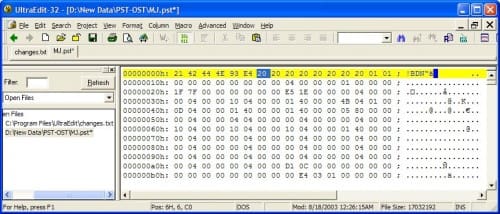
- Delete positions 7 through 13 with the spacebar. Since you're using hexadecimal numbering, this actually clears 13 characters in the following positions:
00007, 00008, 00009, 0000a, 0000b, 0000c, 0000d
0000e, 0000f, 00010, 00011, 00012, 00013
As you clear the characters, the editor displays the code “20” in their position. - Save the PST, it is now corrupted.
- Run the Inbox Repair Tool, SCANPST.exe, to recover the file. Use Windows Search utility to find it. For additional information on the Inbox Repair Tool, see How to use Scanpst.exe to repair Outlook data files or KB 287497
- The Inbox Repair Tool creates a backup and repairs the damage and recreates the PST.
Open the new PST in Outlook. The Deleted Items folder should now contain the deleted messages, unless Outlook has already deleted them for good by compacting the PST.

Lakiya says
Hi Dianne,
Thanks for this guide. One of our employees was somehow managed to delete some of the folders from his inbox and then also from the Deleted Items.
I tried your method and after having the pst file repaired, I can see the deleted folders but I don't see any emails under those folders.
What could be the problem?
Diane Poremsky says
Are the messages in the deleted items folder? If they are not in either Deleted items or the found folder, the pst started to compact and the messages were permemtely deleted.
Lakiya says
Unfortunately, I can't find them in both folders. The pst file size is only about 1.3gb - can it be compacted?
Diane Poremsky says
Compacting will make the file size smaller - and finalixe the deletions. if you tried a recovery app and the messages are gone, yesm, you can compavt it.
Annie says
Hey Dianne
I had a somewhat specific question regarding Outlook I was wondering you could help me with?
I have an old Hdd that ran Xp that doesn’t boot anymore. I’m trying to determine if a specific email had used Outlook between a certain time frame. The email isn’t accessible anymore either. The free pst viewer software that I find online doesn’t show back as far as I need it, I suppose it may have been compacted and all those old emails deleted.
Is there anything else in the PST file or some other file that I could use to determine every time outlook was used or at least an email was sent? A permanent record that wouldn’t get compacted in the PST maybe? Any suggestions would be greatly appreciated!
Diane Poremsky says
If the free pst viewer doesn't show it, it doesn't exit. If you think it was deleted but the pst not compacted, a pst repair or deleted email recovery utility might find it. They all have trials - if its not visible in the trial, it no longer exists.
Annie says
Is there any file that may track when the Outlook application was opened/used or anything like that?
Annie says
Hi Dianne ,
I found it interesting that the PST files compacted automatically when reaching 20% white space.
Was this the case with all versions of Outlook ? I’m curious if Outlook 2010 and prior did this. Any idea?
Diane Poremsky says
Yes, all versions of Outlook did it once there was more than 20% white space - and the computer was idle. It wasn't an automatic "it's 20%... time to compact" - it waited for idle time and compacted as much as it could - which might only be a few messages at a time, so not a noticeable drop in file size.
On large Unicode data files, 20% can be mega white space... recovering it all needs a manual compact.
Pierre-Yves ANDRI says
I would like to thank the author of this article very much. This method works perfectly, and allowed me to recover an inbox that was completely deleted on the server (thousands of emails since 1998). This worked even after there was a synchronization of imap folders with outlook 2010. In reality, messages deleted on the server are still present (but inaccessible) in the IMAP PST.
Pierre-Yves ANDRI says
I would just like to precise that the edit process (2) is a little faulty. There are only 7 characters to edit, not 13 (position 7 to 13, = address 0006 to 000c). During the repair process with scanpst.exe, I got many errors in the .log file, but anyway all worked nicely.
Joe Smith says
I cannot get my old email system or my old emails or my address book
since you did some kind of update about a week ago. came back from a week vacation and cannot send emails
Diane Poremsky says
Don't blame me. I didn't do it. :)
Does this fit your description?
>>
Outlook may hang at loading profile or won't start. You may notice that if you open Task Manager that other Office processes are unexpectedly listed even though you did not open the application. If you end those processes it may enable Outlook to then open normally.
>>
If so, see https://support.office.com/article/outlook-won-t-open-or-is-stuck-at-loading-profile-6d9590bb-3c0f-4caf-9599-d5cf6b5d3bd0
paulo orejudos says
Hi. Can you please help me disable or prevent the user to delete mails from the inbox? Im using outlook 2016.
Diane Poremsky says
You can't prevent it if they are the mailbox owner. If its a shared mailbox, remove Deleted permissions. If you use Exchange server, you can set the mailbox on legal hold - they can delete but they aren't permanently deleted.
Michael says
Thanks a lot, helped me out.
Jesse says
Hi Diane,
Is there a way to recover Office 2007 Outlook templates that are no longer showing up after installing Office365 with Outlook 2016?
Chan Pat says
Good afternoon. MS Outlook 2010
User create archive mail replace same old folder & old location.
Can you have trip for recover it, please?
Diane Poremsky says
They deleted then recreated the folder they used for the Archive button? Do they empty the Deleted items folder? If you use Exchange server and it's gone from Deleted items, you might be able ot get the mail back from Recover Deleted. It won't list the folder there tho.
Tomasz Stradomski says
Thank you very much, it works! :-)
CharlieK says
This method works also with Outlook 2016 .pst file.
Mark says
Thanks for that tip Diane, saved my bacon today.
JBParkland says
Hi Diane, thank you very much for this great fix. All my partner's POP3 sent email disappeared from her sent items folder in Outlook 2010 for no obvious reason, but running the hex editor/scanpst fix on the pst file recovered them all. So many many thanks.
Amod Kunte says
I have configured my gmail account in outlook 2007 (IMAP). accidently i have deleted some mails from gmail account. now they are gone from my outlook as well. is there any option i can get all the mails back?????
Diane Poremsky says
If they are not in gmail.com, then they are gone forever. The changes would have synced to Outlook on the next sync, removing them from Outlook too.
Nelson says
I've managed to recover the emails.
I was trying to copy/move the emails of the "damaged" OST to a PST and the result was error. Later i was already giving up and created a new imap account on outlook and tried once more move the emails and succeeded, i'd to copy the emails one by one, and every time it gave me an error, but the email copied successfully. Move the emails from ost to pst resulted in error and no email copied, from ost to ost resulted in error but email copied correctly.
Thank you very much for your help!!!
Nelson says
I Diane
Your solution of using Hex Editor worked on my ost from my IMAP account on outlook 2013.
My problem was the web page guy screwing around with ftp folders on the hosting server, and suddenly i was looking at my outlook inbox with about 500 emails on it and they started to dissapear, vanishing right in front of my eyes. i closed outlook immediately and googled for a solution, and found it here. Thanks for that.
Now i'm able to view the emails but can't move/copy them to another place, i've also tried to export the ost to a pst but nothing... the error is something like "the item was moved or deleted..."
Do you have any suggestion?
Diane Poremsky says
Did you try making a copy of the pst file and running scanpst on it 3 times?
Nelson says
Yes, i scanned the ost several times.
Diane Poremsky says
You'll probably need a commercial pst recovery utility then. sorry. You might want to make a copy then try the hex edit trick again and repair.
Debora says
Hi diane, i fouund it.... thank you so muccchhhhhh........
Debora says
hi diane thank you for your reply, unfortunately my boss use outlook 2010,
Diane Poremsky says
IMAP data files in Outlook 2010 and older default to %localappdata%\microsoft\outlook. Calendar and contacts are in a pst file, either in the localappdata location or in My Documents\Outlook Files.
Debora says
Hi Diane, i think i have a same problem with roy, my boss set his account in IMAP, and i delete the account on outlook, and all the file was gone, i cannot find the all the file on Outlook. could i found it in C: drive?
Diane Poremsky says
Are you using Outlook 2013? When you delete an IMAP, Exchange, or Outlook.com account, Outlook oh so helpfully deletes the ost file for you since it can only be used by the account that created it. Generally its not a problem but it is if you use an IMAP account and the 'this computer only' folders and didn't export the contents of those folders.
Roy says
hello Diane, i don't know if am posting in the right place. I have hit a snag, my bosses' outlook is setup to use IMAP. The issue is Sent Items on the laptop where not synchronizing (Outlook 2013) with the Sent on the server, so i went to the 'root path' under account advane setting to try to activate the connection to the server. I typed Inbox, there after the server Sent items started syncing but i couldn't see my previous sent items. It simply has disappeared. I only see sync issues that indicate that the emails where being stored on an offline folder. I am stuck and my boss is already threatening me. I would kindly request your assistance on how to access these sent items. Hope to hear from you soon.
Diane Poremsky says
What folder were the Sent items that didn't sync in? Did they sync up to a different folder? If you remove Inbox as the root path, do they come back? (I don't think they will, sorry, but it's worth a shot.)
Mareeba Property Management says
I'll give it a go and let you know!