The steps are the same for all versions of Outlook and all Office applications
It's easy to find code samples on the Internet, but unless you know how to use them, they aren't going to do you much good.
We're going to assume the code is 100% ready-to-use, not a code snippet that is half complete.
If the code will be run against items in your mailbox or personal folders, you should make a backup of the mailbox or data file, just in case something goes wrong with the code. If the code runs against a specific folder, copying the folder and contents may be enough "insurance", (You should have routine backups regardless, but I know many users don't bother.) At least very least, make a copy of the items in the folder you are running the code against.
Check Macro Security Level
Before you begin, you'll need to check your macro security setting, otherwise, you'll need to use selfcert.exe to sign your macros to test them.

Outlook 2007 and older: Access the dialog to change the security level from Tools, Macros, Security.
Outlook 2010 and up: File, Options, Trust Center, Trust Center Settings, Macro Security.
It's highly recommended that you set the Macro Security level to only allow digitally signed macros. Do not choose the Low option (run all, never ask), except during testing. Note that some security software will set it to High and your macros will not run. You may need to restart Outlook after changing the security setting.
Open the VBA Editor
Now you are ready to open the VBA Editor. Press Alt+F11 on your keyboard, or if you are showing the Developer ribbon, click theVisual Basic Editor command to open it. In Outlook 2007 and older, the command in on the Tools, Macros menu.
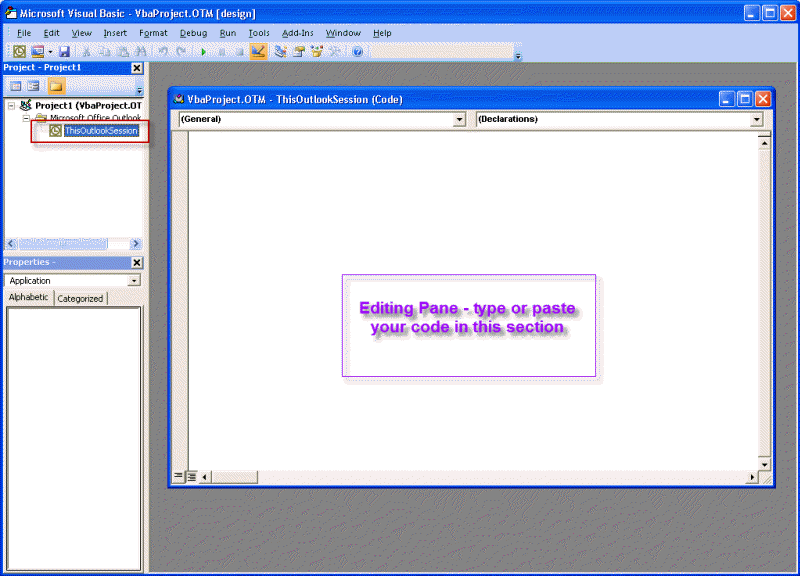
If your screen does not resemble the screenshot above, with the white editing pane open, you'll need to click on Microsoft Outlook Objects to expand it then double click on ThisOutlookSession to open it in the editing pane on the right side.
To add a module to the VBA project, right click on Project1 and choose Insert > Module to insert a new module.
Generally speaking, you can put the code into either ThisOutlookSession or a Module, unless otherwise noted that it must be in ThisOutlookSession or a module.
Application_Start macros must be in ThisOutlookSession.
Starting out with Outlook Macros Video Tutorial
This video tutorial shows you have to change the macro security settings, add a macro to Outlook, run the macro, and then create a digital signature using SelfCert.exe to sign the macro before increasing macro security.
Set a reference to other Object Libraries
If you receive a "User-defined type not defined" error, you need to set a reference to another object library.
- Go to Tools, References menu.
- Locate the object library in the list and add a check mark to it. (Word and Excel object libraries version numbers will match Outlook's version number.)

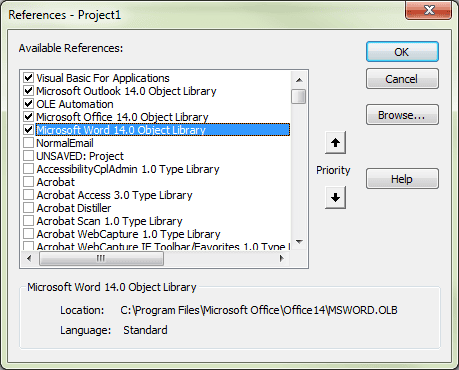
Commonly used libraries are Microsoft Word, Microsoft Excel, Microsoft Forms, and VBScript Regular Expression.
Run the Macro
Press F5 or the Run button to run the macro from the VBA editor. (It's highly recommended you make a backup of the folders or message store before running macros.)

Ctrl+Break will pause the macro, or press the Stop button on the toolbar to end it.
If you will be using the macro often, you should use selfcert to sign it then set Macro Security to only allow signed macros.
Don't sign the macro until you are done tweaking it and if you tweak it later, you'll need to re-sign it.
To run the macro from Outlook 2007 or older, go to Tools, Macro, Macros and select the macro. In Outlook 2010, you need to show the Developer ribbon first (File, Options, Customize Ribbon - check Developer ribbon on the right). You can also open the Macros dialog using Alt+F8 (all versions). You can also add macros to toolbar or ribbon buttons.
Using SelfCert to sign a macro
To sign a macro using selfcert, you first need to create a certificate. You can find selfcert in the folder with your Office files. In Outlook 2010 and older (as well as Outlook 2013 in volume licensing), selfcert is usually at C:\Program Files\Microsoft Office\OfficeXX where XX is your version of Office.
In Outlook 2013 and 2016 "click to run", users will find selfcert at C:\Program Files\Microsoft Office 15\root\office15 (or Office16), or in C:\Program Files (x86)\Microsoft Office 15\root\office15 (or Office16) if using 32bit Office on 64-bit Windows.
With any Office version, if you use 64-bit Windows and 32-bit Outlook, selfcert will be in the 32-bit Programs directory.
In Windows 8 or 10, you can right click on the Outlook tile on the Start screen or Start menu and choose Open File Location (More > Open File Location in Windows 10). This opens Windows Explorer to the location of the Office shortcuts. Right click on the shortcut and again choose Open File Location to open Windows Explorer to the folder where Outlook.exe is. Type S to jump down then double click on SelfCert.exe)
It's simple to use: just type a name for your digital certificate then click ok.
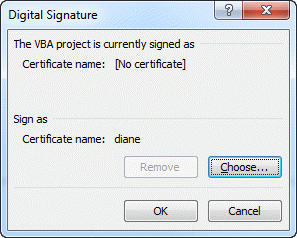
Once you have the certificate, sign the macros using Tools, Digital Signature dialog and choosing a certificate. When you close Outlook, if you are asked to save the VBA project, click Yes, even if you saved it from the VBA editor.
Note that every time you edit the macro you'll need to resign it.
Using SelfCert Video Tutorial
Add Macros to the toolbar or ribbon
If you are going to be using a macro often, you will probably want to create a toolbar button for it.
In Outlook 2010 and up, you can add buttons to the QAT or the ribbon. Go to File, Options and choose Customize Ribbon or Quick Access Toolbar.
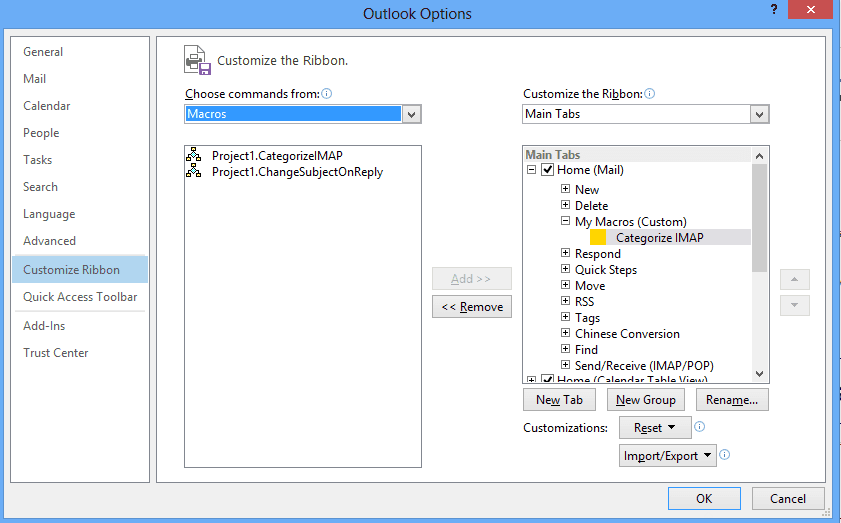
You'll need to add a new Group to an existing ribbon tab or add a new tab and new group before selecting Macros from the Choose commands from menu. Select the macro and click Add to add it to the selected group in the right pane.
In Outlook 2007 ribbons: you can only add buttons to the QAT. Right click on a ribbon tab and choose Customize Quick Access Toolbar. Select Macros from the Choose commands from menu then select the macro and Add it to the right pane. (When you add buttons to the QAT you can use Alt+n keyboard shortcuts.)
In Outlook 2007 (main interface) and older versions of Outlook: right click on the toolbar area and choose Customize. Switch to the Commands tab and find Macros on the left.
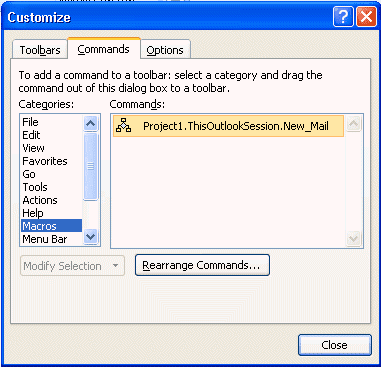
Drag the macro from the right side to the toolbar and drop. Right click on it to edit the name and button image.
More Information
Looking for sample code? VBOffice.net has a large number of code samples.

Horatio Hornblower says
"More Information" section is a little out of date. Outlookcode.com and MSDN.
Diane Poremsky says
A lot of out date actually. :) Thanks for bringing it to my attention.
Spencer says
Thank you! My signing cert expired and this help me get a new one and resign my macro!
Jay Burgess says
I answered my own question relative my version of Outlook (Outlook for Microsoft 365 MSO (Version 2304 Build 16.0.16327.20200) 64-bit.
The line and subroutine below go into a "Class Module", and then my macro subroutines all go into a "Module" module. The comment about "ThisOutlookSession" seems to have changed a little?
Private WithEvents objNewMailItems As Outlook.Items
Private Sub Application_Startup()
...
End Sub
Jay Burgess says
My Outlook VBA macro library got corrupted, so I'm rebuilding it from a text file backup. A "WithEvents" statement and/or my startup subroutine generates a "Compile error: Only valid in object module" error. Google'ing seems to imply that I put my previous module under "ThisOutlookSession" instead of "Modules"? If so, I've tried everything in the VBA editor to create a module under "ThisOutlookSession", but "Insert / Module" always creates it under "Modules". What's the right way to re-add my code into "ThisOutlookSession", and hopefully resolve my error?
Shameka Harris says
Hello, I enabled the macro that copies from one calendar to another, but it is not showing on my macro list. How do I get it to show up???
Kay says
I inserted a module, put in the code, named the module, used selfcert to create a certificate, enabled signed macros (even tried enabling all macros), but still NOTHING shows in the macro box. I am using Outlook 365 in Windows 11 with Exchange. Any ideas as to what I might be doing wrong?
Pedro Alves says
Hi Diane, first of all, thank you very much for what you do.
I learned a lot, and continue to use a lot of your examples of VBA code in my professional life.
I need your help in an Outlook VBA code, I browsed through forums, but couldn't find a solution to this.
Probably super simple.
I'm using this code to split the name of the sender, and when I hit reply, it populates the body of the email with "Hi + strName".
strName = Split(Split(olReply.To & ";", ";")(0), " ")(0)
Now, how can I get the last element of the split name?
I know it's on the last 0, but don't know how to get there. You see because some people have 3 names, and some have only 2.
And I would like to get always the last index since the order of names is Surname (MiddleName, sometimes) FirstName.
Can you help?
Hornblower409 says
In the section "Using SelfCert to sign a macro" you say "selfcert is usually at C:\Program Files\Microsoft Office\OfficeXX".
I believe that (unless you are using 64 bit Outlook) the correct path would be : "C:\Program Files (x86)\Microsoft Office\Officexx"
Diane Poremsky says
It would be in the same folder as the rest of the office apps - so, yeah, for 32 bit on 64bit windows, it would be in the x86 path. I wrote it back when 32-bit was still the thing.
Hornblower409 says
In the section "Using SelfCert to sign a macro" you say "Note that every time you edit the macro you'll need to resign it."
I have not found this to be true in my Outlook 2010. Once I have signed my project it does not require me to resign it no matter how extensive the changes. I have to assume you are right and I am wrong. So, what am I missing?
Gary McKnight says
Hi,
I am looking for a steer towards the correct code to enter in the ThisOutlookSession module that, for incoming mail items, gets the senders email and searches my outlook contacts (including) subfolders. Upon finding a match, gets the contact item category and automatically applies the same category to the mail item.
Can this be done?
Diane Poremsky says
https://www.slipstick.com/developer/categorize-messages-using-contact-category/
It should work with all contact folders that are enabled as address books or for 'check address before sending' in address book options.
Gary McKnight says
Hi Bob,
thank you for your reply. I have tried this code before and again following your comment.
Although it returns no errors within outlook at startup, I get no positive results. If I invoke the assign macro manually (as per the code comments) in existing inbox items it does nothing.
Hence, the shout out
Diane Poremsky says
Are the contacts in the default contacts folder?
Add msgbox lines throughout to see if they pop up -
before end sub in app startup add msgbox "Started"
before the statement in the macro that sets categories-
add msgbox "Sender is " & Item.Sender
after the line to set oContact, add
msgbox "oContact is " & oContact.name
Gary McKnight says
All my contacts are in subfolders within contacts. There are no contact records at the top level
Diane Poremsky says
That could be the problem. I'm out of town for a family emergency, but will take a look at making it work when I come back.
gary mcknight says
Great, thank you - the solution is alluding me at present
Bob Lund says
Posted on the wrong article - please ignore.
My value for Birth Month.Day for a Start of Oct 1st and Oct 10th both return the same decimal value on my table view as "10.10". My manual sort is naturally out of order.
Thank you for any help!
Diane Poremsky says
You need to use 4 digits - 10.01 and 10.10
kim says
Hello I need some help please. I have created a form outlook to be filled in but unable to get the right vba code. I was able to create the form in excel and code it to work as it should. But unable to duplicate it in outlook. Can you assist please.
JOsh says
I am needing to modify the calendar explorer to show multiple appointments that start at the same time vertically instead of horizontally just arranged alphabetically and expanding the cell as needed. I would also like the ability to add a Boolean for "completed" on the Appointment form and added to the context menu, and when true, change the color of the calendar item. Also, since this will be published to a WebDAV server, I would like at least the completed property to be sent along with updates..
T Ahmed says
Hi Diane,
That was a really amazing explanatory video. it was really helpful. is there anyway you can share a script which will allow me to check email body for email address, check the email subject for a reference number and then move these 2 info to 2 column in excel.
Nerijus says
Hi Diane,
If my macro has windows Api functions and i add macro to ribbon it does not work. Any idea why ? I write public before funcionts tried and private, no response from ribbon. If i go to module and press run macro it works...
Diane Poremsky says
Offhand, no, I don't know why it wouldn't work. It definitely should if the button is linked to the same mancro you run from the editor. If you post as sample macro, I'll test it here. (Paste it into a text file and attach the file.)
Frank says
Hey Diane,
thank you for the tutorial Videos. But somehow my Macro doesn´t work properly. It´s th following Macro, that I found on this site: http://www.vboffice.net/de/developers/regelassistent-und-kleinschreibung . It´s meant to scan E-Mail Headlines for certain words and then move them to specific folders. I set my security settings low, copy and pasted the Macro into the "TheOutlookSession", marked everything and then clicked on run and after that save. But new E-Mails won´t go into their meant folders. I even tried restarting Outlook, but it won´t help. Please help me!
Thanks!
Diane Poremsky says
Do you get any error messages? Is the folder you are moving to a subfolder of the inbox?
Frank says
Yes, the folder I want to move the E-Mails to is a subfolder of the inbox. And no, I don´t get a error message somehow.
Rainer says
Hello Diane
This is a great explanation and should be simple enough for anyone to follow, but for some reason, my macro just won't work. I am just trying to create a macro to open an email template I created, from the ribbon without a bunch of steps to find the template I use many times per day, so I created a simple macro which just doesn't work, I always end up with a security warning which appears once the VbaProject.OTM opens after I select the macro via my Developer macro button. The message is: "The macros in this project are disabled. Please refer to the online help or documentation of the host application to determine how to enable macros." The template I am trying to open works perfectly, the macro just doesn't want to cooperate. This is my first attempt at macros so maybe I am just not understanding something more seasoned users see right away.
I have gone through the suggested online documentation, macros are enable, I tried running with all macros enable, I tried digitally signed etc. Nothing changes this message. Am I missing something really stupid simple here? I have redone this following your steps at least half a dozen times and every time I run into the same problem. I have digitally signed the macro with selfcert.
Diane Poremsky says
It doesn't sound like you are missing anything. I'm assuming you've restarted Outlook at least once since changing the setting.
I would remove the digital signature, save and close and restart outlook. Using a digital signature just complicates things until you are sure it works.
Rainer says
OK, totally user error. I used the wrong file name for the template in the macro. Thanks for the help.
Diane Poremsky says
Been there, done that. :)
You're welcome.
karishma velisetty says
can you share the code to save attachments from email directlly in disk
Diane Poremsky says
I have several macros - this is one
https://www.slipstick.com/developer/save-attachments-to-the-hard-drive/
Sam says
Diane,
I recently updated my old windows 10 Office 13 PC to a new PC with Windows 10, reinstalled my office 13, but I cannot get my “rules” to run properly on the new PC. I am using POP for my Gmail and an Exchange for my work email. It seems that the exchange email is the one having the issues. any thoughts?
thanks,
Sam
Diane Poremsky says
Any error messages? What happens?
Nic says
Hi all, how would you modify the code to pop up a folder dialog box when clicking on the button?
Any help is appreciated.
I have following code:
Option Explicit
Public Sub SaveMessageAsMsg()
Dim oMail As Outlook.MailItem
Dim objItem As Object
Dim sPath As String
Dim dtDate As Date
Dim sName As String
Dim enviro As String
enviro = CStr(Environ("USERPROFILE"))
For Each objItem In ActiveExplorer.Selection
If objItem.MessageClass = "IPM.Note" Then
Set oMail = objItem
sName = oMail.SenderName & " - " & oMail.Subject
ReplaceCharsForFileName sName, "-"
dtDate = oMail.ReceivedTime
sName = Format(dtDate, "yyyy-mm-dd ", vbUseSystemDayOfWeek, _
vbUseSystem) & Format(dtDate, "hhnnss", _
vbUseSystemDayOfWeek, vbUseSystem) & " - " & sName & ".msg"
sPath = enviro & "\desktop\"
Debug.Print sPath & sName
oMail.SaveAs sPath & sName, olMsg
End If
Next
End Sub
Private Sub ReplaceCharsForFileName(sName As String, _
sChr As String _
)
sName = Replace(sName, "'", sChr)
sName = Replace(sName, "*", sChr)
sName = Replace(sName, "/", sChr)
sName = Replace(sName, "\", sChr)
sName = Replace(sName, ":", sChr)
sName = Replace(sName, "?", sChr)
sName = Replace(sName, Chr(34), sChr)
sName = Replace(sName, "", sChr)
sName = Replace(sName, "|", sChr)
End Sub
Thanks in advance.
Diane Poremsky says
You need the browse for folder function at
https://www.slipstick.com/developer/code-samples/windows-filepaths-macro/
Sorry I missed this earlier. :(
gavin says
I have some vb that checks for missing attachments, checks that email isn't being sent to the sender and warns if certain accounts are being used to send emails. It works fine but only with all macros enabled, which seems to be a bit of a risk. I've self-signed it, saved it and reopened outlook but no matter what I do it only seems to run with security set to run all macros without warnings. I'm not an expert in this field so I'm a bit stuck. Any thoughts?
Diane Poremsky says
Unlike Word and Excel macros, Outlook is fairly safe - its difficult to add macros to outlook and the vb editors need to be opened to activate them if you copy the project file.
Which version of office are you using? Did you try making a new certificate? Did you trust the certificate?
daniel Patrick says
Is it possible to run a macro to add a signature that you have setup so that it goes into the subject line?
Diane Poremsky says
You can use a macro to set the subject line.
Rajamahender Rapelly says
Hi Diane,
Thank you for the information. I would like to save the invoices(attachments) in a pdf format to a repository which is on network of my company. Whenever I receive a new email, the code should save the file automatically. First it should find the vendor name present in the name of the attachment and second the code should open the pdf attachment and find the location under the section of "Bill To" which is present inside the invoice.
The repository should contain the main folder invoices and it should contain four sub-folders with the plant name. Under each plant name there should be sub-folders with vendor names. The received attachment should be save to respective plant folder and then to the vendor folder.
I am little confused and worried to do this as I am new to coding. I request you to help with this problem.
Thank you
Best Regards
Rajamahender Rapelly
Diane Poremsky says
sorry I missed this earlier. It is doable, but complicated - you need to do a search at each folder level or hard code the paths down to the plant name.
Rajamahender Rapelly says
Hi,
I would like to receive the vendor invoices to a dedicated email id and save the invoices automatically in the repository as per the plant location wise and vendor wise. The vendor should be identified by the name of the invoice and the plant location should be identified by the billing address present in the invoice. Based on this two factors: plant location first and then vendor name second, the invoice should be save automatically to a repository.
Could you tell me how to achieve this? I need the macros for this to implement this.
Thank you
Rajamahender Rapelly
Diane Poremsky says
This should point in you in right direction https://www.slipstick.com/developer/code-samples/save-messages-and-attachments-in-a-new-folder/ - it creates the folder, but if you have folders are are using them for all messages or files based on the invoice and plant, that will work too.
Depending on how the invoice and plant are in the message, you may need ot use regex to find them - i have samples on the site that use that method.
Ros says
Hi Diane
Thanks so much for all of your tips and tricks. I've just migrated over to Outlook after a lifetime on Pegasus Mail, and I'm battling a bit to get the environment to operate the way I like it! I found a macro somewhere else to add a pop-up box after sending to ask whether to keep a copy or not. In order to get it to work, I had just disabled all macros, knowing it's not a good idea. Now you've taught me that I can sign the macro. I followed all your steps, but when I restart Outlook, it gives me an error "An error occured while attempting to verify the VBA project's signature. Macros will be disabled" Any ideas? Thanks so much,
Diane Poremsky says
I didn't realize Pegasus was still around (I googled to check) - i thought it went the way of Eudora.
This is with Outlook 2016? Some people have this problem - its been hard to reproduce, which makes it hard to solve.
What version of Office are you using? Look in File, Office Account - what is the version/build #, include any words that follow the build #.
Ros says
Ahh, lovely Pegasus Mail. Maybe I should have stuck with it.... maybe I still will. At least I know how to import messages into it, whereas I can't seem to import my thousands of PMail messages and folders into Outlook in any cheap and painless manner....
Anyway: Office 2016, Version 1801 (Build 9001.2144Click-to-Run) Monthly Channel.
Thanks!
Diane Poremsky says
>> whereas I can't seem to import my thousands of PMail messages and folders into Outlook in any cheap and painless manner
Yeah... there are ways that will be fairly painless but not cheap. Outlook doesn't support importing other mail anymore (and never directly supported Pegasus) - you need to use a 3rd party utility. Address magic is pretty good IMHO.
>> Office 2016, Version 1801 (Build 9001.2144Click-to-Run) Monthly Channel.
That is the version i have - will try again to repro the error.
Honestly, if you are happy with Pegasus and don't need features found in Outlook, i would probably stick with it. Worst reason ever for switching is because you bought office and 'paid for Outlook' - i tell people to consider it a free app that came with the programs you use. :) (PowerPoint & Publisher are my 'free' apps.) But if you need specific feature you can only get in outlook... then it is probably worth the cost to migrate mail (if you can't store it in a universal format that can be opened outside of Pegasus or outlook).
Ros says
There are little niggles in Pegasus Mail. Like sometimes I try to load images in a message and it hangs. Or when I reply to a message, some of the original message gets cut off. Granted, some of that may have been due to using a very old version. Formatting within a message can be a little clunky. You can't attach multiple files in one action. And then recently I needed to add another POP3 account, but there was an issue with it in terms of options of what to do with the mail on the server once it had been downloaded... I can't recall the details, but there was an option in Outlook that wasn't available in PMail that I needed. In the end I just added the account to my GMail and that sorted it out.
(PS I didn't pay for Office - a friend had paid for 5 copies and donated one to me)
Diane Poremsky says
LOL... so all of the apps are free. :)
Diane Poremsky says
BTW, if you need a new client but don't need outlook's features, try eM client. It might even be able to import the old mail. It can import Outlook, Outlook Express, Windows Mail, Live Mail, Thunderbird, The Bat, mbox…
David says
Hi Diane
Thank you so very much for finally laying to rest my daily fight with opening templates.
Michael Lewis says
Hello Diane; I was wondering if it was possible to use a macro to automatically add a duplicate calendar entry to a shared calendar?
Diane Poremsky says
Yeah, I should have one on the site - search for vba copy to calendar - when I get back in my office I’ll post the link.
Neil Jullette says
Sub ChangeSubjectThenSend()
Dim myolApp As Outlook.Application
Dim aItem As Object
Set myolApp = CreateObject("Outlook.Application")
Set mail = myolApp.ActiveExplorer.CurrentFolder
For Each aItem In mail.Items
aItem.Subject = "Testing dOGG"
aItem.Save
Set myForward = aItem.Forward
myForward.Recipients.Add "alias@domain.com"
myForward.Send
Next aItem
End Sub
Diane Poremsky says
Set myForward = aItem.Forward
myForward.Recipients.Add "alias@domain.com"
myForward = aItem.subject
myForward.Send
Ciera says
I just need help how do you put a code when the outlook site didn't give you one?
Neil Jullette says
I am using the below Script to change the subject line and send to a particular email. However this must be done without the "FW:" Is there anyone that can help me adjust this script to be ReDirect versus Forward?
Diane Poremsky says
Use myForward = aItem.subject befopre the myforward.send to fix the subject
Brian Vogel says
Hello Diane,
I'm back again with another question regarding running a script against incoming e-mail messages to activate a specific link.
I have all the code in under Outlook 2016 and did have to do the registry edit to get the "run a script" option to appear in rules.
I am positive that the VBA script/macro was self-signed with a certificate we obtained via selfcert.
When the script is being triggered the attached error message box is being presented:
Any theories on why and how to fix it?
Diane Poremsky says
I think a recent update broke something - you aren't the only one with issues with self signed macros. The only advice right now is to use the lowest setting and remove the signing.
Brian Vogel says
Diane,
Thanks. We're giving this a try under Outlook 2016 and I am also doing the same on my machine with Outlook 2010.
I am almost literally ready to pull my hair out over what's not happening on my machine. I have the script in and a rule set up. If I run the debugger using the testing launch subroutine the script works fine. If I go through the rule again as though I were trying to change it, and say apply to all messages already in the inbox it starts flying right along and opening tab after tab after tab with the URL I've specified. But it will NOT do the same thing when a message actually arrives.
What on earth could I be doing wrong?
Diane Poremsky says
Follow Up for others with the same problem - This is a limitation of imap accounts - the body is not downloaded immediately. An itemadd macro should work or trigger a download in VBA first - see this solution at the end of this thread at outlookforums.
philip says
Hi, I think I have the same problem. I have a vba script that has been running fine for months. I have a self signed cert. It suddenly stopped a couple of days ago. no I get the allow deny dialog and allow is disabled. Any ideas ?
Diane Poremsky says
have you tried removing the certificate and adding it back?
Can you send me a screenshot of the dialog? (diane at slipstick)
knw says
Hi Diane,
Every time I open the Outlook VBE, I add the Edit toolbar. Every time I close Outlook and then reopen it, and open VBE, the Edit toolbar has disappeared again.
Why does it do this, and can I fix it?
I'm running VBA for Apps 7.1
Outlook Pro Plus 2013
Diane Poremsky says
Annoying, isn't it? It's supposed to stick, but I'm not aware of any way to force it when it doesn't. :(
Bolaji Akerele says
Hi Diana
I designed a Macro on 2013 Microsoft Outlook and Signed the Macro with a Certificate from an accredited CA. However, whenever I try to run it, it returns an error that Macros as been diabled as it seems to have been tampered with. I have tried this multiple times and even rebuilt the macro but the error persists.
Kindly assist.
NB: I would have tried the Trusted location but I observe the option does not exist for Outlook.
I run office 2013 64bits also.
Diane Poremsky says
if you edit a macro after signing it, you need to remove the signature save it, then re-sign it (approx. 2:20 in the video). Try removing the signature from the macro, save, then close Outlook. If asked to save vba again, click yes. Reopen outlook & the vba editor. Sign the macro and Save. Close outlook and Save if asked again.
Outlook doesn't use a trusted location for macros - all macros are in the visual basic project file.
Andy Tang says
Hi Diana
Thanks for giving helpful artical
I have a question that how to create a form in Ms outlook, used to add
a workbook containing a task list. This list is arranged by time. After adding,
i could run a sub function to put it in to calendar.
Thanks you
Diane Poremsky says
You want the worksheet embedded in the task's note field? If the waorkbook is complete, you can run a macro to create the items directly. otherwise, you need code in the task form, would need to save the sheet and work from the saved copy to import.
Suha Hammad says
Hi Diana,, I will appreciate your help in a case i face. i want to know who opens email account using OWA or mobile phone or outlook .. can i write a vba code on the open event of an email to get the computer name and local ip address of the person who opened the account or email. This info can then be sent via email automatically to a predefined email and deleted emmediately.
Your assistance is highly appreciated
thx
Diane Poremsky says
You can, but you need to install the macro on every computer that is opening the account (easier if you compile it as an addin). The Exchange server would have some information on the last person that opened it. Office 365 has some reporting features that might give you some of this information too.
Suha Hammad says
Thank you Diane, i have exchange 2010,office 2007 and 2010 ..
can you help with the VBA code .. is there an open event?.. thanks
Diane Poremsky says
There is an application startup for when you open Outlook. Individual items can be trapped on open - how depends on what you need to do.
Joe says
Hi Diane,
I followed the exact steps in the video (no changes made between saving the project and closing/re-opening Outlook), but similar to Paul's comment below, I never get a security prompt after closing and re-opening, and the macro is disabled.
Could it be something to do with the certificate not being 'trusted', as there is nothing listed for it under Trusted Publishers in the Trust Center settings? Or some kind of security permissions perhaps? (In theory there shouldn't be, as I'm an Administrator on my PC and have tried to run Outlook as administrator anyway)
Using Outlook 2013.
Diane Poremsky says
You should get a security alert with buttons that to always trust, which would then add it to the trusted publishers in Outlook's Trust Center. (Seen in the attached screenshots)
Did you see if it worked with the macro security set to low?
Are the macros startup macros? if not, the dialog won't come up until you run the macro.
George says
How to enable the module 2? I have the problem that i can only see the script wrote in module 1.
Diane Poremsky says
I cleared the cache so you should now see a small camera icon on the lower right of the comments field.
Chris says
I want to use VBA to enable and disable an Outlook rule at certain times of the day.
Diane Poremsky says
see https://www.slipstick.com/developer/enable-or-disable-rule-using-reminder-and-vba/
Amit says
auto bcc in outlook 2016
Diane Poremsky says
Are you looking for this macro? https://www.slipstick.com/outlook/email/automatically-bcc-all-message/
James says
Good article - but I can't see any mention of OneNote which is what I'm interested in using in a macro - is this possible? Specifically I want to:
- Send to OneNote (with popup dialogue box for which notebook)
- Delete (or categorise) e-mail
We use OneNote for retention, but I want to keep my inbox clear and the only way that's going to happen is if e-mails are deleted when I move them to OneNote, if not I forget to do so after the move.
Diane Poremsky says
If you set onenote as the default printer, you could print to it then delete, or you could use sendkeys (which is a real hack), otherwise AFAIK, you can't control the send to onenote command from outlook VBA.
Paul says
Hello Diana,
All worked fine until using SelfCert to sign the 4 macros I have in the module. I did as you detailed and no matter was I try when I re-launch Outlook and run the macro, the Microsoft Outlook Security Notice does not pop up. The macros are consequently disabled. "Notification for Digitally signed macros, all other macros disabled" is enabled.
I tried running Outlook as an Administrator hoping this could fixe this issue but it just didn't. I also tried to do a Quick Repair to no avail.
Any help would be appreciated.
Thank you.
Paul
Diane Poremsky says
Did you edit the macros at all after signing? That will invalidation the signature and macros will not be detected. Remove the signature (as in 'unsign') in Tools then sign again. Also, make sure you save from the VBA editor then again when you close outlook after signing.
Paul says
Sorry for the late reply Diane. I didn't see you had answered.
I did not touch the macro whatsoever after signing them. I also made sure to save from VBA after signing as well as when closing Outlook.
Diane Poremsky says
it sounds like something might be wrong with the signature. Do they work if you allow all macros? if yes, then we know the macros are ok and its something definitely related to the signing.
Paul says
I am not sure if it's worth mentioning but we are running Office 2013 64bit.
Roger Lee says
Hi Diana!
Thank you so much for sharing this script. It is awesome!!!
Is there a way to log the attachment names? I have tried adding olitem.attachments but it does not return any values.
Thank you!
Roger.
Diane Poremsky says
You can. The article at https://www.slipstick.com/developer/code-samples/insert-attachment-names-replying/ shows how to do it. Short version is you need
For Each oAtt In oItem.Attachments
If oAtt.Size > 5200 Then
strAtt = strAtt & "<<" & oAtt.FileName & ">> "
End If
Next oAtt
The will use .body = Stratton & vbcrl & .body
Juan D says
Hello Diane!
This is great info you have here! I have a question on how to put together 2 different macros: the first, runs a mail merge(in word) for a group of people to receive a personalized emails, and the second, to have this sent from outlook, but from a different email address (shared mailbox). Is this possible?
Thank you for your help!
Diane Poremsky says
You'll need to set the code to set the From account before the email message displays. What code are you using the the merge?
JimG says
Hi Diane. Do you know of a way to insert my HTML without Outlook changing it to Microsoft's HTML? I want to send a responsive email newsletter, but Outlook keeps transforming my original HTML.
Diane Poremsky says
No, sorry, I don't. Outlook has an option for minimal html but it will still change it. If you are sending to a lot of addresses, i recommend using a newsletter service (such as constant contact) or newsletter software. (I use Sendy & Amazon SES for html newsletters.)
Jeanene Bettner says
Hi Diane,
We would like to restrict our Sales people to using the following 4 options when completing the Subject line when scheduling an Outlook Calendar event. "Meeting", "PTO", "Conference", and "Office Day". Is there a way to create a drop down list to select, and also to make Subject a required field when they create a new calendar meeting entry? Thanks very much.
Diane Poremsky says
Sorry I missed this earlier. You can use a userform, using a method similar to this: https://www.slipstick.com/developer/select-list-subjects-sending-message/
Rashid says
Hi Diane,
You are really great. I always follow your code and blogs and they are really useful. I just came across a situation where i want to disable Trust center settings like Automatic Download using VBA. Any help would be appreciated please.
Thanks once again.
Diane Poremsky says
You don't need to use VBA - you can just set a reg key but you can set any reg key using vba. See https://www.slipstick.com/developer/read-and-change-a-registry-key-using-vba/
If you want the value to take effect immediately you need to set the regular user key, not the Policies key. Set the value you want in outlook then check the registry - they should be under HKCU\SOFTWARE\Microsoft\Office\16.0\Outlook\Options\Mail. if you can't find them, get regshot to watch for registry key changes.
Jason says
Hi Diane, do you know if there's a way to automatically have all future messages from a particular thread go to a folder when you move the thread to that folder? For instance, if I have an "Important threads" folder, and I move an old thread to it, I want any new messages from that thread to come in to the folder. I know you can do this manually using rules, but it'd be useful to be able to have a folder that has those rules automatically, so that ANY thread added to the folder will follow the rule of all messages in that thread will continue to go into the folder. Does that make sense?
Diane Poremsky says
Sorry I missed this earlier. No, you can't have them moved automatically. Sorry.
Rita says
I have created a macro to open a new email with template and would like to populate the subject line. I have found a snippet of code, but as stated above, I don't know how to use it and it's not doing me much good. Any help would be very much appreciated. Thank you .
Here is my code for the template:
Sub SubmissionFormTemplate()
'Open Submission Form email template
'Outlook 2010 and 2013
Set temp = Application.CreateItemFromTemplate( _
"C:\Users\ritaathx\AppData\Roaming\" & "Microsoft\Templates\TechPubs Submission Form.oft")
temp.Display
End Sub
Diane Poremsky says
Sorry I missed this earlier - you need to add temp.subject = "whatever" before the temp display line.
Brad says
Hi Diane, Please tell me if there is a way to automatically save sent emails to a folder on my desktop? I would like to send an email and automatically have a copy of that mail sent to a specific folder outside Outlook. Many thanks
Diane Poremsky says
You can use a macro such as the one at https://www.slipstick.com/outlook/archive-outlook/save-incoming-messages-hard-drive/ to watch the sent folder and save all messages.
John McPherson says
Make MS code Outlook to pop the reminders on top, modal so they have to be dismissed, at least an option for it.
By they way, how do MS employees not miss meetings? I've missed dozens of them in my career because of this. Flashy icon does not work with me. My concentration levels are way to high to even notice if the sun explodes.
So please, I know there is a vba fix and I've implemented it but, have the outlook team re-visit this issue. We want to be interrupted when there is an appointment!
Carol says
Do you have pointers for creating custom outlook appointment templates? I don't know where to look. I'd like the mouseover on the calendar appointment to display more of the custom form content than it currently does and I don't know how to change it. Any help would be appreciated.
Diane Poremsky says
That little pop-up can't be customized. Sorry.
Simon Toomer says
Hi Diane,
Thanks for this informaiton it is an excellent resource. I have been using the above code to save emails and have edited the code to only save the date but i was wondering if it is possible to put the To and From fields in the filename? e.g.
yymmdd_To_From_Subject.msg
Ultimately it would be great to get them to only use 'To' if it's from sent items or 'From' for any other folder but not sure if this is possible.
Thanks for any help you can provide
Diane Poremsky says
you can use the to (.to) / from (.sendername) fields (or pretty much any other field, although for email, to, from, subject, and date fields are really the only one suitable for file names). If the nessage is sent to more than one person, you would want to limit the names.
If you want to user different fields depending on the folder, you need to use If statements.
John Gordon says
Hi Diane,
I found some VBA code that I am supposed to paste into "This outlooksession" in the VBA editor. I did and it worked the first day. I am guessing until I logged off for the day. The code opens a dialogue box to select a folder to save my sent mail. any idea why it only works once and how can I get it to work all of the time?The coe is:
Private Sub Application_ItemSend(ByVal Item As Object, _
Cancel As Boolean)
Dim objNS As NameSpace
Dim objFolder As MAPIFolder
Set objNS = Application.GetNamespace("MAPI")
Set objFolder = objNS.PickFolder
If TypeName(objFolder) "Nothing" And _
IsInDefaultStore(objFolder) Then
Set Item.SaveSentMessageFolder = objFolder
End If
Set objFolder = Nothing
Set objNS = Nothing
End Sub
Public Function IsInDefaultStore(objOL As Object) As Boolean
Dim objApp As Outlook.Application
Dim objNS As Outlook.NameSpace
Dim objInbox As Outlook.MAPIFolder
On Error Resume Next
Set objApp = CreateObject("Outlook.Application")
Set objNS = objApp.GetNamespace("MAPI")
Set objInbox = objNS.GetDefaultFolder(olFolderInbox)
Select Case objOL.Class
Case olFolder
If objOL.StoreID = objInbox.StoreID Then
IsInDefaultStore = True
End If
Case olAppointment, olContact, olDistributionList, _
olJournal, olMail, olNote, olPost, olTask
If objOL.Parent.StoreID = objInbox.StoreID Then
IsInDefaultStore = True
End If
Case Else
MsgBox "This function isn't designed to work " & _
"with " & TypeName(objOL) & _
" items and will return False.", _
, "IsInDefaultStore"
End Select
Set objApp = Nothing
Set objNS = Nothing
Set objInbox = Nothing
End Function
Diane Poremsky says
Is macro security set to low? Incorrect security settings is the usual cause of macros not working after a reboot.
Leo says
Hi Diane, is it possible to create a macro that places an entry into the subject box when you close an email. In that I manually insert YYMMDD at the start of my subject lines before saving emails to my hard drive, as I find this assist me when looking for items. I get it that you can hit the date sought however have used this process over many years and have found it very helpful.
Diane Poremsky says
You can do that (it can add it automatically - picking up the received date or using today's date). You can use a macro save the message and add a date to the subject line.
Sample macros -
https://www.slipstick.com/outlook/email/add-a-file-number-or-keyword-to-the-subject-line-of-messages/
https://www.slipstick.com/developer/code-samples/save-selected-message-file/
Joey says
You totally rock! Solid instructions, easy to follow. Free tool too! Works great with MS Outlook 2016 for reading inbound. I don't use message preview or reading pane. Hated doing ctrl+mouse wheel for every message. This is fantastic. Now, off to figure out how to sign it so I can return my macro security settings to normal. Appreciate your help.
thetradingjeanphi says
Hello,
Thank you for article.
I search for a solution to sort the mails ascending number of elements (after group by) I group by sender. But then it is automatically sorted alphabetically I want the number element Ideas? I tried to see modify XML but I can not thank you a lot.
Items.Sort Method, does not affect the user display....
Thank you for ideas.
Sorry for my language poor : I am French ^^
Diane Poremsky says
Elements as in number of messages from the sender? I'm not aware of any way to do that - you'd need to count the messages then sort by that value. You could use a macro to update a field and then sort by that field, but you'd need to run the macro often to keep the values updated. It would be a slow process.
Sarah McPayne says
Hi Diane.
I use outlook 2013 at work(thin client). I set up a macro module to save the body of an email as a pdf file. I can run and utilize this code successfully but as soon as I log off and then log back in the macro is not saved and no longer connected to my QAT button. I have done some research and somewhere along the line read that perhaps upon shutdown of outlook the vba add in gets reset. Is there a way to either not have this add-in shut down or save the macro in some way that will keep it working after reboot?
Diane Poremsky says
It sounds like things are getting reset when you sign off. If so, you can't change it but the admin might be able to. I'll check on the switch to load a different VBA project- that would allow you to load it from anywhere-but I thought that no longer works with outlook.
Sarah Reeves says
Is it possible to write a macro that will move aged emails to different folders depending on subject line- if older than 30 days old, then move emails with subject "ABC"- move to Folder "ABC".
Diane Poremsky says
It is possible, but makes it a bit more complicated. A sample macro is here - https://www.slipstick.com/developer/macro-move-aged-mail/ - you just need to set the destination folder before the move statement. This is one way to do it:
If objVariant.Class = olMail Then
Select Case Left(objVariant.Subject, 3)
Case "Exc"
ffolder = "ABC"
Case "Out"
ffolder = "Tips"
Case Else
ffolder = "OLD"
End Select
On Error Resume Next
intDateDiff = DateDiff("d", objVariant.SentOn, Now)
' I'm using 7 days, adjust as needed.
If intDateDiff > 7 Then
Set objDestFolder = objSourceFolder.Folders(ffolder)
objVariant.Move objDestFolder
Iliya says
Hi Diane,
Thanks for the great tutorials - I've been a fan for quite some time and decided to lay my question here.
In my work many times I need to write emails (20-25 sentences) to important clients. It takes me a lot of time when in the middle of some letter, I read the previous lines to make sure I haven't repeated a word. I personally would love to use a macro that highlights each word ( phrases if possible) that is present in the email more than once.
Is it possible that I do not run it each time but that it just remains active, so that on the very moment I write the word, outlook marks it as repeated if it is present already. I know this could be achieved in MS Word, but am not sure for Outlok.
Thank you in advance!
Diane Poremsky says
I think a grammar checker (like Grammarly or white smoke) would be better suited for that than a macro - i think both look for use of repeated words. If you want to look for a specific phrase, a macro could do it, but search could do it too.
Alex says
How to open all the zip files in a folder using outlook VBA code?
Diane Poremsky says
This macro saves and opens outlook attachments - https://www.slipstick.com/outlook/email/save-open-attachment/ - it'll work with and file type registered in windows.
muffitt says
I've got the print attachment to work & to add printed and date to end of subject line. So now for another rule I would like to create a script that just does the printed and date added to subject line. This is because the emails themselves are printed so I've set a rule to print the email, mark it as read and then i select run a script, but the print attachments script is the only selection available. I understand that the vba needs to go into the module so I just added this at the end. So module 1 looks like this..
Private Declare Function ShellExecute Lib "shell32.dll" Alias _
"ShellExecuteA" (ByVal hwnd As Long, ByVal lpOperation As String, _
ByVal lpFile As String, ByVal lpParameters As String, _
ByVal lpDirectory As String, ByVal nShowCmd As Long) As Long
Sub PrintAttachments(oMail As Outlook.MailItem)
Dim colAtts As Outlook.Attachments
Dim oAtt As Outlook.Attachment
Dim sFile As String
Dim sDirectory As String
Dim sFileType As String
sDirectory = "C:\Users\active-user\Documents\EMAIL ATTACHMENTS\"
Set colAtts = oMail.Attachments
If colAtts.Count Then
For Each oAtt In colAtts
' This code looks at the last 4 characters in a filename
sFileType = LCase$(Right$(oAtt.FileName, 4))
Select Case sFileType
' Add additional file types below
Case ".pdf", ".doc", "docx"
sFile = sDirectory & oAtt.FileName
oAtt.SaveAsFile sFile
ShellExecute 0, "print", sFile, vbNullString, vbNullString, 0
End Select
Next
End If
oMail.Subject = oMail.Subject & " ~ " & Date & " " & "PRINTED"
oMail.Save
End Sub
Sub SelectedMailItemsSubjectWithPrinted()
Dim MItem As MailItem
On Error GoTo Exitpos
For Each MItem In ActiveExplorer.Selection
MItem.Subject = MItem.Subject & " ~ " & Date & " " & "PRINTED"
Next
Exitpos:
End Sub
but then it doesn't come up as a separate script.
Diane Poremsky says
They will work on two separate sets of messages? If they apply to the same messages, you can merge the code, otherwise you need to change the macro name. Run a script only 'sees' macros with the object dimmed in the macro name: (oMail As Outlook.MailItem) - you'll need to remove the dim statement from the code too.
Sub SelectedMailItemsSubjectWithPrinted(MItem As Outlook.MailItem)
' Dim MItem As MailItem
muffitt says
oh fantastic. it worked and I also put & Date before "Printed" and it put the date it was printed as well.
Really chuffed, thank you very much indeed.
so now to finish the process for this particular type of email, I would then like to move it to a sub folder of folder named . SAVED ACCOUNTS EMAILS
where it is permanently filed. the SUB folder in this case is called Autotrader
Diane Poremsky says
that would be
omail.move destination
' at the top
Dim objSourceFolder As Outlook.Folder
Dim objDestFolder As Outlook.Folder
' folder is at the same level as inbox, not a subfolder of inbox. remove parent. if working with subfolders of inbox
Set objSourceFolder = objNamespace.GetDefaultFolder(olFolderInbox).parent.folders("SAVED ACCOUNTS EMAILS")
Set objDestFolder = objSourceFolder.Folders("Autotrader")
omail.move objDestFolder
'at the end
Dim objSourceFolder As nothing
Dim objDestFolder As nothing
muffitt says
Diane, I think I may be causing you brain ache lol.
How do I combine the two macros that work individually into one macro. So basically I want to print attachment and then add the word "printed" to the end of the subject line.
I have print attachments macro that works in a rule, the macro is below and this is in the module1. I also have a macro that adds the word "Printed" to the end of the subject line. But how do i combine them into one macro, as I believe you can only run one script in a rule.
In ThisOutlookSession is.....
Sub SelectedMailItemsSubjectWithPrinted()
Dim MItem As MailItem
On Error GoTo Exitpos
For Each MItem In ActiveExplorer.Selection
MItem.Subject = MItem.Subject & " ~ " & Date & " " & "PRINTED"
Next
Exitpos:
End Sub
In Module1 is.....
Private Declare Function ShellExecute Lib "shell32.dll" Alias _
"ShellExecuteA" (ByVal hwnd As Long, ByVal lpOperation As String, _
ByVal lpFile As String, ByVal lpParameters As String, _
ByVal lpDirectory As String, ByVal nShowCmd As Long) As Long
Sub PrintAttachments(oMail As Outlook.MailItem)
Dim colAtts As Outlook.Attachments
Dim oAtt As Outlook.Attachment
Dim sFile As String
Dim sDirectory As String
Dim sFileType As String
sDirectory = "C:\Users\active-user\Documents\EMAIL ATTACHMENTS\"
Set colAtts = oMail.Attachments
If colAtts.Count Then
For Each oAtt In colAtts
' This code looks at the last 4 characters in a filename
sFileType = LCase$(Right$(oAtt.FileName, 4))
Select Case sFileType
' Add additional file types below
Case ".pdf", ".doc", "docx", ".xlsx"
sFile = sDirectory & oAtt.FileName
oAtt.SaveAsFile sFile
ShellExecute 0, "print", sFile, vbNullString, vbNullString, 0
End Select
Next
End If
End Sub
Diane Poremsky says
You only need the second macro (that prints the attachments) and at the end, between end if and end sub, add
oMail.subject = omail.subject & " printed"
omail.save
Alex says
Hi Diane,
Thanks for the response.
Suppose if I have data in two excel files.
How do I get the data from one excel file in other excel file.
Diane Poremsky says
You need to know the names of the files - then either know the range or find the range, copy and paste into the other file. It's not all that hard, but I don't have a code sample. The Mr. Excel site or forum might have some code samples.
Alex says
Hi Diane,
I have a requirement and I am totally new to VBA.
Briefly the requirement can be divided into following steps.
Read the incoming mail with attachments with specific user with specific extension then save those attachments in a directory in the file system on the computer hardisk.
Then I have to collate all the files in a a single excel file.
I have to perform certiain excel operations on the files and generate a new excel file
Then I have to automatically send reply to the incoming mail with this new file as a attachment and a personlised message in the mail body.
Could you please help me or point me to the appropriate code.
Thanks for all the help.
Diane Poremsky says
i don't have any code that does all that, but most of it is doable and i have individual macros that get close.
> Read the incoming mail with attachments with specific user with specific extension then save those attachments in a directory in the file system on the computer hardisk.
Use a run a script rule. https://www.slipstick.com/developer/code-samples/save-rename-outlook-email-attachments/ (you can remove the renaming part)
>> Then I have to collate all the files in a single excel file. I have to perform certain excel operations on the files and generate a new excel file
This is more complicated. You'll need to open the attachments ands read them. This macro shows how to save and open an attachment: https://www.slipstick.com/outlook/email/save-open-attachment/. It might be easier to call macro in excel against the folder the files are saved in, especially since you need to work with the data. plus, then you can record the macro.
>> Then I have to automatically send reply to the incoming mail with this new file as a attachment and a personalized message in the mail body.
Not a big deal to do. The hardest part will be doing whatever with the excel data.
muffitt says
IF IT HELPS THIS WORKS TO PRINT ATTACHMENTS
Private Declare Function ShellExecute Lib "shell32.dll" Alias _
"ShellExecuteA" (ByVal hwnd As Long, ByVal lpOperation As String, _
ByVal lpFile As String, ByVal lpParameters As String, _
ByVal lpDirectory As String, ByVal nShowCmd As Long) As Long
Sub PrintAttachments(oMail As Outlook.MailItem)
Dim colAtts As Outlook.Attachments
Dim oAtt As Outlook.Attachment
Dim sFile As String
Dim sDirectory As String
Dim sFileType As String
sDirectory = "C:\Users\active-user\Documents\EMAIL ATTACHMENTS\"
Set colAtts = oMail.Attachments
If colAtts.Count Then
For Each oAtt In colAtts
' This code looks at the last 4 characters in a filename
sFileType = LCase$(Right$(oAtt.FileName, 4))
Select Case sFileType
' Add additional file types below
Case ".pdf", ".doc", "docx"
sFile = sDirectory & oAtt.FileName
oAtt.SaveAsFile sFile
ShellExecute 0, "print", sFile, vbNullString, vbNullString, 0
End Select
Next
End If
End Sub
muffitt says
i presume end sub is under item.save
BUT STILL DOESNT WORK. :( THE TIME AND WORD PRINTED IS WORKING AND IS ADDED TO THE END OF THE SUBJECT LINE, BUT IT DOESNT PRINT. EVEN WHEN I CREATE A RULE SCRIPT AND TRY THAT WAY.
Diane Poremsky says
No, end sub is at the end of the long sub - this is just changing the name of the sub so you can test it manually and verify it works. Then use change it back to
Sub myscripttoprint(Item As Outlook.MailItem)
Item.Subject = Item.Subject & Item.receivedtime & "[printed]"
Item.Save
[rest of long sub snipped]
I didn't test it with a rule, ran it with the change to manual, it worked fine - it should work fine with a rule too.
muffitt says
this is what i ve pasted into this outlook session
Sub myscripttoprint()
Dim Item As Outlook.MailItem
Set Item = Session.ActiveExplorer.Selection.Item(1)
End Sub
Diane Poremsky says
To convert it to a macro you can run on a selected message, you need to change these lines, and I need to spell received correctly. :) (replace session with application, sorry about that.)
Sub myscripttoprint(Item As Outlook.MailItem)
Item.Subject = Item.Subject & Item.recievedtime & "[printed]"
Item.Save
to
Sub myscripttoprint()
Dim Item As Outlook.MailItem
Set Item = Application.ActiveExplorer.Selection.Item(1)
Item.Subject = Item.Subject & Item.ReceivedTime & "[printed]"
Item.Save
muffitt says
it says object doesnt suport this property or method
Diane Poremsky says
My bad :) Received was spelt wrong. When you type all lower case, the property or object name will change to mixed case - if it doesn't you know the name is either spelled wrong or does not exist.
muffitt says
I perhaps will be better off to learn the code to create a script to just print off the email
Diane Poremsky says
possibly :) What happens when you try the other script?
Change
Sub myscripttoprint(Item As Outlook.MailItem)
to
Sub myscripttoprint()
dim Item As Outlook.MailItem
Set Item = session.ActiveExplorer.Selection.Item(1)
the select an message and run the macro. Any errors?
muffitt says
oh dear it still isnt working.
Private Declare Function ShellExecute Lib "shell32.dll" Alias _
"ShellExecuteA" (ByVal hwnd As Long, ByVal lpOperation As String, _
ByVal lpFile As String, ByVal lpParameters As String, _
ByVal lpDirectory As String, ByVal nShowCmd As Long) As Long
Sub myscripttoprint(Item As Outlook.MailItem)
Item.Subject = Item.Subject & Item.recievedtime & "[printed]"
Item.Save
Dim colAtts As Outlook.Attachments
Dim oAtt As Outlook.Attachment
Dim sFile As String
Dim sDirectory As String
Dim sFileType As String
sDirectory = "C:\Users\active-user\Documents\EMAIL ATTACHMENTS\"
Set colAtts = Item.Attachments
If colAtts.Count Then
For Each oAtt In colAtts
' This code looks at the last 4 characters in a filename
sFileType = LCase$(Right$(oAtt.FileName, 4))
Select Case sFileType
' Add additional file types below
Case ".pdf", ".doc", "docx"
sFile = sDirectory & oAtt.FileName
oAtt.SaveAsFile sFile
ShellExecute 0, "print", sFile, vbNullString, vbNullString, 0
End Select
Next
End If
End Sub
Diane Poremsky says
Does any of it work? Any red lines?
Does this line: If colAtts.Count Then
look like If colAtts.Count > 0 Then in your code? (The brackets are removed in the comments.)
muffitt says
I've tried this and its not working so I'm obviously doing something wrong. I am completely new to this and am trying to teach myself. so my text looks like this below?
Sub myscripttoprint(Item As Outlook.MailItem)
Item.Subject = item.subject & item.recievedtime & "[printed]"
Item.Save
Private Declare Function ShellExecute Lib "shell32.dll" Alias _
"ShellExecuteA" (ByVal hwnd As Long, ByVal lpOperation As String, _
ByVal lpFile As String, ByVal lpParameters As String, _
ByVal lpDirectory As String, ByVal nShowCmd As Long) As Long
__________________________________________________________
Sub PrintAttachments(oMail As Outlook.MailItem)
Dim colAtts As Outlook.Attachments
Dim oAtt As Outlook.Attachment
Dim sFile As String
Dim sDirectory As String
Dim sFileType As String
sDirectory = "C:\Users\active-user\Documents\EMAIL ATTACHMENTS\"
Set colAtts = oMail.Attachments
If colAtts.Count Then
For Each oAtt In colAtts
' This code looks at the last 4 characters in a filename
sFileType = LCase$(Right$(oAtt.FileName, 4))
Select Case sFileType
' Add additional file types below
Case ".pdf", ".doc", "docx"
sFile = sDirectory & oAtt.FileName
oAtt.SaveAsFile sFile
ShellExecute 0, "print", sFile, vbNullString, vbNullString, 0
End Select
Next
End If
End Sub
' the print stuff
End sub
___________________________________________________________
Diane Poremsky says
this needs to be at the top of the module - Private Declare Function ShellExecute Lib "shell32.dll" Alias _
"ShellExecuteA" (ByVal hwnd As Long, ByVal lpOperation As String, _
ByVal lpFile As String, ByVal lpParameters As String, _
ByVal lpDirectory As String, ByVal nShowCmd As Long) As Long
you need to delete the line Sub PrintAttachments(oMail As Outlook.MailItem) (and it's End Sub) and change omail to item.
or you could do this for the first macro and call the second:
Sub myscripttoprint(Item As Outlook.MailItem)
Item.Subject = item.subject & item.recievedtime & "[printed]"
Item.Save
printattachments item
end sub
muffitt says
I've worked this out at long last after about 3 months! I need to ensure i have a folder named the same as the name on the line sDirectory.......
so now i have cracked how to create a script to print attachment and a script to add the current date & Printed to the end of the subject line.
How do i combine the two, because I see that you cant select two scripts in one rule?
Diane Poremsky says
if you want to change the subject of the incoming message, put your subject edit lines at beginning of the script before printing the attachment:
Sub myscripttoprint(Item As Outlook.MailItem)
Item.Subject = item.subject & item.recievedtime & "[printed]"
Item.Save
' the print stuff
End sub
muffitt says
it still doesn't work when I've created the rule and select run it now on the inbox where the email with the attachment is. Attachment is a .pdf file
muffitt says
Testing this i click on the email with the attachment so that its highlighted blue. Then click developer tab, click Visual Basic, Double click ThisOutlookSession. Select General, select the PrintAttachments and click on first line.click run then click printattachment click run. and
NOTHING HAPPENS
Diane Poremsky says
The macro doesn't run "manually" - it watches for messages to be dropped in a specific folder, as set in the application_startup macro.
muffitt says
this isn't working
Diane Poremsky says
Do you get any error messages?
muffitt says
I am trying to create a rule to print attachments received by set email address.
I use IMAP in outlook 2010 within Wind 8 64 bit operating system.
so I believe i need to create a script
that I can then select in the procedure below.
so i understand that i need to create a rule as so...
Click on email with the attachment
Click Rules
click create rule
click from
click subject contains (i have just the text thats repeated. eg. Statement Attached)
Click Advanced options
Click next
Click run a script
Click on a script
and it is here i believe i should have a script named print attachment
so to create a script for print attachment i
click developer tab
click Visual basic
click ThisOutlookSession
and paste the text below into it.
' Written by Michael Bauer, vboffice.net
' https://www.vboffice.net/en/developers/print-attachments-automatically
' use Declare PtrSafe Function with 64-bit Outlook
Private Declare Function ShellExecute Lib "shell32.dll" Alias _
"ShellExecuteA" (ByVal hwnd As Long, ByVal lpOperation As String, _
ByVal lpFile As String, ByVal lpParameters As String, _
ByVal lpDirectory As String, ByVal nShowCmd As Long) As Long
Private WithEvents Items As Outlook.Items
Private Sub Application_Startup()
Dim Ns As Outlook.NameSpace
Dim Folder As Outlook.MAPIFolder
Set Ns = Application.GetNamespace("MAPI")
Set Folder = Ns.GetDefaultFolder(olFolderInbox)
Set Items = Folder.Items
End Sub
Private Sub Items_ItemAdd(ByVal Item As Object)
If TypeOf Item Is Outlook.MailItem Then
PrintAttachments Item
End If
End Sub
Private Sub PrintAttachments(oMail As Outlook.MailItem)
On Error Resume Next
Dim colAtts As Outlook.Attachments
Dim oAtt As Outlook.Attachment
Dim sFile As String
Dim sDirectory As String
Dim sFileType As String
sDirectory = "D:\Attachments\"
Set colAtts = oMail.Attachments
If colAtts.Count Then
For Each oAtt In colAtts
' This code looks at the last 4 characters in a filename
sFileType = LCase$(right$(oAtt.FileName, 4))
Select Case sFileType
' Add additional file types below
Case ".xls", ".doc", "docx"
sFile = sDirectory & oAtt.FileName
oAtt.SaveAsFile sFile
ShellExecute 0, "print", sFile, vbNullString, vbNullString, 0
End Select
Next
End If
End Sub
Diane Poremsky says
Yes, that should work. Oh, and make sure the macro security is set to low - File, Options, Trust Center, Macro Settings.
muffitt says
Hi Diane,
i have problems with referencing the macro. I copy and paste as instructed and then I believe I am meant to click Tools tab within the VBA which gives me a drop down list where i click references. Here I believe i am meant to click Add Reference, but i dont have a button for that.
Your help would be very much appreciated.
Diane Poremsky says
You only need references if you are trying to control excel, word, use wscript, regex, or other things with the macro. If you are only working completely in Outlook's object model you don't need to reference anything. What macro are you using? I can tell you if you need to reference another program. Or you can click the Run button and see what happens...
Gerald says
Hi Diane,
Its a real shame there's no macro recorder in Outlook like there is in Excel - I can follow all your great instructions but I don't know how to write the code I need! Maybe you can help?
I want to run the macro as a rule on specific incoming emails. the Macro will do the following: (as if):
Open the message, select Actions, Edit Message, Highlight all text, Select text direction Right-to-left, close message saving changes.
Can you point me in the right direction?
Many thanks
GS
Diane Poremsky says
Well, you'd need to use send keys and they are really, really sloppy. You might be able to use the Word object model and make the change though. This would be the start - https://www.slipstick.com/developer/word-macro-apply-formatting-outlook-email/ - now you just need to code for rtl, which you might be able to get from Word's macro recorder.
Micheal says
Thanks Diane, you just made my life a lot easier :)
samurai says
Absolutely Fantastic!
What a fine resource with a wealth of Information.
A hearty Thank You
Micheal says
Is there a VBA that will BCC an address based on the Email Subject title. I know that Outlook has this function available, but it only allows CC. While this is great, I don't want clients to see the other address.
Any help or advice on this matter would be greatly appreciated.
Thanks
Diane Poremsky says
you can use an if statement. See https://www.slipstick.com/outlook/email/automatically-bcc-all-message/ for the code- the second macro uses categories but you can use item.subject = "something" instead.
ria says
Hi Diane how do you forward an email.I had never experienced this on my Nokia account.I knew how to do everything on my Nokia email
Diane Poremsky says
this is on a nokia phone?
If in outlook desktop try Ctrl+F
AN says
This is excellent, thank you so much!
Stu says
Mahalo (thank you) for the code. This is exactly what i was looking for. However, for reasons beyond me..i can't seem to get the macro to run. I have Outlook 2013, macros are enabled. I copied and pasted the code into "ThisOutlookSession". I attempted to run the code "As-Is", but nothing happens. I also edited to reflect
strFileAs = .LastNameAndFirstName & " (" & .Email1Address & ")"
I also went through your tutorial and still can't get it to run. No error messages or prompts.
I would really appreciate your assistance..
Diane Poremsky says
Add the following line after the strFileAs = line
msgbox strfileas
Then run it, preferably on a folder with only a few contacts or a small selection of contacts (depending on the exact code you are using) - it'll pop up a message box with the strFileAs value. If you don't see the message box, then the macro dies before that point.
Also, remove or comment out the error handling line (add ' in front of it) so it stops if it hits an error.
' On Error Resume Next
Charles Woodward says
Hello, I'm cant follow the video it seems you preprepared and it means that the video cannot be followed! So.. I paste my code into thisoutlooksession hit play (nothing happens) then nothing appears in the macros dropdown list. If I click it macros it wants me to make a macro and creates a module.... STUCK!
thanks for help...
p.s. I'm using the print attachments script, that I hope to use for BYOD...
Diane Poremsky says
The macro at https://www.slipstick.com/developer/print-attachments-as-they-arrive/ runs as new messages arrive - it won't be listed in the macros menu. to kick start it without restarting outlook, click in Application_startup and click Run. Then send yourself a message with an attachment to test it.
The macro at the end of the page (under Print Attachments on Selected Messages) runs when you select a message and click on Run.
Rhonna says
Hi Diane -
Thank-you for your help.
Wondering if it at all possible for you to create video tutorial on how to run the Macro/code which allows users to print multiple calendars from Outlook 2013?
Macro located at
https://www.slipstick.com/outlook/combine-outlook-calendars-print-one/#comment-191319
but I have been unsuccessful in getting it to work.
thanks.
Diane Poremsky says
I can do that.
Barry says
Hi Diane... can you help me with a code to save a pdf attachment from one person using outlook 2013.. As I dont want to save all attachments on all emails. thank you
Diane Poremsky says
you need to add an if statement - this assumes the sender is not a coworker if you are using exchange.
if item.senderemailaddress= "email@address" then
'do whatever
end if
Andrew G says
Hi,
Thank you for all of these helpful posts. Is there any way to format the text to appear as an email? Ie with formatted body and signature?
Private Sub Application_Reminder(ByVal Item As Object)
Dim objMsg As MailItem
Set objMsg = Application.CreateItem(olMailItem)
If Item.MessageClass "IPM.Appointment" Then
Exit Sub
End If
If Item.Categories "Send Message" Then
Exit Sub
End If
With objMsg
' Email addresses go here, use semi-colons to separate multiple addresses
.To = "bgsd@stlouis.org"
.Subject = "Training Schedule 4/17/2015-4/27/2015 REV 3"
.Body = "This email is a test"
' use .display to view but not automatically send
.Send
End With
Set objMsg = Nothing
End Sub
Diane Poremsky says
Dang, I swear I answered this 4 or 5 times - i guess I start to answer it then get distracted and the browser gets closed before I finish. you can use basic HTML formatting and may need to use .htmlbody instead of .body in Body = "This email is a test"
.HTMLBody = "<b>Hello!</b>" & vbCrLf & "<p style='color:red'>Howdy</p>"
if you use signatures, you can use .Body = "This email is a test" & .body to keep the signature.
Morris Maynard says
Thank you. Your descriptions seem very logical and are easy for me to follow.
Mark Johnson says
There are several aspects to my need for a solution.
iPhone reminders would not sync to the default list so I had to create a new list.
Tasks created in Outlook for Mac from a shortcut or menu are slow to appear on the PC and show in the to-do list on the PC Outlook unless they are created when viewing the task list on the mac.
I have two exchange accounts set up in Outlook so I need the tasks to the same task list each time and one that will sync across devices.
Now when I create from an outlook window other than tasks the task is created in the to-do list rather than the default task list and that task list does not sync to the iOS.
It does not look like I can change the default task list on either platform and even if I watch the folder it does not let me change. How can I create a macro on PC for teh task folder to be saved to and any solutions on the mac?
Mark Johnson says
Hi Diane, thanks so much for the code to always go to a specific task list. I have never done such before and you made it simple enough that i could handle.
I want to make it that a new task created by the shortcut "CNTL-SHIFT-K" will be created in that same task list regardless of whether I am in calender, email or contacts. The default seems to be the to-do list. Can you help?
Diane Poremsky says
Technically, the default is your default task list. It just shows up in the To-do list. Assuming your can't change the default data file, you can do it one of two ways: pick up the opening of the new task form and move it via a macro when you click save or watch the default folder. Watching the folder is probably the easiest.
Alberto says
Hi Diane - I am trying to create a certificate and digitally sign my VBA code. I have outlook 2013 and windows 7. I don't have a selfcert. But I am able to create the certificate using the "Manage your file encryption certificates" in the control panel.
I am able to see my certificate using MMC (microsoft manager console) in the folder \Personal\Certificate. But When I go to outlook VBA>tools>digital signature my certificate is not there. Why? Any ideas? Thanks in Advance..
PS: I noticed that my certificate has an intended purpose of "Encryption File System" instead of "Code Signing". However, I am not able to change its purpose because I do not have admin rights to the machine. Could that be the issue?
However, I have a series of other certificates issued by/to microsoft as "Codde Signing" and none will show up on my VBA.
Alberto
Diane Poremsky says
you need a code signing certificate. Selfcert.exe is under your Office installation. It should either be at C:\Program Files\Microsoft Office 15\root\office15 or C:\Program Files (x86)\Microsoft Office 15\root\office15
vicki says
Hi Diane,
I’m totally new to VBA and have been reading a lot online to figure out where I even start.
I was trying to make a rule but it looks like I need to use VBA to get what I need. In a nutshell…
Message arrives to Inbox
from <>
or
on Cc line <>
move email to <>
Is it easy to do with VBA?
Also my current Inbox is not set up to let me Enable Macros, but I will follow up with IT to get that corrected because I will need that turned on, correct?
Thank you in advance!
Diane Poremsky says
You will need to be allowed to run VBA to use macros and yes, to use a From OR To rule, you'll need to use a macro.
Marcos says
Hi Diane, do you know how it will be possible to forward a mail only changing the address (the new address will be taken from the CC of the received email)? Thank you so much!
Diane Poremsky says
This does it using a rule - https://www.slipstick.com/outlook/rules/run-script-rule-change-subject-message/ - try replacing myForward.Recipients.Add "alias@domain.com" with myForward.Recipients.Add item.cc - if that doesn't work, you'll need to use the recipients collection and get the cc address. I have code to do that here somewhere.
Eric says
Diane,
My partner likes to put the date he sends an e-mail in his signature (I know that the header has that too, but he likes it in the signature as well). Outlook does not seem to allow self-updating fields in signatures. I found a suggested workaround of putting a placeholder such as "**DATE**" and using VBA to swap it out on sending, but I am not a developer and do not know enough Visual Basic to put such a script together. Do you have any suggestions?
Thanks in advance.
Diane Poremsky says
Try inserting the date into a message, set Update Automatically option then copy and paste it into the signature editor - i think you need to use paste special, keep formatting.
Viki says
Hi Diane,
I have multiple e-mail accounts set up in my one outlook profile. Is there a way to BCC all send items from one account to one email address?
Diane Poremsky says
Use the code at https://www.slipstick.com/outlook/email/automatically-bcc-all-message/ and add an if statement -
To only BCC from one account, add this before the Set Recipients line and enter the email address you want to send BCCs from
If Item.SendUsingAccount = "account@address" Then
add another end if at the end of the other 2 end if's.
Robert says
Hi Diane,
I was wondering if you could help me out a little bit, Im trying write a rule/script for when i recieve an email with 7 alphanumeric characters in the front of the subject to then import a .png from the msg body into onenote, grab TXT from the .png using text recognition then import it into a already saved excel spreadshet. Currently working on it, but if you had any snippets I could use it would be greatly appreciated.
Diane Poremsky says
I don't have anything that does this. Sorry.
Leo Verberne says
Hi Diane, That was it. Thanks a lot. A bit strange that this was the only statement that failed in the complete code. And it was a bit weird that i posted my Q on 26th August and it only appeared just now on the forum.
But okay, Thanks anyway for the help.
Leo Verberne says
Hi Diane,
I have a macro in outlook which opens an excel worksheet, scans through mails and puts information from those mails in the excel sheet.
In order to find out which is the last line with info in that sheet, i used the line:
Set Wks = MyXL.Activesheet
Wks.Activate
RowCounter = Wks.Cells(65536, 4).End(xlUp).Row
I now get an error on the line with the End(): "fault 1004 application or object defined error"
errortekst has been translated from dutch.
This worked perfectly in outlook 2007 but not anymore in Outlook 2010.
In macros in Excel 2007 and Excel 2010 this is still working.
What is wrong here?
Thanks,
Leo
Diane Poremsky says
Did you set a reference to Excel in Outlook's VB Editor > Tools > References.
Rex says
Just a friendly buzz for your valuable materials posted in this page so that I have made use of it in my working area :)
u01brb2 says
Hello,
I have been trying, in outlook 2010, to create a macro that i can add to the QAT with a drop down menu to choose my template emails. I managed this last year then had my computer rebuilt and forgot the code! Currently i have a different icon for each template on my QAT, i would rather have a dropdown menu to choose a specific email template - does anyone know the code? Currently i am using:
Dim template As String
Sub OpenTemplate1()
template = "C:\Users\benbarclay\AppData\Roaming\Microsoft\Templates\safetytalks.oft"
MakeItem
End Sub
Sub OpenTemplate2()
template = "C:\Users\benbarclay\AppData\Roaming\Microsoft\Templates\Your Online Preview of SafetyTalks.oft"
MakeItem
End Sub
Sub OpenTemplate3()
template = "C:\Users\benbarclay\AppData\Roaming\Microsoft\Templates\SafetyTalks New Training.oft"
MakeItem
End Sub
Sub MakeItem()
Set newItem = Application.CreateItemFromTemplate(template)
newItem.Display
Set newItem = Nothing
End Sub
Paul Grace says
Hiya Diane -
Wonder if you can help? We are attempting an auto-reply of different styles of incoming email:
a) Where a pdf attachment (timesheet) is received: to email back confirmation of receipt (along with the pdf itself so the send knows what we have received).
b) Where a holiday refund request is received - no attachment.
In both cases the sender's email address is within the email body (generated via a corporate website add-on). Seems to be causing brain cells to explode without an answer. :-)
Many thanks -
Paul
Diane Poremsky says
you can do both using regex. Basically, the last macro on this page: https://www.slipstick.com/outlook/rules/run-script-rule-change-subject-message/ - the code samples here - https://www.slipstick.com/developer/regex-parse-message-text/ - have a sample that uses the email address.
The macro at https://www.slipstick.com/outlook/email/reply-replyall-attachments/ shows how to reply with attachments.
Paul Grace says
Diane - a very BIG thank you! And I have found the outer limits of my knowledge and comfort zone!! Having played with the code and managed to have some bounce out of the incoming folders - but not as expected ... a question.
Are we able to purchase your skills and time to set this up so that it works first time every time?
Diane Poremsky says
I am available for hire - see https://www.slipstick.com/about-slipstick-systems/#train for details and a link to the scheduling software.
Gary Davis says
My outlook script runs and adds a Subject when I hit "yes". However sometimes I hit yes to quickly so I would like to require to ask one final time Send Email Y or N. And have it default to Yes so I can just hit Enter and it will send or N for No.
Diane Poremsky says
use the method at https://www.slipstick.com/outlook/email/macro-to-warn-before-sending-a-message-with-a-blank-subject/ to add a confirmation dialog.
Emmett McAuliffe says
So what I'm finding is that by "Modified", Outlook means "last modified". Therefore, if an email was received on say March 17, but modified with the flag (for example), on March 31, it will not show up in a search for "modified on March 17".
Diane Poremsky says
Correct. The created date should be the date it was received but modified is the date it was last touched.
Emmett McAuliffe says
Thanks Diane. I will for sure take a look at Query Builder. To answer your question about why anyone would need this, ... advanced find allows you to "To find more criteria" , ... then conveniently "add [it] to list" but it only does so only with the operator AND. I need the operator OR. I can add unlimited criteria (a good thing)... but it will only find Outlook Items that match ALL of those criteria not ANY of them (like most query engines work ... for example , the search engine I use every day as a trademark lawyer https://tmsearch.uspto.gov/bin/gate.exe?f=searchstr&state=4809:z3diok.1.1 where it assumes that you want the operator OR ... and you have to manually change it.)
For example, in a Venn diagram, if a red balloon in a blue balloon overlap, Microsoft Outlook will only let you see the purple overlap area, it will not show you the entire area of the red balloon and the blue balloon.
Diane Poremsky says
My query was more along the lines of 'why do you need all 4 date fields together' - the sent or received date should = the modified or created dates. Created will restrict it to only new items, while modified will include older items that were changed today.
Emmett McAuliffe says
Hi Diane.
Was wondering if there was a code to search everything that might've happened in Outlook on a particular day: Received, Sent, Modified, Created ... more? Advance find seems to only produce an "AND" result. So you really have to perform those searches separately and compare the results (you get a lot of duplication).
Thanks for any help you can give.
Diane Poremsky says
I'm not sure I understand the need, but Advanced Find with the Query Builder might work.
Phil Reinemann says
Yair, I used nowDate because it retrieves the current time, and from that newDate is computed. Give it whatever names you want.
I was wondering if the sheet that your code detects as already existing is a sheet in your Personal.xlsb instead of in the workbook where you created the new sheet.
So in your test for existance "If Sheets(dt) Is Nothing" perhaps you should specify the workbook where you created the sheet to make sure you're looking for the sheet in the right workbook.
I only see the code you originally posted so I can't help you more.
Yair says
Do you mean nowDate or newDate? my Macro us indeed in the Personal xlsb. is it a problem?
I need a guidance for implementing your suggestion...
Thanks
Yair
Diane Poremsky says
He's using nowDate as a variable in his code snippet. Personal can be a problem - i tested it in a workbook.
Phil Reinemann says
My last question about the sheet in Personal.xlsb is about Yair's code to make a new excel sheet.
Phil reinemann says
Could the sheet be in the Personal.xlsb instead of in the main xlsm document?
Mary says
Hi Diane, your website is very helpful! I have an VBA-script that I cannot get working everywhere. The problem seems to be with the digital signature. What I've done is that I've created the signature with selfcert.exe, then exported/imported it through Internet Options into trusted root certification publishers and trusted publishers.
Then I opened Outlook Trust Center and made sure the certificate was added to Trusted Publishers there. Then I assigned this signature to the VBA project.
In Outlook, the security settings are set to 'all unsigned macros are disabled', and we want to keep it that way.
Whenever I open the VBA editor, it does not do anything, the script does not run if I make it. If I set the security setting to 'always ask', it shows a warning when I open the VBA editor, but I don't get the option 'Always trust this publisher' (it's greyed out). If I manually say that the macro should run that time, it works fine. So, the problem is not with the VBA project itself, but with the security surrounding the digital signature.
How do I get the VBA project to run, with the 'all unsigned macros are disabled' settings? What can I do to pass the security warnings?
This system is running Outlook 2013/Win7.
Thanks so much for your help already!
Diane Poremsky says
Close Outlook then Right click on the Outlook shortcut and choose Run as administrator. Now you should be able to accept and trust the certificate. Once it's accepted, you can restart outlook as a normal user.
Phil Reinemann says
Yair, (from March 9, 2014 at 5:49 am) use your message box to output the dt string then check if it exists already.
I found it too weird to debug using msgbox month(1) so I'd use:
nowDate = DateTime.Now
m = Month(nowDate) + 1
and similarly for the year to get the sheet's name-string.
Yair says
Hi Diane
The problem still occurs.When I tried to run the Macro today it still give the MsgBox.
Any other ideas?
Regards,
Yair
Diane Poremsky says
that's the msgbox that says the sheet already exists? Is it adding a new sheet and does a sheet by that name exist?
Yair says
Yes. It is adding a sheet with the right data, but somehow indicates that the name of the sheet is already exist. Again, i run the macro once a month and the name is suppose to be the next month date.
Diane Poremsky says
Unfortunately, I don't know the cause - the macro looks good to me, it works here and doesn't cause an error. While I can handle some Excel VBA, I'm not an expert in it. You might want to try the forums at Mr Excel.
Paul says
Every time I run ( |> button ) the macro I get a dialog to name it. Any ideas what I'm doing wrong. Please keep the answer simple, I'm a newbie w/VBA
Diane Poremsky says
Hmm. Click in the macro you want to run, then click the button. Do you get the dialog?
If the macro is named in this format: sub macroname (something as something), then it needs to be called from another macro or in a run a script rule.
Nikeita P. says
I created a custom form to be used to take messages in our office. I saved the template on our server so that our employees can add the form to their outlook folder. I believe the problem I am having is maping the macro to the folder on our server where the template is located. Can you take a peek at my code below and let me know where I am going wrong?
Sub DisplayForm()
Set myFolder = Session.GetDefaultFolder("X:/Resources")
Set myItem = myFolder.Items.Add("Phone Message.oft")
myItem.Display
End Sub
Thanks for all your help in advance Diane.
Diane Poremsky says
this: X:/Resources" should be X:\Resources oh, and getdefaultfolder is for outlook folders, not file system folders. See https://www.slipstick.com/outlook/hyperlink-templates/ - you need to use Application.CreateItemFromTemplate("c:\path\template.oft")
If the template has code or custom fields it may not work unless it's in the template folder.
Yair says
Thank you very much, Diane. It works. But you know that already.
thanks again
Yair
Yair says
Diane, is it possible to ask about XLS files too?
I am trying to open a sheet with next month date, such as "3-2014" (m-yyyy)
Cannot find the mistake. I am on it for few months already...
Thanks in advance
Dim m As Variant
Dim y As Variant
Dim dt As String
Dim newDate As Date
newDate = DateTime.Now + Month(1)
m = Month(newDate)
y = Year(newDate)
dt = CStr(m) + "-" + CStr(y)
On Error Resume Next
If Sheets(dt) Is Nothing Then
newDate = DateTime.Now + Month(1)
m = Month(newDate)
y = Year(newDate)
dt = CStr(m) + "-" + CStr(y)
ActiveSheet.Name = dt
dt = ""
Else
MsgBox ("There is a sheet already named with next month date.")
End If
Diane Poremsky says
Hmmm. It renames the sheet here. If you want to add a sheet, you need to use
Dim WS as Worksheet
Set WS = Sheets.Add
Yair says
It works!
Great Thanks!
Yair
Yair says
Hi again
Thanks for your reply, but I did not understand your tip.
My aim is to open a template mail, with .xls attachment that is in specific address (which I update outside that)
Regards,
Yair
Diane Poremsky says
I thought you wanted to insert the attachment in the message body, as an icon, not as an attachment under the subject field? Embedded attachments are in RTF messages.
If you just want to insert the attachments, it would be msg.Attachments.Add filepathname
If you are trying to set the filepath each time, see How to use Windows filepaths in a macro for one method.
Yair says
Hello
Is it possible to add a file attachment (as an icon) to a mail message using a macro?
Thanks in advance
Yair
Sub ניסיון()
Set msg = Application.CreateItemFromTemplate("C:\Documents and Settings\y_amoyal\Application Data\Microsoft\Templates\ניפוק כימיקלים חודשי-בנק הדם.oft")
msg.Display
Attachment.Add "P:\ניפוק חודשי למעבדות\בנק הדם.xls"
End Sub
Diane Poremsky says
As in, add it to the message body? Yes, but you need to use RTF formatting (which can be set using VBA).
msg.BodyFormat = olFormatRTF
Anas says
Hi Diane, Can u please provide me a program code in outlook, which reads the email subject line,word by word and stores each word in the text file..
Diane Poremsky says
I have a macro here - https://www.slipstick.com/developer/code-samples/save-email-message-text-file/ - that saves messages in a text file.
Rudy says
Hi Diane, First, Thanks for such a helpful article. I had couple of questions where in I needed advice from a VBA expert and was wondering if you could help.
- I need to write VBA macro that runs on Outlook to generate Auto-Reply email. This has to be an auto-reply to EVERY single email that enters into the Inbox. Out of office reply will not work for this scenario :).
So, I did write up some code to generate this reply but I want the macro to run always regardless of whether the Outlook session is open on the server or not. Is that possible?? Please advice.
- Is it possible to generate a unique auto-reply email out of two different mailboxes that are configured on one Outlook client? I know it is weird but this is a real time scenario.
Auto-Reply 1 from Mailbox 1, Auto-reply 2 from mailbox 2.
How would we code this?
Thanks.
Rudy
Diane Poremsky says
It's not possible to run a macro if Outlook is closed since it is server side. You'd need ot use an event sink or transport rule or custom program to watch for new messages.
You can use different autoreplies for different accounts. If you are using Rules, you'd create two rules and select the condition for 'received on account' for each rule. If you mean, have both account A and B reply to the same message, no, not without some VBA magic or redirection to the second mailbox.
Jenny Bond says
I wish Outlook would write macros for me like Word does! I don't know how to write VB but would like an Outlook macro which filters address cards for me, taking me to the place where you type in the category:
View, view settings, filter, advanced, in the field drop-down menu select frequently used fields and categories, type
Then all my colleagues would have to do is click 'add to list' and 'OK' and 'OK'. (Unless you can do a macro which does those bits for them afterwards as well, but I suspect that is not possible.) It would also be helpful to have a macro which would then clear all categories! Is there something available online please or some idiot's guide which would tell me how to write it? Thank you.
Diane Poremsky says
You can use a macro to filter but you can't macro to move to a field in the List (or any other) view. What is the objective? Add a bunch of contacts to one category? A macro can do that... or just select all, then select a category, either from the toolbar or from the right click menu.
Alexander Noshe says
Thanks for reply.
Diane, what about roaming locations for my account? Say, the folder that keeps coding and ribbon customization to put in server for my account...
Makes any sense? Can help?
Diane Poremsky says
You could use a roaming windows profile but its kinda buggy, especially if the machines aren't identical.
C:\Users\username\AppData\Roaming\Microsoft\Outlook has the VBA file. Ribbon and QAT are at C:\Users\username\AppData\Local\Microsoft\Office, which isn't roamed.
Rather than roam the folders, I'd use a batch file in Task Manager to copy the files to the server. You may be able to sync them using Skydrive or similar service. (I used to use sugarsync to sync signatures and other folders under roaming but they ended their free service.)
(I'm not sure if Windows 8 supports roaming profiles - they are buggy and Microsoft talked about removing support. I think 7 does.)
Alex Noshe says
Hi Diane,
Is it possible to write a VB code on one machine that will be available on another machine with the same account?
I have a PC and a laptop and I want to be able to write code only on PC so that laptop is updated automatically (say, VBA code and Ribbon customization)
Thanks in advance!
Diane Poremsky says
No, not really, at least not to control outlook. Depending on what you want to change, you can do things to files remotely (assuming the computer is on the same network and you have permissions set correctly) - for example, you could use a script or batch file to copy the ribbon file or vba project file to the other computer.
P Reinie says
Clint, where did you find the code to do this? What triggers it - do you send every message with an attachment?
I found that if I attach what I want to send before I put in the text of the email I haven't had a problem, but I know how it goes.
Clint Clarkson says
Hi Diane:
I would like to have a VBA macro that identifies when an attachment has not been attached. I have found one online, but when it is added to "ThisOutlookSession," it stops working after Outlook is closed and re-opened. Is it possible to attach a macro to all Outlook sessions?
Jay says
Hello Diane,
I would like to send a generic holiday greeting that I created via email to ALL of my contacts. I also would like to include those address that I have received emails from that I have not yet saved to contact but are in my inbox. Is it possible to do this without having to individually type/copy email addresses to each recipient and send?
Thanks in advance for your help.
Jay
Diane Poremsky says
You can get the addresses but figuring out which ones aren't in contacts might take some effort unless you create contacts.
See Create contacts from email messages or use the method here to create a view containing only the email addresses and copy to excel to clean up.
Julia says
Hi there I have entered a vba code to bcc all sent messages, but its only working for one of my 3 email accounts in outlook 2010
Diane Poremsky says
Unfortunately, its working here with all accounts so I'm able to figure out what could be wrong for you. You could try adding MsgBox "Message Sent" right before the end sub if the msgbox doesn't come up, you know the macro isn't running. If the message box comes up the macro ran.
Phil Reinemann says
I followed the "add a category on send" link you posted and that helps a bit overall to put things together, such as you you posted SendNow, but I still have a ways to go!
Again, thanks!
(I wish these "Leave a Reply" boxes had elevator/scroll bars!)
Diane Poremsky says
The comment box will scroll - it doesn't expand on some pages but Tab will bring back the Submit button.
If you need help with the macro, you can post either here or there.
Phil Reinemann says
Thank you for responding Diane. (You have always done so promptly from my experience.)
I have Outlook 2007 set such when I click Send in an email it by default holds it in the Outbox for 5 minutes, which comes in real handy if say, I forget to add the attachment or think of something else to add or say. The default has an exception that if a particular category is selected for the mail it doesn't wait, but does a SendNow.
Sendnow comes in handy like when I'm talking with someone on the phone and they'd like the info now, instead of in 5 minutes, or when I send an email and then want to leave for the day and exit Outlook right away.
For that I have a macro with a button assigned in the QAT. The macro pulls up the Categorize dialog, and one of them (the green one) is set to SendNow. I select SendNow and categorize the mail.
I'd like to bypass the categorize dialog and have the QAT button/macro automatically set SendNow.
I just don't know enough VB, much less any object oriented programming, to make the code work. (It's a beginner's issue of not understanding the context of what a method or property applies to/affects when there is such a mass of objects, properties, methods and attributes to each little piece of the Office tools. Category for example likely also has categories, and the context is somehow different for any particular method or attribute.)
By the way, I like the "wait X" in Outlook 2007 much more than 2003's send/receive every X minutes. In 2003 if you said Send, it could go out any time between seconds later and X minutes depending on when the X minutes were up for Send/Receive.
Diane Poremsky says
I was just working with a guy who wanted to add a category on send - his basic code will work for this - assign it to a button in the QAT
Sub AddCategory()
Dim obj
Set obj = ActiveInspector.CurrentItem
obj.Categories = "SendNow"
End Sub
Phil Reinemann says
Here is my current macro assigned to a QAT button. I'll see about fitting in/ replacing it with that snippet you posted. Thanks!
(Making sense of it all will take a bit more, like figuring out what ActiveInspector encompasses and what CurrentItem is, in the contect of Outlook's received, currently viewed message, to-be-sent message, etc, and why obj.Categories is used insteadof obj.Category (as only one category seems to make more sense). So says a sequential programmer while learning OO. Did you pick "SendNow" because that's what I posted earlier, or because that's what the other user used?
'by Michael Bauer
'https://www.vboffice.net/en/developers/assign-email-categories-before-sending
Public Sub ShowCategoriesDialog()
Dim Mail As Object
Set Mail = Application.ActiveInspector.CurrentItem
Mail.ShowCategoriesDialog
End Sub
Diane Poremsky says
Inspector = an open outlook item form. ActiveInspector is the top most one, if more than one are open. Currentitem = item you are working on or is in focus.
When you want to use a macro on an item in the message list, it's referenced as Selected item.
outlook-vba-work-with-open-item-or-select-item
Obj.Categories is because Categories is what Microsoft calls the object in the object model. The Mail part in your code or the obj in my obj.Categories is the specific object we are using. The word can be changed, as long as it's consistent throughout the macro.
I used sendnow because I copied from the page and didn't change it.
Phil Reinemann says
MS Word has a learn macro option, but I can't find a learn macro function in Outlook (2007). Is there one? What can I do to learn a sequence of mouse or keyboard operations to create a macro?
Diane Poremsky says
Unfortunately, Outlook doesn't have a macro recorder. You need to learn from books and websites. What are you trying to do?
Nick says
is there a macro that can be added to microsoft outlook 2013 that will allow me more opitions for the flag such as putting a time reminder on them in tasks for mail in my imap inbox - i'm thinking similar to the categories macro that you develops and works just wonderfully!
Diane Poremsky says
No, sorry, that is not possible because imap accounts don't support the additional flags at all.
Diane Poremsky says
The macro at set-flag-follow-up-using-vba/ - sets a due date but does not set a reminder. It's probably better to create a task... also, in some folders, if you select 2 or more items, you'll get the full flag menu. See https://www.slipstick.com/outlook/2013/imap-accounts-outlook-2013/ for details. It won't work on mail but will work on other items if you store non-mail items in the new imap data file.
merium says
but diane in windows xp msoutlook 2007 bcc address is not showing in sent items but in windows 7 its showing. ive tried both.
let me know the code for windows 7 in which i can hide bcc email ids in sent items.
Diane Poremsky says
There is no code to hide it. The sender can always see the BCC field on sent messages. Are you sure you used BCC on the WinXP machine? I see the BCC field on both outlook 2007/winxp and outlook 2007/win7.
merium says
i think there is problem of permissions in windows 7
thats why bcc emails id are showing in sent itemsl
kindly tell me to solve the permssion isssues
ive not get the reply of last post. which has not crossed the moderation yet :(
Diane Poremsky says
It's not permission issues. The BCC field will show on an open message if there is an address in it. Only the mailbox owner sees it.
merium says
same outlook version msoutlook 2007 on both pcs but in windows 7 its showing bcc address in sent mail and in xp its not showing bcc email id in sent item. (sorry having problem in windows 7 not in vista.) kindly tell me the code which i may use on windows 7 and bcc EMAIL address will not show in sent items.
thanks
Diane Poremsky says
Are both installed fully updated? If its showing in the view, remove the BCC field from the view. In an open item, the BCC field should always show if there is an entry in it. You can hide the entire message header but not the just the bcc field.
merium says
i used following code for auto bcc
Private Sub Application_ItemSend(ByVal Item As Object, _
Cancel As Boolean)
Dim objRecip As Recipient
Dim strMsg As String
Dim res As Integer
Dim strBcc As String
On Error Resume Next
' #### USER OPTIONS ####
' address for Bcc -- must be SMTP address
' or resolvable to a name in the address book
strBcc = "one@arktex.co.uk"
Set objRecip = Item.Recipients.Add(strBcc)
objRecip.Type = olBCC
If Not objRecip.Resolve Then
strMsg = "Could not resolve the Bcc recipient. " & _
"Do you want to send the message?"
res = MsgBox(strMsg, vbYesNo + vbDefaultButton1, _
"Could Not Resolve Bcc")
If res = vbNo Then
Cancel = True
End If
End If
Set objRecip = Nothing
End Sub
i used obove code in windows XP it works very well. and bcc email id didnt showed in sent items
but when i used same code in windows vista bcc address showed in sent items as bcc
kidnly guide me for sending hidden bcc in windows vista.
Diane Poremsky says
Same version of outlook on both machines? Different versions of Outlook will handle the BCC field in the sent folder differently.
merium says
hi Diane
this code is not working on vista
bcc address is coming on sent items as bcc.
kindly let me know same code for vista as well
thanks
Diane Poremsky says
The OS is not affecting the code. If you are using the BCC macro, the addresses are supposed to be on the BCC field in sent items.
mera says
https://www.slipstick.com/developer/how-to-use-outlooks-vba-editor/#comment-177349
- i used Alt+F11 and went to tools macro then editors as well but couldnt open my VB editors.
then used your given solution
Close Outlook. Go to C:\Users\username\AppData\Roaming\Microsoft\Outlook - there is a file called VbaProject.OTM. Rename it to VbaProject.old and restart Outlook.
but no benefits at all.
its due to when i enter automatically bcc all messages and https://www.slipstick.com/developer/how-to-use-outlooks-vba-editor/#comment-177208 code togather. kindly solve my problem
- i uninstall msoffice 2007 and then intall again but still i am unable to access my VB editor
Diane Poremsky says
Reinstall won't fix problems. If you rename the VBaProject.OTM file, outlook will make a new blank file and the editor should open. I really don't know why the editor wouldn't open.
merium says
thank alot Diane for such a wonderful description
its working now.
- but at one of my domain mails are not sending
when i try to send email following message is coming form System Administrator.
Your message did not reach some or all of the intended recipients.
Subject: nte
Sent: 6/1/2013 4:02 PM
The following recipient(s) cannot be reached:
'abc@domainname on 6/1/2013 4:02 PM
550 Requested action not taken: mailbox unavailable or not local
why this is happening to all emaial ids of this domain. kidnly solve this
- one more thing every time i open outlook a window opens that
*sing in trusted macro
*enable all macros
*disable all macros
so is there way out to solve this
Regards
Diane Poremsky says
On the macro problem, you either need to set outlook to trust all or sign the macro and set outlook to run signed macros with out notification. See Using SelfCert to learn how to sign the macros.
On the system admin error, it's hard to say. Is the address you are sending to correct? Triple check it.
merium says
- you mean to say that i need to set macro security setting at that email id in which i want to receive all bcc messages. so which option should be set
* warning for signed macro, all unsigned macros are disabled
(although i checked from webmail that mails are doing bcc or not)
- one of user https://www.slipstick.com/developer/how-to-use-outlooks-vba-editor/#comment-176791
asked to add macro on trusted publisher so is it necessary to do?
- yeah i download to many emails that was my mistake.
Diane Poremsky says
On the computer where you are using the macro, you need to set macro security to low (or use signed macros), otherwise the macro will not run.
The macro won't be added to trusted publisher, the *certificate* you sign it with needs to be trusted. When you use selfcert and sign the macro, it should be added to trusted publishers, but if its not listed there, add it.
merium/maher says
Dear Diane
yeah i set warning for all macro. and it worked once at my pc but when i tried another code for forwading all messages to a specific id and then delte. i used ths form your site. then it stop working disable my VB eidtor. but the more strange thing when i tried this at my client pc it didnt work. kindly help me out. (i asked this issue as well at your site)
Diane Poremsky says
Was macro security set to allow unsigned macros on the client site?
The macro itself didn't disable the VBA editor, Outlook did for one reason or another. How much mail is the macro processing ay once? If you receive a lot of mail at once and it's trying to process all of it, it may skip some or it will crash. Adding 'on error resume next' as the first line should help.
What type of email account? If you are using pop3 or imap and are forwarding all mail that arrives each time you check for mail and there is a lot of download, it can cause problems. You don't want outlook checking mail too often in this case, but also don't want long periods between checks.
mera says
https://www.slipstick.com/developer/how-to-use-outlooks-vba-editor/#comment-177349
i used Alt+F11 and went to tools macro then editors as well but couldnt open my VB editors.
then used your given solution
Close Outlook. Go to C:\Users\username\AppData\Roaming\Microsoft\Outlook - there is a file called VbaProject.OTM. Rename it to VbaProject.old and restart Outlook.
but no benefits at all.
its due to when i enter automatically bcc all messages and https://www.slipstick.com/developer/how-to-use-outlooks-vba-editor/#comment-177208 code togather. kindly solve my problem
maher says
hi Diane
right now i need to know that the code (https://www.slipstick.com/outlook/email/automatically-bcc-all-message/) worked at my laptop once but after that its not working there and any where. i tried it at ms outlook 2003, 2007 and outlook express 6. let me know what to do. tell me in details as i am not VB expert but have bit understanding. is there any restriction of domains?
Diane Poremsky says
it will not work in Outlook Express but will work in all others. Did you check the macro security settings - Tools, Macro, macro security menu.
mera says
i did the same but still cant open my VB editor
Diane Poremsky says
What happens when you try? Are you using the Alt+F11 shortcut?
mera says
how to enabled VBA
mera says
kindly tell me in details whcih file to be rename and wht to do next
Diane Poremsky says
Close Outlook. Go to C:\Users\username\AppData\Roaming\Microsoft\Outlook - there is a file called VbaProject.OTM. Rename it to VbaProject.old and restart Outlook.
mera says
https://www.slipstick.com/developer/how-to-use-outlooks-vba-editor?replytocom=177223#respond
which file i need to rename kindly help me out.
mera says
i cant open my vb by pressing ALT+f11 or by going to macro then vb editor kindly tell me what to do. even i could open before but after pastinjg 2 codes i am unable to edit that.
Diane Poremsky says
What happens when you try? At the very least, you can close Outlook, rename the OTM file (paste %appdata%\Microsoft\outlook in the address bar of windows explorer and press enter to jump to the location of the file). You'll lose all macros but it will allow you to open the editor.
merium says
but both codes automatially BCC all messages (https://www.slipstick.com/outlook/email/automatically-bcc-all-message/) and incoming rules are not working simontanously.
and a atuo bcc all messages is not working in outlook 2003
kindly help me out
Diane Poremsky says
The first run a script rule should work, if you have VBA enabled.
Test this - it will display the message instead of sending
Sub ForwardMessage(mItem As Outlook.MailItem)
Set myForward = mItem.Forward
'this puts the name in the To field
myForward.Recipients.Add "drcp@cdolive.com"
myForward.Display
End Sub
Joshua Ragan says
Hi Diane, I am trying to get a code to remove a specific line of text from my signature in the body of the e-mail.
Can you help me out with this?
Diane Poremsky says
It's probably easiest to use Word code - https://www.slipstick.com/developer/word-macro-apply-formatting-outlook-email/ has the basics. You need to find the selection and backspace over it. will it always be in the same position? Like the last line in an email for example.
merium says
i want to get all incoming mails to a specific hidden email id at outlook
can you please help me out and give me the code of this.
Diane Poremsky says
So you want to send all messages you receive to a new address? You can use a run a script rule. See forward messages using run a script rule.
Alex says
This tutorial is missing a very important part. Signed macros are not trusted until certificate is added to the "Trusted Publishers" certificate storage. It can be done from the window where you assign certificate to the VBA project. There's a link to "View Certificate" then in the next window you have to click "Import Certificate" and choose "Trusted Publishers" storage for it.
Nancy says
Hi Diane...That cose is the one I have been wanting... but how do I create the New reply button?
Diane Poremsky says
It depends on your version of Outlook - in Outlook 2010, customize the ribbon to add the Reply macro to the ribbon.
blaz says
Hi Diane,
this is what i was looking for. however does not work on my laptop (win8, ms office professional plus 2o1o).
i did everything exactly as written above (and in the link about macros). when i try to run it a new window opens asking for: select folder. i do select the Contacts folder, i see something is going on (the small circle - ex sandclock), but no result for synched contacts from wp 7.5.
any ideas what am i doing wrong...
many thanks
Diane Poremsky says
Which macro are you trying to use?
sandy says
Diane, I never thanked you properly for this. Your code and instructiosn worked perfectly for me, it ended up that my customer could never set it up for himself though as he only ever accessed his outlook via a citrix session which was locked down too tightly. It could only be done in a full outlook client, thanks again, I learnt something. sandy
sandy ingram says
Thanks very much Diane,
This guy wishes to send every outbound mail in html format (instead of plain text) so can I simply change the code line to : oMail.BodyFormat = olFormatHTML
? Excuse my code ignorance, would that work?
Sandy
Diane Poremsky says
Yes, that would work if you replace the default reply button. For a macro that captures the reply button click, see always reply using html
sandy ingram says
Hi Diane,
Thanks for your macro info.
I have a customer who wants to be able to click a button from within his outlook client 2010 when he replies to a mail that came from a source that can only send plain text, like a BlackBerry device. He wishes to have all of his outbound mails go out in html format and he is looking for a quick way to do that without the few steps of forcing the reply text to switch from plain text to html. I've read some web posts that mention adding macros in VBA and I've enabled the developer tab on my own outlook 2010 and am trying to create a macro but I lack the actual code to go in the macro. Can you direct me to a site that has code capable of converting all text in outbound mails to html before sending?
Thanks for any help,
Sandy
Diane Poremsky says
You can use VBA... for this example, the user will need to remember to click the Reply button that this macro is assigned to. Create a button next to the Reply button called "Reply using Plain Text" then use it anytime you want to always reply using plain text.
Public Sub New_Reply()
Dim oMail As Outlook.MailItem
Set oMail = Application.ActiveExplorer.Selection(1).Reply
oMail.BodyFormat = olFormatPlain
oMail.Display
End Sub
We can add an if... then statement that includes the address but that is not necessary unless you want to capture the reply event and check every message. I'll see if i can find a code sample.
john says
hello Diane,
please can you give me a code that automatically attaches files to out-going emails?
Diane Poremsky says
I'll have to see if I have a code sample that does that around here...
Jack says
Dim OL As Object, MailSendItem As Object
Dim sAttachment As String
Dim strFrom As String
Set myItem = myOlApp.CreateItemFromTemplate("Path")
myItem.Display
sAttachment = OpenPath & LatestFileToAct 'Path of the file to attach
With myItem
.Subject = "Subject informatoin"
.Attachments.Add sAttachment
.To = ""
.Cc = ""
.Bcc = ""
.Body = strbody
.Send
End With