A visitor to our forums posted the following question in Batch adding text to email subject lines in Outlook at Outlook Forums:
We put file numbers in all communications with our clients. However, we frequently begin dialogues with potential clients before opening a file for them. Then, once they become a client and we open a file, we have to go back and manually change each un-numbered email subject line. It's normally pretty easy to come up with a search term that finds all the emails that need changing, but it's time-consuming to change each one manually. Is there a way to batch insert a string that looks like [12345] into the subject lines of all the emails in a search result and/or folder?
Sure, you can do using VBA and a search folder by modifying the code sample at Copy: is prefixed to the Subject of a Meeting.
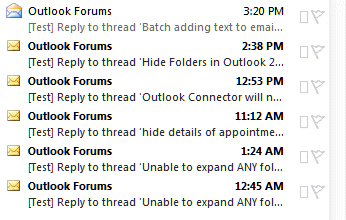
If there are just a few subject lines to edit, you can use in-cell editing to quickly paste the code into the subject.
Using VBA to change the subject line
Copy and paste the following code into the VB Editor. Create a search folder to find all messages where the subject needs tagged then run the macro while viewing the search folder results.
I tested this code in Outlook 2010 and it should work in all older versions. It works in Outlook 2013 and newer.
Sub AddFileNumber()
Dim myolApp As Outlook.Application
Dim aItem As Object

Set myolApp = CreateObject("Outlook.Application")
Set mail = myolApp.ActiveExplorer.CurrentFolder

Dim iItemsUpdated As Integer
Dim strTemp As String
Dim strFilenum As String

strFilenum = InputBox("Enter the file number")
iItemsUpdated = 0
For Each aItem In mail.Items
    strTemp = "[" & strFilenum & "] " & aItem.Subject
      aItem.Subject = strTemp
      iItemsUpdated = iItemsUpdated + 1
    aItem.Save
Next aItem

MsgBox iItemsUpdated & " of " & mail.Items.Count & " Messages Updated"
Set myolApp = Nothing
End Sub
When you run the macro, a dialog box will come up asking for the file number (it accepts any text string). Type your file number or keywords in then press OK or Enter. When the macro is finished, a message will come up showing you how many items were changed.
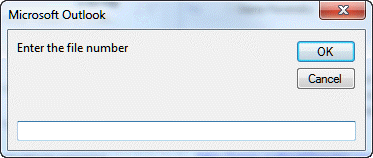
Note: If you use this in Outlook 2010 and use Conversation view, the subject used for the conversation view won't change. Disable conversation view to see the updated subject lines on individual messages.
Also, if the search results include sent messages, those subject lines will be updated too.
Watch a folder for new messages
This macro watches a folder and run the macro when a new message is added to it. It can be used on folders in your default mailbox or in other mailboxes in your profile. You need the GetfolderPath function from Working with VBA and non-default Outlook Folders yo use it on folders not in your default mailbox.
To test an ItemAdd macro, copy a message and paste in-place (Ctrl+C,V) or drag a message to the folder.
More information on Process items in a shared mailbox. For more information on ItemAdd macros, see How to use an ItemAdd Macro.
This macro goes in ThisOutlookSession.
Option Explicit
Private objNS As Outlook.NameSpace
Private WithEvents objItems As Outlook.Items

Private Sub Application_Startup()

Dim objFolder As Outlook.Folder
Set objNS = Application.GetNamespace("MAPI")

'Use default Inbox to watch:
'Set objFolder = objNS.GetDefaultFolder(olFolderInbox)
'Set objItems = objFolder.Items


' Get function from http://slipstick.me/qf
Set objItems = GetFolderPath("Direct ITR\Inbox").Items

Set objFolder = Nothing
End Sub

Sub objItems_ItemAdd(ByVal Item As Object)
 Dim sAppName As String
 Dim sSection As String
 Dim sKey As String
 Dim lRegValue As Long
 Dim lFormValue As Long
 Dim iDefault As Integer
 sAppName = "Outlook"
 sSection = "Messages"
 sKey = "Current Number"

' The default starting number.
     iDefault = 101 ' adjust as needed

 ' Get stored registry value, if any.
     lRegValue = GetSetting(sAppName, sSection, sKey, iDefault)

 ' If the result is 0, set to default value.
     If lRegValue = 0 Then lRegValue = iDefault

 ' Increment and update invoice number.
     SaveSetting sAppName, sSection, sKey, lRegValue + 1

 Item.Subject =  CStr(lRegValue) & " " & item.subject
 Item.Save

End Sub
Run a Script Rule to add Sequential Numbers to subject
This sample is a Run a Script rule and will add a number to each message as they arrive. It saves the last used number to the registry for use in the next session.
To use, create a rule, choosing the run a script action and select this macro as the script.
Sub SubjectNumbering(Item As Outlook.MailItem)
 Dim sAppName As String
 Dim sSection As String
 Dim sKey As String
 Dim lRegValue As Long
 Dim lFormValue As Long
 Dim iDefault As Integer
 sAppName = "Outlook"
 sSection = "Messages"
 sKey = "Current Number"

' The default starting number.
     iDefault = 101 ' adjust as needed

 ' Get stored registry value, if any.
     lRegValue = GetSetting(sAppName, sSection, sKey, iDefault)

 ' If the result is 0, set to default value.
     If lRegValue = 0 Then lRegValue = iDefault

 ' Increment and update invoice number.
     SaveSetting sAppName, sSection, sKey, lRegValue + 1

 Item.Subject =  CStr(lRegValue) & " " & item.subject
 Item.Save

End Sub
Add a project number and the folder path to the subject
Jason wanted to add a project number and the path where the message is stored. To do this, I needed to add 2 1/2 lines to the original macro: Dim and Set the folder variable, then add the folder name variable to the subject.
This code adds the code and folder path to the subject of every message in the folder.
Sub AddFileNumberandFolderpath()
Dim myolApp As Outlook.Application
Dim aItem As Object
Dim F As Outlook.MAPIFolder

Set myolApp = CreateObject("Outlook.Application")
Set mail = myolApp.ActiveExplorer.CurrentFolder

Dim iItemsUpdated As Integer
Dim strTemp As String
Dim strFilenum As String

strFilenum = InputBox("Enter the file number")
iItemsUpdated = 0
For Each aItem In mail.Items
  Set F = aItem.Parent
    strTemp = "[" & strFilenum & "] " & aItem.Subject & " | " & F.FolderPath
      aItem.Subject = strTemp
      iItemsUpdated = iItemsUpdated + 1
    aItem.Save
Next aItem

MsgBox iItemsUpdated & " of " & mail.Items.Count & " Messages Updated"

Set myolApp = Nothing

End Sub
Add the received date to the subject
This version of the macro shows how to add the received date to the subject, with the date in a specific format.
Sub AddDatetoSubject()
Dim myolApp As Outlook.Application
Dim aItem As MailItem ' Object

Set myolApp = CreateObject("Outlook.Application")
Set mail = myolApp.ActiveExplorer.CurrentFolder

Dim iItemsUpdated As Integer
Dim strTemp As String
Dim strDate As String

iItemsUpdated = 0
For Each aItem In mail.Items
Debug.Print aItem.ConversationTopic
strDate = Format(aItem.ReceivedTime, "mm-dd-yyyy")
    strTemp = aItem.Subject & " " & strDate
      aItem.Subject = strTemp
      iItemsUpdated = iItemsUpdated + 1
    aItem.Save
Next aItem

MsgBox iItemsUpdated & " of " & mail.Items.Count & " Messages Updated"
Set myolApp = Nothing
End Sub
Change the subject of the selected or open message
Rachid wanted to know how to use this macro with only the selected item.
To run the macro on the selected message in the message list, replace the Set mail. line with the following line.
Set aItem = myolApp.ActiveExplorer.Selection.Item(1)
You'll also need to remove the code that loops through all messages (and the MsgBox line). (See code below.)
If you want the macro to work on selected or open messages, use the GetCurrentItem Function from work with open or selected items and the code below.
This code sample adds the ability to cancel the entry. To do this I changed Dim strFilenum As String to Dim strFilenum As Variant then added these the following lines. The first lines picks up the Cancel button, the second checks the value and if empty, exits.
If strFilenum = False Then Exit Sub
If strFilenum = "" Then Exit Sub
Sub AddFileNumber()
Dim aItem As Object

' Don't forget the function
Set aItem = GetCurrentItem()

Dim iItemsUpdated As Integer
Dim strTemp As String
Dim strFilenum As Variant

' removed the loop so it only works with the selected item
strFilenum = InputBox("Enter the file number")

' Empty value or cancel button
If strFilenum = False Then Exit Sub
If strFilenum = "" Then Exit Sub

strTemp = "[" & strFilenum & "] " & aItem.Subject
    aItem.Subject = strTemp
    aItem.Save

End Sub
Change selected messages
This version of the macro applies to selected messages. As written it increments the file number. Remove this line to use the same number.
strFilenum = strFilenum + 1
Public Sub AddFileNumberSelection()
    Dim Session As Outlook.NameSpace
    Dim currentExplorer As Explorer
    Dim Selection As Selection
    Dim strTemp As String
    Dim obj As Object

    Set currentExplorer = Application.ActiveExplorer
    Set Selection = currentExplorer.Selection

	Dim strFilenum As Variant

' removed the loop so it only works with the selected item
strFilenum = InputBox("Enter the file number")

' Empty value or cancel button
If strFilenum = False Then Exit Sub
If strFilenum = "" Then Exit Sub
    For Each obj In Selection

     With obj

    ' do whatever
  Debug.Print .Subject
' clear strTemp before setting a new value
  strTemp = ""
strTemp = "[" & strFilenum & "] " & .Subject
    .Subject = strTemp
    .Save
' increment the file # for each message
' remove if you want to use the same #
     strFilenum = strFilenum + 1
     End With

    Next

    Set Session = Nothing
    Set currentExplorer = Nothing
    Set obj = Nothing
    Set Selection = Nothing

End Sub
Using In-cell Editing
If you don't need to change a large number of items, it may be faster to use in-cell editing.
Create a custom view or edit your existing view to enable in-cell editing then click in the subject field and paste the code.
The steps are at Change the Subject of an Incoming Message and for Outlook 2010, see Editing the Subject line in Outlook 2010
How to use File Number Macros
This macro shows how to use the first macro and the run a script macro. After testing the macro, create a button on the ribbon or Quick Access Toolbar (QAT) to make it easy to use.
Undo the Changed Subject
If you screwed up the macro, you can't hit Undo to fix it, but you can use another macro to restore the original subject.
If the changes are at the beginning or end of the macro and are equal length you can use the Right or Left function to trim the subject. For identical keywords, you can use Replace (provided the keyword is not repeated in the subject). If the added keywords have a unique character (such as ]) or have the first space between the keyword and the original subject, use Instr function to calculate the length of the addition and Right (or Left) function to remove it.
If you made changes at the beginning and end of the subject or edited the original subject string, you can use a macro to read the message header and grab the original subject from it. (The Subject line in the message header can't be edited using standard VBA.)
Joerg used this macro to remove a prefix where all added prefixes are the same length. Replace Right with Left to remove text from the end of a subject.
Sub DelLeftString()
Dim myolApp As Outlook.Application
Dim aItem As Object

Set myolApp = CreateObject("Outlook.Application")
Set mail = myolApp.ActiveExplorer.CurrentFolder

' Remove from left or right
Dim iItemsUpdated As Integer
Dim lString As Integer

lString = InputBox("Characters to be deleted from the LEFT. Include brackets and spaces!")
iItemsUpdated = 0
For Each aItem In mail.Items
aItem.Subject = Right(aItem.Subject, Len(aItem.Subject) - lString)
iItemsUpdated = iItemsUpdated + 1
aItem.Save
Next aItem

MsgBox iItemsUpdated & " of " & mail.Items.count & " Messages Updated"
Set myolApp = Nothing
End Sub
This code snippet would be used in a macro to remove an identical string from each subject
Dim strTemp As String
strTemp = InputBox("Full String to replace. Include brackets and spaces!")
aItem.Subject = Replace(aItem.Subject, strTemp, "")
This code snippet removes the text before the first space in the subject.
Dim lString As Integer
' remove text prior to first space in subject
lString = InStr(1, aItem.Subject, " ")
aItem.Subject = Right(aItem.Subject, Len(aItem.Subject) - lString)
If the added keywords vary in length or you made other changes to the subject, this macro reads the message header then uses regex to find the subject field and use it as the visible subject.
Sub UndoEditSubjectwPrefix()
Dim myolApp As Outlook.Application
Dim aItem As Object
Dim propertyAccessor As Outlook.propertyAccessor
Dim iItemsUpdated As Integer
Dim strTemp As String
Dim strHeader As String
Dim strPrefix As String

Dim Reg1 As Object
Dim M1 As Object
Dim M As Object

Set myolApp = CreateObject("Outlook.Application")
Set mail = myolApp.ActiveExplorer.CurrentFolder

iItemsUpdated = 0
For Each aItem In mail.Items
Set propertyAccessor = aItem.propertyAccessor

' get the subject from the header
strHeader = propertyAccessor.GetProperty("http://schemas.microsoft.com/mapi/proptag/0x007D001E")

    Set Reg1 = CreateObject("VBScript.RegExp")
    With Reg1
        .Pattern = "(Subject:\s(.*))"
        .Global = True
    End With

    If Reg1.Test(strHeader) Then

        Set M1 = Reg1.Execute(strHeader)
        For Each M In M1
        strTemp = M.SubMatches(1)
        Next
    End If

      aItem.Subject = strTemp
     iItemsUpdated = iItemsUpdated + 1
    aItem.Save
Next aItem

MsgBox iItemsUpdated & " of " & mail.Items.count & " Messages Updated"
Set myolApp = Nothing
End Sub
How to use the Macro
First: You will need macro security set to low during testing.
To check your macro security in Outlook 2010 and newer, go to File, Options, Trust Center and open Trust Center Settings, and change the Macro Settings. In Outlook 2007 and older, it’s at Tools, Macro Security. If Outlook tells you it needs to be restarted, close and reopen Outlook. Note: after you test the macro and see that it works, you can either leave macro security set to low or sign the macro.
Now open the VBA Editor by pressing Alt+F11 on your keyboard.
To put the code in a module:
- Right click on Project1 and choose Insert > Module
- Copy and paste the macro into the new module.
More information as well as screenshots are at How to use the VBA Editor.

Al King says
Excellent writeup and coding. Thank you very much
Alex May says
Used this to create a macro to remove the [***SPAM***] flag
DayStay says
I am trying to get the macro to remove "[External]" from the subject line, but something isn't working. It doesn't find any messages and says "0 of 322 Messages Updated". Is the entire VB text posted somewhere?
Diane Poremsky says
I swear I had a macro on the site specifically to remove external - but can't find it. This should work.
It runs on the selected messages - I did not test it though - select one and run to test before running it on a lot. :)
Sub RemoveExternal()Dim myolApp As Outlook.Application
Dim Item As MailItem ' Object
Set myolApp = CreateObject("Outlook.Application")
Set mail = myolApp.ActiveExplorer.CurrentFolder
Dim iItemsUpdated As Integer
Dim strTemp As String
Dim strSubject As String
iItemsUpdated = 0
For Each Item In mail.Items
Debug.Print Item.ConversationTopic
strSubject = replace(item.subject,"[External]","", 1,1,1)
Item.Subject = strSubject
iItemsUpdated = iItemsUpdated + 1
Item.Save
Next Item
MsgBox iItemsUpdated & " of " & mail.Items.Count & " Messages Updated"
Set myolApp = Nothing
End Sub
Diane Poremsky says
I have this one that removes a prefix - it's for appointments but the idea is the same - it uses the instr method to remove the prefix.
https://www.slipstick.com/developer/code-samples/remove-prefix-gmail-meeting-invitations/
Alberto says
Hello Diane, thenk you very much for the above code.
It works!
Now I've a new question.
How can I submit it to you?
Thanks,
Jorinde says
Dear Diane,
thank you very much for sharing the vba codes online. It's been very helpfull to automate saving outlook e-mails to the computer.
I was wondering if you would be willing to help me with the following. I think it must be easy to do, but my knowledge of coding is limited and with trying some of your "add a file number" code I'm not getting what I want.
So I've used your code for saving outlook emails als.msg and also added the "browse for folder" code, which is absolutely wonderful! I would like to save the messages only by jjjjmmdd and not with the hour and minutes added in the title. This however causes the "problem" that certain messages received and replied at the same day have the same title and thus will only save the first mail with that title. I would like tot add a number to the title, as would happen when you selected these multiple messages with the same title and would drag to the Windows folder when saved in bulk manually. So, I mean to number the messages only when the message is saved in a windows folder, not number the messages in outlook itself. Would that be possible and how could I receive that result?
For example:
"20201110_Answer"
"20201110_Re:answer (1)"
"20201110_Re:answer (2)"
"20201110_Re:answer (3)"
Thank you so much in advance for any reply.
Kind regards,
J
Diane Poremsky says
Filtering is no problem - use an if statement to check the sender address. Adding the number if the file already exists is not a problem but you need to use the FileSystemObject to check and keep looping to increment it.
I don't think i have an exact sample that does that - https://www.slipstick.com/developer/saving-messages-to-the-hard-drive-using-vba/ and https://www.slipstick.com/developer/code-samples/save-selected-message-file/ has save to hard drive samples.
Michael says
How do I have the Macro check the words or reference number I am inserting is not already in the subject line?
Michael says
How do I change it so the code is added as a suffix (not prefix)?
Mike says
This was great help thank you. Can you possibly help with my query below?
We email many clients each day. We are asked to quote the client's unique customer number in each email but often staff forget. When sending emails, is it possible to have outlook prompt users/senders to select which client code the email is rleevant to and then have outlook insert that code into the subject line of the email?
For example, lets say I want to send an email to Mr Smith. Mr Smith's customer number is '1234'. I draft an email in outllok to Mr Smith and when I click 'send' a window appears askimg me to select which customer number the email relates to. I then select 'Mr Smith [1234]' from a dropdown or list and then the email is sent but with '[1234]' inserted into the subject line of the email as a prefix or suffix.
Is this possible?
Thank you!
M.
chace says
hi, may i know the same thing can pply to outlook My Task?
i need a add Sequential Numbers to subject, every time i open a new task
can help on that?
thanks
M.PCZ says
Hi Diane,
Is there a way to modify the "Change the subject of the selected or open message" script to work on multiple selected emails? It's working perfectly but only on a single selection.
Diane Poremsky says
Sure. It’s usually a minor tweak - I have an article that has code to work with either all mail in a folder or selected messages. It’s a matter of putting the working code in this macro into the ‘do something’ section in those macros.
I’m on my iPad right now, but when I’m back on a computer I’ll try to remember to add a version that works on selected messages (instead of just all messages).
Diane Poremsky says
I did not test this - but it should work. (Hopefully I did not make any simple, stupid mistakes in it.)
https://www.slipstick.com/outlook/email/add-a-file-number-or-keyword-to-the-subject-line-of-messages/#selected
Wolfgang says
Hello Diane,
I read a lot of your articles and want to thank you for all the great help! Now I am stuck with a problem I can't find a working solution for.
In our small company we are all working on the same IMAP Email-Account. We constantly receive emails form our customer with projects. In order to split the work between us, we used a macro to add our initials in brackets to the subject line of a highlited email. This worked like a charm until Outlook 2016. Now, whenever I use the macro, the email I modified gets doubled. This only happens in IMAP-Accounts, POP is no problem, but using POP we cannot share the same emails, seeing which ones a read, answered, ...
Would you have any idea how to make this work? I tried to find out more about Imap-Protocoll, tried if I could use another data field which is supported by IMAP to manipulate, I tried modifying the subject and in the next step search for double emails and delete these, I tried all kinds of third party tools to achieve the same simple marking method and nothing works for us.
Thank you very much
Best regards
Wolfgang
Diane Poremsky says
Yeah... when you edit a message in imap now, it can create duplicates. Are you marking the mail as read at the same time or close to the same time? It could be happening because the mail is getting marked as read, so that change syncs back to the server and before Outlook refreshes, you also change the subject. (But i need to test my theory.)
Wolfgang says
Hello Diane,
Thank you for your response. I was thinking I get an email if a reply gets posted but somehow I did not. The way I see it, it does not make a difference if its read or unread. When I change the subject with the VBA code, the current state stays the same. It is so frustrating that something that worked like a charm now does not work at all :-(
I was trying to find a new imap protocoll for our mailserver that supports custom data fields but this did not work as well.
Thanks for any suggestions you have
Kind regards
Wolfgang
W_W says
Love the AddFileNumber() one
Thanks for that :)
Daniel says
Hi Diane,
Unfortunately I made a big error and updated the file number on all msg's in my Inbox. (A rather large amount)
Is there a way to reverse this or run another macro to remove the file no's. Any assistance you can provide would be apreciated.
Diane Poremsky says
i thought i had an 'undo' macro in the comments (if not in the article) - basically, yes, you can by getting the subject from the message header. (I did the same thing at least once while testing it. :))
I'll see if i can find it - but you could use the conversation topic - it won't have the RE & FW though.
.ConversationTopic
Joerg says
Hi, this site is a great help. I have also used the 'Add ProjectNumber' Macro and I have done a mistake. I would be really interested how to i.e. delete the added string from all email headers or how to search&replace a specific string ?
Greets from Hamburg
Jörg
Diane Poremsky says
If the code was added on the left or right and is a specific # of characters, you can use .subect = right(.subject, len(.subject) - length-of-project#) use left if the code was added at the end. If the code length varies and you enclosed it in brackets, you need to use instr to find a bracket and calculate the length - or use regex to get the original subject from the header. I'm out of the office and on my iPad today so I can't get the code for that right now. Will try to remember to do it tonight.
Joerg says
Great, I will try it. Its at the beginning in my case.
Thanks!!
Joerg says
My macro source:
Sub DelLeftString()
Dim myolApp As Outlook.Application
Dim aItem As Object
Set myolApp = CreateObject("Outlook.Application")
Set mail = myolApp.ActiveExplorer.CurrentFolder
Dim iItemsUpdated As Integer
Dim strTemp As String
Dim Int_laenge As Integer
Int_laenge = InputBox("Characters to be deleted from the LEFT ")
iItemsUpdated = 0
For Each aItem In mail.Items
aItem.Subject = Right(aItem.Subject, Len(aItem.Subject) - Int_laenge)
Rem strTemp = "[" & strFilenum & "] " & aItem.Subject
Rem aItem.Subject = strTemp
iItemsUpdated = iItemsUpdated + 1
aItem.Save
Next aItem
MsgBox iItemsUpdated & " of " & mail.Items.Count & " Messages Updated"
Set myolApp = Nothing
End Sub
Denise says
Hi Diane,
I have to file all emails with the date the email was received at the end of the subject line. I normally use edit cell to add but I have close to 15000 emails with different dates. I'm hoping there's a way to add the date of the received email to the end of the subject line minus any brackets
date to be formatted such as 01-01-1999
Thank you!
Diane Poremsky says
Sorry I missed this early - but sure, you can use a macro - the one on this page will work with just a little tweaking.
Dim strDate As String
iItemsUpdated = 0
For Each aItem In mail.Items
strDate = Format(aItem.ReceivedTime, "mm-dd-yyyy")
strTemp = aItem.Subject & " " & strDate
aItem.Subject = strTemp
iItemsUpdated = iItemsUpdated + 1
aItem.Save
Next aItem
Now... this applies to all messages in the folder, so you don't want to run it multiple times on the same messages. It can be change to either use the conversation topic or only selected messages. Or use the run a script method to add the date as messages arrive.
Oliver Leemans says
Hi,
Is there a way to stop a new bracketed change each time a email is sent? For example:
1. "Test Subject Line"
2. "[0001] Test Subject Line"
3. "[0001] [0001] Test Subject Line"
4. "[0001] [0001] [0001] Test Subject Line"
Diane Poremsky says
you need to check the subject for [ and skip the keyword if it is found.
if instr(1, aitem.subject, "[") > 0 then
exit sub
end if
Balazs says
Dear Diane, thanks for the tips.
Is it possible to run the macro every time when a user wants to send a mail (before sending, so the subject is modified before sending?
Can we make the popup window a combo box, which populates the field from an access database?
If the connection is imap, and we make changes to the subject, it will be synced to the mailserver, right?
Last question: if we want to run the script for recieving a message (with the sam combo box - acces mdb fields) and not generate an automatic number to them, what will happen when multiple emails arrive at the same time?
Diane Poremsky says
Yes, you can run it automatically when you create a new message or when you click Send. You can also change it to be run manually when composing a message.
You can use a dialog box and choose values that are stored in a database.
Changes to imap subjects should sync back (some imap servers can be goofy, so you'll need to test it)
If you aren't using auto generated numbers, you'll need to use a handler to insure some messages aren't skipped.
Wes says
Hi Diane,
I’ve looked through this thread; it is the closest to what I am trying to achieve. Apologies if I’ve missed a solution previously posted.
I receive multiple monthly notification e-mails with identical subject lines for different accounts. I have a rule that moves them all into one folder, but have to manually append the subject with identifying text to signify each account.
I can run a rule that finds the account number in the body of the message, but it appears I need a script to append the subject with the corresponding name (text) of the account. It would be even better if the script contained an IF/THAN so it could check all accounts in one script e.g., “IF body of message contains 07142, THEN append subject with ‘Smith’. IF body of message contains 54667, THEN append subject with ‘Jones’.”
Many thanks for your guidance!
(Outlook 2013)
Diane Poremsky says
Sorry I missed this earlier. if the list of accounts/names is pretty static, you can use an array to handle the lookup. If you need to constantly update the list, it gets tiresome. A sample array is here - https://www.slipstick.com/developer/using-arrays-outlook-macros/ - it adds categories based on the subject but can easily add a word to the subject. To find the string in the body, you'll either use regex or instr/mid function. I have a code sample here somewhere that does something similar, but moves the messages to a folder - i'll see if I can find it.
William Green says
I see your script works with emails that is received or in your mailbox. I need outlook to prompt me to add a project number to the subject line before sending the email. Is that possible?
Diane Poremsky says
It is possible. This page has several ways to do it - these macros add the word automatically, but you can pop up a dialog to ask if a project id should be added then add it. https://www.slipstick.com/developer/code-samples/add-secure-message-subject-sending/
Sorry I missed this earlier - I am way behind in answering. :(
Rahul says
Hi Diane, thank you for this page. I want to update the file number but only for one email at a time. Can you please help with that?
Diane Poremsky says
The macro under the 'Change the subject of the selected or open message' heading (last macro on the page) works with one message at a time.
Gene says
If the incoming message is sent to a distribution list, is there a way to get the same number added to each person who receives the email?
Diane Poremsky says
If you want all recipients to have the same number, the sender would need to add it to the subject before sending.
Louise says
Thank you, that was just what I was looking for the video was very useful.
Derek says
Dear Diane,
Thanks so much for all tips. However, I have been struggling with getting this to work for my specific question. I would greatly appreciate your help. This is what I want to accomplish:
When I receive an invoice by email from a supplier, and I approve the invoice, I need to forward the email (including attachments) to a specific email address, with 'invoice' in the subject line. In this way, our financial system can automatically process these invoices and put them into our accounting system.
So, currently, I manually:
1. Select the email and read the email and/or attachment which shows the invoice. This manual task will stay the same.
If I approve the invoice, I need to take the following manual actions:
2. Forward the Email
3. Enter the email address (accountingsystem@abc.com)
4. Change the subject to 'Invoice'
5. press send
6. move the original mail to an outlook folder 'finance'
7. go to the sent items folder, and move the forwarded email to the 'finance' folder.
Is there a way to automate steps 2 - 7, and create a button to activate these steps on the selected email?
Thank you very much in advance for your help.
Kind regards,
Derek
Allen Thomas says
Can anyone please tell me the steps to apply this in outlook
Diane Poremsky says
I added a video tutorial to the page.
Mark Harney says
Hi Diane,
I am trying to make a form that will combine a couple pieces of information to concatenate to a subject line. The custom form has two fields RecipientName and CompanyAddress as textboxes. I would like the Subject field to become the combination of three values - one of which will be the first part of the subject and the second will be logically: /TO=/CO=/ So when I open the form like a new message I would populate these three fields and it would create a subject like:
SubjectFirstPart /TO=John Doe/CO=123 Lime Street/
How would this be done in a way that I can save and export the form to use on another client?
Diane Poremsky says
you'll need to use a macro to merge the fields and enter them in the subject. Do you need it as a custom form? The easiest might be a simple macro, not unlike the samples on this page. if you know the data you need, the macro can create the subject and address the message - basically, use lines like this: strSubject = InputBox("Enter the subject") to get the recipients name, the subject, and CO value then merge them :
.subject = left(strSubject, 5) & " /" & strTo & " /" & strCO
.to = strTo ' assumes you have a contact for recipient
or... after the message is created, run a macro to pick up the bits you need to in the subject.
Dom says
Hi,
Basically what I need is to take a line of text from a selected or open email message and then append that to the end of the subject line. All the emails I receive are generated from a form (which doesn't seem to be able to be altered (not my form)) and all the emails look like this:
Subject: DEFAULT SUBJECT
Body:
A:
B:
C:
D:
CLI: 0123456789
F:
etc
What I need to do is take whatever is after "CLI: " and add to the end of the subject line, so in the above example it would become:
DEFAULT SUBJECT - 0123456789
I've tried various bits but not achieving anything. Help Please
Diane Poremsky says
Regex can do that. Instr, Mid functions should also work, especially if the CLI code is always the same # of characters.
This is a regex example - https://www.slipstick.com/developer/regex-parse-message-text/ - once you grab the value, it's easy to add to the subject.
Phil says
I am battling with MS Office 2016 and especially Outlook. I work on several different projects which have a unique job number and I used to be able to add the relevant job number to the front of the subject line in all incoming messages (makes filing them so much easier). Alas no longer because the software will not allow any editing of the subject line until you reply or forward the message. Help!
Diane Poremsky says
You have the header on compact mode - click the caret on the right to expand it.
https://www.slipstick.com/outlook/email/edit-the-subject-line-in-outlook/
Jeff says
Great information. I am using Outlook 2013 and simply want to add a keyword to the end of the incoming email. Can you give me an example of this simple step?
Much appreciated.
Diane Poremsky says
Any of the macros on this page should work. The first is manual - you need ot run it and supply the value. The second is automatic and uses sequential or generated #.
Abhi says
Please help me: I need to add the text "AD" (my initials) to the subject line of every outgoing message (new and reply/forward) automatically in Outlook. How to do it.
Diane Poremsky says
You definitely need to use a macro. This macro will change the subject when a new message is opened - https://www.slipstick.com/developer/code-samples/default-subject-messages/
Remove this - And _ m_Inspector.currentItem.Subject = "" (put Then after mailitem) and change the subject line to this: m_Inspector.currentItem.Subject = "AD " & m_Inspector.currentItem.Subject
Raf Cole says
Dear Diane,
First of all, I want to thank you for these great examples. They help a lot!
I made some changes to the code to make it work for random selected messages in a folder.
(Your examples were either for all messages or for 1 selected message, like the GetCurrentItem example)
But if you want to "batch" edit multiple messages, this will do the trick:
Sub AddSubjectprefix()
Dim myOlApp As Outlook.Application
Dim myOlExp As Outlook.Explorer
Dim myOlsel As Outlook.Selection
Dim aItem As Object
Dim x As Integer
Dim iItemsUpdated As Integer
Dim strTemp As String
Dim strFilenum As Variant
Set myOlApp = CreateObject("Outlook.Application")
Set myOlExp = Application.ActiveExplorer
Set myOlsel = myOlExp.Selection
'Show input box
strFilenum = InputBox("Enter a subject prefix")
' Empty value or cancel button
If strFilenum = False Then Exit Sub
If strFilenum = "" Then Exit Sub
iItemsUpdated = 0
For x = 1 To myOlsel.Count
strTemp = strFilenum & " - " & myOlsel.Item(x).Subject
myOlsel.Item(x).Subject = strTemp
iItemsUpdated = iItemsUpdated + 1
myOlsel.Item(x).Save
Next x
MsgBox "Subject prefix updated of " & iItemsUpdated & " of " & myOlsel.Count & " Messages"
Set myOlApp = Nothing
End Sub
Instead of Currentfolder, I used the Selection with Item and then a counter to update the index. Didn't know if it would recognize the Subject and Save command as it didn't show up when typing, but it worked.
I used the counter code from here:https://msdn.microsoft.com/en-us/library/office/bb219876%28v=office.12%29.aspx
Regards,
Raf
Pau Rodon says
Hello All
I'm trying to add a code at the beginning of a Subject before forwarding.
I use rules to automatically forward it but I should add the code before. any idea of how I should do that?
any help will be really appreciated!
Diane Poremsky says
You'd need to use a run a script rule and use it to set the subject and forward. https://www.slipstick.com/outlook/rules/run-script-rule-change-subject-message/ shows how to forward - add your code that generates the subject code.
muffitt says
Hi Diane,
I would like to be able to click a button on my ribbon which adds "Done & File" to the end of the subject line of an email.
Then I would like to create a rule that from a sender where "Done & File" in the subject and then moves them to a folder.
Not quite sure the best way to do it. but this way it will file everything for me
Diane Poremsky says
What folder will they be moved to? Rather than using a macro to tag the message subject then a rule to move the message, you could use a macro to move the message - or a quick step. A macro can file by sender name, email address, or domain, while a quick step would move to a specific folder. You can make multiple quick steps but any more than like 4 can get confusing and slow you down.
Doug says
I would like to be able to be able to Right click a folder, select an option like "New Mail", have a new mail open with the folder name in the subject line and when I send the mail have it stored in the folder I right clicked. Can the VBA be modified to do this ?
Diane Poremsky says
It can't be added to the right click menu but a macro can pick up the folder name and path and set the save in property to that folder.
This adds the name ot the subject but I'm having problems getting the path to save
Public Sub CreateNewMessage()
Dim objMsg As MailItem
Dim folderPath As folder
Dim folderName As String
folderName = Application.ActiveExplorer.CurrentFolder.Name
Set objMsg = Application.CreateItem(olMailItem)
With objMsg
.Subject = folderName
.Display
End With
Set objMsg = Nothing
End Sub
Ashutosh says
Hi Diane,
Is there a way to undo this, like removing a few characters from subject line from multiple emails?
Diane Poremsky says
As long there is something you can work with - like remove the first 5 characters.
for that, you'd use this format:
subject = right(subject, len(subject)-5)
Oğuzhan says
Diane,
I want to apoint a unique number for my each e-mail which is differ for which project and which stakeholder I am sending. Example :
YYY (Project Name)- NYE (Sender) - XXXX (Receiver company code) - 234 (This will count up if I send another e-mail to that XXXX company for YYY project.
Up to know it can be done by VBA but I want this auto counter code writes this e-mail number into subject line right after I send the e-mail.
Is that possible with exchange 2013?
Diane Poremsky says
It's not easily doable in Exchange - you would need to write an application and have access to the physical server to install it.
kanchan says
how to add a keyword and datetime with the end of selected mails subject line and move selected mail from inbox to another folder in outlook?
Diane Poremsky says
to add things at the end, use something like item.subject = item.subject & " keyword " & now()
Moving: a sample is here https://www.slipstick.com/developer/code-samples/use-vba-move-messages-based-values-fields/ - this is an example to move to a subfolder of the inbox.
Item.Move (Session.GetDefaultFolder(olFolderInbox).Folders("Move"))
or
set newfolder = Session.GetDefaultFolder(olFolderInbox).Folders("Move")
item.move newfolder
using outlook's non-default folders in vba has more information.
Ellrick says
Hi all, I've tried to modify first code from the top of this page but without luck, I'm trying to add sequence numbers in brackets to each subject in active folder, for example: message number 1 [1]Subject
message number 2 [2]Subject
message number 3 [3]Subject
but every time I get new message and I run script I want previous number to be gone
so it won't be like:
message number 1 [1][1]Subject
message number 2 [2][2]Subject
message number 3 [3][3]Subject
etc.
is it possible?
Appreciate any help.
Thanks
Diane Poremsky says
You need to either remove the number and add it back or track the last used # and skip messages with numbers already. The easiest fix is to check for the changes already:
If Left(aItem.Subject, 1) <> "[" Then
strTemp = "[" & strFilenum & "] " & aItem.Subject
Matt Walker says
Hi Diane,
Thanks for the reply. It is for incoming email. They are all faxes that have been converted to email format and then sent to us and the subject format is always the same.
Thanks,
Matt
Matt Walker says
Hi, is there a way to modify this to read a phone or fax number in the subject line and replace it with a contact name if they exist in my contact list?
Thanks,
Matt
Diane Poremsky says
Is this for incoming email or outgoing? You can parse text in the subject and search contacts to cross reference. If the number format is always the same it will be a little easier - you can count numbers, otherwise, you may need to use regex. I'm not sure if i have any search code samples.
Louis says
I can't seem to get his code to work any help would be appreciated
Sub AddFileNumber()
Dim aItem As Object
' Don't forget the function
Dim objApp As Outlook.Application
Set objApp = Application
On Error Resume Next
Select Case TypeName(objApp.ActiveWindow)
Case "Explorer"
Set GetCurrentItem = objApp.ActiveExplorer.Selection.Item(1)
End Select
Set objApp = Nothing
Set aItem = myolApp.ActiveExplorer.Selection.Item(1)
Dim iItemsUpdated As Integer
Dim strTemp As String
Dim strFilenum As Variant
' removed the loop so it only works with the selected item
strFilenum = InputBox("Enter the file number")
' Empty value or cancel button
If strFilenum = False Then Exit Sub
If strFilenum = "" Then Exit Sub
strTemp = "[" & strFilenum & "] " & aItem.Subject
aItem.Subject = strTemp
aItem.Save
End Sub
Diane Poremsky says
Where do you get stuck?
See https://www.slipstick.com/developer/how-to-use-outlooks-vba-editor/ for an introduction to using the VBA editor.
david says
That works like a charm! Thank you very much Diane!
david says
Hi Diane,
Great concept but how can I run through multiple items instead of just one item at a time?
Diane Poremsky says
The code contains a For... Each block with works on all messages in the current folder. To apply it to selected items, replace For Each aItem In Mail.Items line with this:
Dim Selection As Selection
Set Selection = Application.ActiveExplorer.Selection
For Each aItem In Selection
Stephen says
Hello,
I have a addin that does not count emails with blank subject lines which I actually recieve quiet a lot of. So I would like to add a subject to any email that comes into my inbox with a blank subject and then have it move to another folder so it can be moved back and be picked up. I have managed to botch together the code below that changes the subject but have hit a wall everytime I try and add in the move function? I literally want these emails to be renamed, moved and then there will be a rule to move it back to the inbox so it can be counted.
Please could someone point me in the right direction?
Sub RenameBlankSubject()
Dim myOlApp As Outlook.Application
Dim aItem As Object
Set myOlApp = CreateObject("Outlook.Application")
Set mail = myOlApp.ActiveExplorer.CurrentFolder
' I have tried adding set destfolder here
' Set destFolder =
Dim iItemsUpdated As Integer
Dim strTemp As String
Dim strFilenum As String
For Each aItem In mail.Items
If Trim(aItem.Subject) = "" Then
aItem.Subject = "Your Enquiry"
End If
aItem.Save
' And a 'aItem.Move destFolder' here
' aItem.Move destFolder
Next aItem
Set myOlApp = Nothing
End Sub
Diane Poremsky says
i have a sample here that moves - Run a script - move messages - actually, it uses poor form as it has the path in the move instead of a variable.
Try Set destFolder = Session.GetDefaultFolder(olFolderInbox).Folders("subfolder-name")
That is a subfolder of the inbox. For a folder at the same level, use parent.folders:
Session.GetDefaultFolder(olFolderInbox).Parent.Folders("No Subject").Items
My only other recommendation is to set it up as a run a script rule so its all automated.
pqavina says
Hi guys,
I would like to create a script so that I could simply categorise emails and they will be moved to a folder with that category reference label but also then rename the subject so that it added "YYMMDD" "category" "sender" to "receiver" followed by the existing subject and "(with attachments)" if any exist.
Diane Poremsky says
do you want to apply a category and have the macro pick up the change? If the folders are in one path, like under the inbox, it's fairly easier to match the category to the folder.
This moves the selected item to a folder named for the category. I'm not sure of the ItemChange event picks up category change. Oh and it only works with one category ( it sees a string of categories as 1 string, not several categories)
Set aItem = myolApp.ActiveExplorer.Selection.item(1)
strCat = aItem.Categories
Set destFolder = Session.GetDefaultFolder(olFolderInbox).Folders(strCat)
aItem.Subject = Format(Now, "YYMMDD") & " | " & aItem.Categories & " | " & aItem.Sender & " | " & aItem.To & " | " & aItem.Subject
aItem.Save
aItem.Move destFolder
Set myolApp = Nothing
End Sub
Rachid says
Really appreciate the updated code, works like a charm.
I tried fixing the following myself but I need to dive deeper into VBA in order to find out how;
when clicking Cancel in the dialog box, it will still add the value defined in strTemp (i.e. the two brackets).
Do you have a fix for this?
Diane Poremsky says
Yes, you need to add a Cancel routine. I figured they would only run the macro if they wanted to add a value.
Cheap method: if no value is entered in the box, exit (added after strfilenum line)
If strFilenum = "" Then Exit Sub
To get the cancel button, change one line and add another:
'change this from String to variant
Dim strFilenum As Variant
'add this after inputbox line:
If strFilenum = False Then Exit Sub
You can use both lines to trap empty values and the cancel button.
Don_Jon says
Public Sub SetCounter()
Dim strNumber As String
Dim lngNumber As Long
Dim strFilenum As Variant
strNumber = GetSetting("VBA-Project", "Settings", "CurrentNumber", "0")
Do
strNumber = InputBox("Enter the file number:", "Microsoft Outlook", strNumber)
If strFilenum = False Then Exit Do
Loop Until IsNumeric(strNumber)
If Not strNumber = "" Then
Call SaveSetting("VBA-Project", "Settings", "CurrentNumber", strNumber)
End If
End Sub
Rachid says
Great code, one question tho; what changes do I need to make in order to make this work on the selected item only?
Giving users a button that prompts them for a text to insert is so much more appealing then having them use the in-line editor.
Thanks
Diane Poremsky says
You need to use the Function at work with open or selected items
Sub AddFileNumber()
Dim aItem As Object
' use this instead of the other two sets - don't forget the function
Set aItem = GetCurrentItem()
Dim iItemsUpdated As Integer
Dim strTemp As String
Dim strFilenum As String
' remove the loop so it only works with the first selected items
strFilenum = InputBox("Enter the file number")
strTemp = "[" & strFilenum & "] " & aItem.Subject
aItem.Subject = strTemp
aItem.Save
End Sub