Current iCloud version is 7. Some of the issues on this page are still "issues" even with the newest version of iCloud.
iCloud users should check iCloud Issues General issues affecting both iCloud1 and iCloud are at iCloud and Outlook Problems and issues specific to Contacts are at iCloud and Outlook Contact Sync Issues.
New appointments are added to your default Calendar folder and you cannot set the iCloud Calendar folder to be your default Calendar. If you want appointments added to the iCloud calendar, you'll need to either move (or copy) the appointments to the iCloud calendar or create them directly in the iCloud Calendar folder. If the Refresh button works, you can also use it.
While some versions of Outlook and iCloud will let you set the (iCloud data file as your default, with limitations), it's better and less problematic to configure Outlook to startup in the iCloud Calendar folder.
Don't use iCloud calendar, contact, or tasks sync for Exchange, Gmail, or Outlook.com accounts. These accounts support EAS (Exchange Active Sync) and will sync directly with the accounts OTA (over the air). Exchange server, Outlook.com and Office 365 business accounts will sync to Outlook and to the phone;
If Outlook and iCloud stop syncing, you need to close Outlook, open the iCloud control panel and sign out, then sign back in.
Appointments disappeared from Outlook | All Day Events don't display in Outlook
Appointments aren't on the To-Do Bar | Start Outlook in the iCloud Calendar
'Reminders aren't supported' | Appointments (and Meetings) don't sync | Sync Tools
Move Appointments and Contacts Tutorial | Calendar doesn't print | More Information
iCloud2: Can't edit meetings
Complete information and screenshots are at Can't edit meetings
After upgrading to iCloud2, you may not be able to type or paste notes into the notes field of some appointments (meetings) because the appointment or meeting is read-only. This happens because iCloud doesn't see your account as the meeting owner.
Workaround: click Forward > Forward. Outlook will tell you that you can't forward the item and will offer to make a copy in your default calendar.
Appointments disappeared from Outlook
All of my appointments disappeared from Outlook. How do I get them back?
iCloud creates a new calendar in your profile and moves your appointments to it. You can view the iCloud calendar in Outlook. Go to the Calendar navigation pane and select the "Calendar in iCloud". You can view it either side-by-side or in overlay mode. If you want the appointments in your default calendar, you'll need to drag them to it. Switch to a list view, select all and drag or use the Move to Folder command.
Not sure how to do this? We have more information at Merging Two Calendar Folders
All Day Events don't display in Outlook
This is an on-going problem with Outlook and iPhones: all day events without an end date don't display in the Day / Week / Month view. I'm not surprised it migrated to the iCloud.
First, check your calendar settings and verify you are not using Low details view. If the calendar view is set on High details, check your all days events for end dates.
Set the iCloud calendar to use a List view, add the Recurrence Range End field to the View and sort by it. Open any event that has No end date and set an end date.

I recommend using 10 events for yearly events and 1 year for more frequent events.
If you receive a warning the "Exceptions will be lost", see Changing the End Date on Recurring Appointments
Yearly Appointments don't sync correctly
When you create a yearly appointment on that recurs on a pattern (eg 3rd Sunday), it may use the original date for occurrence, not adjusting each year. This is because Outlook & Apple don't support the same patterns. In this instance, you'll need to create the even to occur every 12 months, not every year.
Appointments aren't on the To-Do BarMy calendar is synced into Outlook. However, it's not set as default calendar ("My Calendar" is empty) and so I cannot see my appointments in the To-Do Bar. Can I make my iCloud calendar default so the appointments are in my To-do bar?
The default calendar used by the To-Do Bar (and Outlook Today) is the one in your default pst file. Outlook Today gets appointments and tasks from your default Calendar.
If you use iCloud 2, you can set the iCloud data file as the default, however, this will not work if you use an IMAP account. See iCloud default data files for details.
Start Outlook in the iCloud Calendar
Although you can't set the iCloud calendar to be the default, you can configure Outlook to display the iCloud calendar when Outlook is opened the first time. Yes, I know this isn't even close to being a replacement for not seeing the appointments on the To-Do Bar but it is one option available to you. Unless you select a different calendar, the iCloud calendar should be shown by default every time you switch to the calendar navigation pane.
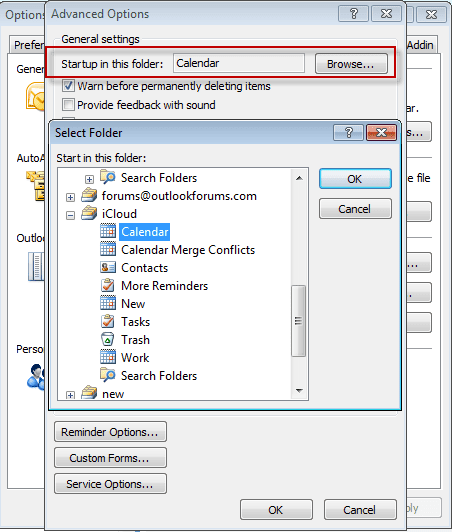
In Outlook 2010:
Go to File > Options > Advanced. Select the desired startup folder near the top of the dialog.
In Outlook 2007:
Go to Tools > Options > Other tab > Advanced Options button to select your iCloud calendar as the startup folder.
'Reminders aren't supported' warningWhy can't I set reminders in the iCloud calendar? When I try, I'm warned that reminders aren’t supported in the iCloud folder.
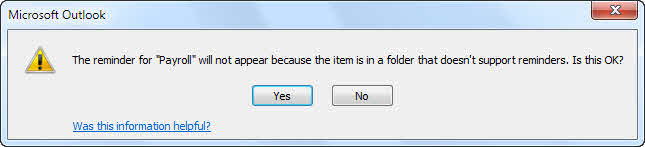
This warning means reminders on those appointments won't fire in Outlook. The reminders should sync to iCloud and work on other devices. They may not fire in Outlook unless they are in a pst file.
New Appointments don't sync to iCloudWhen I add appointments to my default Outlook calendar, they don't sync to the cloud?
If you want appointments in iCloud, you can create them in the iCloud calendar. It's easy to create them directly in the iCloud if you use the File > Move to Folder command. Add the command to the appointment form's ribbon to make it easier. See the video tutorial below for the basic steps.
 The iCloud Outlook Add-in adds a Refresh button to the Calendar ribbon. It's used to initiate a sync between Outlook and iCloud. (It doesn't seem to do anything here.)
The Calendar stops syncing
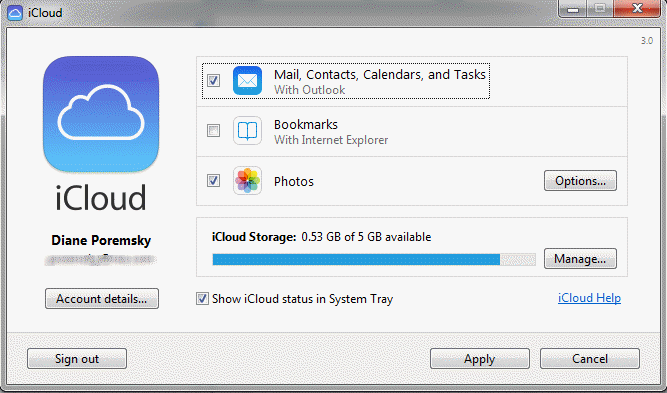
If the calendar stops syncing from the iPhone to the iCloud folders, you need to sign out of the iCloud then sign back in.
- Close Outlook.
- Open the iCloud applet, either in the Notification area or Control panel and sign out.
- Sign back in.
Meetings don't sync to iCloud
We're seeing two issues with meeting requests. The first issue is that meetings do not automatically sync with the iCloud; you need to move or copy the meeting to the iCloud folder.
If this is happening to you, I highly recommend using the macro at Copy meeting details to an Outlook appointment to copy the meetings as appointments, because the second problem is that meeting copied to the iCloud calendar are resent to the invitees with you as the organizer...
iCloud sends out meeting invitations
There are many complaints that Meeting invitations are sent from your iCloud account to all the invitees, with you (your iCloud account) as the organizer when meetings you are invited to are placed on the iCloud calendar.
Cancelling the meeting sends out a second "email blast" and may remove the original meeting from everyone's calendar.
Not good at all!
This was reportedly fixed beginning with v.1.0.1 of the iCloud applet.
Verify that you are using the latest version of the iCloud control panel. To check, go to Control Panel > iCloud. The version number is in the upper right corner of the applet (under the "X"). As of my last update to this page, v1.1 from March 2012 is the current version.
You cannot cancel these invitations, doing so may cancel the real meeting (as well as sending out a second mass mailing). To clear your calendar, disable calendar sync in the iCloud control panel and set your device to sync 2 weeks back. Some users called Apple Support and had an engineer clear the calendar. (On the device, go to Settings > Mail, Contacts, Calendars > Calendars > Sync.)
One solution is to copy meetings to the iCloud calendar as an appointment. I have a macro at Copy meeting details to an Outlook appointment that will do this for you.
Tools in the Spotlight
CompanionLink synchronizes Outlook data with phones and other supported desktop applications and web-based services (like Google). Companionlink supports all versions of Outlook, including Outlook 2013 32-bit and 64-bit, and Windows 10. Version 9 |

Tools
CodeTwo FolderSync Addin is an Outlook add-in that enables synchronization of folders. The synchronization of data will always take place between selected folders and the user can choose several pairs of folders that need synchronizing. Freeware. | |
CodeTwo Sync for iCloud syncs Outlook folders with iCloud folders automatically synchronizes Outlook contacts, calendars and tasks with the iCloud data file in Outlook. CodeTwo Sync for iCloud will let you keep the iCloud and Outlook folders in sync, so you don't need to move or copy contacts and appointments between the default Outlook folders and iCloud folders. (Now Free) | |
gSyncit is an Outlook add-in that allows for two-way synchronization between Outlook calendars, contacts, notes, and tasks with your Google, iCloud, AOL, Fruxx, Yahoo, Memotoo and many other "DAV" enabled services. Also includes support for syncing attachments for calendar events. Works with Microsoft Outlook 2007, 2010, 2013, 2016, 2019, 2021 or Office 365 (Desktop Client) on Windows 7 and newer. | |
Backup and synchronize your personal data (contacts, calendar, files, bookmarks, etc.)with your phone, tablet and computer | |
Your sync-software can sync only default folders of Outlook, but you need also subfolders and public folders? OLMixedFolders can synchronize any Microsoft Outlook subfolder or public folders with your Outlook default folders. It uses categories to keep in touch with the origin folder. It is possible to create elements for the linked folders directly on your mobile phone. After synchronization, the element goes to the specified folder. | |
Outlook CalDav Synchronizer is a free Outlook Plugin, which synchronizes events, tasks and contacts between Outlook and Google, SOGo, Nextcloud or any other CalDAV or CardDAV server. Supported Outlook versions are Office 365, 2019, 2016, 2013, 2010 and 2007. | |
SimpleSYN Mobile is the synchronization solution for synchronizing Outlook data with your iPhone, iPad or Android device. Emails, appointments, contacts, notes and tasks are always up-to-date on all devices. Your Outlook data always remains local on your devices and is not stored in the cloud. On your smartphone you do not need an additional app and you can use the built-in apps. SimpleSYN Mobile syncs on the local network (WLAN) or on the way via the internet. Free 30 days trial available | |
Automatically synchronize your Outlook calendar and contacts with Google or iCloud. Access Outlook calendar and contacts on your Android phone or iPhone/iPad. |
Save and Move Appointments to the iCloud Folder Video Tutorial
The following tutorial shows you how to use the Move to Folder command to move new appointments or contacts to a different contacts folder.
On the open appointment form, click Save then go to File menu and choose the Move to folder command. If you previously used the folder (within the last 10 moves), it will be listed on the MRU, otherwise you will need to select the folder.
To make Move to folder easier to use (and remember!), you can customize the ribbon, adding the Move to folder command to the Home ribbon, placing it next to Save and close.
Note: In Outlook 2007, you'll need to add the command to the Quick Access Toolbar.
Calendar doesn't print
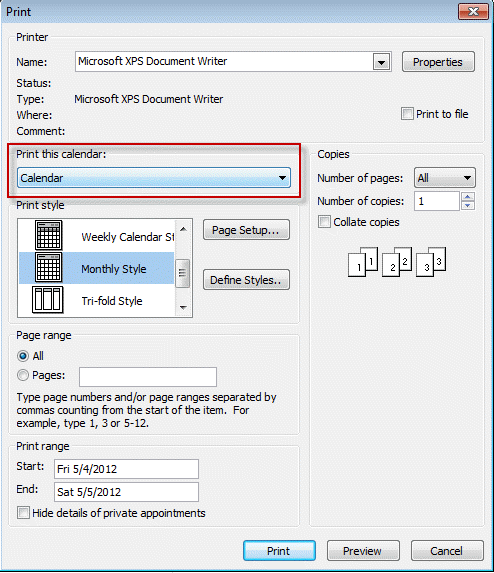
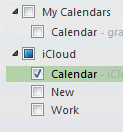 If you print a calendar from Outlook and it is either blank or missing appointments, verify that you have the correct calendar selected. While Outlook should default to calendar that is in focus (Calendar name is bolded, the appointments on it are brighter than others) when the default calendar is also selected, Outlook drops down to it.
There are two ways to address this:
Uncheck all calendars except the one you want to print (as seen in the screenshot above), then go to File, Print
or
Click Print Options then select the iCloud calendar (it should be the other calendar named just Calendar).
More Information
iCloud: Troubleshooting iCloud Reminders and Tasks (Apple)
iCloud: Troubleshooting iCloud Contacts (Apple)
"Unsupported folder class" error when Outlook starts (MSKB)
More Outlook and iCloud articles at slipstick.com:
- iCloud error: Outlook isn't configured to have a default profile
- iCloud Add-in is not listed in Outlook Add-ins
- iCloud is hijacking Meeting Invitations
- How to fix the iCloud APLZOD.dll error in Outlook
- iCloud Doesn't Sync
- iCloud, Outlook 2016, and Windows 10
- iCloud for Outlook 2016
- Save New Contacts to iCloud Contacts
- Transfer POP3 Mail on an iPhone to Outlook
- Outlook crashes when syncing iCloud calendars
- Syncing iPhone Sent Messages with Outlook
- After Installing iCloud, Mail Won't Send?
- Create a Task and copy to another Tasks folder
- iCloud and Outlook Repair Now error
- Outlook and iCloud: What you need to know
- Outlook and iCloud: default data files
- Save appointments to a non-default Outlook calendar folder
- Issues Syncing Outlook and iCloud Contacts
- Outlook and iCloud Sync Issues

JoeZeppy412 says
I have an Outlook.com account, Outlook on the desktop and the Outlook iOS app on my phone. I can see the primary Outlook calendar and the icloud "Family" calendar on my dekstop as separate calendars. (Family is the only iOS calendar I have). Syncing works fine on the desktop as far as I can tell.
On my iPhone in the apple calendar app, I can see events from both the apple and Outlook calendars . But in the Outlook iOS app, the Family calendar doesnt exist. I have no idea how to enable it?
Diane Poremsky says
In the app, only the calendar in the user account, not shared calendars, sync.
Diane Marcotte says
The majority of my contacts are in the iCloud folder in Outlook on my desktop. When I went today to add a note to a Contact I got this error message when I clicked "Save and Close" - "Your changes cannot be saved because you don't have permission to modify some or all of the items in this folder..." I recently upgraded to Microsoft 365 (yearly subscription) and had to download latest version of "iCloud for Windows" to fix syncing problems. All seemed fine until I went to make this change and couldn't save it.
Ryan D says
Hi Diane-
I'm running into a strange issues where all of my calendars defaulting to iCloud. Even though I checked the default settings (File>>Account Settings>>Data Files), and my Outlook account is selected as the default, it's still looks like it's defaulting to iCloud. So when I click on my Outlook calendar, every entry is greyed out, but then I click on iCloud and every entry is black - making it seem like EVERYTHING is being done on my iCloud calendar. Any thoughts on what this may be??
Maryse says
My new iCloud events are showing in Outlook when I split my calendars but not when I am in overlay mode. Tnis was not an issue until a couple of days ago and I did not change any of my settinhgs.
Diane Poremsky says
Have you tried resetting the view on the folder?
John Fleming says
Diane - thanks for this.
After posting here, I went on looking, and came across what I think might be the answer. If you scroll down towards the bottom of this thread - https://answers.microsoft.com/en-us/msoffice/forum/msoffice_outlook-mso_windows8-mso_2013_release/outlook-calendar-recurrance-problem/ff77c8ba-f516-4343-938f-209ca25a5c50?auth=1 - you can see how someone solved it.
Unbelieveably, it seems that the Outlook / iCloud interface is unable to deal with "yearly" recurrence, but it CAN deal with "every 12 months". I have reset those appointments that I mentioned, Thansgiving and the changes to and from daylight saving time, and, touch wood, it seems to have worked!
You couldn't make it up!
Diane Poremsky says
yeah, i knew there were patterns not supported across both, but had forgotten what they were, whether it was the 'last thurs' type patterns or something else.
John Fleming says
I have a problem with how iCloud handles recurring appointments.
Where the recurring appointment is on, say, the last Sunday of the month (end of Daylight Saving Time in Europe) or the fourth Thursday of November (Thanksgiving), something in the iCloud / Outlook interface interprets this as a fixed date at the time when the recurring appointment was created. Thus, Thanksgiving is shown as 22 Nov, which in 2017 is a Wednesday. This was last correct in 2012!
Attempts to force the recurrence as, say, the fourth Thursday are accepted, apparently, but not processed. I don't think that it makes any difference whether the recurrence is created in Outlook or in iCloud.
Any thoughts?
I have Outlook 2010 (32-bit), iCloud 7.1.0 (though this issue has persisted over several versions), and Win 10 v 1709 (ditto). My iOS device is an iPhone 6s.
Diane Poremsky says
i know there are issues because iCloud doesn't support the same patterns, but when the appointment is saved, you should be told it doesn't support the pattern. This is the first anyone has complained to me about this, but will look into it.
Sigurd Reinton says
I am having a one-way problem: Calendar entries I make in Outlook 2016 on my PC (running W10) show up on my iPhone and iPad but, recently, the reverse does not happen - despite opening the iCloud tab and hitting the 'Refresh' button.
Diane Poremsky says
are the appointments on the calendar and icloud.com? if they are on icloud, they should sync down.
Sigurd Reinton says
Problem sorted. I had to uninstall (not just repair) iCloud for Windows, download a current version, install it and go.
B.J. says
Diane any assistance you could provide would be greatly appreciated.
I set up my family's calendars (5 individual calendars) through iCloud and linked to Outlook and we were all (3 family adult members) signed in under my log in (e-mail) . We could make appointments and view all schedules in all devices (3 iPhones and laptop both in outlook and in iCloud) All seemed to work well: syncing fine. Yesterday we signed up for Family sharing for myself and created new Apple ID's for the other 2 individuals. After doing this the only thing that seems to be working is my phone to the cloud and outlook, the cloud to my phone and outlook to the cloud or phone and I cannot see any new appointments made onto the other 4 devices with the new Apple ID's.
Do you have any suggestions for getting back to having all our devices syncing again?
Thank you for your time,
B.J.
Diane Poremsky says
Sorry i missed this so long ago. Did you ever get it fixed? Do you see the family share calendars?
Ross says
Dear Diane,
I have a PC running Windows 10 and Outlook 2007 and would like to use iCloud (6.2.2). When I do the installation of the iCloud and check "Mail, Contacts and Calendars", it tells me that Outlook has been set up successfully. However, when I open up Outlook, I see no options for iCloud anywhere. I've updated iTunes and iCloud, checked and unchecked, reboot every time I make a change, checked the Add-ins in Outlook, but see no evidence of iCloud in the Outlook. Do you have any ideas?
Diane Poremsky says
>> but see no evidence of iCloud in the Outlook.
You're at least the second person with this complaint. At this point, i don't have any ideas but will see what i can find out.
Do you have more than one profile for Outlook? iCloud only works with the default profile.
Gusto says
Ross, had this exact same issue and just fixed it doing the steps from this post:
https://superuser.com/a/988620
My steps were slight different:
- shut down Outlook
- open icloud for Windows, uncheck sync mail, sign out of iCloud
- in Control Panel -> Programs select Microsoft Office and instead of uninstall, select repair and then if the option presents itself online repair (Office 2013)
- when done sign back into your office account (if necessary) but make sure outlook is not running
- sign into iCloud
- check sync mail with outlook, wait for download
- open outlook
ireadthehelp says
None of these problems between iCloud and Outlook calendars would be necessary if Apple would just add a print facility to the iCloud calendar.
Diane Poremsky says
They need more than print capability for a lot of people, but yeah, they could do better.
John McCarthy says
Diane I noticed that in a previous post someone wrote: I'm too having AM and PM issues and you referred to 'are you using the icloud inside outlook' - yes i am. I have spent all day trying resolve this issue. I would be so great full if you can help me. If I add the appointment on my iPAD and it sync with outlook icloud it does the same. If go to make a change to the time and it says 3:30pm it straight away shows 3:30am soon as I touch it? It so dam annoying. If I go into my diary and see the 3:30pm and don't touch it its fine, its the second I touch it in outlook icloud. Can you please help? If you could help me fix this you're an angel...
Diane Poremsky says
So far, I haven't been able to repro it. I'm pretty sure its a setting - most logical is that somewhere, the clock is set to the wrong time, but i'm not sure where or why you won't notice it.
Anais says
Hi Diane
I recently removed iCloud from Outlook and moved all my calendar appointments to another folder. Now all the attendee responses have disappeared including who the appointments were sent to. How can I retrieve this information?
Diane Poremsky says
is that information in the event in the icloud.com copy? (Assuming you didn't delete the calendar there too).
Did you let icloud create the local copy or move them yourself? (Not sure it matters...)
Michael Kaufmann says
Great Column. Thank you Diane. I'm using Outlook 2016 with iCloud. When I create an event in Outlook in one of my iCloud calendars, the event shows up fine in my Outlook Calendar. It also shows up fine when I go to http://www.icloud.com and view my iCloud calendar. However, it does NOT show up on any of my apple devices. I have killed myself trying to fix this. Any suggestions appreciated. OS is up to date on all devices. I have signed in and out of iCloud. Events created in Apple Calendar show up on all devices including Outlook.
Diane Poremsky says
if it is in icloud.com, then its on the server - any sync problems is on the phone. First thing to check is to verify the icloud calendar is enabled and set as default in Settings > Calendar.
Alexandre Lavigne says
Hello,
I have installed icloud on my PC recently to sync my Outlook 2013 calendar with my home shared calendar(icloud). It works but I have a major issue with it.
When I open Outlook and click on my calendar tab, it works and I see both calendars. I can even make modifications to it as long as I stay in my calender tab. When I click on my mailbox tab, outlook freeze and I need to shut it down. That happens all the time. why?
I must say that I'm using office 365.
Regards,
Diane Poremsky says
Do you have the latest icloud version installed?
Debbie Else says
I recently installed iCloud for Windows on my PC to back up an older iPad version to transfer those items to a newer iPad, and regrettably allowed iCloud to back up my Outlook 2010 in the setup process. Fortunately, it has not affected my mail. Every since, I can no longer view my calendar and task items in Outlook Today. When I go to "Calendar" and "Tasks," all my appointments and tasks are there, but I would like them displayed in Outlook Today. What can I do to get my items back in Outlook Today? Thanks.
Diane Poremsky says
Outlook Today displays the items stored in the default calendar & tasks but you can't set icloud as default so you'd need to move (or copy) calendar & tasks back to the default folders. (In calendar, switch to a list view, select all then move or copy).
Chris Pecunia says
Diane:
How can the Calender in my old cell phone (Blu) using microsoft 8.2, be put in my new Android (L.G. Stylo 2 plus) cell phone?
Chris
Diane Poremsky says
if the calendar is in Outlook.com, you just need to sign into the outlook.com account on the phone. If the calendar is only stored on the device (and not synced to a server), you'd need to export it as an ical (assuming the phone supports exporting).
Yoislan says
I am having issues with Outlook and IOS Time Zone. When Someone in London sends me an Invite for meeting there and I accepted in US. Once I go to London my calendar get all mess up. Do you know a fix for this?
Diane Poremsky says
This is a known issue with EAS - don't accept it on the apple, especially if using the native apple apps. If you use the Outlook app, it should be ok.
Chris Birkhead says
Hello,
I am using Outlook 2010 and ICloud flawlessly up to this point but have just began to experience a problem. Whenever I try to move an Outlook calendar event from one ICloud calendar to another in Outlook, I receive the error "Cannot move the items. Cannot move meetings in offline mode!" At this point I am taken offline and I have to "Go online" to get the other sync features to work. I am still able to post NEW events to both calendars and they all sync across all devices. I only experience the problem when I try to move events. Weird. My ICloud add in is not disabled. I have tried signing out and back in as well as reinstalling ICloud for Windows. I have tried editing the event within my IPhone to to change to the desired calendar but it will not change in Outlook. Again, if I create a new event, no problem, I can assign it to whatever calendar I want. I need to consolidate two calendars but can't get Outlook to play ball. Please help!!
Thanks!!!
Diane Poremsky says
Do you have any problems copying (instead of moving) the meeting?
Chris says
I am using Outlook 2007 and an iPhone 6. I have been using iCloud for some time to sync between the two. The process used to work pretty good, but now, after an upgrade to 5.1, "Refresh iCould" hangs for a long period of time and does not update my changes/additions to Calendar and probably not my contacts or tasks either. I have to log out of iCloud and back in again to get it to work, which is typically once/day. Any suggestions would be greatly appreciated. Thanks in advance.
Debbie says
I have tried everythign and my Outlook on my PC isd not synking with my iapad, MAC and iphone.
Diane Poremsky says
What type of email account are you trying to sync? Is the icloud addin running in outlook?
Anna C says
Hi Diane, I recently noticed that my new items from my calendar on my iPhone are not syncing back to Outlook 2010, yet if I add a new item in Outlook, it updates on my phone. I updated my computer to Windows 10 a few months ago and recently my iPhone to IOS 9.3. I've already disenabled the link from iCloud Control Panel and enabled again and did the same with the Outlook add-in in Outook. I don't know what else to do.
Diane Poremsky says
The calendar you are adding the appointments to on the phone is the calendar that syncs? That is the usual cause of items on the phone not syncing back. In most cases, the dot indicating the calendar would be a different color on the ones that sync over from outlook and the ones you create on the phone that don't sync. If they are the same color, they should sync. (some people might use the same color for all calendars but you can confirm by looking at the calendar settings.)
Sarah S. says
I am able to view my husbands live.com calendar on my iphone but not on my mac laptop. Is there any way to do this? Thanks
Diane Poremsky says
Right now, no, but once both accounts are moved to the new servers, you will be able to add the account to outlook mac as an exchange account. The bad news is that because you are sharing calendars, your account will be moved last.
Elisabeth Borden says
I sync several calendars from icloud to my Outlook. All the syncing works great except ... The problem is that Outlook is also syncing my private calendars to my coworker's Outlook, even though they are for certain not shared with anyone. We logged in as her and checked her icloud account and my private calendars do not show up there. The problem seems to be that Outlook somehow thinks she is me, but my her pst file and profile are entirely separate from mine. Got any ideas?
Diane Poremsky says
it sounds like they are not syncing from icloud. Were they shared as published/subscribed calendars? On either outlook, look in file, account settings, published calendars (your outlook) or subscribed calendars (her outlook) tab - if your calendar is listed, delete it.
Are you sharing the same computer?
Can you delete your calendars from her Outlook?
David Panush says
when I upgraded my PC to windows 10, my new calendar items added to my iPhone synched with my PC ... but new items added on my PC do not sync with the iPhone. Any suggestions?
Todd says
Just updated to Windows 10. When I opened up my outlook my iCloud calendars are gone. Gives an error message: the set of folders cannot be opened. The information store could not be opened. HELP
Diane Poremsky says
You need to install the icloud 5 client but it won't work with outlook 2016 - it shoul work with older versions.
Doug Kasper says
I have this same issue. I'm running windows 10 and outlook 2013. I can get my icloud email but not the calendars or contacts to show up. It synced fine until about 2-3 weeks ago. I have icloud 5.01 installed and it doesn't have a check box for mail, calendars, contacts, etc. It says 'You can access Mail, Contacts, Calendars and Reminders at icloud.com"
Diane Poremsky says
it's not set up to sync. Is the icloud addin enabled in Outlook's file, options, addins?
Adriana says
Doug Kasper, I've been having the same problem. Have you found a solution?
I reinstalled icloud a few times and nothing changes.
The addin is enabled in Outlook, but the line "mail, calendars, contacts, tasks" is not showing in iCloud control panel.
Help!
Diane Poremsky says
did you sign out of icloud and back in? Which version of Outlook do you use?
Doug says
No, I haven't been able to find a solution. I get the same issues that you mentioned. I'm running windows 10 so I was able to get the windows calendar to sync with icloud but it sucks to not be able to use the outlook calendar anymore.
Sonya says
When I put an appointment on the outlook calendar and try to sync it with icloud it automatically moves the time forward 1 hour, if I check it on my iphone the time is correct but on my pc in outlook is incorrect. Very confusing, I have checked all time zones and they are correct and we don't have daylight saving where I live. appointments up to the 24th of October are fine after that date it all goes haywire. Help
Diane Poremsky says
It sounds like something is using the wrong time zone - I'm guessing the desktop. Is the correct time zone set on windows? Use a zone that has the correct offset that does not support DST. Using the wrong zone and unchecking DST can cause issues like this.
What version of Windows are you using? some older ones need a time zone update installed. All computers that are upgraded on a regular basis should have the time zone updates installed.
Will says
Hi Diane,
Great site!
I've got a 2 year old HP 4340S laptop. I run Windows 8 with Outlook 2013, as well as iCloud Calendar and Contacts. I live in Western Australia (no DST) and have checked my computer as well as my iCloud settings. All are set to AWST (no DST option available on PC and iCloud has AWST), yet when I enter an appointment in my iCloud calendar on my PC, it automatically shifts an hour forward. (It is summer here and I'm afraid something is thinking we've got DST, despite the fact that it was abolished a few years ago). I've just entered a test on my iPhone5 (up to date iOS9.1) for 2pm, and when it synched with the PC it came up as 3pm in Outlook on the PC. I've removed and reinstalled iCloud, and it was OK for about half a day, but is back to its bad tricks. Apple were helpful and ensured all my iCloud settings were correct, but when I called Microsoft, they wanted me to buy a support package!
Any suggestions? I'm considering using Google Calendar instead!
Thanks
Will
Diane Poremsky says
Are the times wrong if you create in outlook and sync up? There is a problem with the time zone definition somewhere - probably iCloud uses a slightly different name and windows is confused Save the appointment as an ics to you desktop and open it in notepad. What does it say for the zone name and offset?
Joann Bonanno says
Hi Diane, I recently made the mistake of adding icloud to my new SurfacePro3 to help sync my contacts on new iPhone 6. I'm not sure that helped but i did notice that my Outlook calendar disappeared and my iCloud calendar was now the calendar in Outlook 2013 when I would add entries to it but they would not appear in Outlook on my phone (only in iCloud Calendar app). I removed iCloud from Outlook but now my original Outlook calendar which is synced to my phone is in my Deleted folder and I can not move it out of there. I tried reloading icloud and then moving that calendar from icloud folder to personal email folder (which did work) but that is not the calendar that syncs to Outlook on my phone (it's not syncing at all). Note that I have Outlook on my iphone and it was working fabulously for email and calendar in one app with several email ids. I am just at a loss at what to do next. If I add entries via Outlook cal on phone they sync fine to deleted folder calendar but I have to make several clicks to view the deleted calendar on the tablet which is very annoying. I'm afraid to delete my Outlook email from my phone and reinstall. Is there any way to fix my calendar situation?? Your advice is greatly appreciated.
Matt says
Hi
I have another outlook 2013/icloud/windows 10 problem
I recently upgraded my new surface to windows 10 and have had a host of problems with outlook 2013 running imap and icloud. Got most things sorted after many hours however I have a new bug which is weird.
If I create an appointment on my pc in outlook and invite someone, it syncs just fine to my ipad and iPhone. Good news! Bad news is that if I try to cancel the appointment I cant do this on my PC in outlook - I go through the process of cancelling the appointment and nothing happens. However if I delete the appointment on my ipad it deletes on my PC!
Got any ideas on how to make outlook behave properly?
Many thanks
berit eisenmann says
Hi Diane,
we upgraded to outlook 364 and I used to be able to see a shared i-cloud calendar in my outlook desktop calendars. How can I import or sync this i.cloud calendar again with outlok 365?
Also, my i-phone calendar doesnt seem to syn with the desktop calendar. can you please poit me to the relevant help here on this forum?
Thanks much!
Berit
Diane Poremsky says
You were using iCloud addin to sync? Is the addin enabled? Look in File, Options, Addins.
James says
Diane,
I've run into the same problem that Michael Fahey reported on Aug 19, 2013, above in your comments, and I'll pass on a solution I found that you, no doubt, will be able to explain more eloquently and perhaps even understand its basis.
The problem: When creating in iCloud via Outlook annual recurring All Day events whose recurrence is set to a day of the week (such as Thanksgiving) rather than to an annual date, Outlook and/or iCloud hard code the date rather than the day of the week when using the "Yearly" recurrence parameters, so future instances will appear on the wrong day. The solution is for users to use the monthly parameters, set to 12 months. For example, for Thanksgiving, using the Monthly radio button, the solution is "the fourth Thursday of every 12 months" rather than "on the fourth Thursday of November," found in the Yearly button. This behavior is true for both Outlook 2007 and Outlook 2013, and possibly Outlook 2010.
The reason for creating these holidays in iCloud is because the iCloud holidays calendar won't appear in Outlook, nor will holidays created in an Outlook .pst appear in iCloud. This solution puts them in Outlook and all Apple devices, with correct dates.
Thank you again for the valuable guidance you provide us.
James
s ross says
I believe I found a workable solution for the PC. First select the default calendar and the icloud calendars. Under the View tab in outlook calendar, click on Overlay. Appointments will be displayed transparently from both calendars in one location.
Andrea van Olst says
Hi Diane
After reading your blog I'm really hoping you can help me.
I have an iPhone 6 and I'm using the iCloud to sync my contacts and calendar with Outlook 2013. iCloud version 4.0.2.
As you've described - the iCloud Calendar is not the default calendar - so I effectively have 2 calendars.
What I'm struggling with is the following:
I cannot send meeting invitations to people using the iCloud calendar - nothing gets sent out.
If I create the meeting in my default calendar - it sends out fine. But then when I copy that meeting into the iCloud Calendar it warns me that I won't be able to track responses to the meeting - so if people decline, or propose new times - it doesn't appear that this can be managed in the iCloud calendar - only the default one.
Similarly - if someone sends me an invite - and I accept - it goes into the default calendar (not the iCloud one). I can move it to the iCloud Calendar but if a later update to that meeting is sent - it doesn't update the original invite which means I have to remember to delete the previous meeting so I don't have duplicates.
Is there any easier way? Have I set it up incorrectly in the first place that I can't create or accept invites using the iCloud version of the calendar.
I'd really appreciate any assistance you can give me on this.
Thanks
Andrea
Diane Poremsky says
Unfortunately, that is a limitation when you use multiple calendars and have meeting requests.
Dave says
I wanted to pass on what I'd found. I originally wanted to use the iCloud calendar as my default, failing the ability to do that I wanted my default calendar to sync with the iCloud calendar without my having to copy or move appts between the two.
Here's the software solution I found: https://www.codetwo.com/sync-for-icloud/
I syncs your iCloud and default Calendar, Contacts and Tasks. I've been trying it out for the last couple of days and it works like a champ.
Mason Balouchian says
Here is a simple solution I came up with
https://adgraphicstudio.com/?p=1375
Cindy says
Help! I use Outlook 2010 and have an iphone 4s. I (unfortunately) updated to ios 8 on my iphone and my phone and Outlook 2010 no longer sync. AT&T enhanced support had me set up iCloud and thought it would sync automatically, but it is not working. I called Apple support, and they are telling me that Outlook 2010 and the latest version of iCloud don't sync and that I should go back to Outlook 2007 because that is compatible. It appears that changes to the phone appear in iCloud, but not in Outlook, and changes in Outlook do not appear on phone or iCloud. Any suggestions?
Diane Poremsky says
Did you try signing out of the iCloud and signing back in? Is the iCloud addin enabled in Outlook's file, options, addins?
Nancy Linsley says
2 days ago I isolated a corrupt and invisible appt in list view - couldn't delete it until I opened Outlook in safe mode and went to List view again. All of a sudden most but not all calendar items sync'd again! Went back and tried to open every recurring appt in List view and found another bad one - couldn't delete even in Safe Mode so dragged it onto non-displaying calendar I never use. Said it couldn't be moved but it WAS moved. So far calendar sync works perfectly again! I've made some test Appts on phone & in Outlook and both sync. Made changes to both test appts and all changes sync'd. I can live happily ever after now and won't have to use iCloud at all. Had tried ScanPST with no success but apparently those little corruptions were enough to foul the entire calendar sync process. Everything should be ready when my iPhone 6 Plus arrives.
N. Linsley says
I have been sync'ing Outlook to my smartphones since 2001 ... but all of a sudden this past spring my iPhone 5 (home computer w/o Exchange running Outlook 2013, Windows 8.1, iTunes any version since spring, iOS 7 and now iOS 8) will no longer sync my calendar in either direction, but Contacts and Notes are fine.
I have been considering setting up an iCloud account but would like to know if it can be set up on Windows to ***ONLY*** sync the calendar - nothing else - and allow me to still sync Contacts and Notes via iTunes. I don't care about photos and I don't care about keeping email in sync.
After reading about all these problems I'm kind of afraid to do it ... but Calendar is the thing that changes the most and I frequently forget to update entries made on phone to computer and vice versa.
Diane Poremsky says
No, it can't sync only the calendar. I'd change the sync settings in iTunes and see if I could get it working again.
montazbriant says
I've had this problem ever since I got ICloud, months ago. I finally decided to sit at my computer all day until I figured it out and I finally found the answer!
It's just a setting in Outlook-- a hard to find setting! I've given the link below, but also pasted the instructions here. Need to re-start and wait a few minutes for the changes to take place, but it worked for me! On this same page are also instructions for other apps and devices.
https://office.microsoft.com/en-us/outlook-help/enable-or-disable-add-ins-in-office-programs-HA010034127.aspx
Outlook
1.On the Tools menu, click Trust Center, and then click Add-ins.
2.View the add-ins and application extensions that are categorized as follows:
◦Active Application Add-ins Lists the extensions that are registered and currently running in your Office program.
◦Inactive Application Add-ins Lists the add-ins that are present on your computer but are not currently loaded. For example, smart tags or XML Schemas are active only when the document that references them is open. Another example is the COM add-ins that are listed in the COM Add-ins dialog box. If the check box for a COM add-in is selected, the add-in is active. If the check box for a COM add-in is cleared, the add-in is inactive. To learn how to open the COM Add-in dialog box, see the section called Turn off or manage the installed add-ins.
◦Document Related Add-ins Lists template files that are referenced by currently open documents.
◦Disabled Application Add-ins Lists add-ins that were automatically disabled because they are causing Office programs to crash.
If you find "ICloud Outlook ADd-in" is listed in "Disabled Add-Ins", click to highlight it, and then find "MANAGE: COM Add-ins" below and click "Go".
You will then see a list of all "Add-ins". Make sure ICloud Outlook Add-in is checked.
You should now see it moved from "Disabled" to "Inactive". Restart your computer and it should become active. It will take a few minutes to sync once you restart and open Outlook.
Jaan Saar says
I was really struggling with this issue but your post directed me in the right direction... I tried everything stopping/starting, sing-in/out, uninstalling/reinstalling... I even reinstalled Office but when I signed-in to the iCloud account it loaded the calendars but after that no syncing. So I read about the Add-in in your comment and discovered that the iCloud Add-in for Outlook was being disabled every time I opened Outlook. I tried activating but it did not help... it was still deactivated. So I after digging further I found some useful threads, eg. https://answers.microsoft.com/en-us/office/forum/office_2010-outlook/icloud-add-in-will-not-load/950d3029-14ea-4bd8-8af5-e81ba58ba67c?page=1
But the recommendation there did not help me either... I tried the regedit change but still nothing... so I now figured it had to be a user rights issue as I could not delete the Add-in from Outlook because it said I'm not an Admin... but I am an admin.
So I finally solved it by just dragging the "aplzod32.dll" out of the correct folder in Explorer... and then putting it back in there and identifying myself as an admin. After that... voila... it's working again.
Mark Lennon says
Diane,
You're clearly an expert in this area. I've implemented the iCloud control panel (I use Windows 8.1 and Outlook 2010) and it's syncing well between Outlook and my iPhone and iPad. My chief complaints are:
- New appointments that I download (for webinars) or that people send to me (meeting invitations) go into the default calendar, and not into the iCloud calendar. So I have to remember to drag and drop them to the iCould calendar so that they get synced. Are you aware of a rock solid add-on product that would automatically keep these in sync?
- Also, when I implemented this set-up, iCloud emptied my contacts and appointments from the default folders and moved them to the iCloud folder. When I start-up my PC, I often have a slight heart attack when I see zero contacts or no appointments. I don't understand why iCloud could have set-up a copy of everything for itself. Especially since it won't allow you to make the iCloud folder the default.
Regards,
Mark
Diane Poremsky says
CodeTwo has an iCloud sync utility that works good or you can use a macro to move them to the iCloud.
If the iCloud copied the contacts and appointments, you'd be equally confused about the duplicates. :) The iCloud can't sync with the outlook data file, so it needed to move everything over. You can set the iCloud to be the first address book shown when you click the To button.
idsd09 says
Hi Diane,
I have been using Outlook 2007 for a number of years and I sync all my appointments with my desktop, iPhone, iPad and laptop, in iCloud calendar with no issues. However this morning I was entering an appointment on my desktop pc in Outlook when a message appeared, stupidly I clicked ok without reading it and suddenly all my appointments disappeared. I know they have not been deleted as they are still on my iPhone, iPad and laptop, also when I go in to ‘current view’ they are there in all the categories except ‘DAY/WEEK/MONTH’ view. I tried adding a new appointment and I cannot see it, but it appeared on my iPhone, iPad and laptop.
What’s happened please, obviously there is a simple setting I need to change, but cannot find it
Thanks
Mark
Diane Poremsky says
Start with resetting the view on the day/week/month view - a corrupt view is the most likely cause since you see them in the other views. In 2007, reset the view from the View > Current View menu, or close and restart Outlook using the /cleanviews switch. Cleanviews is often the better choice, but the switch will reset the views on all folders and if you have a lot of custom views you may want to avoid using it. How to reset the view has screenshots and complete instructions.
Randy Bart says
Diane;
Yes the addin is loaded however the iTunes one is not. I also notice that I don't have the normal additional iCloud option boxes. It's as if it didn't load entirely. Is there a way to manually add those back in?
Thank you again,
Diane Poremsky says
icloud need to set them up. The usual fix is to log out then log back in. As far as I know, you only need the icloud addin, unless you are syncing with itunes.
Randy Bart says
Diane;
I'm having a real problem. I am trying to put icloud on Outlook 2013 Win. I loaded icloud control pannel and added the calendar but now it keeps giving me the error that you need to repair Office. I have repaired office to no avail. I deleted and installed control pannel several times. I have even gone to the length of manually adding icloud which worked. But it only gives me mail, not calendar and contacts. How can I get those set up as well?
Thank you,
Diane Poremsky says
Did you check in File, options, Addins and verify that the iCloud addin is loaded?
Phu-My Gep says
Tried to wade through all these questions and responses and not able to find one that will solve my problem.
I have outlook 2007 and iCloud (possibly version 1?). I used to have to manually sync outlook to iCloud by a tab on outlook. However with some kind of update several months ago, that tab is now gone and I can no longer sync. My mobile devices (iphone, iPad) all sync to icloud without a problem.
I went on my iCloud program on the laptop and it appears everything is set up correctly. I also tried to delete and reinstall my icloud email on outlook. Still doesn't seem to solve the problem.
I also seem to be losing appointments and contacts so not sure what's going on. But my priority right now is to try to get outlook to sync with iCloud.
Any advice much appreciated.
Diane Poremsky says
Do you have the same version of iCloud on both computers? Is the iCloud addin loaded on the problem machine? Tools, Trust Center, Addins to check.
Don Ford says
This is helpful information. Unfortunately, I don't see the problem that my wife is having.
Windows Vista 64bit
Outlook 2007
iCloud 2.1.2
iPhone 4s (Not really relevant, but...)
When she opens the Calendar in Outlook the cursor changes to the little busy circle and the Month calendar subwindow begins to flicker. Outlook just stays stuck there. We end up having to kill Outlook. Contacts are working fine.
Any thoughts or suggestions?
Diane Poremsky says
First guess would be corrupt view. If you don't have any custom views, close Outlook and restart it using the /cleanviews switch. I'm not sure if it will work, but as long as you don't have custom views, this is "no harm, no foul".
Close Outlook. Press windows key + R to open the run command, then type or paste
outlook.exe /cleanviews
in the box and press Enter to restart outlook.
Sharene says
I have been using icloud to share my calendars for the last few years synching between Iphone, ipad, laptop & desktop. all of a sudden, my desktop still updates between phone & itself but the laptop is not updating. I have deleted icloud from all devices, one by one and reinstalled, but still having the same problem. I have signed out of icloud on my phone and signed back in and now have no appt - just birthdays...
Diane Poremsky says
Sign out on the laptop (the computer that is not syncing) and delete the icloud data file (if signing out doesn't delete it) it will be at C:\Users\username\AppData\Local\really-long-code.aplzod - then sign back in.
Oh, before you do that, did you verify if the icloud addin was enabled in Outlook? In 2010/2013, look in File, Options, Trust Center, Addins.
Michael Fahey says
Diane,
Thanks for all your excellent outlook tips, I have an issue with Recurring appointments. Not the same date each year which is OK but I have a lot of Regular Meeting Dates which are defined by " The Third Thursday, The Second tuesday etc etc" Outlook 2007 which has the I cloud add in keeps corrupting these appointments. Not each time I have to sign in and out to retrieve the I Cloud add in but on an irregular sporadic basis. When I open one off these recurring appointments and open the recurrence, the Recurrence selection has changed from the day and week to a date which is always incorrect.
Please help if you can. I would be pleased to know which settings need amending in I cloud or Outlook 2007 to fix this. It is driving me mad as I have nearly one hundred of these appointments. at the moment I am continually checking appointment occurrence series to see if they have changed to a fixed date which they invariaby have
Thanks
Mike
Diane Poremsky says
I'll have to look into this - i was not aware iCloud was messing with the recurring patterns.
Jeff Gellman says
Excellent! Many thanks Diane.
Jeff Gellman says
I use iCloud with my iPhone 5 and iPad 2. I'm also an Outlook 2013 user. I would love to be able close either "@me" or "iCloud" accounts (or both) while using OL as it would free up more vertical space in the folder list.
Do both of these accounts need to remain open in Outlook for my OL Calendar and Contacts to remain synced with my iphone? The two main email accounts I use in OL are both iMap so I don't sync email between my phone/OL.
Thanks in advance for any assistance!
J.
Diane Poremsky says
You can collapse the folders but can't remove them if you want to sync. If you aren't using the me account for email, you can remove it from your profile, you only need the iCloud to sync, not the me.com email.
Jerk says
For the sync I used my iPad, with the app Beesy: https://www.beesapps.com/features-beesy/beesy-sync-reminders-with-outlook-tasks/, I make the sync, very simple and easy. So now my Outlook Task is sync with Reminders on my iPad, iPhone and laptop, that is very useful, I'm sur I'm miss important things.
David Gillman says
I have encountered a peculiar problem. I have a Outlook 2007 on a Windows 7 64-bit operating system. I had been successfully using iCloud for contacts. However, when I began syncing calendars I began receiving multiple error boxes relating to personal folders which lock up the system until they are fully exited. These boxes say, "Personal Folders This information service has not been configured. Select an existing file to configure, or type the name of a new file to create." , then "Create/Open Personal Folders File Look in Outlook Name Accounts, New Folder, archive, iCloud Archive, Outlook" (cannot open), then "Properties for this information service must be defined prior to use. " warning. The sequence then repeats 3-4 more times, and in one minute repeats again three more times. There are three Personal folders which have been added to the personal folders list which cannot be removed or added to. I cannot add any new personal folders, and I am unable to transfer any contact information to iCloud. About a month ago when this was happening, I reset my computer to an earlier time 30 days prior without the iCloud set for syncing the calendar. All the problems went away, until I again tried to sync calendars. After about 10 hours with various Apple techs no solution. Unfortunately, when I tried to reset it back 30 days, I could not go back far enough to when iCloud had not been set to sync calendars, so now I am stuck. Any solution?
Diane Poremsky says
What all did the apple techs have you try? I'd sign out of iCloud, make sure the iCloud db is deleted from the hard drive and outlook is working ok before signing in again.
cherek says
so in an earlier section of this site you say,
Don't use iCloud calendar, contact, or tasks sync for Exchange, Gmail, or Hotmail accounts. These accounts support EAS (Exchange Active Sync) and will sync directly with the accounts OTA (over the air).
Ok so I'm willing to not use icloud, but how do i get appointments that go to my Google calendar to get to my iphone?
Diane Poremsky says
google to iphone is easy - when you add the Google account to the iPhone, it will sync calendar and contacts unless you turned them off. Look in Settings, Mail,Calendar,contacts section.
It won't sync google to outlook though - for that you need to use a utility. I have several listed at sync google to outlook
Allison Marotta says
Thank you so much! This article has saved me a lot of headaches twice now
Marek says
Hi Diane, would it be possible to use a vbscript to copy all iCloud Appointments to default Outlook calendar each time Outlook is started ?
I wanted to adjust one of your scripts (the one that makes a copy of new appointments) but I had no luck with it.. for some reason it ignored appointments created in the iCloud calendar..
Do you think it would be possible ?
Thank you
Diane Poremsky says
Yes, it would be possible. You need to get a count of all appointments then go through them and make a copy. I'd probably set a category on the ones that were copied and skip them the next time outlook started. I'll take a look at it when i get a chance. (probably over the weekend)
adrian says
Does anyone know if and how I can add a second iCloud account to an Outlook calendar? I want to view both mine and my wifes.
Graeme Robinson says
Not yet - I have tried uninstalling everything, re-building from scratch, deleting everything from the cloud, deleting everything from Outlook, uninstalling all Apple software from my PC, reinstalling everything from scratch... Still have orphan entries in iCloud, and, Apple don't want to know! I even tried regressing to iCloud control panel 1.1 - No joy. Might have to get used to those little orphans (at least thay have names :)
Sherry says
did you find a solution to this? I'm having the same problem and apple support has not been able to help me.
Graeme Robinson says
Hello Diane, and thanks for being there!
I am using Outlook 2010 and iCloud Control Panel 2.1.1. I also have orphan birthday entries in my iCloud calendar that I can't remove (it's a read-only calendar). These entries do not show on my iPhone though, only on the iCloud web calendar page. In an attempt to clean it all up, I deleted every contact in Outlook, and iCloud reflected this OK. I waited enough time for iCloud to update its birthday calendar, most entries disappeared, but some remained even though there were now no contacts. I reinstated all my contacts (having previously ensured none of them had birth dates in them) and allowed iCloud to catch up. I added birthdays (in Outlook) to three contacts and all eventually showed up in the iCloud birthday calendar. I then removed the birthdays (using Outlook) from two of the contacts, and deleted the third. The birthday for the deleted contact disappeared from iCloud. For the two updated contacts, only ONE of the birthdays disappeared from iCloud and the other remained. It's now another orphan now stuck in my iCloud calendar. I suspect bugs in the iCloud Control Panel update in the birth date area. I simply cannot pin down how to make it happen every time though. Grrr! So, two questions... 1) Are you aware of problems in this area? 2) Do you know of a way to clear/reset the iCloud birthday calendar? The weird thing is that these orphan birthdays do not show on Apple devices (iPhone or iPad). I've looked and searched everywhere for info on this and have come up blank. If you can help, I'll be very grateful!
Diane Poremsky says
I'm not aware of problems but i will see what i can find out about it.
Paul says
I am running Office 2013 32 bit with windows 8 32 bit. Icloud 2.1 does not sync contacts or calendar's like it did with Office 2007. Is there any fix out on the horizon yet, or just a complicated temporary work around?
Diane Poremsky says
I'm trying to figure out why it's not working - there are a lot of people affected.
Is the icloud addin disabled? File, Options, Addins to check.
Ilya Galkov says
Thank you for your answer!
Yes, I do. My occupation timezone is Yekaterinburg, Sverdlovsk time (Russia). I think the problem is that Russia canceled DST in 2011 and somehow it's broken inside iCloud (Apple devices shows right time by themselves, the problem is only in connection between various devices). By the moment, seems i found some kind of solution by this thread in Apple forums: https://discussions.apple.com/thread/3434340?start=0&tstart=0
Ilya Galkov says
Hello Diane,
Maybe you can help me. I'm using iCloud Control Panel 2.1.1 and Outlook (base is 2010 x86; I've tried 2010 x86 & x64 and 2013 x86 on Win7 x64 and Win8 x64).
First of all, I've used Outlook calendar on PC and iCloud calendar was empty. After initial install of iCloud panel everything went fine (or maybe i didn't noticed any problems) until I had to reinstall my system. Now, when I start with a blank Outlook and full iCloud calendar (which is the only copy of my calendar data I have), all the meetings syncing with Outlook are an hour before they should be. An example: meeting at 14:00 I see in Outlook as 13:00. If I shift it manually in Outlook to 14:00, it's fine and doesn't changes in iCloud. If I make a new meeting in Outlook it wents fine to iCloud, too. But all that I make or change in iCloud appears broken in Outlook by one hour. By the moment, I can use Outlook only to watch calendar, not to make any events or changes. What I tried was Time zones play. Changing In iCloud - no change, changing in PC system - makes process 2-way (Outlook events seems in iCloud shifted too, iCloud acts as usual ("my" usual, i mean)), but I cannot leave my system time shifted, I need a "normal" watches etc.
Please pardon my poor English.
Diane Poremsky says
Are you using the correct time zone for your location? If it does not support DST do not use a time zone that uses DST and leave autoupdate DST unchecked.
Raymond Tang says
Thanks Diane, I've installed iCloud and using the control panel synched my Calendar and Contacts into the cloud. However, it's removed all Calendar entries in my default Outlook pst file; and also moved Contacts in my pst file to the icloud folder in Outlook. So now for email, I use my default pst file and the icloud folder in Outlook for calendar and contacts. Is that how it should be?
Diane Poremsky says
Yes that is how it should be. Calendar and contacts are in the cloud so they can sync with the iphone. If the icloud contacts are not the ones you see when you click the To button, you can set it so you see them first. See Syncing contacts
Raymond Tang says
Hi Diane,
I'm currently using Outlook 2010, and iPhone 3GS (iOS 5.1.1). I've been synchronising Calendar and Contacts betw Outlook (older versions) and my iPhone for years through iTunes. Until recently, it didn't work for some reason. So I would like to use iCloud instead. Can you pls point me to any website with instructions so that 1) I can backup my Outlook Calendar and Contacts to iCloud and 2) then move the latest from iCloud to my iPhone. After this is done, when I make a change on my Outlook Calendar or add Contact how will it synch to my iCloud and iPhone....and vice-versa? Thanks so much in advance.
Diane Poremsky says
Basically, install icloud then log into your Itunes account. It will set up everything for you and even move the calendar and contacts into the close.
On the phone, go into Settings, then icloud.
What type of email account do you use in Outlook? If you don't use IMAP, you can set the icloud as the default pst.
Raymond Tang says
Thanks Diane for your reply. Should I perhaps re-install iTunes as there's no setting in iTunes pointing to which pst...
Diane Poremsky says
I thought you could, but its been a really long time since I last had itunes installed. Maybe I need to commandeer my daughter's computer and check.
Raymond Tang says
Dear Diane,
I'm using Outlook 2010 and iTunes 11.0.1.12. Since 3-4 days ago, my calendar and contacts don't seem to synchronise although I have been doing it for many years with older versions of Outlook and iTunes. Only thing I probably did was change my personal folder (.pst) in Outlook and caused the problem??!! However, when I change the "Do not synch events older than 60 days" and events appear on my iPhone for past 2 months but when I change to 30 days it deletes events for 1 month....so some synching is happening? I tried adding new contact on my iPhone and it's not going over to my Outlook.... Please help!!! Thanks!
Diane Poremsky says
I don't use Itunes (I use icloud) so I can't tell you exactly where to look, but check in the settings in itunes and make sure it is using the pst. I'm pretty sure that is the problem here.
Arshad says
Hi Diane..I recently synchronized my IPad2 with outlook however all my calendar items for 2012 have been deleted except for birthdays. All items for 2012 can be seen on outlook but not on the ipad. At the time of synchronizing a message box did pop up and i think i clicked on something i should not have. I just cannot recall what i clicked on and whether this had an effect on the missing 2012 items....Please help!!!
Diane Poremsky says
On the pad, go to Settings, Mail Calendar Contact, Calendars is at the bottom - Check the Sync Setting. As the appointments age, they are removed from the ipad based on this setting.
Melissa says
Thanks so much for your reply. I'll give that a try.
Melissa says
I have iCloud 2, Outlook 2010, and CodeTwo Sync for iCloud. On my Outlook client, whenever I reschedule, move, or delete an appointment, it appears to be moved on Outlook, iCloud (Outlook and Web), and my iPhone just fine. However, I am still getting a calendar reminder for the original appointment day/time. I cannot figure out how this is happening because the old appointment is gone.
Diane Poremsky says
I have no idea why it's happening, but I'd restart Outlook using the /cleanreminders switch. It won't hurt to use that switch daily or weekly - it cleans the list of reminders and outlook will rebuild it.
RobG says
I just got an iPad but have had an Android phone for several years using Google Calendar Sync to sync my Outlook Calendar to my phone calendar,. Has worked perfectly..
Because iCloud has moved the calendar entries from my default Outlook data file to its own (aplzod) data file, and because I cannot make the iCloude (aplzod) data file the default data file, Google can no longer sync to the calendar. I cannot find a way to tell Google to use any other data file calendar.
Is there a solution to this problem - using both Google Calendar Sync and iCloud sync?
Diane Poremsky says
Are you using icloud 1 or icloud 2? icloud 2 can be set as the default data file as long as you do not use an imap account. I'm not sure if it will work with the google sync utility though.
Do you need both icloud and google sync? The devices can sync over the air with google (choose exchange account type).
MarkH says
Excellent. Thanks - Now working perfectly !
Can you also advise how to move the iCloud Outlook storage folder&file to the same one where I keep (and backup) my other Outlook PSTs ? [Thanks again.]
Diane Poremsky says
To the best of my knowledge, it is not movable. It's not necessary to back it up - it's just a copy of what is on your devices.
RKAY says
Hi Diane,
I use google calendar sync as does the other person in our office to pull in my personal appointments to my outlook here at work. I signed in this morning and all of my appointments show up as actual appointments on HIS calendar....is there a way to remove them? We share each other's calendar and normally we can view each other's appointments but now they are actual appointments on his calendar. Any advice would be great!
MarkH says
Hi Diane. In the https://www.youtube.com/watch?v=L1a-KHQG0n4 video, Mark Copeman appears to demonstrate making a change in his iCloud calendar that is automatically updated in his Outlook calendar (i.e. he does not appear to click the 'Refresh iCloud' add-in icon). Where is the setting to have this occur ? [Thanks/Mark]
Diane Poremsky says
He is making a change in the online icloud calendar and it is visible immediately in the icloud calendar in Outlook. This is how it should work when you make an appointment on the iphone or ipad calendars too - changes sync to the icloud calendar in Outlook immediately (or very quickly). If it's not syncing automatically for you, close outlook, sign out of the icloud and sign back in.
Joanna says
In our office we all share our Outlook 2007 calenders with each other. My boss recently started using icloud with his ipad. Now when he adds something to his calender it syncs to his icloud calender, but his co-workers can no longer see that addition. How can he use icloud so his wife can still see his calender but also leave appointments in Outlook so his office can view them as well?
Diane Poremsky says
He needs to keep appointments on his Exchange calendar and copy them to the icloud. Exchange mailbox should not be added to icloud - it will sync over the air with the ipad so icloud is not needed. He can use VBA to copy appointments to the icloud calendar - I have a macro here or use CodeTwo's icloud sync tool.
Pat keller says
I found the problem...there were numerous Outlook calendars being shared from accounts that no longer exist. Removed them and everything is working!
Pat Keller says
When you click on the Outlook calendar and it never comes back.. The calendar worked before icloud and it works when signed out of icloud.
Diane Poremsky says
Ok, its definitely iCloud. I'll look into it.
Pat Keller says
I have Outlook 2007 and Windows 7 machine. I have loaded iCloud 2.0 and everything loaded correctly. When I open Outlook and click on calendar, the outlook stops responding. I have try uninstalling and reinstalling numerous times. I have tried loading the previous verison of icloud and the same thing happens.
Diane Poremsky says
This happens when you click in the iCloud calendar in Outlook or Outlook's Calendar? If you wait, does it come back to life?
Did the calendar work ok before you installed icloud?
Not responding could be caused by icloud, but it could also be caused by a corrupt view on the folder, even if icloud is not installed.
Richard Garneau says
Hello Diane. I deleted a recurring appointment on my iPhone on the iCloud and my deleted folder is filling up with hundreds of entries for each individual appointment deletion on Outlook 20`10. If I do a search in Outlook to display all of the deleted appointment entries and then dielete them, of course they are not deleted. Got any ideas how to stop them from reappearing in my Deleted folder so I don't have to keep deleting them? Thanks Diane!!
Diane Poremsky says
There is a similar problem with google calendars and the google sync tool. I don't know if the solution would be the same for icloud, but its worth a try. delete appointments that reproduce on sync - try method 2. move all of the events to a local calendar folder. If the events aren't removed from the iphone within a few minutes, delete them on the phone then move the appointments back.
Sam says
I didn't see a reply to this so I'm asking again... sorry if I missed it...
The iCloud add in will NOT stay checked in Outlook 2007. I'm using Windows 7 64-bit, and Outlook is 32 bit. I've uninstalled and reinstalled the latest version of iCloud and that allowed the Calendar to sync, but when I try to create a new contact in the iCloud Contacts in Outlook, it won't propagate to the iPad or iPhone - or online in iCloud. But if I create the contact from my iPad, it works with the iPhone, and iCloud on the web... but never shows up in Outlook. Any wisdom?
Diane Poremsky says
have you tried signing out then signing back in? It sounds like the sync between your computer and the icloud servers is not working and signing out and back in should fix it.
Chirs P. says
Why doen't Why doesn’t apple care know about the iCloud 2.0 issues and Outlook. I am having problems with outlook calendar and adding appointments. The notes section when I add an appointment to Outlook is only displaying in simple text. The tabs at the top of the ribbon to edit text are gone and adding the individual options to edit text to the ribbon shows all greyed out and without function. The problem is that when it uploads to my calendar on my iphone it takes out all of the spaces and returns, joining all of the text to one huge line. I then have to go into each appointment on my phone and put in the spaces and returns so that phone numbers and emails show correctly and are able to be clicked to call or email. I called Apple Care about this issue 2 days ago and they informed me that it was a problem with Outlook Calendar. (I took their word as gospel because they are Apple and Microsoft of course is evil and sucks) I then spent $99 and 3 hours with MS Office tech support trying to correct the issue to no avail. iCloud not working correctly with Outlook is a HUGE issue it adds a tremendous amount of time and frustration to my business. PLEASE HELP. Will going back to iCloud 1 fix the problem?
Diane Poremsky says
It's not Outlook - it's icloud 2 and i think the changes were intentional to solve problems common in icloud 1. Going back to icloud1 fixed all the icloud 2 problems - i needed to delete the cloud data file from my computer (icloud will recreate it).
Sam says
Hi Diane! Wow! Thanks for all of this effort here on this site. You should get some kind of award from MS Outlook and iCloud Engineers!! :) I looked through the solutions but didn't see something that I'm currently having issues with. Forgive me if I overlooked an already answered issue... The iCloud add in will NOT stay checked in Outlook 2007. I'm using Windows 7 64-bit, and Outlook is 32 bit. I've uninstalled and reinstalled the latest version of iCloud and that allowed the Calendar to sync, but when I try to create a new contact in the iCloud Contacts in Outlook, it won't propagate to the iPad or iPhone - or online in iCloud. But if I create the contact from my iPad, it works with the iPhone, and iCloud on the web... but never shows up in Outlook.
Any help would be exceedingly awesome of you! Many thanks for all of your efforts!!
Eric Brown says
Hi Diane - would appreciate your help after finding this forum. Have two calendars in Outlook 2010 - my icloud calendar which syncs with iphone and a defauylt calendar. For some reason, I lost several tabs and items in tabs on the ribbon on icloud calendar including the ability to invite attendees and have adress auto complete work. Everything is still there on the default calendar. Any thoughts??
Thanks
Diane Poremsky says
I'll look into it - you aren't the only one complaining. Some of the missing features are 'by design' - meetings and text formatting were problems in the old icloud.
Hutch says
Thank you, thank you, thank you!!! I have been mystified by my syncing problem for a week and you supplied the remedy. Whew, that's a load off my mind.
Richard Garneau says
Hi Diane, I would sure appreciate your help.
I deleted a repeating event on my iPhone and have been getting absolutely flooded with messages in my Outlook Deleted folder for this event. If I search and delete those items in Outlook, it says they are deleted but they actually aren't (thank you MIcrosoft). I'm sure it has something to do with iCloud but it is driving me a bit crazy.....THANKS!
jel888 says
Hello,
Okay, so since the iOS6 update this weekend for those of us in France, and after checking out Code Two Sync for iCloud (thanks, works like a charm) and seeing that it worked, I've decided to stick it out with iCloud only to sync my Outlook 2010 calendar (because I simply must simplify my life and have all calendars sync'd no matter what the device, like us all I figure). That said two issues, one the Sarajevo UTC+1:00 thing that I mentioned back in June 2012 on your site still is happening. I figured I'd call Apple on it seeing as I can't find any fourms help (and paid for extended support) and they gladly tried to help, but since myiPad 2 and iCloud both say "Paris" & the time zone (CET), they figure it's a problem on my PC/outlook side. So I checked and both Outlook and the PC are on Paris CEST(currently)/CET time too, so can anyone tell me why are appointments sync'ing via the iCloud showing up as (UTC +01:00) Sarajevo,Skopje, Varsovie, Zagreb (in French of course) and what can I do to fix this? Thanks!
Second calendar issue, everytime Outlook tries to sync folders with my @me.com (iCloud email account), I keep getting this error message in Outlook:
"....0x800CCC0E: .....Impossible to syncronize folder for XX@me.com, Impossible to connect to server."
Diane Poremsky says
I had the me error once last night and it connected later - I don't think it did anything special. I'll look into it and at the time zone problem again.
Bugs says
with all the problem with the iCloud, i have been making a backup of my iContacts, and iCalendar every week (the hard way, through the program)....... is there a program(addin) that will make the backups with one mouse click....
Brian says
When I put a banner event into outlook 2010 and sync through the exchange server on my iPad 2, the banner events from outlook cover the entire day on my iPad. Is there a way to prevent this?
Diane Poremsky says
By banner events, you mean all day events? If you mean they are no longer all day events but are 24 hour appointments, make sure the time zone settings are identical on both.
Rick says
Well I figured it out. I'm really a little embarrassed. While the clock on my Outlook appointments was set correctly, my computer clock was set at UTC +2. I found this out as I turned off my computer over the week end and when I started up this morning I noticed the time was +3 hours to EDT. I clicked on the time icon to adjust the clock and I noticed the time zone of UTC +2. In the past when I adjusted the time I moved the clock hands. When I sut down and re-booted it cam e in as the wrong time zone. All fixed.
Diane Poremsky says
No need to be embarrassed, it happens to a lot of people. :) I'm guessing that Windows pinged a time server when you rebooted and synced the computer time to the time zone.
Rick says
Diane,
Thanks for the response. The synch is coming from iCloud to Outlook. The devices linked to iCloud are an iPad and IPhone and my Outlook. All the devices are using Eastern time zone and DST.
Diane Poremsky says
I'll see if i can repro.
Rick says
I have a different issue. I'm a Mac gut forced to PC for work. I'm having a problem with calendar synch from iCloud to Outlook 2007. Any appointment from the cloud shows the correct time in the Outlook Appointment view. The calendar view shows three hours earlier. I would understand that this could be a time zone setting , but I'm not sure how the appointment view could be correct and the calendar view would be different? I have palyed with the time zones and no luck. Any ideas?
Diane Poremsky says
This is mac to pc, no iphone in the middle? Both computers are using the same correct time zone and DST settings?
In an open appointment, what time zone is listed in the Time zone field?
What time zone are you in?
Zal Cooper says
Diane,
i run Outlook 2007 and have an iphone. in my outlook calendar i have a calendar "calendar merge conflicts in icloud"
please helo me to resolve these conflicts.
the calendar on my iphone does not show the reminders, birthdays etc that are in my outlook calendar but in outlook i have "Calendar in icloud"
would appreciate your ehlp in resolving this.
many thanks
TY says
Diane, i was wondering if you could provide me with some advice regarding another major problem i encountered when i sync appointments and contacts between Outlook 2010 and iCloud. I use Categories extensively in Outlook. Most of my contacts/ appointments have more than one category tagged to them. However iCloud do not recognize categories and use Groups/ Calendars instead. They do however somehow store the category information in the cloud. I am grateful for that, but it creates more problems when i sync. in Contacts, they could not differentiate the distinct categories and tagged them as A+B, rather than A/B. Whenever the contacts are refreshed, all my categories are messed up with new ones like A+B created. As for Appointments, iCloud sometimes tag A or B or both. I use Outlook as my primary data management tool and would like to keep the categories the way i have used them. Yet i need some flexibility to update new information on my iPhone on the go. Stop short of manually copying and pasting new information all the time between both folders in Outlook, is there any way i could resolve this Category problem?
TY says
Diane, thanks for your suggestions. I found one solution which worked for me and since June 17, i have been able to sync all appointments and contacts in both Outlook 2010 and iCloud both directions with no problems so far. All i did was to sign off the iCloud control panel and sign in again. I had to set up my Moblie Me mailbox (which i don't use at all) again.
Diane Poremsky says
You just signed out? Cool. Thanks.
Diane Poremsky says
@Ty - Try repairing the Outlook 2010 installation (in Control panel, Programs and Features)then reboot the computer. This worked for another person whose sync stopped.
TY says
The same problem is happening to Contacts too!
TY says
Diane, btw, i did try the checking and unchecking calendar sync method a few times but it didn't solve the problem. Appreciate any advice; thanks!
TY says
Hello! i am having the same problem as with Laurie, Paul and Jamie. Creating and editing events in iPhone do not sync ultimately with Outlook, but appointments created and edited in Outlook do sync up to iCloud and therefore iPhone. It used to work too, until recently. Could it be due to a recent patch or something? I do not use any anti-virus. As such i don't think the problem has got to do with the anti-virus software. (Using Win 7, Outlook 2010, iPhone 4S)
Diane Poremsky says
If the missing items are not in the iCloud folder, then sync from the internet is broken. If they are in the icloud folder but not in Outlook's default calendar folder (so you can see them on the to-do bar) then the refresh process is broken. It could be due to a recent patch, but there haven't been any recent patches for Outlook 2010 - there was one for Outlook 2003/2007 (https://technet.microsoft.com/en-us/security/bulletin/ms12-029) that caused some headaches.
Jamie says
I am having the same iCloud syncing issues as Paul and Laurie above. I have Windows 7, Outlook 2010, and iPhone 4s and iPad2. It all worked beautifully 2 mos ago, and now, if I add something from the iPhone or iPad it does not sync to my Outlook on my PC, but does sync up to iCloud and to each other (plus 2 other iPhones/iPads). I am using McAffee 11.0, and have checked the Spam reports and other filters, etc. and do not see any issues there. Any advice? Thanks!
Diane Poremsky says
So to confirm, the appointments are not showing in the icloud folder in Outlook? Close Outlook, go to control panel, icloud applet (the applet may also be in your system tray)and uncheck calendar sync then re-enable it. Do they sync now?
jel888 says
In case no one has complained about this, all of my appointments were created with the time zone for Sarajevo (instead of Paris), even the the UTC is the same, it was too much for me to see all my appointments with the time zone mentioned once I used iCloud, so I dropped all my appts and dates over to my original .pst calendar and unistalled iCloud (too bad, I'll have to continue to use iTunes since the sync seemed to work fine. Truly Apple needs to relook the deleting of the original data from the .pst file to their file in order to I assume keep from having duplications. And it must have been in the "fine print" that they move the files. How can you keep appts with your Exchange server and keep the true appt owners in sync if you have to drop appts back and forth between the two files.
Paul says
I have found that my iphone syncs to the icloud and vice versa, but neither syncs to Outlook. It used to work; then suddenly stopped about 5 months ago. As above, Windows 7, Outlook 2007, iPhone 4
Diane Poremsky says
Do you see the calendar and contacts in the icloud folders in Outlook? Syncing between those folders and outlook's default folders seems to be hit or miss, but they should be visible in the icloud folder set in Outlook.
laurie wolfe says
events I create in outlook sync up to the icloud, but events I create on my phone will not sync down to outlook. It used to work, but it no longer does. Could it be Norton? I have tried everything, including disabling Norton.
Diane Poremsky says
It could be Norton, or it could be the iCloud addin. My money is on the add-in if it's not syncing into the iCloud folders at all. If so, you need to disable sync in Control panel, iCloud then re-enable it.
If it's not syncing between the iCloud folders and Outlook's default Calendar, sync seems to be hit or miss and I recommend using a sync utility.
Paul says
I am using Outlook 2007, on Windows 7 64 bit.
Paul says
For awhile my calendar and contacts synced fine with Outlook. Then, a few months ago, syncing stopped. If I type a calendar event or contact into the iCloud page of Outlook, it does not transfer to iCloud. If I type an event or contact in iCloud or my iPhone, it immediately syncs to the other, but it does *not* sync to Outlook
luciano says
I have a problem with Itunes. It does not show the proper outlook calendar to be sync. The default one is called "calendario", however it is not read by itunes (it doesn't show any calendar, or it shows a new one called "calendar"). Any thoughts?
Jo says
Hi Diane, Id really appreciate your advice!!
Im using Outlook 2007 and when I installed icloud all my meeting and appointments were moved to the icloud calendar folder and it all synced with my iphone 3GS perfectly (including new appointments i put directly into the icloud calendar).
However now nothing syncs at all. I have changed my apple id password (and signed out and signed back into icloud) but that hasnt helped.
Any ideas???
thanks so much
Donald Terrell says
Diane: I need help in the worst way with this icloud/outlook/syncing calenders and contacts business. Do you sponsor classes for folks like me? if so can you forwrd me info? hopefully you have something in the Washington, DC area?
Diane Poremsky says
Sorry, no, I don't have any classes. I do one-on-one training via online meetings (fee-based) and offer free help here and in Outlook Forums.