The problem: iCloud stops syncing with Outlook and in attempt to fix it, the user opens Outlook's Add-ins list and deletes the iCloud add-in. The user then repairs or reinstalls iCloud, thinking it will fix the problem. However, this does not add the iCloud add-in back in the list of add-ins. Signing out and back into iCloud does an initial sync but new items and changes don't sync. (The iCloud add-in could also disappear following multiple uninstalls and reinstalls or after a failed install or update.)

There are two ways to fix this: add the APLZOD32.DLL back as an add-in or edit the registry to break the iCloud, then run repair to restore add-in.
Once it's fixed, do not delete it again! If iCloud is not syncing, verify the add-in is enabled. If it keeps getting disabled, see iCloud Doesn't Sync for a solution.
Add the APLZOD32.DLL manually
This method is easier, especially if you are not a fan of editing the registry, but it doesn't work for everyone.
- Close and restart Outlook using Run as Administrator.
- Go to File > Options > Add-ins
- Click GO to the right of COM Add-ins
- Click Add and find APLZOD32.DLL. The default location is C:\Program Files (x86)\Common Files\Apple\Internet Services\APLZOD32.dll if you have the Apple download; C:\ProgramData\Apple Inc\iCloud\Outlook\if you have the Windows store app.
- Close Outlook
- Restart Outlook normally
To open Outlook using Run as Administrator:
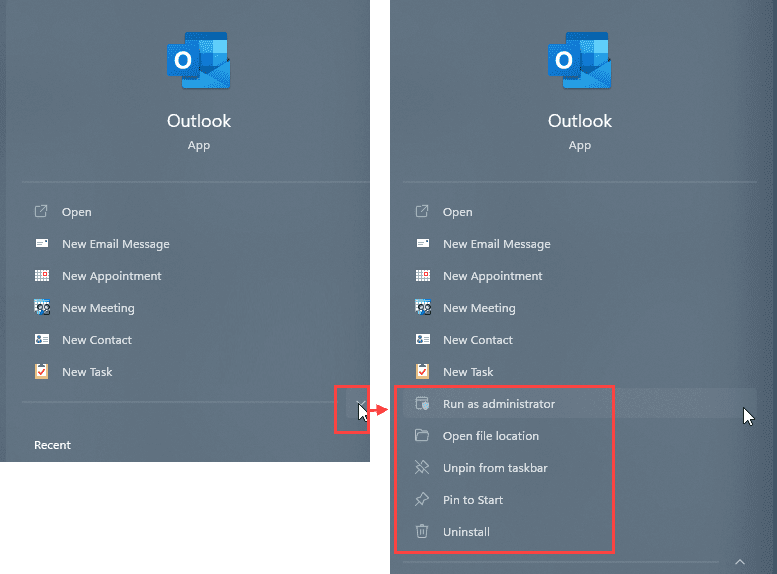
Start typing Outlook.exe on the start menu. When Outlook comes up, you can expand the list of options and choose Run as administrator (Windows 10+), right-click on the start menu shortcut and choose Run as administrator. You can also hold Shift as you right-click on the Outlook shortcut you use to open Outlook and select Run as Administrator from the context menu.
Remove iCloud add-in from registry
This method removes the iCloud add-in from the registry so you can repair the iCloud, which will add it back as an add-in.
Export your registry before editing it. If you delete the wrong keys, you can restore the keys.
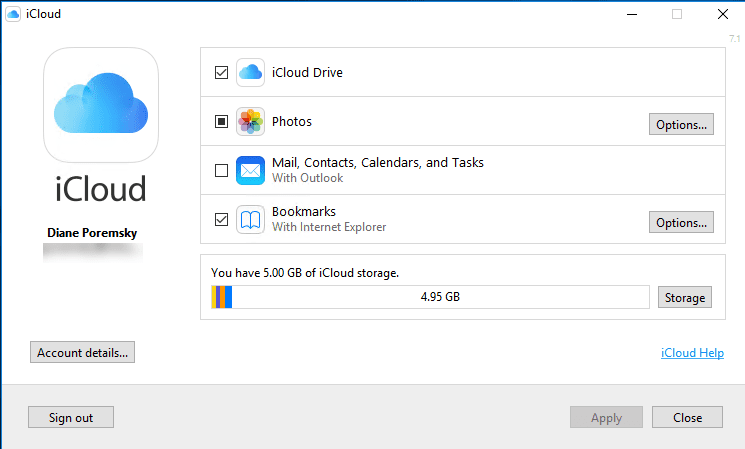
To fix this, you need to delete all registry keys for Apple.DAV.Addin (after first confirming Mail, Contacts, Calendar, and Tasks is not ticked in the iCloud control panel). This will "break" iCloud (which is already broken) and it will ask you to do a repair when you re-open the iCloud control panel. After the repair and reboot, the iCloud add-in should be restored in Outlook.
It's possible that you don't need to delete all of these keys, but I haven't yet tried deleting just some of the keys.
Use Find (Ctrl+F) and Find Next (F3) to locate the keys in the registry; just search for Apple.DAV.Addin and delete the keys that are specifically for Apple, or the Apple.DAV.Addin values when other applications are listed under the key.
To delete the entire key, right-click on it and choose Delete. If other applications are listed under a key, delete only the Apple.DAV.Addin value by right-clicking on the value and choosing Delete.
If iCloud was installed for the current user only, not all users, the keys under HKEY_LOCAL_MACHINE may be under the current user's Security ID keys (S-1-5-21*). If you use 32-bit Windows, you won't have the WOW6432Node.
After I deleted the keys below, I opened iCloud and a dialog popped up saying I needed to repair iCloud to work with Outlook. After repair and reboot, the addin is back and sync works again.

Delete these keys. Values under each key will mention Apple.DAV.Addin.
HKEY_CLASSES_ROOT\WOW6432Node\CLSID\{FF982CA0-9F7A-42d5-82B8-155B74904925}
HKEY_CLASSES_ROOT\Apple.DAV.Addin
HKEY_CLASSES_ROOT\CLSID\{D9BB00EA-0FB5-4032-AD67-65C6E0CDEDC0}
HKEY_CLASSES_ROOT\WOW6432Node\CLSID\{D9BB00EA-0FB5-4032-AD67-65C6E0CDEDC0}

HKEY_CURRENT_USER\Software\Apple Computer, Inc.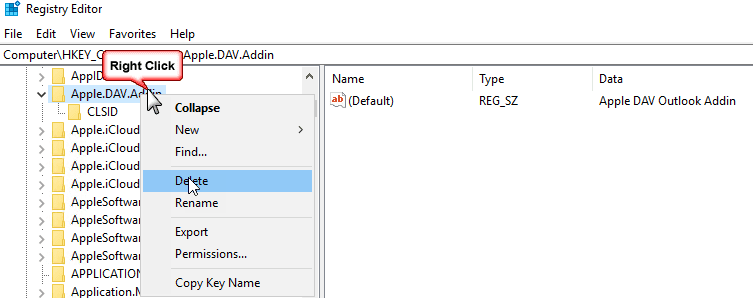
If there is an Apple.DAV.Addin key under either of these keys, delete it:
HKEY_CURRENT_USER\Software\Microsoft\Office\16.0\Outlook\Addins
HKEY_CURRENT_USER\Software\Microsoft\Office\Outlook\Addins
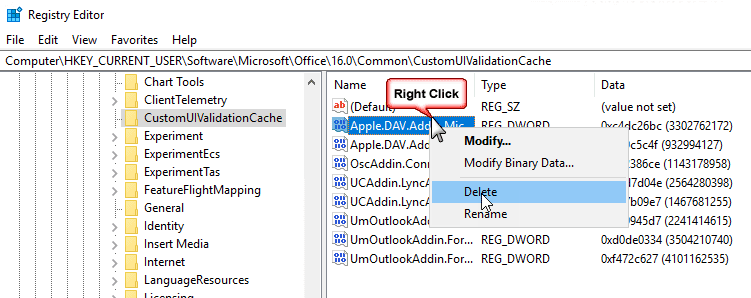
Delete the Apple.DAV.Addin value under these keys (not the entire key!)
HKEY_CURRENT_USER\Software\Microsoft\Office\16.0\Common\CustomUIValidationCache
DWORD: Apple.DAV.Addin.Microsoft.Outlook.Explorer

HKEY_CURRENT_USER\Software\Microsoft\Office\16.0\Outlook\AddInLoadTimes
Binary: Apple.DAV.Addin
Tip: you only need to delete the Apple.DAV.Addin.Microsoft.Outlook.Explorer value, not the *.Appointment value.
If you installed iCloud for current user only, these keys may be under HKEY_CURRENT_USER instead of the local machine hive. Delete the keys.
HKEY_LOCAL_MACHINE\SOFTWARE\Classes\Apple.DAV.Addin
HKEY_LOCAL_MACHINE\SOFTWARE\WOW6432Node\Microsoft\Office\Outlook\Addins\Apple.DAV.Addin
HKEY_LOCAL_MACHINE\SOFTWARE\Microsoft\Office\Outlook\Addins\Apple.DAV.Addin
HKEY_LOCAL_MACHINE\SOFTWARE\Microsoft\Office\ClickToRun\REGISTRY\MACHINE\Software\Wow6432Node\Microsoft\Office\Outlook\Addins\Apple.DAV.Addin
These keys are under your user security identifier key, which is in this format: S-1-5-21-3101777345-4080396782-809796966-500; the exact key name will vary with each computer or user on the computer.
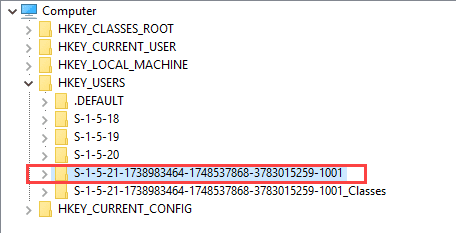
Delete these two keys:
HKEY_USERS\S-1-5-21-*\Software\Apple Computer, Inc.
HKEY_USERS\S-1-5-21-*\Software\Microsoft\Office\16.0\Outlook\Addins\Apple.DAV.Addin
Delete the Apple.DAV.Addin value under these keys.
HKEY_USERS\S-1-5-21-*\Software\Microsoft\Office\16.0\Common\CustomUIValidationCache
DWORD: Apple.DAV.Addin.Microsoft.Outlook.Explorer

HKEY_USERS\S-1-5-21-*\Software\Microsoft\Office\16.0\Outlook\AddInLoadTimes
Binary: Apple.DAV.Addin
Step by Step Instructions
- Close Outlook.
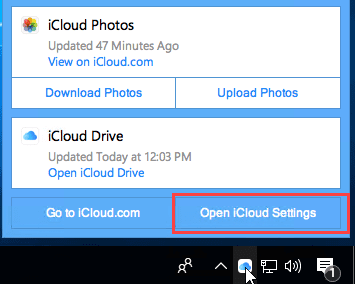
- Open the iCloud control panel from the Notification tray.

- Verify Mail, Contacts, Calendar, Tasks is NOT checked.
- Close the iCloud control panel.
- Press Windows key + R to open the Run command
- Type regedit in the Open field then press Enter (or click Ok). Confirm the dialogs that come up.
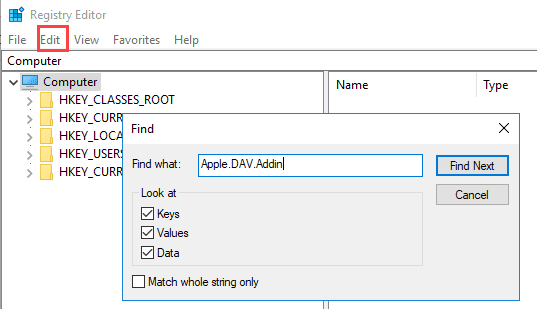
- Once in the Registry editor, expand the Edit menu and select Find or press Ctrl+F.
- Type Apple.DAV.Addin in the Find what field then press Find Next.
- Right click on the key or value and choose Delete.
- Press F3 to find the next entry.
- After you reach the end of the registry, close the Registry Editor and open the iCloud control panel.
- When informed that you need to repair iCloud, click the Open Programs and Features button. (Programs and Features window will probably open behind the iCloud control panel.)
- Close the iCloud control panel.
- Select iCloud from the list of applications in Programs and Features.
- Click Change (or right-click, choose Change).
- Choose Repair.
- After Repair is complete, reboot.
- After logging back into Windows, open the iCloud control panel and tick Mail, Contacts, Calendar, Tasks. Click Apply.
- Restart Outlook.



JasonB says
Thank you! Been struggling off/on for over a week to get this function back after accidentally thinking switching to "new outlook" might be cool. Nope. when I went back it some how broke the cloud / "old outlook" handshake. Back in business now! wanted to share some appreciation.
Federico says
Grazie mille. Thank you very much!
It worked immediately
Troy says
Diane, could I possibly pay you to help me? Maybe by quick assist? I'm just not able to fix this so that it syncs. I fear iCloud pointing to the wrong data files since it's mentioning trash in the paths.
Diane Poremsky says
Sorry, I didn't see this earlier. I do take appointments -there is a link in the side bar.
If you haven't yet solved it, I would like to see a screenshot.
Chrisg says
These instructions on how to re-install the iCloud Add-in were a lifesaver. Clearly written and worked immediately. My Outlook was crashing and was doing everything trying to fix it, included deleting the iCloud Add-in. Once I got Outlook running, I had to fix syncing with iPhone. Spent a lot of time seaching on how to do this and then found this article.
Rene says
Thank you!!
cathy says
Thanks! This fixed my problems.
Suki says
Hello Diane I have the issue whereby. I cannot see the "Mail, Contacts, Calendar, Tasks" option on iCloud. It suggests that i goto to the web version. I am using outlook version 2201 build 16.
the looks like an issue with the iCloud DLL. Have tyou see this before?
Diane Poremsky says
Tasks in no longer supported if you have a newer ios.
Is the iCloud addin listed in outlook's addins?
Holly says
Now it gives Custom UI XML runtime error of "iCloud Outlook Add-in"
Diane Poremsky says
That would be a ribbon error.
Is this the complete error message? (I found that on the apple forums, but no solution). the last line seems to say it can't find the Folder tab.
Error found in Custom UI XML of "iCloud Outlook Add In"
Line 3
Column 8
Error Code 0x80004005
Failed to find Office control ID
ID: Tab folder
Which version and build of Outlook are you using? See File, Office Account for the information. Are you using the iCloud from the windows store or the download from apple?
Diane Poremsky says
BTW - in File > Options > Advanced, under the Developer section about halfway down, is "Show add-in user interface errors" checked? If so, uncheck it. That should eliminate the error message.
Paulo Ouana says
Thanks Diane, that fixed the Add-In issue.
I still need to solve the problem with the syncing. I cannot see the "Mail, Contacts, Calendar, Tasks" option on iCloud. If you know some trickies please share.
James says
Thank you!
Kent Williams says
Awesome. This fixed it. I spent over an hour on the phone with Microsoft and they couldn't fix it.
Dimitiris says
I had the same problem and tried so many ways to solve it.
I solved it with your advice.
Very Good step-by-step solution. It worked fine for me.
I cloud works fine on Microsoft Outlook 365 on Windows 10.
Congrats
Nick Jarman says
Hello Diane - I'm also struggling - I've run the repair countless times, removed icloud and reinstalled, dealt with the registry, copied the APLZOD32.dll file from a known good machine but still nothing - I have Windows 10 and Outlook 365 - I've just gone to repair Outlook as suggested below and discovered none of the Office 365 programmes are in the program list, suspecting this may be the issue - now wondering about the fix - what can you suggest ? . . .Outlook is version 1909 build 12026.20344 Microsoft store - Microsoft outlook for office 365 MSO 16.0.12026.20344 32 bit - thanks Nick
Diane Poremsky says
>> Microsoft store
That is the problem. You need to remove it and install click to run. It will delete your signatures, data files, templates, outlook profile - * everything* is removed and you'll be back to a fresh install of office. You can backup files (templates, signatures, custom ribbons etc) normally found under 'appdata' path but not the registry and put them in the normal appdata folders after upgrading.
https://www.slipstick.com/outlook/outlook-store-app/
Nick Jarman says
Thanks Diane - I uninstalled iCloud, checked the registry was clear (it was) uninstalled Office - reinstalled office, went into first Word then Outlook, set up email, then installed iCloud - now all good - thanks for your help, hope this helps others too - its a major faff to have to remove Office and reinstall but seems the only way . . .
Roy says
Thank you, all fixed
Veronica Haupt says
I have tried all the above solutions, still doesn't work. Surely there must be a better way to solve this. Can anyone help. I am running Microsoft Office Professional Plus 2013.
JJPHG says
I had this problem and tried the above - but apparently without much luck. Following the above though I also repaired Outlook (I'm using windows 7 so went in control panal - programs clicked on MSoffice and then the repair option) and also did the same for icloud. I also downloaded a new APLZOD32.dll file and replaced the old onoe (In x64/common files/apple/internet services). Now not sure which of these 4 solved the issue or having to do all 4 but finally my add in returned to the list (after system reboot). Good luck
Kirsten says
I used the fixes above (as well uninstalling and re-installing icloud multiple times), and still - I can't enable the mail component of icloud. The icloud addin is not listed in outlook at all. Nothing works. I have Outlook 365, 2016. Please help?
Charlene owen says
I'm running Outlook 2013 and I'm pretty much at my wits end. the problems started when I replaced my hard drive and put a mirror of my old one on there. I've changed the registry value to "3", I've tried deleting registry keys, uninstalling and reinstalling Icloud as well as several MS Office resets and repairs. Lastly, I created a whole new user profile. Nope. Nothing brings back the Icloud Add-in. For good measure I also used your "addinlist-icloud-2013" and ran that. Nada. I'm starting to think I'm going to have to open Icloud in my browswer window to make any calendar entries or changes. i've lost days of productivity trying to fix this. Why can't we just load in the add-in separate from Icloud. It's clearly not working as a solution for many of us....
Diane Poremsky says
is the addin listed in Outlook's addin list? Have you tried signing out of icloud, uninstalling, rebooting, reinstalling? (That fixes a lot of problems.)
Charlene owen says
Oh yes, I've tried all of that several times in fact. I must have uninstalled and reinstalled icloud at least 8 times now. I've also, done several deep superficial and deep repairs (where they download and reset everything on MS Office). It's truly not there. Only one add-in at all appears on my active list and that is for a Google Desktop Outlook Toolbar. No sign of Icloud in the inactive or disabled list. The thing is that Apple.Dav.Addin is there, but why isn't it showing inside Outlook. Ugh.
Diane Poremsky says
This was after deleting the apple.dav keys from the registry?
Charlene owen says
Yes, but it screwed up my Outlook to the point where I had to do a system restore to get my folders working correctly again.
Roy says
Followed all these steps and still get the "Repair iCloud for Windows to use iCloud with Outlook” error. Run the repair, restart, error comes right back. Tried completely removing iCloud, removed all registry keys related to apple.dav.addin, then reinstalled iCloud. Still no addin in Outlook.
Diane Poremsky says
what version of outlook do you have? look in file, outlook account, about outlook. (I get that same behavior from the new Windows store version that is preinstalled on new computers.)
Caroline says
I’m having this problem with a new out of the box windows laptop. I took the steps above but still the same Repair error and the synod option for mail contacts etc greyed out. Any ideas on how to fix?
Diane Poremsky says
is the addin missing from outlook's addin dialog? Try uninstalling icloud, rebooting, then scan the registry for Apple.DAV.Addin and delete the entries (or keys, but only if this addin is the only one listed in it.) Then reinstall icloud.