There are four causes of pictures not displaying in Microsoft Outlook email messages:
- Internet Options setting for saving encrypted pages to disk (below)
- Blocking external content
- Red X's in Email / SecureTemp folder is "full"
- Word's Picture placeholder setting enabled (below)
Internet Options Encrypted Page Setting
Note: Outlook uses Internet Options settings, not Edge settings.
Open Internet Options, either by typing Internet Options on the start menu or opening it from the Control panel.
Look under the Security section for Do not save encrypted files to disk. Untick this setting and Apply. Restart Outlook and you should be fixed. (If you don't use Internet Explorer, you can go to Control panel, Internet Options or just type Internet Options in the Start menu Search.)
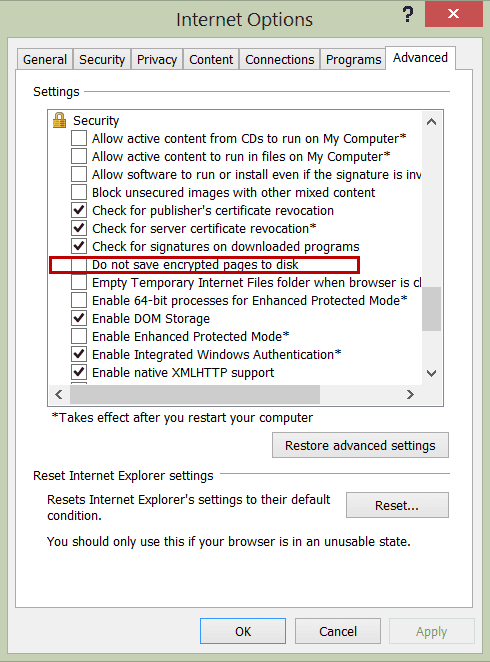
Thanks to William for sharing this with us.
Check the Picture Placeholder setting
If you do not see a red x but have a blank box shaped/sized like the graphic or photo, you have Show picture placeholders enabled. (A great feature if your Internet connection is slow.)
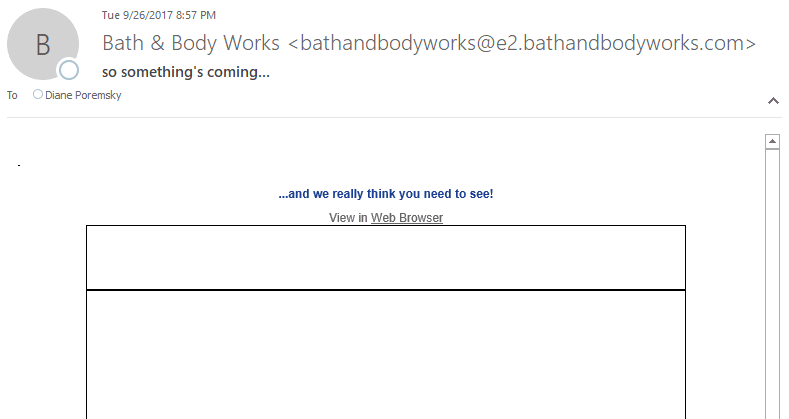
Note that this dialog is accessible from a COMPOSE MESSAGE window, not the main Outlook window!
Outlook 2010, 2013, 2016
These steps work for Outlook 2010, Outlook 2013, and Outlook 2016 (including Outlook which is included in Office 365 subscriptions).
- Click the New Email button or press Ctrl+N while viewing the Inbox.
- Go to the new message's File, Options dialog.
- Click Mail, then Editor Options
- Select Advanced and look near the bottom of the dialog for the option to Show Picture Placeholders.

- Uncheck the box to Show picture placeholders
- Close the dialog then close the message.
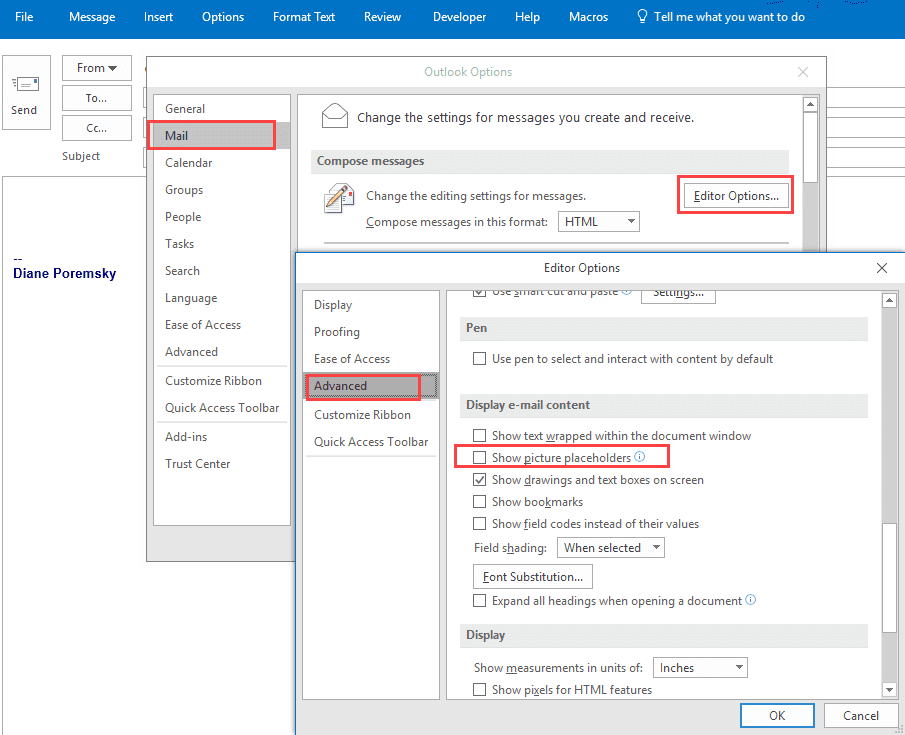
After changing the settings, close the message. Do not sent it! This, like many other message settings (zoom, etc), will apply only to the current message if you send it. You need to close the message to change the global setting.
In Outlook 2007
- While in a New message window
- Click the Office icon
- Click the Editor options button on the lower right of the dialog
- Select Advanced from the left menu of the Editor options dialog
- Scroll down to Display email contents section (near the bottom)
- Uncheck the box to Show picture placeholders
- Then click OK to apply and close the dialog.
- Close the message.
In older versions, this is an Internet Options setting, accessible from either IE's Tools menu or Control Panel. In the Internet Options dialog, go to the Advanced tab. The Show pictures option is in the Multimedia group, about halfway down.

After hours of searching this article finally fixed this issue. Thanks so much!
Been trying to resolve this issue for months and so far nothing has worked - tried again using all suggestions above (and several in the comments) and nothing works. Using Win7 w/ Outlook 2013. Default browser is Firefox. All worked fine for "years" and then it didn't. Images in some incoming emails (eg Container Store) display fine. Images in other incoming emails (eg from Costco) won't display.Suggestions??
Do any Costco images display? I've had issues with some Costco images - maybe 10% don't display. I didn't look into it though.
Been having this problem for some time now and keep trying things. So far nothing mentioned here (or elsewhere) has worked. Win7, Outlook 2013, Firefox = default browser. Some images in emails received display (e.g Container Store) others don't (e.g., Costco). Total mystery would love to solve it! Wish I could recall "date" when this first started...
I've been struggling with this issue for quite some time and none of the standard solutions (including making changes to the registry) worked. What I found was that there was a file called WebCacheV01.dat that was corrupted. I deleted it and everything worked again. The way I discovered this was by looking at my Event Viewer under applications, I found an error saying:
DllHost (13700,R,98) WebCacheLocal: An attempt to open the compressed file "C:\Users\xxxxuserxxxx\AppData\Local\Microsoft\Windows\WebCache\WebCacheV01.dat" for read / write access failed because it could not be converted to a normal file. The open file operation will fail with error -4005 (0xfffff05b). To prevent this error in the future you can manually decompress the file and change the compression state of the containing folder to uncompressed. Writing to this file when it is compressed is not supported.
Hi Diane - this is happening on my personal computer, not my work computer. I don't have that same ribbon on the top where the word "file" is so I can't follow these instructions. Where do I go? Thanks.
Good solution Thank you so much for valuable guideline
Hi Diane,
I just wanted to say thank you. I had searched the internet for hours trying to find a solution to my Outlook 2016 no image display in email problem and your steps were easy to follow with great explanations and very intuitive. Problem fixed after following your steps above.
Thank you
Eric McCallum
Hi,
I have a user who receives QR codes and the QR codes will appear in some emails and some are just images with "X" in there. All QR codes appear fine in OWA.
I am using M365 Apps for Enterprise v. 2010 build 13328.20356 and am not seeing this option in the Mail > Advanced location. All I see is "Display" and the option to check this is not there. Any help would be greatly appreciated.