There is a bug in the Calendar's Day and Week view that causes all day events to disappear when the window size changes. Adjusting either Outlook's window size (either the height or width) or the calendar size (by adjusting the width of the navigation pane or to-do bar) will show or hide the all day events.
Additionally, the "show more" arrow will not work and the scroll bar on the all day event section is disabled. Rather than expanding the all day event section so more events are visible, clicking on the arrow icon opens a new appointment form or returns an error.
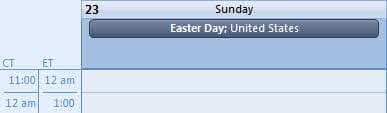
Now you see the event:
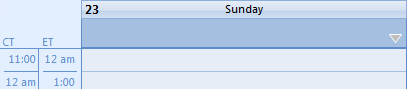
Now you don't. Make the window just a little wider and the event disappears:
The fix? Reset the view. To do this, you can either open Outlook using the /cleanviews switch or just reset the Day/Week/Month view. Note that resetting the view is a temporary fix wile using /cleanviews has a more lasting effect but wipes out all custom views.
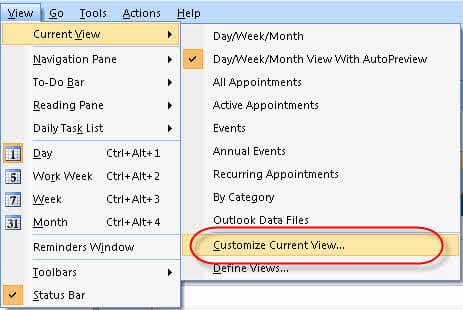
To reset the view on the folder, go to View, Current view, Customize Current view. Click Reset on the Current view dialog.

Hi Diane,
I just got a support request from a client about this. They are running M365 Office version 2106 and this still hasn't been fixed. Any news on your end about this getting fixed?
What version / build of outlook are they using? It should be fixed in all current versions.
Did they reset the views?
It's v2106, I know 2107 is out but yes I thought the same thing that it should have been fixed by now. I reset all of the views and I went as far as deleting the Outlook profile, %appdata% folders and registry keys and the problem persists.
Thank you! This pointed me down the right path. What a nuisance!
Work-around: I have found that if I Don't use the Maximize button in the top right corner to make the program go full-size, and then shorten the height of the window, MORE of the All Day events will appear when in the Calendar Week view.
That worked for me. Thanks!
Oh, I just opened Outlook with outlook.exe /cleanviews but the problem persists.
Hi, my Win 10 auto-updated a few days ago and now only one all-day event appears in the "week" view of my calendar, even if there are multiple all-day events for a day.
Also, in the bottom right of the all-day event section, the Click for More Appts. shows "+0" even though there are more than the one all-day events on that day, and that button doesn't do anything when I click it.
I reset the view per your instructions above, to no avail. I don't know how to use /cleanviews function you mentioned above.
Any ideas? Thanks!
The 0 more events and button not working seem to point to a problem with the view. If resetting the view or using cleanviews doesn't fix it, I would do a quick repair.
Thanks, ran Quick Repair but it had no effect.
Can that top section be expanded (like you can do with the formula bar in Excel) or can the whole screen be zoomed to a smaller percentage somehow?
Another symptom since the auto-update is that in the lower section of the Week view, I can now only see the appointments between 8am-5pm, rather than 6am - 8pm.
what is your time scale? The hours you see are based on two factors: how much room is on the screen and what you have set as the start of your day.
Outlook will show 1 hour before and as much of the day as possible - if there is room, it adds more time at the end of the day first.
Is there a way to zoom to something like 75%?
The only want to show more hours is to change the scale - the zoom control changes the time scale - from hour scale (90%) to 5 min (140%).
Ah, ok, thanks!
Hi do you know if this affects any particular version of Outlook?
It originally showed up in 2007 I believe. AFAIK, It should not be a problem in 2016/2019/365. If you see it in current versions, reset the view.
It seems to be back today in Outlook 365.
Getting very frustrated with a long-time app that just doesn't work well. Had worked with support for more than 3 months regarding a problem in Outlook for Android, and I'm still waiting for it to be fixed!
I will Google this question, but an answer here would be helpful: how does one "open Outlook using the /Cleanviews switch?"
Right click on the Start button and choose Run or press Windows key + R to open the Run command, type or paste the following into the Open field then press Enter or click Ok. (there is a space before the /)
outlook.exe /cleanviews
Thank YOU! This worked for Me!