Many users want to print their address book, as in the address book that comes up when they click the To button or the Address Book button (Ctrl+Shift+B).
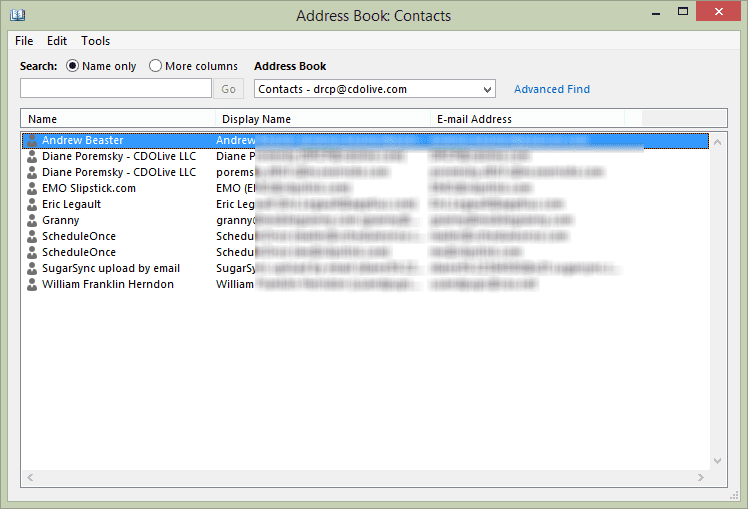
This address book is a "virtual folder" displaying a list contacts from all of your address sources and includes only the contacts that contain electronic addresses (email or fax numbers), and does not contain a Print option.
If you want to print your address book, you'll need to go to the address source, such as your Contacts folder, then print.
You can either use the Print command or Mail Merge to Word. If you want to print only certain contacts, create a custom or filtered view before opening the print dialog or beginning the mail merge.

Before selecting File, Print, apply any view except Phone or List if you want to print a Card, Booklet, or Phone Directory.

Outlook Contacts Folder | Global Address List | Personal Address Book | Tools | More Information
The following methods are marked to indicate whether they are appropriate for the Personal Address Book (PAB), Contacts folders in the Outlook Address Book (OAB) or Microsoft Exchange Server Global Address List (GAL). In many cases, the techniques used for printing can also be adapted to exporting.
Outlook Contacts Folder
- Use Microsoft Access to link to an Outlook table, and use Access as the report designer. Unfortunately, this method does not support all fields.
- Arrange a Contacts folder view showing the fields you want to print, then print directly from the folder.
- Use the Address Book as the data source for a mail merge in Microsoft Word, selecting your Contacts folder. The catalog format works well for the merge document. This method will not print details of distribution lists, though, and you'll get only the first e-mail address from a contact item. The main advantage of this method is that you do get the actual e-mail address, not just the display name that the Outlook view shows.
- Print each Microsoft Outlook distribution list individually.
- Sue Mosher's book, Microsoft Outlook Programming - Jumpstart for Administrators, Developers, and Power Users, includes a routine to export an Outlook 2000 distribution list to Excel, where you an save it as .csv file.
- Extract The Members Of An Outlook Distribution List To A Word Document (code sample)
Global Address List
- To print an Exchange 5.5 distribution list
- Making the Exchange Server GAL Portable
XADM How to Print Out Members of a DL from Exchange
Personal Address Book
Note: Modern versions of Outlook do not support a Personal Address Book (PAB). If you are still using a PAB, you should import it into your Contacts folder.
- Import a Personal Address Book into an Outlook Contacts folder and print from there. In Outlook 2000, distribution lists import just fine. In earlier versions, each entry in the distribution list imports as a separate contact item.
- Import a Personal Address Book into Microsoft Outlook Express, which has a print function. You won't get distribution lists, though.
- Use the PAB as the data source for a mail merge in Microsoft Word. The catalog format works well for the merge document. This method will not print details of distribution lists, though.
- Use the Export Client Extension to export distribution lists from a PAB into mail messages.
Tools
Directory Search is an easy-to-use web application that turns your Active Directory in to a corporate phonebook. The administrator defines which fields are visible and the search criteria that can be used. Features include displaying each user's photo (from the thumbnailPhoto attribute) and exporting search results to CSV or Excel. | |
Run reports on distribution lists, users and more, pulling data from Exchange 5.5, Active Directory, or Exchange 2000/2003/2007. List all distribution lists and their members or just the number of members and present the report in XML, HTM, or Excel format. Free. | |
IMI GAL Exporter (Also known as IMI Global Address List Extractor) for Microsoft Exchange Server is a small utility for Exchange Admin to export GAL to a few file formats. What is new in this version? Native export to CSV, XML, HTML, SQL, Microsoft Office Excel, Microsoft Access. If you are working with Microsoft Office Outlook 2010 and there is more than one Exchange Server to your MAPI profile you can choose a specific Address list (Exchange Server) for export. |
More Information
Printing Custom Outlook Forms and Reports

Daryl Grier says
how do I print all of my contacts from Outlook, including the notes for each
Michelle-Lee MacInnis says
Look for help...I am trying to create a report from contacts in Outlook and transfer to Excel. When I do this it brings my address to another line instead of keeping it in the row. We noticed if we type the address under business address all on one line it won't happen. But, it would be very hard for those in my company to read it easily.
Wendell Crouse says
I'm sure I'm going to sound like a broken record but there is to many comments to scan through. I have Outlook 2013 and I can't find a CONTACTS or MY CONTACTS anywhere. All I have is the ADDRESS BOOK in the HOME pane. I've combed through every pane and cannot find anything that even hints towards the list. How do I print the CONTACT list? I cannot find it to begin with.
Diane Poremsky says
Do you see the little people icon (or the word People) at the bottom of the Outlook window? Click it, or press ctrl+3 on your keyboard to open the navigation module were contact folders are stored.
Steve Gledhill says
In the ‘Business Card’ display on Outlook contacts I have added a photograph of every contact. But when I print the folder the photographs are missing. How can I print the photographs along with all the contact information?
Diane Poremsky says
you need to print the business cards but outlook doesn't include that format. you can use a macro though. I have one around here somewhere - I'll post it.
AB says
I am also interested in this information. If you find it, please post. Thanks!
Diane Poremsky says
I was out of town all week but will try to get a macro up this weekend.
Boaz says
Yeah, that would be really nice! I have been searching for more than a hour now for third party software or a marco that does this. But wiith no luck, and I don't know how to write a marco myself. So I hope you'll post it, it would save me a lot of trouble!
Thanks in advance;)
Diane Poremsky says
This sample prints the contact photos along with the name and address fields - https://www.slipstick.com/outlook/contacts/print-contacts-contact-photos/
Ronny Schnabel says
pls mail a note whenever you are finished with the macro, strongly interested ! re RSchn
Diane Poremsky says
I'll try and get it up this week. The macro uses contact photo in a mail merge - you'll need to design an address card layout in Word. The macro can also grab the business card and insert it into the word doc.
Elaine Mothes says
is it possible to print the contacts in address card format and include the photo you have for the contact(s)?
Diane Poremsky says
Not using the built in printer settings. I'm working on a macro that includes the photos though.
Wil says
In looking at the comments it seems everyone wants to do what I want to do. I just want to print the address book. I have read all the comments and still cannot figure out how to print the address book. Why is this so hard. You would think with all the problems everyone else is having you would come up with an easy way of doing this. why not highlight, right click and select print. Please give me a line by line way of doing this. Some of us are computer challenged. Thank you.
Diane Poremsky says
The Address book (what you see when you click To or the Address book button) is a collection of your contacts folders and other address sources and isn't printable. You need to print from the contacts folder.
Lori DeGuzman says
I want to create a mailing list for Christmas cards. I created a group and have added contacts. I just want to print a list of the contacts and their mailing addresses. This is probably a simple task but, I can't figure it out.
Diane Poremsky says
You don't want to use a Contact Group. Add a category to the ones you want to include, group by category and select the Christmas card group then you can do a mail merge to word - either to paper or mailing labels.
Sarah says
Dear Diane,
I have another problem for you. In a previous version of Outlook, I could print contacts for each letter of the alphabet one at a time, but I can't find how to do it with the 2013 version.. This is useful when printing updated contacts without having to print the entire list.
Many thanks
Sarah says
Could you please explain it using a step by step method, I'm using a system in Italian so I'm not sure what you mean by a 4 or 8 booklet format. I tried a google search but without much success. Thanks/Grazie
Diane Poremsky says
In Print, Select Print Options, Page Setup. Then Paper Tab. Under Page Size, choose a booklet option. Screenshot of the dialogs: https://screencast.com/t/y2fpKZQse
Sarah says
Dear Diane - Yes, I am trying to print more than 255 characters. As I have more than 500 addresses, if I print in memo, less addresses fit on a page and I use more paper. Is there anyway round this problem?
Many thanks - Sarah
Diane Poremsky says
One option is using a 4 or 8 booklet format, or a 2- or 4-up configuration on your printer. Or a mail merge to word. Or use VBA.
Sarah says
Dear Diane,
I am using Outlook 2013. I have entered information in the notes section of a contact but only 3 lines print. How can I print all the information?
Diane Poremsky says
What format are you using for printing? You may need to use memo view to print more than 255 characters.
Eotterson says
Diane - I think it is an issue in which the "card style" for print out ONLY shows the "File As" field, it does not print both the name AND the company. So, while on the computer it shows both, when you print it, it only shows the 'file as' content. The question then is, can you modify the 'card style' report form to include both name and company?
Diane Poremsky says
Do you want the File as field to include both the name and the company? Below is how it looks in Outlook 2010 and 2013. The Card printout is on top, the Card view on the bottom. If you use the company & persons name in the File As, it puts them on two lines.

Diana Kallus says
I, too, cannot get all fields to print out in the "Card Style" Printout, and it automatically did in the previous version of Outlook that I had. The Company Name does not show up, even though it shows in all of the other views. I have searched (spent over 4 hours of work time yesterday) the entire Outlook 2010 site to try to change or adjust, but can't find anything. It does me no good to have a "directory" with only the contact name showing, and not know what company they belong to.
Diane Poremsky says
Are you using 32 or 64 bit Outlook? Which view are you using in Outlook? I'll see if i can repro - usually when more then one person has a problem, it means something is broken but it may be something specific to the view or to addins etc that you have installed.
Heather says
I am printing my contacts 'card style' and yes I have all the fields in the view, but they don't print?
Diane Poremsky says
It should work - if a field is in the view, it should be included in the card printout. Blank rows normally don't display (can be changed in View settings) but blank rows do not print - this can't be changed.
Heather says
Why when printing my contacts does all the information not appear?
Diane Poremsky says
Which print out are you using? Do you have all of the fields in the view that you want included in the print out?
Douglas Westerkamp says
I have outlook 2010. How do I transfer my address book to my contacts
Diane Poremsky says
This is a personal address book? You can import it using File, Open, Import.
Rebecca says
Good grief. This should be a simple function. Print the email addresses in a matter of seconds!! Here it can't be done. You have to research and go around in a cicle.
Diane Poremsky says
Open the contacts folder adjust the view to show the fields you want (and set up a filter if needed) then go to File, Print...
Steve Redden says
I read your response to Diane Poremsky on March 22, 2012, as follows:
To print the PAB, you have two choices – import it into Contacts and print the contacts or do a mail merge with the PAB as the source.
BUT THAT LEAVES the following questions for me;
What is "Contacts"?
How do I do a mail merge with PAB as the source?
Same thing below . . .
The Outlook Address Book (that you see when you click To in a new email message) can't be printed – you need to print from Contacts.
How do I print from Contacts if I don't know what "Contacts" is?
I need it spelled out step by step and will be most grateful if you can assist.
Thank you.
Diane Poremsky says
What version of Outlook do you use?
In Outlook there is a folder called Contacts. If you don't see it, switch to the folder list (Ctrl+6).
Mail merge: in Word, you start a mail merge an select the PAB as a the address source.
Note that the PAB is depreciated and not supported in newer versions of Outlook, so importing the entries into Contacts folder and removing the PAB from the profile makes sense. It also makes backups easier as everything is in the pst file and you don't have to backup two files.
Diane Poremsky says
To print the PAB, you have two choices - import it into Contacts and print the contacts or do a mail merge with the PAB as the source.
The Outlook Address Book (that you see when you click To in a new email message) can't be printed - you need to print from Contacts.
Marie Ethridge says
I am trying to print a copy of my Personal Address Book for updating and adding to it when I get to it..
Please help.
Mary Atwell says
I'm trying to figure out how to print my address book. All I want & have put into it are the names & Email addresses. Please help. I've tried everything I can think of.
Thanks.