Do you need to view several months in Outlook? While Outlook doesn't have a Yearly view or even a multiple month view, there are several ways to view multiple months at once.
- View additional calendars in the navigation pane
- Use VBA to create an HTML planner-style calendar
- Use Outlook's Share by Email feature
View additional calendars in the navigation pane
Drag either the Navigation pane separator bar or the To-do bar / Taskpad bar inward to show more navigation calendars. If needed, slide the Taskpad down. In Outlook 2007/2010, right click on the To-Do Bar title and choose Options to change the number of calendars. Unfortunately, Outlook 2013 /2016 do not support setting a number of calendars in the To-Do bar; the navigation calendars will show as many as your screen supports.
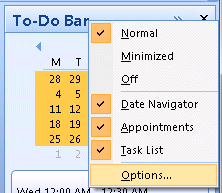
The number of calendars you'll see depends on the size of Outlook's main window and your screen resolution.
In older versions of Outlook, just over half of the Outlook window can be navigation calendars, in Outlook 2007 and newer, you can use just under half the Outlook window.
Outlook 2013 is very limited in the number of navigation calendars it can display. The To-Do Bar can display very few calendars, but you can display more of the navigation calendars.
Video Tutorial
Planner style HTML calendar
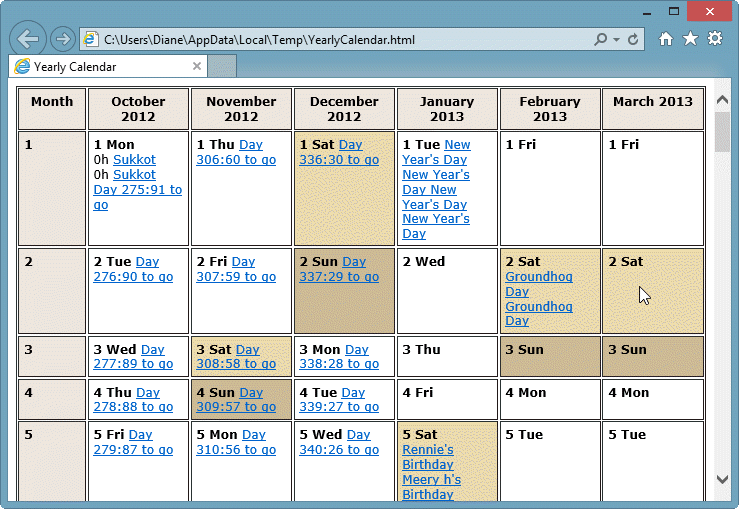
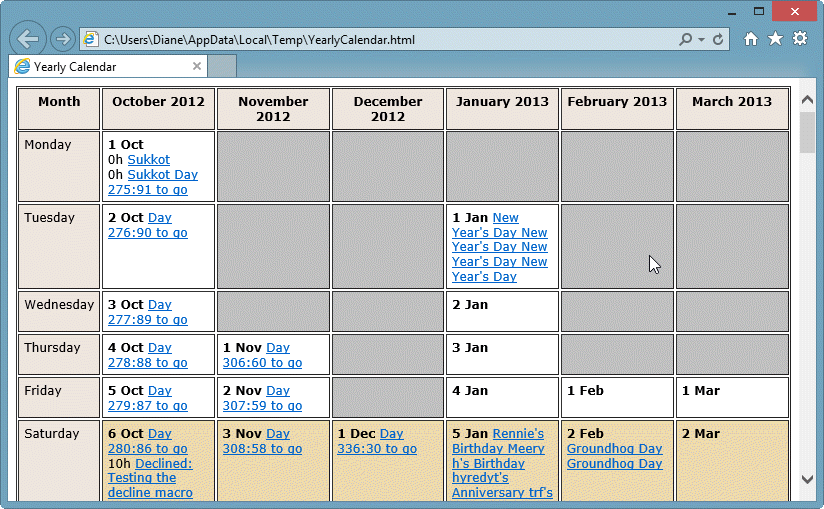
If you want a planner style calendar, you can use VBA to create an HTML web page. The script you need is at Yearly Calendar view for Outlook. This script will create a page with one or more months in vertical format, arranged either by days of the week or by day of the month as seen in the screenshots below. You can edit the code (it's well marked) to display only all day events, filter by calendars and include items marked private. The VBA version was tested in Outlook 2013. It should work in all older versions of Outlook.
A VB script version of the macro is available at Yearly Calendar view VBScript version. The script has better colors and creates 3 HTML calendar: traditional weekly format, months across the top with dates down the side, plus a horizontal version with dates across and months down. This works in Outlook 2013 but categories are not supported (in Outlook 2013 and up).
Share by email
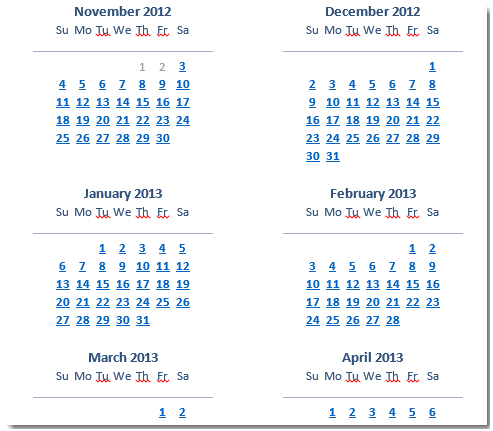
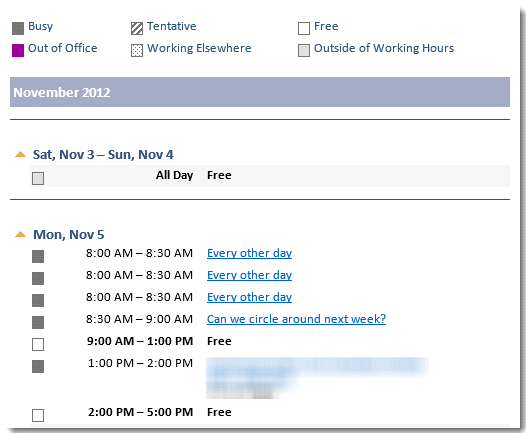
Use this method to create a quick HTML calendar in Outlook 2007 and up. The resulting message contains up to six monthly calendars, a list of daily appointments, and full details (if selected). As seen in the screenshots below, the dates are hyperlinked to the daily appointment lists and the appointments are hyperlinked to the details.
To create an HTML calendar in an email message:
- Right click on a calendar and choose Share > Email Calendar
- Select the desired dates and the level of details.

- When you click OK, a calendar is created in a new email message.
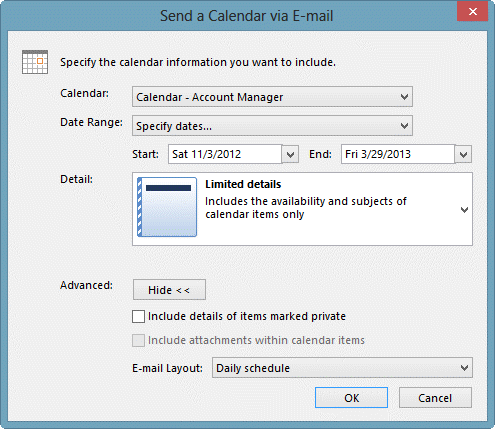
You can save the message as HTML to use the calendar outside of Outlook.

Hi Diane,
Thank you for summarising all these options!
I am very keen on trying the Planner style HTML calendar that you provided the links to above but on those pages, the links are broken and I cannot get a hold of the original poster to ask for the scripts.
I know it was a long time ago but this option is still not something that anyone else is providing, that I can find - do you have contact details for the person at NiveauVerleih?
Any help is appreciated.
Warm regards,
Hannah :-)
I do not have a way to contact the author but the wayback machine to the rescue -
After downloading, rename the text file to have the extension vbs. The double click to run.
I try tu use Yearly Calendar vba macro with outlook 2010 under windows 7. but i d'ont understand wy but when i try empty calendar it's wor, when i try non empty calendar, so with my rendezvous, the mostly time its freez or crash outlook.
in the vbs version the instruction
Set objCDO = CreateObject("MAPI.Session")
abort because i have the message
Could not create MAPI session to retrieve appointment colors. Will continue without colors.
Is ther someone who can help me ?
I will check it on 2010 - it definitely should work. (I made the mistake of trying it on my laptop which had a new version of Outlook 2016 and it does not work with it. I wasted too much time trying to figure out why :( )
It uses CDO to get the colors and that is no longer supported in newer versions of Outlook, but it should work in 2010. However, the error you're getting is pointing to a problem with CDO.
wher is my comment ?
It's here. :) The comments stay in moderation until i answer them - it makes it easier for me to find the comments that need an answer. (I don't do too much actual moderating - everything except spam and the occasional comment is that all swear words gets approved.)
i d'ont understand wy but when i try empty calendar it's wor, when i try non empty calendar, so with my rendezvous, the mostly time its freez or crash outlook.
in the vbs version the instruction
Set objCDO = CreateObject("MAPI.Session")
abort because i have the message
Could not create MAPI session to retrieve appointment colors. Will continue without colors.
Is ther someone who can help me ?
There are definitely issues with it - colors will not work and if using Outlook 2013 or 2016, it may not be able to find the calendar. When i get a change, I'll work on updating it for new versions.
To get past that error (because outlook 2013/2016 do not use CDO), you'll need to remove or comment out the lines that use CDO.
do you have anything that works with outlook 2016 or office 365?
The methods on the page should work with outlook 2016 desktop.
still no year view calendar for outlook
why dont you make an app orr something people can buy to do this
My guess is that the various addin devs don't see a demand and/or, its not as easy as it sounds. It requires and activex control to do it in outlook.
getting type mismatch error on "UBound" line 534
according to "Anonymous" on the author's websites, you need to make the following edit:
Just add the following statement in the VBA script:
arrBinary = Array(1, 0)
under
'msgbox MainKeyPath
The result should look like this:
'msgbox MainKeyPath
arrBinary = Array(1, 0)
For i = 0 To UBound(arrBinary)
KeyValue = KeyValue & Chr(arrBinary(i))
Next
So I need to be a programmer to get a year-view in Outlook... That is so far from user-friendly!!!
Not necessarily a programmer... but you definitely can't do it in outlook - you'll need a script if the email calendar method doesn't create enough thumbnails.