Older versions of OWA don't provide a way to open other user's folders directly from the interface, as you can from Outlook’s File, Open, Other users folder menu, but this doesn't mean it’s not possible. You need to use a specially formatted URL that contains the other users email address and the folder you wish to open.
You can use the following URL format to open folders you have permissions on. This URL format works in all current versions of OWA, including Office 365 Exchange Online.
https://owa.your_domain.com/owa/otheruser@domain.com/?cmd=contents&module=calendar
This opens the folder without the navigation pane and can be used to open any default folder you have permission to open, provided you know the user's address.
OWA 2007, 2010, 2013 have a dialog box for opening other user's folders, you can use when you are already working in OWA. Click on your name on the upper right side of the screen to access it.
Open the mailbox
When you have permission to the entire mailbox, you can use just the OWA URL and mailbox address, formatted like this:
https://owa.your_domain.com/owa/otheruser@domain.com/
This opens the other user's mailbox with the navigation pane. Using this URL requires permission to access the entire mailbox; if you don't have the correct permissions this URL will fail with a permissions error.
Open default folders
You can use the following URL format to open folders you have permissions on, replacing folder_name with the name of the folder you want to open.
This URL format will open Calendar, Contacts, Inbox, and Tasks
If you have full permission to the mailbox, you can remove cmd=contents& from the URL.
Open other folders
Opening other folders is trickier, unless you have full access to the mailbox and can use the folder list to select it.
Exchange 2007 and 2010
While you can use these URLs to open another users folder in OWA 2007/2010, there is a dialog box you can use. Click on your name on the upper right side of the screen to access it.
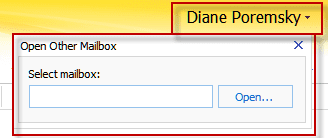
If you don't know the users email address the dialog is easier as it will resolve the name to a mailbox - type the users name into the Select mailbox field and OWA will resolve it. Once you open the folder, bookmark it for later use.

Jim W says
I am trying to open a shared calendar which is NOT the other user's main calendar. Not sure how to reference it. I found this online...
If it is subfolder of inbox then you can open it through below address…
https:///owa//?cmd=contents&f=inbox%2fSubFolder
But could not get it to work. I can open my own inbox and calendar this way, as well as another users main calendar which has been shared. However, I can't figure out how to open the secondary calendar in OWA.
BTW, this is caused/needed because the PREVIEW version of MS Office 2016 updated on July 29 and no longer connects to my Exchange server. It now opens with the error "The resource that you are trying to use is located on an unsupported version of Microsoft Exchange. Contact your e-mail administrator for assistance."
Diane Poremsky says
Yeah, Outlook supports 3 versions of Exchange - which would be 2016, 2013, 2010 - i only wish they had killed 2007 support before the public release.
Is the shared calendar under the inbox? if it's under the calendar, try using calendar in the url, not inbox.
But you'll probably need to open the mailbox and then browse to the subfolder.
Jerry T. says
Hello, server is up to date and the ActiveX controls are set to run on the Internet options. I really don't know what to do now. I really appreciate all your help.
Jerry T. says
I meant everyone has the same issue.
Diane Poremsky says
In that case, it could be something on the server. Are all updates for Exchange 2007 installed? I'm trying to find it in my notes, but I think it's related to the ActiveX control that OWA uses.
Jerry T. says
No, anyone is affected.
Thanks in advance.
Jerry T. says
Yes indeed, it happens the same. It's frustating!
Diane Poremsky says
Are you the only user affected?
Jerry Thompson says
Hello Diane, I got to open calendar using IE8, whether there's a message indicating that it is compatible with IE6 and further versions, I cannot acces it from any computer on my LAN.
What can be happening?
Thanks
Diane Poremsky says
What version of Exchange are you using? Does it work in other browsers?
Jerry T. says
Thanks for answering, the server is 2007 version 08.02.0301.000. I can only acces it from IE8, other browsers are not supported and the same message appears.
Thanks again.
Diane Poremsky says
It sounds like scripts is disabled or security is set too high. Have you tried resetting the browser settings? (Internet Options, Advanced.)
Praful says
I am trying to make this work on OWA 2013 but I am facing issues e.g.
https://mail.domain.com/owa/testuser@domain.com/?cmd=contents&part=1&module=contacts&view=Two%20Line
https://mail.domain.com/owa/testuser@domain.com/?cmd=contents&part=1&module=contacts&view=Phone%20List
https://mail.domain.com/owa/auth/errorfe.aspx?msg=The specified Web Part URL contains an invalid value for the view parameter. The value may be invalid only for the folder type of the folder the URL points to.
Could you please help?
Diane Poremsky says
OWA doesn't support a 2 line view or a phone list view. Sorry.
Bobby says
The path for exchange calendar views of a mailbox should be https://yourdomain/owa/useremailaddress@domain.com/?cmd=contents&module=calendar&view=monthly (of course this is for monthly view)
Hope it helps.
navydudeosh says
Thanks diane. Could you tell me if there is a URL format for directly accessing calendars besides the default for secondary/third, etc, calendar folders? -Josh
Diane Poremsky says
I will see if i can find out.