Many users find the popup messages about Exchange server messages, network warnings & network connectivity annoying after awhile, especially on busy networks where there are frequent connectivity problems.
When the password dialog box keeps coming up over and over see Enter Network Password dialog keeps popping up.
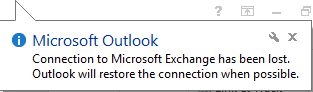
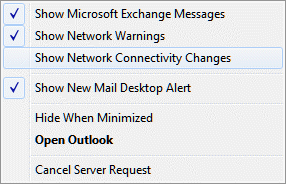
To disable the warnings, users can click or right click on the Outlook icon in the system tray and select the dialog they wish to turn off (or display, if not checked).
Administrators can disable the alerts for all users using a group policy or ADM file. These dialogs can also be configured in the OCT or CIW before deployment.
Disabling these dialogs is as simple as deploying a logon script that changes three registry values to 0 (zero) to turn them off. Using 1 (one) will display the dialogs.
HKEY_CURRENT_USER\Software\Microsoft\Office\xx.0\Outlook\Display Types\Balloons
Show Exchange Messages dialog: Exchange
Show Network Warnings: Netwarn
Show Network Connectivity Changes: NetConn
By deploying these settings in an ADM file, with the default off rather than on, users can change the setting, if they prefer to see the warnings.
Note that we do not recommend disabling these warnings as they can help identify network problems.
Outlook 2010
HKEY_CURRENT_USER\Software\Microsoft\Office\14.0\Outlook\Display Types\Balloons
DWORD: Exchange
DWORD: Netwarn
DWORD: NetConn
Values: 0 (no dialog) or 1 (dialog)
In Outlook 2010, the status bar displays connectivity dialogs. The Balloon keys will not affect this.

Outlook 2007
HKEY_CURRENT_USER\Software\Microsoft\Office\12.0\Outlook\Display Types\Balloons
DWORD: Exchange
DWORD: Netwarn
DWORD: NetConn
Values: 0 (no dialog) or 1 (dialog)
Outlook 2003
HKEY_CURRENT_USER\Software\Microsoft\Office\11.0\Outlook\Display Types\Balloons
DWORD: Exchange
DWORD: Netwarn
DWORD: NetConn
Values: 0 (no dialog) or 1 (dialog)
Do It For Me
If you don't want to edit the registry yourself, you can use the following registry files to disable the alerts.
Balloons-2010 Balloons-2007 Balloons-2003
To enable the alerts, open the reg file in NotePad and change dword:00000000 to dword:00000001 for each warning dialog you want to see, then save it and double click to run it.
More Information
Configure notification area messages in Outlook 2007 (TechNet)

Heinz Voss says
I'm either getting too old for these annoyances (I'll be 54 in August of this year), or there is something TERRIBLY WRONG with the High Tech Culture. I live in San Francisco, and every morning when I go to work, there they are, queuing on 8th Street to access one of these big ass limos that takes them to Silicon Valley: The New & Improved ZOMBIES, are they still human, or will one of them bite me [any day now], and, I, too, will lose my humanity?
Here's my ISSUE (no, I was just running my mouth, 'cause I'm frustrated, 'cause these zombies scare the *hit out of me) - my equipment is so ancient, that ever since moving to EsssEffff I've had to rely on a "homenetwork of a WHOPPING 2 computers", because most of my equipment only runs on Windows XP (yes, expert, and don't you forget it!)
Well, today I scanned something in, then wanted to connect mein Liebchen to the ancient one, and it asked me for a Network Password - he? WTF?
P.S. This has nothing to do with MS OUTLOOK, if my memory serves me well (and I know it does), there was a problem making OUTLOOK my email client, so I'm running THUNDERBIRD - got milk?
Diane Poremsky says
The network password should be the username/password you use to log into the computer you're trying to connect to. While you can set windows to not ask for a password, it's much safer to require a password. You can have your computer remember the password, but it will occasionally forget it and you'll need to enter it again.
rseiler (@rseiler2) says
Diane, is there any chance that you could update this article to discuss whether there ever was a solution for the infamous "Enter network password" dialog that appears in the middle of one's screen, regardless of what you happen to be doing, when the client loses touch with the server (sometimes appears, anyway)? This is not to be confused with the bubble popup from the tray that you show above.
I've seen this for a decade now, and it continues with Outlook 2013 (POP3). Unchecking "Show network warnings" has no effect on it. No Registry entry that I know of has an effect.
There's an ongoing thread about it here (I've lost track of where the threads are on MS's forums):
https://windowssecrets.com/forums/showthread.php/152897-Persistent-Outlook-quot-Enter-Network-Password-quot-Error?p=924375
Diane Poremsky says
This dialog is different from the network popups. Yahoo and AT&T have problems, and some users will get the network dialog occasionally with icloud/me accounts. This dialog is triggered when the connection is lost because authentication is lost - the server drops you and Outlook doesn't pass the saved user/password to automatically log you back in.
It's also triggered with POP3 accounts if a second device checks mail - POP3 puts a lock on the mailbox and Outlook can't log in. This usually results in it popping up constantly.
AT&T / Yahoo have their own issues, discussed at Enter Network Password dialog keeps popping up.