This Outlook macro uses a Word document containing merge fields to mail merge to email and adds an attachment to the message before sending.
I have a similar macro that uses bookmarks instead of merge fields and a version of this macro for printed documents that includes the contact's photo.
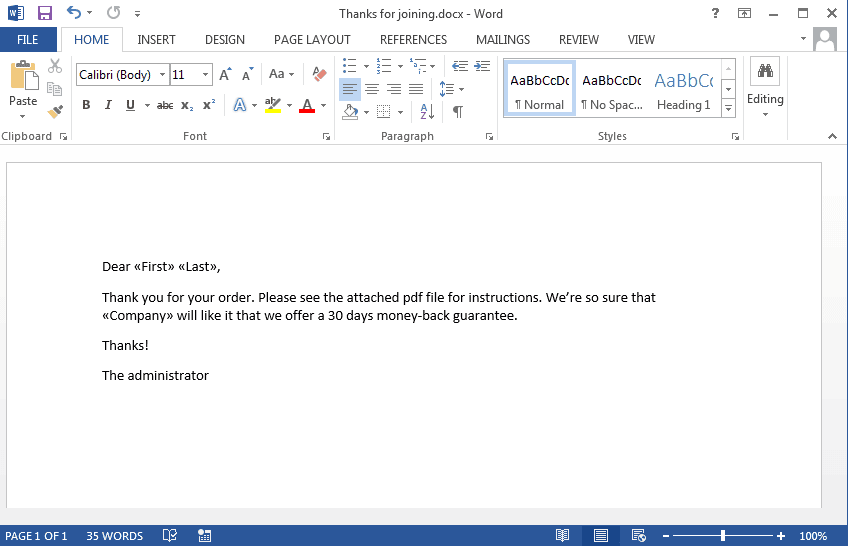
Step 1: Create a merge document in Word. Press Ctrl+F9 to insert the field brackets {}. Type the field names in the brackets in this format: MERGEFIELD fieldname. There should be one space between the brackets and the first and last letters. Press Alt+F9 to display or hide the field codes.

The finished document will look like the following screenshot. Right click on the field and choose Update field if you don't see «fieldname» after pressing Alt+F9. Save the document, using the desired email subject as the filename as the macro uses the filename as the email subject.
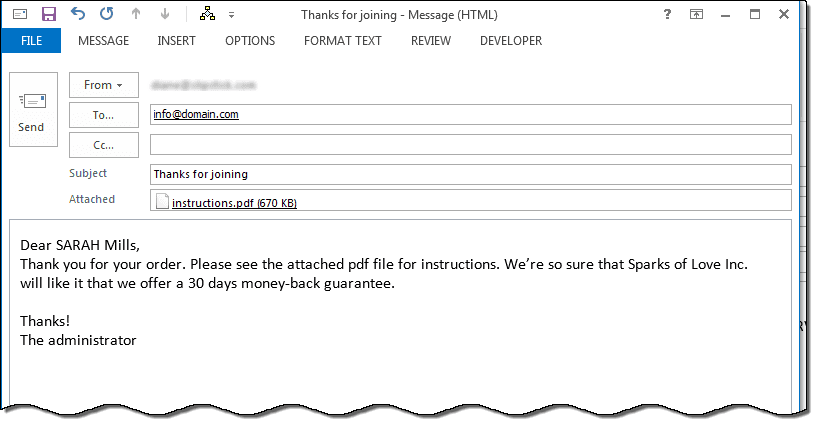
Step 2: Add the macro to Outlook's VB Editor. Change the file path in the code as needed. Select the contacts you want to email then run the macro.
Option Explicit
Public Sub MailMergeAttachments()
    Dim Session As Outlook.NameSpace
    Dim currentExplorer As Explorer
    Dim Selection As Selection
    Dim oContact As ContactItem
    Dim oMail As MailItem
    Dim attach As Attachment
    Dim obj As Object
    Dim oWord As Word.Application
    Dim oDoc As Word.Document
    Dim tmp As String
    ' Uses current user's profile
    Dim enviro As String
    enviro = CStr(Environ("USERPROFILE"))

    ' Get Word
    Set oWord = GetObject(, "Word.Application")

Set oDoc = oWord.Documents(1)
 tmp = oDoc.FullName
 oDoc.Activate

oWord.Visible = True

    Set currentExplorer = Application.ActiveExplorer
    Set Selection = currentExplorer.Selection

  If Not TypeOf Selection.Item(1) Is Outlook.ContactItem Then
  MsgBox "You need to select Contacts first!"
  Exit Sub
  End If

For Each obj In Selection

'Test for ContactGroups
 If TypeName(obj) = "ContactItem" Then
 Set oContact = obj

Dim mText As String
Dim f As Word.Field

For Each f In oDoc.Fields

  If f.Type = wdFieldMergeField Then

 ' match Word mergefields with Outlook fields
      Select Case f.Code
       Case " MERGEFIELD First "
       mText = oContact.FirstName

       Case " MERGEFIELD Last "
       mText = oContact.LastName

       Case " MERGEFIELD Company "
       mText = oContact.CompanyName

       End Select

     f.Result.Text = mText
 End If
Next

Set oMail = Application.CreateItem(olMailItem)

With oMail
    .To = oContact.Email1Address
    .Subject = Left(oDoc.Name, Len(oDoc.Name) - 5)
    'The content of the document is used as the body for the email
    .Body = oDoc.Content
    .Attachments.Add enviro & "\Documents\instructions.pdf"
    .Display ' .send
End With

 End If
    Next
    Set oWord = Nothing
    Set Session = Nothing
    Set currentExplorer = Nothing
    Set obj = Nothing
    Set Selection = Nothing

End Sub
How to use macros
First: You will need macro security set to low during testing.
To check your macro security in Outlook 2010 or 2013, go to File, Options, Trust Center and open Trust Center Settings, and change the Macro Settings. In Outlook 2007 and older, it’s at Tools, Macro Security.
After you test the macro and see that it works, you can either leave macro security set to low or sign the macro.
Open the VBA Editor by pressing Alt+F11 on your keyboard.
To put the code in a module:
- Right click on Project1 and choose Insert > Module
- Copy and paste the macro into the new module.
More information as well as screenshots are at How to use the VBA Editor

Areti says
Hi there Diane, thanks so much for sharing this, it's very useful.
However I'm stuck on how you select contacts. Where do I do that? I have selected a recipient list in the Word mailmerge but I'm thinking that's not where I do this... Any help would be much appreciated. Thank you
Andrew says
Diane, you are the best! I often refer to your slipstick.com articles. They are so helpful! Big kudos to you.
Johnny says
If it helps my aim is to be able to change the sent email address on a email mail merge. It seems to come from the default email account and I want to change this before it goes out. Thanks
Johnny says
Hi, I am new to Macros! Never used one before. I copied this one is and got an error message that says "Compile error: User-defined type not defined". This happens whe it gets to the line "Word as Word.Application".
Any help would be much appreciated!
Cheers
Halo says
Hi, Thanks for sharing the post.
Could you help me with where to put path for the Word file?
Diane Poremsky says
For adding as an attachment? It goes in this line: .Attachments.Add enviro & "\Documents\instructions.pdf"
enviro is using the user account path. if you have it somewhere else, use the full path
.Attachments.Add "D:\Documents\instructions.pdf"
Udhyan says
Your posts are really incredible. Great Job !
How can i get the content of Word as it is in my email sent by Outlook. I am willing to send mass email which contains embedded image too. Only HTML format didn't help me.
Any suggestion on this would be really appreciable.
Diane Poremsky says
How was it messed up? Mail merging from word should include the contact as you see it on the page - hyperlinks may not work, but the format and embedded images should come out ok.
Prasanth says
Hello Diane,
Thank you very much for the post. Is there some way I can preserve the formatting on the Word Document? When the content is pasted on the mail, it losses the formatting.
Regards,
Prasanth
Diane Poremsky says
are you using HTML or plain text messages? The format should be carried over if using HTML format.