We often tell people to use switches but don't always explain how they are used, leaving the user to find out on their own. Even when we do explain how to use them, we often leave out two critical points: there is a space between outlook and the slash and most importantly, you need to close Outlook before you can open it using a switch.
outlook.exe /cleanreminders
There are several ways to restart Outlook using switches and the these two ways are the easiest for occasional use:
Type the switch command in the Run command and press Enter (or click OK). If the run command is not on your start menu, open it by pressing the Windows Key + R. This works in all versions of Windows.
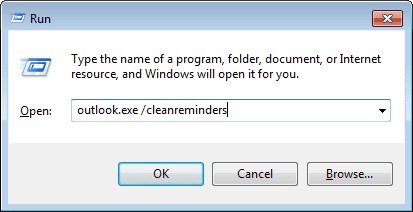
Type the switch command in the Start search field in Windows 7 and Vista and press Enter.
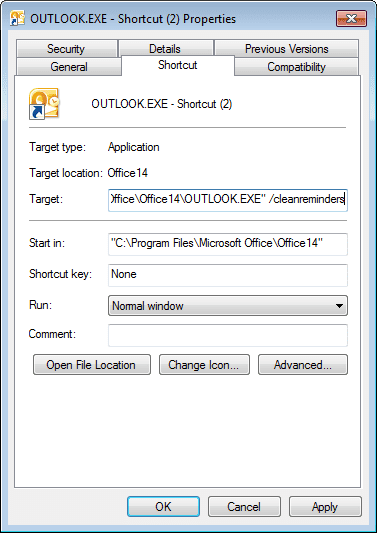 If you are going to use a switch frequently, make a new shortcut in Windows and append the switch to the command.
You can either find Outlook.exe, right click on it and choose Create Shortcut then edit the shortcut properties and move it to your desktop or right click on your Desktop and choose New, Shortcut to use the Create Shortcut wizard. Browse to Outlook.exe to select it (look under C:\Program Files\Microsoft Office or C:\Program Files (x86)\Microsoft Office\).
Make sure the path to Outlook is enclosed in quotes and add the switch behind the command line:
"C:\Program Files\Microsoft Office\Office14\OUTLOOK.EXE" /cleanreminders

As a trainer, I need to use multiple Outlook switches to reset all the workstations in the classroom between sessions. I don't see any examples of this and I can't get it to work though I'm adding spaces between each switch. Please help!
Thanks!
Not all of the switches can be used in succession. The ones that will work would use outlook.exe /switch1 /switch2 format. It might be easier to export the registry and restore it before the next class.
Is there a path to open Outlook to a specific Public Folders Calendar?
Yes. Try /select foldername, using the path to the PF. It will be something like this:
outlook /select "outlook:Public Folders - alias@domain.com\All Public Folders\Test"
Command line switches