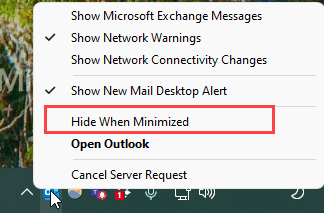
Beginning with Outlook 2003, Outlook has the capability to minimize to the tray. Right click on the Outlook icon in the tray and choose Hide when Minimized.
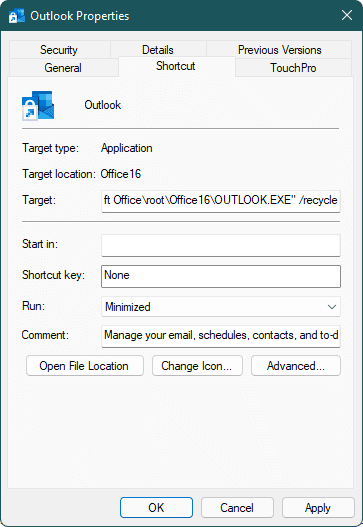
If you want Outlook to always start minimized to the taskbar, you need to change the shortcut you use. Right-click on the Outlook shortcut and choose Properties then change the run value to Minimized and Apply.
If you use a shortcut pinned to the Taskbar or Start menu, hold Shift and right-click, then choose Properties.
Minimize to the Notification tray
To minimize Outlook to the notification area, click on the tray icon and choose "Hide when Minimized" to enable (or disable) the feature.
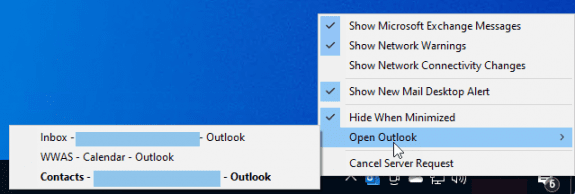
To open Outlook when it's hidden, either double-click on the icon or right-click and choose Open Outlook.
If you open Outlook using a shortcut, you may have several Outlook windows open (but hidden). You'll be able to see and choose which window to open when you right-click and choose Open Outlook.
To solve this problem, add the /recycle switch to the shortcut.
"C:\Program Files\Microsoft Office\root\Office16\OUTLOOK.EXE" /recycle
Show Outlook in the Taskbar Notification Area
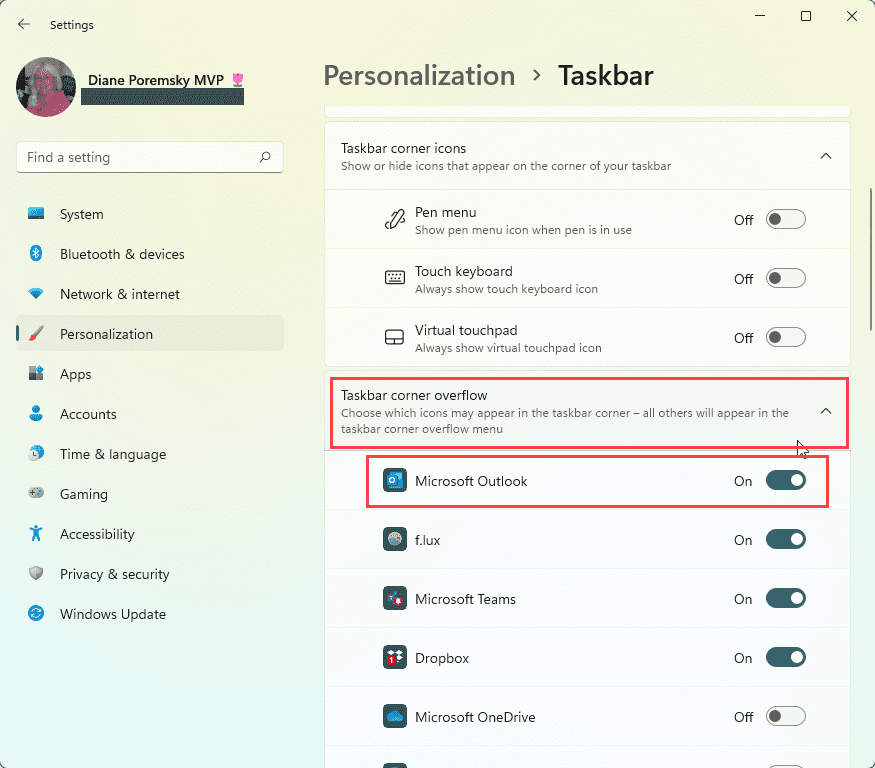
If the Outlook icon is in the Taskbar overflow area, change it to always show in Window's Taskbar settings. This makes it easier to see if Outlook is open and re-open it.
In Windows 10 or 11, right-click on the task bar and choose Taskbar settings. This opens Settings to Personalization > Taskbar. In Windows 11, click on Taskbar corner overflow, find Microsoft Outlook and slide it on. In Windows 10, click on Select which icons appear on the taskbar, find Microsoft Outlook and slide it on.
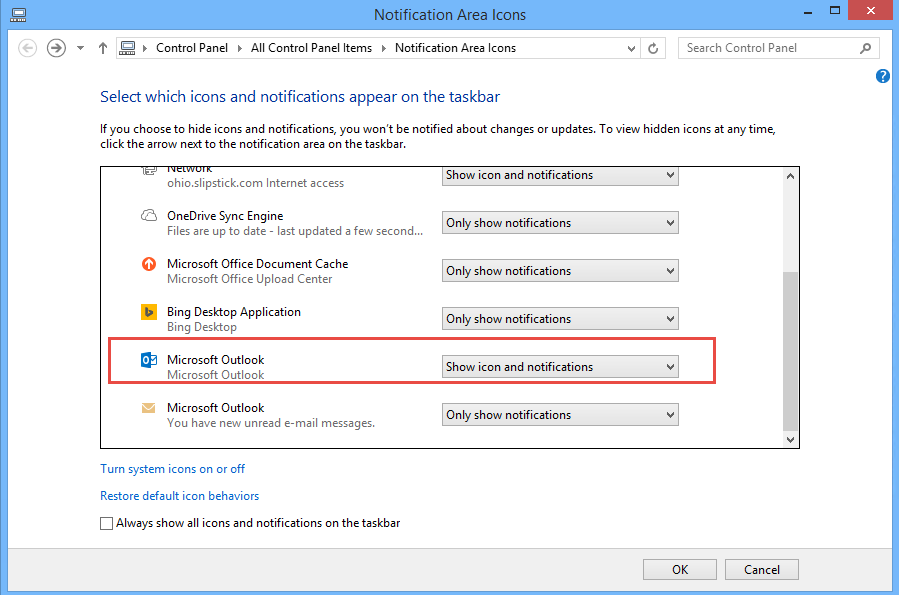
In Windows 7 and 8, to always show the Outlook icon in the notification area, right click on the Taskbar area and choose Properties then Notification Area Customize (or go to Control panel and search for Notification Area Icons). This will open the Notification Area Icons control. Find Microsoft Outlook and change it to Show icon and notifications.
Notes
If Outlook appears to close when you minimize it, check the Hide when Minimized setting.
When Outlook is set to Hide when Minimized, it won't start hidden to the notification area. You'll need to minimize it to hide it.

Rahul Sarode says
Thanks. Worked well
H12 FJK says
There's a useful little freebie program called HideOutlook at http://www.r2.com.au which I've used for ages and makes Outlook behave EXACTLY how I want it to.
Nein Danke says
I stopped using mine when the price of Texas Instruments SR-10 calculator (it would actually do square roots!) dropped under $100 because they'd never be that cheap again.
Nein Danke says
Re "slipstick" I seem to recall having a really nice laminated bamboo one back at the dawn of time.
Diane Poremsky says
I have several but no bamboo.. except I forget how to use them. :(
Nein Danke says
O-2010 at home and work; ditto W7. An earlier comment (now disappeared?) mentioned a regedit but the value noted doesn't exist.
Diane Poremsky says
I don't know why a comment would have disappeared, we had server problems and got a new server but i thought we kept all data. In any event, if you know the value, you can create it - outlook only creates keys when you change a setting so not all keys will exist.
Nein Danke says
When minimized to tray double-click doesn't open Outlook at home while it does at work. Have I missed something?
Diane Poremsky says
Which version of Outlook? Same version of Windows on both?
Terrance says
If you right click on the Icon in the tray where the clock is you will find the property to Hide when Minimized. Check that and you are done as it will hide outlook off the task bar and only show in the task bar where the clock is. Does that help Dan also MS is not useless.. Reading instructions helps.
Diane Poremsky says
Finding the instructions isn't always easy... and for making it hard, one could legitimately claim MS is useless. :)
Dan says
thanks for your help.........MS is useless
Neil Murphy says
Doesn't work for me. I think that is because I am starting Outlook when the system boots up. I point directly at the module, so the shortcut is unreferenced.
Bill Hartland says
Brilliant - thanks
Helen V Gonzales says
Thank you, this is the answer I was looking for.
toptensthings says
thanks for useful tip for minimizing the outlook,