You can use Microsoft Outlook to publish Free/Busy information to any server your and your coworkers (or friends and family) have read/write access to. This allows other Outlook users to view the Free/Busy information of others and schedule appointments with other Outlook users. This page has the steps required to successfully publish and retrieve Free/Busy information.
If you don't have a Microsoft Exchange account, Free/Busy won't work unless you (and your contacts) publish free/busy to an Internet address or a file share. If you want to share free/busy only with others on your same network, you only need a folder on the network with Read/Change permissions for Everyone, Authenticated users, or Anonymous. If you want to share with people outside of your network, you need to publish it on an Internet server (using either HTTP or FTP). Anonymous users will need Read permissions, you'll need Write permissions on the Internet server.
Using Free/Busy
When you create a meeting invitation and look at the scheduling page, if Outlook can find Free/Busy for an attendee, it displays it with blue and grey blocks (Row 1 & rows at #4). When there are no appointments, the time line is grey during non-working hours and white in working hours. When Free/Busy is not available, the time line displays only hash marks (rows at #3).
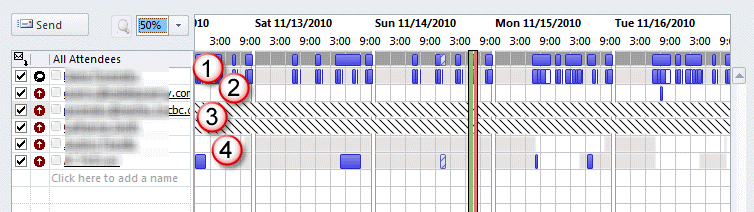
The dark gray row across the top shows the time periods that are available/unavailable for all attendees combined.
1 is the free/busy from your own (the organizer) calendar.
2 gets the Free/Busy from an Internet Free/Busy address.
3 shows Free/Busy is not available for this person.
4 uses published Exchange server Free/Busy.
Outlook's Free/Busy Publishing Options
In Outlook 2010 and newer, access the Free/Busy publishing options from File, Options, Calendar, Free/Busy Options... button. (Exchange Server users will need to click Other Free/Busy... button.)
In Outlook 2007 and older, you can access the Free/Busy publishing options via Tools, Options, Preferences Tab, Calendar Options, Free/Busy Options
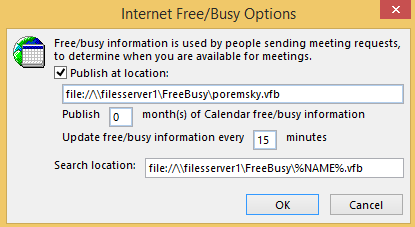
The dialog box contains a field for the number of months of free/busy information is to be published. You may want to publish a longer period, especially since 2 months equals "this month and next month" not 60 days forward. Publish only as far forward as necessary as the free/busy file can be huge.
You can also tell Outlook how often to update the free/busy information. I don't recommend reducing the frequency below every 15 minutes (and higher is better, if you aren't updating your calendar frequently).
The "Publish at my location:" box needs to be checked to enable free/busy publishing for non-Exchange accounts. The Publish at my location file path is the location Outlook uses to publish your free/busy information. Use your alias (part in front of the @ of your email address) as the file name.
The Search location path tells Outlook where to look for other people's free/busy information. This is a global setting and applies to all contacts unless the contact contains a different Free/Busy URL. In order to be able to publish your free/busy information, you need a default search location in the Search location. You may also need to close and reopen Outlook for the free/busy URL to work.
Free Busy Location URLs
Outlook uses one of three protocols and URL formats to publish and retrieve free/busy information:
- file:// in the format: file://\\server\directory\FreeBusy\name.vfb
- https:// in the format: https://webserver/directory/FreeBusy/name.vfb
- ftp:// in the format: ftp://ftpserver/directory/FreeBusy/name.vfb
Search URLs use the exact path as the publishing URL, except it uses the %NAME% variable for the file name, as in this example:
file://\\server\FreeBusy\%NAME%.vfb
You can use any valid URL format for the search location, including: //, file://, or ftp://. Microsoft Outlook supports %NAME% and %SERVER% wildcards, which use the alias and domain name from an email address. For example, when you use the URL
In a SMTP address, Outlook replaces %NAME% with all the characters before the at (@) symbol and replaces %SERVER% with all the characters following the @ symbol. Outlook supports %NAME% and %SERVER% substitutions.
https://%SERVER%/freebusy/%NAME%.vfb
Outlook will look for the free/busy for diane@outlook-tips.net at //www.outlook-tips.net/freebusy/diane.vfb
You need to have read/write access to the free/busy location. If you use an ftp server you can pass the credentials in the URL, using this format:
ftp://username:password@ftpserver/directory/FreeBusy/name.vfb
How to set a Global Free/Busy Search Path
Organizations and SOHO users with POP3 and IMAP accounts can use the following instructions to set up Free/Busy sharing on an FTP server or file share.
In Outlook 2010 and newer:
- Click the File tab, and then click Options.
- On the left pane, click Calendar.
- Click the Free/Busy Options button, click the Permissions tab, and then click Other Free/busy.
- Under the Internet Free/Busy section, in the Search locations box, type the fully qualified path of the location that you want to search for the free/busy information.
- Click OK to exit.
Tip: Enter your Free/Busy address on your own Contact and people you give the contact to will be able to see your Free/Busy.
Free/busy publishing using FTP and Firewalls
When you can only publish a 0 KB *.vfb using FTP, the firewall is blocking it and you need to set an exception in the Firewall for Outlook.
The following instructions are for Windows 7 and Vista. If you use a different firewall, the steps to allow Outlook through the firewall will vary.
- Open the Windows Firewall, and click Allow a program through Windows Firewall.
- Click the General tab and clear the Block all incoming connections check box.
- Click the Exceptions tab, click Add program, and then click Browse.
- Locate and select Outlook.exe. Click OK. (By default, Outlook is installed at C:\Program Files\Microsoft Office\OfficeXX\Outlook.exe, where XX is your version of Outlook.)
- Verify that Outlook appears in the list of exceptions. Make sure that the check box next to the Outlook entry is selected, and then click OK.
How to read other people's Free/Busy
Exchange users will automatically see the free/busy information of other members of their server, provided they have the correct permissions.
To read the Free/Busy information of other people, you need a contact record in your Contacts folder for the people whose free/busy information you want to view. The contact needs to have the person's first and last name entered. While the free/busy file does not contain any name information, only the email address, Outlook needs the first and last name in the contact form to resolve the name to the address in the free/busy file.
When a contact's Free/Busy is published to a different location than you have configured in Free/Busy Options, you can add their Free/Busy URL to their contact.
- Open a Contact.
- In the Contact tab, under Show, click Details.
- Under the text that reads Internet Free-Busy, in the Address box, type the fully qualified path of the location that you want to search for this Contact's free/busy information.
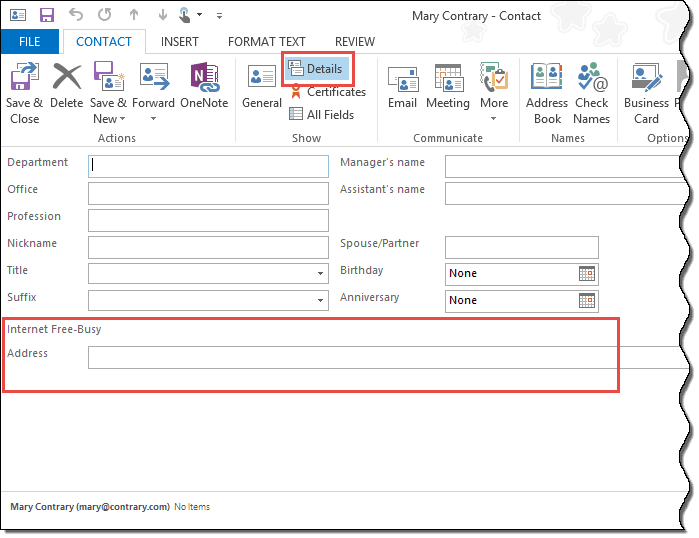
You can use any valid URL format, such as the following: //, file://\\, or ftp://
This is an example of a valid format: ftp://Contactserver/Freebusy/Contactname.vfb
Using Free/Busy without Exchange Server
Network users sharing Free/Busy with co-workers will need to ask the network administrator to create a freebusy folder and configure the folder permissions to allow network computers to read/write to the folder. Free/Busy publishing will be able to all network users and the folder can be published to the Internet, for access by others.
Anyone with a website (and the proper permissions) can publish free/busy to their website then include the path in their Contact which is shared with others. Outlook won't be able to log into the server, you'll need to pass credentials through the URL (insecure) or allow anonymous read/write (insecure).
I highly recommend naming the free/busy folder "FreeBusy", so the path is //domain/freebusy/name.vfb as Outlook supports %SERVER% (domain name) and %NAME% wildcards.
Once the server is configured, you'll need to enter the Free/Busy path in the Free/busy fields in Calendar Options, Free/Busy dialog.
Troubleshooting
When there is an Exchange account in the profile, you can't use the Internet free/busy option.
You need to have the Web Publishing Wizard installed to post your free/busy data to a secured web server, which is not available with current versions of Outlook and Windows.

Thanks for this. Do you know if there are changes to how this works in Office 2016 or Office 365? Unfortunately, in Outlook 2016 for Mac, there do not appear to be Free/Busy publishing options in the options for the calendar.
Even better would be a federation mechanism, where we could share our free/busy with another company who are using Exchange. (I see some other materials out on the web that talks about this.)
Hi! I'm looking for an update for this. I use Office365 and chose to share my calendar with a client so that she can see free/busy information. She can see my calendar in her Outlook client and show our two calendars next to each other, but the free/busy information isn't available in a meeting request. (If she invites me to a meeting and then looks at mtg details to see when to schedule it across a group of people, my data is striped-out.) Any suggestions on how to make this work would be great (she's on Outlook 2013 and Exchange.)
Hey Diane,
I couldn't easily find a more relating article. I had a question though.
I'm trying to use the FreeBusy method to return a string of [X amount] of intervals *before* an appointment starts (and then later, *after*)
It's my understanding that FBInfo defaults to one month of string information based on the starting date.
I'm struggling to figure out how to set the line of code to mirror what I'd like. These are a few different attempts I've used.
myFBInfo = (myRecipient.FreeBusy(DateAdd("m", -1, apt.Start), 30, True))
I've also tried.
myFBInfo = Mid(myRecipient.FreeBusy(apt.Start, 30, True), 1, 24)
I only need like 10 intervals before the start of the appointment. Any function that might be better to use than Mid?
how to add a second Outlook Calendar to the free/busy Exchange info ? (e.g. a synced Gmail calendar or other 3rd party Calendar)
You can't publish free/busy for other calendars, only for the Default calendar. You can share just free/busy data for other calendars, but you need to have a WebDAV server. For gmail calendars, it's probably better to share a free/busy version of the Gmail calendar directly.
Diane:
it is a SBS 2008 server so Exchange 2007 and the end client is Outlook 2007. Their is a published DNS record called mail.domainname.com that is alread pointing to the server for OWA so woudl the published location be "https://mail.domainname.com/directory/FreeBusy/name.vfb"? And woudl the "name" be the users emial address or their user logon name? Do i also have to creaet a folder on the server for this with permissions? You have references about applying Read/Write access to a folder but nothing about where and what folder to create if any. Thanks,
Jimmy
Are there any specific ports i need to open on my firewall to my Exchange Web server to make this work? Thanks,
Jimmy K
What version of Outlook and Exchange? Ones that support Outlook Anywhere/RPC over HTTP should use port 80.
Diane,
One of my developers told me that the vfb approach works only if your contacts are in the main Contacts folder. Is this true or is there some workaround for this?
Bob
I'll have to check that - I think it should work from any Contacts folder (you are just reading the file) but I never tested it.
Free/Busy is only published from the default calendar, but this not your problem.
These instructions are much better than the one from Microsoft!
What would Microsoft do without great websites like Slipstick!