A reader was concerned that Outlook taken over by a virus as it was trying to send out messages from Outbox though the Outbox was empty.
It's not a virus, but a stuck read receipt. For some reason, the SMTP server won't accept it but Outlook keeps trying to send it. Read receipts are stored as hidden messages in the mailbox and you'll either need to configure Outlook to use a SMTP server that will accept the receipts or delete them using MFCMAPI.
If you are using an IMAP account and getting NDRs for read receipts, see Outlook is Sending Unknown Messages
After deleting receipts several times, the user asked how to prevent the problem from recurring.
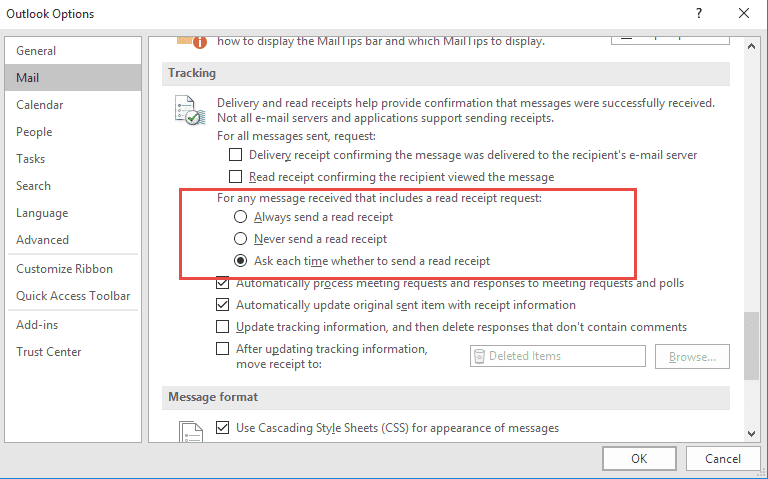
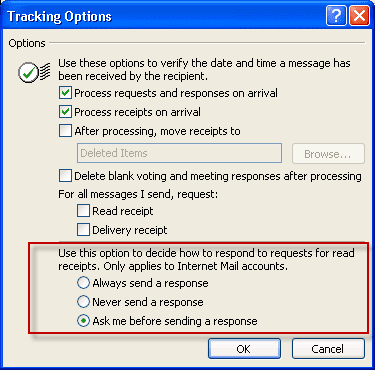
To avoid stuck read receipts, you'll need to configure Outlook to stop sending read receipts responses automatically or configure Outlook to always ask what to do. Although it's annoying to be asked if you want to send receipts, you will soon find out who requests receipts.
In Outlook 2010 and newer, the setting is in File, Options, Mail (Tracking is near the bottom of the dialog).
In Outlook 2007 and older, you'll find the option to disable read receipts in Tools, Options, Preferences, Email options, Tracking Options.
Send or delete stuck Read Receipts
There are two methods that can be used to get rid of read receipts:
- Change the SMTP server for the account to a SMTP that can send the receipt. After the read receipt is sent, change the SMTP back to the one you normally use for the account after they are sent.
- Delete the hidden messages using MFCMAPI.
Use MFCMAPI to Delete Stuck Read Receipts
Download and run MFCMAPI. Use the 32-bit version with Outlook 2007 and earlier or Outlook 32-bit. You need the 64-bit build when you installed the 64-bit version of Office or Outlook.
Note that MFCMAPI is updated frequently and these instructions and screenshots are from one of the older versions. The menus may not be identical, but the steps are the same: logon, find the default data file, locate the receipts and delete.
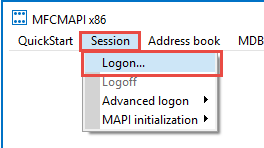
1. From the Session menu, choose Logon . Select your profile from the Choose Profile dialog.
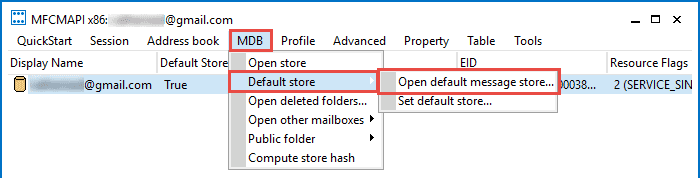
2. Next, go to MDB menu and select Default Store, Open Default Message store. If you only have one store listed, you can double click on it to open it.)
When a secondary account has its own message store and places the outgoing messages in its own Outbox, select that account and right click, choose Open Store (or double click to open store).
Tip: you can right click on the account in the list and choose Open Store instead.
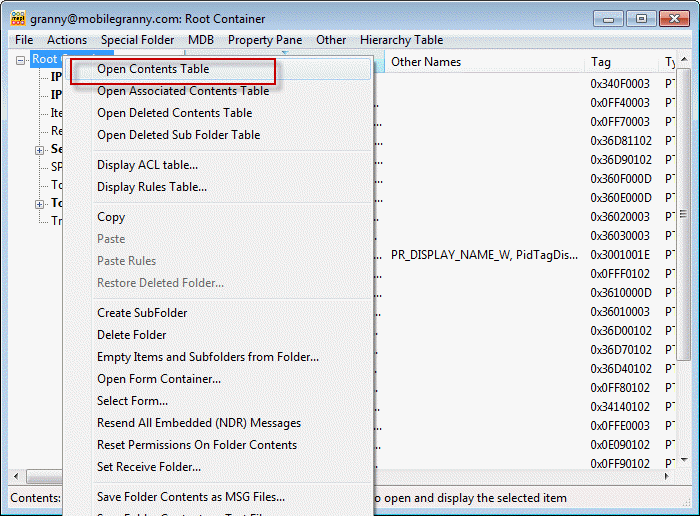
3. Right click on Root Container and choose Open Contents Table
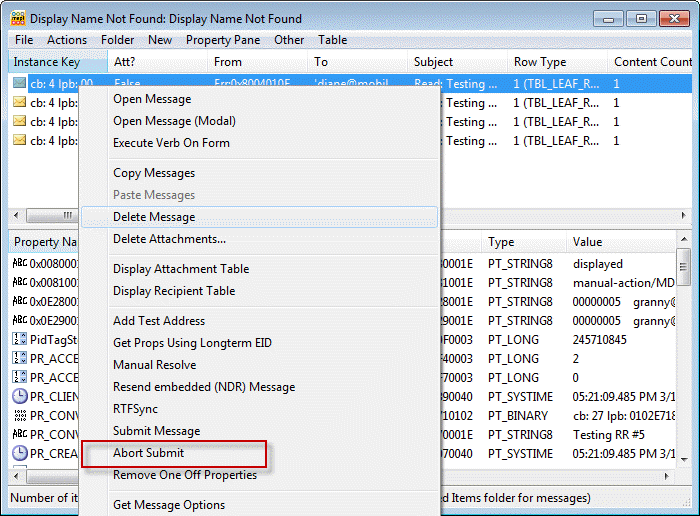
4. In the Contents table, right click a read receipt and choose Abort Submit. Ok the dialogs.
5. Right click again and choose Delete message. Ok the dialogs.
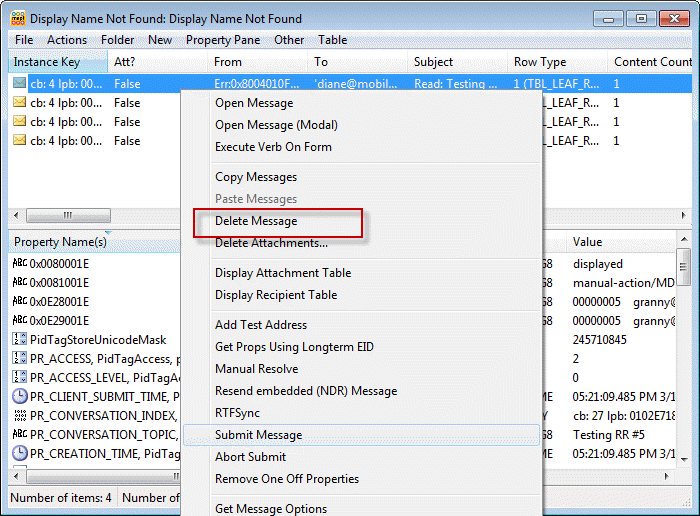
Repeat steps 4 and 5 for each read receipt you need to delete.
Note: Outlook Connector (Live/Hotmail/MSN) accounts do not return read receipts and you will not have any "stuck" receipts with these accounts.
Delete Read Receipts using MFCMAPI Video Tutorial
This video shows you how to delete read receipts using MFCMAPI.

John Eppes says
What happens when the delete procedure does not end up with delete? They remain
Diane Poremsky says
Any error messages when you tried to delete?
Ian says
Thank you very much, my read receipts are now deleted. Your note to say there are updates on a regular basis proved invaluable as the menu was different from your screen shots but I managed to navigate to the solution in the end. Now I can focus on why I can't send eMails any more all of a sudden.
Luciano says
Thank you very much Diane. Used succesfully your guide : Use MFCMAPI to Delete Stuck Read Receipts, it's works perfectly. Have a nice day
Todd says
Thank you so much Diane! This fix worked for my issue of the "stuck" read receipts. My headache of slow send/receive is now gone!
Neil Stephens says
Thanks for the help, Diane. I had to persevere just a little, but this resolved my problem completely.
I'm very grateful!
Stephanie m says
I've done this before and it has worked. Now, it's not showing me anything in the contents table. It's there, I know it is, but I can't find it to delete the message.
Brad G says
Thank you very much for this. The constant send receive errors blinking in the corner of my screen were making me insane.
I had the same unable to abort and partial deletion error codes coming up that others note here until I closed Outlook and tried again. Didn't even have to back out of MFC. It was just that Outlook was still trying and trying to send those receipts, so the files were never inactive long enough for the process until I closed the program. Worked as advertised!
Susan W says
Thank you for your help. Wonderful!
Me You says
Worked exactly as described. Excellent instructions. Thanks for creating this...
Jennifer Rider says
I followed all of the directions, but when I right click and choose Abort Submit nothing happens. Same thing when I try to delete the message.
ROBERT STANDER says
Hi Diane,
Windows 10, Office 365 Outlook
I followed all of the steps and see the receipt that is stuck. followed the steps and get to delete. It asks which type of delete. I tried all 3 choices but nothing happens. the file remains as is. Downloaded the MFCMAPIx64 from Stephen's website.
Suggestions?
Thank you,
Bob
Genger Borton says
I am in a continuous "send" loop--without any messages in my outbox. I followed the suggested steps by downloading MFCMAPI. However, when I opened the contents table, I had Zero messages. I was not able to "Abort." Any additional suggestions? Thank you so much!
Diane Poremsky says
This is with your outlook.com account? If so, i would try deleting the data file and letting outlook recreate it. Thi would also work with an imap account - but if you have calendar & contacts in folders named 'this computer only' you need to export the contents of those folders first.
Brad G says
Just went through this with a brand new version of Outlook and the 64 bit version of MFC. The abort failed each time I tried it until I wised up and closed Outlook. After that, the abort and delete processes worked smoothly as described.
Dana says
Thanks very much - followed your instructions and it looks like it worked!!!
Marc says
I followed all instructions but keep getting an error or warning when attempting to Delete the read receipt, IN the error,, it points to a file c:\projects,,, this does NOT exist
Error:
Code: MAPI_E_UNABLE_TO_ABORT == 0x80040114
Function lpMDB->AbortSubmit( lpMessageEID->cb, reinterpret_cast(lpMessageEID->lpb), NULL)
File c:\projects\mfcmapi\ui\dialogs\contentstable\folderdlg.cpp
Line 2257
and again:
Warning:
Code: MAPI_W_PARTIAL_COMPLETION == 0x00040680
Function lpSourceFolder->CopyMessages( lpEIDs, nullptr, lpWasteFolder, lpProgress ? reinterpret_cast(hWnd) : NULL, lpProgress, ulCopyFlags)
File c:\projects\mfcmapi\mapi\mapifunctions.cpp
Line 995
Diane Poremsky says
i'll check with the developer - it looks like a compile error in his code.
Jessica says
I am still getting an error when I try to delete these read receipts.
Warning:
Code: MAPI_W_PARTIAL_COMPLETION == 0x00040680
Function lpSourceFolder->CopyMessages( lpEIDs, nullptr, lpWasteFolder, lpProgress ? reinterpret_cast(hWnd) : NULL, lpProgress, ulCopyFlags)
File c:\projects\mfcmapi\mapi\mapifunctions.cpp
Line 995
PLEASE HELP!!
Diane Poremsky says
I'll check with the developer - it looks like a compile error in his code.
JohnDW says
Thanks so much for this. But while it pointed to the problem, MFCMAPI won't delete the stuck read receipt, and I can't find any other report of a similar problem. (I'm using the latest MFCMAPI with the PST file for a POP/SMTP account in Outlook 2016/365 CtR.)
When I try to delete the stuck read receipt message in the Root, MFCMAPI reports an error, MAPI_W_PARTIAL_COMPLETION = 0x00040680, with the other details depending which delete option I choose. I eventually concluded this was due to the 8 MAPI properties for the message, e.g., PR_SENT_REPRESENTING_NAME, which show as type PR_ERROR with a value that corresponds to MAPI_E_NOT_FOUND. I'm assuming one or more of these missing properties are also why Outlook is unable to send the message.
I ran ScanPST on the PST file repeatedly until the result was "minor inconsistencies" (at which point this version of ScanPST won't repair any further.) But it didn't resolve either the missing properties or the error when deleting the message.
I then tried editing the problem properties, via the Edit Given Property option. This replaced the errors with valid properties and all looks fine. But despite selecting the Save Changes option, when I refresh the details for the read receipt message the missing properties are back.
Any suggestions on how to either force MFCMAPI to delete this message despite whatever problems there are, or to edit it so that the property changes stick?
Thanks!
John
Diane Poremsky says
it definitely should delete the stuck receipt, even if some properties are missing. That's the only error message you get?
JohnDW says
Thanks, I will get the full details for the error message.
JohnDW says
(Here's a third try at posting these details...)
Here's the full error message when I select the hard delete option on the read receipt:
Warning:
Code: MAPI_W_PARTIAL_COMPLETION == 0x00040680
Function m_lpFolder->DeleteMessages( lpEIDs, lpProgress ? reinterpret_cast(m_hWnd) : NULL, lpProgress, ulFlag)
File c:\projects\mfcmapi\ui\dialogs\contentstable\folderdlg.cpp
Line 726
Thanks.
Diane Poremsky says
sorry, I didn't have time yet to try and figure this out. If you don't use hard delete does it work?
JohnDW says
(I've tried posting a reply 2 or 3 times, and while it initially shows as awaiting moderation, when I check later it's gone...)
No, it doesn't work with any of the delete options. All give the same MAPI_W_PARTIAL_COMPLETION but the code details differ (sorry, I didn't recorded the details for the other options.)
Thanks.
Diane Poremsky says
They are here - everything stays in moderation until I have a chance to reply (it makes it easier for me to find the messages)
I will look into it.
Mary Schneider says
Thank you so much. I've tried so many times to delete the read receipts. This afternoon, I followed directions from Microsoft to do an office repair. It took a long time and didn't work. This worked beautifully.
Greg says
I downloaded MFCMAPI 32 bit but as soon as I click on Session - Logon I get a message from Windows 10 that the program has stopped working. I'm using Outlook 2016
Diane Poremsky says
What version of Outlook do you have installed?
Cindy says
Hi! I followed the steps, but when I click "Open Store," I get the error message below. Can you please help me get past this? Thanks!!
Error:
Code: MAPI_E_LOGON_FAILED == 0x80040111
Function OpenDefaultMessageStore(lpMAPISession, &lpMDB)
File Dialogs\ContentsTable\MainDlg.cpp
Line 437
Diane Poremsky says
what type of email account do you use? There isn't much information available on that error message, but some people who report that error seem to have an issue with the data store.
Cindy says
A POP account. I use Office 2016 to access my email. Is that the information you need? Thanks!
Diane Poremsky says
The data file for a pop account shouldn't be a problem. You don't have a password on the pst do you?
Cindy says
Not that I know of. There's a password for Outlook to access my server. I've never added any other kind of password.
Diane Poremsky says
Ok... it was just a wild guess as to what could be causing the error. There just isn't much information about it in google.
Cindy says
I kept playing with it, and I finally got around the error message. I was able to complete the steps and delete the stuck read receipts. Thanks!
Diane Poremsky says
Do you know what you did to get passed the error? (It might help someone else.)
Cindy says
The pst is not in the default location. Do you think that makes a difference? I moved it to my hard drive. There is no password on the pst file, though.
Diane Poremsky says
No, that shouldn't matter, at least as long as its on an internal hard drive. Outlook doesn't handle network drives and removable drives very well.
Michael says
I finally watched the video and THAT solved my problem; very clear video instructions.
Thank you.
Michael says
I downloaded MFCMAPI 64 as I have Outlook 2016 installed. Unfortunately, when I go to "MDB", "open default store", I get an error popup:
Error: Store does not support the IExchangeManageStore interface
Code: MAPI_E_INTERFACE_NOT_SUPPORTED == 0x80004002
Function lpMDB->QueryInterface( IID_IExchangeManageStore, reinterpret_cast(&lpIManageStore))
File MAPIStoreFunctions.cpp
Line 906
Diane Poremsky says
is this an imap data file? (it shouldn't cause that error even if it is an imap data file).
Michael says
POP3, but the video instructions were different from the above "text" instructions; worked perfectly.
Thank you for the expert assistance.
Michael
RDC says
I've been getting an occasion error message in Outlook 2016 indicating that it is unable to send a message even though there is nothing in the outbox — apparently a "stuck" (albeit nonexistent) read receipt. I came up with a different solution after MFCMAPI didn't do the trick.
1. Exit Outlook.
2. Rename your *.PST file to *.PST.SAVE
3. Restart Outlook.
4. When you see the "can't find *.pst file" select another from the list shown.
5. Outlook will close; restart it.
6. Exit Outlook.
7. Rename the file selected in step 4, or just delete it.
7. Rename the PST file you want to use (i.e., the one in step 2) to *.PST
8. Restart Outlook.
9. When you see the "can't find *.PST file" message, select your desired file.
10. Close Outlook, then reopen — it should automatically select your desired PST file and the mystery error message should be gone — press F9 to be sure.
Diane Poremsky says
A new pst will solve the problem because the read receipts are stored in the default pst. Adding a new pst to the profile and setting the new one to the default will also fix it, but the RR will try to resend if you set it as default again and most people don't want to use a new default.
Paul says
WOW...Finally a fix that worked to allow me to send emails from Outlook again. I had tried all the other repairs and fixes, but it was the stuck read receipts gumming up the works. Used the MFCMAPI with these instructions and voila. Thanks very much for these helpful instructions.
John says
THANK YOU, THANK YOU, THANK YOU Diane. After days of trying to fix this, I bought what turned out to be an illegal copy of Office 2016 from Software Empire (SCAM). I was about to go Apple Mail when I spotted your solution at last. It is all down to the question that you ask :-). One Read Receipt deleted and all is well.
Thank you again,
John
Mark G says
..accounts are imap...
Mark G
Mark G says
HI ...no content including read read receipts in all email accounts root directories but still have messages at all waiting message on exit ...running outlook 365 personal and business email accounts in outlook also outlook calendar..where else are outbox messages kept please or any ideas what else may cause exit message?
thanks...
Mark G
Diane Poremsky says
Sorry I missed this. On IMAP accounts on 2013/2016, the RR should be in the same location in their data file, but i will need to double check. In older versions, they are in the default data file for sure.
If you do use imap, you could close outlook and delete the data file - outlook will re-sync it. if you use 2013 and above with 'this computer only' folders, you need to make sure the folders are empty before deleting (or renaming) the imap data file. if this doesn't get rid of the message, then its in the default pst file.
Larry says
Hi Diane,
I have at least 3 stuck receipts but I cannot find them. I have 4 different emails under display name in MFCMAPI. I have clicked on each and chose open store/open contents and nothing is showing. What am I missing
Thank you,
Larry
Diane Poremsky says
Are you sure they are stuck receipts? What version of outlook and are the accounts pop3 or imap? My guess is either the changes in MFCMAPI mean the steps are not correct in the current version, leading you to not find the receipts. Or it's not stuck receipts.
Marc says
Thank you.... you solved my annoying problem
OL2016 says
Great! Worked like a charm with Win10 Outlook 2016. Many thanks!
Sander says
Hi Diane,
Thank you for this wonderfully clear explanation and walkthrough. It appears my Outlook 365 is showing symptoms of a hidden message that is stuck. Outbox is empty and every time I shut down Outlook, it tells me that there are still unsent messages. With every regular send-receive action, it says sending 1 from 1.
When I follow your walkthrough, on step 3 (open contents table), nothing shows up in MFCMAPI. I checked to make sure I am using the correct bitness (32-bit) version of MFCMAPI and I checked the contents table for both e-mail accounts that are configured in my Outlook, but to no avail.
Any additional tips you could give me to troubleshoot this problem?
Thanks!
Diane Poremsky says
You only have the one account and one data file in your profile? If you have more than one data file listed, check the default data file, not the one for your account.
Liv says
Diane, worked like a charm, thank you so much. I found three read receipts stuck in my outbox. You saved me from going mad :) :) :) !
Rohan says
Thank you very much. Worked for me. Got rid of around 14571 read receipts waiting to block my outgoing services from Gmail.
Diane Poremsky says
That's gotta be a record!
Danielle R. says
I tried your steps above. I am running Outlook 2013, 64 bit. When I click on the Send/Receive - I have an additional 14 messages being 'sent', but they do not exist in any outbox. I followed your steps above, and everything comes up blank. No Read Receipts in limbo. Is there another way to figure out what is 'sending'?
Diane Poremsky says
You can enable logging then look at the log - if it lists the subject of the message it's trying to send, it might give you some clues.
Arthur says
I seem to have the symptom of a stuck receipt or email, and on 2 systems, on outlook 2003 and one outlook 2007. When I send an 1 email sometimes it goes, sometimes I get an error 0x800CCCC0F. When the email wont send, it says sending 2 of 2 messages, even there is only one email in outbox. I have used both MFCMapi and the 32 bit version, and both show me there is no stuck invisible emails in the outbox. I followed the instructions and video here, and tried a few times to be sure. Eventually the email will be sent, but sometimes it can take hours. I have scanned the pst files, compacted the file and even tried with a new PST file and get the same issue. I have no idea where to turn!
Marco says
Extremely useful. I was struggling with stuck read recipts of Outlook 2016 from weeks. Then I have read another post talking about the MFCMapi for Outlook 2016 but I was not able to use it until reading this post. I followed the video tutorial and now all is perfectly ok. many thsnks for this post.
Edward Byrne says
I have located the 2 read receipts I need to delete, but when I try and delete them I get the below messages and the delete is not performed. Would really appreciate some help. My thanks in advance.
Warning:
Code: MAPI_W_PARTIAL_COMPLETION == 0x00040680
Function lpSourceFolder->CopyMessages( lpEIDs, NULL, lpWasteFolder, lpProgress ? (ULONG_PTR)hWnd : NULL, lpProgress, ulCopyFlags)
File MAPIFunctions.cpp
Line 991
Warning:
Code: MAPI_W_PARTIAL_COMPLETION == 0x00040680
Function DeleteToDeletedItems( lpMDB, (LPMAPIFOLDER)m_lpContainer, lpEIDs, m_hWnd)
File FolderDlg.cpp
Line 694
Neil says
Absolutely excellent page!!! Fixed my problem easily with your clear and precise information.
Awesome information. Thanks!!
Marcello Antonucci says
YOU ROCK!
BB says
Hi,
Great site thanks. I have the same problem as one above where there's nothing in the contents table. I did notice that on the first screen where you chose the data file, my 2 options are listed as 'Personal Folders' in the 'Provider' column. Can you help with this?
Thanks!
Sandra Rascheli says
Hi Diane, there are three other ost data files or email accounts. My hotmail is DEFAULT one, but I still cannot make this work out. Help pleaseeee...
alix Marina-Chouhan says
actually I got someone in and it turned out that although the programs said there were stuck read receipt, it was that the mail account was set up wrong, so just in case, verify that the addresses for smtp and pop are right..
Diane Poremsky says
That sounds more like it, especially for Hotmail/Outlook.com accounts. Thanks for the update.
Sandra Rascheli says
Hello again Diane, did what you said and deleted the hotmail ost file but the problem persists :-(
Is there a way to completely uninstall Outlook and maybe install it again so that it takes everything fresh from the start? I don't know what else to try. I hope you have another solution, many thanks!
Diane Poremsky says
If you removed the ost file and outlook resynced the problem, it's something on the server or the problem is elsewhere.
How many data files are in your profile? Which one is default?
Sandra Rascheli says
There are 3 other data files and another data file is my default, it used to be Hotmail for default but I changed it to see if it helped erasing the read receipt, but no luck.
Sandra Rascheli says
It is a Hotmail account, it happened after I tried to send a large video file to a friend and I suppose her server didn't accept the message and it tried to send a read receipt. I hope this helps, I appreciate your help.
Diane Poremsky says
Are you using the Outlook Connector to sync Hotmail to Outlook? If so, just delete the hotmail ost file - it's in the local app data file - if you have Windows 7 or 8, close Outlook then type or paste this into the address bar of Windows Explorer to jump to the location and delete it. %localappdata%\microsoft\outlook Outlook will make a new data file and resync with the server.
Sandra Rascheli says
I am going crazy with this, getting error
Error: Store does not support the IExchangeManageStore interface
Code: MAPI_E_INTERFACE_NOT_SUPPORTED == 0x80004002
Function lpMDB->QueryInterface( IID_IExchangeManageStore, (void **) &lpIManageStore)
File MAPIStoreFunctions.cpp
Line 898
I am using Outlook 2010, urgent help will be greatly appreciated. Thanks!!!
alix Marina-Chouhan says
Hi when trying to delete I get this; Warning:
Code: MAPI_W_PARTIAL_COMPLETION == 0x00040680
Function ((LPMAPIFOLDER) m_lpContainer)->DeleteMessages( lpEIDs, lpProgress ? (ULONG_PTR)m_hWnd : NULL, lpProgress, ulFlag)
File FolderDlg.cpp
Line 691
Diane Poremsky says
One option (assuming its a pst file) is make a new pst and more the Outlook items manually or import the problem pst. The receipts won't import.
alix Marina-Chouhan says
my ntlworld account is good, I have another one for my website, where I have 5 stuck read receipts. they say Incomplete delete. The account itself comes out as false..
alix Marina-Chouhan says
HI, I tried outlookspy, and this is the third program I am trying I found the read receipts, but can't abort or delete them, I get Error:
Code: MAPI_E_UNABLE_TO_ABORT == 0x80040114
Function lpMDB->AbortSubmit( lpMessageEID->cb, (LPENTRYID)lpMessageEID->lpb, NULL)
File FolderDlg.cpp
Line 2084
any idea what I could do? thank you!
Diane Poremsky says
What type of email account? Do you have stuck read receipts? Try closing Outlook and see if delete works.
Peter Storti says
No I am not getting any error messages when a message will not send. I am having what may be a related problem. There are times when I try to save a new contact (or similar task) and I get an error message that says I have to be connected to the Exchange server to perform the task. I should be able to save it locally and then sync with server later. This sounds like an address book service problem also. How do you debug the address book service?
Diane Poremsky says
That is an odd message, because you can only save to contacts folder. Are you using cached mode?
The usual fix for address book service problems is to delete the profile and recreate it.
Peter Storti says
This did not solve my problem. There were no stuck messages in the container. In my case New Messages don't send but Replies do. I have several e-mail accounts including an Exchange and SMTP. The SMTP is the default and I only log in to the Exchange through a VPN occasionally. Once an e-mail get stuck nothing sends. Any thoughts on what to try?
Diane Poremsky says
Do you get any error messages? When new mail won't send but replies work, it usually means the address book service is a problem.
Reyeh says
Thank you. This problem was making me go crazy. When I walked through the steps for MFCMAPI, I tried and tried. Watched the video (thank you) and still nothing. I have multiple accounts under my Outlook and was only having problems with one address (all POP3). Realized I needed to make sure to CLOSE Outlook when using MFCMAPI to abort message prior to then selecting delete. Otherwise, nothing was deleting. Closed Outlook and like magic - back to normal and working perfectly. THANK YOU!
Teresa C. says
Hello, Thank you for posting this procedure.
I'm having a problem. When I go to "Open Default Message Store" I get the following;
Error: Store does not support the IExchangeManageStore interface
Code: MAPI_E_INTERFACE_NOT_SUPPORTED == 0x80004002
Function lpMDB->QueryInterface( IID_IExchangeManageStore, (void **) &lpIManageStore)
File MAPIStoreFunctions.cpp
Line 898
Can you help me with this please?
Diane Poremsky says
What version of outlook do you use?
Sandra Rascheli says
I have the same problem Diane, I get the same error message, I am using Outlook 2010. I need help, I've being having this problem for weeks now, going nuts!!!
Diane Poremsky says
What type of email account do you have configured in Outlook? I'll try to repro the error using the same type of account.
Rob says
Thanks so much, my partners travel around so much and switch outgoing servers. One of them had 2 invisible outgoing messages always trying to send... and no way of finding out where they were. MFCMAPi did the trick...
Marc says
Diane thank you! Your directions to simply change the the outgoing server to use port 587 or 465 worked like a charm. I'm a Comcast user and changed mine to 587 (the first listed) and my three stuck emails departed. Thank you very much for the excellent guidance.
Will says
Hi all,
I had the same problems as some others on this board. POP3 email account stops working, I ran the fix suggested on this page (excellent writeup btw) but also had no messages. I finally traced it back to a problem with my ISP (Comcast). They have apparently blocked port 25 on the outgoing SMTP server. If you are using comast, check this first. There is a writeup on changing your outgoing server port here: https://forums.comcast.com/t5/E-Mail-and-Xfinity-Connect-Help/E-Mail-Client-Settings-customer-generated/td-p/778889
Andy says
Would re-installing Outlook fix the problem? Also, If it's a PoP3 account, and I change it to IMAP would that work? I dont' see any read receipts on my content table either?
Thank you for your help.
Diane Poremsky says
It's unlikely to help - but you can try a repair if you want. Switching to imap will fix it only because it's a new data file. Because of the large number of people with problems, I need to look into other possible causes - something has definitely changed with this in recent weeks.
Brad Bennett says
Hi Diane. I've appreciated your help and I'll definitely come back to you in the future! I finally made the connection that the problem was with a new email account I set up recently. l'm not exactly sure what the problem was, but after I went into Account Settings and deleted that email account my other accounts can send and email doesn't get lodged in my Outbox. That new account is with GoDaddy which came free with a domain name I purchased. I may not have set the email account up correctly in Outlook. Thanks again.
Brian says
Sorry I meant to put that reply here. Explain what you mean by type of email account I have configured. It's webmail if that helps any?
Brian says
I'm not sure what you mean by type of email account?
It is a work email
Diane Poremsky says
Am I correct in assuming work email = Exchange server?
The different types of accounts are POP3, Exchange, IMAP, Outlook Hotmail connector, or in using Outlook 2013, Active Sync (EAS)
Brad Bennett says
Thank you Diane. Just tried turning off outbound email scanning in Avast. No luck. I also tried dtberry's method at the bottom of this thread: https://www.techsupportforum.com/forums/f57/solved-outlook-2007-emails-stay-in-outbox-until-restart-588519.html
No luck. Any other ideas?
Diane Poremsky says
No, I'm going to need to look into it & see what i can find out.
Brian says
I too opened the contents file and it was empty. I'm using Outlook 2007.
Diane Poremsky says
What type of email account do you have configured in Outlook? I'll have to look into it as there are too many recent reports of this problem and everyone says no read receipts are found. Something is definitely up.
Bernice says
Hi,
Is there any update with this issue? i have the same problem. :(
Diane Poremsky says
No, sorry.
Brad Bennett says
I'm having the same/similar issue. Outbound email gets stuck in Outbox. I'm just sending 1 email but in the progress box it shows 3 messages being sent. I read elsewhere on your blog that I should remove add-ins... especially iCloud (which I didn't have) although I do sync my iPhone with Outlook. I've removed all of add-ins. Didn't help. Tried Outlook Safe mode -- didn't work. Tried using MFCMAPI but when I look in the contents table of the root container it's empty. This seems odd. I watched their video (and looked at your screen shots) and it seems I should see a lot of files...a few in the upper bucket and a bunch in the lower one. I looked in several of the root containers for my different emails addresses -- same thing. Have I missed something? I use Avast antivirus and use comcast and gmail. I have 5 email accounts coming into Outlook that have worked well for ages. Can you help? I have a laptop that's setup identically and it's working just fine.
Diane Poremsky says
In Avast - can you turn off Outbound email scanning?
Rui Filipe says
I'm having the same problem. Any new idea?
Diane Poremsky says
Assuming you looked for stuck read receipts...
What type of email account do you use?
What antivirus do you use?
Does it happen if you use Safe mode? To open Outlook in Safe mode: Close Outlook then hold Ctrl as you click on the Outlook icon. You'll get a message asking if you want to start in Safe mode. Click Ok.
Charles Isaac says
I have the exact same problem, Outlook sending multiple emails of the same email, but nothing showing up in any box, In Box, Sent Box, Draft, etc. It has been happening since I swithced over my Outlook data from a company laptop to personal laptop. When I go to Open Contents Table, nothing is there. I see my email accounts. I am using Outlook 2010 on Windows 7. My email is through Charter.net. This happens with any group send, either from group list or a large number of individual receipents. I have worked with Charter and MS IT, so far I have not found an answer
Diane Poremsky says
Is that a POP3 or IMAP account?
Ben says
Is there a tool like MFCMAPI that would fix a read receipt problem in Outlook for Mac 2011?
Diane Poremsky says
No, sorry there is not.
Terry Finlayson says
Oh, I wish this had worked. I was so excited. Same thing--I've had this problem for 2 weeks. I did everything you explained, but when I select OPEN CONTENTS TABLE, there is nothing there. I can see it's my outlook box, because it shows both email accounts, but but where your "Instance Key" column shows a list of emails, mine is blank. It does not show the stuck email (which is just an empty test email) or the "hidden" email. ideas?
Diane Poremsky says
What type of email account? I'll also check it with the newest MFCMAPI - they made some changes to it in recent months.
Bernadette says
WOW. Thank you, Thank you, Thank you, Thank you, Thank you, Thank you, Thank you, Thank you, Thank you!!!!!!! I have been having this problem for months and months and NO ONE could help me. i have googled and asked Microsoft and our IT guys and and and and. I finally found this and voila, its sorted. Thank you!