While a warning dialog is built into Outlook 2013 and above, you need to use VBA or an add-in with older versions of Outlook to check for keywords which may indicate you planned to include an attachment.
For warnings before sending a message with a blank subject, see the following articles:
Outlook 2007 and earlier Outlook 2010 and above
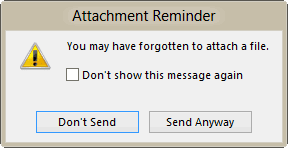
Outlook 2013 and above
An attachment warning feature is built into Outlook, beginning with Outlook 2013. If you don't want the warning, you can disable it by checking the "Do not show... " box in the warning.
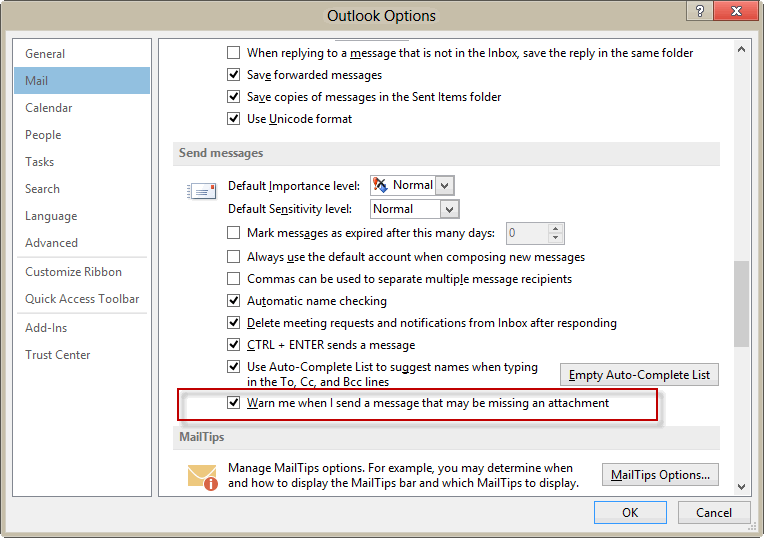
If you change your mind, you can turn it back on in File, Options, Mail. The option to warn before sending a message that may be missing an attachment is in the Send Messages section about halfway down.
VBA for Outlook 2010 and older
When you use Outlook 2010 and older, you need to use VBA or an add-in to warn about missing attachments.
The following macro needs to go in ThisOutlookSession and runs when the message is sent. If it finds the word "attach" in the message body, it triggers a warning dialog.
Private Sub Application_ItemSend(ByVal Item As Object, Cancel As Boolean)
   If InStr(1, Item.Body, "attach", vbTextCompare) > 0 Then
        If Item.Attachments.Count = 0 Then
          answer = MsgBox("There's no attachment, send anyway?", vbYesNo)
          If answer = vbNo Then Cancel = True
        End If
   End If
End Sub
Skip attachments in signatures
If you have an image in your signature, it will be detected as a an attachment and pass the Attachment check. To avoid that problem, check for attachment size. You'll need to loop through all attachments on the message and skip over the attachments that are smaller than a specific size. In my example, I'm looking for attachments over approximately 5 KB. If your signature has larger images, you'll need to increase the attachment size you check for.
Private Sub Application_ItemSend(ByVal Item As Object, Cancel As Boolean)
 If InStr(1, Item.Body, "attach", vbTextCompare) > 0 Then
    If Item.Attachments.Count = 0 Then
        answer = MsgBox("There's no attachment, send anyway?", vbYesNo)
    If answer = vbNo Then Cancel = True
 End If

If Item.Attachments.Count > 0 Then
 For Each oAtt In Item.Attachments
    Debug.Print oAtt.Size
      If oAtt.Size < 5200 Then
        GoTo NextAtt

       Else
       answer = MsgBox("There's no attachment, send anyway?", vbYesNo)
       If answer = vbNo Then Cancel = True
    End If
NextAtt:
 Next oAtt

 End If
End If
End Sub
Check for attachment name in subject
We had an Outlook user sending wrong file (attachment) to wrong recipients. We created a template for each client that contains a unique Client number and the attachment filename always starts with the unique client number. By validating the subject line with the file name we can warn user the client number doesn't match so they can check before sending out the email.
This code checks the first 15 characters of the attachment filename against the first 15 characters of the subject.
By changing the If statement you could check other values.
Private Sub Application_ItemSend(ByVal Item As Object, Cancel As Boolean)
Dim objAttachments As Outlook.Attachments
Dim strAttachment As String

Set objAttachments = Item.Attachments

strAttachment = objAttachments.Item(1).FileName

 If Left(strAttachment, 15) = Left(Item.Subject, 15) Then
 Else
      prompt$ = "You sending  " & strAttachment & ". Are you sure you want to send it?"
       If MsgBox(prompt$, vbYesNo + vbQuestion + vbMsgBoxSetForeground, "Check Sending Account") = vbNo Then
         Cancel = True
       End If
 End If

End Sub
Combine Two ItemSend macros
If you want to use two ItemSend macros to check outgoing mail, you need to combine them into one. This example combines the "blank subject warning" and missing attachment macros.
We could do a better job of merging them into one macro, with one dialog box, but it will work simply by combing the two like this.
Private Sub Application_ItemSend(ByVal Item As Object, Cancel As Boolean)

 Dim strSubject As String
  strSubject = Item.Subject
     If Len(Trim(strSubject)) = 0 Then
         Prompt$ = "Subject is Empty. Are you sure you want to send the Mail?"
       If MsgBox(Prompt$, vbYesNo + vbQuestion + vbMsgBoxSetForeground, "Check for Subject") = vbNo Then
        Cancel = True
      End If
    End If

   If InStr(1, Item.Body, "attach", vbTextCompare) > 0 Then
        If Item.Attachments.Count = 0 Then
          answer = MsgBox("There's no attachment, send anyway?", vbYesNo)
          If answer = vbNo Then Cancel = True
        End If
   End If

End Sub
Tools
The Attachment Forget-Me-Not Outlook add-in scans each outgoing email for phrases like "see attached" or "draft version". It then asks you if you meant to attach a file before sending the email, giving you a chance to insert the attachment. Version 4.0 is being released that works with both Outlook 2010 32-bit and Outlook 2010 64-bit. | |
Outgoing Email Checker for Microsoft Outlook will check your emails before sending them for conditions you specify in the rules. You can create a rule using a template or start from scratch. This reminder add-in will help you avoid most common emailing mistakes: Get a reminder to add attachment to your email in Outlook, Avoid sending large messages, Enable Reply All warning and make sure you use the correct account, Remember to fill CC or BCC lines when necessary | |
Send Guard will detect and prompt you whenever you make any of these mistakes and more: forget to send an attachment you promised in a message, Reply-to-All or forget to Reply-to-All, send emails using the wrong email account, send emails with blank or incorrect subjects, said something you oh-so-knew-better than to say. |
First: You will need macro security set to low during testing.
To check your macro security in Outlook 2010 or 2013, go to File, Options, Trust Center and open Trust Center Settings, and change the Macro Settings. In Outlook 2007 and older, it’s at Tools, Macro Security.
After you test the macro and see that it works, you can either leave macro security set to low or sign the macro.
Open the VBA Editor by pressing Alt+F11 on your keyboard.
To use the macro code in ThisOutlookSession:
- Expand Project1 and double click on ThisOutlookSession.
- Copy then paste the macro into ThisOutlookSession. (Click within the code, Select All using Ctrl+A, Ctrl+C to copy, Ctrl+V to paste.)
More information as well as screenshots are at How to use the VBA Editor

DanJ says
Your VBA works great. I would also like to test for any links. Instead of attaching documents I link many documents to coworkers. I tried to modify the code to find "linked" and to see if any documents a linked. But I have not had luck. Can you Help?
Diane Poremsky says
you can search for the word linked and https addresses. Not tested, but something like this:
If InStr(1, Item.Body, "linked", vbTextCompare) > 0 Then
If InStr(1, Item.Body, "http", vbTextCompare) = 0 Then
' link is missing
Only issue is that it will find http is signature links.
DanJ says
Thanks for your speedy reply. Interestingly "Linked" works for finding a name in the item.body. I have a link to my email address in my signature, so if I use: If InStr(1, Item.Body, "link", vbTextCompare)>0 , it will always be true even if the word "link" is nowhere in the item.body. That might be a good hint of how to find links although I have not had success yet working with properties. If I take the link out of my signature, then it will look for the word in the item. body. Although I would rather it use "link", I am okay with using "linked" which seems to work.
What does not seem to work is the "http" part. It seems to not find it in a link. I also often insert Excel spreadsheets, Word documents, and PDF files as hyperlinks. I was willing to add ".xls", ".doc", and "pdf" but it will not find those in the links either.
I link more things to my coworkers than I attach because my files often are huge. Please continue to help as I cannot find anywhere else about checking for links in an email. Thanks.
Diane Poremsky says
Oops... use item.htmlbody instead of item.body to see the underlying html code when you use a friendly hyperlink in the message.
DanJ says
I found the answer to the problem:
Hyperlinked documents in Item.Body always start with "HYPERLINK" so you can search for that. The web links, you can search for "http" like you suggested. The below will work for the link then. It changes the HYPERLINK to blank so that it will look only for the word link, and then it will look for hyperlinks for a message box:
If InStr(1, Replace(Item.Body, "HYPERLINK", "", , , vbBinaryCompare), "link", vbTextCompare) > 0 Then
If InStr(1, Item.Body, "http", vbTextCompare) + InStr(1, Item.Body, "HYPERLINK ""file:///", vbTextCompare) = 0 Then
vbMBR = MsgBox("There is no link, send anyway?", vbYesNo)
Cancel = vbMBR = vbNo
End If
End If
JHeff says
The code initially worked but I haven't been able to get it working again since.
I'm working on outlook 2007
I tried changing the macro security setting to 'Warnings for all Macros' and No security check for macros' and it still doesn't work.
This is the code I am using is copied from above, is there something I am missing?
Thanks for your help!!
Private Sub Application_ItemSend(ByVal Item As Object, Cancel As Boolean)
If InStr(1, Item.Body, "attach", vbTextCompare) > 0 Then
If Item.Attachments.Count = 0 Then
answer = MsgBox("There's no attachment, send anyway?", vbYesNo)
If answer = vbNo Then Cancel = True
End If
If Item.Attachments.Count > 0 Then
For Each oAtt In Item.Attachments
Debug.Print oAtt.Size
If oAtt.Size < 5200 Then
GoTo NextAtt
Else
answer = MsgBox("There's no attachment, send anyway?", vbYesNo)
If answer = vbNo Then Cancel = True
End If
NextAtt:
Next oAtt
End If
End If
End Sub
Diane Poremsky says
i'm assuming if it worked once, that you have it in thisoutlooksession.
Add msgbox "working" to the top, before the IF lines - does the message box come up when you send?
Carl says
How could this reminder be invoked for Office 2013+, from code, eg from Dephi or C#.Net?
Diane Poremsky says
Are you creating an addin? To use either, you'll need to create an addin.
Jins says
This is not working for me though I have changed the Macro settings as suggested.
Diane Poremsky says
Did you put the macro in ThisOutlookSession? (Automatic macros need to be in thisoutlooksession).
Did you restart outlook? it's not need for the ItemSend macro, unless you changes the security settings after adding the macro.
After this line:
Private Sub Application_ItemSend(ByVal Item As Object, Cancel As Boolean)
add this:
msgbox "ItemSend macro running"
and send a message. Does the message box come up?
Donna says
Hi, I used the code shown below (as per your example) to check for attachments. I made only one change and that was the Attachments Count from 0 to 1 (because our emails always contain our logo which would, presumably, be detected as an attachment). It works - but it works on ALL emails when I press the Send button regardless of whether the word "attach" is in the body of the email or not!
Private Sub Application_ItemSend(ByVal Item As Object, Cancel As Boolean)
If InStr(1, Item.Body, "attach", vbTextCompare) > 0 Then
If Item.Attachments.Count = 1 Then
answer = MsgBox("There is no attachment. Send anyway?", vbYesNo)
If answer = vbNo Then Cancel = True
End If
End If
End Sub
Any idea where I am going wrong?
Thanks in advance,
Diane Poremsky says
it looks good...and is working here. Is there anything in the signature that contains 'attach'? It will pick up 'attach' anywhere in the message or url - if there is a word that ends in attach, it would trigger on it.
Did you test it with a sample signature that only has the logo in it?
Ross says
I cannot get this to work at all when i have a Signature with image. Any ideas ?
Diane Poremsky says
you'll need to use an if statement to ignore attachments under a certain size.
Jay says
Hi, but doesn't it ignore the small attachments and when it finally finds a bigger one then it shows the programmed message? I found that this macro works exactly in the opposite way. Any thoughts on that?
sam says
I don't understand. I have copied & pasted the text for the check missing attachments into my "ThisOutlookSession" VBA window, and it worked at first but now has stopped working. Is there a chance I have messed up a setting, or what?
Diane Poremsky says
did you change the macro security setting? that is the usual reason why macros don't work after you restart outlook.
Sangal says
I am having the same problem. The attachment notification worked at first but nothing is working now after restarting outlook. My macro security settings are set at 'Notification for digitally signed macros, all other macros disabled'. Thanks is advance.
Eissa says
This is very useful.
Sumit says
Wanna use macro to "Warn Before Sending a Message with a Blank Subject" as well as to "Check for missing attachments before sending a message". Can the two sets of codes be used in the same "ThisOutlookSession" editor (with a blank line in between), or I need to do something else? Thanks.
I tried putting the other set of codes by inserting a module, and saving it, but it is not working.
Diane Poremsky says
You need to combine them into one macro.
Try this:
Private Sub Application_ItemSend(ByVal Item As Object, Cancel As Boolean)
Dim strSubject As String
strSubject = Item.Subject
If Len(Trim(strSubject)) = 0 Then
Prompt$ = "Subject is Empty. Are you sure you want to send the Mail?"
If MsgBox(Prompt$, vbYesNo + vbQuestion + vbMsgBoxSetForeground, "Check for Subject") = vbNo Then
Cancel = True
End If
End If
If InStr(1, Item.Body, "attach", vbTextCompare) > 0 Then
If Item.Attachments.Count = 0 Then
answer = MsgBox("There's no attachment, send anyway?", vbYesNo)
If answer = vbNo Then Cancel = True
End If
End If
End Sub
Sumit says
Since my signature has larger images (Facebook, LinkedIn, Twitter icons with links), I have increased the attachment size (100000) in the code (as seen below). Still not working (w/o an attachment, the mail dispatch is working w/o a warning).
I'm using this: Private Sub Application_ItemSend(ByVal Item As Object, Cancel As Boolean)
Dim strSubject As String
strSubject = Item.Subject
If Len(Trim(strSubject)) = 0 Then
Prompt$ = "Subject is Empty. Are you sure you want to send the Mail?"
If MsgBox(Prompt$, vbYesNo + vbQuestion + vbMsgBoxSetForeground, "Check for Subject") = vbNo Then
Cancel = True
End If
End If
If InStr(1, Item.Body, "attach", vbTextCompare) > 0 Then
If Item.Attachments.Count = 0 Then
answer = MsgBox("There's no attachment, send anyway?", vbYesNo)
If answer = vbNo Then Cancel = True
End If
If Item.Attachments.Count > 0 Then
For Each oAtt In Item.Attachments
Debug.Print oAtt.Size
If oAtt.Size < 1000000 Then
GoTo NextAtt
Else
answer = MsgBox("There's no attachment, send anyway?", vbYesNo)
If answer = vbNo Then Cancel = True
End If
NextAtt:
Next oAtt
End If
End If
End Sub
Cynthia says
Hi. I've modified your code to give me a message to check attachments before I send them so I can be sure I am sending the most up to date/modified document. The code runs if the email I am sending attaches documents using the "attach file" button. However, it will not run if the attachment was added to th email using a right click "send to mail recipient" from a file folder. Any thoughts on that?
Diane Poremsky says
can you post the code? I'm assuming that the code is running when you add the attachment - but because of the way the send to recipient works, macros don't run (& signatures and stationery aren't used). See https://www.slipstick.com/outlook/create-a-custom-send-to-shortcut/ for alternatives that should trigger the macros.
SnyTek says
Hi
The hex code 0xA0 seems to separate the current message from the previous one (on my system with Outlook 2010). It might be used by Outlook to generate the horizontal line when displaying the mail.
I've taken your original code and started to adapt it because I had some difficulties to understand the flow. It is much more code but I think it's easier to read and maintain like this:
--\\
Option Explicit
Private Sub Application_ItemSend(ByVal Item As Object, Cancel As Boolean)
Dim answer As VbMsgBoxResult
Dim relevantBody As String
Dim blnMarkerWordFound As Boolean
Dim blnAttachmentFound As Boolean
Dim myMarkerWords As String
' Define keywords to check for
myMarkerWords = "attach, angehängt, Anhang, anbei"
' Outlook 2010 seems to add a special character (0xA0) before adding the previous conversation
' I'm cutting away the previous conversation here as it isn't relevant for the check
relevantBody = Mid(Item.body, 1, InStr(1, Item.body, Chr(160))) '0xA0 = 160
relevantBody = LCase(relevantBody)
blnMarkerWordFound = ContainsAttachmentMarkers(relevantBody, myMarkerWords)
blnAttachmentFound = RelevantAttachmentFound(Item, 4000)
If blnMarkerWordFound = True And blnAttachmentFound = False Then
answer = MsgBox("Es ist kein Anhang vorhanden, trotzdem senden?", vbYesNo + vbQuestion, "Anhang-Check")
If answer = vbNo Then
Cancel = True
End If
End If
End Sub
'---------------------------------------------------------------------------------------
' Procedure : RelevantAttachmentFound
' Author : SnyTek
' Date : 19.08.2015
' Purpose : Loops through all attachments and tries to find a relevant one where the
' size is bigger than the given parameter
' Returns : True if an attachment was found, otherwise false
'---------------------------------------------------------------------------------------
Public Function RelevantAttachmentFound(ByVal Item As Object, ByVal ignoreFilesSmallerThan As Integer) As Boolean
Dim attachment As attachment
For Each attachment In Item.Attachments
If attachment.Size > ignoreFilesSmallerThan Then
RelevantAttachmentFound = True
Exit Function
End If
Next
RelevantAttachmentFound = False
End Function
'---------------------------------------------------------------------------------------
' Procedure : ContainsAttachmentMarkers
' Author : SnyTek
' Date : 19.08.2015
' Purpose : Checks if the body contains a relevant marker word
' Returns : True if a marker word was found, otherwise false
'---------------------------------------------------------------------------------------
Public Function ContainsAttachmentMarkers(ByVal body As String, ByVal wordList As String) As Boolean
Dim keyWords() As String
Dim word As Variant
keyWords = Split(wordList, ", ")
For Each word In keyWords
If InStr(1, body, word, vbTextCompare) > 0 Then
ContainsAttachmentMarkers = True
Exit Function
End If
Next word
ContainsAttachmentMarkers = False
End Function
--//
Vishnu says
Thank you very much. It works perfect. But i would use both the scipts. ie, for missing attachments and missing subject. How can i do the same
Diane Poremsky says
remove the end sub and macro name to make one sub - this will check for attachments then the subject.
Private Sub Application_ItemSend(ByVal Item As Object, Cancel As Boolean)
If InStr(1, Item.Body, "attach", vbTextCompare) > 0 Then
If Item.Attachments.Count = 0 Then
answer = MsgBox("There's no attachment, send anyway?", vbYesNo)
If answer = vbNo Then Cancel = True
End If
End If
Dim strSubject As String
strSubject = Item.Subject
If Len(Trim(strSubject)) = 0 Then
Prompt$ = "Subject is Empty. Are you sure you want to send the Mail?"
If MsgBox(Prompt$, vbYesNo + vbQuestion + vbMsgBoxSetForeground, "Check for Subject") = vbNo Then
Cancel = True
End If
End If
End Sub
Diane Poremsky says
Actually, i guess i should test it - if cancel = true we want to exit, not continue checking.
(It seems to be working correctly - No stops the send and it doesn't check for the subject)
benvanbitcoin says
This was very helpful. Thank you!
Lakshman says
This worked well, thanks for the script.
Is there a way to ignore attach keyword from original email during replies. Just look at current email thread.
Diane Poremsky says
If you get the position of the first header line (From:), you can write the first xx characters to into the strNewBody variable, then search strNewBody.
count = InStr(1, item.body, "From:")
strNewBody = left(item.body, count)
If InStr(1, strNewBody, "attach", vbTextCompare) > 0 Then
"From:" is not guaranteed to not be in the next text portion - if you always use the same signature, you could use something that is in your signature that is unlikely to be in your reply.
Rob Hupf says
Thanks! That worked perfectly. Thanks for the quick response! You rock
Rob Hupf says
I used a snippet of your code to create a macro that reminds me if I want to set a recipient follow up before sending, however, because of it's very generic nature (my fault) it fires for every outbound message, even I have already set the follow up. I'm sure there's a quick "if exists" statement that I could add to prevent this, but I'm not sure how to find the right property. Can you help? Below is my version of your code:
Private Sub Application_ItemSend(ByVal Item As Object, Cancel As Boolean)
Prompt$ = "Send without reminder? Yes or No?"
If MsgBox(Prompt$, vbYesNo + vbQuestion + vbMsgBoxSetForeground, "Check for Reminder") = vbNo Then
Cancel = True
End If
End Sub
Diane Poremsky says
You'll use an if statement as the first line before the prompt$.
if whatever then exit sub
if item.reminderset = true then exit sub
should work.
H Boodee says
Windows 7 Pro, Outlook 2010 Exchange, Outlook VBA newbie, Excel VBA Intermediate
I have same issue with the sig - if NO sig, macro works flawlessly. WITH sig, it fails. I have increased the attachment size check to 1000000 incrementally without success. Still, as soon as I delete the sig in the email response the macro fires just fine.
There are two horizontal lines, formatted text, and a 10K PNG file in my sig.
Am I formatting the .Size property correctly? I simply have it as 1000000
Any ideas?
Diane Poremsky says
10400 = approx. 10KB so your numbers are a little high and will cover all but the very largest attachments.
fdgdhfrfd says
Where to run that script?
Diane Poremsky says
It goes in ThisOutlookSession.
UV says
Thank you for the reply Diane. I appreciate :)
However I couldn't really use 'size' as a parameter to detect 'real' attachments.
Whilst I am trying to do this using RegEx.
After printing the names of the attachments (images) in the signature using
[Debug.Print Item.Attachments.filename], I have found a pattern which is "imageXXX.png/gif". I am trying to make a pattern for Regular Expressions Object.
The link shared by Aleksandr is also pretty helpful. RegEx might also help me implement a few from those.
Lets see, will keep you posted here. Thanks.
UV says
I have 4 different signatures used often. So the property "Item.Attachments.Count = 0" will keep changing. Is there a way to get difference in count of attachments as we hit 'Reply/New Mail/Forward' versus the as we hit 'Send'?
Or how can we deal with dynamic signatures?
Diane Poremsky says
I usually recommend checking for attachment or message size - this works well if signature images are small and attachments large. Because you check on send, it doesn't have a reference to use for attachment count, but I will look into a way to do it (i'm thinking you can get the count when a message is opened and pass it to a global variable that is used in the itemsend macro.)
Aleksandr Gorlach says
Review of Outlook 2013 attachments reminder algorithm: https://www.mapilab.com/blog/outlook-2013-attachments-reminder-under-the-hood/
Sreeni says
I am trying to get a pop up in e-mail whenever a 8 digit number is given in mail body, can you provide code for that?
Diane Poremsky says
On send? Will it be the same 8 digits? If not, you'll need to use regex (I have several regex examples on the site, including this one)
If the code is always the same, then replace the if item.attachments line with this, using the correct code of course
If instr(Item.Body, "12345678") = 0 Then
Eyrique Loh says
Hello Diane,
Thank you very much for the codes. It worked for me, however, when the word 'attach' is in another form, for example, 'attached' or 'attachment', it will not be counted. How should I go about the code to include these other forms of 'attach' into the check?
Thank you,
Eyrique
Diane Poremsky says
it should find attach, attached, attaches, attachment - instr looks for the string, not the full word. To add more words, you need to use a case statement, a function, or multiple If statements.
Tom says
Hi Diane
I echo Eyrique sentiments above. The macro initially captured attach, but has subsequently stopped even this function. Unfortunately the application hasn't extended to any of the extensions of attached - ie attached, attachment etc.
Do you have any ideas on trouble shooting the halting of the macro's function? Or additional mechanisms to capture the extensions of attach?
Thanks in advance
Tom
Diane Poremsky says
Does it work at all? If not, is macro security set to low?
Clowie says
I've added this line
If InStr(1, strBody, "begin forwarded message") Then strBody = Mid(strBody, 1, InStr(1, strBody, "begin forwarded message"))
Below -> strBody = LCase(Item.Body)
It grabs the string that is already taken from the body, checks for the code (Begin Forwarded Message - which I've put in my reply/forward signature) and then changes the string to only include up to that point.
I have noticed however, that if I am responding to an email that already has a picture in the signature (or embedded anywhere in the email), it adds those to the count of attachments and therefore bypasses my intStandardAttachCount = 1
Any suggestions that might remedy that?
Diane Poremsky says
If you don't send images, use an if statement to skip images, or check file size. signature images are usually under 10 KB - if the attachments you send are larger, you can filter out small files. This page has code samples for filtering out images or filtering by file type - https://www.slipstick.com/developer/save-attachments-to-the-hard-drive/
Clowie says
Could one search up to a horizontal rule (The one that starts the quoted message in outlook)
Or place a code at the end of one's signature (eod131218) that is seemingly pointless, small, and maybe even background coloured, but is found by the script?
Diane Poremsky says
You might be able to use the code method to set the end of the new part of the message. Maybe use mid and instr to get the body down to the code and add it to a string, then test that string for 'attach'.
Alex says
Any update on this?
Diane Poremsky says
You could look for the _MailAutoSig style and stop looking... but it is stripped from the message before itemsend gets it. You'd need to check for attachments before pressing send.
http://www.outlookcode.com/threads_print.aspx?forumid=2&messageid=31710
Alex says
Hello Diane,
Your code has been very helpful to me, but I do have one issue with it. When I respond to an email, the body that is searched is the entire conversation thread (I like to view emails this way).
The problem is the keyword will be in an old message and prompt me to attach a file even though I didn't use the keyword.
This isn't a big issue, but overtime I become conditioned to ignoring the prompt. When an instance occurs and I actually need the prompt to work, I may send the file without the attachment anyway.
Is there any way to declare the body as only the text that I am including to the thread. Or possibly make the old messages in the thread not text?
Thank you,
Alex
Diane Poremsky says
I'm not sure if you can skip quoted text, but will look into it.
Laura says
Hi Diane,
This code works beautifully for me as long as I delete my automated signature first. In other words I hit new, the new email window opens and my signature is already included, if I leave the signature and include "attach" in the body, the codes doesn't run. If I delete all the text and write a message that includes "attach" the code execute beautifully.
Any ideas?
Sincerely,
Laura
Diane Poremsky says
is there an image in your signature? That counts as an attachment. You can check for attachment size too -
Private Sub Application_ItemSend(ByVal Item As Object, Cancel As Boolean)
If InStr(1, Item.Body, "attach", vbTextCompare) > 0 Then
If Item.Attachments.Count = 0 Then
answer = MsgBox("There's no attachment, send anyway?", vbYesNo)
If answer = vbNo Then Cancel = True
End If
If Item.Attachments.Count > 1 And Item.Attachments.Size > 5200 Then
answer = MsgBox("There's no attachment, send anyway?", vbYesNo)
If answer = vbNo Then Cancel = True
End If
End If
End Sub
Random Joe says
I think the code in your article needs to match your example above. The code in the article goes to the next attachment if it's < 5200, where it should hit the ELSE instead.
Edward says
Hello Diane,
Thank you for the article. It was very helpful.
I don't familiar with Visual Basic, so I need your advice on some modification I want to make for the macros. Some times I'm writing in languages other than English, so I'd like this macros to check the body of my message not only for "attach", but for two or three other key words in Russian, French, and may be German.
Thanks in advance.
Edward
Diane Poremsky says
I'm not sure what might be the most efficient method, but you'd work with this line - and repeat it for each keyword.
If InStr(1, Item.Body, "attach", vbTextCompare) > 0 Then
If InStr(1, Item.Body, "attach", vbTextCompare) OR InStr(1, Item.Body, "another word", vbTextCompare) Then