You can easily change the default form used for new items for any folder type except Mail folders.
Although the screenshots are for contacts, the steps are the same for Calendar & Tasks.
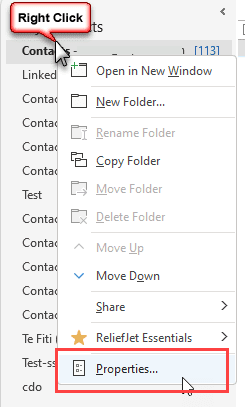
- Right click on the folder name and choose Properties.

- Then select the new form from the General tab, When posting to this folder use: field.
- Select the form you want to use.
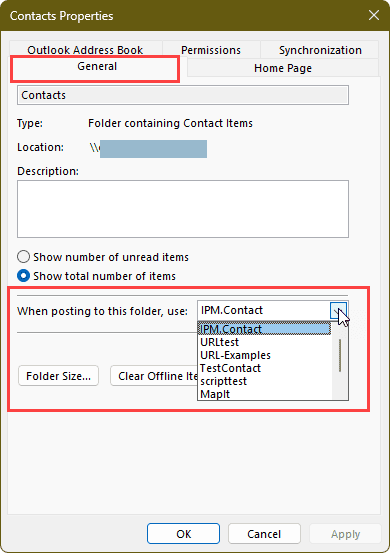
If the form is published to the current folder, it will be listed in the dropdown; otherwise, you'll need to select Forms... then browse to find it.
Once you do this, when you click the New button or otherwise create a new item of that item type, Outlook will use the form you selected.
Note that you cannot change the default form used for email.
More Information
To convert existing items to use the new form, use DocMessageClass or the macro at Set Existing Contacts to use Custom Form using VBA
Note that you can't apply a new form to change the business card on existing contacts. See Changing Microsoft Outlook's Business Card layout for more information.

Das Rajan says
HI team ,
i am new to your website and VBA Development. i just came to a project to extract "view source" of a mail . for this i have to do these steps .: Actions ---> others Actions ----> view source.
could be help me to design a macro in to this . i am struggling so much on this . as on internet also. there is no any reference regarding this. please team help me around.
thanks in advance .
Melodie Cook says
Using Outlook 2007. I have made adjustments to the standard contact form, set it as the default, and created a few new contacts using that form. They show up in my contact list with a 'pinned stickie' logo to differentiate them from the standard contact form.
However, when I try to make a distribution list, the contacts created with my form do not appear in the list as options to select.
What else do I need to do?
I have Outlook 2010 software installed on my laptop and could put it on this desktop if necessary.
Thank you.
Melodie Cook says
The contacts made with my contact form do not appear in the "address book" (under Tools tab) which is probably why I can't see them to select for a distribution list.
Can I create contacts with my form and then convert them over to the standard form? My form is easier for me to use for quickly adding ~75 contacts because it has "home" vs. "business" address as the default, puts the phone nos. in the order I want -- those kinds of things. Just saves me steps in changing the captions to re-order them the way I want for every contact....
Diane Poremsky says
You can convert the message class fairly easily, but it might not apply the features you are using the custom form for. if you are changing the default address field, changing the form for an existing contact won't change it but a macro could. Figuring out why its not working would be better, because it should work.
Do you have the contacts in a separate folder?
Do the contacts have email addresses? (Only contacts with electronic addresses show in the address book)
Diane Poremsky says
They are in the same folder with the contacts created using the standard form? Do you see the contacts if you click To in a new message?
Peter says
Hi,
How can you modify fields in redefining display in the Address Book: Global Adress List and add new fields as mobile user number.
My administrator says it hardcode and it is not possible to change.
Thank you for your reply and sorry my translation I was using Google translate
Sincerely Melicher
Diane Poremsky says
You have limited options for customizing it. See https://www.slipstick.com/exchange/hiding-global-address-book-fields/ - some versions of exchange support customizing the GAL. The Exchange admin needs to do it.
Harry says
Hi, Diane.
I create own form with additional functions (Resp., My Form contain code). My form can not be installed by default. Could you help me, please?
One else problem. If I sent message using my form, receipent don't see message in preview mode (But see, if Open this message). Wherein there is next message is displayed: "This HTML Message Contains Script, which Outlook Cannot Display. This may affect how the Message appears."
Help me, please.
Diane Poremsky says
Correct, forms with script or controls can't be previewed. I'm not aware of a way around it.
Are you trying to publish the form to the forms library? If so, see https://www.slipstick.com/exchange/exchange-2013/create-organizational-forms-library-exchange-2013/#forms
Randal Cade says
My default custom form has data in it. How do I save it without data?
Diane Poremsky says
It's better to edit an empty form... so publish it, then open the form as a new item and delete the content then republish it.
Darren says
Hi, I'm lost before step 1! Where do I find the folders?
Thanks,
Darren
Diane Poremsky says
In the folder list - you can right-click on a contacts, tasks, or calendar folder in the contact/people, tasks, or calendar module or switch to the folder list (Ctrl+6)
Emmet says
Hi there. I have created a custom for to be used on a department email address giving us a custom contacts database that is accessible by all members of my team and contains all the information we need. The individual contact card corresponds with the columns on view in the main address book.
I'm now trying to create contacts groups or distribution lists from the entries that have been made using this custom form but when I click create a new contact group and then click add members, and navigate to the address book where my contacts should be its empty. Even a search doesn't produce any results despite me knowing there are just over 1000 contacts in may address book.
I know I've made some oversight or error in creating an setting up the custom forms, but can't see anywhere what it is. Any help would be much appreciate.
PS Apologies if this isn't the clearest description or some of the terminology I use isn't correct.
Diane Poremsky says
Do the contacts have email addresses? Groups only work with contacts who have email addresses and/or Fax numbers (because fax is an electronic message format). If yes, try a test - delete one email address and type it back in or add a fax number. See if that contact shows up.
Are they in a separate folder? Is that folder enabled as an address book?
gustavo says
my name is Gustavo and I need to run a new contact form in all my existing contact ( office 365 2016 and windows 10)
thx :)
Diane Poremsky says
To convert existing items to use the new form, use DocMessageClass or the macro at Set Existing Contacts to use Custom Form using VBA
Mark says
Diane, I had in the past used a neat little program called Data Fields Manager for Outlook to edits contacts, including changing the message class for existing contacts. That program is no longer supported and I found your website, with the link to DocMessageClass. Will this routine work to do the same things? (I use Office from MS365).
Thanks!
Lanna says
Hi Diane,
My boss sent me a form for me to use and everytime I go through the steps to add it to a folder I've created, it states " You cannot create an item of this type in this folder." It is an fdm. and I have the original saved on my desktop currently.
adrian lock says
I've created a form which has been published to shared calendar and is used to replace the appointment form. It works fine in all respects except opens allows data entry saves and can be re opened. However it will not run any code behind the form in the vbscript.
If I publish to say my personal folders the code now works. Same applies if I test the code when in design view.
I am unable to make a form from my personal folder library as default for appointments in the shared calendar. I need to have this as the default for the form and around 30 people who need it. I don't have any way to publish this to exchange server as the servers do not belong to us. As we using NHS wide system.
Diane Poremsky says
In File, options, Trust Center - look at Email Security, at the bottom - do you have allow script in public folders enabled?
Adrian lock says
Diane you are a life saver spent over a week trying to work this with help from another forum, with out any luck. Very much appreciated
Rebecca Maloney says
Hello Diane,
Can this be done for outgoing email messages also? I am trying to create a form that has a required "Job number" field that must be filled in prior to the email being sent. I am just not seeing how I can make it the default form . Thanks
Don Trentlage says
Hi Diane, I created a new form for my contacts, and it works fine when I enter a new contact but when I import them it defaults to the standard contact form, any idea on how to get it to import to the new form I created? Thanks Don
Diane Poremsky says
you'd need to use a macro or change the form after importing - docmessageclass makes it very easy to change the form and it's how I would do it, unless you are using a macro to import.
Saran says
Hi I'm trying to make my appointment form the default on a room calendar. It works for me, possibly because I've added it and selected it. However other users that select that calendar and click on new meeting they don't get the form that is assigned to it. Was there something I missed?
Diane Poremsky says
was it published to the room mailbox's calendar?
Harry says
Dear Diane,
my computer has a contact card set up very well and I would like to use that format on other computers in my office. How do I copy and place it in other computers so that all computers can be using a standard format of contact card?
Thank you.
Harry
MarkS says
Diane, thanks for all of your help on these custom forms. I have a custom Contacts form that I created in Outlook '13 while on Exchange Server. Recently, my IT provider switched me to Outlook 365, and I had to create a new profile and copy my contacts data into the new profile. I was able to port the custom contact form to the new profile, and everything seems to work great with one exception - when I perform a mail merge to word starting in outlook and want to include one or more custom fields from the custom form in the mail merge doc, the list of fields that I can choose from in Word does not include any of my custom fields. In Outlook, these fields do not show up as "user defined fields in the folder", only "user defined fields in the item". I have published the custom form to the Contacts folder, and the custom form is the default form for the folder. What am I missing?
Andrés says
I have a doubt, I customee a form and i set it as default but this folder is shared and my collegues cannot see the same form, how can I fix it?
Diane Poremsky says
When you publish a form to a folder then share the folder, the people you share it with need to have the form published in the personal forms or it needs to be in the organizational forms library.
Andrew says
Diane, I sync OL 2013 with Google Calendar etc. Is there any way to insure that a user-created Calendar form is used when an appointment created in Google Calendar is synced to OL?
Diane Poremsky says
If the form is set as default for the folder and its not used, then no, you can't. You could use a macro to change the form after syncing or to check the form when opening and change it if necessary.
Code samples are here: https://www.slipstick.com/developer/vba-set-existing-contacts-custom-form/
Ben says
Thanks for the great tutorials, Diane. I have a Meeting Request template/form created with some tables and images/colors. I have set this form to be the default for the calendar as you instructed, and it seems to be working, except that the invite displays as plaintext (no images/tables).
Any ideas on how to fix this?
Diane Poremsky says
What type of email account? I know Outlook.com and iCloud will use plain text format.
Ben says
I am using Outlook 2007 on an Exchange server. The form works perfect when I do Choose Form, but when select my new default, it is plaintext. I have the "Read all Standard mail in Plain Text" settings unchecked/off.
Diane Poremsky says
I think it's loading the default form. I get the correct form using the New Appointment and New Meeting buttons on the Outlook 2013 ribbon, but when i use a different shortcut, it's the default form. I'll check it on outlook 2007, but the behavior should be the same.
Diane Poremsky says
I can't repro on Outlook 2007.
Ben says
Diane,
I am seeing the modified form I created come up when I select New Meeting Request, but it is just text. No images, no colors, no tables.
Ben says
And even stranger, if i send the meeting invite (looking Plaintext), and then open up the meeting from the Calendar, the full template loads, pictures and all. However, the text that is written before sending is not there. I am trying to have a template with tables for an Agenda.
https://forums.slipstick.com/threads/85999-changing-the-default-form-in-outlook-results-in-plain-text/
Seems like someone had a similar issue, no fix offered there either.
Andrew says
Hi Diane, I second what others have said, your posts have been amazingly helpful so thank you. I created an outlook.com account as per your article https://www.slipstick.com/outlook/olc-hotmail/sync-calendar-contacts-using-outlook-com/. Now, I want to use a custom form as the default for a new calendar item, but the option to browse in Forms is greyed out. Suggestions?
Diane Poremsky says
Outlook.com/ EAS doesn't support custom forms. I'll take a look and see if there is some way around it, but even if there is, it will only be available "on this computer".
Andrew says
Thanks. Availability only on this computer is not a problem as it is the only one I use.
Diane Poremsky says
Are you using Outlook 2013 or 2010/under?
Andrew says
I'm using OL 2013 64-bit version.
Marjolein says
Hi Diane, thank you for your very helpful tips that I have used often. I have a very simple (stupid) question about the above explanation: what comes BEFORe the first step you describe above ("Right click on the folder name and choose Properties')? In other words: where do I find this Folder that I have to right click on? Am I IN the Calendar already? Thanks from a sunny Amsterdam. Outlook 2010.
Diane Poremsky says
It's the folder you want to set the custom form to be the default for... if you create a custom appointment form and want to use it as the default, you right click on the calendar folder. You'll either need to be in the Calendar module or the Folder list. If it's a contact form, you'll right click on the Contact folder...
Wayne says
Hi Diane
I have quite a few public folder calendars that I need to migrate to resource rooms.
For each of my public folder calendars I designed a custom form, published the forms to my organizational library, then assigned each form to its corresponding calendar. When any user in the domain added a calendar item it always used the form I designed and all was good.
Can you tell me how I can get all my users to see these same forms when adding an item to a resource room calendar??
I logged into the mailbox with the resource room account and set the calendar to use my custom form(TC5500) and added an item and the form shows all my customizations. When I open the calendar in my outlook from the room list, the properties show TC5500 when posting to this folder, however my customizations are not there
Any ideas???
Diane Poremsky says
Custom forms published to the folder will only work if they open the resource calendar and then create the meeting. If they create the meeting in their own calendar and invite the resource, their form is used. I'll have to test it with a resource mailbox... it should work the same as in public folders as long as everyone has permission to the forms.
Diane Poremsky says
Oh, and one more thing - if this is with outlook 2013, there is some goofiness with custom forms in shared calendars. The forms seem to come and go - they might be visible one time, not the next. The fields and values are listed in All fields. It might help to change your cache setting for shared folders.
Tomas Jankowski says
I was able to change the default form for Contacts folder to user defined. The problem is that each time I pick up an entry from GAL and I choose 'add to contacts' - Outlook will use the default MS form, instead of user defined. Thus I can't force it to pick up certrain non-standard fields from AD and make them appear in locally stored copy of contact details for particular person. I tried in particular to change the default 'home phone' to 'business phone 2'.
It works fine for direct entry to Contacts folder, once default form has been customized. When using GAL though, 'home phone' is still there instead of 'business phone 2'.
Diane Poremsky says
Is business phone 2 field saved when you save to contacts? If not, you'd need to use another method (like VBA) to get that from the AD. If it is saved with the contact, you'll need to change the message class after it's saved. See macro to change message class for a macro that will change the message class on all items in a folder.
If it's something you need to do often, you can turn it into an itemadd macro.
Jim May says
I have created a new contact form and wish to make it the default form to use with several contacts sub-folders. The new form is currently setup as the default for the Contacts folder, but not for the sub-folders to Contacts. The problem is when I click on the sub-folder > properties I do not have the option to choose or enter the new default form name in the "When using this folder, use _________" field.
Diane Poremsky says
Do you know where it's published? If it's in the personal forms library, you can select forms then browse to find it. Otherwise, you need to publish it either to personal forms or the subfolder.
David McGee says
My custom form is set as my default but I cannot use it. When I try to add a new contact, I get the following message - "The form required to view this message is not available. Contact your administrator." It worked fine until I started using using iCloud.
The new iCloud folder uses the custom view I setup to view my contacts. I can add columns in the view with the custom fields from my form.
Diane Poremsky says
You are viewing the contact that was moved to the icloud? Icloud doesn't support custom forms or custom fields. I'll see if i can figure out a repro so I can understand why its giving you that error as icloud removes my custom fields and the form.