Outlook 2010 and up includes a Copy Status to Clipboard command under the Tracking tab (or use Ctrl+A, C to Select All, and Copy), but prior to Outlook 2010, the only way to get a list of meeting attendees and their responses was by taking a screenshot or using VBA.

This code sample gets the appointment details and attendees (along with their responses) and inserts it into a new Outlook message form, which you can print, send or copy the data for use in other applications.
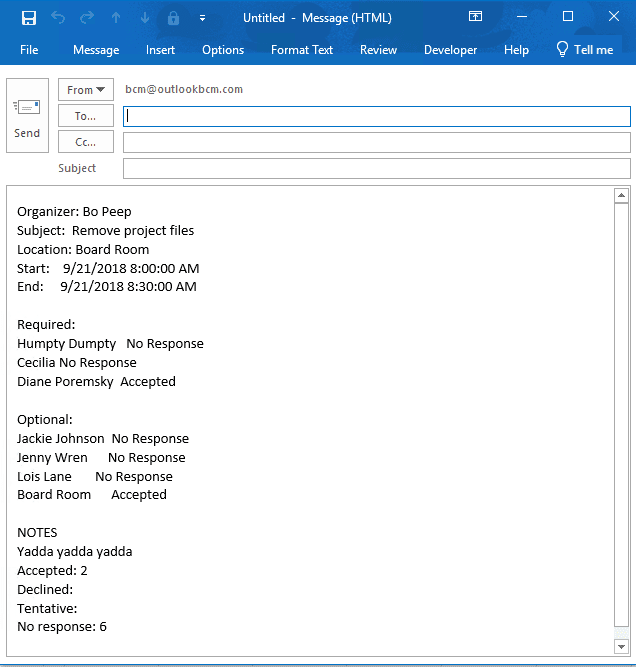
See More Information for links to VBA code samples that send the information to Word or Excel.
Don't forget to adjust your macro security settings to allow macros to run!
Get Meeting Attendee List Macro
To use, open Outlook's VBA Editor by pressing Alt+F11. Right click on the Project1 in the left pane and choose Insert > Module. Copy this code and paste it into the Module.
Get the GetCurrentItem function from Outlook VBA: work with open item or selected item and paste it at the end of the module.
Then select or open a meeting you organized and run the macro to create a message containing the meeting details. The total counts of accepted, declined, tentative, and no response is added to the list.
Sub GetAttendeeList()
' GetCurrentItem function: https://slipstick.me/9hu-b
Dim objApp As Outlook.Application
Dim objItem As Object
Dim objAttendees As Outlook.Recipients
Dim objAttendeeReq As String
Dim objAttendeeOpt As String
Dim objOrganizer As String
Dim dtStart As Date
Dim dtEnd As Date
Dim strSubject As String
Dim strLocation As String
Dim strNotes As String
Dim strMeetStatus As String
Dim strCopyData As String
Dim strCount  as String

On Error Resume Next

Set objApp = CreateObject("Outlook.Application")
Set objItem = GetCurrentItem()
Set objAttendees = objItem.Recipients

On Error GoTo EndClean:

' Is it an appointment
If objItem.Class <> 26 Then
  MsgBox "This code only works with meetings."
  GoTo EndClean:
End If

' Get the data
dtStart = objItem.Start
dtEnd = objItem.End
strSubject = objItem.Subject
strLocation = objItem.Location
strNotes = objItem.Body
objOrganizer = objItem.Organizer
objAttendeeReq = ""
objAttendeeOpt = ""

' Get The Attendee List
For x = 1 To objAttendees.Count
   strMeetStatus = ""
   Select Case objAttendees(x).MeetingResponseStatus
     Case 0
       strMeetStatus = "No Response"
       ino = ino + 1
     Case 1
       strMeetStatus = "Organizer"
       ino = ino + 1
     Case 2
       strMeetStatus = "Tentative"
       it = it + 1
     Case 3
       strMeetStatus = "Accepted"
       ia = ia + 1
     Case 4
       strMeetStatus = "Declined"
       ide = ide + 1
   End Select
If objAttendees(x).Name <> objOrganizer Then
   If objAttendees(x).Type = olRequired Then
      objAttendeeReq = objAttendeeReq & objAttendees(x).Name & vbTab & strMeetStatus & vbCrLf
   Else
      objAttendeeOpt = objAttendeeOpt & objAttendees(x).Name & vbTab & strMeetStatus & vbCrLf
   End If
 End If
Next

 strCopyData = "Organizer: " & objOrganizer & vbCrLf & "Subject:  " & strSubject & vbCrLf & _
  "Location: " & strLocation & vbCrLf & "Start:    " & dtStart & vbCrLf & "End:     " & dtEnd & _
  vbCrLf & vbCrLf & "Required: " & vbCrLf & objAttendeeReq & vbCrLf & "Optional: " & _
  vbCrLf & objAttendeeOpt & vbCrLf & "NOTES " & vbCrLf & strNotes

 strCount = "Accepted: " & ia & vbCrLf & _
  "Declined: " & ide & vbCrLf & _
  "Tentative: " & it & vbCrLf & _
  "No response: " & ino

Set ListAttendees = Application.CreateItem(olMailItem)
  ListAttendees.Body = strCopyData & vbCrLf & strCount
  ListAttendees.Display

EndClean:
Set objApp = Nothing
Set objItem = Nothing
Set objAttendees = Nothing
End Sub
Include other contact fields
If you want to include other contact fields in the printout, you can do a lookup of the contact then add any contact field to the string stored in objAttendeeReq and objAttendeeOpt as seen in the snippet below.
Because the attendee's name may include the email address in Fullname (email@address) format, I'm using just the email address in the search query. I'm using the mailing address field because it will always have an entry, should you have a mix of Home and Business addresses in your contacts. Alternately, you could use an If statement - if the business address is blank use the home address instead.
Naturally, for this to work you need to have a contact for the attendee, with the field you are using filled in.
strAttendeeName = objAttendees(x).address

Set oContact = colItems.Find("[Email1Address] = '" & strAttendeeName & "'")

     If Not oContact Is Nothing Then
         strCity = oContact.MailingAddressCity & ", " & oContact.MailingAddressState
     End If

If objAttendees(x).Type = olRequired Then
      objAttendeeReq = objAttendeeReq & objAttendees(x).name & vbTab & strMeetStatus & vbTab & strCity & vbCrLf
   Else
      objAttendeeOpt = objAttendeeOpt & objAttendees(x).name & vbTab & strMeetStatus & vbTab & strCity & vbCrLf
   End If

Next
A full working macro containing the code snippet is at Include Contact Fields Macro.
Copy the Invitees and Responses to the Meeting Body (Notes field)
A user needed to Move meeting invitations from her calendar to shared calendar but doing so erased the tracking results. While you can't prevent that from happening, you can preserve the tracking history by copying it to the Notes field in the appointments. When you only need to add the tracking results to a few meetings, doing it manually is fast - select all and copy the tracking then paste it in the body - a macro is faster if you need to add the tracking to a lot of meetings. It's also formatted a little nicer.
As written, you'll select the meeting and run the macro. Rinse and Repeat for every meeting. (It goes fast if you add a button for the macro the ribbon.) It could be tweaked to add the tracking results to every meeting in your calendar or only for selected meetings.
Get the GetCurrentItem function from Outlook VBA: work with open item or selected item and paste it at the end of the module. This allows you to use the macro with an open or selected meeting.
Sub CopyAttendeesToBody()
' GetCurrentItem function: https://slipstick.me/9hu-b
Dim objApp As Outlook.Application
Dim objItem As Object
Dim objAttendees As Outlook.Recipients
Dim objAttendeeReq As String
Dim objAttendeeOpt As String
Dim objOrganizer As String
Dim dtStart As Date
Dim dtEnd As Date
Dim strSubject As String
Dim strLocation As String
Dim strNotes As String
Dim strMeetStatus As String
Dim strCopyData As String
Dim strCount  As String

On Error Resume Next

Set objApp = CreateObject("Outlook.Application")
Set objItem = GetCurrentItem()
Set objAttendees = objItem.Recipients

On Error GoTo EndClean:

' Is it an appointment
If objItem.Class <> 26 Then
  MsgBox "This code only works with meetings."
  GoTo EndClean:
End If

' Get the data
objOrganizer = objItem.Organizer
objAttendeeReq = ""
objAttendeeOpt = ""

' Get The Attendee List
For x = 1 To objAttendees.Count
   strMeetStatus = ""
   Select Case objAttendees(x).MeetingResponseStatus
     Case 0
       strMeetStatus = "No Response"
       ino = ino + 1
     Case 1
       strMeetStatus = "Organizer"
       ino = ino + 1
     Case 2
       strMeetStatus = "Tentative"
       it = it + 1
     Case 3
       strMeetStatus = "Accepted"
       ia = ia + 1
     Case 4
       strMeetStatus = "Declined"
       ide = ide + 1
   End Select

If objAttendees(x).Name <> objOrganizer Then
   If objAttendees(x).Type = olRequired Then
      objAttendeeReq = objAttendeeReq & objAttendees(x).Name & vbTab & strMeetStatus & vbCrLf
   Else
      objAttendeeOpt = objAttendeeOpt & objAttendees(x).Name & vbTab & strMeetStatus & vbCrLf
   End If
End If
Next

 strCopyData = "Required: " & vbCrLf & objAttendeeReq & vbCrLf & "Optional: " & _
  vbCrLf & objAttendeeOpt

 strCount = "Accepted: " & ia & vbCrLf & _
  "Declined: " & ide & vbCrLf & _
  "Tentative: " & it & vbCrLf & _
  "No response: " & ino

  objItem.Body = strCopyData & vbCrLf & strCount & vbCrLf & vbCrLf & objItem.Body
  objItem.Save  '.Display

EndClean:
Set objApp = Nothing
Set objItem = Nothing
Set objAttendees = Nothing
End Sub
More Information
Print appointment with attendee status The master code; it prints the appointment details and attendee responses to a Word document.
Outlook Meeting Tracking Export prints the attendee responses to Excel.

Dwain Wuerfel says
I've been trying to use your sample code for 'Send a message to all attendees' and running into a bit of an issue because one of the names being used results in a duplicate name. There is no issue if I select the name from the address book as it is resolved, but when just grabbing from the meeting it is creating the required field with both my name, organizer, and the required contact as a semi-colon separated value. I thought I could split this value, then add each value to a recipient object and resolve. I even did a subsequent check if resolved and still get same error when trying to send.
Since I'm using your base sample didn't think it was necessary to include my actual code if I explained the issue.
Jon Read says
Hi Diane.
I don't have access to Outlook VBA due to onsite security, but I do to Excel VBA. What changes would I need to make to enable this to run from Excel. PS. It would be handy if it could cycle through all items in the calendar writing the recipients to a spreadsheet.
Thanks
Diane Poremsky says
Really? One is as safe as the other. :) You basically just need to fix the references to read outlook from excel. The macro at https://www.slipstick.com/developer/code-samples/macro-export-outlook-fields-excel/ has an excel version (linked to a text file) - while it can easily be tweaked to work on any folder. If you don't need recurring events, that should actually work.
I'll take a look at it tonight - it shouldn't be too much effort to convert it.
Jon Read says
Fantastic - thanks Diane! :)
Junz says
Thank you this is very helpful. Is they anyway to add the city the attendee is from as well?
Diane Poremsky says
You'd need to do a look up of their contact as its not something that is recorded in the meeting tracking (this code just reads the tracking). I have a sample that does a lookup of contacts - it just needs put together with this. The process is slightly different if looking up in exchange gal, but is doable.
Junz says
Thank you. Is it possible to also get the attendees City for instance Attendee A is in New York and Attendee B is in Los Angeles in the same macro result
Diane Poremsky says
I can't resist and interesting challenge - attendee-city-macro.txt looks up contacts and adds the city and state of the mailing address - you could use business or home address, but if you don't use the same field consistently, you won't get a value. Could also do an if - if no business address, get home, but i was more interested in just making it work. It only looks in the default contacts folder, not the GAL.
(I ended up using the find routine in the macro at https://www.slipstick.com/developer/create-contacts-from-messages/ .)
kyfbof says
This targets only the "active" appointment. I wish that we can expand this to list all meetings for a particular day. For each meeting, print out the participants' responses.
Diane Poremsky says
It would be possible to loop through everything for all meetings on the same day as the selected meeting but i don't have a code sample currently.
Richard A says
This is very helpful. But is there a way to embed a table in the email body, so that I can create a couple of columns of names, or even names with a box next to each to indicate presence or absence?
Richard A says
This is very helpful. I would like to format the attendees as a table embedded in the body of the outlook message though, so I could organize them into more than one column. How might that be done? Which references might i need to add to the VB editor?
stephen whitred says
Thanks very much it's exactly what I was looking for!
NGA BELLINO says
Thoughtful comments . I Appreciate the points , Does someone know where my assistant might get ahold of a fillable a form version to complete ?
Diane Poremsky says
What type of form do you need? (email or paper)
Sandra Rutan says
This macro worked great on my last version of Word - but does not work on Word 2013. Any suggestions on how to modify it?
Diane Poremsky says
Any error messages? What happens when you try to run it?
Alex Smith says
Is there a way to modify this code to generate an Excel document instead of a new Outlook message?
Diane Poremsky says
Yes, you can do that. See https://jazzerup.blogspot.com/2008/09/outlook-meeting-tracking-export.html for the Excel version.
Diane says
I am wondering why a "yes" response from an invitee using gmail does not showup when I track invitee responses. Is this not possible to see in Outlook without them having to reply with a message?
Diane Poremsky says
If Outlook gets the response in the correct format, it will automatically update the responses but unless you are using Outlook to read gmail and accept the meeting, gmail doesn't send a response.
Paul says
Isn't it weird, though, that Microsoft has missed this really obvious piece of functionality? Surely a button that "lists all attendees" wouldn't be too much to ask?
JC says
Can you add the Recipients title to the output?
Diane Poremsky says
No, it only picks up the information that is in the meeting request, it doesn't cross reference their contact. Sorry
walter says
Is it possible to capture a modified response like " I can't make it too busy"
Diane Poremsky says
No, sorry, the responses are limited to what is included in outlook. You can't add more options.
Glen says
Brilliant! Exactly what I was looking for! Thank you very much for this!
Gene says
This is exactly the thing I was looking for! However, it says "No Response (or Organizer)" for every person invited to the meeting. I have accepted the request (and I know many others have as well) so I'm not sure what went wrong. Any thoughts? I'm using Outlook 2007
Diane Poremsky says
Are you the meeting organizer? Can you see the Tracking for the meeting? The macro uses the tracking data and only gets the tracking data if your account can see it too.
John says
I used to copy responses all the time from the older outlook without a screenshot or VBA. To do this, I have a special folder setup for "Meeting Reponses", along with a rule with "Accepted", "Declined", or "Tentative" in the subject, to move those responses to the Meeting Responses folder. Within the folder, I had the messages grouped by the Appointment "Start" field, and I have (at a minimum) the sender's name and subject fields visible. Now, I can copy the list for a meeting by selecting all of the messages and pressing CTRL-C. I usually then paste this into Excel, delete the columns that I don' t need (if any extra columns exist), and separate the first word out of the subject field. Now, I can sort and count the responses (useful if you need to order lunch for a meeting).
Diane Poremsky says
That is a good idea if you don't mind keeping copies of the responses. Copying data and pasting it into a document is one of my favorite Outlook features but I never thought about keeping the responses. Thanks!