
Applies to Outlook 2016, Outlook 2013, Outlook 2010, Outlook 2002, and Outlook 2000. It does not work with Outlook 2003 or Outlook 2007. I have a macro at Use VBA to Map a Contact’s Address that works with Outlook 2003 and Outlook 2007, or for anyone who wants to add a second mapping service to Outlook.
When you need a map of a contact’s address, open a contact and press the  Display Map button or
  MapIt button in Outlook 2010 and up to connect to a web-based mapping service.

Outlook is currently directing to Bing Maps. If you don't want to use Bing, you can edit the registry to enable another web-based mapping service. I currently include the url formats for Bing, Google Maps, MapQuest, Expedia, Yahoo Maps, and Zillow. Note that the registry edit does not work in Outlook 2003 and Outlook 2007.
If MapPoint is installed, the yellow road sign icon is replaced with a  map icon and it uses MapPoint to map the contact's location. You can use web-based maps by disabling the MapPoint Com addin in opening Tools, Options, Other, Advanced Options, Com Add-ins and remove the check from the MapPoint Addin.
To edit the registry, open the Run command (either from the Start menu or by Pressing Windows key + R) and typing regedit then press Ok. Navigate to the registry key for your version of Outlook.
Before making any changes, right-click on the key and choose Export. This way you can easily restore it if you change your mind.
Outlook 2016
HKEY_CURRENT_USER\Software\Microsoft\Office\16.0\Outlook\Options\General
String: MapScriptURL
Outlook 2013
HKEY_CURRENT_USER\Software\Microsoft\Office\15.0\Outlook\Options\General
String: MapScriptURL
Outlook 2010
HKEY_CURRENT_USER\Software\Microsoft\Office\14.0\Outlook\Options\General
String: MapScriptURL
Outlook 2002:
HKEY_CURRENT_USER\Software\Microsoft\Office\10.0\Outlook\Options\General
String: MapScriptURL
Outlook 2000:
HKEY_CURRENT_USER\Software\Microsoft\Office\9.0\Outlook\Options\General
String: MapScriptURL
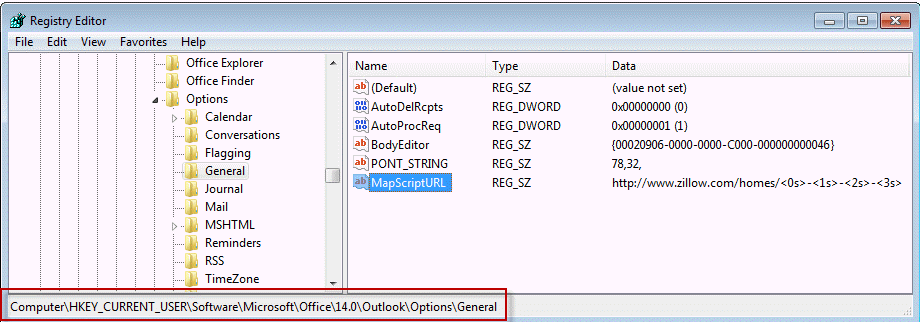
Right click in the right pane and choose New, String Value. Enter MapScriptURL for the string value name. Double click on the MapScriptURL key to open it and enter the URL you want to use for the data value. We have the strings for popular mapping services listed below.
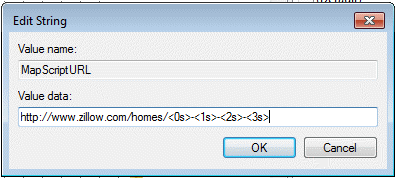
To paste the urls below into the registry, click in the text field and press Ctrl+A to select all, Ctrl+C to copy, then paste in the Value Data field in the registry editor.
Bing Maps
https://www.bing.com/maps/?where1=<0s>,<1s>,<2s>,<3s>,<4s>
Google Maps
https://maps.google.com/?q=<0s>+<1s>+<2s>+<3s>+<4s>
Expedia
Requires the country code. For US, it needs to be USA. Outlook defaults to United States of America, but you can enter USA and Outlook uses it. If you are only mapping US addresses, replace <4s> with USA. Or replace it with the correct code for your country.
https://www.expedia.com/City-Map?action=findAMap@results&findAMap_addressPlace_country=<4s>&findAMap_addressPlace_street=<0s>&findAMap_addressPlace_city=<1s>&findAMap_addressPlace_state=<2s>&findAMap_addressPlace_zip=<3s>
MapQuest
https://www.mapquest.com/maps/map.adp?address=<0s>&city=<1s>&state=<2s>&zip=<3s>
Yahoo Maps
https://maps.yahoo.com/maps?newFL=&addr=<0s>&csz=<1s>+<2s>+<3s>&srchtype=a&getmap=Get+Map
This URL also works for Yahoo:
https://maps.yahoo.com/map?q1=<0s> <1s> <2s> <3s> <4s>
Zillow
https://www.zillow.com/homes/<0s>-<1s>-<2s>-<3s>
Now when you select the map button, Outlook brings up the internet map of your choice.
To use other web-based mapping services, you’ll need to know the URL that is sent back to the server. Once you have that, replace the address fields with the codes Outlook uses:
| Outlook's Contact field | Code used in URL |
|---|---|
| Street | <0s> |
| City | <1s> |
| State | <2s> |
| Zip code | <3s> |
| Country | <4s> |
Do It For Me
If you don't want to edit the registry yourself, you can download a zip file containing the registry entries for the map addresses listed above, except Zillow. After downloading the file, double click on the *.reg file for the mapping service you want to use.
Outlook 2016 Outlook 2013 Outlook 2010 Outlook 2002 2000
Tools

Simon says
Hi Diane, just came across your great idea but i can see it doesnt work for all. Does it work for the latest Outlook (as part of M365) Am desperate to avoid Bing.
Thanks,
Evan says
Thanks, Diane...Works like a champ!
Mateus says
I just started using Outlook 2016 (Windows 7, 64-bit), and for the life of me I can't get this work. I applied the regedit with the bing add-in disabled, restarted Outlook, and nothing happened. I re-enabled the bing add-in and restarted Outlook to see if the regedit would override it with google maps...no luck there either; except that the Bing maps worked.
I have even rebooted the computer after trying both methods above, and retried with the Bing add-in enabled and disabled.
What does it look like on the screen when it works? The Bing add-in added a blue/dashed underline on any addresses it found; should this be similar? Is there some other add-in that this piggybacks off of?
Thanks in advance,
Matt
Diane Poremsky says
This works with the MapIt button in Contacts. It picks up the address from the address field in the contact form.
David says
Very cool Diane! Thank you for sharing!
John says
Thank you very much indeed Diane. Works perfectly for Outlook 2016
Alice says
Thank you so much for this, worked perfect!
Todd says
Hi Diane, and thanks for this great and useful advice. My PC registry does have HKEY_CURRENT_USERSoftwareMicrosoftOffice16.0OutlookOptionsGeneral ,
but there is no MapScriptURL in there. I Searched the registry and didn't find it. Should I create a new String?
FYI, it is Outlook 16 under Office365 for Business.
Diane Poremsky says
Yes, if the key does not exist, you'll need to create it.
Evan Smith says
I had to add the "general" to my options, but after I did that, it worked. WIndows 10 with Outlook 16
Michael S. Meyers-Jouan says
Can you please update these instructions to cover Outlook 2016?
Rick says
Just use the 2013 registry entry and change the 15.0 to 16.0. You may have to manually create the General key though. once created, restart Outlook 2016 and try it out.
Ralph says
This was VERY, VERY Simple to use and work perfectly. Thank you very much
Veerle says
Is there a way to plot/ visualise events and meetings planned in an Outlook calender on a map (google/ bing/ anything)?
Diane Poremsky says
You can map them in either bing or google or most mapping programs - you just need the addresses in a CSV to import into the map program.
I have a VBA example to map selected contacts here - https://www.slipstick.com/developer/use-vba-to-map-a-contacts-address/
Dale T. says
I tried this in Outlook 2013 on windows 7 64-bit and nothing changed. Outlook still uses Bing maps internally. Any suggestions?
Diane Poremsky says
it is working here, used the mapquest url /reg file, although i have 32 bit on this system. i'll check it on 64bit when im back in my office.
Dale T. says
Ok, I went back and realize that we're talking about two different things now. :) When someone emails me and it has an address in it, I open the email and I see a Bing Maps link. Sorry about that. I thought this could be redirected but I guess not. Thanks.
Diane Poremsky says
oh, that link... I'm pretty sure it can't be redirected (but will look into it). Are you using Office365 mailbox? Might be able replace it with a different service.
Dale T. says
Hi, yes we're using Office 365 on the back end. The issue we're experiencing is clicking on that Bing Maps link for non admin users causes urlmon.dll to crash. I can't find anything related online about it. I thought maybe changing the map source would be a workaround. Thanks.
Diane Poremsky says
Did you add the site to the Intranet zone?
Dale T. says
I tried that and trusted sites and no difference, fails to load. I'm also experiencing it on my home computer, which is windows 8.1. Bizarre.
Diane Poremsky says
Is it possible the company has it blocked? That should remove it from Outlook though.
(It's working here on win8.1.)
Dale T. says
Sorry, no blocking going on. I'll look around more. Thanks.
Kevin W. says
Worked fine for me. Thanks!!!
Jeff Laidacker says
Thank you, this worked great.
Colin says
Hi Diane - we are using an OWA app on our Samsung S3. The app allows "Map this Address" feature. I have made the changes noted above to the desk tops but the app still is pulling Bing content even though the desktops are now using Google.
There is no setting in the app to change this.
There must be the same setting in Exchange that is controlling the Map feature? If there is can you tell me where to find it?
Thanks
Diane Poremsky says
This is the link on a contact in OWA 2010 (or 2007), not the Bing app in OWA2013? That can't easily be changed. It is possible to use a custom form with a different map service. https://msdn.microsoft.com/en-us/library/bb891801(v=exchg.140).aspx
Reinhard says
Outlook 2010, reg hack worked on my business laopt (also running Outlook 2010) but not on my home pC, I surely tried restarting Outlok (you mean after the change in the registry? sure, that's an too easy suggestion....this needs more insight...
Diane Poremsky says
Do you have the same suite on both? It shouldn't matter... but if you are using a C2R suite, it can affect some behavior (but shouldn't affect this). Which mapping service were you trying to use?
Reinhard says
The above reg hack is widely recommended on the internet, however won't fix it on my machine hence my kind reqeust tpo review and advise what the root cause and what hte fix for that?
Diane Poremsky says
What version of Outlook do you use? Did you restart Outlook?
Daniel says
That didn't work, unfortunately. It also had the side effect of clearing out my Inbox, so careful with this advice.
Diane Poremsky says
Changing the map link won't clear out your Inbox. It doesn't even touch the your mail, your contacts or anything else.
Daniel says
There's no 'General' folder in Outlook 2013 under HKEY_CURRENT_USER\Software\Microsoft\Office\15.0\Outlook\Options\
There's only Calendar, Conversations, MSHTML and Reminders. Should I make a General folder if there is not one or is there another location to put this?
Thanks!
Diane Poremsky says
Yes, make it if it doesn't exist. Outlook has all the defaults stored in its memory and keys are not created until you make changes in options.
LeAnn says
Is there a way to find out which contacts in outlook are within a certain section of a map? Useful for sales calls, etc.
Thanks
Diane Poremsky says
Not builtin... you need an addin to export all addresses to you map app or export it as csv.