Another entry in my Lazy Programmer Series, this time I have a macro that sends an email message when a reminder fires. This macro was the result of a request for the ability to send messages to the sales team each morning with the day's agenda.
If you prefer to use an add-in, I have a list of reminder tools at
"Outlook Reminders Don't Come into Focus"
You can use the macro to send yourself reminders or even to compose an email message ahead of time (in the body of a an appointment form) and send it later. Outlook will need to be running and be able to connect to the mail server for the message to be generated and sent.
Because the message is composed when the reminder fires, the message time stamp will be the reminder time. Please don't abuse the trust others have in you: use this macro for legitimate purposes, not to convince someone you were working when you weren't!
Outlook needs to be running for these macros to work. Note, this will trigger the email security alert in older versions of Outlook. Use one of the tools listed at the end to dismiss the dialogs.
To use, press Alt+F11 to open the VBA editor then copy the code and paste it into ThisOutlookSession.
Send a message to someone when a reminder fires
This macro checks for Appointment reminders and sends a message to the value in the location field. For this to be useful, you need to use a category, otherwise Outlook will attempt to send a message with every appointment reminder.
Private Sub Application_Reminder(ByVal Item As Object)
  Dim objMsg As MailItem

'IPM.TaskItem to watch for Task Reminders
If Item.MessageClass<> "IPM.Appointment" Then
  Exit Sub
End If

If Item.Categories<> "Send Message" Then
  Exit Sub
End If

Set objMsg = Application.CreateItem(olMailItem)
With objMsg
  .To = Item.Location
  .BCC = "me@slipstick.com"
  .Subject = Item.Subject
  .Body = Item.Body
  .Send
End With
  Set objMsg = Nothing
End Sub
To use a template instead of the default message form, replace Set objMsg = Application.CreateItem(olMailItem) with Set objMsg = Application.CreateItemFromTemplate("C:\path\to\test-rule.oft")
Send a message to yourself when a reminder fires
This is the original code we had on this page and sends an email message to an address when any reminder fires.
Private Sub Application_Reminder(ByVal Item As Object)
  Dim objMsg As MailItem

  Set objMsg = Application.CreateItem(olMailItem)

  objMsg.To = "alias@domain.com"
  objMsg.Subject = "Reminder: " & Item.Subject

  ' Code to handle the 4 types of items that can generate reminders
  Select Case Item.Class
     Case olAppointment '26
        objMsg.Body = _
          "Start: " & Item.Start& vbCrLf & _
          "End: " & Item.End& vbCrLf & _
          "Location: " & Item.Location& vbCrLf & _
          "Details: " & vbCrLf & Item.Body
     Case olContact '40
        objMsg.Body = _
          "Contact: " & Item.FullName& vbCrLf & _
          "Phone: " & Item.BusinessTelephoneNumber& vbCrLf & _
          "Contact Details: " & vbCrLf & Item.Body
      Case olMail '43
        objMsg.Body = _
          "Due: " & Item.FlagDueBy& vbCrLf & _
          "Details: " & vbCrLf & Item.Body
      Case olTask '48
        objMsg.Body = _
          "Start: " & Item.StartDate& vbCrLf & _
          "End: " & Item.DueDate& vbCrLf & _
          "Details: " & vbCrLf & Item.Body
  End Select

  objMsg.Send
  Set objMsg = Nothing
End Sub
Change the From account
This macro sets the From field to use a different account in your profile.
Private Sub Application_Reminder(ByVal Item As Object)
  Dim olNS As Outlook.NameSpace
  Dim objMsg As MailItem

'IPM.TaskItem to watch for Task Reminders
If Item.MessageClass<> "IPM.Appointment" Then
  Exit Sub
End If

If Item.Categories<> "Send Message" Then
  Exit Sub
End If

Set olNS = Application.GetNamespace("MAPI")
Set objMsg = Application.CreateItem(olMailItem)
With objMsg
' based on the list in Account Settings
   .SendUsingAccount = olNS.Accounts.Item(1)
  .To = Item.Location
  .BCC = "me@slipstick.com"
  .Subject = Item.Subject
  .Body = Item.Body
  .Send
End With
  Set objMsg = Nothing
End Sub
Send a message to all attendees
This version of the macro sends a reminder to all attendees. As written, it does not check to see if the attendee accepted or declined, but the macro could do that. I have sample code at Create a List of Meeting Attendees and Responses which creates a list of attendees and their responses that shows how to get this information.
Private Sub Application_Reminder(ByVal Item As Object)
  Dim objMsg As MailItem


If Item.MessageClass<> "IPM.Appointment" Then
  Exit Sub
End If

'If Item.Categories<> "Send Message" Then
'  Exit Sub
'End If

' Get The Attendee List
Dim objAttendees As Outlook.Recipients
Dim objAttendeeReq As String
Dim objAttendeeOpt As String
Dim objOrganizer As String

Set objAttendees = Item.Recipients

For x = 1 To objAttendees.Count

   If objAttendees(x).Type = olRequired Then
      objAttendeeReq = objAttendees(x)& ";" & objAttendeeReq
   ElseIf objAttendees(x).Type = olOptional Then
      objAttendeeOpt = objAttendees(x)& ";" & objAttendeeOpt
   End If
Next

Debug.Print objAttendeeReq, objAttendeeOpt
  Set objMsg = Application.CreateItem(olMailItem)
With objMsg
  .To = objAttendeeReq
  .CC = objAttendeeOpt
  .Subject = Item.Subject
  .Body = Item.Body
  .Send
End With

  Set objMsg = Nothing
End Sub
Send a Draft when a Reminder Fires
This macro sends a draft message when a reminder fires. This allows you to use more formatting and HTML features in the message.
To use: Create the message and save it. Copy the subject line. Create the appointment, pasting the subject in the Location field. Set the appointment for the date and time you want the draft sent.
Adapted from "Scheduling Drafts in Outlook"
Private Sub Application_Reminder(ByVal Item As Object)
  Dim objMsg As MailItem
  Set objMsg = Application.CreateItem(olMailItem)

'IPM.TaskItem to watch for Task Reminders
If Item.MessageClass<> "IPM.Appointment" Then
  Exit Sub
End If

If Item.Categories<> "Send Message" Then
  Exit Sub
End If

Dim NS As Outlook.NameSpace
Dim DraftsFolder As Outlook.MAPIFolder
Dim Drafts As Outlook.Items
Dim DraftItem As Outlook.MailItem
Dim lDraftCount As Long

Set DraftsFolder = Session.GetDefaultFolder(olFolderDrafts)
Set Drafts = DraftsFolder.Items

'Loop through all Draft Items
For lDraftCount = Drafts.Count To 1 Step -1
Set DraftItem = Drafts.Item(lDraftCount)

If DraftItem.Subject = Item.Location Then
'Send Item
  DraftItem.Send
End If

Next lDraftCount

'Clean-up
Set DraftsFolder = Nothing
Set objMsg = Nothing
End Sub
Select an appointment and send a message
With a few tweaks, the macro above can be used to send a message by selecting the appointment then running the macro.
- Press Alt+F11 to open the VBA editor.
- Right click on Project1 and choose Insert > Module.
- Paste the code below into the Module.
- Get the GetCurrentItem function from Outlook VBA: work with open item or selected item and paste it into the module.
Public Sub App_Reminder()
  Dim Item As AppointmentItem
  Dim objMsg As MailItem
  Set objMsg = Application.CreateItem(olMailItem)

Set Item = GetCurrentItem()

With objMsg
'  .To = Item.Location
  .Subject = Item.Subject
  .Body = Item.Body
  .Display ' use .Send to send it instead
End With

Set objMsg = Nothing
Set Item = Nothing

End Sub
Dismiss the Reminder (and send a message)
This version of the macro dismisses the reminder when it comes up and sends the message. To do this, we need to use the BeforeReminderShow method and declare olRemind and strSubject outside of the macro.
Private WithEvents olRemind As Outlook.Reminders
Dim strSubject As String

Private Sub Application_Reminder(ByVal Item As Object)
Set olRemind = Outlook.Reminders

'IPM.TaskItem to watch for Task Reminders
If Item.MessageClass<> "IPM.Appointment" Then
  Exit Sub
End If

If Item.Categories<> "Send Message" Then
  Exit Sub
End If

strSubject = Item.Subject
  Dim objMsg As MailItem
Set objMsg = Application.CreateItem(olMailItem)

  objMsg.To = Item.Location
  objMsg.BCC = "me@slipstick.com"
  objMsg.Subject = strSubject
  objMsg.Body = Item.Body
  objMsg.Send

  Set objMsg = Nothing

End Sub

Private Sub olRemind_BeforeReminderShow(Cancel As Boolean)

    For Each objRem In olRemind
            If objRem.Caption = strSubject Then
                If objRem.IsVisible Then
                    objRem.Dismiss
                    Cancel = True
                End If
                Exit For
            End If
        Next objRem

End Sub
Pop up a dialog
You can use the code on this page to do pretty much anything VBA can do when the reminder fires.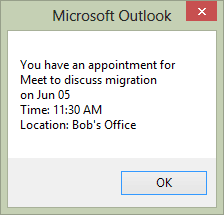
This simple code sample displays a dialog box to remind you.
Private Sub Application_Reminder(ByVal Item As Object)

If Item.MessageClass<> "IPM.Appointment" Then
  Exit Sub
End If

MsgBox "You have an appointment for " & vbCrLf _
 & Item.Subject& vbCrLf _
 & "on " & Format(Item.Start, "mmm dd")& vbCrLf _
 & "Time: " & Format(Item.Start, "hh:mm AM/PM") _
 & vbCrLf & "Location: " & Item.Location

End Sub
Video Tutorial
How to use the macro
First: You will need macro security set to low during testing.
To check your macro security in Outlook 2010 or 2013, go to File, Options, Trust Center and open Trust Center Settings, and change the Macro Settings. In Outlook 2007 and older, it’s at Tools, Macro Security. If Outlook tells you it needs to be restarted, close and reopen Outlook. Note: after you test the macro and see that it works, you can either leave macro security set to low or sign the macro.
Now open the VBA Editor by pressing Alt+F11 on your keyboard.
To use the macro code in ThisOutlookSession:
- Expand Project1 and double click on ThisOutlookSession.
- Copy then paste the macro into ThisOutlookSession. (Click within the code, Select All using Ctrl+A, Ctrl+C to copy, Ctrl+V to paste.)
Application_Startup macros run when Outlook starts. If you are using an Application_Startup macro you can test the macro without restarting Outlook by clicking in the first line of the Application_Startup macro then clicking the Run button on the toolbar or pressing F8.
More information as well as screenshots are at How to use the VBA Editor.
Tools
ClickYes Pro is a tuning tool for Microsoft Outlook security settings. It allows you to configure which applications can automatically send emails using Outlook and access email addresses stored in Outlook address book. ClickYes Pro runs as a background task providing a convenient icon in the taskbar notification area to manage allowed applications. It uses an encrypted storage and is highly secure and safe. Client and Server versions available. Works with Outlook 2000 - Outlook 2010. | |
Developers can use this to avoid the security prompts in Outlook. |
More Information
Open a webpage when a Task reminder fires
To send an email daily using a Task, see E-Mail: Send daily (vboffice.net)

Michelle says
I am using the "Change From Account" maco, I am not inclined to IT so do I need to change olns.Accounts.Item(1) to the From Account I want it to actually send from, I have multiple boxes?
Darren says
How can I inject the “Tomorrows Agenda” .ics attachment into this so it’s automated?
Diane Poremsky says
Blend two macros -
https://www.slipstick.com/outlook/calendar/email-tomorrows-agenda/
At the end of the agenda article is a macro that automates it using a reminder.
Damaris Lira says
This is great! I was wondering if an email can be sent to myself 2 weeks after the calendar event as a reminder to follow up with people that were in the meeting? I remember this being an option but I don't see it in Outlook 2016
Diane Poremsky says
It was not an option in Outlook. It would be possible using a macro - I think it would be easiest to make a new task then for 2 weeks out and list the attendees in the task with your follow up note. If you wanted to use the original meeting, you'd need to change the reminder. Either could be done when the initial meeting reminder fires.
Charles says
Ok sorry I have seen now the Dismiss the reminder part
Charles says
Hello Diane,
First I would like to thank you for your help and this macro will help me a lot to remind my managers to do things... Even if there is plenty of task app, I find the email still the best way to remind tasks.
Anyway Is there a solution for the reminder not to pop up in the case where it's used only to send an email ?
Thanks a lot from France (excuse my english)
Charles
Lew says
Hi Diane,
Your code samples have been a great help and I've learned much from them. I've run into a recent problem and would greatly appreciate your help. I've modified your code above to display a userform instead of the standard Outlook Reminder, which works very well most of the time. The problem is occurring in Outlook 2016 (update KB3141453 installed): If the myform.show() method (modeless) executes while the user is simultaneously typing in the body of an email (Explorer or Inspector windows), Outlook 2016 crashes(freezes). This does not happen in Outlook 365. Any idea what is going on in Outlook 2016 and how to fix it?
Tina Meng says
Hi Diane,
Is it possible to get this to work from a shared calendar or only my private calendar?
It works perfectly from my own calendar.
Diane Poremsky says
If reminders fire from the calendar, yes, it will work. They don't fire from shared mailboxes though.
Alex McHugh says
If you have other items in your Drafts folder than MailItems, the script will fail.
Need to wrap the code inside the For Loop with something like this:
If TypeName(Drafts.Item(lDraftCount)) = "MailItem" Then
'Code that acts on draft items
End If
Alvin.L says
Hi Diane,
Love your works here, i wan to create a recurring email with the below but i cant seem to trigger it when i see my reminder
Private Sub Application_Reminder(ByVal Item As Object)

Dim objMsg As MailItem
Set objMsg = Application.CreateItem()
'IPM.TaskItem to watch for Task Reminders
If Item.MessageClass "IPM.Appointment" Then
Exit Sub
End If
If Item.Categories "Send Message" Then
Exit Sub
End If
objMsg.To = "xxxx1@gmail.com"
objMsg.BCC = "xxxx@gmail.com"
objMsg.Subject = Item.Subject
objMsg.Body = Item.Body
objMsg.Send
Set objMsg = Nothing
NICK says
Diane - can you let me know what you think might be going wrong here? I did exactly as the directions at the top of the page, and also followed your video on this topic. The reminder fires but nothing happens...
Diane Poremsky says
Add a line near the top of the macro:
mgbox "macro running"
Does the message box come up? If not the macro isn't running. Check the macro security settings and restart Outlook.
MR P S MARSH says
Hi Diane,
Thanks for the above code, i need to be able to add an attachment to the email I'm sending as well, could you please assist with this? Sorry I'm new to VBA coding and am trying toi automate some of my daily tasks.
Thanks in advance!
Phil
Diane Poremsky says
You'll need to use attachment.add - and either get the file path from the task/appointment body or include the attachments and save it then insert it.
I have a macro that shows you to do it using the CopyAttachments macro so you just need to use a simple line in the macro;
CopyAttachments Item, objMsg
https://www.slipstick.com/outlook/email/reply-replyall-attachments/
Tmas says
Dear Diane,
How do you add it to the vb macro?
Tks,
Tams
Diane Poremsky says
Add it to the message -
With objMsg
' .To = Item.Location
.Subject = Item.Subject
.Body = Item.Body
.attachments.add "path to attachment"
.Display ' use .Send to send it instead
End With
Tmas says
Dear Diane,
Is the file still insert?
Because i tried with the code above there was an error.
Diane Poremsky says
what was the error?
As long as the path is correct, it should work
.attachments.add "path to attachment"
Javeria says
I have office 365, I tried setting up "Send a message to someone when a reminder fires". But nothing happens. No errors, no emails sent. Earlier i used a similar code from here https://www.extendoffice.com/documents/outlook/1567-outlook-send-schedule-recurring-email.html?page_comment=1
It worked once but then the dead behaviour. I tested it with enable dmacros, still nothing. What can i be doing wrong?
Diane Poremsky says
Does the reminder fire? There really isn’t much to go wrong as long as macro security is ok and the reminder fires.
Carol says
Hi Diane,
I really appreciate your works. The codes were working PERFECTLY. But we recently upgraded to Outlook 2016, and now, none of the codes are working.
If the sub name contains "(ByVal Item As Object)", the vba can't detect the sub as a macro.
And for "Select an appointment and send a message", it prompt an error of "Compile error: Sub or Fn not defined" at the line of Set Item = GetCurrentItem().
Do you have any idea on why this is happening in Outlook 2016?
Diane Poremsky says
Did you upgrade inplace or get a new computer? On the second error, it appears you don’t have the getcurrectitem function.
https://www.slipstick.com/developer/outlook-vba-work-with-open-item-or-select-item/
Macros with something between () in the name, aren’t listed as a macro and can only run if called by another macro or process.
Carol says
Thanks for the reply. My laptop is upgraded to Windows 10.
It's is weird that i had copied the exact program to Outlook after the upgrade. The program that i was using is "Send a message to someone when a reminder fires". When a reminder is fire, there is no email being sent.
Diane Poremsky says
Did you check the macro security settings?
Garrett Fuller says
The send an e-mail when a meeting reminder fires macro is super useful!
Couple of note's for my use case. (I am sending these e-mails only to myself.)
I changed
objMsg.To = Item.Locationto
objMsg.To = "my.email@company-name.com"Don't forget to set a "Send Message" category.
I expected the macro to show up in the "run macro" box, on the developer tab in the ribbon.
It does not. This is normal. The macro runs all the time.
I recommend self certing your macro, then on your next restart click always trust macro's from this publisher.
Vinicius says
Hello,
congratulations for your great work.
I used a vba code in the excel to .display a email with some informations of the data base.
But to I have a problem whem i used the function .send in excel.
Can you help to create a macro in the Outlook to send the email automatically whem display the email with expecific subject line and address?
Thanks.
Eric says
Afternoon,
For the automatic email sender, I was able to get it so it can sometimes attach or not attach a file. However, I was only able to attach the file using a hard path. objMsg.Attachments.Add ("C:\Temp\Test.xls").
Do you know of a way to make the path and filename a variable and have this information in the reminder?
Diane Poremsky says
a variable should work... where will the path be picked up from to populate the variable?
attPath = "C:\Temp\Test.xls"
objMsg.Attachments.Add (attPath)
Eric says
Afternoon, That was the problem I had. i would not field or think of a second place to enter the path or filename. Do you have any thoughts? The only think I can think of is to put this information into the body and then filter the parts for the path and email body when the macro runs.
Diane Poremsky says
There are methods to grab the text from the body - either using functions or regex. You could use a custom form field too. You just need to figure out the best option for your needs.
If its just one file, you could use the subject or location field and the split function (i use it here to create appt from email)
Dim strTest() As String
strTest = Split(Item.Subject, " | ")
Debug.Print strTest(0), strTest(1)
With objMsg
' .To = Item.Location
.Subject = strTest(0)
.Body = Item.Body
.Attachments.Add strTest(1)
.Display ' use .Send to send it instead
End With
If you notice, I'm using space-bar-space as the array separator:
strTest = Split(Item.Subject, " | ")
This is because I prefer easy to read subjects:
this is my subject | C:\Users\slipstick\Documents\12-02-18-23-11-06.xlsx
A trailing space on the subject would not typically be an issue, but a leading or trailing space on the file will be a problem and cause it to fail, unless you clean the result before using it.
FWIW, you could use this method and put everything in one field. :)
ETA: If you use strTest = Split(Item.Subject, "|"), clean the spaces using the trim function:
.Attachments.Add Trim(strTest(1))
Actually, doing it this way is probably the best - if you accidently use 2 leading or tailing spaces, Trim removes all.
Patrick says
Hi, I have been using your Dismiss the Reminder (and send a message) macro for quite a while, but we recently upgraded to Outlook 2016 and now on the line Set olRemind = Outlook.Reminders ,its throwing a runtime mismatch error, any idea what might be wrong?
Diane Poremsky says
Hmmm. it worked here. Did you edit the macro?
Was the macro migrated to the new outlook or did you copy and paste it into the vba editor? Try backspacing the spaces in that line (or retype it) - if that gets past the error, then something (probably copy and paste) caused the macro to contain illegal characters.
Eric says
Would you be able to let me know how do this for a larger group? I seem to be limited to the number of characters allowed in the appointment location field.
Diane Poremsky says
The limit is probably 256 characters... that is typical for many fields. Create a contact group with everyone as members and give it a unique name - then put the group name in the location field. Outlook will resolve it to group...
Will says
Hello Diane,
I am sending appointment reminders to various email addresses depending on category but I would also like for the attachments in the appointments to be sent. Could you please help with this. Thank you so much. Here is the code I am currently using:
Private Sub Application_Reminder(ByVal Item As Object)
Dim objMsg As MailItem
Set objMsg = Application.CreateItem(olMailItem)
If Item.MessageClass "IPM.Appointment" Then
Exit Sub
End If
If Item.Categories "Safety Training" Then
Exit Sub
End If
objMsg.To = Item.Location
objMsg.BCC = "(company email)"
objMsg.Subject = Item.Subject
objMsg.Body = Item.Body
objMsg.Send
Set objMsg = Nothing
If Item.Categories "Office Reminders" Then
Exit Sub
End If
objMsg.To = Item.Location
objMsg.BCC = "(company email)"
objMsg.Subject = Item.Subject
objMsg.Body = Item.Body
objMsg.Send
Set objMsg = Nothing
If Item.Categories "Field Reminders" Then
Exit Sub
End If
objMsg.To = Item.Location
objMsg.BCC = "(company email)"
objMsg.Subject = Item.Subject
objMsg.Body = Item.Body
objMsg.Send
Set objMsg = Nothing
End Sub
Diane Poremsky says
you need to save the attachment then add it. if you put a link to the file instead, you could use that instead:
attachment.add filepath
To use the attachment, get the copy attachments macro from the macros at https://www.slipstick.com/outlook/email/reply-replyall-attachments/ - use this in the macro to copy it from the appt to the new message:
CopyAttachments Item, objMsg
if you'll always have attachments to send, put it after set objmsg line. or you can put it anywhere before .send.
if you won't always have attachments, wrap it in an if that counts attachments:
if item.attachment.count > 0 then
CopyAttachments Item, objMsg
end if
Brittany says
HI Diane,
I'm trying to send to send multiple emails based on the appointment categories, however, my code doesn't appear to be working. Can you help fix this?
Private Sub Application_Reminder(ByVal Item As Object)
Dim objMsg As MailItem
Set objMsg = Application.CreateItem(olMailItem)
If Item.MessageClass "IPM.Appointment" Then
Exit Sub
End If
If Item.Categories "Automated Email Sender" Then
Exit Sub
End If
objMsg.To = Item.Location
objMsg.CC = "First.Last@company.com"
objMsg.Subject = Item.Subject
objMsg.Body = Item.Body
objMsg.Send
Set objMsg = Nothing
If Item.Categories "Automated Monthly Statements" Then
Exit Sub
End If
objMsg.BCC = Item.Location
objMsg.Subject = Item.Subject
objMsg.Body = Item.Body
objMsg.Send
Set objMsg = Nothing
End Sub
Diane Poremsky says
The main problem is you need to process to different categories, so you cant use if categories <> [name] - because the second one will exit on the first category.
Private Sub Application_Reminder(ByVal Item As Object)
Dim objMsg As MailItem
If Item.MessageClass <> "IPM.Appointment" Then
Exit Sub
End If
If Item.Categories = "Automated Email Sender" Then
Set objMsg = Application.CreateItem(olMailItem)
With objMsg
.To = Item.Location
.CC = "First.Last@company.com"
.Subject = Item.Subject
.Body = Item.Body
.Send
End with
End If
If Item.Categories = "Automated Monthly Statements" Then
Set objMsg = Application.CreateItem(olMailItem)
With objMsg
.BCC = Item.Location
.Subject = Item.Subject
.Body = Item.Body
.Send
End with
End If
End Sub
Brittany says
Hi Diane,
I've updated as you specified, however, still a no go. Any ideas what could be wrong? I even attempted removing macros security.
Johan says
Hi Diane
I have been trying to use your Dismiss the Reminder (and send a message) macro based on a recurring task, but it seems that if you just dismiss the reminder, it does not recur, and therefore does not send recurring emails.
From some research it seems the task needs to be marked complete for the reminder to recur. I am not sure how to adapt the code to mark the task as complete.
Please could you assist?
Diane Poremsky says
you need to get the parent item to the reminder and mark the flag complete. best way to do this is in the app reminder macro, either before or after the message is created. You won't need the beforeremindershow macro - marking it complete will remove it from the reminder list.
Item.MarkComplete
tclark says
I have used your sample and modified it to just "display" the message so i can check it before it is sent and add any additional information. I added a "if" statement to look only for reminders with the subject line "Two Week Scheduling Notice" as well as for the MessageClass = "IPM.Appointment". This seemed to work fine when i initially created it, but today was the first time a reminder came up, but it did not create the message (email) Below is the exact code (email names changed).
Code....
'-- (Last Updated 02-22-2017) ----------------------------------- *
'Adapted From Sample At http://www.slipstick.com
'https://www.slipstick.com/developer/send-email-outlook-reminders-fires/
'== (Send Email) ======================================= *
Private Sub Application_Reminder(ByVal Item As Object)
'Create A Email Using Information From The Reminder, Only Where Subject Line Equals (Below)
Dim objMsg As MailItem
Set objMsg = Application.CreateItem(olMailItem)
'Check Reminder Subject Aginst The Below
If Item.Subject = "Two Week Scheduling Notice" Then
If Item.MessageClass = "IPM.Appointment" Then
'Create The Email
objMsg.To = "nameone"
objMsg.CC = "nametwo;namethree"
'objMsg.BCC = ""
objMsg.Subject = Item.Subject
objMsg.Body = Item.Body
objMsg.Display 'Send
End If
End If
Set objMsg = Nothing
End Sub
'-- (End Of Module Routines) ------------------------------------ *
Diane Poremsky says
The usual cause of problems is the macro either isn't running because security settings changed or it errored. Check the settings in the trust center and add msgbox "macro running" as the first line under the macro name. Also verify the category name is identical (no extra spaces) and only use one category.
tclark says
Still not working.
I dont see anything in the security settings that should block the macro.
I have added the line msgbox "macro running" as indicated (first line under the macro name)
I dont know if by category you mean the "subject" line, because i dont see anywhere on a appointment to put a "category"
Diane Poremsky says
So the msgbox doesn't come up?
The category comment references this part of the original code - so it doesn't fire for every reminder, but you are filtering on the subject line.
Diane Poremsky says
it's working here. Do you have macro security set to low? Is the macro in thisoutlooksession?
You can make the code a little cleaner with both conditions in the if -
If Item.Subject = "Two Week Scheduling Notice" And Item.MessageClass = "IPM.Appointment" Then
look says
Hello. I deeply appreciate your toutorial. I'm trying to modify it so that the email is sent instead of the reminder pops up, when the Dismiss button is hit. To be honest I can't make it work.
Could anyone help me with this?
Diane Poremsky says
So you want to wait to send the message when you click the dismiss button?
You can watch for the dismiss button but can't pick up information from the item you are dismissing.
Public WithEvents objReminders As Outlook.Reminders
Sub Initialize_handler()
Set objReminders = Application.Reminders
End Sub
Private Sub objReminders_ReminderRemove()
'Occurs when a reminder is removed from the collection
'or the user clicks Dismiss
MsgBox "A reminder has been removed from the collection."
End Sub
kristy amar says
hi do you have code to send reoccurring faxes and step by step instructions to set it up?
Diane Poremsky says
Are you sending them by email or using fax software? I don't have any code specific to faxes, but if you are sending them by email, it should be simple enough to automate it.
Debbie Tobin says
I think I have figured it out - my enable ALL macros button was turned back off again. Is there a safer way to make this work? I am not sure our IT department would approve.
Diane Poremsky says
Unfortunately, no. If you restart Outlook, it is off or on?
If you can turn it on and off, it doesn't sound like there is a group policy in effect as the option would be disabled (if they did it correctly). That will give us an idea if it's policy or just some Outlook goofiness.
Debbie Tobin says
It worked beautifully the following week - after I turned the enable macros back on.
Thanks!
Debbie Tobin says
Hi there again. My reminders have been going along beautifully but I loaded updates to my Microsoft Office 365 ProPlus and this morning I got the reminders but the emails didn't fire off. Can you please help me get them going again?
Rainhard says
Hi Diane, I was using the "Send a message to someone when a reminder fires" and it worked, but the email was send in a plain text format, as I was using picture, signature and some text formatting in my email (italic, bold, underline). I then tried using the "Send a Draft when a Reminder Fires", the message was sent exactly the same as it was composed, but it could only work once as the draft was erased the moment it was sent. Could you help me solving this problem, may be by making the draft to not be erased or the "Send a message to someone when a reminder fires" can send message with signature or picture?
Diane Poremsky says
you can use a template instead, but if you change the message format to html, these macros should work.
.BodyFormat = olFormatHTML
.Body = Item.Body
if that doesn't work, try
.HTMLBody = Item.Body
Lee says
Hi Dianne. Where do I insert the macros you mentioned above?
Diane Poremsky says
They need to go in ThisOutlookSession.
https://www.slipstick.com/developer/how-to-use-outlooks-vba-editor/
Lee says
Thanks Diane. I think I figured it out. If we use the template method, we need to delete objMsg.Body = Item.Body from the code.
Diane Poremsky says
Yeah, if the template has content, that definitely needs to be deleted. :)
Fiel Jr says
Hi Diane
can you please tell me where i can insert the code to make it HTML on the following?
Private Sub Application_Reminder(ByVal Item As Object)
Dim objMsg As MailItem
Set objMsg = Application.CreateItemFromTemplate("C:\path\to\test-rule.oft")
'IPM.TaskItem to watch for Task Reminders
If Item.MessageClass "IPM.Appointment" Then
Exit Sub
End If
If Item.Categories "Send Message" Then
Exit Sub
End If
objMsg.To = Item.Location
objMsg.Subject = Item.Subject
objMsg.Send
Set objMsg = Nothing
End Sub
thank you
Kat Peschel says
I'm trying to get the Dismiss the Reminder (and send a message) to work. I've got it sending the emails. However, it seems to send the emails every time Outlook is opened, so it's effectively re-sending the same emails every time I open Outlook. I'm not sure how to test if the reminders actually get dismissed. What am I doing wrong?
Diane Poremsky says
Are you using the last macro? The olRemind_BeforeReminderShow sub should be dismissing the reminders.
Add msgbox " Dismiss " & strSubject right after
If objRem.Caption = strSubject Then
when the dismiss routine runs and finds a reminder with the subject name, a message box will come up. if it doesn't come when it should, then something is not working right.
You could also use debug.print "Dismiss " & strsubject - its less annoying but writes to the immediate window, so you need to open the VBA editor to see it.
Andy says
HI Diane,
I have been able to get the email and dismiss script to work but I am unable to get it to send the email if an event has more than one category assigned to it.
I am sure it must be possible, but it seems to be beyond my limited knowledge of vb. Any help is greatly appreciated.
Thanks
Andy
Diane Poremsky says
If you want to use 1 category per message but check for different categories, you'd use an OR or NOT statement.
This should work (but I didn't test it yet)
If Item.Categories <> ("Send Message" OR "Another Category") Then
Kawal says
Hello Diane, I did everything you have recommended but emails are not getting triggered. I am using Microsoft office Professionals Plus 2010 Version. Steps I followed: Created an appointment using unique category, added kpss.sandhu@gmail.com in the location fields, set up a reminder. Enabled Macros and copy-paste the below code for Sending reminder to others. I am seeing the reminders but no emails got kicked off. Please help! I want to send reminder to my business team for completing a task once a week. I need to add 4 emails in location and if possible would like to include my email too.
Private Sub Application_Reminder(ByVal Item As Object)
Dim objMsg As MailItem
Set objMsg = Application.CreateItem(olMailItem)
If Item.MessageClass "IPM.Appointment" Then
Exit Sub
End If
If Item.Categories "Test" Then
Exit Sub
End If
objMsg.To = Item.Location
objMsg.Subject = Item.Subject
objMsg.Body = Item.Body
objMsg.Send
Set objMsg = Nothing
End Sub
Diane Poremsky says
Sorry for missing this earlier. Change objMsg.Send to objMsg.Display and add msgbox "Macro is triggered" right before the Dim line so you know if it is getting triggered. Also, are any macros working? Did you check the macro security levels?
Chetan says
I am trying to send a same email with just text content on every weekday. What macro would be the best fit ? Please help and thanks in advance
Diane Poremsky says
Sorry I missed this earlier (yes, I'm way behind in answering comments). The first one should work fine for this.
Paul says
I'm seeking to automate an e-mail message each time a category of Appointment pops up in my calendar, which will automatically draft an e-mail inclusive of an .xcl workbook (I update this each week with new information but the title and location of document is static). Any help would be greatly appreciated! The code I have so far is as follows:
Private Sub Application_Reminder(ByVal Item As Object)
Dim objMsg As MailItem
Set objMsg = Application.CreateItem(olMailItem)
'IPM.TaskItem to watch for Task Reminders
If Item.MessageClass "IPM.Appointment" Then
Exit Sub
End If
If Item.Categories "Enter Message Title Here" Then
Exit Sub
End If
objMsg.Attachments.Add "C:\location.xls"
objMsg.To = Item.Location
objMsg.BCC = "pjclontz@gmail.com"
objMsg.Subject = Item.Subject
objMsg.Body = Item.Body
objMsg.Send
Set objMsg = Nothing
End Sub
Diane Poremsky says
Sorry I missed this. What happens when you use your macro?
Jason says
I am trying to get this to work on a shared mailbox in my outlook profile.
What should I do so that it will monitor the shared mailbox (and send email via shared mailbox)?
Diane Poremsky says
Sorry I missed this so long ago (I'm way behind. :( ) You'll need to watch the shared folder - using the method for shared mailboxes at https://www.slipstick.com/developer/working-vba-nondefault-outlook-folders/. When you send the reply, you need the set the .sendonbehalf of field in the message.
Mike Harris says
Okay, I actually figured out what was going on, and I have something to contribute to you.
I was misreading what the "Dismiss the Reminder (and send a message)" script was -- and it had the same limitations as the "Send a message to someone when a reminder fires" script, in that it needs the category.
I was looking for a "dismiss reminder and send reminder to myself" script -- basically something that converts the reminder functionality to e-mail.
Your page doesn't have that (yet), but it wasn't hard to run a compare between the two relevant scripts on your page, pull out the difference, and apply that difference to the "send to yourself" script.
So, if anyone is looking for a script that dismisses the reminder and sends it to you via e-mail, I put the spliced code on PasteBin:
https://pastebin.com/rYYXC4kB
Diane Poremsky says
Technically, it doesn't need a category - that is just to prevent it from firing on all reminders (for people like me who are bad about not dismissing Tasks). Remove the If/end if that checks the category.
Stephen says
Great - I got this working, but the reminders only run when outlook is open, and therefore the message only gets sent when my computer is open. Is there a way of scheduling an email to send while my computer is off?
I was using a "delay delivery" macro to automatically send next work day at 07:30, but the time-stamp still remains and I don't want my colleagues and students to know that I am answering emails at midnight or on weekends.
Thanks,
Stephen
Diane Poremsky says
No, not unless you use an Exchange server account and are working online (not in cached mode). Then you can defer the message using Outlook's built in feature and it's held on the server.
Talyn Behzad says
Hello I need some serious help. I am completely new to VBA editing and I have got the code you have up here working efficiently the only concern that I have is with formatting. I have been at this for days and cant figure it out. Essentially the reminder that I am going to forward has a pasted row of excel info in it and I need the formatting to stay the same. It converts it to a plain text font which makes the whole thing look out of place and un-aligned. Can someone PLEASE help me here. I think this has something to do with HTML formatting vs the codes defaulted plain text but I cant be sure. Here is the code I am using:
Private Sub Application_Reminder(ByVal Item As Object)
Dim objMsg As MailItem
Set objMsg = Application.CreateItem(olMailItem)
objMsg.To = ""
objMsg.Subject = "Reminder: " & Item.Subject
' Code to handle the 4 types of items that can generate reminders
Select Case Item.Class
Case olTask '48
objMsg.Body = _
"This is going to expire on: " & Item.DueDate & vbCrLf & _
"Details: " & vbCrLf & Item.Body
End Select
objMsg.Display
Set objMsg = Nothing
End Sub
Diane Poremsky says
Try using HTML Body:
objMsg.HTMLBody = _
"This is going to expire on: " & Item.DueDate & vbCrLf & _
"Details: " & vbCrLf & Item.HTMLBody
it might work with just one HTMLBody -
objMsg.HTMLBody = _
"This is going to expire on: " & Item.DueDate & vbCrLf & _
"Details: " & vbCrLf & Item.Body
Rich Heath says
Hi Diane. I copied the code for "Send a message to yourself when a reminder fires" and it worked great! But only for a few days. It stopped working and I have no idea why. I even tried tracing the code with stop points and making a reminder fire, but it seems like it's not even touching the code, even though it's still there. Any idea what could be wrong? Thanks!
Diane Poremsky says
Was the macro security changed? Did you restart Outlook? Add msgbox "Macro running" as the first line - if the macro starts a dialog will come up.
Rich Heath says
I put the message box code in and didn't get a box, so I assume the macro is not running. I don't have any reason to believe the security changed. Is there a way to check that?
But I have exited and re-entered Outlook. (I restart my machine once a week.)
Diane Poremsky says
If the message box doesn't come up, it's likely not working. Go to File, Options, Trust Center, Macro security - is it set to low?
Rich Heath says
I changed it to "notifications for all macros" as it's apparently called in Outlook 2013. That worked! And I have to make sure every time I start Outlook, I answer the "potential security concern" with Enable Macros. Thanks so much, Diane!
LaurensK says
The scheduled "sent draft" works great! Tip : When you don't want to re-create the draft every time: Put yourself in CC / BCC and create a outlook rule which moves mail sent by you to you with the
in it to the drafts folder. :)
Thanks Diane!
Juraj says
I want to send email when NO reply received within specific time for specific email. How can I reach that? I need to set up reminder for email just sent or before when writing email, assign category (ex. Send Auto-Reminder) and then let macro control if reply is received...
Diane Poremsky says
I have this macro that watches for automated messages that don't arrive - https://www.slipstick.com/outlook/rules/run-script-rule-watch-updates/ - basically, you'd use the same method for replies to sent message but need to flag the sent message and unflag it when a reply is received. Another option would be to flag sent items then as the reminder fires, use the BeforeReminderShow event to see if a newer message with the same subject exists (and from the recipient, if the subject might not be unique), cancel the first task (i'd set a global value if a match is found and use an if statement in the reminder code that checks this value to determine if the reminder message is sent or not). The last macro at https://www.slipstick.com/developer/send-email-outlook-reminders-fires/ has sample code using beforeremindershow.
Scott says
Outlook 2016 365
I created the VBA to Send a message to someone when a reminder fires and it works. However, now when I want import a calendar I receive and error "a dialog box is open. close it and try again" Not sure if I will run into this in other ways as well. How to fix?
Kenneth says
Hi,
Is it possible to send pictures (signature) and tables when using "Send A Message To Someone When A Reminder Fires" -macro? I tried inserting a table, but it only showed the text when I received it.
Diane Poremsky says
Try using objMsg.HTMLBody = Item.Body
If that doesn't work, it might be possible to send a draft.
Kenneth says
Diane,
I got the "draft" version to work as you described. Tables and signature are both there in the received email. objMsg.HTMLBody = Item.Body worked, but it did not show any graphics.
Creating a draft for each appointment is of course possible, but a functioning "html" version would be perfect! Is it possible to use something like: .BodyFormat = olFormatHTML ?
Diane Poremsky says
I added a version that sends a draft. Paste the subject from the draft in the Location field of the appointment.
Kenneth says
Hi, Diane
Thank you for some great macros! I am trying to use your "Send A Message To Someone When A Reminder Fires" macro. I have multiple email-accounts in my outlook (2016), but it will only work with the calendar called "Calendar" (\\Outlook Data File). Do you know if this has anything to do with the other accounts being IMAP and not exchange?
Diane Poremsky says
It should work with any calendar that supports reminders but it will send from the default account unless you set the sending account.
Dim oAccount As Outlook.Account
For Each oAccount In Application.Session.Accounts
If oAccount = "alias@slipstick.com" Then
objMsg.SendUsingAccount = oAccount
End If
Next
lewis Ward says
Hi Diane,
I need outlook to send us an email if it hasn't heard from a solarwinds for more than 12 hours. I tried to modify the code so that it would look at the sender instead of the subject, since solarwinds subject can be different every time.
The script seems to work , it resets the flag and category, however it seems to send a batch of random emails every day, I wondered if you can tell me where I have gone wrong ? To date in testing the solarwinds system has been up all the time but my outlook keeps sending emails saying its broken.
----------------------------------------------------------------------------------
Private Sub Application_Reminder(ByVal Item As Object)
Dim objMsg As MailItem
Set objMsg = Application.CreateItem(olMailItem)
If Item.Categories "Send Email" Then
Exit Sub
End If
objMsg.To = "lewis.ward@akzonobel.com"
objMsg.Subject = "Solarwinds Needs checking"
objMsg.BCC = "lewisward@me.com"
objMsg.Body = "the solar winds system may be broken"
objMsg.Send
Set objMsg = Nothing
End Sub
-------------------------------------------------------------------------
Sub RemindNewMessages(Item As Outlook.MailItem)
Dim objInbox As Outlook.MAPIFolder
Dim intCount As Integer
Dim objVariant As Variant
Set objInbox = Session.GetDefaultFolder(olFolderInbox)
' Set the flag/reminder on newly arrived message
With Item
.MarkAsTask olMarkThisWeek
.TaskDueDate = Now + 2
.ReminderSet = True
' Reminder in one hour
.ReminderTime = Now + 0.041
.Categories = "Send Email"
.Save
End With
Item.Save
' look for existing messages and remove the flag and reminder
For intCount = objInbox.Items.Count To 1 Step -1
Set objVariant = objInbox.Items.Item(intCount)
If objVariant.MessageClass = "IPM.Note" Then
If LCase(objVariant.SenderName) = LCase(Item.SenderName) And objVariant.SentOn < Item.SentOn Then
' clear flag and category
With objVariant
.ClearTaskFlag
.Categories = "SAM-EMEA"
.Save
End With
'or just delete the older messages
' objVariant.Delete
Else
End If
End If
Next
Set objInbox = Nothing
End Sub
Diane Poremsky says
Does the remindernewmessages macro seem to work ok? Are any appointments using that category?
Cherie says
Hi, Diane
What I meant is when reminder pop-up, there has a button named "Dismiss", I want to press this button then email send out. Is it possible? Thanks :)
Diane Poremsky says
you can but because it fires after the reminder is dismissed, you can't identify the object that owns the reminder you are dismissing - i tweaked the last code to send a message when a reminder is dismissed but needed to set the string values in the reminder code. the obvious problem with this is that the last appointment reminder sets the string values.
Private WithEvents olRemind As Outlook.Reminders
Dim strSubject As String
Dim strTo As String
Dim strBody As String
Private Sub Application_Reminder(ByVal Item As Object)
Set olRemind = Application.Reminders
'IPM.TaskItem to watch for Task Reminders
If Item.MessageClass <> "IPM.Appointment" Then
Exit Sub
End If
'If Item.Categories <> "Send Message" Then
' Exit Sub
'End If
strSubject = Item.Subject
strTo = Item.Location
strBody = Item.Body
Debug.Print strSubject, strTo, strBody
End Sub
Private Sub olRemind_ReminderRemove()
Debug.Print strSubject, strTo, strBody
Dim objMsg As MailItem
Set objMsg = Application.CreateItem(olMailItem)
objMsg.To = strTo
objMsg.BCC = "me@slipstick.com"
objMsg.Subject = strSubject
objMsg.Body = strBody
objMsg.Display 'Send
Set objMsg = Nothing
End Sub
Cherie says
Hi, Diane
I want to know how can I press "Dismiss" when a reminder Fires, then VBA help me to send email automatically?
Thanks
Cherie
Diane Poremsky says
You need to use the RemindBeforehand macro in the sample under Dismiss The Reminder (And Send A Message) - that dismisses the reminder before the reminder dialog opens.
Cherie says
Hi, Diane
If I want to send email automatically after I press dismiss from reminders, how can I do for VBA?
Diane Poremsky says
If you mean you want to dismiss a reminder and have that action generate a message, I'll need to see if we can pick up on that action.
Charish says
In the message that gets sent to one's self when a reminder fires, is there any way to also include the attendees if the reminder is for, say, an event or meeting?
I tried modifying the code as such, even though I'm not fluent when it comes to VB/VBA:
Case olAppointment '26
objMsg.Body = _
"Start: " & Item.Start & vbCrLf & _
"End: " & Item.End & vbCrLf & _
"Location: " & Item.Location & vbCrLf & _
"Required: " & Item.RequiredAttendees & vbCrLf & _
"Optional: " & vbCrLf & Item.OptionalAttendees
Diane Poremsky says
you can, but you need to use the recipient collection. Example at https://www.slipstick.com/developer/list-meeting-attendees-responses/ breaks down the attendee type.
Set Recipients = Item.Recipients
For i = Recipients.Count To 1 Step -1
Set recip = Recipients.Item(i) & ";" & recip
next i
Duane says
This was a pleasant surprise. We use HAL (Home Automated Living) to control our home - and we had a system crash old XP-PRO so we updated that pc to Windows 8.1 and we lost the use of the old Outlook 2000.
We loaded Outlook 2016 and HAL announces the Reminders daily for DB's etc but will not send emails to family withouy some add-on like Print Tool etc - but that requires double entries of the reminder.
So we found this and a big sign of relief that we now have 200+ reminders that not only announce over the whole house audio but the reminder gets emailed to family members etc! We have the Macro send HAL an email so we know its gone out!
THANK YOU SO VERY MUCH for taking the time to help others!! : )
Kevin says
Diane, this code works great. My e-mail is being sent out every morning to query a telemetry system for a response. My question is how can I disable the pop-up "reminder message" that I get in Outlook every time it fires. I am not very familiar with VBA code, but after the e-mail message is generated, could some code just "delete" the popup reminder and then it would be as if the popup never existed?
Thanks for any assistance!
Diane Poremsky says
Add item.delete after the message is sent to delete the meeting. if you just wanted to dismissing the reminder it takes a bit more code. I'll try to put something together.
Mark Stepan says
Diane, at the end above you said "I'll try to put something together". I'm interested in doing just that (DISMISSING the reminder). I'm fairly experienced in Outlook VBA, so I think just a little guidance might do it. When the _Reminder code fires, the "Item" passed to it is the CALENDAR item, right? I assume it won't be as simple as just Item.Dismiss ... I seem to recall that recurring appointments have a separate sub-collection that I might have to drill into ... (I'm obviously guessing.)
Diane Poremsky says
I'll add a version that dismisses the reminder to the end of the article.
Eric says
Hi Diane, I am sorry if you previously answered this but can you think of a reason why this macro would simply create a draft rather than send the email? I set up everything as instructed, but as soon as the notification pings, i have a new draft in my Drafts folder, but no sent item.
Diane Poremsky says
Does one of the last lines say display or send?
.Display <== this should be .send to send it automaticallyIf it's not that, what type of email account do you use? Are you sure it's not also getting sent? Gmail accounts in Outlook 2016 are notorious for creating a draft and not deleting it when the draft is sent.
Eric says
You are referring to what follows the last "objmsg" right? Says send. This is for my work email account, not gmail based. ive tried having it send to a few different emails, and none of them get it.
Eric says
Yes, it says send in that last line, not display. this is my work account, and it isn't gmail based. I can get more specific on what type of account it is if you let me know what information you need. The emails definitely aren't sending, because I am testing them with a few of my own accounts as recipient, and nothing is coming in.
Diane Poremsky says
Account type: Exchange, office 365, pop3, imap, google apps, eas
You're using the macro exactly as it's listed here, no customizations?
Chase says
Hi Diane, Thank you so much this code has helped a lot. In addition to this I would like to populate the email addresses from a column in an excel file. The excel sheet has a connection that updates these emails. Do you know if this is possible? Is there a way to code the "Location" field in the calendar event to pull this data? Thank you for your help!
Diane Poremsky says
You'd need to use vba code to get the addresses from the excel file (or text file). It shouldn't be too hard to do but i don't have any code samples handy that do that.
scott says
Diane,
I am embarrassed that i cant follow the instructions below. I never used outlook before, but i do have a basic understanding of coding, I edit and change a few websites. I just can't seem to match the instructions to the where to place the functions into outlook and how to exactly execute them. Is there a you tube video of these operations?
Diane Poremsky says
There is now... https://www.youtube.com/watch?v=m0NJG51culE (Sorry for taking so long to get one made)
Martijn says
Hi Diane, I have tried to get the first VBA code on this page working in outlook 2010. However it does not create and send an e-mail upon the reminder. I have tried adjusting the macro security settings. i have disabled my custom rule that delays outgoing mail for 1 minute. Could any company policy block correct execution of the macro?
Diane Poremsky says
Did you restart outlook after changing the macro security?
Are you using a category called "Send Message" on the appointments?
Martijn says
I did all of this. However the next workday it all works like a charm. :)
Diane Poremsky says
Wild guess - outlook didn't completely shut down the first time.
Martijn says
Forgot to ask: is there a way to send recurring mails from different accounts using a recurring appointment? Say I want to send a weekly reminder to the entire office to clean the desk from office@domain.com and I want to congratulate a collegeau with his birthday yearly from myfirst.lastname@domain.com? In addition I would like to know whether it is possible to include a reply-to address if needed. Say I want to send my team a reminder to communicate any days off for the forthcoming month to my assistent. In this case it would be helpful if I could include a reply to assistentfirst.lastname@domain.com.
Diane Poremsky says
Yes, but it would take more code and you'd need to use different categories for each type of message.
Instead of
If Item.Categories <> "Send Message" Then
Exit Sub
End If
You'd use
If Item.Categories = "category name" Then
' do something or call another macro
End If
Debbie says
Updating the maco enabling setting worked a charm, thank you
Debbie says
I created this and it worked absolutely beautifully - ONCE only. I still have the meeting on my calendar, I still have the code and I still have the Meeting category but I no longer get an email message sent. Help please, how can I make this work? It was wonderful while it lasted. I am also running into a limitation I think with the number of email addresses I can include in the location line. Is that causing the failure perhaps?
Diane Poremsky says
The usual cause of working once, especially if you restarted outlook, is the macro security settings. Check that in File, options, trust center, macro settings. It should be on allowing all macros to run.
I don't think the location line is the problem - email would send but bounce or error after generation. If you need more addresses than the line holds, try using a Contact group then put the group name in the field - outlook will resolve it on send.
John says
Hello Diane,
I'm trying to use your code, and after reading the comments, I tried to include additional code to resolve using an email group in the Location. I get an error code when the appointment reminder fires: Run-time error '-2147467259 (80004005)': Outlook does not recognize one or more names. The objMsg.Send line is highlighted yellow for the error. I just want to create contact groups and use them when the reminder fires off. Here is the code I'm using:
Private Sub Application_Reminder(ByVal Item As Object)
Dim objMsg As MailItem
Set objMsg = Application.CreateItem(olMailItem)
If Item.MessageClass "IPM.Appointment" Then
Exit Sub
End If
If Item.Categories "AUTOMATED EMAIL SENDER" Then
Exit Sub
'Resolve each Recipient's name.
For Each objRecip In objMsg.Recipients
objRecip.Resolve
Next
End If
objMsg.To = Item.Location
objMsg.Subject = Item.Subject
objMsg.Body = Item.Body
objMsg.Send
Set objMsg = Nothing
End Sub
John says
Diane,
I left out some key information...I'm using Outlook 2013, and my issue with the Distro List is that when Outlook goes to send the email, it's not recognizing my list from my contacts. It's trying to recognize my list in the Global Address List, which it does not exist. If I put 1 email in, it's fine, but when I put a contact group, that's when my error occurs. I need a way for the VBA to pull the distro list from my contacts instead of GAL. Example:
TO: abc@123.com; DISTRO
- or -
TO: abc@123.com
CC: DISTRO
I've tried different variations of recommended code for such an email, but none work. VBA is still trying to pull my distro list from GAL instead of my contacts list. Any help here would be greatly appreciated. Thank you.
Diane Poremsky says
Try renaming the list in contacts so outlook doesn't match to the GAL. Also, if you have outlook address book set to resolve to contacts first it should help, since it will check the contacts first.
Diane Poremsky says
This: 'Resolve each Recipient's name.
For Each objRecip In objMsg.Recipients
objRecip.Resolve
Next
End If
should error as the recipients weren't added yet. Put to after the you add names to the to line and before send. You also didn't declare the objrecip object - it's recommended that you declare all objects but as long as you aren't using object explicit, it works without error.
John says
Diane,
Thanks for your reply. How do I set Outlook to resolve to Contacts first before going to GAL? My contact list is not mirroring anything in GAL, it simply is trying to locate my contact list name inside GAL, where it's not located, which is why it can't send. The recipient addresses are all programmed into my list, but typing the list name into the Location transfers over to my email, Outlook just cannot send the email as my recipients are not being populated from my contact list. Any code recommendations you could offer would be greatly appreciated. As I stated before, I've tried various combinations of code to try to resolve the contact list, but nothing is working. Thanks for any help you can provide.
As a side note, I'd like to be able to reference different lists depending on what area someone works. Example: Joe has an appointment, so the email will go to Joe and Section 1 distro. John has an appointment so email will go to him and Section 2 distro, etc. I have 4 distro lists that I'd like to reference, but since I can't get a single one to work, I'm stuck.
Diane Poremsky says
Open the address book (ribbon button, or Ctrl+Shift+B) - click Tools - set the top section to check contacts first. See if that fixes the problems.
Elizabeth says
Hey Diane,
I'm new to VBA code. This worked great for me, but I was wondering--shouldn't it show up as a macro? I pasted the code into "ThisOutlookSession" and saved it, but whenever I try to look at a list of macros, there's nothing. Just want to make sure I haven't missed anything important.
Diane Poremsky says
No, it won't be listed in the macro list because it's an automatic macro - the list only shows macros you can run on your own. This one runs automatically when a reminder fires.
Julia says
That worked- thank you! Just had to take out the dash before objMsg.Send at the end and it worked. Also, it only worked with Outlook emails, no external emails, but that won't be a problem for me.
Thank you very much!
Julia
Diane Poremsky says
yeah, that was just to test it without actually sending it. You can remove the line above it that displays the message. It should work with all addresses - what happened when you tried to use an external address?
Julia Lord says
Hello Diane,
I would like to have a reminder email sent to meeting attendees whenever the reminder for the meetings (and only the meetings in a certain category) fire. How do I do this?
Your code here sends the email to everyone, even the people that rejected the calendar invite, and I found another blog post with code that will send an email to people who accepted the meeting, but it does not allow me to filter which categories of meetings have emails fired. I don't know enough about programming to combined the two codes. I've been trying for days with no luck. I would love if you could post the full code for this. Please and thank you!
Julia
Diane Poremsky says
Try this
Private Sub Application_Reminder(ByVal Item As Object)
Dim objMsg As MailItem
Dim objAttendees As Outlook.Recipients
Dim objAttendeeReq As String
Dim objOrganizer As String
Dim dtStart As Date
Dim dtEnd As Date
Dim strSubject As String
Dim strLocation As String
Dim strMeetStatus As String
Dim x As Long
Dim strCopyData As String
Set objMsg = Application.CreateItem(olMailItem)
'IPM.TaskItem to watch for Task Reminders
If Item.MessageClass <> "IPM.Appointment" Then
Exit Sub
End If
If Item.Categories <> "Send Message" Then
Exit Sub
End If
Set objAttendees = Item.Recipients
dtStart = Item.Start
dtEnd = Item.End
strSubject = Item.Subject
strLocation = Item.Location
objOrganizer = Item.Organizer
objAttendeeReq = ""
' Get The Attendee List
For x = 1 To objAttendees.Count
' 0 = no response, 2 = tentative, 3 = accepted, 4 = declined,
If objAttendees(x).MeetingResponseStatus = 3 Then
If objAttendees(x) <> Item.Organizer Then
objAttendeeReq = objAttendeeReq & "; " & objAttendees(x).Address
End If
End If
Next
strCopyData = vbCrLf & "-----Original Appointment-----" & vbCrLf & _
"Organizer: " & objOrganizer & vbCrLf & "Subject: " & strSubject & _
vbCrLf & "Where: " & strLocation & vbCrLf & "When: " & _
dtStart & vbCrLf & "Ends: " & dtEnd
objMsg.To = objAttendeeReq
objMsg.BCC = "me@slipstick.com"
objMsg.Subject = Item.Subject
objMsg.Body = strCopyData & vbCrLf & Item.Body
Dim objOutlookRecip As Outlook.Recipient
For Each objOutlookRecip In objMsg.Recipients
objOutlookRecip.Resolve
Next
objMsg.Display ' test without sending
' objMsg.Send
Set objMsg = Nothing
End Sub
Matt says
The group names don't auto resolve when I paste it from the location field but there is a drop down selection. So I can hit enter and the group becomes active for the message.
Valentin says
Hello Diane,
I implemented the solution proposed here : https://www.slipstick.com/outlook/rules/run-script-rule-watch-updates/
Is works. I would add the function "Send a message to someone when a reminder fires" but it does not work.
We work white outlook 2013 and a Exchange server.
Can you have a solution ?
Thank you very much.
Valentin says
It works, thank you.
Matt says
Hi Diane,
I too am attempting to use a group in the location field to send emails to multiple address but have been getting the same error message previously posted:
This is the error message I get:
Run-time error '-2147467259 (80004005)'
Outlook does not recognize one or more names.
I am using the original code.
Thanks,
Matt
Diane Poremsky says
if you copy the group names from the location field and paste into the to field of a message, do they resolve?
Viv says
Hi Diane, thank you so much for sharing this! I am trying it for the first time and it works. Can you help me with a slight problem?
My email in the Outlook invite has text hyperlinks, but when the macro sends it out, it displays the entire hyperlink address instead of the text hyperlink. I believe this is called "showing field codes"? I checked my Outlook options and it is unchecked. How do I get the macro to send out an email that shows the correct text hyperlink instead of the entire hyperlink address?
For example, instead of the email displaying "click HERE" (with "HERE" containing the hyperlink), it displays "click HERE http://www.something.com/directory/example.html". My links have long URLs, so I do not want to display them.
Please let me know, thank you!
Diane Poremsky says
Try using objmsg.htmlbody - item.body - not sure it's going to work though, because i think the problem is in how the appointment is RTF and the message body is HTML.
Valentin says
This is my code :
________________
Private Sub Application_Reminder(ByVal Item As Object)
Dim objMsg As MailItem
Set objMsg = Application.CreateItemFromTemplate("C:\Users\morales\AppData\Roaming\Microsoft\Templates\test.oft")
'IPM.TaskItem to watch for Task Reminders
If Item.MessageClass "IPM.Appointment" Then
Exit Sub
End If
If Item.Categories "Send Message" Then
Exit Sub
End If
objMsg.To = Item.Location
objMsg.BCC = "hello.paulo@yahoo.fr"
objMsg.Send
Set objMsg = Nothing
End Sub
________________
But still not working.
Diane Poremsky says
The other macro adds a category for 'remind in 1 hour' :
.Categories = "Remind in 1 Hour"
The category in this macro needs to be the same.
jay says
Hi,
I have used your VB coding on the Outlook 2010 to demonstrate the e-mail sending capabilities based on the appointment scheduling event. The codes seem to work, except they send out duplicate e-mails based. I have deleted the if-- then statements used in the above example on sending 'someone an e-mail,' then the program works fine and it does not send out a duplicate e-mail.
I am not sure how to correct the issue without deleting the if- then statements.
At the beginning, I thought this issue might be due to a security program, but I have disabled the "SENT" option on the ESET program for the e-mail client. Also, I have checked the VB - Macro security Settings. All macros are allowed at this point.
As for my demonstration, I am sending the e-mails to only one address...so recipient get two (duplicate) e-mails.
Do you have a work around? Any help would be great.
I am using Windows 8.1, Outlook 2010.
jp
Diane Poremsky says
What type of email account? There is a know issue with Gmail imap accounts and dupe messages, although I don't recall if 2010 is affected. There is nothing in the code that would cause duplicates.
This if just tells outlook to exit if it's not an appointment reminder
'IPM.TaskItem to watch for Task Reminders
If Item.MessageClass %lt;$gt; "IPM.Appointment" Then
Exit Sub
End If
And this tells it to exit the sub if the category on the appointment item is not send message.
If Item.Categories %lt;$gt; "Send Message" Then
Exit Sub
End If
lisbontranslationservicesMatt says
Hi, i just installed this on outlook 2013 but i get a runtime error pop up (-2147467259 (80004005) which asks me to debug and when i open debugger the "objMsg.send" is highlighted in yellow with a yellow arrow next to it? Do you knwo what might be the problem? PS I created a category called Send Message and i attached that to the appointment i was testing with.Any help appreciated.
Diane Poremsky says
Did you change the code in any way? The yellow highlight indicates the macro errored on that line - but that line is correct, so the error is elsewhere, maybe in the email address, which prevents it from sending.
Brian Dennis says
Diane,
When you have time; I have been trying to incorporate your first example with reminders that are not on a calendar. These are flagged items that I want to follow up with.
Check out the code below i'm sure you can see what I am trying to do.
As it is when ran the code sets the flag and reminder to run in an hour then removes the reminder when the email comes in again. (emails come in every 15 minutes) but I only want the email template to go out if the alert fires off. (the template is programmed to text me.)
Thank you in advanced! (Seriously, where is the tip jar?)
Sub B01(Item As Outlook.MailItem)
Dim objInbox As Outlook.MAPIFolder
Dim intCount As Integer
Dim objVariant As Variant
Dim objMsg As MailItem
Set objMsg = Application.CreateItemFromTemplate("C:\Users\Brian\Documents\Template.oft")
Set objInbox = Session.GetDefaultFolder(olFolderInbox)
' Set the flag/reminder on newly arrived message
With Item
.MarkAsTask olMarkToday
.TaskDueDate = Now + 1
.ReminderSet = True
.ReminderTime = Now + 0.041
.Categories = "Remind in 1 Hour"
.Save
'Trying to get the email to send only if alert goes off
objMsg.Subject = Item.Subject
objMsg.Send
End With
Item.Save
' look for existing messages and remove the flag and reminder
For intCount = objInbox.Items.Count To 1 Step -1
Set objVariant = objInbox.Items.Item(intCount)
If objVariant.MessageClass = "IPM.Note" Then
If Left(LCase(objVariant.Subject), 22) = LCase("Static Email Subject: ") _
And objVariant.SentOn < Item.SentOn Then
With objVariant
.ClearTaskFlag
.Categories = ""
.Save
End With
Else
End If
End If
Next
Set objInbox = Nothing
End Sub
Diane Poremsky says
If you only want to send the message if the alert fires, you'll use two macros - one to set the reminder/disable the reminder and one to send the message if the reminder fires.
Dali says
hey guys
you might have an idea how to solve this issue, reading through your entries :)
i want to send out autmoated mails with voting polls! unfortunately the appointment functions dont have the voting incorporated which makes the initial futile for my purpose. However, maybe there is a way around it? i was thinking to have a reoccuring reminder set for myself and this should trigger the sending of a vote mail (always the same content) that has been saved in a specific folder. is this feasible?
just for better understanding:
the aim is to send this voting poll on e.g. monday to find out who has time for a reoccuring certain activity.
thx for any help
kr
dali
Jason says
This is awesome! Thank you for putting this together.
Eric says
Hi Diane,
I am back trying to fix an issue with using a e-mail group and the automatic send.
I originally asked about this back in March 26, 2014 at 9:09 am.
Here is the current code I am trying to use:
'Original function written by Diane Poremsky: https://www.slipstick.com/developer/send-email-outlook-reminders-fires/
Private Sub Application_Reminder(ByVal Item As Object)
Dim objMsg As MailItem
Set objMsg = Application.CreateItem(olMailItem)
Dim objRecip As Recipient
Dim Recipients As Recipients
If Item.MessageClass "IPM.Appointment" Then
Exit Sub
End If
If Item.Categories "Automated Email Sender" Then
Exit Sub
'Resolve each Recipient's name.
For Each objRecip In objMsg.Recipients
objRecip.Resolve
Next
End If
objMsg.To = Item.Location
objMsg.Subject = Item.Subject
objMsg.Body = Item.Body
objMsg.Send
Set objMsg = Nothing
End Sub
If you have any recommendations, please let me know.
Finally, in the location field, I have the group name test.
Diane Poremsky says
So the contact group name isn't resolving? Do you get any error messages when it tries to send? It *should* autoresolve on it's own as long as the group contact exists in the address book - the .resolve command just speeds it up.
Jarrad says
Hi Diane
Would it be possible to have this only run on Tasks (and not appointments) ? or perhaps even better, is it possible to have two different macros, one for Tasks and one for Appointments ? Just trying to use it for personaly management and currently have both appointments and tasks firing complicates things slightly !
Regards
Jarrad
Diane Poremsky says
you can filter on item type or use categories to filter the items out or control the actions.
If Item.MessageClass = "IPM.Appointment" Then
'do this code
End If
If Item.Categories = "Send Message" Then
'do this code
End If
Jarrad says
Hi Diane
I've tried filtering based on IPM.Appointment and IPM. Task however I keep getting a "Block if without end if" error on the end sub. I'm not really sure where the error in my code is.
I've posted the code below, if you could point me in the right direction I would really appreciate it !
Private Sub Application_Reminder(ByVal Item As Object)
Dim objMsg As MailItem
If Item.MessageClass = "IPM.Task" Then
Set objMsg = Application.CreateItem(olMailItem)
objMsg.To = "email address"
objMsg.Subject = "Task: " & Item.Subject
' Code to handle the 4 types of items that can generate reminders
Select Case Item.Class
Case olTask '48
objMsg.Body = _
"Start: " & Item.StartDate & vbCrLf & _
"End: " & Item.DueDate & vbCrLf & _
"Details: " & vbCrLf & Item.Body
End Select
End If
If Item.MessageClass = "IPM.Appointment" Then
Set objMsg = Application.CreateItem(olMailItem)
If Item.MessageClass = "IPM.Appointment" Then
objMsg.To = "email address"
objMsg.Subject = "Appointment: " & Item.Subject
' Code to handle the 4 types of items that can generate reminders
Select Case Item.Class
Case olAppointment '26
objMsg.Body = _
"Start: " & Item.Start & vbCrLf & _
"End: " & Item.End & vbCrLf & _
"Location: " & Item.Location & vbCrLf & _
"Details: " & vbCrLf & Item.Body
End Select
End If
objMsg.Send
Set objMsg = Nothing
End Sub
Karen A says
Hi Diane,
I've used your "Send Email when Reminder Fires" code and it's worked like a charm. The only thing i want to do, however, is make all the recipients BCC since my email will be sent to a bunch of different companies as a reminder for required information every month.
How would I be able to do this on your code?
'Original function written by Diane Poremsky: https://www.slipstick.com/developer/send-email-outlook-reminders-fires/
Private Sub Application_Reminder(ByVal Item As Object)
Dim objMsg As MailItem
Set objMsg = Application.CreateItem(olMailItem)
If Item.MessageClass "IPM.Appointment" Then
Exit Sub
End If
If Item.Categories "Automated Email Sender" Then
Exit Sub
End If
objMsg.To = Item.Location
objMsg.Subject = Item.Subject
objMsg.Body = Item.Body
objMsg.Send
Set objMsg = Nothing
End Sub
Your help would be much appreciated! Thanks in advance!
Karen A says
hello!?!?
Diane Poremsky says
Sorry about missing the earlier message - I sometimes get behind in my replies. :)
Diane Poremsky says
This line:
objMsg.To = Item.Location
can be changed to
objMsg.BCC = Item.Location
Karen A says
Thanks Diane. You're amazing! I'll give it a try!
Monika says
Hi Diane,
This is workin perfectly, thank you.
Only one problem I have been trying to sent the email with attachment and the system is sending the email but no attached file.
Could you please help on this issue.
Kind Regards,
Monika
Diane Poremsky says
If you have an attachment, you need to use a macro to attach it, you can't just copy the attachment. Use the CopyAttachments script at https://www.slipstick.com/outlook/email/reply-replyall-attachments/ if the attachment is in the appointment form. If you can use the file path to the attachment in the location field (instead of the email address) you'll just need to use attachment add.
Andrew Graham says
Hi Diane
I have been trying to merge these 2 codes with the aim of sending an email when a reminder fires with two attachments in the appointment. I am an absolute novice at this. Can you advise on how I merge the codes?
Diane Poremsky says
I added the copyattachments line after objmsg.body and fixed the object names so they matched this macro and added the copyattachments function from the other macro.
objMsg.Body = Item.Body
CopyAttachments Item, objMsg
objMsg.Display
'objMsg.Send
bilbobird says
Your code for "Send a message to someone when a reminder fires" has worked marvelously for a weekly email. Can you help me add one thing? I would like to specify a reply email address, which I can normally do in the options of a new message. I'm using Outlook 2010, Windows 7.
Thanks!
Diane Poremsky says
As far as i know you can't set the reply to address. You can set a From address and replies will go to that address.
Try .SentOnBehalfOfName or .senderemailaddress to set an address
Michael says
Hi Diane
You are an AMAZING resource! Thank you so much for posting this info. It's opened my eyes to what is possible in Outlook.
I'm hoping you can help me tweak this. I set up a shared calendar for my department. I entered your macro. Works BEAUTIFULLY....except -- it also sends out emails for reminders generated by my own personal default calendar. So...my department is now completely up to date on what I do after hours :-(
Any ideas on how to restrict this to just the shared calendar?
Thanks again!
Diane Poremsky says
The quick fix is to set a category (in this example, called Send Message) on the appointments on the shared calendar and add this at the top of the macro -
If Item.Categories <> "Send Message" Then
Exit Sub
End If
it can go right after the macro name. if you use categories on the events, replace the if line with
If instr(1,item.categories, "Send Message") > 0 Then
so it looks for the category name in the string of categories. The category name is case sensitive.
The more complicated way is to see where the parent appointment originated. I don't have code for that though.
Michael says
Oh wow...you're a gem!!!!
Worked like a charm.
Thank you so much for the great help, and the speedy response!!
Delwyn says
Hi Diane,
I am using your "Pop up a dialog" code. It appears that you only see the message pop in you are in Outlook. Can it be set to pop over any application you are in? Thanks
Diane Poremsky says
I think you's need to call a Windows message box, not outlook.
Devi says
Hi Diane:
I am trying to set up an email remainder for my outlook calendar event. I can understand the code that you have given. The question I have is, I have a separate calendar which has all required calendar events plugged into it and I want to use the code just for that specific calendar and not for the other couple of calendars(my day to day calendar as well as my boss calendar) that I use for my daily office work. I hope I am making myself clear on this.
Brian says
Thanks for the hints. For some reason, I cannot get the email function to work. I have done a bit of testing, and cant figure out what I have wrong. I have macro security set to "No Security Check". I have commented out the MessageClass check and Categories check. I even added a MsgBox test at Logon (which works).
I am using Outlook 2007. Is that the issue?
----------------------------------------------------------------------------------------------
Private Sub Application_MAPILogonComplete()
MsgBox "TestMe"
End Sub
----------------------------------------------------------------------------------------------
Private Sub Application_Reminder(ByVal Item As Object)
Dim objMsg As MailItem
Set objMsg = Application.CreateItem(olMailItem)
'If Item.MessageClass "IPM.Appointment" Then
' Exit Sub
'End If
'If Item.Categories "Send Message" Then
' Exit Sub
'End If
' objMsg.To = Item.Location
objMsg.To = "XXXX@yahoo.com"
objMsg.Subject = Item.Subject
objMsg.Body = Item.Body
objMsg.Send
Set objMsg = Nothing
End Sub
----------------------------------------------------------------------------------------------
Diane Poremsky says
it works here in outlook 2007 - every reminder = a new message. (i changed send to display so it opened on the screen instead of spamming a mailbox with test messages). I can't think what could be wrong.
DIck Fotoples says
I entered your code as suggested, but the macro does not show up under Macros under the developer tab. Is it supposed to? Except for the category, how does it know?
Diane Poremsky says
It won't be listed with the macros because its automatic - you can't run it manually and only macros you'd run manually show up there.
veronica says
Private Sub Application_Reminder(ByVal Item As Object) Dim objMsg As MailItem Set objMsg = Application.CreateItem(olMailItem) If Item.MessageClass "IPM.Appointment" Then Exit Sub End If If Item.Categories "Send Message" Then Exit Sub End If objMsg.To = Item.Location objMsg.Subject = Item.Subject objMsg.Body = Item.Body objMsg.Send Set objMsg = Nothing End Sub
It works well for me.. but I would like to have additional cc field.. how can this be done?
Diane Poremsky says
Put all of the addresses in the location field and split it - this code assumes two addresses, but if you need more, use an unusual character, like ] as the separator between the to and cc names and replace the ; in the code.
Dim semi As Long
semi = InStr(1, Item.Location, ";")
Debug.Print semi
Debug.Print Left(Item.Location, semi)
Debug.Print Right(Item.Location, Len(Item.Location) - semi)
objMsg.To = Left(Item.Location, semi)
objMsg.CC = Right(Item.Location, Len(Item.Location) - semi)
Diane Poremsky says
Here is a second way to split it in two - i separate the to and cc addresses with a | - semicolon between addresses if using multiple addresses in either field.
Dim AddressArray() As String
Dim strLocation As String
strLocation = Item.Location
AddressArray() = Split(strLocation, "|")
objMsg.To = AddressArray(0)
objMsg.CC = AddressArray(1)
mattblak81 says
Thanks Dianne, So something like this?
Private Sub Application_Reminder(ByVal Item As Object)
Dim objMsg As MailItem
Set objMsg = Application.CreateItem(olMailItem)
If Item.MessageClass <> "IPM.Appointment" Then
Exit Sub
End If
If Item.Categories <> "Appraisal Reminders" Then
Exit Sub
End If
objMsg.To = Item.Location
objMsg.Subject = Item.Subject
objMsg.Body = Item.Body
objMsg.Send
Set objMsg = Nothing
Item.Categories = "Message Sent"
Item.Save
End Sub
Diane Poremsky says
Yes, that should work (assuming the symbols wordpress removed and I added to your example were <>).
mattblak81 says
Hi Diane,
I have no problem getting this working but unfortunately when it does fire it just keeps spilling out messages until I turn the reminders to none or delete/dismiss the message.
Looks good but at the minute too effective :)
Thanks for your time, you must be irritated by supporting this a couple of years after you posted it!
Cheers,
Matt
Diane Poremsky says
It will fire when you restart outlook if you didn't dismiss the reminder. If you don't want to dismiss the reminder, and are using the version that sets a category, change the category at the end:
Item.Categories = "Message Sent"
Item.save
If not using categories, do so. :)
The reminders shouldn't just keep firing over and over while outlook is open. Try restarting Outlook using the /cleanreminders switch and see if it helps.
Wee Lee says
Hi Diane, i was wondering if the above code work if lets say i have alot appointment and i wish to send a reminder to attendee based on different appointment. Is it possible to do that?
Thanks!
Diane Poremsky says
You can control which reminders trigger messages using categories. I don't have any samples that grab an address from a meeting or appointment, but it is possible to grab an address and send that person a reminder.
Samantha Walz says
Thank you Diane! It's working! This solved a big problem for me, greatly appreciated!
Samantha Walz says
Hi Diane,
I am brand new to this and most of it is over my head. I have tried a few of the codes but not having much luck because i don't know what to fill in where in the code. I successfully used the "send reminder to yourself" code but put my coworkers email in instead of mine.
Here is what i'm trying to do. I have a shared calendar for myself and 2 coworkers. I am the only one that receives reminders, so i was hoping to add the code so that when i receive the reminder they get an email about it. I want this to only happen when reminder is for the calendar "Pharmacy Schedule" and not for my personal email calendar. I this possible?
Can you please help by pasting code here and showing me where to put their emails: ie coworker1@email.com and coworker2@email.com. and Pharmacy Schedule. Thanks in advance!
Diane Poremsky says
for the addresses, use
objMsg.To = "alias@domain.com;alias@domain2.com"
the easiest way to handle the calendar (assuming a modern version of outlook that fires reminders from any folder) is to set a color category that is unique to the events and look for that, rather than looking for a folder.
something like this:
Private Sub Application_Reminder(ByVal Item As Object)
Dim objMsg As MailItem
Set objMsg = Application.CreateItem(olMailItem)
If Item.MessageClass <> "IPM.Appointment" Then
Exit Sub
End If
If Instr(Item.Categories, "Pharmacy Schedule Reminders") Then
objMsg.To = "alias@domain.com;alias@domain2.com"
objMsg.Subject = Item.Subject
objMsg.Body = Item.Body
objMsg.Send
End If
Set objMsg = Nothing
End Sub
Tomas Juzko says
Hello,
I solved it by this:
ObjMsg.HTMLBody = "" & _
"My Excel" & _
"This email was generated automatically" & ""
Tomas Juzko says
Hello, I am using your script (the 1st on), and it works great.
But I need additional function - to send a link with that e-mail.
I've used:
strLink = "C:\My Folder\My Excel.xlsx"
ObjMsg.Body = strLink & " " & " This e-mail was generated automatically"
But it sends the link as a plain text only. Do you have any advice for me?
Thank you
Eric says
Run-time error'-2147467259 (80004005)':
Outlook does not recognize one or more of the names.
Current the group name is Test. I have (2) e-mails in the group and both are correct. In the location field, I have entered Test.
Diane Poremsky says
I'm pretty sure its referring to the Test group, not the addresses in the group. Try resolving the address -
Dim objRecip As Recipient
Dim Recipients As Recipients
'Resolve each Recipient's name.
For Each objRecip In objMsg.Recipients
objRecip.Resolve
Next
if that doesn't work, post the code you are using and I'll test it.
Eric says
I have more people I need to send the e-mail too then can fit in the location field. About 40 people in all. Any idea how to set this up? When I create a contact group, the macro errors out when it try's to send.
Diane Poremsky says
Contact group should work. Outlook would pick up the name and insert it in the To field then resolve it on send. What is the error message?
Mike says
Thanks for the reply and sorry for spamming you with the same question. That worked but I think I misunderstood what the macro was doing. I am trying to accomplish a combination of the Send a message to yourself and Send a message when a reminder fires. I want to receive an email notification for some items but not all. My thought is that I would select the appointment I need the reminder to occur on, run the macro and then receive the email when the reminder fires.
Thanks again!
Diane Poremsky says
Ah. I may have misunderstood. If you want an email for specific reminders, assign a category to the appointment then use the first macro - change the category name as needed.
If Item.Categories <> "Send Message" Then
Exit Sub
End If
if you use multiple categories, you need to use if instr(item.categories, "category name") > 0 for the first line.
Emma says
Hi Diane,
This is working great for me apart from when I create recurring appointments, the reminder comes up but the email doesn't fire. Should it work?
Thanks,
Emma
Diane Poremsky says
I'll have to test it. It should work since its based on the form name and recurring events don't use a different form name.
Mike says
Hi Diane,
I'm trying to have a reminder email only for appointments that I run the macro on manually. I tried working with "Select an appointment and send a message" but I don't understand the part pertaining to the GetCurrentItem function. Ideally I could run the macro whether I had an item open or if I had it selected in the calendar. If I had to choose between the two I wold prefer to select the appointment and run the macro. I followed the link and tried a couple options but I kept getting run-time errors. I'm new to VBA so I'm probably missing something.
The way I read it, do I paste the "Send a message to yourself when a reminder fires" in the ThisOutlookSession and then use the "Select an Appointment code in a module?
Thanks,
Diane Poremsky says
If you only want to work with selected appointments, not open ones, replace "getcurrentitem()" with this - objApp.ActiveExplorer.Selection.Item(1)
Paste the macro into ThisOutlookSession - you only need one of the macro groups, in your case, the 'select an appointment' code. Then select an appointment and run the macro. You can create a QAT or ribbon button for the macro. Make sure macro security is set to low.
Mike says
Hi Diane,
Thanks for the great information. I'm new to this and I'm trying to implement the "Select an appointment and send a message" code and have two questions. Is the code you have in this step all that is needed. The text reads "With a few tweaks, the macro above can be used to send a message by selecting the appointment then running the macro." Does that mean you need the previous text and what you have listed in that section?
Additionally, I don't really understand the step: "Get the GetCurrentItem function from..." I followed the link and tried a couple things but it kept resulting in compile errors so I'm missing something. Ideally this would work if I ran the macro with the appointment opened or if I have it selected.
Thanks in advance!
Greg says
Hi, I'm missing something, I added the code you developed into the ThisOutlookSession. Then you keep mentioning macro's. Do I copy this same code and place it in a macro or reference it? I haven't done anything like this before and it looks like exactly what I need. Any further instructions would be appreciated.
Thanks
Diane Poremsky says
The code is the macro. Just paste it into ThisOutlookSession and create something with a reminder that will fire as soon as it's saved to test. If you change .Send to .Display, the message will open so you can see if it looks like you want it to look.
Felix Figueroa says
ReRead description and was able to see what I was doing wrong. Code works great. Thanks so much Diane.
juzar para says
hi,
Can you help me with code that trigger email if I have not sent email to particular address before particular time..... thanks in advance
Diane Poremsky says
You'd need to scan the sent folder for a message sent to an address, then send the message. I'd probably trigger it with a reminder macro.
Felix Figueroa says
Diane, I used the Send a message to someone when a reminder fires code and copied it in and it fires as expected, problem is I get a runtime error Outlook does not recognize one or more name. When I debug, it points to the objMsg.Send line. Any clues?
Diane Poremsky says
is the address you are putting in the To line valid?
Emily Jackson says
It works perfectly! Thank you for your help. :)
Emily Jackson says
Hi Diane,
Sorry, I'm really struggling with this. I've spent a few days playing around but can't get it to do what I want.
For an examples sake say that I have 2 categories:
Category A - reminder to send to cata@example.co.uk
Category B - reminder to send to catb@example.co.uk
I can only ever get Category A to send. I've tried a few different ways but it keeps failing, I would be very grateful for any help.
Thanks,
Emily :D
Diane Poremsky says
It will probably be easier to use = rather than not equal... also, the category names are case-sensitive as written.
try this
If Item.Categories = "CatA" Then
objMsg.To = "cata@example.co.uk"
ElseIf Item.Categories = "Catb" Then
objMsg.To = "catb@example.co.uk"
Else
exit sub
End If
Emily Jackson says
Hi,
Many thanks for this. I was hoping somebody would be able to help me with categories, I want to be specific about what I send to who so I've created separate categories. I was just wondering how to incorporate this into the code? What I need to ask the code to do is: if it is for category A send an email, if it's for category B send an email. I'm getting very confused with IF statements!
Thanks :D
Diane Poremsky says
if you have a lot of categories to check, you'll either need to use a case statement or send the email for everything and use a specific category, or multiple categories when you don't want the macro to run.
For example, if you want to always send except when the category is no, use this
If Item.Categories = "No" Then
Exit Sub
End If
Categories are a string, so using Send message and Mary categories will cause this to fail as outlook will see it as "Send Message, Mary" - you'd need to use instr("send message") to use it.
If Item.Categories <> "Send Message" Then
Exit Sub
End If
Karen says
Hi Diane,
Sorry to bug you :) I've learnt a lot the last few days and your site has helped me tremendously.
I now want to expand my code a little further.
I'm trying to automate this new email schedule as much as possible, with a set & forget ideal.
-> Appointment Reminder triggers email
-> Email is sent (with attachment, coded)
-> Email is saved to HDD folder
-> EMail (sent) is moved from the Outlook Sent Box to Accounts/Sent Outlook folder
I've managed to get the email to send as HTML (excluding the inserted time), and I've been able to attach 1 file (I haven't tried to include 2), so now I need to file & tidy my sent box & HD emails. :)
So, these are my 2 questions:
1) I have managed to get HTML to work in the email:
objMsg.HTMLBody = Format(Now, "Long Date") & Item.Body
The HTML is edited in my appointment screen & it works great.
I can not however work out how to also get the automated time to become HTML. I have tried all sorts of variations in the VB code.
eg: objMsg.HTMLBody = Format(Now, "Long Date") & Item.Body
However nothing seems to work to get the date to be in the HTML format, it throws a syntax error no matter how it's coded.
2) Also, I'd like to be able to save the email to my HD (specifically my backup folder that syncs to dropbox & box), nothing fancy in the saveas title, just the email as it is: Subject = Format(Now, "YYYYMMDD - HH:mm:ss") & " | " & Item.Subject
so it would be: 20131208 - 0054 | Accounts Reminder.msg
folder: e:/blah/blah/accounts/company/notices/.msg
I know I can do a bulk saveas using VBA (which I'd need to look into to schedule it monthly), but I'd like to be able to do it at the time the email sends.
2.b) Can I add to this script a move to folder (outlook) at the end of the "generate new mail" script? re: -> EMail (sent) is moved from the Outlook Sent Box to Accounts/Sent Outlook folder
Thank you for help & support in advance.
Karen
Diane Poremsky says
I'll have to check on the date stuff, but saving to the hard drive and deleting from the sent folder should be fairly easy, just need to tweak the code samples I have elsewhere on the site to work with the specific message after its sent.
Karen says
Genius! Thank you Diane.
This is my finished code :) A little bit of everything in here :D I'm thrilled I managed to piece it together and it works.
-----
Private Sub Application_Reminder(ByVal Item As Object)
Dim objMsg As MailItem
Set objMsg = Application.CreateItem(olMailItem)
If Item.MessageClass "IPM.Appointment" Then
Exit Sub
End If
If Item.Categories "Bus - ACCs FK" Then
Exit Sub
End If
objMsg.To = Item.Location
objMsg.Subject = Format(Now, "YYYYMMDD - HH:mm:ss") & " | " & Item.Subject
objMsg.Body = Item.Body
objMsg.CC = "accounts@myaddress"
objMsg.BCC = "deviceemail@mydevice"
objMsg.Send
Set objMsg = Nothing
End Sub
-----
I don't check my regular BCC addresses on my phone so I need to hardcode my phone email so I can check it when I'm out at an appointment so I know that this email goes through. It's a time sensitive one so I need to make sure I have the date in the subject (or body, i'm going to try both :D) so the receiver knows it's a new reminder.
Using multiple categories for things isn't a problem, i'll just keep creating categories as my variable emails are required. In this case the receiver, the CC & BCC will never change so it will have it's own category.
Thank you :D
Karen says
Hi Diane,
This is exactly what I need for some bills. We have a billing agreement in place and I need to send a reminder every 2 weeks at 10:00 to the business to have them process the agreement. I also need to copy our accounts email in on this as well.
Notes: I already use your Auto BCC code
1) Do I copy & paste this new code (send email on reminder) under the Auto BCC code?
2) What is the string to include a CC/To for the other email? (process@company & accounts@company)
It's not a meeting so I don't want to use the "attendees" function, it's just an email to process a payment.
Lastly, when this triggers will the Auto BCC also trigger? (I want this in case of dispute of email being sent).
Thank in advance,
Karen
Diane Poremsky says
Yes, paste it under the autobcc macro - both will run, the reminder fires, a mail is sent and the autobcc one picks it up on send.
This is the to field:
objMsg.To = Item.Location
use semicolon separators when you enter multiple addresses in the location field
if you need to use the CC field too, we need to find another field that isn't used. WE can't use the CC field (optional attendee) unless we send it.
If this is the only thing you'll use it for, you could either hardcode the fields in the macro, using objMsg.CC = "email@address.com", or change it do it pulls up a template that is addressed.
Matthew Wied says
Hi Diane,
The code work but will not send the email it only goes to the outbox. How can I fix that?
Here is the code I am using:
Private Sub Application_Reminder(ByVal Item As Object)
Dim objMsg As MailItem
Set objMsg = Application.CreateItemFromTemplate("C:\Users\MCWIED\Documents\Cal.oft")
If Item.MessageClass "IPM.Appointment" Then
Exit Sub
End If
If Item.Categories "Send Message" Then
Exit Sub
End If
objMsg.To = Item.Location
objMsg.Subject = Item.Subject
objMsg.Body = Item.Body
objMsg.Send
Set objMsg = Nothing
End Sub
Diane Poremsky says
It should be sent on your next scheduled send or immediately, if that is your setting. Do you get any send and receive error messages? if you have the outbox open and are watching the mail drop into it, try switching to another folder - you may have an addin that marks mail read.
john says
Hi Diane,
I have attempted to run the code for "Send a message to someone when a reminder fires"
1. The person I need to remind when an appointment reminder fires is me.
2. If I use an email address that is outside our exchange network... menaing i have to type in an email address such as a hotmail , and or live account it works fine.
3. If I am just using my internal email address that is in the GAL. then it gives me an error: "Outlook does not Recognize One or More Names" and highlights the objMsg.Send. Im not sure what is happening as does this only work with typed in email addresses? when I type in my corporate email address it reverts to my named refered in the GAL. I hope this makes sense, thanks
Diane Poremsky says
It should work with the exchange address. What are you entering as the internal address? Try use your alias or your smtp address. Using your name as it appears in the GAL should work too ("John D. Smith") - if outlook can't resolve the address, it should work.
Ben says
Hi Diane,
I'm trying to send the email from a template. From what I understand from your other threads, I just need to edit the "Set objMsg" row. So the code should look like:
Private Sub Application_Reminder(ByVal Item As Object)
Dim objMsg As MailItem
Set objMsg = Application.CreateItem(olMailItem)
If Item.MessageClass "IPM.Appointment" Then
Exit Sub
End If
If Item.Categories "Test" Then
Exit Sub
End If
objMsg.To = "Doe, John"
objMsg.CC = "Doe, John"
objMsg.Subject = "Template"
objMsg.Send
Set objMsg = ("C:\templates\template.oft")
End Sub
Is this correct?
Diane Poremsky says
No, not quite correct. This line: Set objMsg = Application.CreateItem(olMailItem) needs changed. It should be Set objMsg = Application.CreateItemFromTemplate("C:\path\to\test-rule.oft"). The last Ste objMsg is set objmsg = nothing.
Ben says
Hi Diane,
Tried that too.. Still doesn't work. Macro security is set at "No security checks for macros"
Ben says
Hi Diane,
Tried the above code and it worked for the first day and stopped working after that. I've also changed the security level but it hasn't worked since. Here's my code:
Private Sub Application_Reminder(ByVal Item As Object)
Dim objMsg As MailItem
Set objMsg = Application.CreateItem(olMailItem)
If Item.MessageClass <> "IPM.Appointment" Then
Exit Sub
End If
If Item.Categories <> "Test" Then
Exit Sub
End If
objMsg.To = "abc@hotmail.com"
objMsg.CC = "abc@hotmail.com"
objMsg.Subject = "Test"
objMsg.Body = "Testing Testing 1 2 3"
objMsg.Send
Set objMsg = Nothing
End Sub
Diane Poremsky says
Try commenting out the the if... end if sections and see if it works. (Add a ' to the beginning of each line)
What is macro security set at?
mozzis says
Thanks to this site for the idea of using the Reminder event for an appointment, etc. and for using the fields of the appointment to populate the email data. Perhaps the edits/additions I have done will be helpful to those who want to append a signature to the email.
' Run when a reminder fires
Private Sub Application_Reminder(ByVal Item As Object)
Dim oMsg As MailItem
Set oMsg = Application.CreateItem(olMailItem)
' Only handle appointment reminders (may change later)
If Item.MessageClass "IPM.Appointment" Then
Exit Sub
End If
Dim oAppt As Outlook.AppointmentItem
Set oAppt = Item
' Only do for Category "Send Reminder Message"
If Not InStr(oAppt.Categories, "Send Reminder Message") >= 0 Then
Exit Sub
End If
oMsg.To = Item.Location
oMsg.Subject = Item.Subject
oMsg.Body = Item.Body
Dim sig As String
sig = ReadSignature("mysig.htm")
oMsg.HTMLBody = Item.Body & "" & sig ' oMsg.HTMLBody
' Try to specify sending account
Dim oAccount As Outlook.Account
For Each oAccount In Application.Session.Accounts
If oAccount.DisplayName = "alias@domains.com" Then
oMsg.SendUsingAccount = oAccount
Exit For
End If
Next
oMsg.Send
Set oMsg = Nothing
End Sub
Private Function ReadSignature(sigName As String) As String
Dim oFSO, oTextStream, oSig As Object
Dim appDataDir, sig, sigPath, fileName As String
appDataDir = Environ("APPDATA") & "MicrosoftSignatures"
sigPath = appDataDir & "" & sigName
Set oFSO = CreateObject("Scripting.FileSystemObject")
Set oTextStream = oFSO.OpenTextFile(sigPath)
sig = oTextStream.ReadAll
' fix up relative path references to images in the sig file
fileName = Replace(sigName, ".htm", "") & "_files/"
sig = Replace(sig, fileName, appDataDir & "" & fileName)
ReadSignature = sig
End Function
Jacqueline says
THANK YOU! You're wonderful! Also, an easy way to send to multiple addresses ... you can simply create a group list in your contacts and type the group name in the location field. Works perfectly.
Mike says
And... I even figured out how to easily digitally sign this code so I could return the security setting to the highest possible. Thanks again!
Mike says
You got it. I never thought to check the security as it worked fine the first day without touching the macro security. Restarting Outlook enforced the security. Kinda odd. Thanks again.
Mike says
This worked perfectly on the first day but hasn't since (4 days). OL14.06 x32 on W7 SP1 x64. Any suggestions?
Diane Poremsky says
What is your macro security set to? That is the usual cause of macros not working properly. You can also change .send to .display so you can see the opened message, it beats checking the sent folder. :)
Mike says
Works like a charm. You are amazing! Thank you.
juriy maksimov says
Hi, please! Help me!)
It is essential that the script sent a reminder of the meeting to all those listed in the "To" field and how to do it I do not know (
Diane Poremsky says
Sounds like this script: Send an email to attendees is what you need. If you need to send to everyone, you can do that from the meeting - there is an option to send an email to all invitees.
Shane Brewer says
Sorry Diane, you lost me. How would I add the macro to the Calendar Tools/Appointment Ribbon?
Diane Poremsky says
The same way it's done for other ribbons. :) Select tools on the right of the Customize ribbon dialog, add a group, then add the macro to it. quickie video: https://www.screencast.com/t/irNBqMiNkPu
Akiva Fleischmann says
Also, I have Outlook 2013, does that change anything? Also, what if I want to send to multiple email addresses?
Diane Poremsky says
This macro works with Outlook 2013 too.
Akiva Fleischmann says
Hi - I'm sort of a newbie at this stuff. Your code is very helpful, I'm sure, and thank you - but I'm not sure exactly where in the code I enter the pertinent details? Let me give you an example. Let's say I want to write an email to akivaf@gmail.com every day with the subject "Test" and the body, "If this works, then the macro worked." The appointment on my calendar will be every day at 8:00 AM, and I made the category "Test" which I have placed it in. Given those instructions, can you please tell me EXACTLY what to do, maybe paste the code with my pertinent details in it so I can know what to do? THANK YOU SO MUCH in advance!
Diane Poremsky says
See How to use the vba editor - you'll paste this code in ThisOutlookSession. Macro security needs set to low for testing.
Private Sub Application_Reminder(ByVal Item As Object)Dim objMsg As MailItem
Set objMsg = Application.CreateItem(olMailItem)
If Item.MessageClass <> "IPM.Appointment" Then
Exit Sub
End If
If Item.Categories <> "Test" Then
Exit Sub
End If
With objMsg
' Email addresses go here, use semi-colons to separate multiple addresses
.To = " akivaf@gmail.com"
.Subject = "Test"
.Body = "If this works, then the macro worked."
' use .display to view but not automatically send
.Send
End with
Set objMsg = Nothing
End Sub
Stewart Aitken says
Hello Diane. I wouid like to use an Add-in that checks for Appointment reminders and sends a message to the address in the location field or another field. So not to my own email address. After looking at the Add-Ins using the link, I can't see one that seems to do this. They seem to only send emails reminders to the event organiser. Can you suggest an Add-In? Thanks, Stewart.
Diane Poremsky says
I believe for that you will need to use a macro, not an addin.
Shane Brewer says
If the Calendar is the active window and an appointment is selected in the To-Do bar the following error is received:-
Run-time error '91':
Object variable or With block variable not set
If any other window is active (Mail, Contacts, Tasks etc) and an appointment is selected in the To-Do bar the following error is received...
Run-time error '13':
Type mismatch
Hopefully that will give some insight into where I am going wrong.
Diane Poremsky says
It's the GetCurrentItem that is kicking up the error - it worked for me the other day, but i don't recall if i used the code on the page or a variation that did not include the getcurrentitem function.
Ah... i know what i did - when i run the macro from the VB editor, it works because focus remains on the selection in the to-do bar. When i do it from outlook, the selection loses focus. I added the macro to the Calendar Tools / appointment ribbon and it works - the appt doesn't lose focus.
Shane Brewer says
Did you have any luck with this Diane? I have hit a wall with this one.
Diane Poremsky says
It should work when you select an appointment in the to-do bar - the last macro on the page works on the select appt in the to-do here.
What exactly happens?
Stewart Aitken says
Hello Diane
I am trying to use your macro but it didn't work, so I'd like to check what I have done wrong! I copied and pasted your macro into Outlook ThisSessionOutlook and saved it. I then created an Appointment in Outlook Calander with the location as my own email address. The reminder pops up but there is no email sent to my address. Any idea what I did wrong?
Cheers
Stewart
Diane Poremsky says
Did you check macro security settings?
Shane Brewer says
Thanks Dianne,
Much appreciated.
Shane Brewer says
Thanks Dianne,
I have that working fantastically. Just one other thing... Everything works now as long as I have the appointment either open or selected. But at the moment it only works if the appointment is selected in the main calendar window. Is there a way to have it work if the required appointment is selected in the to-do bar?
Diane Poremsky says
I will check into it. It's something that i never thought about.
Shane Brewer says
Hi Dianne,
A bit off topic, but is there a way that I could create an email containing similar information to your example but attach the macro to a button in the toolbar so that I can select the appointment, push the button and it will generate the email?
Thanks in advance.
Diane Poremsky says
If it's a meeting, I have a sample at Send message to attendees
For appointments, I added a new code sample to the bottom of the page that does this.
Kirld says
Hi Diane,
Would it be possible to edit the code so that when every reminder fires up, and email alert will be sent also to the attendees of the meeting for example?
Diane Poremsky says
Should be able to. In the first example, you'd add something like this to the code:
objMsg.To = Item.Recipients
Diane Poremsky says
Actually, you'll need to do it this way
For Each Recipient In Item.Recipients
strRecip = strRecip & ";" & Recipient.Address
Next Recipient
objMsg.To = strRecip
Item.Recipients.Resolve
M Burnett says
I have implimented your send an email and open web page task VBA and have the page opening and the task emailed. What I would like to have happen is to have the opened page sent via email with the opened page in the body of the email. Can this be done?
Diane Poremsky says
It should be possible but i don't have any code samples. IE doesn't expose the send page by email command (https://msdn.microsoft.com/en-us/library/ms970456.aspx) so you'll need to use windows scripting - probably copy the page then use it as item.body.
Howard Hendra says
Thank you for your help, but its not going to work for me . IT gives me no control over the computer whatsoever. I am even surprised that I was able to execute the vb code without permission from god himself. It's ashame cause they wont get me a smart phone, and I am simply too busy out in the field to remember every meeting or appointment. I was so pysched when it ran that I would have actually been able to do something to make myself more productive. Thanks for the help. Howard
Howard Hendra says
Ok it works. I was copying and pasting inproperly. One problem I do have though is I get the following message- "A program is trying to access E-Mail addresses you have stored in Outlook. Do you want to allow this? If this is unexpected, it may be a virus and you should choose "No" Allow access for 1 thru 10 mimutes. I want to say thanks for getting back to me so fast and also say thanks for your code. Howard
Diane Poremsky says
You'll need to use one of the apps in the tools section to bypass the security dialog.
Howard Hendra says
Hello I want to start off by saying by no means am I knowledgable with VB. I am trying to set it up as described, but one of the things I find confusing is why would one want to send it back to your own e-mail account. I tried to alter the code with my text pager e-mail address and I get a complie error everytime the reminder pops up. I appreaciate any help you can offer. Thanks Howard
Diane Poremsky says
Most people use it to send reminders to cell phones. compile error usually means the code is not right. Are the colors in the VBA editor similar to the ones on the page? Open the VBA editor and look at the code - is a line yellow?
Curtis H says
The following is a code i got working to send me an email when a reminder fires however it does not include any details about the reminder....Can you help?? thanks so much
Private Sub Application_Reminder(ByVal EventItem As Object)
Dim MailMsg As MailItem
Set MailMsg = Application.CreateItem(olMailItem)
If EventItem.MessageClass = "IPM.Appointment" Then
Call SendApptMail(MailMsg, EventItem)
End If
Set MailMsg = Nothing
End Sub
Sub SendApptMail(Mail_Item As Object, Appt_Item As Object)
Mail_Item.To = "email@email.com"
Mail_Item.Subject = "Reminder Time Off"
Mail_Item.HTMLBody = "Just a reminder that in the near future someone has requested a day off. Thank You"
Mail_Item.Send
End Sub
Diane Poremsky says
you need to get the details from the appointment - it would look something like this: mail_item.htmlbody = "your text" & appt_item.body & appt_item.startdate
A Clark says
I created this macro and it seemed to work the first week, but on subsequent weeks, the email is not going out. I checked and the code is still there. The Category is set to Send Message and is the only category. But I do have multiple email addresses separated by semicolons in the Location field.
I am using Windows 7 and Office 2007 if that makes a difference.
Can you suggest a place to begin further troubleshooting?
Thank you.
Diane Poremsky says
First, check the macro security level. Is it on 'none' or warn for all macros? If the macro is not signed, you need to use one of those security levels.
Naresh says
Hi,
I tried running the above query in vbeditor but none of the above macros aer working. I changed macro settings too. Other macros that I have created are working. Please help
Diane Poremsky says
The macros that are reminder macros only run if the conditions are met - the item is an appointment and (in the first macro) the category matches.
ROGER BERTRAND says
Please let me ask you if this would work: if I want only some messages to have an Email fired to me, would it work if I created a new category, say "Send EMail", and then set this category along with any other category to items I would like to have an Email sent to me?
Where would I insert that code so only those I want a reminder Email are fileterd through that catefory:
If Item.Categories = "Send Email" Then
I assume I could do the same on the first VBA to ahve only Items flagged with the "SEND EMAIL" category fire the EMail Reminder?
Thanks ,
Roger
PS: excuse my low level knowledge of VBA, I am not that trained to using VBA with OUTLOOK. I use a lot more with EXCEL.
Diane Poremsky says
Yes, that is how it works.
As an FYI, the code as written only works with one category per item - you can't assign two categories to the task. It's a bit more complicated to look in the category string for a word or phrase.
ROGER BERTRAND says
Please let me rephrase my question: all my agenda items have a category and all have a reminder so they pop up in the notification window. Therefore under this scheme would I reeceive an Email reminder?
Secondly, fi I wanted to make this process selcetive, that is for a specific agenda Item I would like that in addition to the Pop Up Reminder I would receive a Reminder Email, can that be done?
Thanks,
Roger
Diane Poremsky says
Yes, if the category used on the agenda is the one configured in the VBA, you would receive an email when the reminder fires.
On #2, you'll always get both the standard reminder window and send the email.
ROGER BERTRAND says
Ok. Thanks. Is there a way to assign the REMINDER FIRING specifically to a particular agenda item?I have all teh AGENDA ITEMS with notification so they pop up in the notification window and there I track them. Now some of these I would like to receive a REMINDER EMAIL so I could assign it a FOLLOW UP and PRIORITY. Is this feasible?
As I understand this VBA code, it would send me an EMAIL for all the AGENDA ITEMS I have setup since they all have a NOTIFICATION REMINDER in my case, correct or wrong?
ROGER BERTRAND says
I have a question: how does this run?
Once it is copied into the OUTLOOK SESSION as indicated, is every REMINDER going to generate an EMail? For example I have various AGENDA ITEMS as I program all my activities in OUTLOOK and they all have a reminder that pops up in the REMINDER WINDOW, will I receive a REMINDER Email for all of these?
Additionally, would it be possible to make it AGENDA ITEM specific, ie. for AGENDA ITEM with POP UP REMINDER one could elect to ALSO get an Email REMINDING of the AGENDA ITEM.
Roger Bertrand, P. Eng.
Diane Poremsky says
It runs when the reminders fire - the two IF statements provide the filtering. If Item.MessageClass <> "IPM.Appointment" tells it to only run for appointment reminders. If Item.Categories <> "Send Message" tells it to only run if the appointment's category is set to 'send message'.
The second macro runs for all reminders - but its purpose is to send your reminders to you by email. You could use categories to filter this too.