The default email display name in the address book used to be "Full Name (Email1)", "Full Name (Email2)", "Full Name (Email3)" but was changed to "Full Name (email address)". If you upgraded from an earlier version of Outlook, your contacts may use a mix of display name formats. The code below will allow you to easily convert all contacts to a uniform format or remove the address for security reasons, per a discussion in TechNet forums:
Using the File As... format without (email address) displayed, when people forward emails, messages will not contain the email address visible for others, just the display name, or not accessible for worms or other user's mailbox attackers.
This code sample works on the Display name for the default email address (Email1) but can easily be changed to work with Email2 or Email3.
This code sample was created from Change Contact's File As format
To change the File as format on existing contacts, see Bulk Change File As Format for Contacts. Our third "Bulk change Contacts" VBA sample is at Bulk Move Phone Numbers to a Different Phone Field.
The Name column (1) is controlled by the Address book setting. Column 2, the email Display Name, defaults to Full Name (email address) format. The code on this page will change this field.
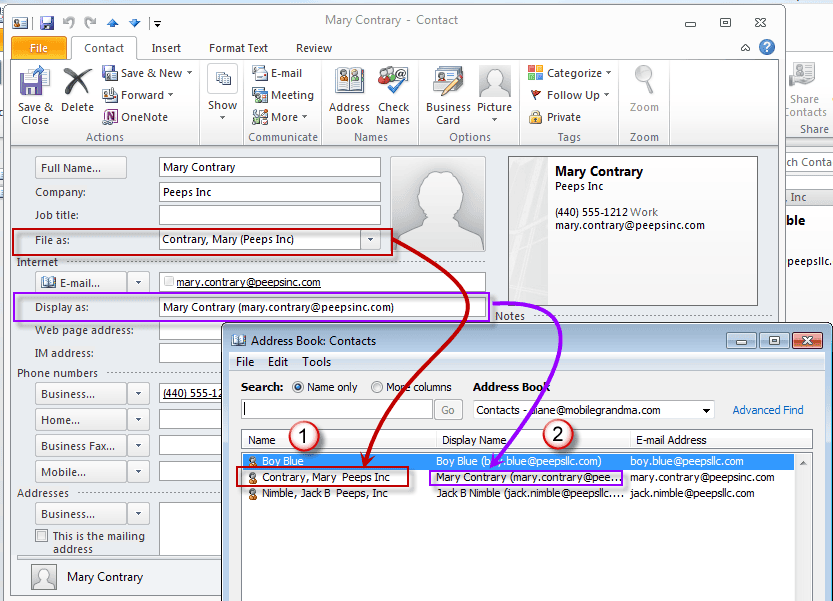
To change the Name column (1) in Outlook 2010 and newer, you'll start at File, Account Settings, Address book Tab, double click on the Outlook Address book. In Outlook 2007, the options for the Name column format is at Tools, Account Settings, Address book Tab, double click on the Outlook Address book and choose between Full name or File as format.
Note that when you edit a contact's email address, the display name is rewritten using Outlook's default format. You'll need to edit it before saving the contact.
While you can't change the default settings for the Display Name field (it always uses 'Full name (address)' format), you can use VBA to change your contacts so they all use the same format. Your choices are limited to Full name, Last First, FileAs, and Company. You can include the email address by adding this code to the format code: & " (" & .Email1Address & ")".
Default email display name format:

After running the VBA code below:

When you click the To button, the entry in the Address book will now look like this:

Not up to working with VBA code? See Tools for tools that can make this change.
Two formats in the code sample below are less than useful as Display name formats:
strFileAs = .CompanyName & " " & .FullName & " (" & .Email1Address & ")"
Results in a leading space if the Contact does not have a Company listed.
'strFileAs = .FileAs
Uses only the Company name in the display name when the FileAs format is "Company name (Fullname)".
Note: I updated the code below to check for email addresses. If an address does not exist, the contact is skipped.
VBA Code to Change the Email Display Name
Press Alt+F11 to open the VBA editor then copy and paste into ThisOutlookSession. Uncomment the strFileAs line that uses the format you desire before running it.
This code was tested with Outlook 2010, 2007, and 2003. (May trigger the Email security prompts in Outlook 2003.)
If you have multiple contacts folders, ChangeEmailDisplayName_SelectedContacts will change the selected contacts. It checks for an email address (If .Email1Address <> "" Then) and only updates contacts with email addresses.
Public Sub ChangeEmailDisplayName()
    Dim objOL As Outlook.Application
    Dim objNS As Outlook.NameSpace
    Dim objContact As Outlook.ContactItem
    Dim objItems As Outlook.Items
    Dim objContactsFolder As Outlook.MAPIFolder
    Dim obj As Object
    Dim strFirstName As String
    Dim strLastName As String
    Dim strFileAs As String

    On Error Resume Next

    Set objOL = CreateObject("Outlook.Application")
    Set objNS = objOL.GetNamespace("MAPI")
    Set objContactsFolder = objNS.GetDefaultFolder(olFolderContacts)
    Set objItems = objContactsFolder.Items

    For Each obj In objItems
        'Test for contact and not distribution list
        If obj.Class = olContact Then
            Set objContact = obj

          With objContact

          If .Email1Address <>"" Then
            ' Uncomment the  strFileAs line for the desired format
            ' Add the email address to any string using
            ' the following code:
            ' & " (" & .Email1Address & ")"

             'Firstname Lastname (email address) format
             ' strFileAs = .FullName & " (" & .Email1Address & ")"

             'Lastname, Firstname format
              strFileAs = .LastNameAndFirstName

             'Company name (email address) format
             ' strFileAs = .CompanyName & " (" & .Email1Address & ")"

             'Comapany Firstname Lastname (email address) format
             'the display name will have a leading space if
             'the contact doesn't have a company name
             'strFileAs = .CompanyName & " " & .FullName & " (" & .Email1Address & ")"


             'File As format
             'Does not support Company (Fullname) format.
             'Only Company name is used in the display name
             'strFileAs = .FileAs

             .Email1DisplayName= strFileAs

             .Save
           End If
          End With
        End If

        Err.Clear
    Next

    Set objOL = Nothing
    Set objNS = Nothing
    Set obj = Nothing
    Set objContact = Nothing
    Set objItems = Nothing
    Set objContactsFolder = Nothing
End Sub
How to use the Macro
First: You will need macro security set to low during testing.
To check your macro security in Outlook 2010 and newer, go to File, Options, Trust Center and open Trust Center Settings, and change the Macro Settings. In Outlook 2007 and older, it’s at Tools, Macro Security. If Outlook tells you it needs to be restarted, close and reopen Outlook. Note: after you test the macro and see that it works, you can either leave macro security set to low or sign the macro.
Now open the VBA Editor by pressing Alt+F11 on your keyboard.
To put the code in a module:
- Right click on Project1 and choose Insert > Module
- Copy and paste the macro into the new module.
- Click the Run button in the VBA editor to run it, or if you need to run this frequently, add a button for the macro toyour ribbon.
More information as well as screenshots are at How to use the VBA Editor.
More Information
More Bulk Change Contact articles at Slipstick.com:
- Bulk Change Contact's FileAs Format to Match Outlook's Default Setting
- Bulk Change File As Format for Contacts
- Bulk Move Phone Numbers to a Different Phone Field
- Macro to Swap First and Last Name Fields
- Show the Home Address on a Contact Form by Default
- Update Contact Area Codes
- Update Contacts with a New Company Name and Email Address

Jimmy says
Diane,
Came across your script and it works beautifully. I do have a question hopefully, you might be able to help me out or point me to the right source.
We recently migrated from Google Workspace to MS 365 with Exchange online. All of my contacts migrated fine however, opening a contact, the contact's email address is in email3 instead email1. Is there a script/tool that I can run/use to copy email addresses from email3 to email1?
Thanks.
Jimmy
George says
Thanks so much for this, this worked perfectly.
If I want to have the "Display As" to be "FirstName and Last Name" rather than "Lastname and firstname" how do I go about doing that?
Diane Poremsky says
You'd use :
strFileAs= .firstname & " " & .lastname
or
strFileAs = .fullname
D K says
Your original code worked perfectly; however, I've got a number of contacts with no company listed. I tried embedding a second if statement so I don't get empty "()" at the end of some contacts, but I get a Compile Error: End With without With. Modified code is below. What am I missing?
With objContact
If .Email1Address <> "" Then
If .CompanyName <> "" Then
'Firstname Lastname (Company) format
strFileAs = .FullName & " " & "(" & .CompanyName & ")"
.Email1DisplayName = strFileAs
.Save
ElseIf .Email1Address <> "" Then
If .CompanyName = "" Then
'Firstname Lastname format
strFileAs = .FullName
.Email1DisplayName = strFileAs
.Save
End If
End With
End If
Err.Clear
Next
Set objOL = Nothing
Set objNS = Nothing
Set obj = Nothing
Set objContact = Nothing
Set objItems = Nothing
Set objContactsFolder = Nothing
End Sub
Diane Poremsky says
it looks like it's missing an if -
End If
end if
End With
End If
(the last end if is not needed if there is not an IF line before the With line. )
D K says
Thanks for the quick reply. Unfortunately, I'm still getting the same error message. I tried changing the closing argument to:
End If
End If
End With
End If
When that did not work, I tried:
End If
End If
End With
I received the same error message every time.
Diane Poremsky says
I got it to work with these lines.
.Save
End If
End If
End If
End With
Err.Clear
End If
Next
D K says
Thanks!
One final question, does this code only work on contacts stored in an Outlook/microsoft account? I have my icloud email and contacts set up in Outlook 2010. The code work fine to change names for all my work contacts in my Exchange account, but when I run the macro on my iCloud contacts, it doesn't change anything.
Guillermo Barquero says
Thank you so much!!!! This saved me (and, in turn, my grandparents) so much time! It's also given me a chance to take a look at visual basic macros, thanks again for broadening my horizon!
Emmet H says
Hi all,
I've just run this code and it's worked exactly as I think it should have in that all my contacts Display As fields are now "last name, first name".
The reason I'm unsure if this is the outcome that is expected is that this is my first time ever running a macro or using VBA. For that reason also I'm not sure how to change the code to get what I would like, and wouldn't even be confident enough to understand the required changes even if someone has already posted it here (apologies if that's the case and I'm going over old ground).
What I would like to do is change all my contacts Display As fields to "Full Name - Company (email)". How should I change the code (currently exactly a is above) to achieve this?
Any help would be very much appreciated.
Diane Poremsky says
if you want fullname - company (email) and its not a default format, you need to the fields together:
strFileAs = .fullname & " - " & .companyname & "(" & .email1address & ")"
you can test it without change anything first by replacing this line:
.Email1DisplayName= strFileAs
with
debug.print strfileas
Then View menu > Immediate window before running the macro.
You'll see the results in the VBA editor.
Paul Nielsen says
Diane - I recently imported my contacts into a new Outlook 365 account and the sorting and view are different. The card used to show Last Name, First Name followed by Company Name (in the grey area) and then in the card Display As, the Full Name (email address). I tried running a few of your fixes but obviously don't know what I am doing. Please help!
Diane Poremsky says
Sorry I missed this earlier. Did you get it straightened out? You need to open one contact then click the Full Name button to see if they are in the right fields. If so, the problem is the view - I'd try resetting it or customizing it.
T. J. says
outlook 2016 will not send emails using outlook.com with email address in "display as". how do I remove them?
Diane Poremsky says
use the macro on this page and either
strFileAs = .LastNameAndFirstName
or
strFileAs = .Fullname
but... my guess is the problem is something else as Outlook's default is to create the display name in name (address) format.
Is your account on the new server?
ChrisP says
Hello Diane,
I tried running the code, but it does not seem to work. It is my first time using VBA and I am not getting any errors when I run it. I think I might be doing something wrong. I currently am running Outlook 2016 with Office. My user has over 1000 contacts and I am unable to get the First Name Last Name to show with the email address in autocomplete when typing in email. There are also times when some addresses do not come up at all when I start typing. By the way, I do have Cached Exchange Mode checked in case you were wondering.
Diane Poremsky says
Do you have macro security set to low?
FredB says
Diane - great code.... but for some reason it did not work for me. The .LastNameandFirstName property did not change the "Display As" name as expected. All of them were changed.... but came out as First Name space Last Name. I also wanted to fix my old Full Name fields so I did modify the code as shown below to do both - the Full Name works great, the Display As not so much. If "Bob X" is the person's name with the Email1 as Bob.X@x.com, the code makes the FullName "X, Bob" but the Display Name comes out as "Bob X(Bob.X@x.com)" instead of "X, Bob (Bob.X@x.com)" which is what I want. Any suggestions on what I am doing wrong? In Office 2010 .
`Public Sub FixContactNameDisplay()
Dim objOL As Outlook.Application
Dim objNS As Outlook.NameSpace
Dim objContact As Outlook.ContactItem
Dim objItems As Outlook.Items
Dim objContactsFolder As Outlook.MAPIFolder
Dim obj As Object
Dim strFirstName As String
Dim strLastName As String
Dim strFileAs1 As String
Dim strFileAs2 As String
On Error Resume Next
Set objOL = CreateObject("Outlook.Application")
Set objNS = objOL.GetNamespace("MAPI")
Set objContactsFolder = objNS.GetDefaultFolder(olFolderContacts)
Set objItems = objContactsFolder.Items
For Each obj In objItems
'Test for contact and not distribution list
If obj.Class = olContact Then
Set objContact = obj
With objContact
If .Email1Address "" Then
If .FirstName "" Then
If .MiddleName "" Then
strFileAs1 = .LastName & ", " & .FirstName & " " & .MiddleName
Else
strFileAs1 = .LastName & ", " & .FirstName
End If
Else
strFileAs1 = .LastName
End If
.FullName = strFileAs1
strFileAs2 = .FullName & " (" & .Email1Address & ")"
' Also tried strFileAs2 = .LastName & ", " & .FirstName & " (" & .Email1Address & ")" but that gave the same result
.Email1DisplayName = strFileAs2
.Save
End If
End With
End If
Err.Clear
Next
Set objOL = Nothing
Set objNS = Nothing
Set obj = Nothing
Set objContact = Nothing
Set objItems = Nothing
Set objContactsFolder = Nothing
MsgBox "Complete!"
End Sub
Diane Poremsky says
What type of email account? I know Outlook.com accounts only use full name (address) format for the email display.
FredB says
Thanks for the quick response - it is a Microsoft Exchange account (company run). Outlook is from Office Professional Plus 2010. Even if it does use the full name (address) format since I changed the Full Name field to Last, First wouldn't it use that? All my settings by the way are for Last, First.
Diane Poremsky says
Outlook will use the full name field format until you clear the display name field - then it will use first last, even if full name and file as use last, first. It should honor your edits to the field though. i'll see if i can repro your problem with the macro - it's been awhile since i last used it.
FredB says
Diane - any luck with this? Thanks.
FredB says
Sorry - did reply but did not show up for some reason. It is a company based Microsoft Exchange type account.
Diane Poremsky says
Comments stay in moderation until i have time to answer - otherwise, i'll never find the comments that need answered. :)
Thanks says
Amazing. Thanks. Worked perfectly in Outlook 2016
Arcoden says
Thanks, Diane! Odd that the intermediate step is required, but great that it works!
HCKAD says
Hi Dianne, Great post. I opted to use ContactGenie but can no longer open the program after a clean install on a new hard drive. Have you heard of this issue before? Their tech support is pretty useless. Not very helpful at all. Any thoughts would be appreciated.
Diane Poremsky says
Any error messages? What happens when you try? Does it work if you open Outlook using Run as Administrator?
And just in case it matters, what version of Windows and Outlook?
Karl Timmermans says
Am I correct in presuming this is Kelly A (with a period in the User Account Name) D (the KAD portion of HCKAD) in reference to ContactGenie who hasn't responded to the last 2 emails sent this morning (7:54am and 9:41am)? The latter (9:41am) indicating the only likely cause along with a suggested solution barring any other unknown system configuration factors.
If this is not the same person - first step in getting support is contacting us
(cgsupport @ contactgenie.com)
since there is no other outstanding report from anyone regarding a re-install after a hard drive failure/replacement (actually, currently, no other support issues at all for any CG product for that matter).
Given the comment of "Their tech support is pretty useless" in the above post - suppose we can also ignore the various "Again thanks so much for all of your help!" message portions from your previous responses after submitting other prior support questions.
__________________________________________________________
Karl Timmermans [Microsoft Outlook MVP] – The Claxton Group
"Contact import/export/data management tools for Outlook '2000/2016"
https://www.contactgenie.com
https://www.contactgenie.info
Dawn says
WOW Diane you work super fast! Thank you so much!
Diane Poremsky says
When it's a fun macro that I think others might need, I can be fast. :)
Dawn says
Diane, do you have code to change multiple email addresses? I have contacts from a company that is changing its name and all employee addresses. I would kill to be able to run a script that would change the domain.com portion of the addresses. Is this possible?
Thank you!
Diane Poremsky says
I don't have a script ready but it should be easy enough... assuming the alias remains the same and all contacts use the same company name, not a variation. I'll put something together.
Diane Poremsky says
Here is a macro that will change the company name and email domain
https://www.slipstick.com/developer/code-samples/update-contacts-with-a-new-company-name-and-email-address/
lockoncomputer says
Excellent! Thank you for sharing to the community - we are indebted to your generosity :)
My addressbook contained several email addresses without names. The default script put parens around the email in that case. To void that I made this small change:
replaced
strFileAs = .CompanyName & " " & .FullName & " (" & .Email1Address & ")"
with
If .FullName "" Then
strFileAs = .CompanyName & " " & .FullName & " (" & .Email1Address & ")"
Else
strFileAs = .Email1Address
End If
Thank you!
Mathew says
All of the group members are in the Contacts folder where the group resides. The contacts were added from the folder into the group. The icon next to their name looks like a business card. Identical to the icon beside their contact in the folder.
When I hit Update Now nothing happens. If I remove them and add them back the Name is updated like I want it because of the previous script you sent me.
I would remove and add them but there are lots of groups with thousands of contacts. So I was hoping they would update.
Thanks for you time. It's really great of you to reply!
Diane Poremsky says
Are you selecting the name then hitting update now? I think you need to select the name(s) you want to update.
Mathew says
I was selecting the names. This looks like the problem I am having:
https://www.slipstick.com/outlook/contacts/members-contact-group/
However, I've forwarded the group to myself and then pasted the list from excel into a new group. I see all of these contacts in the contact group I am selecting from but it still does not update them. It's not linking them. It looks like it's just creating them as an address book entry and not linked to the contact. ?
Mathew says
Diane, I got all my contacts updated from this! Thank you so much. The Display As field just like I wanted!
The problem I have now is that all my contacts are in groups. When I look the groups The name of the contact looks like it's pulling from the Display As field and that has not updated in the groups. When I click update "Update Now" it does not update the name. Is there a way to update the Name for these contact in the groups they belong to?
Diane Poremsky says
It sounds like the group members aren't linked to the contacts and are one-off addresses instead. What does the icon next to their name look like?
Mathew says
Diane, thank you! this is great. I tested this and it works. I also have a shared contact folder that resides in a Public folder that I am the owner of.
Can this work to updated contacts in a public folder?
Thanks
Mathew says
I figured this out. I just posted a new question below. thanks. This is great!
Diane Poremsky says
You can. the version at https://www.slipstick.com/code-samples/ChangeEmailDisplayName_SelectedContacts.txt works with selected contacts in any folder or you could change it to work with all contacts in a selected folder:
Replace the similar block in the code with this the select the folder and run it.
On Error Resume Next
Set folder = Application.ActiveExplorer.CurrentFolder
For Each obj In folder.Items
'Test for contact and not distribution list
If obj.Class = olContact Then
Set objContact = obj
Dan says
Much appreciated Diane.
Dan says
What I want to do is change the display name of an email item as it appears in the To field in the sent items box after clicking the send button. Reason being that sometimes it shows the name of the person or the name plus email address or just the email address. So, I want to manipulate the Display Name (in the To field) for better managing/sorting my emails. I can do this manually before I send a reply to someone (i.e. Click Reply, then right lick on the recipient's name in the To field, then lick Outlook Properties which pops up a small dialog box. here I can manually alter the Display Name). I'd like to do this automatically either when clicking Reply or Send.
Diane Poremsky says
You might be able to do it when you click Reply the problem - i'll take a look.
Dan says
Hello Diane, would you know how I can change the Display Name for the person I am replying to at the time I click the send button? I can use the ItemSend event but which object and which property do I change. I am pretty new to VBA so any help you can provide would be much appreciated.
Diane Poremsky says
I'm not sure I understand what you want to do (or why). You want to change their display name in the email message or in their contact?
Stu says
Mahalo for responding. thanks to your suggestion i was able to determine what was wrong. I was actually using the vba code to change email display name for multiple contact folders. I assumed that by just selecting the contacts folder that needed to be corrected, when i run the macro it would do as intended, however I realized by the error code, i had to actually select the individual contacts (i selected all the contacts in that specific folder), then the macro did its intended job....
I again, would like to thank you for your excellent dedication and taking the time to help me and the many others that you have helped here!
George Jaajaa says
Are you able to create a code so that the display name is first name last name, rather than last name, first name
Diane Poremsky says
You'd use = .firstnanme & " " & .lastname
if either field a blank, you'll have a leading or ending space. There is no way to avoid it without using some if statements.
Stu says
Mahalo (thank you) for the code. This is exactly what i was looking for. However, for reasons beyond me..i can't seem to get the macro to run. I have Outlook 2013, macros are enabled. I copied and pasted the code into "ThisOutlookSession". I attempted to run the code "As-Is", but nothing happens. I also edited to reflect
strFileAs = .LastNameAndFirstName & " (" & .Email1Address & ")"
I also went through your tutorial and still can't get it to run. No error messages or prompts.
I would really appreciate your assistance..
Reply
Diane Poremsky says
Remove the on error resume next line and see where it errors.
mindjunkies says
Brilliant!! you have made my day!!
Jake Walker says
Hi Diane,
I got everything working. Thank you for your help.
Kind Regards
Jake Walker
Jake Walker says
Hi Diane,
Where do I add this? Is my script correct? Am I running it correctly also?
Could you give me a call to discuss this further?
Kind Regards
Jake Walker
Diane Poremsky says
This will use the File as name and the email display name as their full name.
Public Sub ChangeEmailDisplayName()
Dim objOL As Outlook.Application
Dim objNS As Outlook.NameSpace
Dim objContact As Outlook.ContactItem
Dim objItems As Outlook.Items
Dim objContactsFolder As Outlook.MAPIFolder
Dim obj As Object
Dim strFirstName As String
Dim strLastName As String
Dim strFileAs As String
On Error Resume Next
Set objOL = CreateObject("Outlook.Application")
Set objNS = objOL.GetNamespace("MAPI")
Set objContactsFolder = objNS.GetDefaultFolder(olFolderContacts)
Set objItems = objContactsFolder.Items
For Each obj In objItems
'Test for contact and not distribution list
If obj.Class = olContact Then
Set objContact = obj
With objContact
If .Email1Address <> "" Then
'Lastname, Firstname format
strFileAs = .FullName
.FileAs = strFileAs
.Email1DisplayName= strFileAs
.Save
End If
End With
End If
Err.Clear
Next
Set objOL = Nothing
Set objNS = Nothing
Set obj = Nothing
Set objContact = Nothing
Set objItems = Nothing
Set objContactsFolder = Nothing
End Sub
Jake Walker says
Hi Diane,
I currently have a user who has 2000+ contacts which need the display name updated. I have been looking at your script but am having some trouble running it. I have opened Microsoft Visual Basic using Alt + F11 then pasted it into TheOutlookSession within the project window. However I believe I'm doing something wrong. Can you please check if my script is correct? Also will this update the File As field? I would like the display contacts to show as First Name, Last Name, Email Address please.
Public Sub ChangeEmailDisplayName()
Dim objOL As Outlook.Application
Dim objNS As Outlook.NameSpace
Dim objContact As Outlook.ContactItem
Dim objItems As Outlook.Items
Dim objContactsFolder As Outlook.MAPIFolder
Dim obj As Object
Dim strFirstName As String
Dim strLastName As String
Dim strFileAs As String
On Error Resume Next
Set objOL = CreateObject("Outlook.Application")
Set objNS = objOL.GetNamespace("MAPI")
Set objContactsFolder = objNS.GetDefaultFolder(olFolderContacts)
Set objItems = objContactsFolder.Items
For Each obj In objItems
'Test for contact and not distribution list
If obj.Class = olContact Then
Set objContact = obj
With objContact
If .Email1Address <> "" Then
' Uncomment the strFileAs line for the desired format
' Add the email address to any string using
' the following code:
' & " (" & .Email1Address & ")"
'Firstname Lastname (email address) format
' strFileAs = .FullName & " (" & .Email1Address & ")"
'Lastname, Firstname format
strFileAs = .LastNameAndFirstName
'Company name (email address) format
' strFileAs = .CompanyName & " (" & .Email1Address & ")"
'Comapany Firstname Lastname (email address) format
'the display name will have a leading space if
'the contact doesn't have a company name
'strFileAs = .CompanyName & " " & .FullName & " (" & .Email1Address & ")"
'File As format
'Does not support Company (Fullname) format.
'Only Company name is used in the display name
'strFileAs = .FileAs
.Email1DisplayName= strFileAs
.Save
End If
End With
End If
Err.Clear
Next
Set objOL = Nothing
Set objNS = Nothing
Set obj = Nothing
Set objContact = Nothing
Set objItems = Nothing
Set objContactsFolder = Nothing
End Sub
Kind Regards
Jake Walker
Diane Poremsky says
This will apply to the File as field name.
Do you get any error messages? Any red lines? Is macro security set to the lowest level?
Jake Walker says
Hi Diane,
I haven't set the macro security to low. is there anyway to update the display names also?
Kind Regards
Jake
Diane Poremsky says
You can add
.Email1DisplayName = [desired format]
to the macro.
email2 and 3 have their own displayname fields as well.
Adrian Emanuel says
Hi Diane - sorry total newbie to VBA code here. I want to change all of my contact's display names into the last name, first name format. I have copied the code above into ThisOutlookSession but not sure how to run it - what are the steps i need to take to make these changes?
Thanks very much in advance
Diane Poremsky says
See https://www.slipstick.com/developer/how-to-use-outlooks-vba-editor/ for instructions on how to use the editor. Basically, you change macro security settings, copy the code, choose the display name format and run the macro. last name, first name is the format the macro is configured to use so you just need to run it. The macro will check and update all of the contacts in the default contacts folder.
John says
It's John again; I asked about counting the changes and it worked. Now I want to delete duplicate email addresses--I seem to have a lot. After your "With ObjContact" statement above, I add the following:
'Delete Duplicate Email Addresses
If .Email1Address = .Email2Address Then
.Email2Address = ""
End If
It finds the duplicates but it does not erase them. What am I missing about 'blank' values?
Thanks.
Diane Poremsky says
Are you saving the contact before moving on to the next one?
If .Email1Address = .Email2Address Then
.Email2Address = ""
.Save
End If
clark says
Hi, I want to add an option that deals with missing fields. For example if there is no first or last name and only a company or vice versa. Of fields are missing I end up with brackets where I don't want them Example: Hybrid (Clark) is company (first name) but if there was no Company I would end up with (Clark). Is there a way to get the code to look at the company and if it is not there remove the brackets? Also can I wrote the code to return the fit two words of a Company name instead of the whole name? Thank you for your help
Clark
Diane Poremsky says
you can use if statements - something like
if .company = "" then
' use full name
else
' use this
end if
Doing two words is also possible. You need to find the second space and use that to get the company name. This isn't hard using instr, len, and left functions. Longish but not difficult. You need to decide if you want to limit the length of names with only 1 space or use the full name - or better yet, only limit the company name if more than nn characters. This eliminates issues with "A D Smith Inc" getting chopped to A D.
if .companyname > 30 then
If ' get the position of second space. if over 30, chop
else
'if under 20, get 30 characters
end if
end if
Graham says
Diane
Would the scripts have to be in order i.e remove title before the others otherwise the titles would still be listed in the file as and display as
Diane Poremsky says
Yes, I think - because most of the name formats include the title. I'd probably stick the .save back in after the title is removed, just to be sure the right value is read.
Graham says
Diane
Thankyou that has now worked as you say it must have been the break
The only downside is that I will have to run the "files as" & "email display as" scripts again as these fields do not up date. I presume this is because we are just removing the "Mr" and Outlook doesn't see this as actually editing the record
Is there any way to actually save the scripts so they can be used in future without having to create them each time?
Regards
Graham
Diane Poremsky says
Do you want to run them automatically? They need a trigger, like a task reminder. If you just want them around, ready to use, don't delete them from the VBA editor. Click Save when you close Outlook and are asked about saving the VBA.
You can combine all 3 changes into one macro
With objContact
strFileAs = .LastNameAndFirstName
.FileAs = strFileAs
If .Email1Address <>"" Then
.Email1DisplayName= strFileAs
End if
If Left(LCase(.Title), "m") Then
.Title = ""
End If
.Save
End With
Graham says
Diane
Thank you for the reply
Do I just amend code to look like this
Public Sub ChangeEmailDisplayName_Anyfolder()
Dim Session As Outlook.NameSpace
Dim currentExplorer As Explorer
Dim Selection As Selection
Dim currentItem As Object
Dim folder As Outlook.folder
Dim obj As Object
Dim strFirstName As String
Dim strLastName As String
Dim strFileAs As String
Set currentExplorer = Application.ActiveExplorer
Set Selection = currentExplorer.Selection
On Error Resume Next
For Each obj In Selection
Set folder = currentItem.Parent
'Test for contact and not distribution list
If obj.Class = olContact Then
Set objContact = obj
With objContact
If Left(LCase(.Title), "m") Then
.Title = ""
.Save
End If
End With
End If
Err.Clear
Next
Set Session = Nothing
Set currentExplorer = Nothing
Set obj = Nothing
Set Selection = Nothing
Set currentItem = Nothing
Set folder = Nothing
End Sub
If so I get a "cant execute code in break mode error"
Diane Poremsky says
yes, that is correct - just tested it on some test contacts i imported that had titles that were annoying me. :)
You have a break entered - is there a red dot in the margin? click it to remove it.
Graham says
Diane
Is there anyway to remove "mr" or "mrs" from a name.
Not all instances of a contact have been added with these and wanted to delete so the fields are consistent
Diane Poremsky says
You can use the following in the code instead of changing address fields, you'll change the title. It assumes you want to remove Mr, Ms, Mrs but keep other titles. If you want to remove all titles, remove the If and End if lines.
With objContact
If Left(LCase(.Title), "m") Then
.Title = ""
.Save
End If
End With
Amit says
Hi Diane, this is exactly what I need to do - remove the titles from the email display name, but as a newbie I don't understand where to place the code above. Could you please elucidate? Many thanks!
Diane Poremsky says
Change macro security then press Alt+F11 to open the visual basic editor and if you only need to run the code this one time and don't have other macros, paste the code into thisoutlooksession and don't save it when you close outlook and are asked about saving it.
More information is at https://www.slipstick.com/developer/how-to-use-outlooks-vba-editor/
chrisbrace says
this worked perfectly, very very useful, thanks. Note I did edit slightly to put angle brackets around the email address instead of curved brackets, this fixed my bouncing email issue caused by outlook 2013 misinterpreting the curved brackets around an email address in the display name and failing to treat it as an email address.
It does not explain why outlook insists on ignoring the actual email address in its own contact and instead trying to parse the display name to extract the email address!
Graham says
Diane
Thank you that has worked a treat
Regards
Graham
Graham says
I am trying to run your script and receive the following error "macros in this project are disabled"
I am using Outlook 2010 with Office 365
Diane Poremsky says
You need to lower macro security in File, Options, Trust Center. I have a tutorial at How to use the VBA editor
Clark says
Hi, I have tried the Macro for Outlook 2013 for "Bulk Change File As Format for Contacts" and it works across all contact groups including Public. Can this macro be reworked to bring up the same set of options 1 to 8 but be applied to the "Email Display Name" field instead? This would solve all my problems. I have undertaken a trial of ContactGenie but they do not have to Option "Company, Full Name". Thank you kindly for your assistance. Clark
Diane Poremsky says
I'm not sure I understand. What options do you want to set? you can use .CompanyName & " " & .FullName to create the string that is used for the display name.
Clark says
Dear Diane, I have worked it out, I used the method under https://www.slipstick.com/outlook/contacts/bulk-change-outlook-contacts-file-as-format/ and changed all "DisplayAs" to "Email1DisplayName" and works the same by popping up a box of 8 options, I have now added my own custom options for better functionality. All is working well. Thanks
Clark says
Hi, I have used this in Outlook 2013 and work great on a contact list under my email address. I also have a Public contact list and it doesn't work on that, what do i need o change so i can write a separate Macro for the Public contacts, is there a way of doing this. Thank you so much for your help, this Macro is fantastic at keeping uniform control over a large set of contacts, I really appreciate the help.
Diane Poremsky says
The version at https://www.slipstick.com/code-samples/change-fileas-format-selected-folder.txt will work on the selected items (use ctrl+A to select all) in any folder. Changing the default contacts folder version to work on a specific folder is also possible - it's a matter of change this line to point to the folder:
Set objContactsFolder = objNS.GetDefaultFolder(olFolderContacts)
John says
I like it. Would it be hard to count the changes?
Diane Poremsky says
no, not really. You just need to do something like after each record is changed.
lngChanges = lngChanges + 1
then at the end use msgbox lngChanges to get the value.
You'll need to dim it as
Dim lngChanges As Long
A macro that uses this method is at https://www.slipstick.com/developer/macro-move-aged-mail/ - you can see where the code is placed in it.
John says
Great, thanks. Then I can find out what is making the change. I sync my Galaxy S3 cellphone with Outlook through Kies 3. The switch is set to not change Outlook contacts ... I just don't believe it!
John says
After a minor tweak it worked like a charm. I needed a test for the current value; otherwise, it was changing all of them. Thanks.
George says
Diane,
I sent to you two emails this past weekend seeking help with this macro. I was able to get the macro to run this evening. So I don't think I will need that help. The copy button at the top of the macro that you mentioned in one of your earlier responses did not appear on for me. SO when I copied and pasted the macro code, it went into the
vba program in the wrong layout. That was the source of my problem. It took me considerable time to figure it out and to remedy the problem. Once I fixed it, the macro ran very quickly and did a very nice job.
Thanks,
George
George says
This is my first encounter with VBA. I have everything set up to run, but when I click run, I get "invalid Procedure Error." I have no idea how to run or intiate this macro. Would you please advise?
Thanks,
George
Jeff Squires says
Diane this is a wonderful piece of code. I'm running Outlook 2013 and it took seconds for your code to make every "display as" field perfectly uniform. This problem has been bugging me for years! Now when I start typing a contact name in an email, Outlook immediately resolves the name properly after a few letters. THANK YOU!!
David says
Hi! Is there any option or work around for Outlook Hotmail Connector users? Cheers.
Diane Poremsky says
No, sorry, there is not.
Jim Wimberly says
Worked perfect for me for Outlook 2010. I preferred Firstname Lastname as my display, so I "un-rem'd" that sentence in the code and rem'd out the Lastname, Firstname section. Excellent resource. thank you.
MS says
I use Outlook 2013 and always use to wonder if there could be a code available to replace the name of the sender (Display Name as your said) with the 'File As' in my address book, so that when I group the mails in a folder by the name, I can easily analyse whatever I need.
If the sender has not properly configured his email account (or has done in haste) in his mobile device or so, he wouldn't have configured the 'Send as' format and the mobile device' settings would have been configured by default to send the mail as 'Email Address (Email Address)' instead of 'Full Name (Email Address)'.
I write codes in Outlook but I am more of an amateur only and unaware of what property of a mail item it is and how I look up for the email address in my address book to find the respective 'File As' to replace the same in the mail item's property.
I would use the same code to modify the existing mails in the folders too. Thanks!
W says
This works great, but won't work on emails sent. E.g if you sent it to Tom Brown (whose email address is tbrown@whatever.com) Whilst it will change the contact, it won't change the email address on an old email you open and print :( Bit silly if you print it out and want to know what TBrown's email address was.
Diane Poremsky says
Correct, this only applies to the display name format in Contacts, not email. The email gets the display name from the sender and is not affected by the contact's display name format. Did you try hitting Forward (or Reply) then printing the draft copy? In newer versions of Outlook, this should include the email addresses, if not, you could add them - if you need to do it often, a macro can get the address from the message and insert into the draft.
MS says
Awesome! Thanks!
Lewis says
This worked absolutely perfectly, thank you so much!!!!!
Tiffany Sawyer says
I'm also a little challenged when it comes to code. Maybe a stupid comment but I don't have an F11 key... how or what should I select? I would like for all my contacts email addresses to be displayed by company name. thanks for your help!
Diane Poremsky says
You should have an F11 function key - function keys are usually the top row of buttons on the keyboard. But depending on your computer, the keys may be used for something else, like adjusting the volume, dimming the screen, etc., unless you press a function button too.
Brenda Morgan says
OMG this was invaluable! I went nuts trying to find a MS solution. Thank you so much for writing this.
Chris says
Tanks for your quick reply.
Chris says
Hi Diane, Great code. I am looking for a similar code that updates the inbox items. e.g. I have a mailitem with "max@email.com" and a contactitem with the matching address with .DisplayName = "Max". The code should cache the contacts, than parse the mailitems and update the mailitem.Displayname accordingly. By chance you don't know such code, do you? Rgds, Chris
Diane Poremsky says
I don't have any code that will do this, sorry.
robin says
I simple way to do this that some people my be more comforable with is this - export all the contacts to Excel. May any change youu want, then import the excel document as 'replace.
Diane Poremsky says
It might be more comfortable for some users but if you customized business cards or added user photos to contacts, importing changes from Excel will remove the images. Exporting/importing has the potential to change formatting in the notes field and remove attachments. If you don't use formulas to change the display names, it will take a lot longer than the macro.
Jessie says
Technologically challenged person asking for baby steps here. After I get to the VBA editor, what exactly am I copying and pasting into ThisOutlookSession? Am I copying and pasting all of your lines above including the green ones? I want to display the first and last name only. Which lines do I uncomment and how do I uncomment them? By deleting them? Thank you
Diane Poremsky says
At the top right of the Code block is a small toolbar that pops up when you hover over the code. Click the Copy button to copy the code. Paste it into ThisOutlookSession.
The green lines can stay or go - they are commented out. Remove the ' from in front of the line you want to use. You can certainly delete the lines you aren't using, but it's not necessary as long as they are green.
For First Last, you would use
strFileAs = .Firstname & " " & .Lastname
if you use strFileAs = .FullName, you'd get the middle initial too.
Art says
How do I display only the email address in the "display as field."
Diane Poremsky says
You can't set that as a default format and you can't use it with hotmail accounts. You'll need to fix each contact as you create them and use the macro to change it for all existing ones.
to change it using the macro, use strFileAs = .Email1Address
Jeff Lloyd says
Worked like a charm! Thanks so much for everything. I can't tell you how frustrated I've been with Outlook since I reinstalled it on my computer last year. I found this site yesterday, and I've now run two of your scripts; I'm now happy with my email again.
Jeff Lloyd says
Wow, that was a quick response! Let me know when the code is fixed and I'll try it again. I just tried it a minute ago because it looked like the code had changed, but I was still getting an error (different error): Compile Error: Syntax Error and it highlights the following lines: Public Sub ChangeEmailDisplayName() -- highlighted in yellow, and Set objOL = CreateObject("Outlook.Application") -- simply outlined. Do you know what the fix is for that?
Diane Poremsky says
I'll check the code after and see if i can repro. Synxtax error means something is still not right in the code.
Diane Poremsky says
I missed fixing 4 & quot; - they are double quotes. Fixed now. (this is the one big negative against wordpress.)
Jeff Lloyd says
After I delete the apostrophe from in front of the strFileAs = of strFileAs = .FullName & " (" & .Email1Address & ")" I get an error: Compile error: Expected: end of statement. Any thoughts?
Diane Poremsky says
oh, damn wordpress. It messed up the code. I'll fix it.
Cynthia says
This was very helpful for one Contact list. I have 4 email accounts in my Outlook 2010. How do I change the Display As for the other Contact folders. This only changed the first (defaul?) folder.
Diane Poremsky says
https://www.slipstick.com/outlook/contacts/bulk-change-outlook-contacts-file-as-format/ has a sample that uses the selected folder - the code between With objContact and End With is what makes the changes - so you just need to replace the code block between With objContact and End With, with the code block on this page, in the sample at https://www.slipstick.com/code-samples/change-fileas-format-selected-folder.txt. (I'll test it when i get a chance and post the updated code here too.)
Diane Poremsky says
As an FYI on the code- it runs on the *selected contacts*, not selected folder, so make sure you select the contacts.
John Walker says
Fantastic,
All my Gmail syncing had somehow made all my display as fields to say "home". This little program fixed me right up.
Thanks,
John
Rob says
Worked perfectly for me in Outlook 2010. Thanks!