A user had a complaint about Outlook (don't we all!) and was looking for a way to change the behavior.
For example, I send an email to Joe and want to add additional comments after it's sent, so I go to the Sent Items folder and click Reply, but it is replying to me, not to Joe. How to I make Outlook use the original recipient's address, not mine?
Yes, that is annoying. The solution: instead of clicking Reply, if you click ReplyAll, the message will be addressed to the original recipients. Your own address should be removed from the reply all.
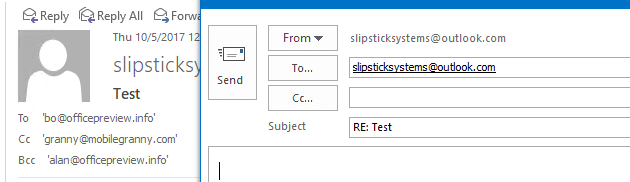
Why does Outlook do this? As you know, Reply replies to the sender of a message. When you reply to a message in the Sent Items folder, your address will be in the To field, because your address is the From address and replies go to the person who sent the message, which in this case, is you. You should use Reply all (delete your address from the To field if your version of Outlook doesn't remove it) or open the sent message and resend the message using Actions > Resend message.
If you aren't good at remembering to use Reply All on a message sent only to one person, use the following macro to send the message to the original recipients. It 'listens' for the Reply function and checks which folder you are in when you reply. If you are in the default Sent Items folder, it does its magic.
This macro replies to all recipients in the To, CC, or BCC field. While you should be in the habit of using Reply All when there are multiple recipients, this will solve that problem too (and includes any BCC'd recipients).
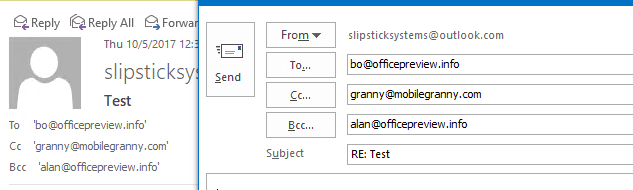
As written, it applies only to the default data file's Sent Items folder. If you need to use it on the Sent Items folder in another account, you'll need to change the folder path.
Option Explicit
Private WithEvents oExpl As Explorer
Private WithEvents oItem As MailItem
Private bDiscardEvents As Boolean
Dim oResponse As MailItem

Private Sub Application_Startup()
Set oExpl = Application.ActiveExplorer
   bDiscardEvents = False
End Sub

Private Sub oExpl_SelectionChange()
   On Error Resume Next
   Set oItem = oExpl.Selection.Item(1)
End Sub

Private Sub oItem_Reply(ByVal Response As Object, Cancel As Boolean)

   Cancel = True
   bDiscardEvents = True
Set oResponse = oItem.Reply
If Application.ActiveExplorer.CurrentFolder = Session.GetDefaultFolder(olFolderSentMail) Then

Dim Recipients As Outlook.Recipients
Dim R As Outlook.Recipient
Dim i
Dim strTo As String, strCC As String, strBCC As String, strName As String

Set Recipients = oItem.Recipients
 For i = Recipients.Count To 1 Step -1

 Set R = Recipients.Item(i)
strName = R.Name
' Remove Outlook's annoying quotes around names
If Left(strName, 1) = "'" Then
strName = Mid(strName, 2, Len(R.Name) - 2)
End If

 If R.Type = olTo Then
   strTo = strName & ";" & strTo
 ElseIf R.Type = olCC Then
   strCC = strName & ";" & strCC
 ElseIf R.Type = olBCC Then
   strBCC = strName & ";" & strBCC
 End If
 Next

oResponse.To = strTo
oResponse.CC = strCC
oResponse.Bcc = strBCC

End If
oResponse.Display

End Sub
How to use the macro on this page
First: You need to have macro security set to low during testing. The macros will not work otherwise.
To check your macro security in Outlook 2010 and newer, go to File, Options, Trust Center and open Trust Center Settings, and change the Macro Settings. In Outlook 2007 and older, look at Tools, Macro Security.
After you test the macro and see that it works, you can either leave macro security set to low or sign the macro.
This code is an "auto" macro and needs to go in ThisOutlookSession. The instructions are below.
To put the macro code in ThisOutlookSession:
- Expand Project1 and double click on ThisOutlookSession.
- Copy then paste the macro into ThisOutlookSession. (Click within the code, Select All using Ctrl+A, Ctrl+C to copy, Ctrl+V to paste.)
- This macro runs when you start Outlook, so you'll need to either restart Outlook or click in Application_Startup then click Run to "kick start" it.
More information as well as screenshots are at How to use the VBA Editor
More Information
- Add a keyword to the subject of all messages sent
- Always Reply Using HTML Format in Outlook
- Can I use my own stationery in replies?
- Copy attachment names when replying
- Do you really want to reply to all?
- Forward Messages that were not Replied To
- Foward a Message and CC the Original Recipients
- Ignore Conversations in Outlook
- Macro to Reply, ReplyAll, or Forward and File
- Outlook Crashes When You Reply or Create a New Message
- Reply or ReplyAll with Attachments
- Reply to All Includes My Address
- Rules in Error and Reply with Template
- Run a script rule: Autoreply using a template
- Select from a List of Subjects before Sending a Message
- Selectively change message format when replying
- Use a macro to Reply with boilerplate text
- VBA Sample: Do Something When Reply is Clicked

Thomas Kahn says
Hi Diane,
Thomas again. Another improvement: If you replace:
with:
in the if-condition it will also work if you are currently in your inbox folder and are replying to one of your own messages in a thread.
Best,
Thomas
Thomas Kahn says
One other issue I ran into: Sometimes when I clicked "Reply" on an email that I sent to a contact in my address book, it would only put in the name of that contact in the Recipient-field instead of the email address, i.e. "John Doe" instead of "john@doe.com". Then I couldn't send the email.
To fix this I changed:
to:
Now it works perfectly.
Thomas Kahn says
Hi Diane!
One quick addition: While your macro works well with Hotmail/Outlook/Live-Accounts in Outlook it didn't work for my GMail-Account. The reason for this is that Session.GetDefaultFolder(olFolderSentMail) returns a different string than the name of the standard GMail Sent-Folder. In my case it was "Gesendete Elemente" vs. "Gesendet" for GMail. (I'm German.)
I fixed this by checking what the sent folder was called in the GMail-Account. I did this by adding the line:
before the if condition:
That's how I learned that it was called "Gesendet" in my case. I then changed the previously mentioned if condition to this:
Now it works with GMail, too.
Thought this might be useful for others as well.
Best,
Thomas
Thorbjørn says
This is the result of a legacy program which has been working like this for decades.
GMail is "new" and can accommodate user behaviors as they appear today.
Outlook was adapted by millions users and they are now use to this line of thinking so Microsoft cannot change the behavior hehe.
Personally I am so frustrated and constantly keep sending mail to my self hehe,
Zachary says
I love the idea, and people in the replies seem pleased... but I'm a little hesitant to implement it. Being new to Outlook Macros and not having a ton of time to pore over this like it's one of those tricksy interview code snippets, I'd love a line-by-line, or at least a block-by-block, explanation of what's going on. For example, I'm not sure why you're overriding some of those subs, and I'm not sure why you're removing Outlook's name quotes. Not saying anything's wrong with it - I'd just love a better understanding so I can build my knowledge!
Diane Poremsky says
The single quotes are added by outlook and will sometimes prevent mail from sending. They can also prevent the messages from grouping with replies. They don't need to be removed if they aren't causing problems, but some people prefer to remove them.
Thomas says
Diane, you are a wonderful person for sharing this with us. Thank you! ❤
Kirk Patrick says
This is the most retarded thing in the HISTORY OF SOFTWARE. NOBODY EVER WANTS TO SEND THE EMAIL TO THEMSELVES. If Reply All is clever enough to remove your own address REPLY SHOULD TOO. Other email programs fortunately are NOT THIS RETARDED. Whoever is responsible for this should go to JAIL. THOUSANDS of messages are missed this way and HOURS LOST.
Chris says
I think it's on the order of tens of millions if not hundreds of millions of messages. I probably make this "mistake" (or "user error" as developers love to call natural actions to poorly designed "features") at least a dozen times a year... and how many Outlook users are there in the world?
brian says
Why is it only outlook that has this problem? I mean I reply in gmail, and it correctly assumes I'm not replying to myself.
Diane Poremsky says
Because it's Outlook? :) Reply all should remove your own address.
Yee says
Wow! Thanks!!! That's what i was looking for!
kelkhatan says
For your specific problem:
There is a solution:
Open sent massage by double clicking
In Tab "Move" click "Action"
Click "Resend this message..."
This opens your original Message with the original receiver-list in edit mode.
Regards
Fab
Diane Poremsky says
Resend works - but i just hit replay all. :) It's fewer steps and Outlook should remove your own address from the To field.
Martin says
Why does Outlook do this? Poor design, which has been dealt with in virtually every other email client.
Diane Poremsky says
It may eventually get upgraded - but this is the way it worked years ago and apparently not enough people have complained about it. Reply all works and should not include your name.
Best bet is making a suggestion here - https://outlook.uservoice.com/forums/322590-outlook-2016-for-windows - if it gets enough votes, they will consider it.