When you have multiple accounts in your profile Outlook sometimes has a problem recognizing who "you" are and includes all email addresses in a Reply to All. Beginning with Outlook 2003, Outlook handles it better and as long as the address the message was sent to is the same one you are replying From for the account, it will be removed when you choose Reply to All.
To automatically remove your address when replying to all, use one of the Tools listed below. You can also use VBA. See E-Mail: Remove recipients before sending for a code sample by Outlook Developer MVP Michael Bauer.
Reply to All includes myself
I'm seeing too many Outlook users complain that 'reply to all' includes their own address. While this was a common problem years ago, Outlook now does a good job identifying "who you are". It should only include yourself in the reply to all if the address the message was sent to is not the same as the account address.
If your From address is the same as the address the message was sent to, Outlook can properly identify your address and will not include it in a 'reply to all'.
When Outlook is confused, the possible causes include:
- The Reply to address in File > Account Settings > More Settings is not the same as your account email address. When people reply to your address, Outlook sees that address as belonging to someone else.
- Outlook is using the x500 address, not the SMTP address (Exchange mailboxes only)
- You have one or more contacts in Outlook for your own GAL entry and one contains the wrong address. Outlook is resolving to the copy in your Contacts, not the GAL. (Exchange mailboxes only)
In each of these situations, the From address is different than the account address so Outlook included it in the Reply to all. Case solved.
Note on item 3: While it seems odd that Outlook is resolving reply addresses to contacts when it has the address already, it's my experience that Outlook resolves to display names, even when it has an email address to compare. I recently attempted to create a Contact Group using a list of first names and contacts (in firstname alias@domain.com format, one person per row). When I pasted the list into the Members field, Outlook 2013 consistently resolved contacts to other people with the same first name. I had to use email addresses only to insure the Contact Group was correct.
Always Include Yourself in Replies
If you are used to this 'feature' from older versions of Outlook and want to include yourself in replies sent using Outlook 2003 and up, you'll need to create an after sending rule to CC yourself. If you want to BCC yourself, you'll need to use VBA or an add-in listed at Automatically BCC all Messages.
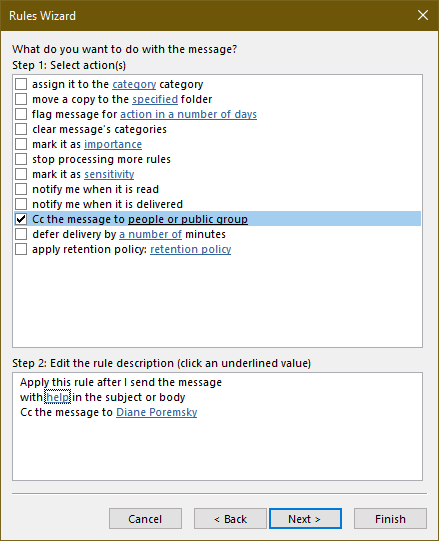
To create a rule in Outlook 2010 and newer:
- Open Manage Rules and Alerts (Home ribbon, Rules command)
- Click New Rules
- Select Apply rule on messages I send
- Select conditions if you only want to be CC'd on certain messages or click Next to CC yourself on every message you send.
- Under Actions, locate the CC action and enter your email address.
You can also open the Rules and Alerts dialog by right-clicking in the message list and choose Rules > Manage Rules and Alerts.
To create a rule in Outlook 2007 and older:
- From the Tools menu choose Rules and Alerts
- Select Create from a blank rule and choose Check after sending.
- Select conditions if you only want to be CC'd on certain messages or click Next to CC yourself on every message you send.
- Under Actions, locate the CC action and enter your email address.
Tools
Reply To All Monitor is an Outlook add-in that prompts when you click reply to all, preventing you from making potentially embarrassing mistakes. It also (optionally) removes your own name from a reply to all and can also warn you if you are going to perform a reply to all on a message that you were BCC'ed on, preventing you from "spilling the beans". It has been updated to work with Outlook 2010, and works in both 32-bit and 64-bit. | |
ReplyAll is a free tool that alerts you when you hit the 'Reply To All' button in Outlook and asks if you really want to send to all. Works with all versions of Outlook: 2000 - 2013. Free. | |
SafeSend Outlook detects external recipients in outgoing emails and meeting invitations, requests users to confirm external emails recipients, expands Outlook distribution lists. Supports multiple domains within corporate structure and multiple email accounts per user. Allows custom safe-domains. Puts minimum load on your Exchange server. | |
TuneReplyAll shows a warning message when a user is going to reply to everyone. The user has to confirm his choice to reply to all. This will help to prevent sending out confidential information. If Outlook includes the user's own address in Reply all, TuneReplyAll will remove it from the message. |
More Information
- Add a keyword to the subject of all messages sent
- Always Reply Using HTML Format in Outlook
- Can I use my own stationery in replies?
- Copy attachment names when replying
- Do you really want to reply to all?
- Forward Messages that were not Replied To
- Foward a Message and CC the Original Recipients
- Ignore Conversations in Outlook
- Macro to Reply, ReplyAll, or Forward and File
- Outlook Crashes When You Reply or Create a New Message
- Reply or ReplyAll with Attachments
- Replying to Sent Messages
- Rules in Error and Reply with Template
- Run a script rule: Autoreply using a template
- Select from a List of Subjects before Sending a Message
- Selectively change message format when replying
- Use a macro to Reply with boilerplate text
- VBA Sample: Do Something When Reply is Clicked

Jason Holliday says
Is this thread still active? My boss is having a similar issue. Using Outlook 2016. When he receives an email with multiple people in it, him as well, and he clicks reply to all HIS email address is thrown into the field he was originally in. If he was CC'd then his name shows back in the CC field, and the same if he was on the TO line. this just started happening. How do we fix this without him having to remove his name each time? This is his only email account. Thank you!!
sam says
i have the same question, i have to delete myself everytime manuly,
Badari says
This post saved lot of time, Thanks team for your help .
Lthsinc says
BTW, I just noticed that the old email address also shows up in BCC if I hit 'Forward' from any of the email accounts in Outlook.
Diane Poremsky says
That sounds like a macro or an addin is adding - outlook doesn't have a builtin feature that does it.
Lthsinc says
Have a very weird problem in this area. All of a sudden today, I accidentaly stumbled across an issue. If I hit 'Reply All', on an email from any of the accounts in my Outlook 2013, my email address for a company I haven't worked for in over a year populates in BCC. How is this possible? This old email address is not in any address book, or anything on my computer. My previous employer is completely a guy who would spy if he could, hope this is not some sort of virus he was somehow able to put in my computer. Hopefully just being paranoid, but can't figure out how to get Outlook to stop putting this old email address in BCC. Hope if only applies to 'Reply All', but only see it there. Please advise, thanks so much, genuinely appreciate the help
Diane Poremsky says
This is definitely either a macro or an addin doing it - on replies, it would only use to or CC fields. Forwards would have the fields blank. Look in file, options, addins - what addins are enabled?
Mrs Davidge says
We have just upgraded to Outlook 2010 at work and we are finding that when we do a 'reply to all' or send an email to ourselves (as we often do as a form of NOTE TO SELF) it no longer appears in the inbox, but just stays in the sent items. How can we correct this problem. We are seriously thinking of regressing this version of Outlook which we would like to avoid doing if possible. Many Thanks.
Diane Poremsky says
If outlook detects the sending address is one of the recipients, it removes the address from the recipients list. If you want a copy back in the inbox, you'll need to add it back.
FWIW, If you use the Conversation view and set it to show messages in other folders you'll see the sent items in the conversation.
Mike says
thank you!
Mike says
Am I able to create a rule that will Reply All with a specific message? I can only find a way to have the rule reply to the original sender, and I'm trying to have an automated reply to all in the email.
Thank you,
Diane Poremsky says
You'll need to use a Run a Script rule. The one script here - https://www.slipstick.com/outlook/rules/send-a-new-message-when-a-message-arrives/ - needs tweaked by will do what you need.
Carlos says
When a user reply to all the user's name is in the From field, but it shows like this:
/o=Organization/ou=First Administrative Group/cn=Recipients/cn=User
Any idea why?
Thank you.
Diane Poremsky says
That is the x500 address exchange uses. Does it happen to all mail or only certain messages?
Did you move or rebuild the users mailbox? Weird things like this can happen after mailbox moves and other server side repairs.
Dan says
I need to know if there is a way to REMOVE my email address from OTHERS Reply to All.
Someone will send out a note in our company that it is someone's birthday and copy everyone in the company; then everyone that received that email reply's to all and it starts a frenzy of emails. I already get 200-300 emails a day on a regular basis and this poor email edicate makes me miss important emails.
Any solutions?
Diane Poremsky says
Unfortunately, you can't remove your address - the sender needs to use BCC so this doesn't happen. If you use outlook 2010 you can ignore the thread, otherwise you need to create rules to delete the messages automatically. I'd pick out a name that you normally would not be in contact with and create a rule for messages sent to you and that person and where the body contains 'happy birthday' or something always found in the greeting.
Victor Ivanidze says
We have just released a free utilty for Outlook 2010 named TuneReplyAll:
See https://www.ivasoft.com/tunereplyall.shtml
Greg says
What if I WANT to have "reply to all" end up in my inbox. Is there a way to turn off the reply to all "feature" that eliminates my address.
Diane Poremsky says
No, its not configurable. You need to use a rule to CC yourself or add your address back into the message.