Valk Beekman wanted to share this VBA code sample that creates a text file containing a list of the rules used by the default email account. When the rule contains an email address, the address (or display name) is added to the output. It needs a little tweaking to list all the actions and conditions in a rule, but for those who just want a list of rules, in the order they are listed in Rules and Alerts, it works very well as is.
Note: when I tested this it would not work in my profile containing several Exchange accounts. It will work with POP3, and IMAP (at least in Outlook 2007/2010)
Note that this works with Outlook 2007 and up. It will not work with older versions of Outlook.
Sample Results
The VBA below creates the list of rules assigned to the default email account. If you are editing rules to test the macro, make sure you are working with the correct set of rules in Rules & Alerts.
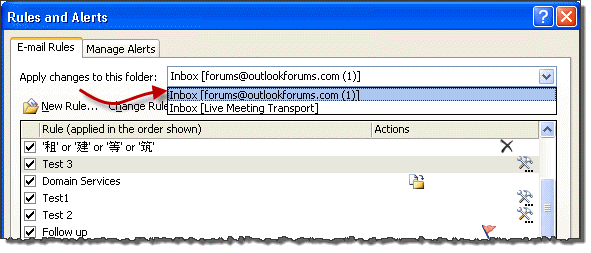
The resulting list is in this format:
1	Rule Name:Clear categories on mail (recommended)
2	Rule Name:Tips	Folder path:\\Personal Folders\Inbox\test	From:tips@outlook-tips.net
3	Rule Name:Clear categories on mail (recommended)
4	Rule Name:Autoaccept rule	Subject:'Autoaccept rule'
5	Rule Name:Test	Subject:'Test'
6	Rule Name:'?' or '?' or '?' or '?'	Body Or Subject:'?' '?' '?' '?'
7	Rule Name:Test 3	From:alias@gmail.com
8	Rule Name:DServices	Folder path:\\Personal Folders\test\t5	From:domain@mail.com
9	Rule Name:Test1	From:sally@smith.com
10	Rule Name:Test 2	From:steve@handyman.com
11	Rule Name:Follow up	From:microsoft.com
Notes: The output does not support Unicode text as rule #5 looks for four Chinese characters (in the subject or body and deletes the message as spam).
VBA Macro to List Rules
This is not the most efficient code, but it works. I tested this VBA in Outlook 2007 with only an IMAP email account in the profile. It would not work in Outlook 2010 with an Exchange server account set as default (and several accounts in the profile). I'm not sure why yet but it works in Outlook 2010 with other profiles.
Sub ListRules()
 Dim colStores As Outlook.Stores
    Dim oFileSys As Object
    Dim oStore As Outlook.Store
    Dim oRoot As Outlook.Folder
    Dim oCondition As Outlook.RuleCondition
    Dim oCondfrom As Outlook.RuleCondition
    Dim oAction As Outlook.RuleAction
    Dim colRules As Object
    Dim oRule As Outlook.Rule
    Dim oInbox As Outlook.Folder
    Dim oMoveTarget As Outlook.Folder
    Dim sOutput As String
    Dim myVar As Variant

    'On Error Resume Next
    Set oFileSys = CreateObject("Scripting.FileSystemObject")

'Create a folder named Rules on your C drive or change the path to use an existing folder
    If oFileSys.FileExists("C:\Rules\OLfilterlist.txt") Then
        oFileSys.DeleteFile ("C:\Rules\OLfilterlist.txt")
    End If
    Open "C:\Rules\OLfilterlist.txt" For Output As #1

    Set colStores = Application.Session.Stores
    Set oStore = colStores(1)
        Set oRoot = oStore.GetRootFolder
        Set colRules = oStore.GetRules

For Each oRule In colRules
sOutput = (oRule.ExecutionOrder) & Chr(9) & "Rule Name:" & (oRule.Name)
 For Each oAction In oRule.Actions
  If oAction.Enabled = True Then
    If oAction.ActionType = olRuleActionMoveToFolder Then
     sOutput = sOutput & Chr(9) & "Folder path:" & (oAction.Folder.FolderPath)
    End If

'add more actions here

  End If
 Next

  For Each oCondition In oRule.Conditions
    If oCondition.Enabled = True Then
      If oCondition.ConditionType = olConditionFrom Then
        sOutput = sOutput & Chr(9) & "From:" & (oRule.Conditions.From.Recipients(1))
      End If

'add more conditions here

    End If
 Next
            Print #1, sOutput
         Next
    Close #1
End Sub
Adding More Conditions and Actions
The basic macro was written for a specific purpose - to get the From conditions and the folder used in the Move to folder action. Adding more conditions and actions is very easy, although it does require a little knowledge of how to use the VBA Editor.
Below is a sample of the VBA needed to get the Subject, Body, and message header rules. The remaining conditions and actions will use similar code.
To use these with the code above, paste them where the 'add more conditions here' line is.
'Words in the Subject
If oCondition.ConditionType = olConditionSubject Then

'use this format when the condition may contain multiple values
   sOutput = sOutput & Chr(9) & "Subject:"
      For Each myVar In oRule.Conditions.Subject.Text
        sOutput = sOutput & "'" & myVar & "' "
     Next
End If

'Words in the body
If oCondition.ConditionType = olConditionBody Then
   sOutput = sOutput & Chr(9) & "Body:" & (oRule.Conditions.Body.Text)
End If

'Message header contains
If oCondition.ConditionType = olConditionMessageHeader Then
   sOutput = sOutput & Chr(9) & "Header:" & (oRule.Conditions.MessageHeader.Text)
End If

'body or subject
If oCondition.ConditionType = olConditionBodyOrSubject Then
  sOutput = sOutput & Chr(9) & "Body Or Subject:"
     For Each myVar In oRule.Conditions.BodyOrSubject.Text
        sOutput = sOutput & "'" & myVar & "' "
     Next
End IfThe results will be in this format:
1	Rule Name:This is a test
	Flagged:True
	Copy to:\\dianep@domain.com\Junk E-mail

2	Rule Name:Any
	Flagged:True
	Forward:True
| Conditions | Actions |
|---|---|
| olConditionAccount olConditionAnyCategory olConditionBody olConditionBodyOrSubject olConditionCategory olConditionCc olConditionDateRange olConditionFlaggedForAction olConditionFormName olConditionFrom olConditionFromAnyRssFeed olConditionFromRssFeed olConditionHasAttachment olConditionImportance olConditionLocalMachineOnly olConditionMeetingInviteOrUpdate olConditionMessageHeader olConditionNotTo olConditionOnlyToMe olConditionOOF olConditionOtherMachine olConditionProperty olConditionRecipientAddress olConditionSenderAddress olConditionSenderInAddressBook olConditionSensitivity olConditionSentTo olConditionSizeRange olConditionSubject olConditionTo olConditionToOrCc olConditionUnknown | olRuleActionAssignToCategory olRuleActionCcMessage olRuleActionClearCategories olRuleActionCopyToFolder olRuleActionCustomAction olRuleActionDefer olRuleActionDelete olRuleActionDeletePermanently olRuleActionDesktopAlert olRuleActionFlagClear olRuleActionFlagColor olRuleActionFlagForActionInDays olRuleActionForward olRuleActionForwardAsAttachment olRuleActionImportance olRuleActionMarkAsTask olRuleActionMarkRead olRuleActionMoveToFolder olRuleActionNewItemAlert olRuleActionNotifyDelivery olRuleActionNotifyRead olRuleActionPlaySound olRuleActionPrint olRuleActionRedirect olRuleActionRunScript olRuleActionSensitivity olRuleActionServerReply olRuleActionStartApplication olRuleActionStop olRuleActionTemplate olRuleActionUnknown |
Using the VBA Editor
Copy and paste the VB code into Outlook's VB Editor. You'll also need to allow macros to run. If you aren't asked if you want to allow macros when you open the VB editor, you'll need to change the macro security in Options, Trust Center to 'Always ask' about macros. We do not recommend the lowest security setting to never ask about macros.
When you paste the code, the text colors should be the same as seen in the code above. Red lines mean there is an error in the code.
- Press ALT+F11 to open Outlook’s VB editor
- If asked, you need to enable Macros
- Expand Project1 and Microsoft Office Outlook Objects
- Double-click on ThisOutlookSession
- Copy the code and paste it into the VB editor window (right pane)
- Save the changes (Ctrl+S or click the Save icon)
- Press F8 or the Run button to run the macro
For more information, see How to use Outlook’s VBA Editor
Tools
Sperry Software's Power Rules Manager, an add-in that allows you to view and edit your rules from a grid window, received a small but significant upgrade: You can now drag and drop Outlook rules right in the grid window for simple control over Outlook rule execution order. And, if you hold down the Shift key while the grid is scrolling as you drag your rules, it goes into "turbo mode" in case you have hundreds (or even thousands) of rules. It also now has several other nice enhancements including support for non-default sets of rules. | |
Timed Email Organizer is a brand new add-in which can replace or augment your Outlook rules. Unlike Outlook, this add-in will act on emails based on how old they are, supports ANDs, ORs, NOTs and wildcards in the conditions, and has a test mode so that you can see what the effect of a given rule would be if it were run. It will even import your current Outlook rules and automatically disable them for you. |

serios says
You saved me a lot of programming time, thank you very much !!! and thank you very much for sharing the code!!!
Mike M says
Hi, I loved your code!
Can you tell me how I would add the list of emails that the email is being forwarded to?
Thanks much.
Steve says
I had to uncomment the "On Error Resume Next" line in order to get rid of a "Type Mismatch" error I was getting running the macro in Outlook 2010. Not sure why the line would be in the macro, but commented out.
Marathon Oliver says
It's been two years since this thread started. I've been experimenting with having VBA display properties associated with olRuleActionStartApplication. I can understand why Diane hasn't expanded her example from years ago. Programming in Outlook VBA can be challenging.
Diane Poremsky says
I like to sow a seed with some working code to show what is possible and point users in the right direction, so they can do more on their own. :)
Gasper says
Hiya Diane,
thank you for this great website and the knowledge share.
I was trying to set an outlook task whereby an email with a specif text in the subject is 1. colour coded, 2. assigned to someone as a task for resolution within 24hrs, and 3. on the subject field a sequential identification number is assigned to the email.
The first two were easily managed but couldn't figure out how to get around the third criteria. Any help would be greatly appreciated.
Thank you and warm regards
Gasper
Diane Poremsky says
The last one is tough because Outlook doesn't use wildcard or regex commands in filters. One possibility is a run a script macro that uses regex sets a category on all mail containing the id pattern.
Moshe says
Hi, Diane.
I did everything you suggested but then I'm getting the following message:
Runtime Error: '-2147352567 (80020009)':
Could not complete the operation.
This store does not support rules.
I get this error on the very first line ("Sub ListRules()")
Can you help?
TIA
Moshe
Moshe says
Hi, Diane.
I tried to embbed your code in my home Outlook (the only one I have without Exchange), but with no result.
Before inserting the VBA code, I made sure all macros were enabled, even for add-ins (through Outlook's options). I changed the location of the output file (the only change I made in the code, in all the places) but, when I tried to run your code, I got the "Macros are not enabled for this project ........" error.
After doing some digging around, I decided to create a self-certificate and sign my code.
I tried to run the code again (after restarting Outlook) but I got a "You don't have permission" error.
I tried it again, and I got a "File already opened" error.
Do you have any idea what's going on?
BTW, my configuration is Win7 + Office 2010 32bit.
TIA
Moshe
Diane Poremsky says
As an FYI, while you are testing a macro, set macro security to low. It's easier than resigning the code. Once it's finished, then sign it.
The permission error is likely related to the file path line: C:\Rules\OLfilterlist.txt. You can use any folder & filename as long as you update the macro with the correct path. Try using your My Documents folder instead.
On the file opened error - the macro exited without closing the file as you tested it. Changing the filename in the macro is one way to get right of that error.
Starbuck says
The utility here describes something similar to what I've been using for years with Outlook 2003:
https://forums.slipstick.com/threads/86104-Inbound-email-filtering-beyond-Rules
I just upgraded to 2010 where I can't used CDO and prefer not to use Redemption, so I'm now re-writing this in C# as an add-in. I have a ton of VBA code which I'd be happy to share. Since I just wrote it for myself it's largely undocumented (and does rely on Redemption) so it probably won't do many people here any good - but VBA junkies would probably enjoy it. PM me if you have the required skills - it's not a plug-n-play solution by any stretch.
Alex says
I found exactly what I wanted to do here: https://www.experts-exchange.com/Software/Office_P...
Alex says
Thanks for the code!
This seems to just get the rule names, is there a way to get the actual condition?
Thanks
Diane Poremsky says
Yes, its possible. We need to update the macro. I just haven't had time to do it yet.
charlie arehart says
Yes, thanks for the start. Like Roger, I'm stunned that there are no built-in tools for better managing the rules. If one has dozens (or perhaps a hundred or so) rules, it can be painful simply trying to find a rule to edit it. They're not in alpha order, and you can't search them even by name, let alone by parts of the rule. It would be great, for instance, to find "what rule puts things in folder x", or "what rule is intercepting emails from user y", and so on.
So having a simple text export of the rules would be a huge help (far better than nothing). And having it list more details like the conditions and so on would be really valuable. I'm no VBA expert, so I will hope for others who may continue to refine this. Thanks.
Diane Poremsky says
For this: “what rule puts things in folder x”, try the link in More Information - you can right click on a folder and get the rules the move messages to the folder. (I haven't tried it yet.)
ROGER BERTRAND says
It works fine to list all the rules. This is one heck of a good start. It would be nice if any VBA genius would find a way to show all conditions. This would be very useful to quickly diagnose rules and ensure there is no duplication or cross over between rules.
I wonder why good Ole Microsoft does not think or want to include these kinds of UTLITIES to facilitate the user's utilization of their software. Or they prefer a 3rd party writes some little wee bit software and sell it to us…
The RWZ file is super to maintain backups off all rules, but at the same time it is only useful for that purpose.
I would for example like to have a tool just to replicate rules and tweak some conditions. This would be a lot more efficient for someone who manages many rules and where many of them are similar. We should be able to create them in any TXT editor and then save them as RWZ and load them back into MS OULOOK.
Good Ole Microsoft needs to think CUSTOMER.
Have a great day! And thanks a lot to Valk.
Roger Bertrand, P. Eng.
Terry O'Connor says
Works perfectly, as advertised.
Mind you, all 22 of my rules use text in the senders address, rather than the From: field, because this allows me to differentiate between different senders using the same newsletter client.
So, I look forward to any improvements along these lines, or better still, suggestions about how I can make such improvements myself (I'm pretty much a novice).
Cheers, Terry
Diane Poremsky says
Give it a few weeks - if i don't get around to tweaking it, I'm sure someone will post modifications. :)